How to Send P&L Report Automatically in QBO

Quickbooks Online (QBO) from Intuit is cloud accounting software used by many business owners. This functionality enables automated email reports through your preferred email service, whether you’re using QBO, Quickbooks Desktop, Quickbooks Desktop Pro, or Quickbooks Online Advanced.

P&L reports can be sent automatically through your chosen email provider (Gmail, Outlook, or webmail) to relevant stakeholders. These reports help businesses measure and analyze profitability during a specific time period.

Let’s get started!

Step-by-Step Guide: P&L Report in QBO

In order to send P&L reports automatically in QBO, you first want to make sure that your P&L is accurate and ready to be set up as a memorized report. This includes:

  • Reconciling accounts – This will ensure that the information in each revenue / expense account is accurate and up-to-date before the report is sent out.
  • Format P&L – Determine if you want to make any format changes to your P&L report before setting up the P&L report to automatically send.
  • Determine frequency –  Figure out how often you would like to set email schedule. The most common choice would be to send it out monthly.
  • Gather stakeholder information – Make sure that you have up-to-date email account information and send forms settings for recipients.

.Step-by-Step Guide:

Step 1: Navigate to the Reports Section in QBO

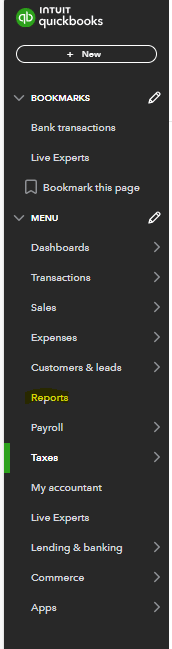
Within QBO navigate to the reports section in the menu section. This process works across platforms, including Mac and Quickbooks Enterprise systems. Use the drop-down menu to access report options.
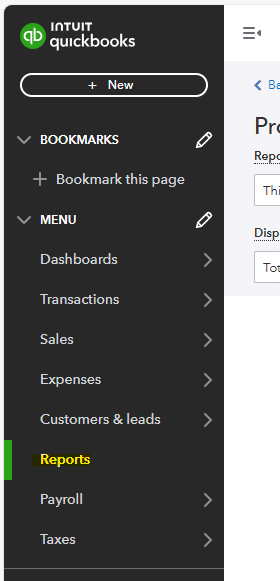
The screenshot of selecting reports in the quickbooks menu drop down.

Step 2: Add Profit and Loss Report to Custom Reports

Once you’ve navigated to the Reports section, you’ll need to add the P&L to your custom reports. To do this, select the 3 dots next to the Profit and Loss report and select Customize. Use the checkbox options to configure initial settings.

Selecting 'Customize' from the Profit and Loss menu.

Step 3: Select the Report Period for P&L Report

Once you’ve selected Customize, you will be prompted to select email preferences and report period. In this example, we are going to pull the last month for our report and then click to run that report. Select OK to confirm your choices.
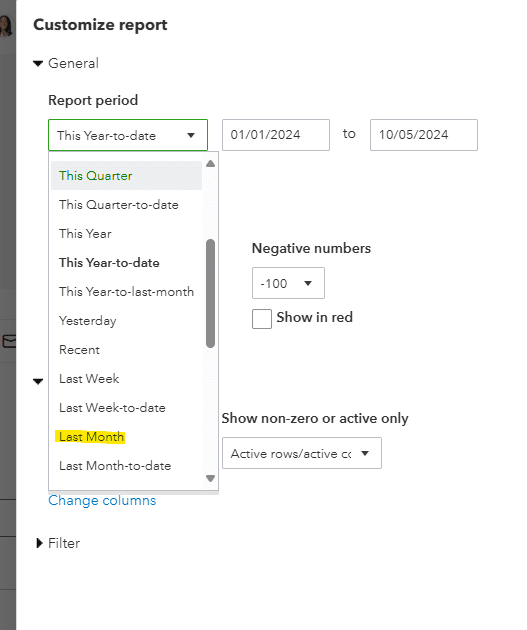
Selecting the report period and scrolling to last month

Step 4: Customize Report

After creating the P&L as a custom report in QBO, you will have the option to make changes. You can adjust any accounts pulling in and formatting within the report to be more meaningful and clearly articulate the results to your stakeholders.

Configure your preferred email provider and default email settings. Once you’ve made any relevant changes, save the customization and name your report.
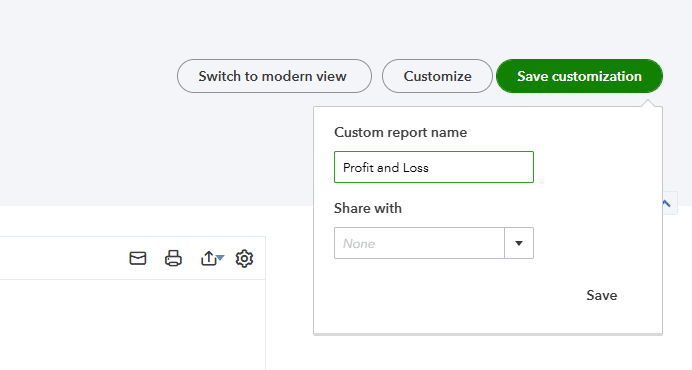
Selecting "Save Customization"

Step 5: Schedule Reports

Once you’ve created the custom reports, navigate back to the reports section. Select the relevant report that you want to schedule and click the edit menu.

Selecting "Edit" from the dropdown.

Once you’ve selected Edit, you can navigate to the set email schedule toggle and switch it from off to on. A pop-up will appear with email options.
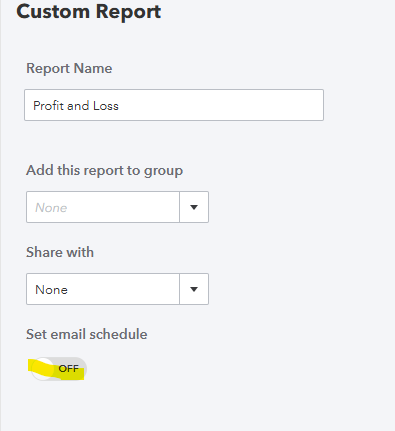
Selecting custom report and toggling on set email schedule?

Once you’ve toggled to yes, you will be prompted to set the recurrence and message that is sent with your report. This setup enhances your bookkeeping efficiency and ensures consistent reporting.

You will have the option to select the day that you would like to send the report to your stakeholder(s). You will want to select a date after you have reconciled and ensured the accuracy of the data you are sending out.

Once you’ve selected the options for your scheduled reports, hit save and close in the bottom right hand of the screen and your report will automatically send out every month.

Setting the email schedule.

Use Cases for Sending P&L Report Automatically

Automatically sending a P&L report can be useful for businesses in order to:

  • Distribute useful information on a regular basis to stakeholders.
  • Automate the distribution of reports to eliminate manual intervention.
  • Get stakeholders information in a timely manner to make decisions with the most recent information.

Improve Your P&L Reporting out of QuickBooks

P&L reports along with other standard QBO reports are useful tools for business planning and decision making. It can help stakeholders understand their financials and improve the businesses profitability By following this guide, you will be able to automatically send those reports throughout your organization.

Ready to take your data analysis to the next level?

Try Coefficient to seamlessly integrate your Excel with live data from various business systems, enabling real-time analysis and more advanced financial modeling.
How to Share QuickBooks Financial Snapshots

As a trusted accounting software for small business owners, QuickBooks Online (QBO) offers powerful financial reporting capabilities through its company snapshot feature.

This tutorial will guide you through sharing these vital financial statements and performance metrics with stakeholders, helping you leverage custom reports for better business insights.

Let’s get started!

Step-by-Step Guide: Share Financial Reports in QBO

Several company snapshot views can be generated to analyze your financial performance, including:

  • My Income – A graph showing revenue across your chosen time period (last year or current)
  • My Expenses – A graph displaying expenses that affect your income statement
  • Previous Year Comparison – Track performance against last year with integrated forecasting capabilities
  • Accounts Receivable – Monitor who owes you money through the “Who Owes Me” report
  • Accounts Payable – Track vendor payments through the “Whom I Owe” report
  • Balance Sheet Overview – Review your assets, liabilities, and equity
  • Cash Flow Statement – Monitor your cash position

Step 1: Navigating in QBO

After signing into your company file, navigate to the drop-down menu at the left side of your screen. While this guide focuses on Quickbooks Online, note that Quickbooks Desktop users will find similar functionality.

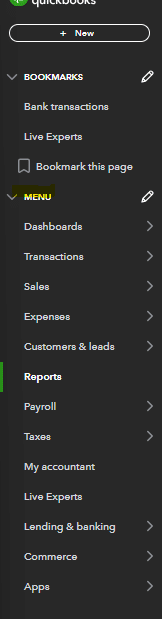
Selecting the menu dropdown in QuickBooks.

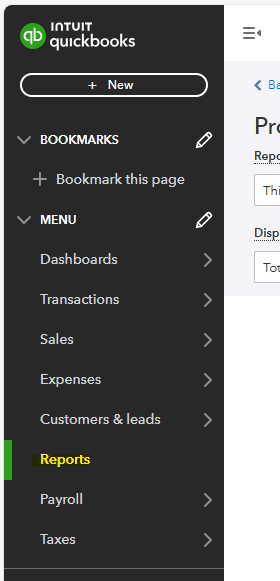
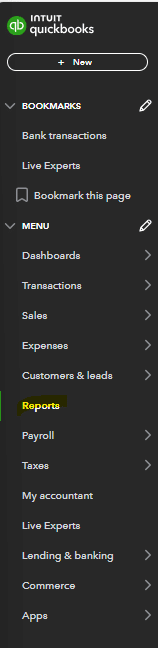
Select the reports section where you’ll find various Quickbooks reports including your loss report options.

Selecting Reports from the menu

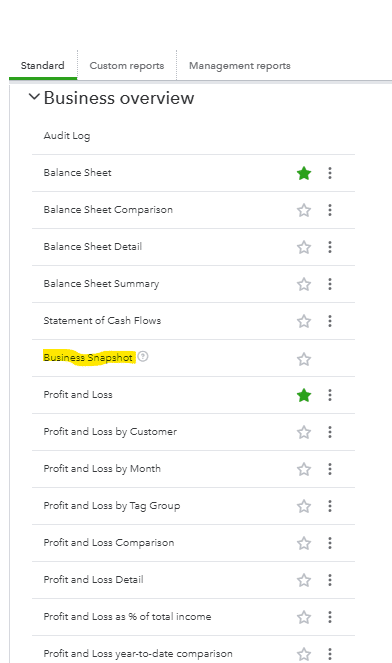
Once in the reports module you will need to scroll down to the business overview section and select the company snapshot report.

Selecting Business Snapshot from the QuickBooks menu.

Step 2: Review Your Business Snapshot Dashboard Options

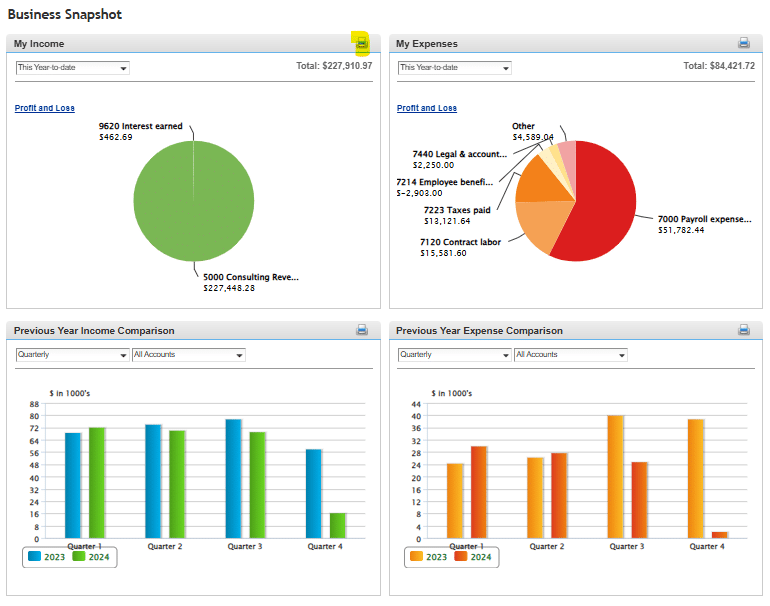
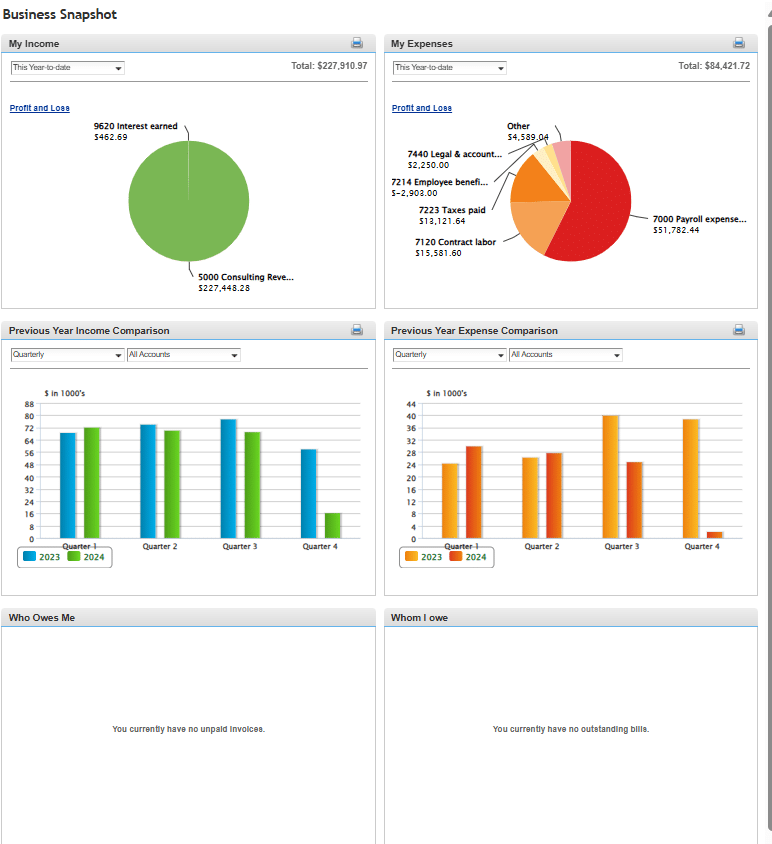
Once you’ve navigated to the business snapshot report within the business overview section you will see the screen below.

A screenshot showing the business snapshot report.

Once here you will have the option to change information pulling into the business snapshot.

  • My Income  – Select the relevant time frame you want to pull into the snapshot (This Year-to-Date, Last Month, Last Quarter, Last Year).
  • My Expenses  – Select the relevant time frame you want to pull into the snapshot (This Year-to-Date, Last Month, Last Quarter, Last Year).
  • Previous Year Income Comparison – Select the relevant time frame you want to pull into the snapshot (quarterly or monthly) and the revenue accounts you want to pull in (dependent on your chart of accounts).
  • Previous Year Expense Comparison – Select the relevant time frame you want to pull into the snapshot (quarterly or monthly) and the expense accounts you want to pull in (dependent on your chart of accounts).
  • Who Owes Me – Option to drill down into current and past due invoices.
  • Whom I Owe – Option to drill down into current and past due invoices.

Step 3: Customize Business Snapshot Report

Once you’ve analyzed your customization options within the business snapshot report you will want to select the options that best fit the needs of your stakeholders (such as your CPA).

Some factors to consider are:

  • Which metrics best demonstrate financial performance?
  • Does the date range align with reporting needs?
  • Should you include supplementary custom reports?
  • Would export to Excel be beneficial?

Step 4: Print and Share Report

After you’ve customized your business snapshot report to fit the needs of the business and message you are trying to communicate you will want to print and share the report. In order to do this you will need to select the printer icon on the right corner of the screen.

Selecting the print icon from the business snapshot.

Once you’ve selected the print option you will be able to either physically print a copy of the report out or save a digital copy to email out. You can select as many of the snapshots to send out as needed. Some stakeholders may only need to see certain snapshots.

For example, someone on the accounts payable team may only need to see the whom I owe report so they can prioritize payments that need processed to vendors. The CEO or President of the organization may only want to see the total revenue and total expenses over a certain period of time.

Use Cases for Sharing QuickBooks Financial Snapshots

Company snapshot reports help businesses:

  • Share information across departments
  • Track financial performance trends
  • Support forecasting and budgeting
  • Manage accounts receivable collection
  • Monitor accounts payable obligations

Improve Your Financial Reporting with QuickBooks Financial Snapshots.

Visual and easy to use financial snapshots are a critical communication tool for accountants and financial reporting to help tell the story of a business and allow leaders to make informed decisions. It can help provide stakeholders with the information needed to help make critical choices as they navigate the landscape that their business operates in and set financial projections.

Ready to take your financial reporting to the next level?

Try Coefficient to seamlessly integrate your Excel with live data from various business systems, enabling real-time break-even analysis and more advanced financial modeling.

How to Fix Bank Reconciliation Discrepancies in QBO

QuickBooks Online (QBO) is a cloud accounting software used by many small and midsized businesses. Bank reconciliation is done on a routine basis to ensure that all bank accounts are appropriately accounted for and match the bank statement balance. Having proper bookkeeping practices helps maintain accurate records in your QuickBooks account.

There may be discrepancies in QBO when trying to reconcile your bank account. This guide will walk you through how to fix reconciliation discrepancies and maintain an accurate account balance.

Let’s get started!

Step-by-Step Guide: Fix Bank Reconciliation Discrepancies in QBO

Before diving into the fix process, it’s important to understand what causes bank reconciliation discrepancies in your QBO account. Here are common issues that may affect your account balance:

  • Wrong Transaction Amount – Incorrect recording of credit card payments or other transactions
  • Timing Differences – Transactions on your bank statement haven’t been recorded in your QBO bank account yet
  • Missing transactions – Deleted transactions or unreconciled items not appearing in your reconciliation report
  • Duplicate transactions – Multiple entries of the same transaction affecting your beginning balance
  • Reconciliation adjustments – Previous reconciliation issues carrying forward

Step 1: Navigate to the Reports Section in QBO

Within QBO, navigate to the reports menu in the menu section. Use the drop-down menu to access your reports.

Selecting reports from the QuickBooks menu?

Step 2: Run Reconciliation Report

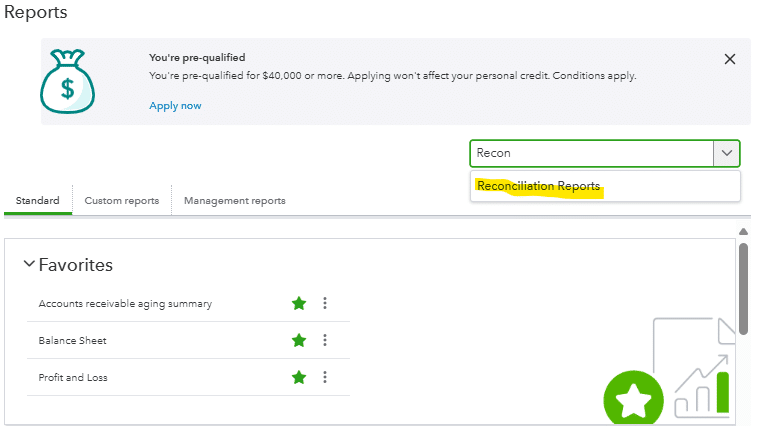
Once you’ve navigated to the reports section of QBO, search “reconciliation discrepancy report” in the account field to find report options. The system will save your recent searches for quick access.

Selecting reconciliation reports from the dropdown.

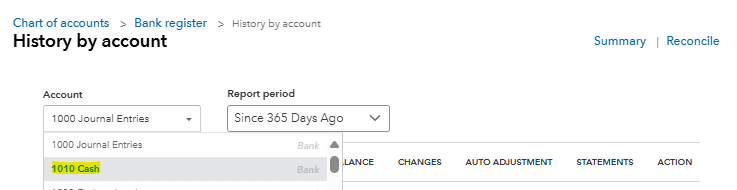
After selecting the reconciliation reports, you will be prompted to choose the account you want to reconcile from the chart of accounts. In this case, we are reconciling the bank account, so you’ll want to select your cash account.

This report can also be used to reconcile other accounts such as accounts receivable, accounts payable, etc.

Selecting the account from the dropdown menu.

Step 3: Select Reconciliation Date Range

Once you’ve selected the cash account, you will be prompted to select the statement date and ending date. To fill out these fields, you will want to select the date you want to reconcile to.

Your beginning balance should match your last reconciliation, and your ending balance should match your current bank statement.

Once you’ve selected the date, in this example 12/31/2023, you will want to pull in the bank account balance from your bank statement at that particular point in time.

Selecting the date range you want the reports to pull from.

Step 4: Run Bank Reconciliation

After you’ve run your bank reconciliation, you will be able to view register entries and see the statement balance, cleared balance, opening balance, payments, and deposits. This will allow you to see what your reconciling difference is that you need to fix.

A screenshot showing the bank reconciliation report

Appearing below the summary will be a listing of detailed transactions with a checkmark option to the right of each transaction detail report.

A screenshot showing the summary of the detailed transactions.

Step 5: Reconcile to Bank Statement

After running the QuickBooks reconciliation, you will want to review your corresponding bank statement for the timeframe you are reconciling. Compare each entry in your bank register to ensure accuracy.

A screenshot showing discrepancies?

Any discrepancy between your bank statement and your QuickBooks reconciliation would be considered a reconciling item that is causing a difference between your QBO balance and statement balance.

For any transactions that appear in your bank statement and not in your QuickBooks reconciliation, you will want to navigate back to your dashboards and bank accounts to see if it was deleted or why it isn’t pulling in from the bank. It may also be a timing issue where the transaction is showing on your bank statement on the last day of a given month and didn’t flow into QBO until the first day of the following month.

For any transactions that don’t appear on your bank statement but are showing up in your QuickBooks reconciliation, you will want to uncheck the radial box in QuickBooks. This will remove that transaction from your reconciliation.


As you work through these steps you will fix and reduce your reconciling difference to zero. Once you’ve fully reconciled your bank/cash account you can click finish now in the top right corner of your reconciliation to complete it.

Selecting 'Finish now' from the dropdown in the top-right-hand corner of the screen.

Use Cases for Fixing Bank Reconciliation Discrepancies in QBO

Fixing and running a bank reconciliation in QBO can be useful for businesses in order to:

  • Distribute accurate information to shareholders.
  • Ensure you aren’t missing any transactions when reporting and running financial statements.
  • Be able to appropriately analyze financial information to make informed decisions about your business.

Fix Your Bank Reconciliation Discrepancies in QBO

Bank reconciliation along with other account reconciliations are useful tools for maintaining accurate financial records. By following this guide, you’ll be able to fix your bank reconciliation discrepancies in QBO and help your business make crucial decisions.

Ready to take your data analysis to the next level? Try Coefficient to seamlessly integrate your Excel with live data from various business systems, enabling real-time analysis and more advanced financial modeling.
How to Run a Sales Tax Liability Report in QuickBooks Online

QuickBooks Online, a leading accounting software for small business owners, offers essential sales tax report functionality to help manage your tax collected and sales transactions.

This tutorial will guide you through how to run a sales tax liability report to ensure accurate sales tax payable tracking across each tax agency jurisdiction where you operate. By learning to properly run report features, you’ll maintain better control over your business’s tax collected responsibilities.

Let’s get started!

Tutorial: Run a Sales Tax Liability Report in QBO

Step 1: Navigating in QuickBooks

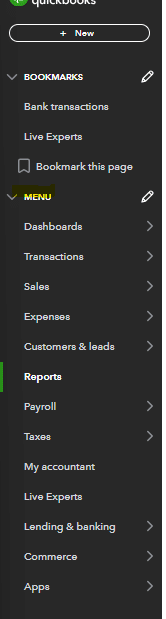
Once you’ve signed into your QuickBooks Online account, navigate to the drop-down menu at the left side of your screen. This works whether you’re using Mac or PC (note that QuickBooks Desktop has a slightly different interface).

Selecting 'Menu' and going to 'Reports' in QuickBooks

Once you’ve accessed the menu, first verify if your sales tax has been enabled. Many businesses have non-taxable sales, or may not need to charge sales tax to their end user. If your business doesn’t need to process sales receipts with tax or pay sales tax, you won’t want this feature enabled.

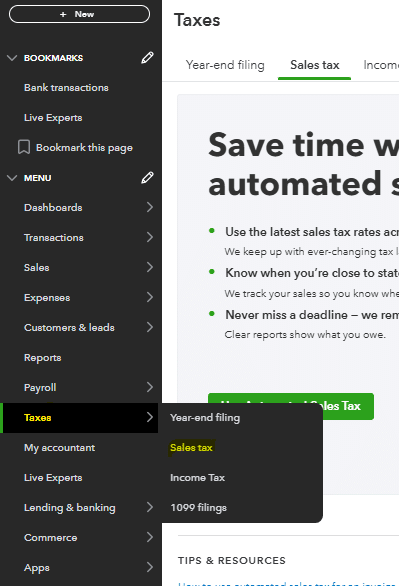
To enable sales tax in QuickBooks Online, click on the taxes – sales tax section of the menu. This is where you can manage sales tax settings.

Selecting 'Taxes' and then 'Sales Tax' in the list of options.

Once in this section, click “use tax” to begin setup. You can save your preferences for future use.

Step 2: Setting Up Automated Sales Tax

After selecting to use automated sales tax in QuickBooks Online, you’ll need to verify the correct tax category and tax rate for your jurisdiction.

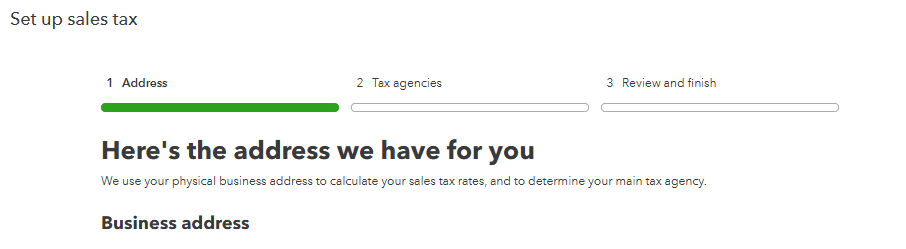
The first prompt requires your business address. This helps determine the applicable sales tax rate based on your location. Click next to proceed.

A screenshot of the first prompt confirming the tax rate based on location.

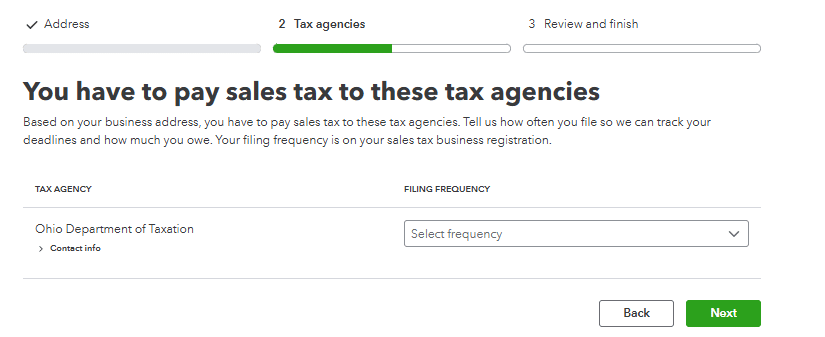
Once you’ve entered your address and selected next, you’ll reach the tax agency section. The corresponding tax agency from your business address will appear. You’ll need to select your filing frequency for your sales tax return. Consult with a bookkeeping expert about your report period.

The second prompt showing the sales tax to pay to the tax agencies.

After filling out the appropriate tax agency information, QuickBooks Online will prompt you to review and finalize. This enables tracking of your total sales tax liability and running the corresponding report.

Step 3: Navigating to Run Sales Tax Liability Report

Once you’ve enabled sales tax within QuickBooks Online, you can generate the report to see your tax amount due.

Navigate back to the reports menu in QuickBooks Online. Select “go to reports” from the menu.

Selecting 'Menu' and going to 'Reports' in QuickBooks

Once in the menu, select the reports.

Selecting Reports from the drop-down menu.

Step 4: Run Sales Tax Liability Report

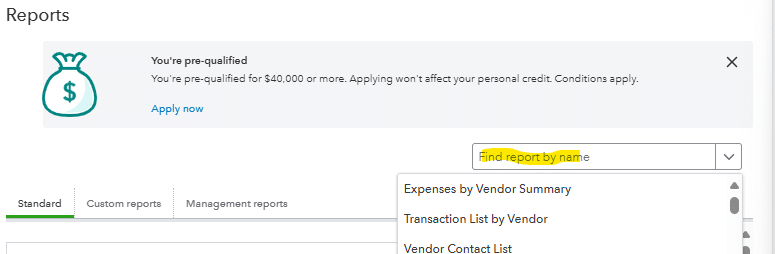
In the report module, search for “sales tax liability report” in the search bar at the top of the reports menu. You can customize reports as needed.

Selecting the sales tax liability report from the dropdown

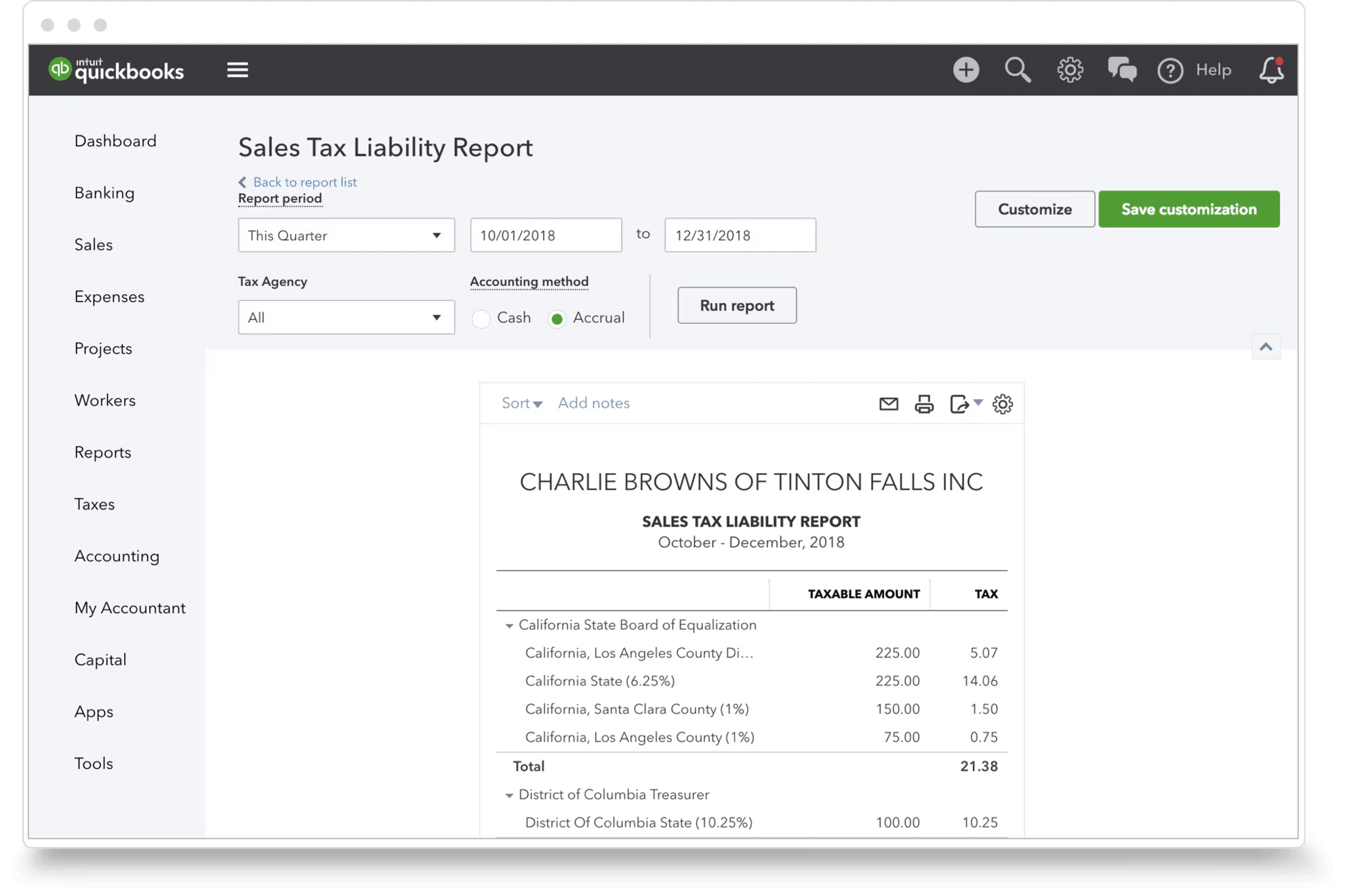
After selecting the sales tax liability report, choose the date range and tax agency. This reporting is typically done on a monthly or quarterly basis for sales tax payments. You can select a particular tax agency if your business operates across multiple jurisdictions.

A screenshot showing the Sales Tax Liability report.

After selecting the relevant timeframe and jurisdiction, you’ll have the necessary information about your sales tax due. This helps track how your total sales and taxable amount have changed over time.

Use Cases for Sales Tax Liability Reports

Sales tax liability reports can help businesses:

  • Track and pay sales tax in a timely manner to avoid discrepancies
  • Analyze which jurisdictions’ tax rate affects gross sales
  • Provide reporting for journal entries and credit memo processing
  • Accurately apply sales tax to each transaction based on location

Improve Your Sales Tax Accuracy and Reporting with Sales Tax Liability Reports and QuickBooks


Tax compliance is essential for every business. The sales tax liability report from QuickBooks Online provides an easy-to-use tool for ensuring accurate sales tax payments to appropriate jurisdictions. It helps verify correct tax collected on a transaction-by-transaction basis.

Try Coefficient to seamlessly integrate your Excel with live data from various business systems, enabling real-time analysis and more advanced financial modeling.
Top 5 QuickBooks Reporting Tools in 2026 [w/ Feature Comparison]

QuickBooks users need more than basic reporting features. Third-party reporting solutions add advanced capabilities, automation, and analytics that help businesses analyze their financial data and make faster decisions.

Let’s explore a few of the top QuickBooks reporting tools in more detail!

QuickBooks Reporting Tools Feature Comparison (2026)

FeatureCoefficientDomoTableauFathomSpreadsheet Sync
Row Limits5,000 (Free) | Unlimited (Paid)10M+Unlimited100K-500K1,000
Data RefreshReal-time (Pro) | Hourly (Pro) | Daily (Starter)15 minDailyDailyHourly
Starting Cost$0/mo (Free) | $49/mo (Paid)~$750/user/year$15/user/mo$50/moIncluded w/ QB Advanced ($235/mo)
Viewer LicenseFree$750/year$15/moN/AN/A
Data Sources100+1000+200+QuickBooks onlyQuickBooks only
AI FeaturesYes (Advanced)YesLimitedNoNo
AlertsYes (Slack/Email)YesYesLimitedBasic
SecuritySOC 2 Type IISOC 2, HIPAA*SOC 2SOC 2Basic
MoM/YoY ComparisonYesYesYesYesNo
Live SyncYesYesNoNoNo

*HIPAA compliance available with Business Critical plan only

1. Coefficient – Real-time QuickBooks Reporting

QBO revenue dashboard in spreadsheets using Coefficient

Forget learning another dashboard tool. Coefficient brings QuickBooks data directly into the spreadsheets you already use.

Key Features

  • Two-way sync between QuickBooks and spreadsheets (yes, you can push data back)
  • Live data updates that refresh automatically on schedule
  • Multi-source blending – combine QuickBooks with Salesforce, HubSpot, SQL databases
  • AI-powered analysis for instant insights and formula generation
  • AI-powered dashboard creation for instant reporting and sharing with leadership
  • More standard reports with advanced filters and sorting options
  • Period comparisons built-in (MoM, YoY, QoQ) without formulas
  • Streamlined UX – no more preview steps slowing you down
  • Professional styling that persists through refreshes
  • Smart formatting that respects your custom edits

Pros:

  • Zero learning curve if you know spreadsheets
  • Your reports stay live—no more “as of” timestamps
  • Free tier actually useful for small teams
  • Connects 100+ other tools beyond QuickBooks

Cons:

  • Requires Google Sheets or Excel (not standalone)
  • Advanced AI features need higher tiers
  • Limited visualization compared to dedicated BI tools

Pricing

  • Base fee: Free plan available | Paid starts from $49 / month

2. Domo – Enterprise Analytics Platform

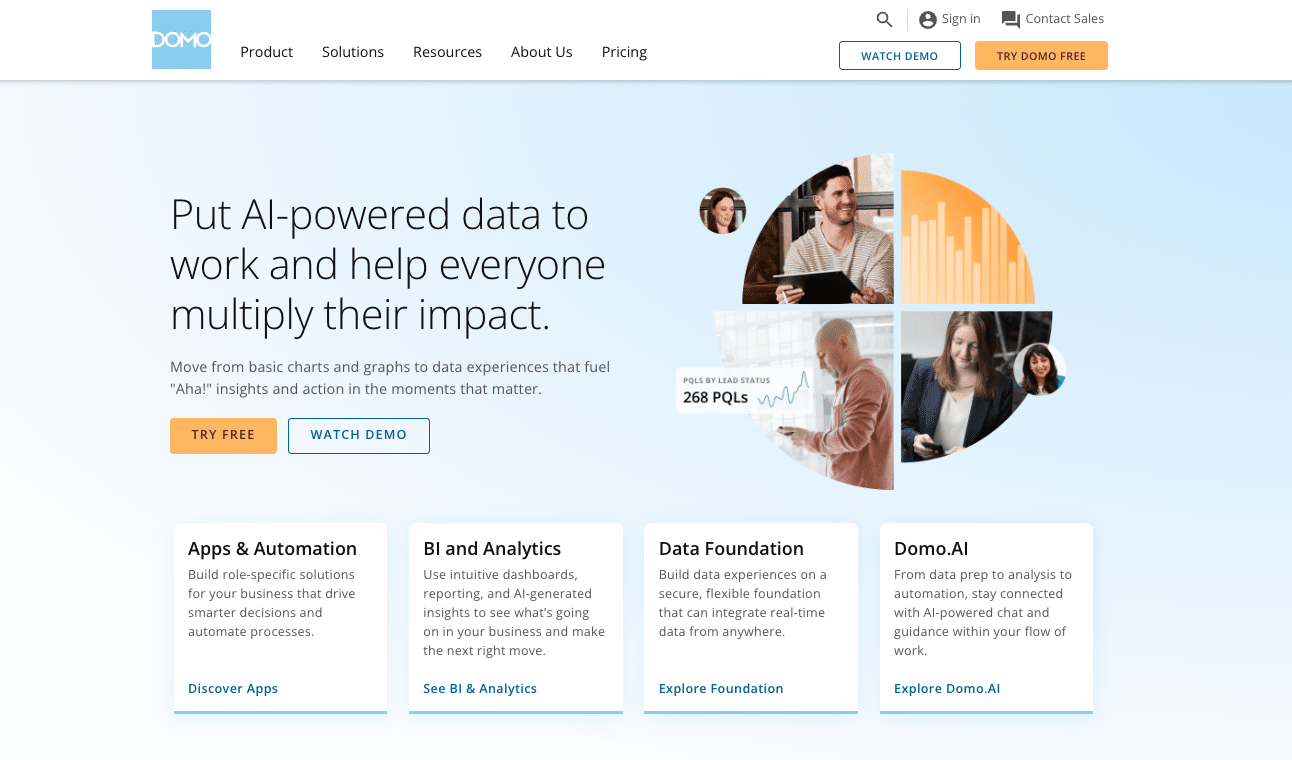
A screenshot of Domo's home screen menu.

Domo combines business intelligence with collaboration features, making it suitable for large teams that need to share and analyze QuickBooks data across departments.

Key Features

  • Advanced data visualization options
  • Built-in AI analytics
  • Mobile-first design
  • Custom app development options

Pros

  • Extensive data source connections
  • Strong mobile experience
  • Rich visualization library
  • Enterprise-grade security

Cons

  • Higher price point
  • Complex setup process
  • Requires technical expertise
  • Minimum contract commitments

Pricing

  • Standard: Starts at $83/user/month (5-user minimum)
  • Enterprise: Custom pricing
  • Business Critical: Custom pricing with advanced security

Support

  • Standard: Customer portal and business hours support
  • Premium: 24/7 support with dedicated team (Enterprise/Business Critical)
  • Technical consultation available for complex implementations

3. Tableau – Advanced Data Visualization

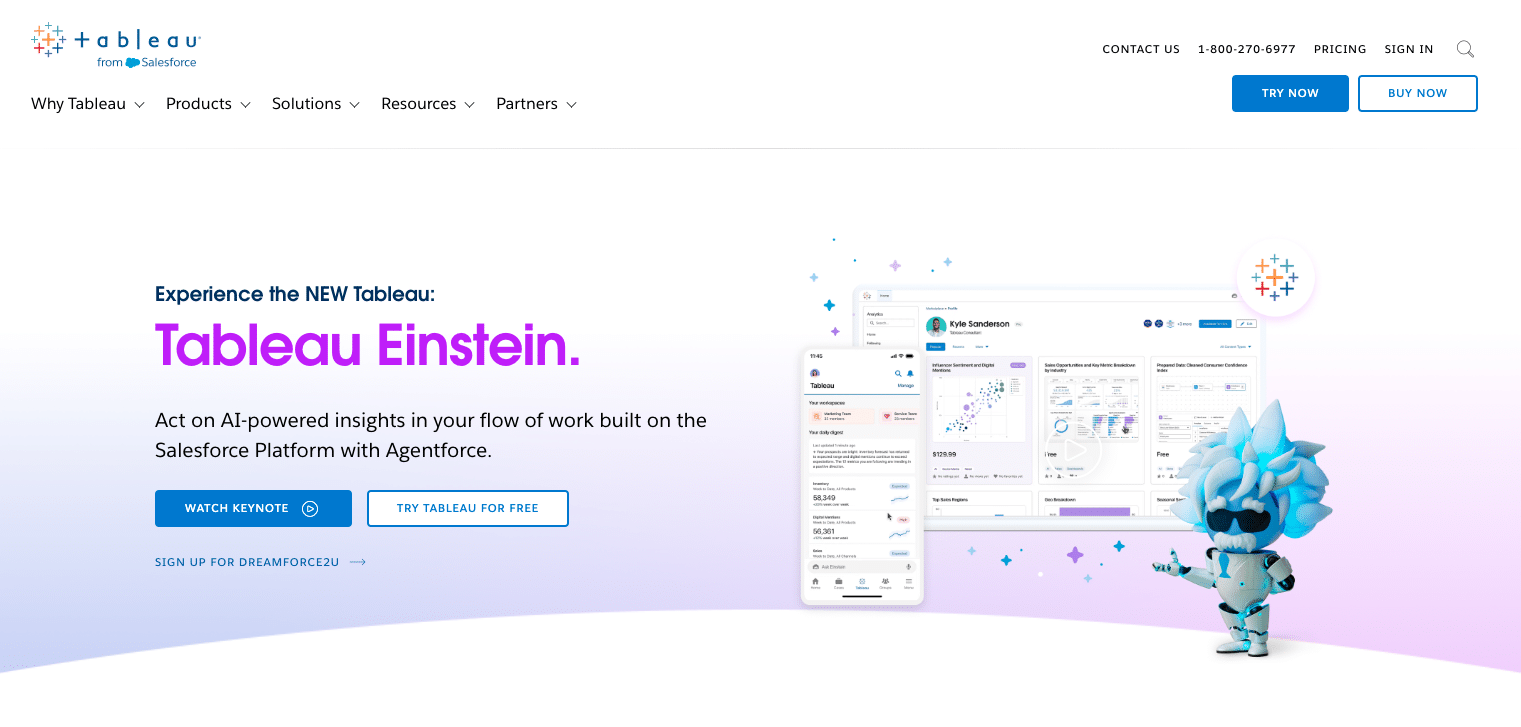
Screenshot of Tableau's home screen menu.

Tableau specializes in creating visual representations of data. It’s popular among data analysts and businesses that need to create detailed, interactive dashboards from their QuickBooks and other financial data.

Key Features

  • Drag-and-drop interface
  • Advanced calculations
  • Interactive dashboards
  • Statistical analysis tools

Pros

  • Powerful visualization capabilities
  • Extensive customization options
  • Strong community support
  • Regular feature updates

Cons

  • Significant learning curve
  • Higher cost structure
  • Complex for basic users
  • Resource-intensive

Pricing (As of October 2025)

  • Creator: $75/user/month (full features)
  • Explorer: $42/user/month (limited creation)
  • Viewer: $15/user/month (view only)
  • Enterprise: Custom pricing with advanced features

Support

  • Standard: Online resources and email support
  • Premium: 24/7 technical support (Enterprise plans)
  • Advanced Management: Enhanced security and deployment options

4. Fathom – Financial Analysis Focus

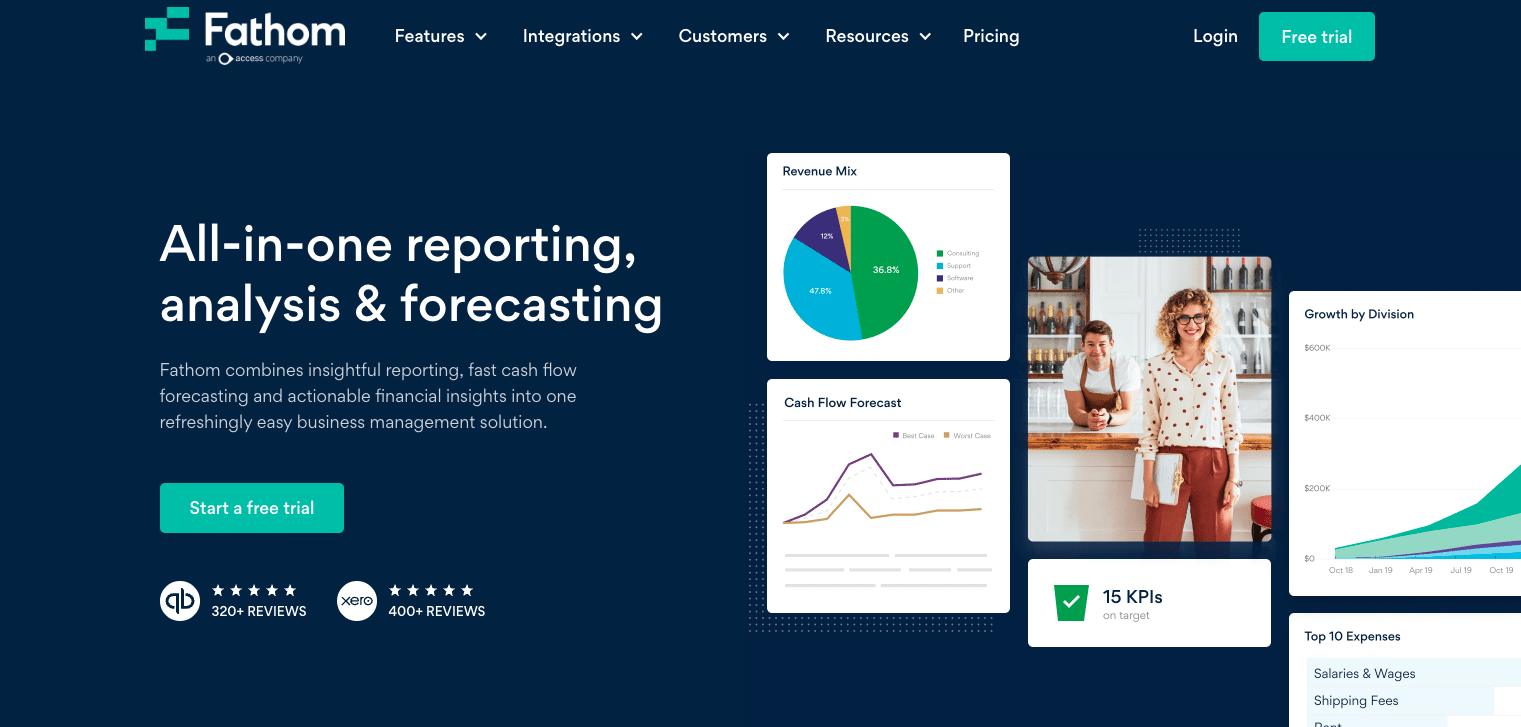
Screenshot of Fathom's homescreen

Fathom focuses specifically on financial analysis and reporting, making it a good fit for accountants and financial teams who need to create standardized reports from QuickBooks data.

Key Features

  • Financial KPI tracking
  • Automated reporting
  • Benchmark comparisons
  • Cash flow analysis

Pros

  • QuickBooks-specific features
  • Easy financial analysis
  • Clear reporting templates
  • Quick setup process

Cons

  • Limited to QuickBooks data
  • Basic visualization options
  • Row limits on lower tiers
  • Restricted customization

Pricing (As of October 2025)

  • 1 Company: $50/month
  • 10 Companies: $260/month
  • 20 Companies: $380/month
  • 50+ Companies: $680/month

Support

  • All Plans: Email support and online resources
  • Enterprise: Priority support with faster response times
  • Custom onboarding available for larger clients

5. Spreadsheet Sync – Basic Integration

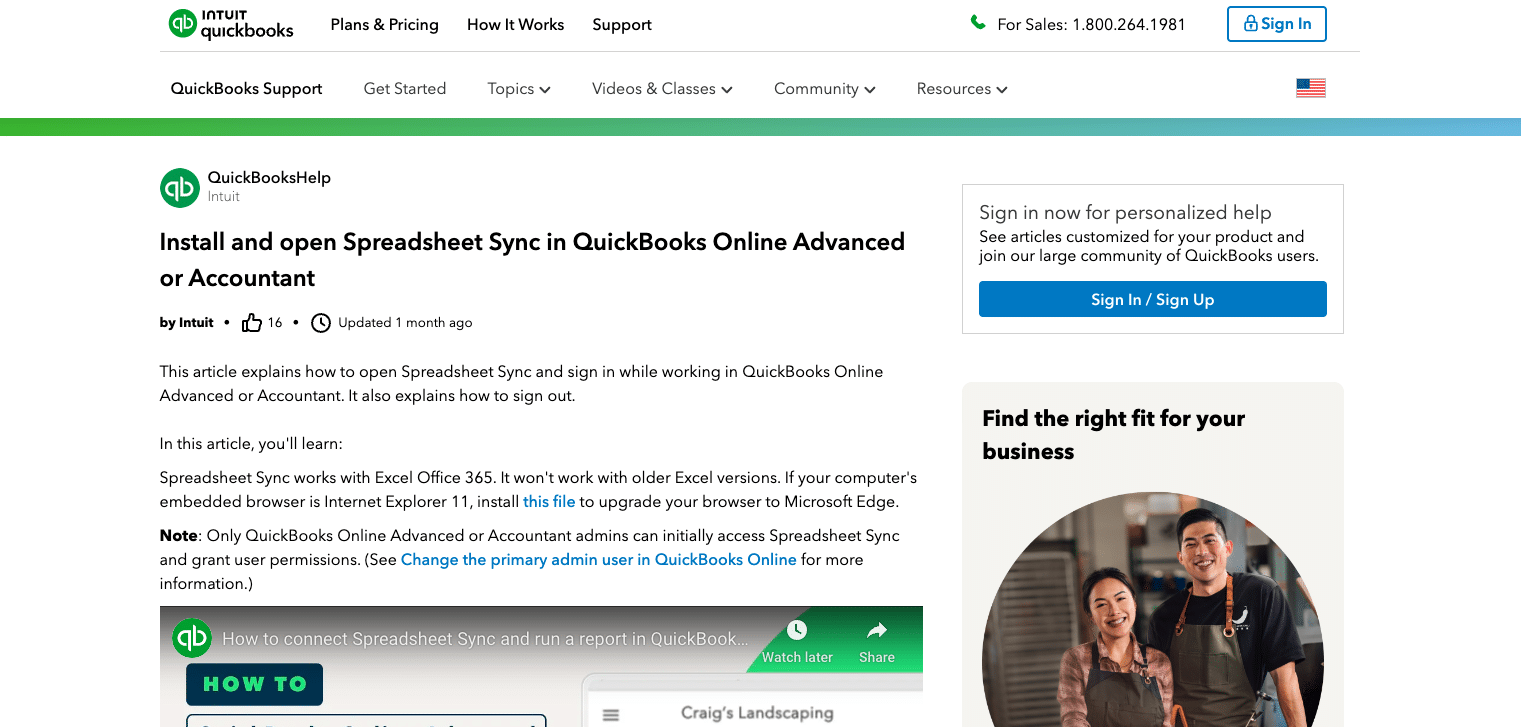
A screenshot of Spreadsheet Sync in QuickBooks Online Advanced.

Spreadsheet Sync is QuickBooks’ native Excel integration tool, included with QuickBooks Online Advanced subscriptions. It’s best suited for basic data export needs.

Key Features

  • Basic data sync
  • Scheduled updates
  • Template library
  • Excel compatibility

Pros

  • Low cost option
  • Simple interface
  • Quick setup
  • Basic templates included

Cons

  • Limited row capacity
  • Basic security features
  • Hourly refresh only
  • No real-time updates

Pricing (As of October 2025)

  • Included with QuickBooks Online Advanced: $235/month
  • Currently 50% off first 3 months: $117.50/month
  • No standalone pricing available

Support

  • Dedicated support team available Monday-Friday, 6 AM-6 PM PT
  • Access through QuickBooks Online help center
  • Standard QuickBooks support channels

Make Better QuickBooks Reports Today

QuickBooks reporting tools enhance your financial analysis and decision-making. Each solution offers unique advantages, but Coefficient stands out for its real-time syncing and spreadsheet integration. Start building better reports today by trying Coefficient’s free plan. [Link to https://coefficient.io/get-started]

Further Reading

Frequently Asked Questions

What reporting software works with QuickBooks? 

While several tools work with QuickBooks, Coefficient offers direct integration with both Google Sheets and Excel, providing real-time data syncing and automated reporting capabilities.

Does QuickBooks have built-in reporting? 

Yes, QuickBooks includes basic reporting features. However, tools like Coefficient extend these capabilities with real-time updates, custom visualizations, and automated distribution.

What is the most useful QuickBooks report? 

The Profit & Loss statement is essential, but Coefficient allows you to customize and combine multiple reports for comprehensive business analysis.

What is QuickBooks Smart reporting? 

QuickBooks Smart reporting provides basic analytics. Coefficient enhances these features with real-time data syncing and automated report distribution.

How to Export QuickBooks Data to Excel

If you want to connect QuickBooks to Excel, this blog is for you.

QuickBooks is an indispensable tool for businesses managing their accounting and financial processes.

Yet, when it comes to data analysis, reporting, and sharing insights, Excel remains unmatched for many professionals. Linking QuickBooks data with Excel not only enhances your reporting capabilities but also provides greater flexibility in managing financial data.

Here’s a step-by-step guide on how to connect QuickBooks to Excel, highlighting some of the most popular methods.

TLDR

  • Step 1:

    Get Started by installing Coefficient extension for Excel.

  • Step 2:

    You will see a “Coefficient” tab at the top nav bar. Select ‘Open Sidebar’ to launch Coefficient.

  • Step 3:

    Click Import Data from the Coefficient sidebar, then select Quickbooks.

  • Step 4:

    Authorize and click Connect on the Quickbooks popup window.

  • Step 5:

    Choose the QuickBooks reports and fields you want to pull data from.

  • Step 6:

    Click import. QuickBooks data will auto-populate in Excel within seconds. You can even set your data import on a refresh schedule.

TL;DR: Coefficient is the fastest and safest way to Export data from QuickBooks to Excel

Coefficient integrates QuickBooks to Excel in a single click, with no coding required. And, it’s a bi-directional connection.

In fact, Coefficient can connect Excel to any business system, enabling you to blend and analyze your QuickBooks data with a variety of other data sources, including:

Coefficient’s automatic data updates allow you to build live accounting reports and dashboards in Excel with your QuickBooks Data. You can pull reports with added filters and sorts, compare performance across periods (e.g., MoM, YoY), and pull raw data from Objects, Classes, Vendors, and more.

To make reporting even more effective, Coefficient provides professional on-sheet styling with report headers, cell highlighting, and formatting that persists and respects your edits.

And with Slack/email alerts, you can update stakeholders in real-time when key accounting reports and KPIs change. It’s the easiest way to connect Excel to QuickBooks, pull in accounting data, develop real-time dashboards, and share them with your team.  

How to Export Data from QuickBooks to Excel: Top 3 Methods

While there are many ways and tools to connect QuickBooks to Google Sheets, we’ll focus on the best methods in this guide.  

Method 1. Coefficient (no code)

Coefficient’s no-code solution is the fastest and easiest option to export QuickBooks data to Excel. Especially for Excel for Web users who can’t access Power Query.

Step 1: Install Coefficient for Excel

To kick start the process, open a new workbook. Click ‘File’ > ‘Get Add-ins’ > ‘More Add-Ins.’

get coefficient for quickbooks in excel

Search for Coefficient and click “Add” to install it.

add coefficient extension to connect quickbooks to excel

A pop-up will open up. Follow the prompts to complete the installation.

authorize coefficient to import data into excel from quickbooks

Step 2: Connect Your QuickBooks Account

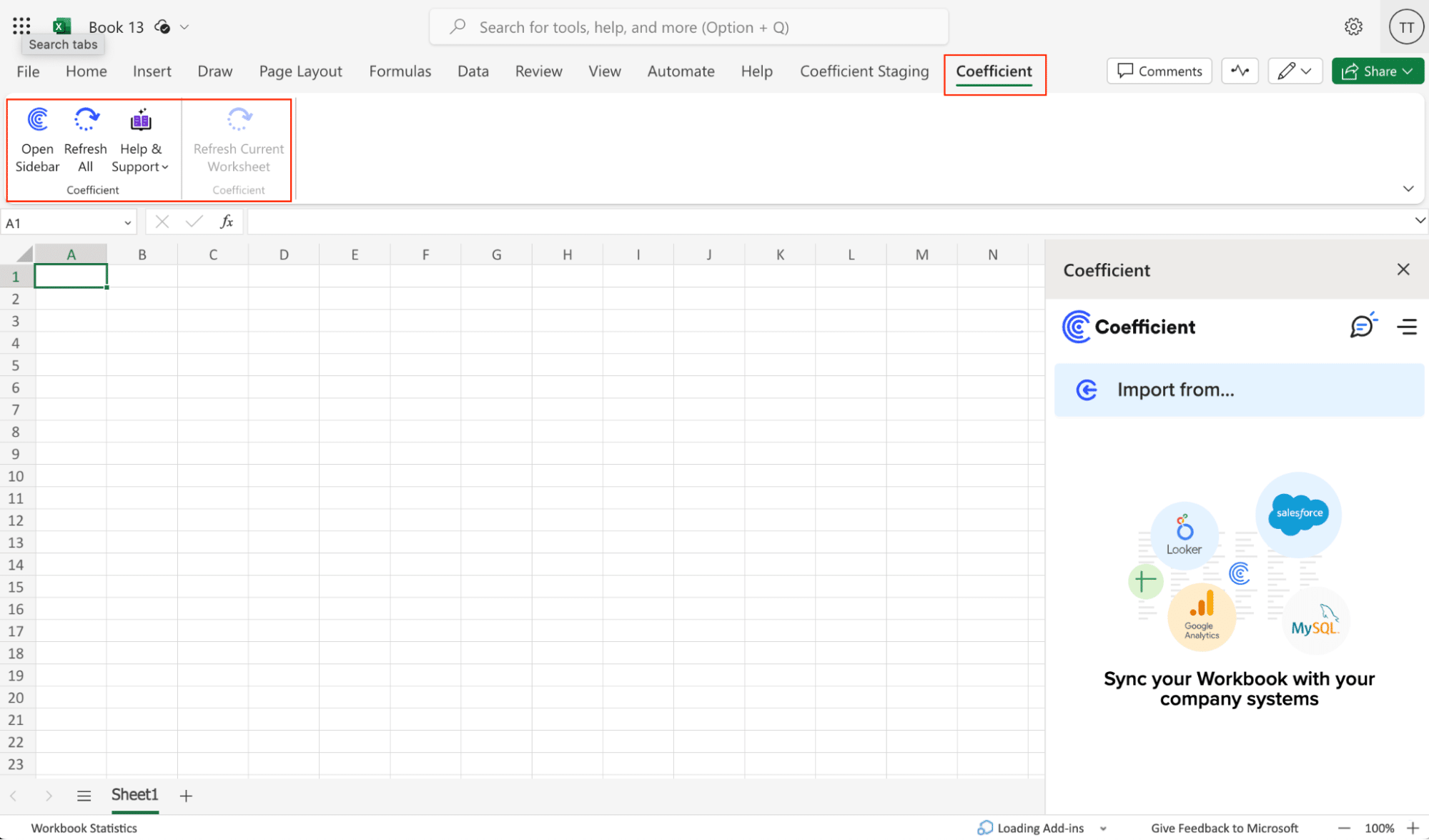
After installation, you will see a “Coefficient” tab at the top navigation bar.

Select ‘Open Sidebar’ to launch Coefficient.

open coefficient to begin your import from quickbooks into excel

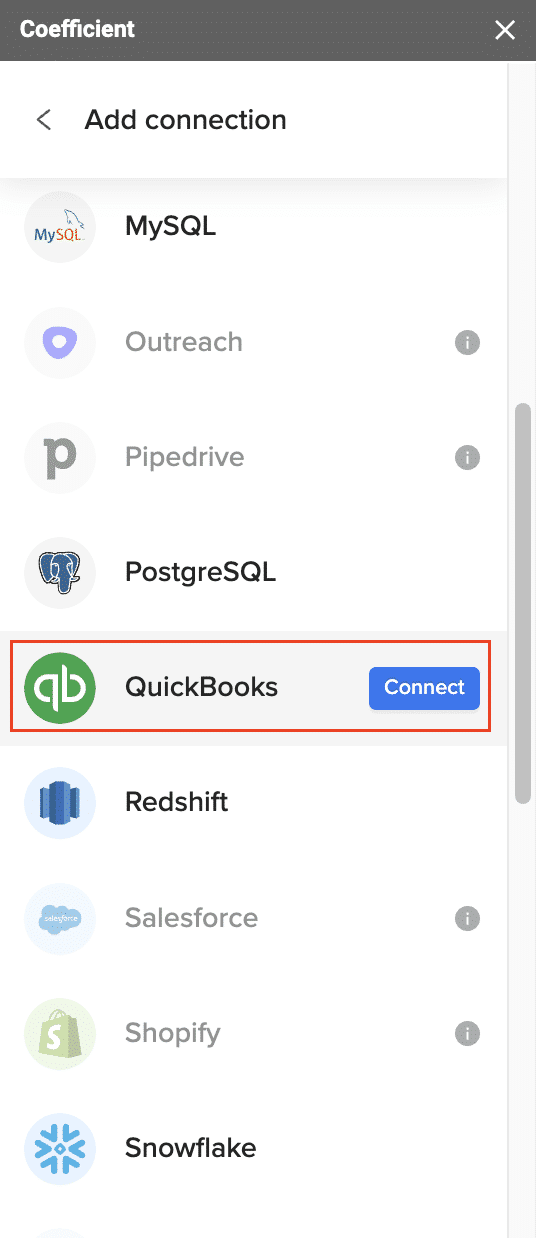
Click ‘Import from…’ and scroll down until you find QuickBooks. 

Click ‘Connect’ to continue.

connect quickbooks to excel with coefficient

A couple notes:

  • You need Admin access in QuickBooks to establish a connection with Coefficient.
  • QuickBooks API permits only one admin to connect through Coefficient simultaneously.
  • You can connect multiple QuickBooks accounts to Excel with Coefficient.

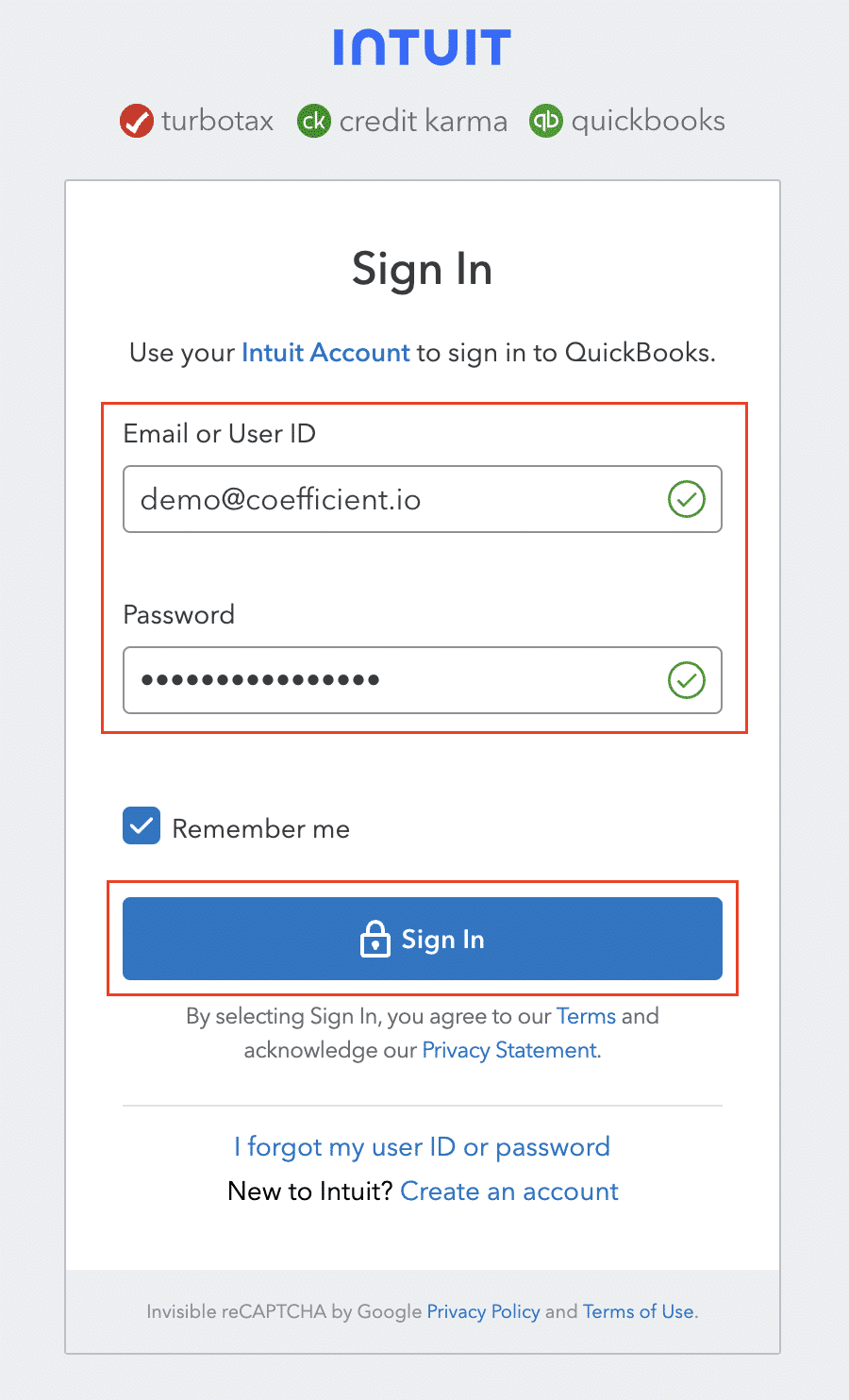
Follow the prompts to connect Coefficient to your QuickBooks account.

authorize coefficient access to quickbooks

Step 3: Define QuickBooks Data to Export to Excel

Next, specify the QuickBooks data you’re looking to bring into Excel.

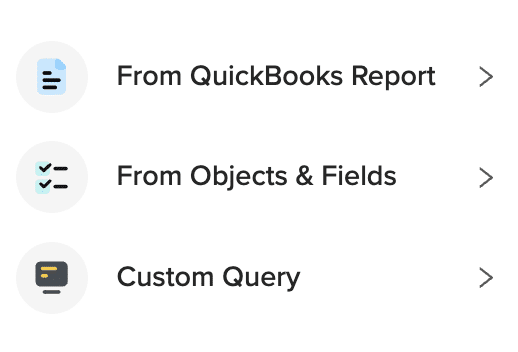
Coefficient’s flexibility allows you to choose from over 17 standard QuickBooks reports, build one from scratch, or write a custom query.

import from quickbooks into excel

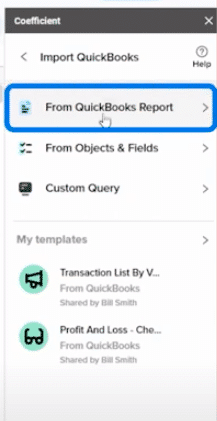
Click ‘From QuickBooks Report’ to continue.

import a quickbooks report into excel

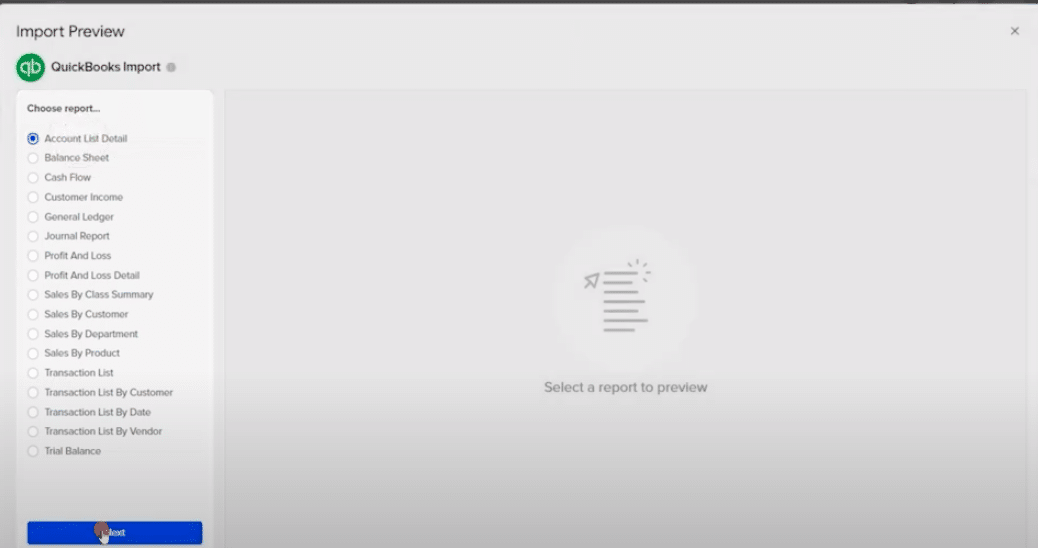
Choose a Report from the list then hit ‘Next.’

quickbooks import selection for excel

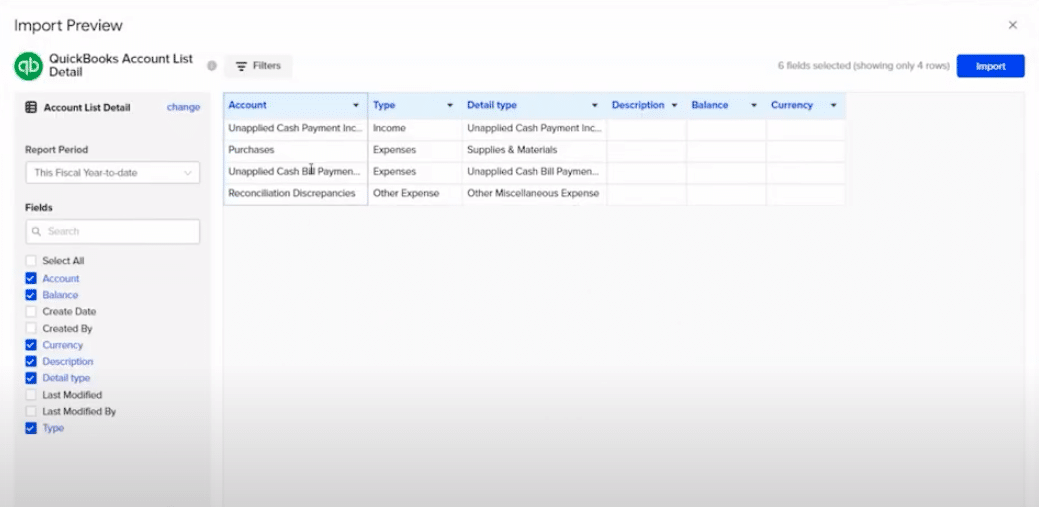
Customize your Report import by selecting “Display Columns By” and applying filters such as “Report Period” and “Accounting Method”.

refine quickbooks import filters for excel

Select your desired fields and click ‘Import.’

In just a few seconds, your QuickBooks export to Excel will automatically populate your spreadsheet.

how an automated quickbooks import into excel looks

Step 4: Set Data Refresh Schedule

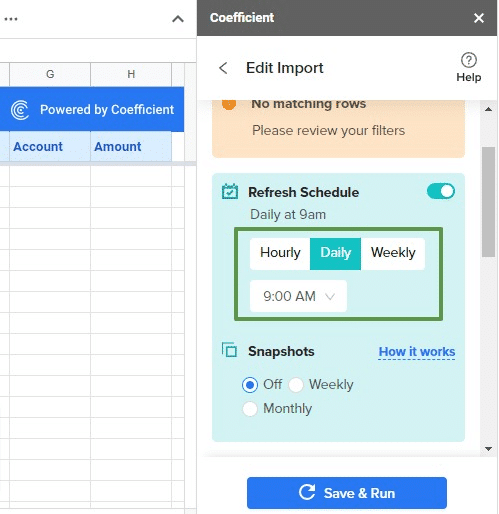
To maintain up-to-date records in Excel, Coefficient enables setting an automatic data refresh rate. Opt for hourly, daily, or weekly updates to keep your Excel reports consistently current with real-time QuickBooks data.

set a refresh schedule for your quickbooks import into excel

Pros:

Cons:

  • Enterprise features require a paid subscription.

Method 2. QuickBooks Manual Export to Excel

QuickBooks itself offers built-in capabilities to export reports directly to Excel but with a few caveats:

  1. You must have QuickBooks Online Advanced
  2. Payroll reports cannot be exported to Google Sheets
  3. QuickBooks data exports are static and cannot be automatically refreshed

Step 1: Choose Report in QuickBooks

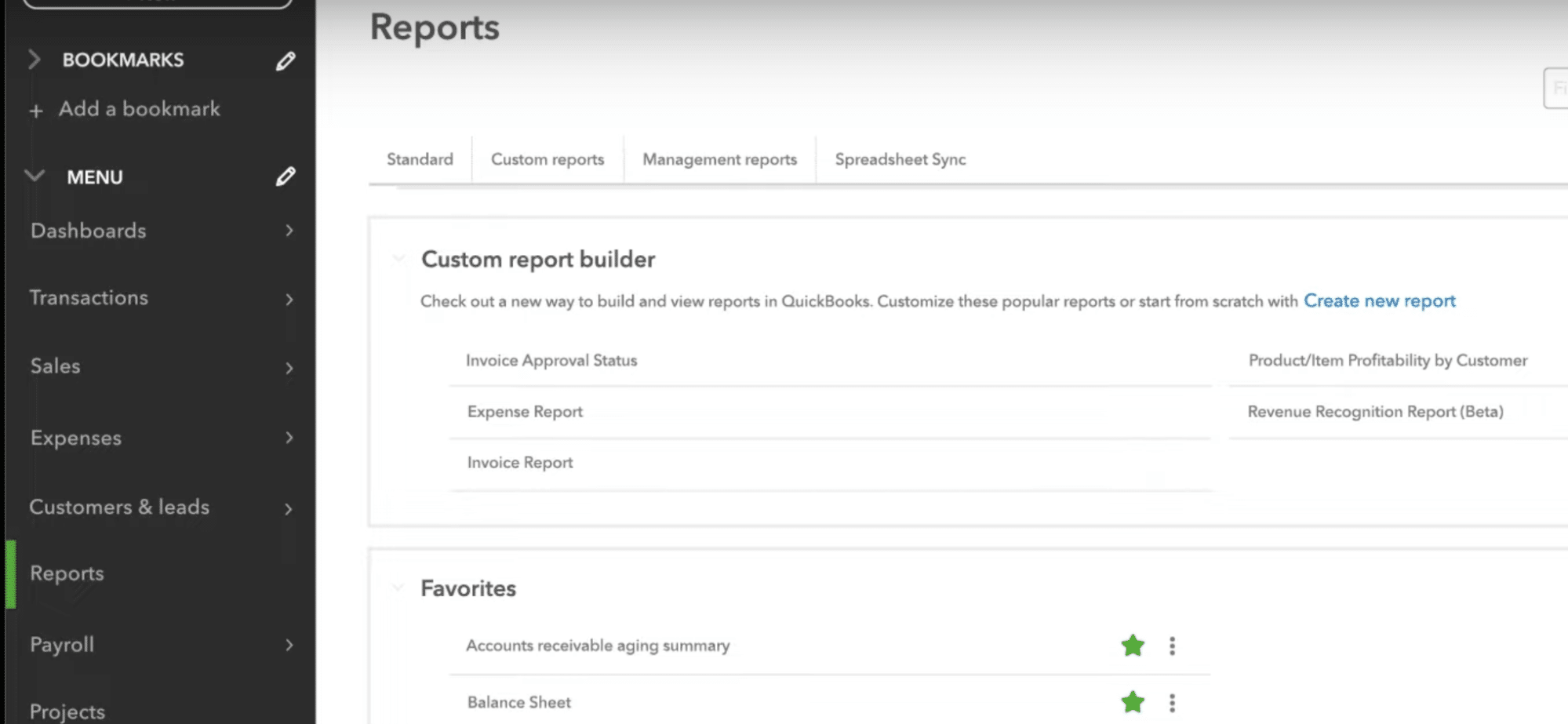
First, navigate through your QuickBooks account to select the report or data you wish to export.

custom report builder quickbooks

Step 2: Export to Excel

Utilize QuickBooks’ export function to save the report as an Excel file (.xlsx). This option can typically be found in the report viewing window.

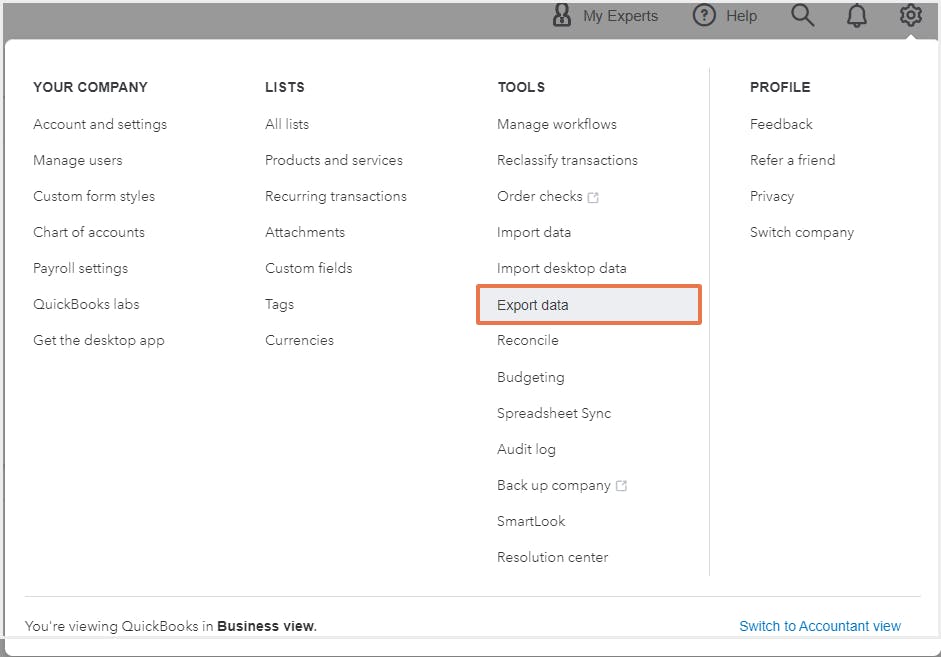
Click ‘Export data’ underneath the column labeled ‘TOOLS.’

export data manually from quickbooks

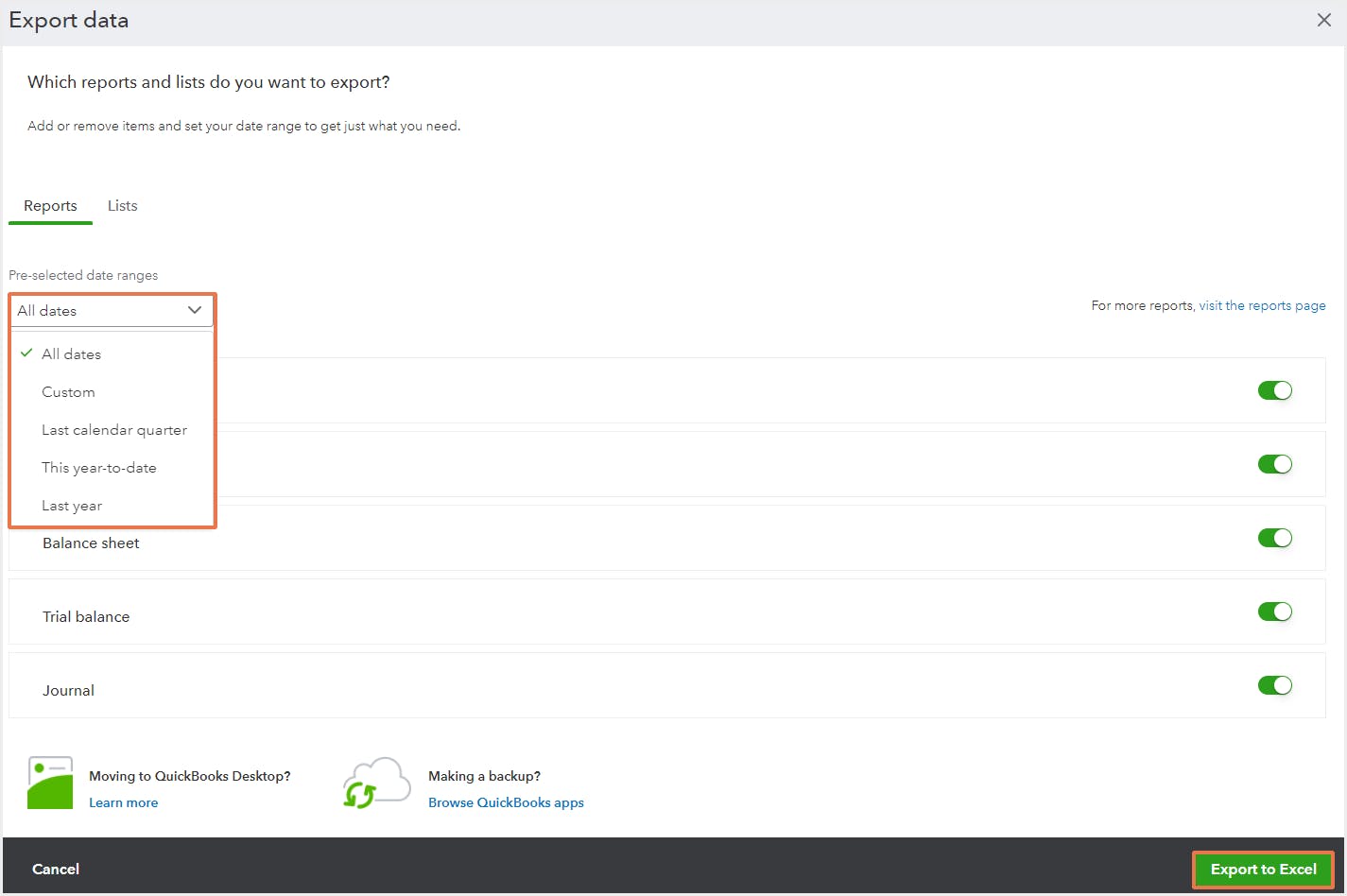
Select the date range you want to export: ‘All dates,’ ‘Custom date range,’ ‘Last calendar quarter’, ‘This year-to-date,’ and ‘Last year.’

require quickbooks data export

Finally, toggle off unwanted fields to remove them from your export.

Click the ‘Export to Excel’ button in the bottom right corner.

Your data will download as a ZIP file. Open it to access your CSV.

Step 3: Open and Analyze in Excel

With the file saved, simply open it in Excel to leverage Excel’s powerful analytical tools on your QuickBooks data.

Cons of QuickBooks Export to Excel:

  • Exporting data to Excel needs to be done by hand every time, which is time-consuming.
  • Exported data won’t automatically update, so you might use old information unless you keep exporting new data.
  • After exporting, you often have to spend more time in Excel arranging the data how you need it.

Method 3. Power Query (Only for Desktop)

If you’re using Excel for Desktop and want to integrate QuickBooks data, Power Query is a good alternative for more technical users. It simplifies importing, refreshing, and managing QuickBooks data within Excel, enhancing your analysis and reports.

Here’s how to connect QuickBooks to Excel using Power Query in a few steps.

Step 1: Open Power Query in Excel

From Excel, access Data > Get Data > From Other Sources > From Web. Power Query will prompt you for a web API URL.

Step 2: Connect to QuickBooks Online

Enter your QuickBooks Online API endpoint. You’ll need to go through authentication steps to establish a secure connection.

Step 3: Load and Transform Your Data

Select the specific sets of data you want to import into Excel. Power Query allows for data transformation and conditioning before loading it into your worksheet for analysis.

Power Query Cons:

  • Getting the hang of Power Query’s many features can take some time, especially if you’re new to handling data.
  • Power Query works just on the Excel Desktop app, not on web or mobile versions.
  • Linking to QuickBooks Online with its API is complex and needs regular checks and maintenance to keep it working correctly.

Streamlining Financial Data Analysis and Reporting

Exporting data from QuickBooks to Excel expands your data manipulation and reporting capabilities significantly. Coefficient streamlines this integration, making it efficient for anyone on your team to develop comprehensive dashboards and reports in Excel using QuickBooks data.

Ready to transform your financial reporting and data analysis workflows? 

Get started with Coefficient today for seamless QuickBooks to Excel integration, and harness the full potential of your financial data.

How to Export Invoices from QuickBooks? Top 2 ways

Exporting invoices from QuickBooks is crucial for analyzing financial data. Learn two quick methods to extract your invoice information quickly and accurately.

Method 1: Automatically with Coefficient

Coefficient is a powerful data integration tool that connects QuickBooks to spreadsheet applications. It allows real-time syncing of QuickBooks data, including invoices, directly to Google Sheets or Excel for advanced analysis and reporting.

Benefits of using Coefficient:

  1. Real-time data synchronization ensures your spreadsheets always contain the most up-to-date information.
  2. Automated report generation saves time and reduces manual errors.
  3. Customizable data views allow you to tailor the exported information to your specific needs.
  4. Seamless integration with Google Sheets and Excel makes it easy to work with familiar tools.

Step-by-step walkthrough:

Step 1. Install Coefficient

For Google Sheets

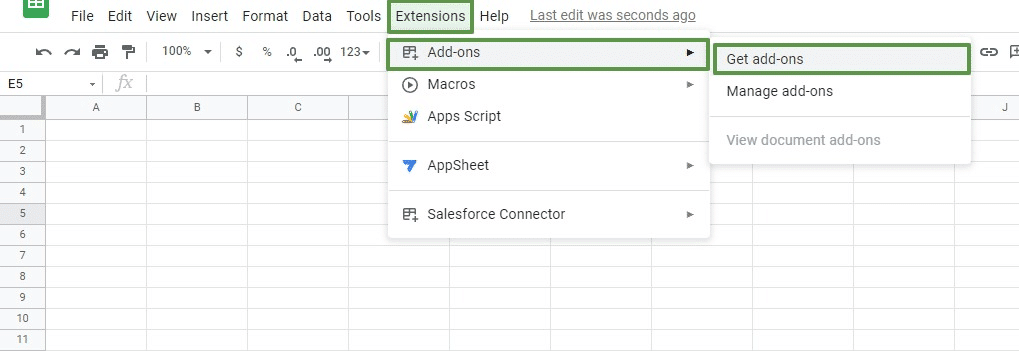
  • Open a new or existing Google Sheet, navigate to the Extensions tab, and select Add-ons > Get add-ons.
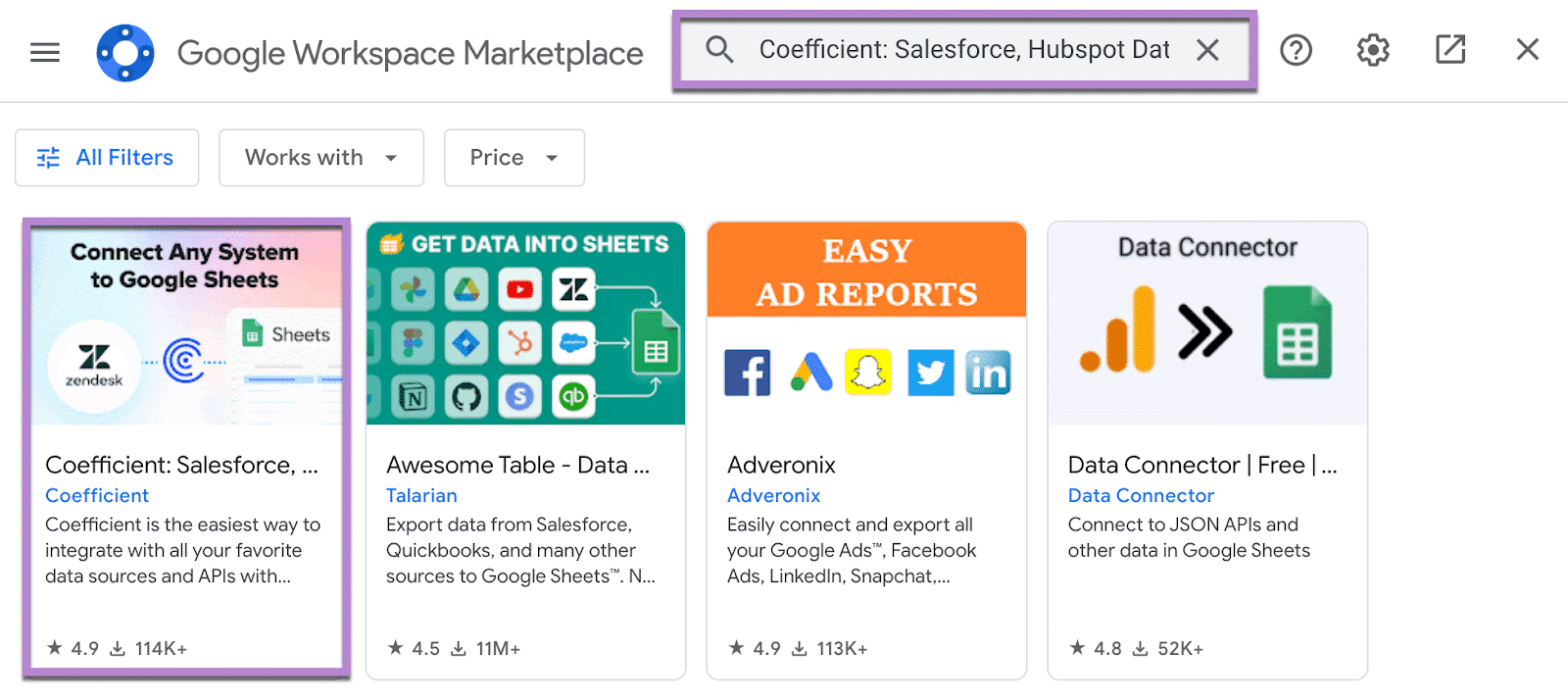
  • In the Google Workspace Marketplace, search for “Coefficient.”
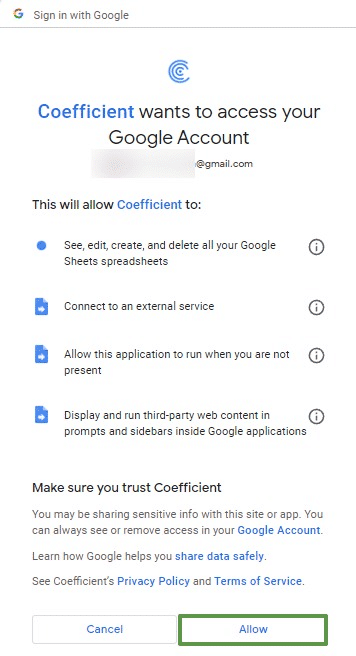
  • Follow the prompts to grant necessary permissions.
  • Launch Coefficient from Extensions > Coefficient > Launch.
  • Coefficient will open on the right-hand side of your spreadsheet.
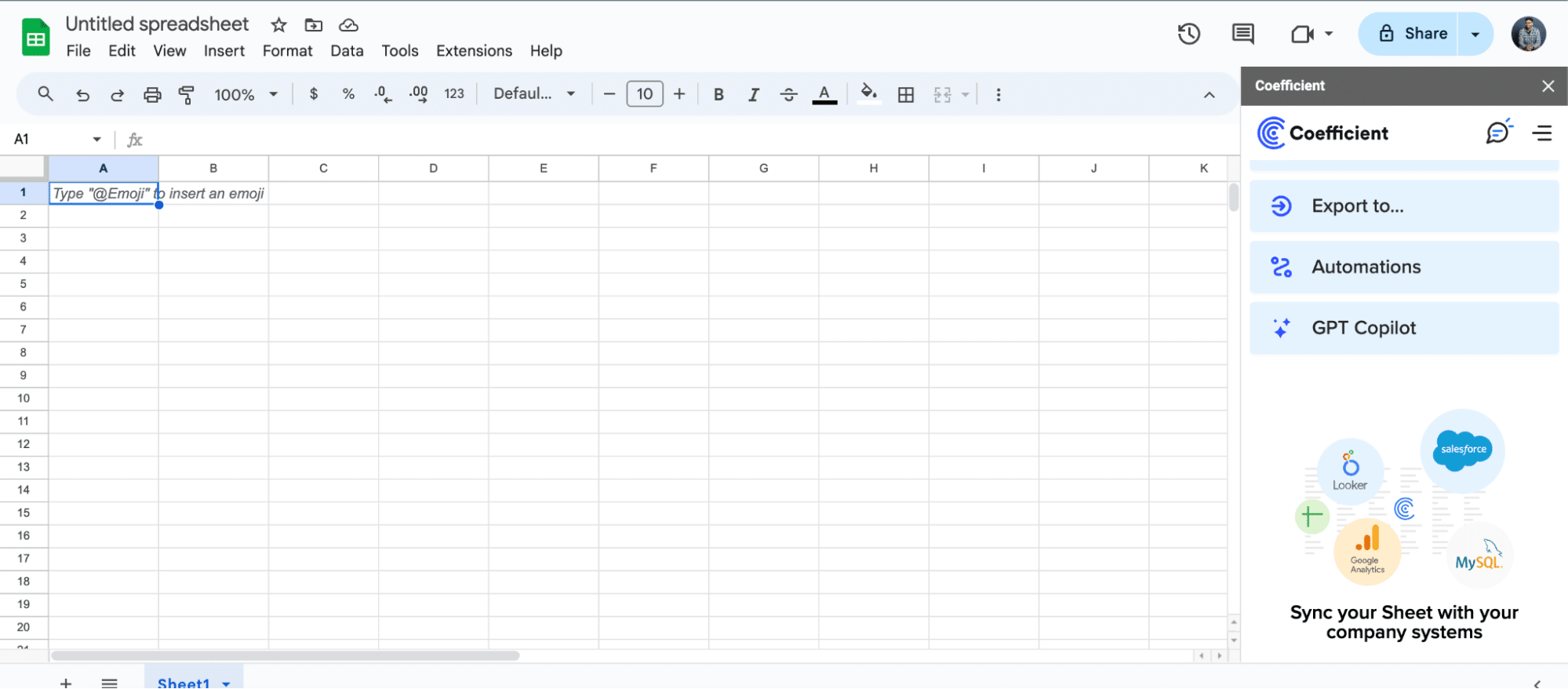
Coefficient open on the right-hand side of Google Sheets.

For Microsoft Excel

  • Open Excel from your desktop or in Office Online. Click ‘File’ > ‘Get Add-ins’ > ‘More Add-Ins.’
  • Type “Coefficient” in the search bar and click ‘Add.’
  • Follow the prompts in the pop-up to complete the installation.
  • Once finished, you will see a “Coefficient” tab in the top navigation bar. Click ‘Open Sidebar’ to launch Coefficient.
Coefficient open on the right-hand side of Excel.

Step 2. Connect your QuickBooks account.

  • Click “Import from…” and select QuickBooks.
Connecting coefficient to QuickBooks.
  • Sign in to your QuickBooks account and authorize the connection.
Authorizing Coefficient to the QuickBooks account.

Step 3. Select the invoice data you want to export.

  • After connecting, return to QuickBooks and select “From Objects & Fields”
Selecting from 'object' and 'field' from the coefficient menu.
  • In the Coefficient sidebar, choose “Invoices” from the available QuickBooks data sources.
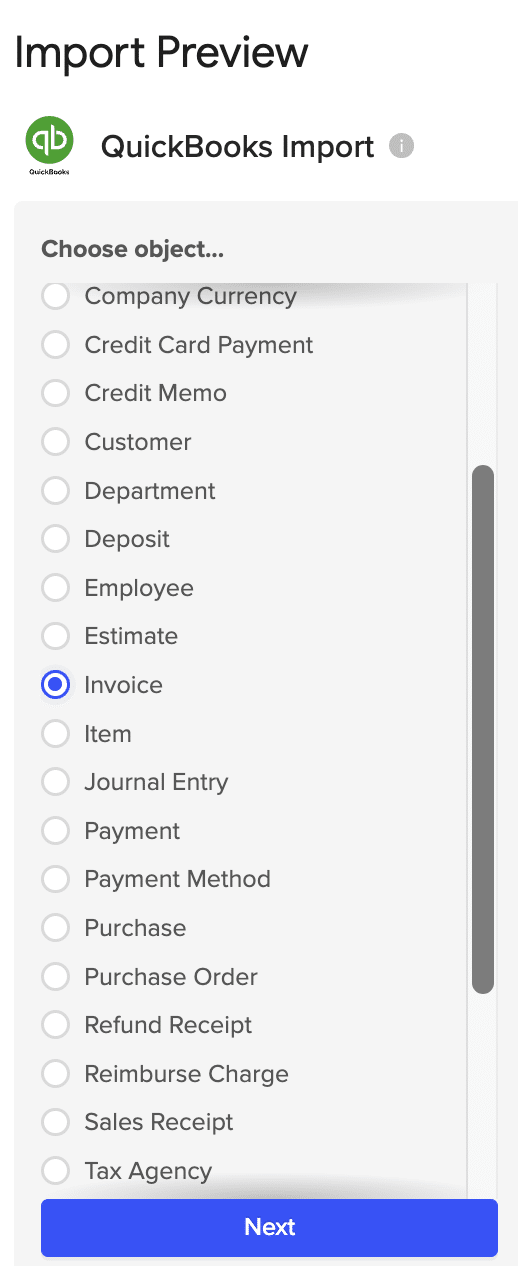
Selecting invoice as the object to import.
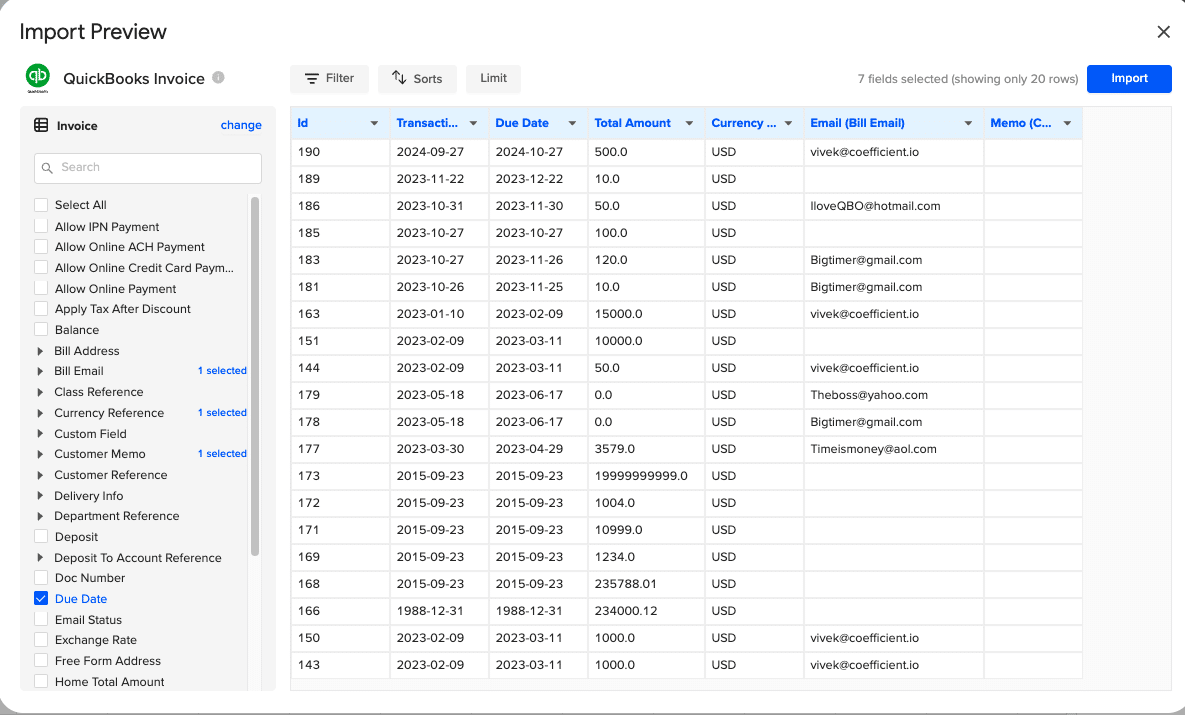
  • Select the fields you want to export from the left-hand panel
Selecting the fields you want to export from the left-hand panel.
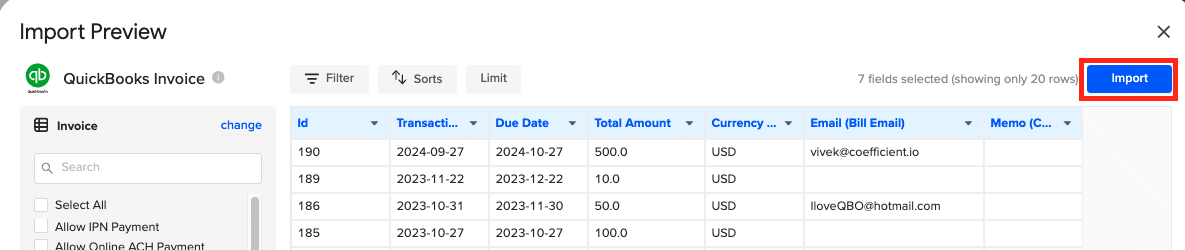
  • When ready, click “Import” to bring the data into your spreadsheet
Clicking Import when finished customizing

Step 4. Set up automatic refresh schedules (optional).

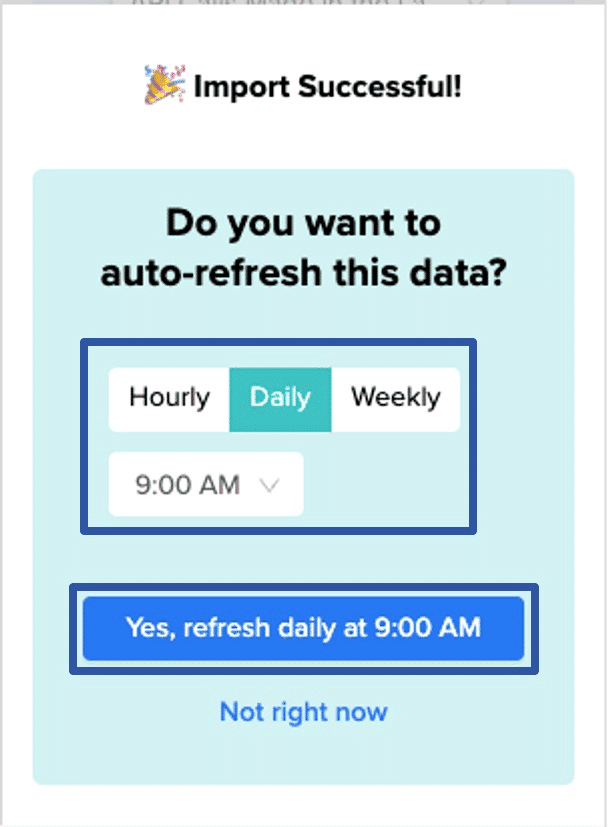
After exporting your data into your spreadsheet, you can set up Coefficient’s auto-refresh scheduler for automatic updates. Choose from options like hourly, daily, or weekly refreshes.

- Setting up auto-refreshing coefficient.

Method 2: Manually from QuickBooks

QuickBooks Online offers built-in export functionality for basic invoice data extraction. This method is suitable for simple exports and is directly accessible within the QuickBooks interface.

Step-by-step walkthrough:

Step 1. Log in to your QuickBooks Online account.

  • Open your web browser and navigate to the QuickBooks Online login page.
  • Enter your credentials and click “Sign In”.

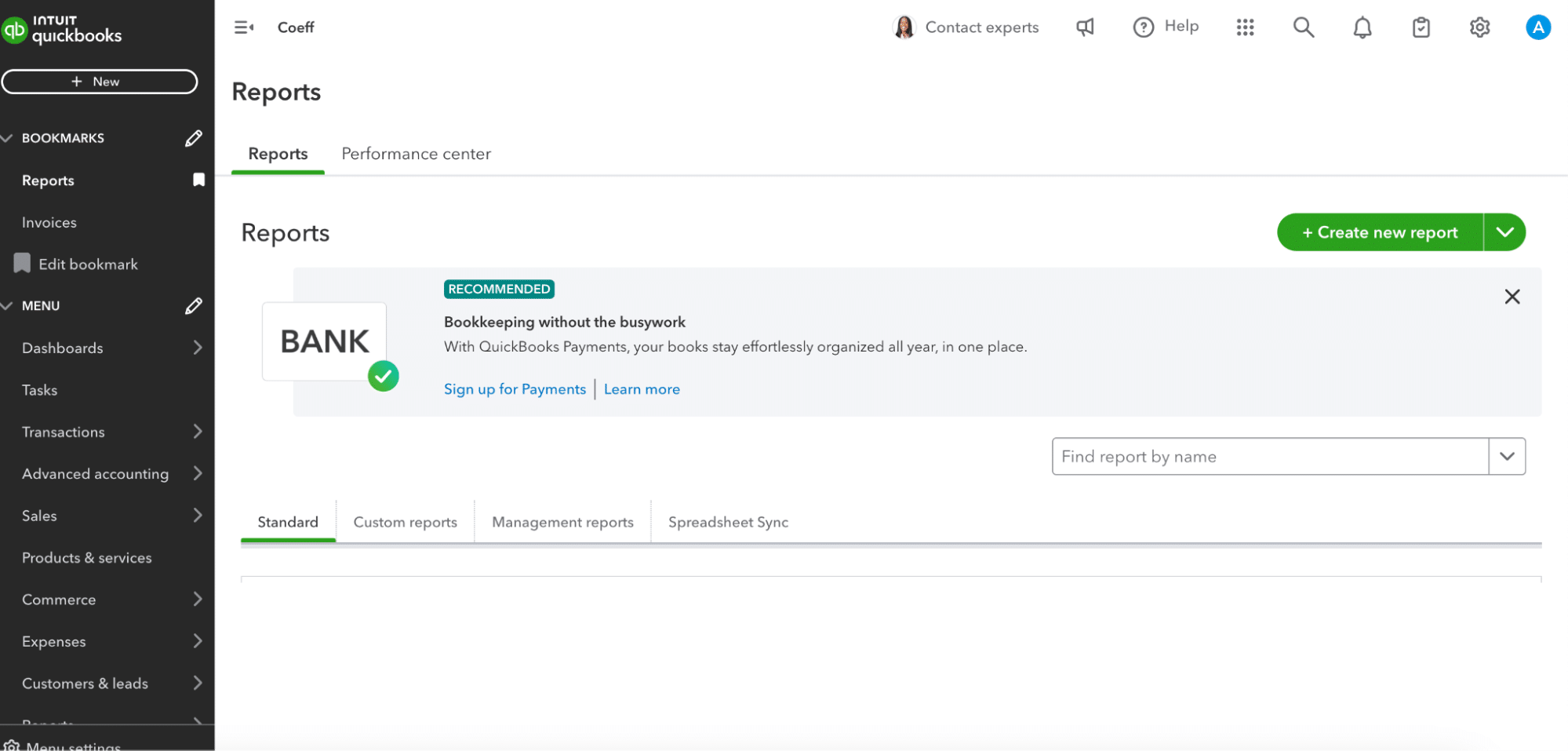
Step 2. Navigate to the Reports section.

  • From the QuickBooks dashboard, locate and click on the “Reports” tab in the left-hand menu.
Image4

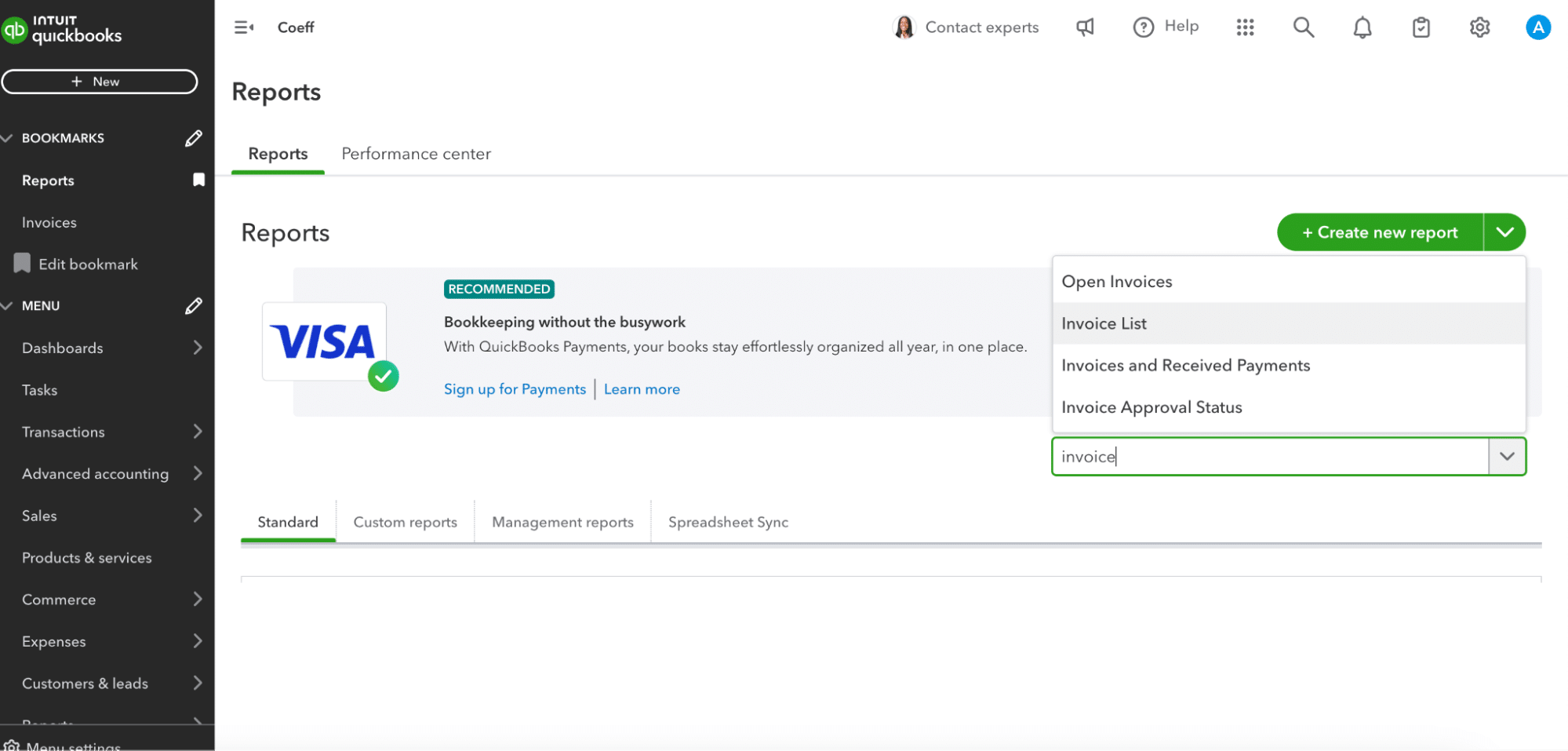
Step 3. Search for and select “Invoice List” report.

  • In the Reports search bar, type “Invoice List”.
  • Click on the “Invoice List” report when it appears in the search results.
Image8

Step 4. Customize the report as needed.

  • Use the available options to set your desired date range for the invoices.
  • Click “Customize” to add or remove columns, such as invoice number, customer name, or amount.
  • Apply any filters to narrow down the data (e.g., specific customers or invoice status).

Step 5. Click “Export” and choose your desired format.

  • Look for the “Export” button, typically located near the top of the report.
  • Click on it to open the export options.
  • Choose either Excel or PDF format, depending on your needs.
  • Save the exported file to your preferred location on your computer.

Disadvantages of native exports:

  1. Limited customization options restrict the ability to tailor exports to specific needs.
  2. Manual process requiring regular updates can be time-consuming for frequent reporting.
  3. Lack of real-time data synchronization means exported data may quickly become outdated.

Export Invoices from QuickBooks and Keep them Live!

Exporting invoices from QuickBooks is crucial for effective financial management and analysis. While QuickBooks Online and CSV exports offer basic functionality, Coefficient provides a more robust solution with real-time data synchronization and advanced reporting capabilities. Choose the method that best fits your needs and streamline your invoice management process.

To learn more about exporting QuickBooks data to Google Sheets, explore our comprehensive guide on the topic.

Ready to streamline your QuickBooks invoice exports? Get started with Coefficient today!

Further Reading

Top 7 QuickBooks Online Integrations in 2026

QuickBooks is a powerhouse. But it’s not an island. Smart integrations transform it into a financial ecosystem. They supercharge your workflows. They sharpen your insights. They drive better decisions.

In 2026, these top 7 QuickBooks integrations are game-changers. They’re not just add-ons. They’re rocket fuel for your financial management. Let’s dive in.

Why the Right QuickBook Integrations Matter

QuickBooks is a versatile accounting tool, but the right add-ons can take it to the next level. Here’s why good integrations matter:

  • Fewer Errors, Less Hassle: QuickBooks integrations can automate repetitive tasks like expense tracking and data entry. This means less time spent on mind-numbing data input and fewer mistakes creeping into your books. For example, a point-of-sale integration could automatically record each sale in QuickBooks, eliminating manual entry entirely.
  • See the Whole Picture: By connecting QuickBooks to other systems you use (like your e-commerce platform or project management tool), you get a more complete view of your finances. This makes it easier to understand how different parts of your business affect your bottom line, helping you make smarter financial decisions.
  • Grow Without Growing Pains: As your business expands, your accounting needs will change. The right integrations let you add new features to QuickBooks as you need them, whether that’s more detailed reporting or tools to handle a higher volume of transactions. This way, your accounting can keep pace with your business without major disruptions.

With so many QuickBooks add-ons out there, it’s important to choose ones that actually solve your problems and fit your workflow.

QuickBooks Integration Feature Comparison Table

Integration

Primary Function

Key Feature

Pricing

Best For

Coefficient

Data Integration & Reporting

Real-time data sync from 50+ sources

Free tier available. Paid starts at $49/month

Businesses needing advanced reporting and data integration

NutshellCRM and Invoicing
Bi-directional sync of contacts and invoices

Free trial available. Paid starts at $13/user/month

Businesses needing unified CRM and accounting workflows

Bill.com

Accounts Payable & Receivable

Automated bill payment and invoicing

Starts at $45/user/month

Businesses looking to streamline AP/AR processes

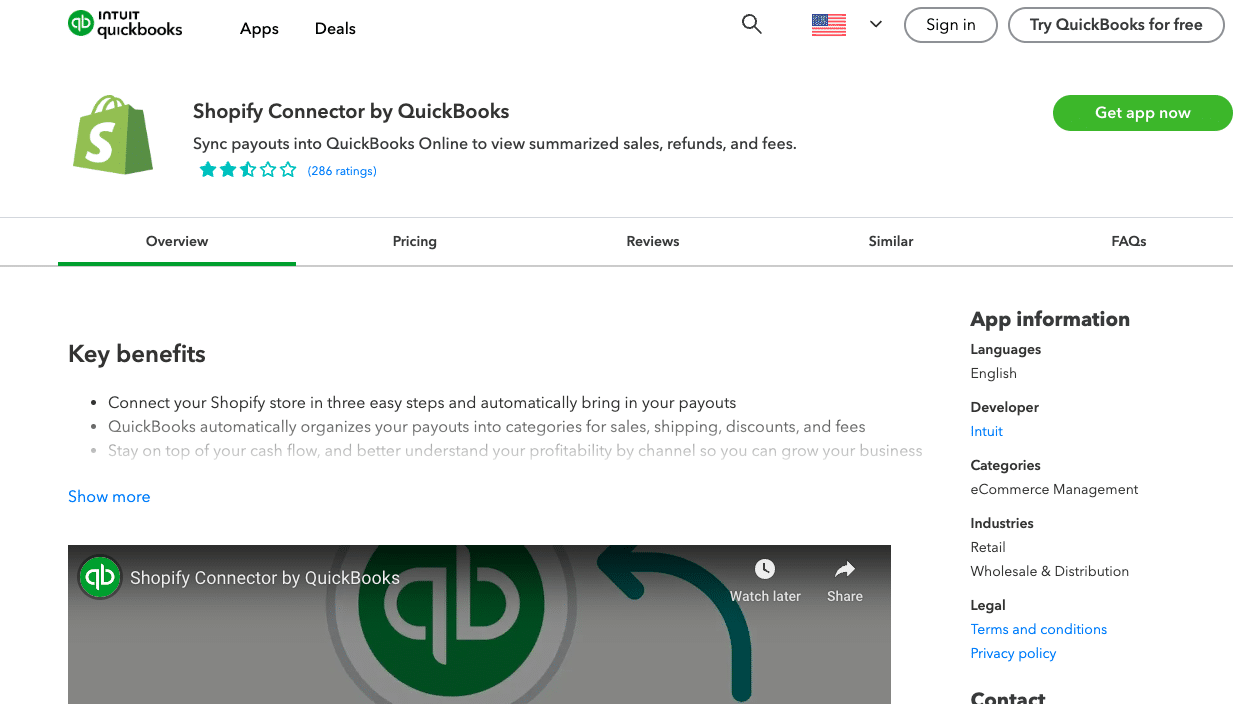
Shopify Connector

E-commerce Integration

Automatic sync of orders, products, and customers

Free with QuickBooks Online

Online retailers using Shopify and QuickBooks

QuickBooks Time

Time Tracking

GPS tracking and real-time reports

From $20/month + $8/user/month

Businesses with mobile workforce or project-based billing

Expensify

Expense Management

Receipt scanning and automatic categorization

From $5/user/month

Companies seeking to simplify expense reporting and reimbursement

HubSpot

CRM & Marketing

Bi-directional sync of customer data

Free integration. HubSpot CRM starts free, paid plans from $45/month

Businesses looking to align sales, marketing, and financial data

1. Coefficient – Best for Data Integration and Live Reporting

QBO revenue dashboard in spreadsheets using Coefficient

Coefficient connects QuickBooks Online and 100+ business systems to Excel and Google Sheets. It enables real-time data analysis across multiple platforms.

  • Syncs data from CRMs, accounting tools, and databases to spreadsheets.
  • Automates report creation using multiple data sources.
  • Pushes updated data back to QuickBooks Online.
  • Sends custom alerts for specific data changes.

Pros

Cons

  • Needs strategic planning for optimal data integration.
  • Most of the usage is limited to spreadsheets.

Pricing

  • Free Plan: Includes basic features such as data imports for up to 5,000 rows and 10,000 OpenAI API calls
  • Starter Plan: $49 per user per month, with features like daily automatic refreshes and limited bulk write-backs
  • Pro Plan: $99 per user per month, offering unlimited import size, hourly refreshes, and unlimited bulk write-backs
  • Enterprise Plan: Custom pricing based on specific needs

User Reviews

“This tool has changed my team’s productivity tenfold. So much functionality and flexibility has helped attack siloed data at every level of my organization.”

I must say, I am thoroughly impressed. From start to finish, the experience was seamless and efficient. The user-friendly interface of Coefficient Connector made the setup process a breeze.

Customer Support

  • Email support and chat for all users
  • Knowledge base with comprehensive documentation and tutorials
  • Dedicated account managers, Slack for enterprise clients

2. Nutshell – Best for CRM and Lead-to-Invoice Workflows

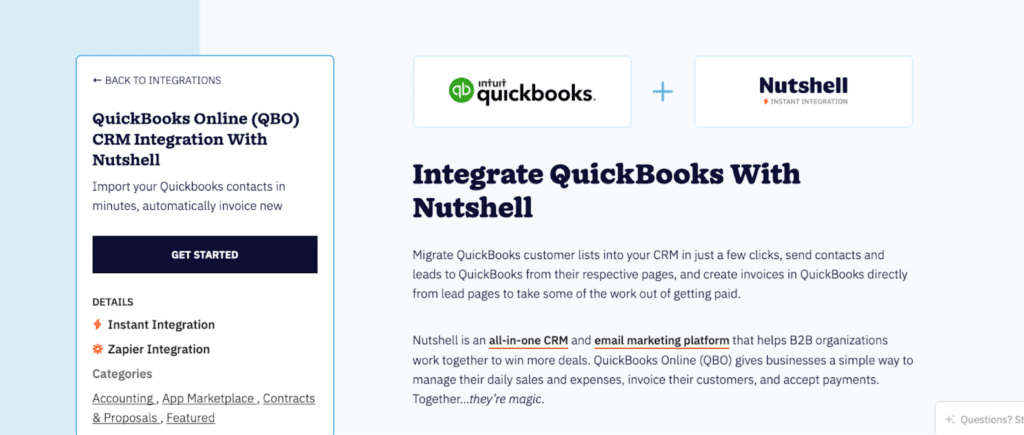
QuickBooks Nutshell Integration

Nutshell connects your CRM to QuickBooks, streamlining the entire sales-to-accounting process. It transforms customer relationships into seamless invoicing and financial records.

  • Imports QuickBooks customer contacts directly into Nutshell CRM.
  • Transfers new leads and contacts back to QuickBooks automatically.
  • Creates invoices in QuickBooks from Nutshell deal pages with a single click.
  • Syncs customer data bi-directionally to keep both systems updated.

Pros

  • Eliminates manual contact entry between CRM and accounting systems.
  • Streamlines the lead-to-invoice workflow for faster deal closure.
  • Maintains clean, unified customer data across sales and financial platforms.
  • Simplifies invoicing with direct QuickBooks creation from deal records.
  • Intuitive interface minimizes training time for your team.

Cons

  • QuickBooks integration is straightforward but lacks advanced customization for complex workflows.
  • Reporting features in the base plans are basic compared to specialized reporting tools.
  • Requires QuickBooks Online subscription for full functionality.

Pricing

  • Foundation Plan: $19 per user per month (or $13 annually).
  • Growth Plan: $32 per user per month (or $25 annually).
  • Pro Plan: $49 per user per month (or $42 annually).
  • Business Plan: $67 per user per month (or $59 annually).
  • Enterprise Plan: $89 per user per month (or $79 annually).

What Users Are Saying

“I use Nutshell for CRM and Marketing. It helps keep my sales team on track and allows me to better connect with my customers. I like the ease of use, great support, and easy onboarding. The integration with QuickBooks Online is really convenient, especially the ability to send quotes directly from Nutshell, which, when accepted, are imported into QuickBooks.”

Source: G2

“Overall, we’ve been very happy with Nutshell. It’s easy to use, widely adopted by our sales team, and supports consistent execution without unnecessary complexity. The platform does exactly what we need it to do and provides strong value for the business.”

Source: Capterra

Customer Support

  • Live chat and email support for all plans.
  • Comprehensive knowledge library with articles and tutorials.
  • Monthly educational workshops and webinars.
  • Phone support available for enterprise customers.

3. Bill.com – Top Choice for Accounts Payable Automation

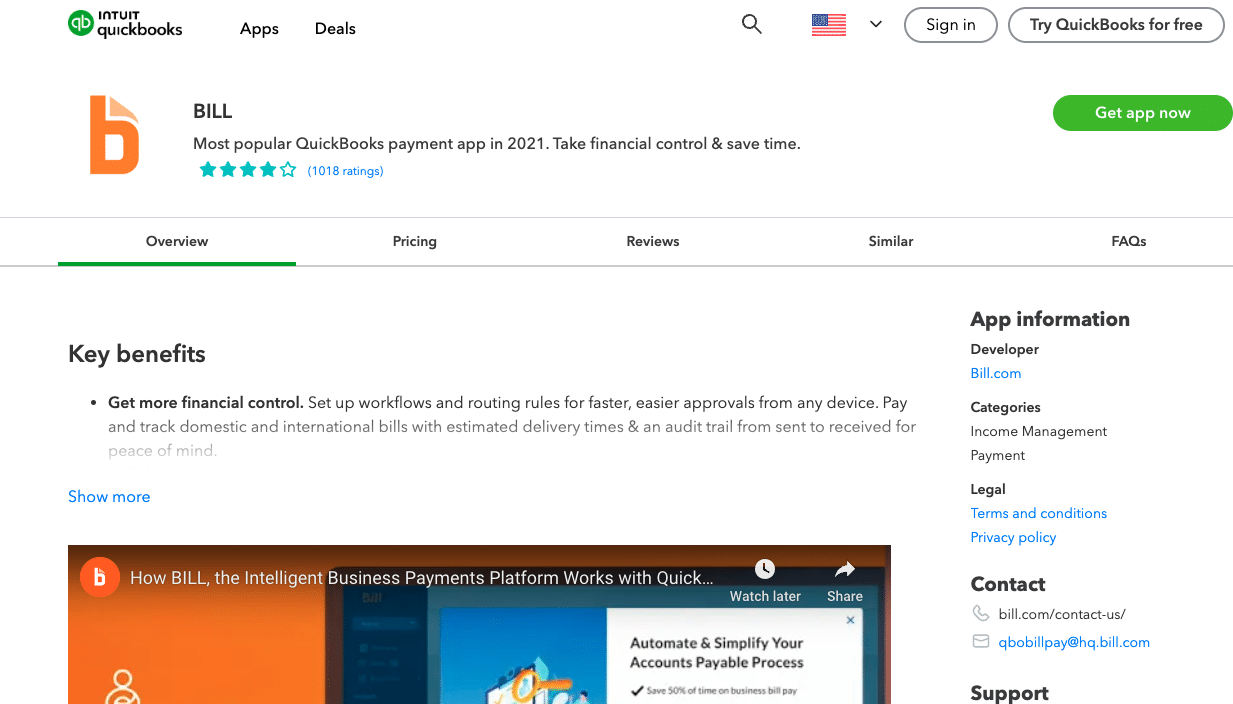
Bill.com streamlines accounts payable processes. It syncs payment data with QuickBooks for accurate financial records.

  • Captures invoice data using AI.
  • Enables custom approval workflows.
  • Processes international payments in multiple currencies.
  • Manages vendor credits and reconciliation.

Pros

  • Accelerates bill payment cycles.
  • Minimizes data entry errors.
  • Enhances cash flow management.

Cons

  • Complex setup for advanced workflows.
  • Potentially costly for low invoice volumes.
  • Occasional sync delays with QuickBooks.

Pricing

  • Essentials Plan: $39 per user per month.
  • Team Plan: $49 per user per month.
  • Corporate Plan: $69 per user per month.
  • Enterprise Plan: Custom pricing.

What Users Are Saying

“While the integration between Bill.com and QuickBooks Online is generally smooth, we have encountered occasional syncing issues that cause delays and discrepancies in our financial records. The customer support is responsive but can be slow to resolve these technical problems. Additionally, the pricing can be quite expensive for small businesses with limited budgets.”

  • Source: G2

“Bill.com has been a game-changer for managing our accounts payable. It seamlessly integrates with QuickBooks Online, automatically syncing bills and payments, eliminating manual data entry, and saving us countless hours each month. The approval workflows are customizable, and the ability to pay bills electronically is incredibly convenient. Overall, Bill.com has streamlined our AP process and improved our efficiency significantly.”

  • Source: G2

Customer Support

  • Phone and email support.
  • Online knowledge base.
  • User community forums.

4. Shopify Connector – Best for E-commerce Integration

Shopify Connector links your Shopify store with QuickBooks. It streamlines e-commerce accounting and inventory management.

  • Imports orders, refunds, and payout data to QuickBooks.
  • Updates product quantities across platforms.
  • Consolidates sales data from multiple channels.
  • Reconciles Shopify Payments with QuickBooks entries.

Pros

  • Automates e-commerce bookkeeping tasks.
  • Maintains accurate inventory across platforms.
  • Simplifies sales tax reporting for online transactions.

Cons

  • Requires additional setup for complex tax scenarios.
  • May experience delays during high-volume periods.
  • Offers limited customization for unique business models.

Pricing

  • Included with Shopify subscription.

What Users Are Saying

“While the Shopify integration with QuickBooks Online has potential, we’ve experienced significant issues with duplicate transactions and data syncing errors. This has created a lot of extra work for us to manually reconcile our books. We’ve reached out to support, but the solutions they’ve offered haven’t been effective. We hope these issues will be resolved soon as it’s impacting our accounting workflow.”

“The Shopify integration with QuickBooks Online has been a lifesaver for our business. It automatically syncs orders, payments, and fees, saving us hours of manual data entry each week. The setup was straightforward, and the support team has been responsive to our questions. We highly recommend this integration for any Shopify store owner using QuickBooks Online.”

Customer Support

  • Shopify help center access.
  • Email support.
  • User community forums.

5. QuickBooks Time – Top Time Tracking Integration

QuickBooks Time (formerly TSheets) enhances time tracking and project management. It integrates seamlessly with QuickBooks payroll.

  • Tracks time via GPS-enabled mobile app.
  • Analyzes job costs and project profitability.
  • Provides team scheduling tools.
  • Generates custom payroll reports.

Pros

  • Improves accuracy of billable hours.
  • Streamlines payroll for hourly workers.
  • Offers insights into project profitability.

Cons

  • Some employees resist detailed tracking.
  • Unnecessary for fixed-salary teams.
  • GPS tracking raises privacy concerns.

Pricing

  • $20/month plus $8/user/month.

What Users Are Saying

“While QuickBooks Time has some great features, the customer support has been a major disappointment. We’ve experienced technical issues and billing errors, and it’s been difficult to get timely and helpful assistance from their support team. The pricing is also quite high compared to other time tracking solutions on the market.”

“QuickBooks Time is a game-changer for managing employee time and attendance. It seamlessly integrates with QuickBooks Online, making payroll a breeze. The mobile app is user-friendly, and the GPS tracking feature ensures accurate time tracking for our field employees. We’ve seen a significant improvement in our payroll accuracy and efficiency since implementing QuickBooks Time.”

Customer Support

  • Phone and email assistance.
  • Online resource center.
  • Video tutorials.

6. Expensify – Best for Expense Management

Expensify simplifies expense reporting and reimbursement. It integrates with QuickBooks for seamless accounting.

  • Scans and extracts data from receipts.
  • Generates expense reports automatically.
  • Reconciles corporate card transactions.
  • Enforces expense policies with approval workflows.

Pros

  • Accelerates expense reporting and reimbursement.
  • Reduces errors in expense categorization.
  • Improves policy compliance and spend visibility.

Cons

  • OCR occasionally misreads complex receipts.
  • Costly for large teams with infrequent expenses.
  • Requires complex setup for advanced approval flows.

Pricing

  • From $5/user/month.

What Users Are Saying

“While Expensify has its strengths, the customer support has been a major letdown. We’ve encountered technical issues and had difficulty getting timely and helpful responses from their support team. The pricing can also be quite expensive for small businesses with limited budgets. Additionally, the reporting features could be more robust and customizable.”

“Expensify has revolutionized the way we handle expense reports. The integration with QuickBooks Online is seamless, eliminating the need for manual data entry and saving us valuable time. The mobile app is intuitive, making it easy for employees to snap photos of receipts and submit expenses on the go. The SmartScan feature is incredibly accurate, and the approval process is streamlined. We couldn’t be happier with Expensify.”

Customer Support

  • Email support.
  • Comprehensive help guides.
  • User community forum.

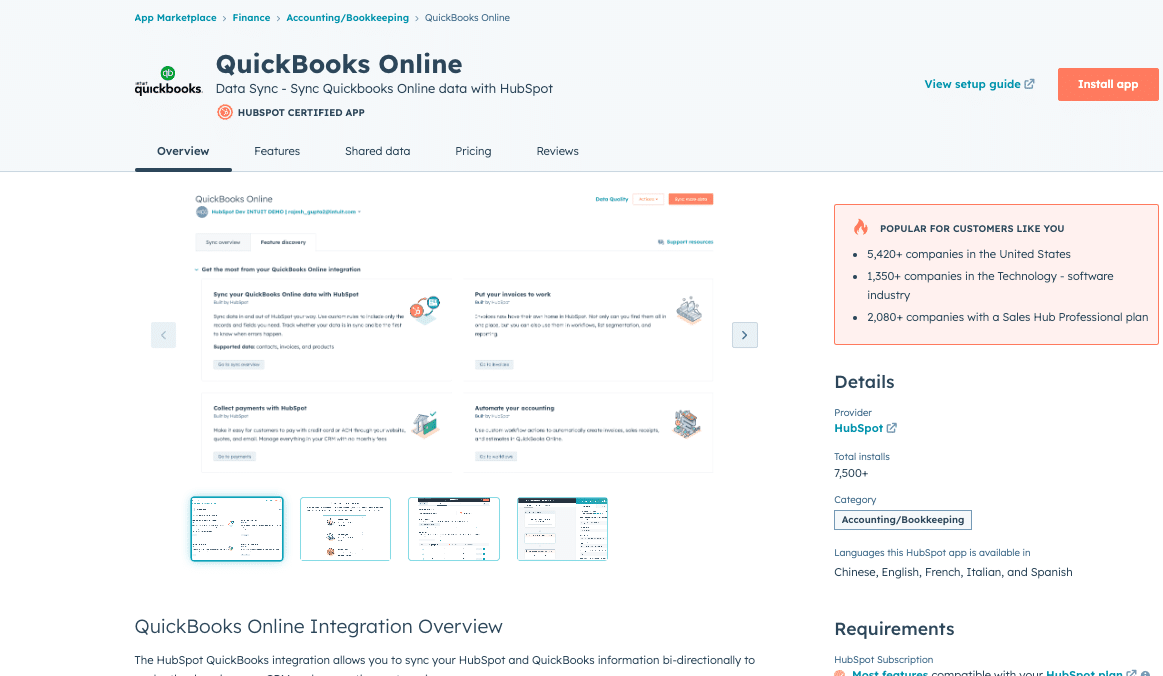
7. HubSpot – Ideal for Marketing and Sales Integration

HubSpot connects marketing and sales data with QuickBooks. It provides a comprehensive view of customer interactions and financial impact.

  • Syncs customer and deal data bi-directionally.
  • Generates invoices from HubSpot deals.
  • Attributes revenue to marketing campaigns.
  • Creates custom reports on sales and financial metrics.

Pros

  • Links marketing efforts to financial outcomes.
  • Improves visibility of lead-to-cash process.
  • Enhances customer lifecycle tracking.

Cons

  • Complex setup for full CRM and financial integration.
  • Requires extensive HubSpot adoption for maximum benefit.
  • Higher tiers with advanced features can be costly.

Pricing

  • Starter Plan: $50 per month.
  • Professional Plan: $800 per month.
  • Enterprise Plan: $3,200 per month.

What Users Are Saying

“While the HubSpot integration with QuickBooks Online has potential, we’ve experienced significant challenges with the setup and configuration. The documentation is not very clear, and the support team has been slow to respond to our inquiries. Additionally, the integration doesn’t seem to handle complex workflows very well, leading to data inconsistencies and errors.”

Source: Reddit

“The HubSpot integration with QuickBooks Online has been a game-changer for our sales and accounting teams. It seamlessly syncs customer data, deals, and invoices, eliminating manual data entry and ensuring accuracy. The real-time updates keep both systems in sync, giving us a comprehensive view of our customer interactions and financial transactions.”

Source:HubSpot Marketplace

Customer Support

  • Email and chat assistance.
  • Extensive knowledge base.
  • Active user community.

Elevate Your QuickBooks Experience

QuickBooks integrations can transform financial workflows, reducing manual work and providing clearer insights. Coefficient connects QuickBooks with other business tools for comprehensive financial analysis.

Focus on integrations that address specific pain points, and use free trials to find the best fit. The right add-ons can turn QuickBooks into a powerful, adaptable financial management system.

Ready to transform your QuickBooks experience? Get started with Coefficient today and watch your financial processes soar to new levels of efficiency and insight.

QuickBooks vs Xero: Which is Best in 2024?

Are you torn between QuickBooks and Xero for your business accounting needs? You’re not alone. These two powerhouses dominate the accounting software market, each with its own strengths. 

Let’s dive into a detailed comparison to help you make the right choice for your company.

QuickBooks and Xero at a Glance

Before we pit these two against each other, let’s get to know our contenders.

What is QuickBooks?

QuickBooks is known for its user-friendly interface and wide range of features, making it a good fit for small businesses and those new to accounting. It boasts robust reporting capabilities and strong integrations with other business tools.

What is Xero?

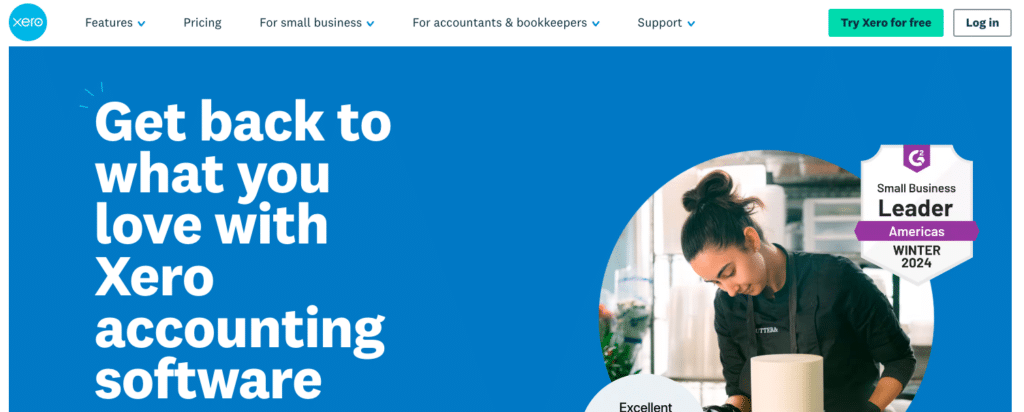
Xero is a cloud-based accounting platform designed with accountants and bookkeepers in mind. Xero is recognized for its intuitive dashboard, focus on collaboration and powerful features like project tracking and multi-currency support, and more!

CategoryQuickBooksXero
Pricing• Simple Start: $30/month
• Essentials: $55/month
• Plus: $85/month
• Advanced: $200/month
• Early: $12/month
• Growing: $34/month
• Established: $65/month
User Interface• Feature-rich but can be complex
• Steeper learning curv
e• Customizable dashboard
• Clean and intuitive
• User-friendly for beginners
• Modern, streamlined design
Core Accounting Features• 40 active tracking categories
• Advanced inventory management
• Detailed financial reporting
• Strong project profitability tracking
• 2 active tracking categories
• Excellent bank reconciliation
• Built-in fixed asset management
• Strong multi-currency support
Integrations• Extensive ecosystem of integrations
• Wide range of industry-specific add-ons
• Strong e-commerce integrations
• Growing list of integrations
• Focus on modern, cloud-based solutions
• Strong API for custom integrations
User Limits• 1-25+ users depending on plan
• Additional fees for extra users
• Unlimited users on all plans

Feature Face-Off: QuickBooks vs Xero

Now, let’s see how these two stack up in key areas that matter most to small businesses.

User Experience: Simplicity vs Depth

Xero takes the lead with its intuitive interface. New users often find it easier to navigate and start using effectively. The clean design and logical layout make daily tasks a breeze.

QuickBooks, while powerful, comes with a steeper learning curve. Its interface is more complex, reflecting its broader range of features. However, once mastered, it offers deeper functionality.

Crunching Numbers: Core Accounting Capabilities

Both platforms excel in essential accounting features:

  • Invoicing: Create and send professional invoices
  • Expense Tracking: Monitor and categorize business expenses
  • Financial Reporting: Generate detailed reports for business insights

QuickBooks edges out Xero in the depth of its reporting capabilities. It offers more customization options and a wider variety of reports. However, Xero’s reports are often praised for their clarity and visual appeal.

A notable difference lies in tracking categories. QuickBooks Online allows for 40 active tracking categories, while Xero limits users to just 2. This can be a significant factor for businesses needing detailed cost center analysis.

Playing Well with Others: Integrations and Add-ons

In today’s interconnected business world, the ability to integrate with other software is crucial.

QuickBooks boasts a vast ecosystem of integrations, covering everything from payroll to inventory management. Its long-standing market presence has allowed it to build partnerships with a wide range of software providers.

Xero, while having fewer integrations overall, focuses on quality over quantity. Its add-ons are often praised for their seamless integration and user-friendly nature.

[Insert visual: Infographic illustrating the pros and cons of each platform]

Dollars and Sense: Pricing and Value

When it comes to choosing accounting software, cost is often a deciding factor. Let’s break down the pricing structures and value propositions of both platforms.

Show Me the Money: Cost Comparison

[Insert visual: Pricing chart showing different plans for both software]

QuickBooks Online offers several tiers:

  1. Simple Start: $30/month
  2. Essentials: $55/month
  3. Plus: $85/month
  4. Advanced: $200/month

Xero provides three main plans:

  1. Early: $13/month
  2. Growing: $37/month
  3. Established: $70/month

At first glance, Xero appears more budget-friendly. However, it’s essential to consider what features are included at each price point and any potential hidden costs.

Bang for Your Buck: Value Analysis

When assessing value, consider:

  • Feature set at each price tier
  • User limits (QuickBooks restricts the number of users for lower-tier plans)
  • Scalability as your business grows

Xero often comes out ahead in terms of value, especially for small to medium-sized businesses. Its unlimited user policy at all levels is a significant advantage. However, QuickBooks’ advanced features may justify the higher cost for larger or more complex businesses.

The Good, the Bad, and the Bookkeeping: Pros and Cons

Every software has its strengths and weaknesses. Let’s sum up the main advantages and disadvantages of each platform.

QuickBooks: Powerhouse with a Learning Curve

Pros:

  • Comprehensive feature set
  • Excellent reporting capabilities
  • Wide range of integrations
  • Strong presence in the US market

Cons:

  • Steeper learning curve
  • Higher pricing, especially for advanced features
  • User limits on lower-tier plans

Xero: User-Friendly with Room to Grow

Pros:

  • Intuitive, user-friendly interface
  • Unlimited users on all plans
  • Competitive pricing
  • Popular among accountants and bookkeepers

Cons:

  • Fewer advanced features compared to QuickBooks
  • Limited tracking categories
  • Smaller ecosystem of integrations

The Verdict: Industry Preferences and User Opinions

Understanding how these platforms are perceived by professionals and users can provide valuable insights.

What the Pros Say: Accountant and Bookkeeper Preferences

Interestingly, many accountants and bookkeepers lean towards Xero. This preference stems from:

  • Xero’s clean, easy-to-navigate interface
  • The ability to collaborate with clients more easily
  • Robust bank reconciliation features

The implication for businesses? If you work closely with an accountant, they might prefer you use Xero, potentially streamlining your collaboration.

Making the Call: Choosing the Right Software for Your Business

With all this information, how do you decide which platform is right for you? Consider these key factors:

  1. Business Size and Complexity: Larger businesses with complex needs might benefit more from QuickBooks’ advanced features.
  2. Budget: If cost is a primary concern, Xero’s competitive pricing might be more attractive.
  3. User-Friendliness: For those new to accounting software, Xero’s intuitive interface could be a deciding factor.
  4. Scalability: Consider which platform will grow best with your business over time.
  5. Integrations: Evaluate which software integrates better with your existing business tools.

Best Fits: Matching Software to Business Types

While every business is unique, here are some general guidelines:

  • Solopreneurs and Micro-businesses: Xero’s Early plan or QuickBooks Simple Start
  • Small to Medium Businesses: Xero Growing or QuickBooks Essentials/Plus
  • Larger Small Businesses or Those with Complex Needs: QuickBooks Advanced or Xero Established

The Bottom Line: Your Business, Your Choice

Both QuickBooks and Xero are solid choices for small business accounting. QuickBooks offers depth and customization, while Xero brings user-friendliness and collaboration to the table.

Your choice depends on your specific needs, budget, and how you like to work. Remember, the best accounting software is the one you’ll actually use consistently.

Whichever platform you choose, remember that the true power of your accounting software can be amplified by integrating with tools like Coefficient. By syncing your financial data directly into spreadsheets, you can unlock even more powerful reporting and analysis capabilities.

Ready to take your financial reporting to the next level? Get started with Coefficient today and see how real-time data integration can transform your financial processes.

How to Export Data from QuickBooks

In the following step-by-step guide, you’ll learn how to export data from QuickBooks.

While QuickBooks is a powerful platform on its own, combining it with Google Sheets makes it even better. Exporting data on autopilot from QuickBooks to Sheets allows financial professionals to dive deep into their data, create customized analyses, and more!

Read on to learn how to export data from QuickBooks based on examples and step-by-step walkthroughs.

But first, let’s discuss why.

Reasons to Export QuickBooks Data into Google Sheets

  1. Centralized Reporting: Exporting QuickBooks data to Google Sheets allows businesses to centralize their financial reports and even consolidate data from multiple platforms in one easily accessible location.
  2. Enhanced Customization: Exporting QuickBooks data allows users to create custom reports, graphs, and charts.
  3. Collaboration: Google Sheets is known for its collaborative features, allowing multiple users to view, edit, and comment on a document in real-time. By exporting QuickBooks data to Sheets, teams can collaborate on financial data analysis and strategic planning.
  4. Automated Updates & Scheduling: With the right add-ons or integrations, data in Google Sheets can be set to automatically update data, ensuring your financial reports are up-to-date without the constant need for manual exports.
  5. No Extra Log-In’s Required: Sharing QuickBooks data in Google Sheets doesn’t require extra log-in permissions or granting edit access to your source data.

Export QuickBooks Data: Top 3 Methods

1. Coefficient

Coefficient is a free, no-code solution that allows you to connect, import, and sync your QuickBooks data into Google Sheets in a single click.

It can also connect Google Sheets to any business system, enabling you to blend and analyze your QuickBooks data with a variety of other data sources (Salesforce, HubSpot, MySQL, Looker, and so on).

Coefficient also offers pre-built financial dashboards that you can power with your live QuickBooks data, including a Profit and Loss template, SaaS P&L template, Cash Runway template, Accounts Payable Dashboard, Account Receivable Dashboard, Revenue Dashboard, and Cashflow template.

To install Coefficient, open a new spreadsheet and navigate to Extensions>Add-ons>Get Add-ons.

download coefficeint from the google workspace marketplace

Search for “Coefficient” in the Google Workspace Marketplace’s search bar.

Click the first app in the results.

Search for “Coefficient” in the Google Workspace Marketplace’s search bar.

Grant Coefficient access to your Google Account.  

Grant Coefficient access to your Google Account.

After the installation is complete, return to your spreadsheet and open Coefficient by clicking Extensions>Coefficient>Launch.

After the installation is complete, return to your spreadsheet and open Coefficient

Coefficient will open on the side of your spreadsheet.

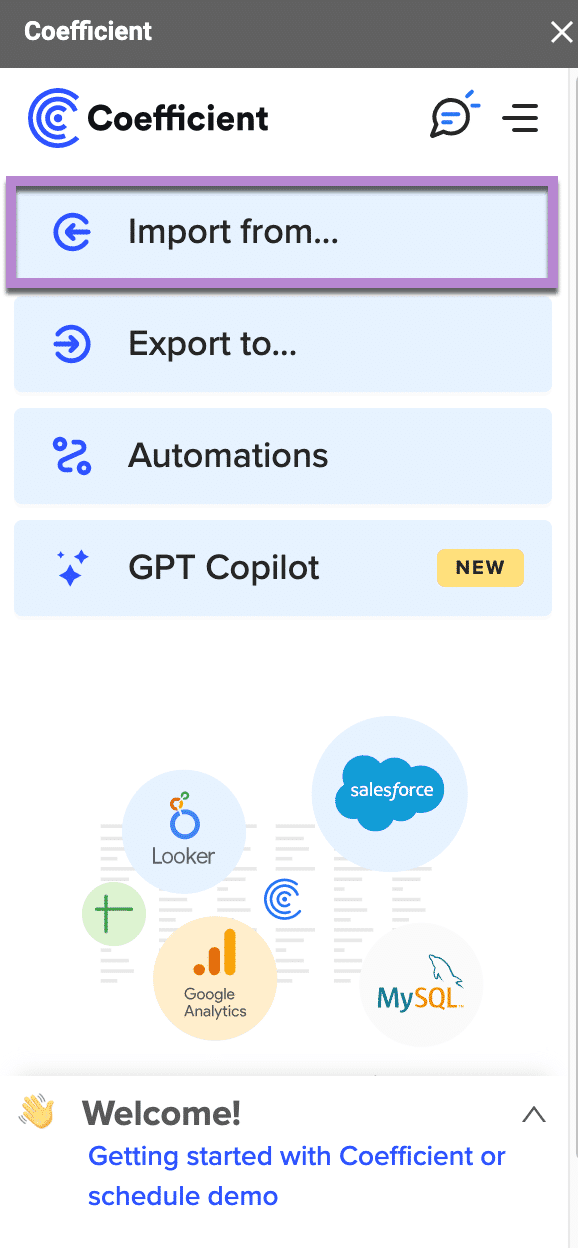
To start your import, click ‘Import from…’ in the menu.

Image7

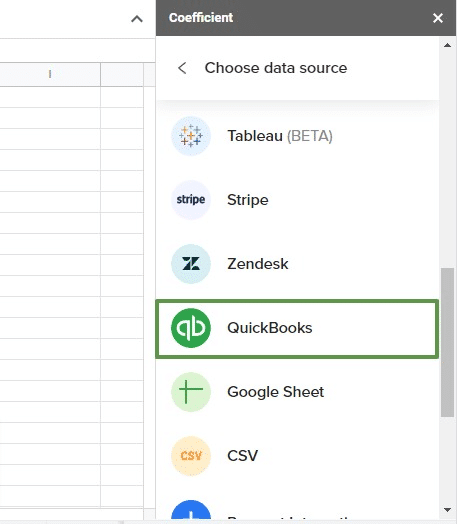
Choose QuickBooks as your data source.  

Choose QuickBooks as your data source.

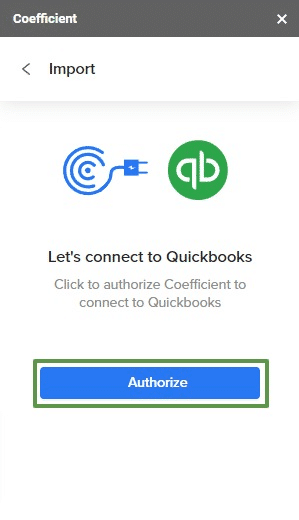
Click ‘Authorize’ to let Coefficient connect to your QuickBooks account.

authorize your quickbooks connections

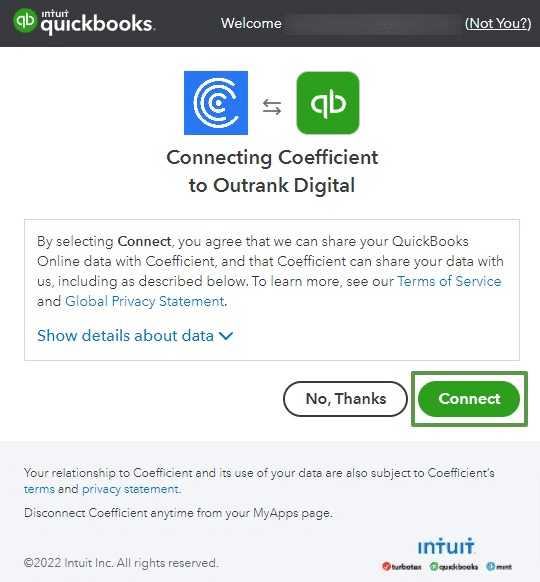
A separate popup will open. Click ‘Connect.’

A separate popup will open; click connect

Click ‘From QuickBooks Report.’

choose from quickbooks report

Choose the QuickBooks report you want to export to Google Sheets from the Data Preview window.

Choose the QuickBooks report you want to export to Google Sheets from the Data Preview window.

Select the fields you want to bring into your export (e.g. Account, Balance, Description, etc.)

Select the fields you want to bring into your export

Click ‘Import’ to continue. Your data from QuickBooks will auto-populate into Google Sheets in seconds.

Finally, you can automate data updates by setting an auto-refresh schedule: hourly,

daily, or weekly.

Finally, you can automate data updates by setting an auto-refresh schedule

Automatic data updates are set-and-forget. They continuously sync live data from QuickBooks into Google Sheets, so you always have up-to-date reporting and analytics.

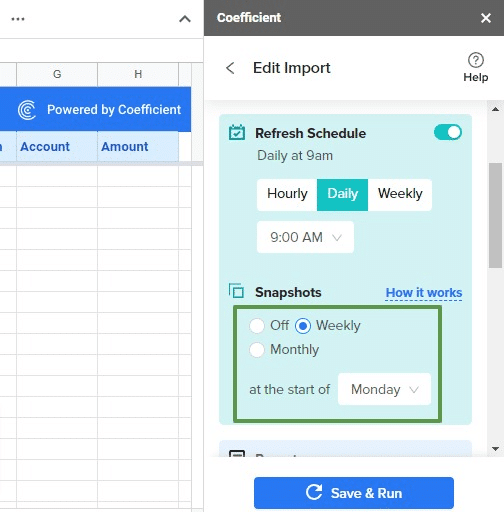
You can also schedule Snapshots to make a copy of your data before updates – very useful for week-over-week reporting.

ou can also schedule Snapshots to make a copy of your data before update

2. QuickBooks

You can export data from QuickBooks to Google Sheets but with a few caveats:

  1. You must have QuickBooks Online Advanced
  2. Payroll reports cannot be exported to Google Sheets
  3. QuickBooks data exports are static

Begin by logging into your QuickBooks Online account.

Navigate to the menu on the left and go to Business Overview > Reports.

open reports from the quickbooks menu

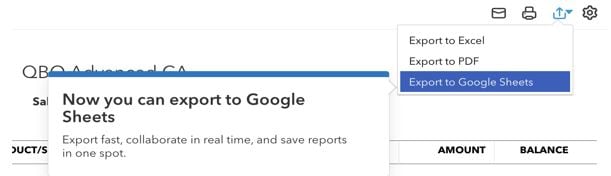
Select the report you want to export and click the Export icon in the top right corner.

Select ‘Export to Google Sheets’ from the drop down menu.

Select the report you want to export and click the Export icon in the top right corner.

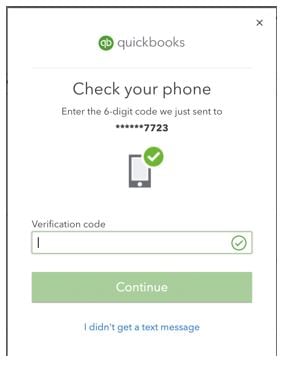
QuickBooks will send you a verification code as a security precaution.

Enter your code and click ‘Continue.’  

QuickBooks will send you a verification code as a security precaution.

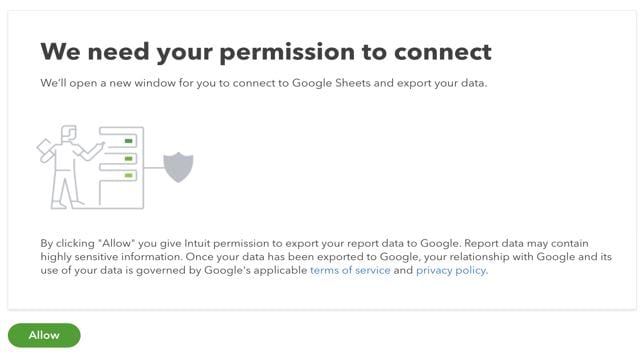
Another pop-up will open, prompting you to connect QuickBooks to Google Sheets.

Click ‘Allow.’

Another pop-up will open, prompting you to connect QuickBooks to Google Sheets.

If prompted, sign into your Google account to finish linking your accounts.

Now, you can export data from QuickBooks to Google Sheets.

3. CSVs

CSVs allow you to export all your transaction data from QuickBooks to Google Sheets.

Start by signing into your QuickBooks account.

Navigate to the top right corner and click the gear icon to open the Settings menu.

Click ‘Export data’ underneath the column labeled ‘TOOLS.’

Navigate to the top right corner and click the gear icon to open the Settings menu.

Select the date range you want to export: ‘All dates,’ ‘Custom date range,’ ‘Last calendar quarter’, ‘This year-to-date,’ and ‘Last year.’

Select the date range you want to export:

Finally, toggle off unwanted fields to remove them from your export.

Click the ‘Export to Excel’ button in the bottom right corner.

Your data will download as a ZIP file. Open it to access your CSV.

Export QuickBooks Data in One-Click with Coefficient

Connecting QuickBooks to Google Sheets streamlines accounting, financial, and expense reporting workflows while reducing potential errors. It’s the easiest – and safest – way to export data from QuickBooks, allowing you to create live dashboards and share them with your team.

See how SolvHealth’s FP&A team saves 364 hours each year by automating data from QuickBooks, Looker, and Salesforce into Google Sheets.

Sign up for a free Coefficient account today to try it for yourself!