





Managing journal entries in QuickBooks Online often involves tedious manual data entry and formatting challenges that slow down your accounting workflow. Coefficient‘s free QBO Journal Entry Template provides a pre-formatted spreadsheet solution that streamlines your journal entry tracking and analysis process.
What is a journal entry report?
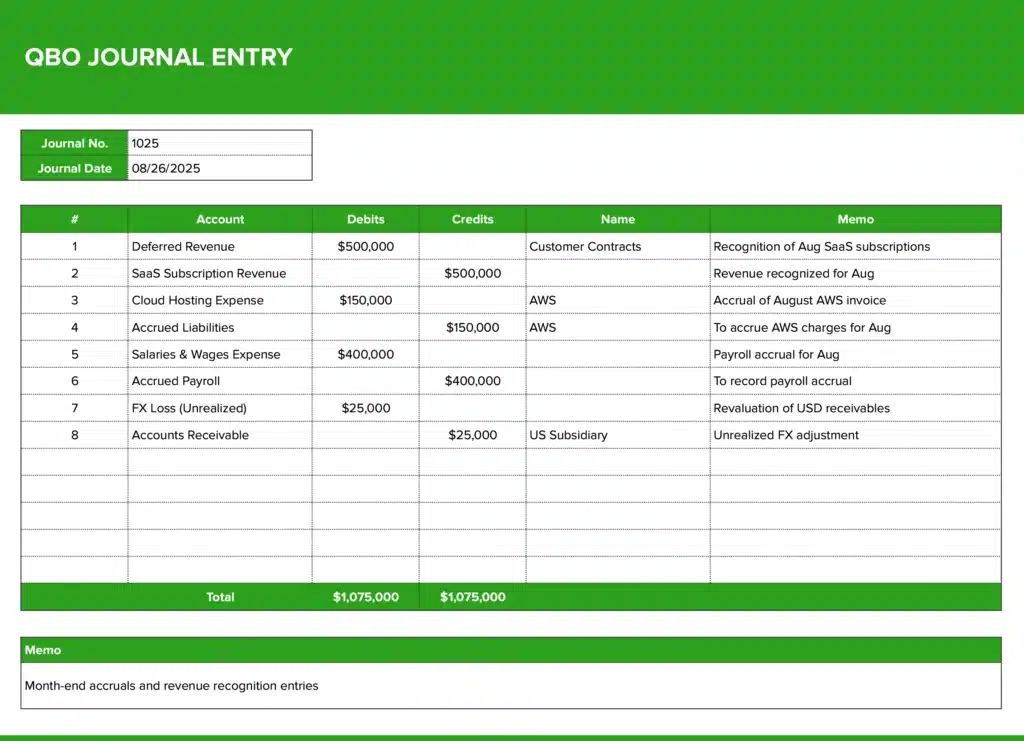
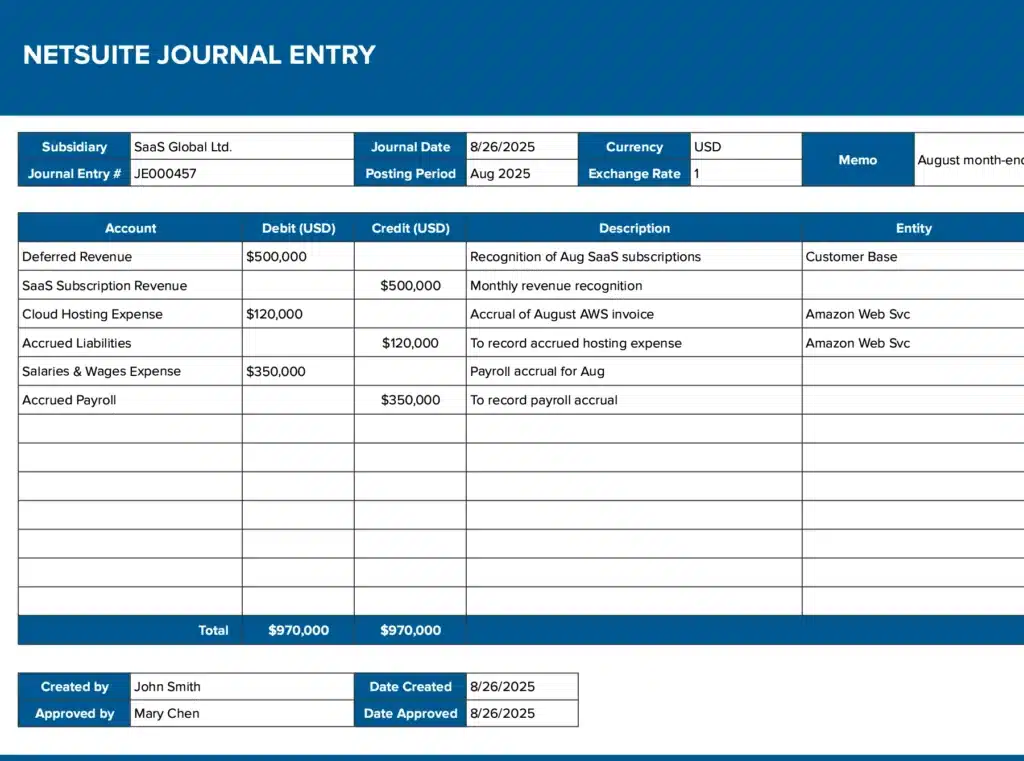
A journal entry report provides a detailed record of all accounting transactions entered into your QuickBooks Online system. This essential financial document tracks debits and credits for each transaction, showing how money flows between different accounts in your chart of accounts. Journal entry reports serve as the foundation for accurate bookkeeping, helping businesses maintain proper financial records, ensure compliance with accounting standards, and provide clear audit trails for all financial activities.
Benefits of using QuickBooks Online journal entry template
Streamlined data organization Our template eliminates the guesswork from journal entry tracking. You get pre-formatted columns for all essential data points, ensuring consistency across your financial records.
Enhanced accuracy and compliance Built-in structure reduces manual errors common in journal entry management. The template follows standard accounting practices, helping you maintain proper debit and credit balances.
Time-saving analysis capabilities Transform raw QuickBooks data into actionable insights. Sort, filter, and analyze your journal entries without switching between multiple systems or spending hours on manual data manipulation.
Professional reporting format Present your journal entry data in a clean, professional format that’s ready for stakeholder review, audit preparation, or internal financial analysis.
Seamless integration workflow Connect your QuickBooks Online data directly to Google Sheets, eliminating the need for manual data exports and reducing the risk of version control issues.
Metrics tracked in the report
Our QBO Journal Entry Template captures all critical journal entry data points:
- Account Name – The specific chart of accounts affected by each transaction
- Debits – All debit amounts for proper double-entry bookkeeping
- Credits – All credit amounts to ensure balanced entries
- Line Description – Detailed descriptions of each transaction line item
- Memo – Additional notes and context for each journal entry
- Journal No. – Unique identifier for each journal entry record
- Journal Date – Transaction dates for proper chronological tracking
Start tracking your journal entries today
Managing journal entries doesn’t have to drain your time and energy. Our QBO Journal Entry Template transforms complex financial data into organized, actionable insights that drive better business decisions. The pre-formatted structure eliminates manual setup work while ensuring you capture every critical data point your accounting team needs.
Ready to streamline your journal entry tracking process? Get started with Coefficient today and transform how you manage your QuickBooks Online data in Google Sheets.
Frequently asked questions
How to make a journal entry in QBO?
Navigate to the “+ New” button in QuickBooks Online and select “Journal Entry” from the dropdown menu. Enter your transaction date, then add account names in the Account column. Input debit amounts in the Debits column and credit amounts in the Credits column, ensuring your total debits equal total credits. Add descriptions and memos as needed, then save your entry.
Where to find manual journal entries in QuickBooks Online?
Access your journal entries through the “Reports” menu in QuickBooks Online. Search for “Journal” in the report search bar, then select “Journal” from the results. This report displays all journal entries with filtering options by date range, account, or journal number. You can also find individual entries by navigating to the Chart of Accounts and drilling down into specific account registers.
How to import journal entry into QBO?
QuickBooks Online supports journal entry imports through Excel or CSV files. Prepare your data with columns for Date, Account, Debit, Credit, Description, and Name. Navigate to “Settings” > “Import Data” > “Journal Entries” in QuickBooks Online. Upload your formatted file and map your columns to QuickBooks fields. Review the preview, then complete the import process.
