


Table of Contents

- 1. Metric Inconsistency – Your Snowflake Data Is Clean. So Why Does Every Team Have a Different Number?
- 2. How to Query Snowflake Data Without SQL (And Pull It Straight Into Your Spreadsheet)
- 3. How to Query Snowflake Semantic Views in Google Sheets Without SQL
-
4. How to Fix Excel Refresh After Snowflake’s Password Deprecation
- Why did Excel stop refreshing Snowflake data?
- How to confirm the password block is the cause
- Which sign-in method should Excel use now?
- How to switch the Excel ODBC connection
- Why scheduled Excel refresh gets harder after the change
- How Coefficient keeps Snowflake data refreshing in Excel
- Does this change Power BI and Power Query Online?
- Get Excel refreshing on a schedule again
- 5. Snowflake MCP With Claude: Setup, Limits and Alternatives
- 6. How to Connect Snowflake to Google Sheets
- 7. How to Connect Excel and Snowflake?
- 8. How to Export Snowflake Data into Google Sheets
- 9. How to Upload CSV to Snowflake: Top 3 Methods
- 10. How to Upload Data to Snowflake
- 11. How to Download Data from Snowflake
- 12. How to Export Data from Snowflake to CSV


| Quick answer Snowflake’s password deprecation blocked password-only sign-in completely since October 2026, so Excel workbooks using the ODBC driver with a username and password stop refreshing. To fix Snowflake Excel refresh, switch the ODBC connection to key-pair authentication, browser sign-in, a programmatic access token or password plus MFA. Key-pair suits scheduled refresh best. Coefficient avoids ODBC altogether, connecting with key-pair or OAuth and refreshing on a schedule with the workbook closed. |
Your Snowflake report refreshed in Excel every morning for months. Then one day it fails at sign-in and the numbers stop moving. You didn’t change anything. Snowflake did.
Snowflake now requires strong authentication for every user. Most Excel workbooks reach Snowflake through an ODBC connection set up with a plain username and password. This guide shows how to confirm that’s the cause, which sign-in method to switch to and how to keep refresh running on a schedule afterward.
Why did Excel stop refreshing Snowflake data?
Excel stopped refreshing Snowflake data because Snowflake no longer accepts a password on its own. Snowflake retired single-factor passwords in three phases. The final phase reached accounts on a rolling basis between August and October 2026.
In that final phase, human users can’t sign in with a password alone. A user counts as human when its TYPE is PERSON or isn’t set at all. Every LEGACY_SERVICE user was also converted to TYPE=SERVICE, which can’t use a password at any point. An Excel workbook that signs in through the Snowflake ODBC driver with a stored username and password belongs to one of those two groups, so its next refresh fails.
The timing differs from account to account. Snowflake notified each account of its own enforcement date and allows extensions for complex workloads, so one team’s workbooks can break weeks before another’s. Reader accounts and trial accounts are excluded. Snowflake’s deprecation timeline lists every phase and who it affects.
How to confirm the password block is the cause
Confirm the cause before you change the connection. Four checks tell you whether Snowflake’s password block is what broke the Excel refresh.
- Read the Excel error. A failure at the login or authentication step, rather than a query error or a timeout, points to sign-in.
- Query failed ODBC logins. A Snowflake admin can pull recent failures from LOGIN_HISTORY and read the ERROR_MESSAGE column for the exact reason Snowflake gave. ACCOUNT_USAGE views can lag by up to two hours.
SELECT event_timestamp, user_name, first_authentication_factor, error_message
FROM snowflake.account_usage.login_history
WHERE is_success = ‘NO’
AND reported_client_type = ‘ODBC_DRIVER’
ORDER BY event_timestamp DESC
LIMIT 50;
- Check the user’s TYPE. Run DESC USER jane_doe and look at the TYPE property. PERSON or blank means a human user who now needs a second factor or a passwordless method. SERVICE means passwords are off the table.
- Open the Strong Authentication Hub in Snowsight. It shows which users still sign in with only a password, the applications they use and your account’s enforcement dates.
If the failed logins are password-only ODBC sign-ins, the deprecation is your cause. The next step is picking a replacement.
Which sign-in method should Excel use now?
Excel’s Snowflake connection needs a sign-in method that doesn’t rest on a password alone. Use key-pair authentication if the workbook refreshes on a schedule or is shared across a team. Use browser sign-in if one person refreshes their own workbook by hand. Programmatic access tokens work for unattended refresh but expire. Password plus MFA is a stopgap.
| Method | Admin needed | Works for scheduled refresh | Best for |
|---|---|---|---|
| Key-pair authentication | Yes, to register the public key | Yes | Shared and scheduled workbooks |
| Browser sign-in (SSO or Snowflake OAuth) | Only to set up SSO | Not reliably, sign-ins expire | One person refreshing by hand |
| Programmatic access token | Usually, for the network policy | Yes, until the token expires | Short-term fixes and single-role reporting |
| Password plus MFA | Yes, to enable MFA caching | No, each prompt needs a person | A stopgap for human users |
| Coefficient connector | Once, to run one query or set up OAuth | Yes, with the workbook closed | Teams that want scheduled refresh without drivers or key files |
How to switch the Excel ODBC connection
Excel reaches Snowflake through the Snowflake ODBC driver and a DSN (data source name) configured in Windows. Every option below edits that DSN in the ODBC Data Source Administrator, so check your driver version there first. Version 3.9.0 or later has the key-pair fields on the Windows setup screen and supports OAuth and access tokens, per Snowflake’s ODBC release notes. Setting up Excel and Snowflake from scratch? Start with how to connect Snowflake to Excel.
Option 1: Key-pair authentication
Key-pair authentication swaps the password for an RSA key pair. The private key stays on the machine running Excel. The public key is registered on the Snowflake user. Nothing prompts during sign-in, which makes key-pair the right fit for workbooks that refresh with nobody at the keyboard.
- Generate an encrypted private key with OpenSSL. The command prompts for a passphrase.
openssl genrsa 2048 | openssl pkcs8 -topk8 -v2 aes-256-cbc -inform PEM -out rsa_key.p8
- Generate the matching public key.
openssl rsa -in rsa_key.p8 -pubout -out rsa_key.pub
- Ask a Snowflake admin to register the public key on your user. Paste the key without its BEGIN and END lines.
ALTER USER jane_doe ADD KEY PAIR excel_key
PUBLIC_KEY = ‘MIIBIjANBgkqh…’;
- Open the ODBC Data Source Administrator, select your Snowflake DSN and click Configure.
- Set Authenticator to SNOWFLAKE_JWT, set PRIV_KEY_FILE to the full path of rsa_key.p8 and set PRIV_KEY_FILE_PWD to your passphrase. Leave the password field empty.
- In Excel, select Data, then Refresh All.
The trade-off is upkeep. The key file has to exist on every machine that refreshes the workbook. Someone also has to own rotating it. Snowflake’s key-pair guide covers rotation.
Option 2: Browser sign-in with SSO or Snowflake OAuth
Browser sign-in keeps the password out of the DSN entirely. When the driver needs a session, it opens a browser window and you log in there. There are two versions.
If your company signs in to Snowflake through an identity provider such as Okta or Microsoft Entra ID, set Authenticator to externalbrowser in the DSN. The driver opens your SSO login whenever Excel needs a new session.
If your company doesn’t use SSO, use Snowflake OAuth for local applications. It runs on a built-in integration called SNOWFLAKE$LOCAL_APPLICATION, so there’s no identity provider to configure. Set Authenticator to oauth_authorization_code in the DSN. The integration is still rolling out, so ask an admin to confirm it exists.
SHOW SECURITY INTEGRATIONS LIKE ‘SNOWFLAKE$LOCAL_APPLICATION’;
Both versions need a person and a browser on the machine running Excel. Users who sign in through Snowflake OAuth must also be enrolled in MFA, because the login runs through Snowsight. Snowflake’s OAuth for local applications guide has the full setup.
Option 3: Programmatic access token
A programmatic access token (PAT) is a long secret Snowflake generates for a user. Excel sends it where the password used to go, so nothing prompts during refresh.
- Generate the token in Snowsight or with SQL. Set a role and an expiry.
ALTER USER jane_doe ADD PROGRAMMATIC ACCESS TOKEN excel_pat
ROLE_RESTRICTION = ‘REPORTING_ROLE’
DAYS_TO_EXPIRY = 90;
- Copy the token secret right away. Snowflake shows it once.
- Replace the password with the token, either in your DSN or in Excel’s saved credentials for the ODBC source. Keep your username as it is.
- Refresh the workbook in Excel.
Three details trip people up. Tokens expire after 15 days by default and after 365 days at most, so a scheduled refresh breaks quietly when the token runs out. A token restricted to one role fails for queries that use any other role. And by default, the user must be covered by a network policy to sign in with a token, which usually means an admin request first. Details are in Snowflake’s programmatic access token guide.
Option 4: Password plus MFA as a stopgap
Password plus MFA keeps today’s report moving for human users. An admin turns on MFA token caching for the account with ALTER ACCOUNT SET ALLOW_CLIENT_MFA_CACHING = TRUE. You then set Authenticator to username_password_mfa in the DSN. Approve the MFA prompt once and the cached token lasts up to four hours. That works for a manual refresh. It fails a scheduled one, because nobody is there to approve the next prompt.
Why scheduled Excel refresh gets harder after the change
Scheduled refresh is where Snowflake’s password deprecation hurts Excel users most. Excel only refreshes an ODBC connection while the workbook is open, either when the file opens or on a timer set in Connection Properties. Anything more automated usually depends on a script or a desktop flow that opens the file on a schedule.
Those automations worked because a stored password never asked for anything. Now the options split in two. Browser sign-in and password plus MFA need a person to respond, so they can’t run unattended. Key-pair and access tokens can, but each adds upkeep: a key file on every machine that refreshes, expiry dates to track and, in many accounts, a network policy or service user an admin has to create.
For one analyst refreshing one workbook, that’s manageable. For a team sharing a dozen Snowflake-fed workbooks, keeping sign-in working becomes a maintenance job of its own.
How Coefficient keeps Snowflake data refreshing in Excel
Coefficient connects Excel to Snowflake without an ODBC driver or a DSN. It signs in with the methods Snowflake now requires. Coefficient’s Snowflake connector for Excel supports key-pair authentication and Snowflake OAuth. There’s no password connection left to break. Older password connections show a notice in their connection settings to switch to key-pair.
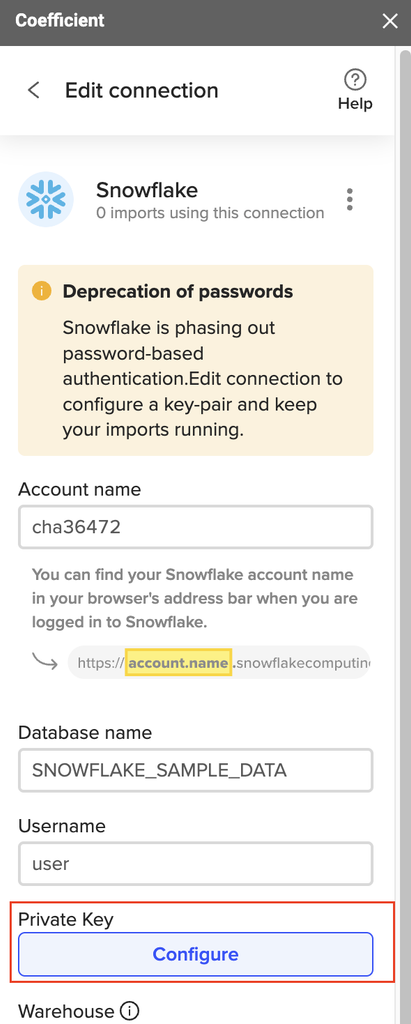
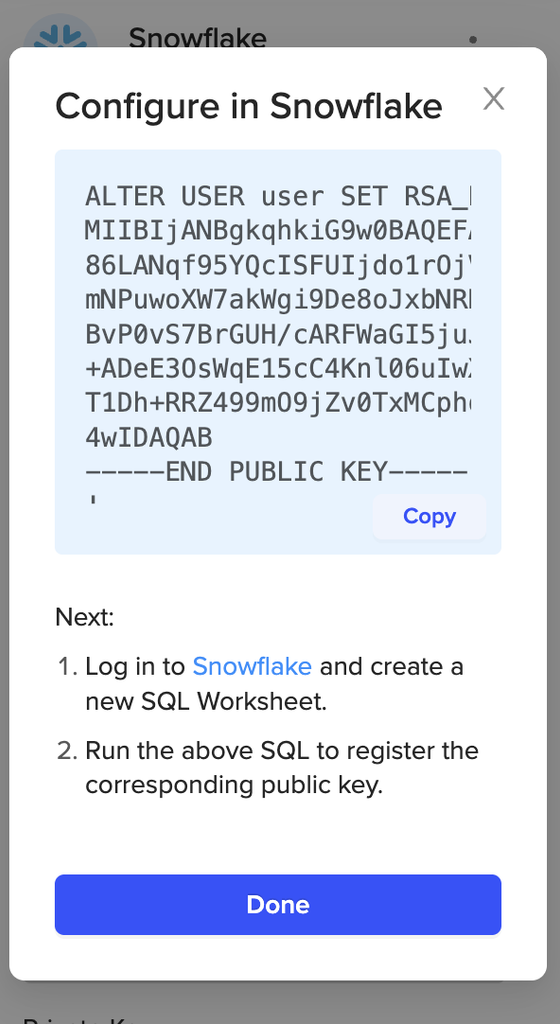
Key-pair setup takes the fiddly part away. Coefficient generates the key pair and gives your Snowflake admin one query to register the public key. Nobody runs OpenSSL. No key file sits on anyone’s laptop. Larger teams can use Snowflake OAuth instead, so each person connects with their own Snowflake login once an admin configures it.
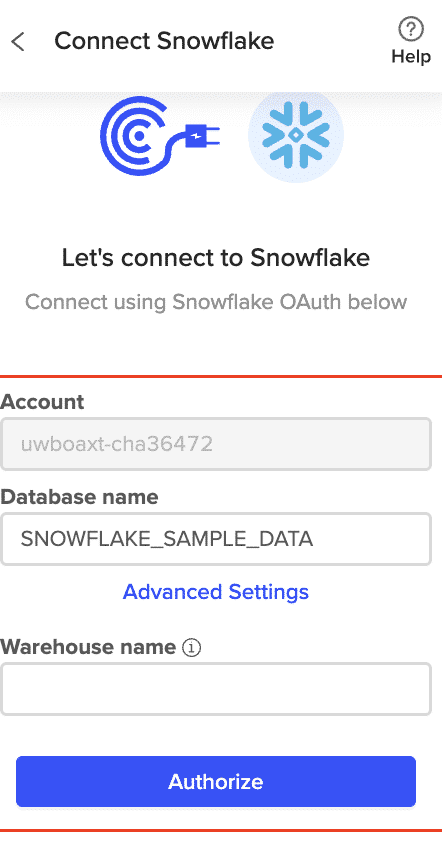
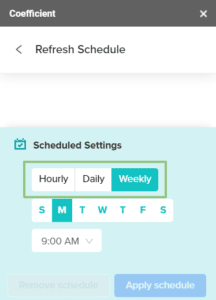
Imports from Snowflake tables, custom SQL or the GPT SQL Builder then refresh on a schedule you set: hourly, daily or weekly. Scheduled refresh runs with the workbook closed, which is the gap the ODBC route can’t close on its own.
Ed Pok, Director of Data Governance at Zendesk, described what his team needed:
“My finance & ops teams needed an enterprise grade connection for their spreadsheet workflows when we moved from BigQuery to Snowflake.”
Ed Pok, Director of Data Governance, Zendesk
Coefficient runs in Excel and Google Sheets and connects to 150+ systems, so Snowflake data can sit next to CRM and finance data in the same workbook.
Does this change Power BI and Power Query Online?
Power BI handles Snowflake’s password deprecation differently from Excel. Microsoft’s native Snowflake connector supports Microsoft Entra ID and key-pair authentication. Its documentation lists Power BI, Fabric and Power Apps as supported products, not Excel. That’s why Excel workbooks reach Snowflake through ODBC instead. For Power BI reports and Power Query Online dataflows, follow Microsoft’s Snowflake connector guide. The fixes in this guide apply to Excel workbooks on the ODBC driver.
Get Excel refreshing on a schedule again
Snowflake isn’t bringing single-factor passwords back, so the fix is a sign-in method that doesn’t need one. If you’d rather skip drivers, DSNs and key files, try Coefficient free and set your Snowflake imports to refresh on a schedule, with the workbook open or closed.