
Table of Contents

- 1. Metric Inconsistency – Your Snowflake Data Is Clean. So Why Does Every Team Have a Different Number?
-
2. How to Query Snowflake Data Without SQL (And Pull It Straight Into Your Spreadsheet)
- The Problem With How Most Teams Access Snowflake Data
- Why Business Users Cannot Access Snowflake Data Easily
- Four Ways to Query Snowflake Without SQL
- How to Query Snowflake Without SQL Using Coefficient (Step by Step)
- Who Gets the Most Out of No-SQL Snowflake Access
- When You Still Need SQL
- Start Querying Snowflake Without SQL
- 3. How to Query Snowflake Semantic Views in Google Sheets Without SQL
- 4. How to Connect Snowflake to Google Sheets
- 5. How to Connect Excel and Snowflake?
- 6. How to Export Snowflake Data into Google Sheets
- 7. How to Upload CSV to Snowflake: Top 3 Methods
- 8. How to Upload Data to Snowflake
- 9. How to Download Data from Snowflake
- 10. How to Export Data from Snowflake to CSV


| Quick Answer Business teams can query Snowflake without SQL using a visual table picker, an AI query builder, or a spreadsheet connector like Coefficient. The fastest route for finance, RevOps and FP&A teams is Coefficient’s Snowflake connector, which lets you select tables, fields and filters inside Google Sheets or Excel using a point-and-click interface, no SQL required. Data lands in your spreadsheet and auto-refreshes on a schedule you set. |
The Problem With How Most Teams Access Snowflake Data
Your data team built out Snowflake for a reason. Every revenue metric, every pipeline number, every customer record lives there, clean and governed. The problem is that most of the people who need that data daily, your finance managers, RevOps leads and FP&A analysts, cannot get to it without filing a ticket or waiting on a data engineer. So they do what people do: they download a CSV, paste it into a spreadsheet, and build their own version of the truth. The governed data sits in Snowflake. The decisions get made somewhere else. This guide covers the practical ways to close that gap without asking your business team to learn SQL. Link your Snowflake connector directly to the tools they already work in.
Why Business Users Cannot Access Snowflake Data Easily
Snowflake is built for SQL-fluent users. The native interface, Snowsight, assumes you know how to write a SELECT statement, pick the right warehouse, join the right tables. For a data engineer, that is straightforward. For a finance manager trying to pull last quarter’s ARR by region before a board meeting, it is a full stop.
The teams who hit this wall hardest are the ones with the most legitimate need for the data. Finance managers who maintain recurring reports. RevOps leads who track pipeline daily. Sales ops teams who need CRM data alongside warehouse data in the same view. FP&A analysts running scenario models. None of these roles require SQL fluency to do their jobs well, but every one of them needs warehouse data to do those jobs accurately.
The typical workaround is a CSV export or a manually refreshed report that someone on the data team runs on their behalf. Both break down fast. CSVs go stale the moment they are downloaded. Manual reports create a bottleneck every time something needs updating. Neither is sustainable at the pace most teams actually work.
Four Ways to Query Snowflake Without SQL
Not all of these are equal. Here they are in order of practical value for business users, starting with the one that actually gets the job done.
Method 1: Visual Table Picker in a Spreadsheet Connector (Coefficient)
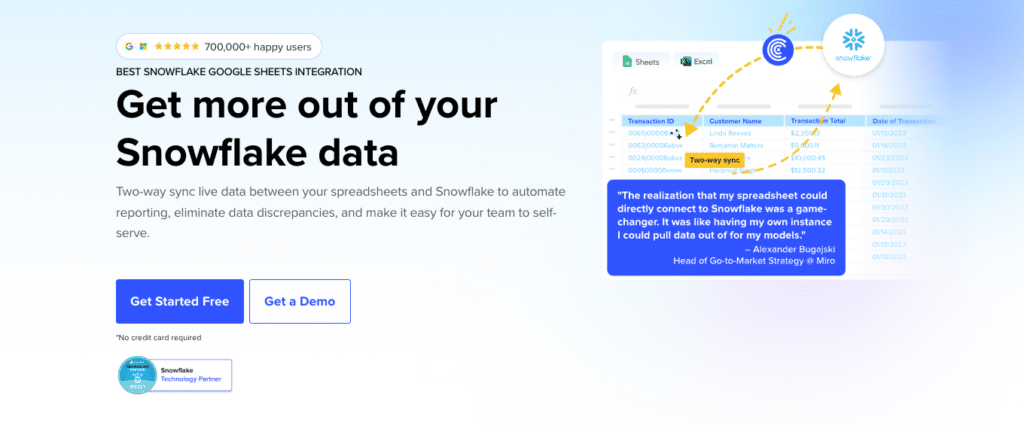
This is the most useful option for anyone who lives in Google Sheets or Excel. Coefficient connects directly to Snowflake and surfaces your tables, fields and filters inside the spreadsheet sidebar. You click the table you want, select the columns you need, apply filters, set a row limit, and hit import. No SQL. The data lands in your sheet.
For teams whose data engineers have built Snowflake Semantic Views, Coefficient’s Metrics and Dimensions picker goes a step further. Instead of browsing raw tables, you see the governed metrics your data team defined, things like net revenue retention, ARR and churn rate, already named and correctly aggregated. You pick the metric and the dimensions you want to slice by, and Coefficient generates the underlying SEMANTIC_VIEW() query automatically. The governance chain stays intact. The finance manager gets the right number without knowing the underlying table structure.
Auto-refresh scheduling means the data updates hourly, daily or weekly without anyone touching it. Set it once and the report runs itself.
Method 2: GPT SQL Builder
If your pull is more complex than a simple table selection, Coefficient’s GPT SQL Builder lets you describe what you want in plain English. Something like: ‘Show me monthly revenue by region for the last 12 months, excluding internal accounts.’ Coefficient translates that into SQL, runs it against Snowflake, and pulls the results into your sheet.
There is SQL being generated under the hood, but you never have to write, read or troubleshoot it. This is a practical bridge for users who need custom queries but do not have the SQL skills to write them, and for analysts who do know SQL but want to move faster.
Method 3: Snowflake Copilot (Native)
Snowflake’s built-in LLM assistant, Snowflake Copilot, lets you type natural language questions directly in Snowsight and get SQL generated for you. It is a solid option for analysts who are comfortable inside the Snowflake interface and want to explore data without writing queries from scratch.
The limitation is the surface. Results stay inside Snowflake. You cannot auto-refresh, schedule exports or build a living spreadsheet model from Copilot output. For a one-off exploration, it works well. For a recurring finance report or a dashboard that updates automatically, it does not solve the problem.
Method 4: Manual CSV Export
The fallback. Log into Snowflake, run a query or find the right table, download the results as a CSV, upload it to Google Sheets. It works fine for a genuine one-off pull where the data does not need to be refreshed and the stakes are low.
The problem is that most use cases are not one-offs. If you are building a report you will run again next month, or a dashboard someone checks weekly, the CSV method breaks down immediately. Every update requires repeating the entire process, and every version of the file is slightly out of date the moment it is saved. It is also the most common path through which governed Snowflake data ends up in an ungoverned spreadsheet with its own metric definitions.
How to Query Snowflake Without SQL Using Coefficient (Step by Step)
Here is the full flow using Coefficient’s visual import, the fastest path for non-technical users. You can get started free here.
Step 1: Install Coefficient from the Google Workspace Marketplace. Open Google Sheets, go to Extensions, then Add-ons, then Get add-ons, and search for Coefficient. Install and launch from the Extensions menu.
Step 2: Connect your Snowflake account. In the Coefficient sidebar, click Import From and select Snowflake. Enter your account name, database name, username and password. If your Snowflake instance is behind a firewall, whitelist Coefficient’s IP addresses at this step.
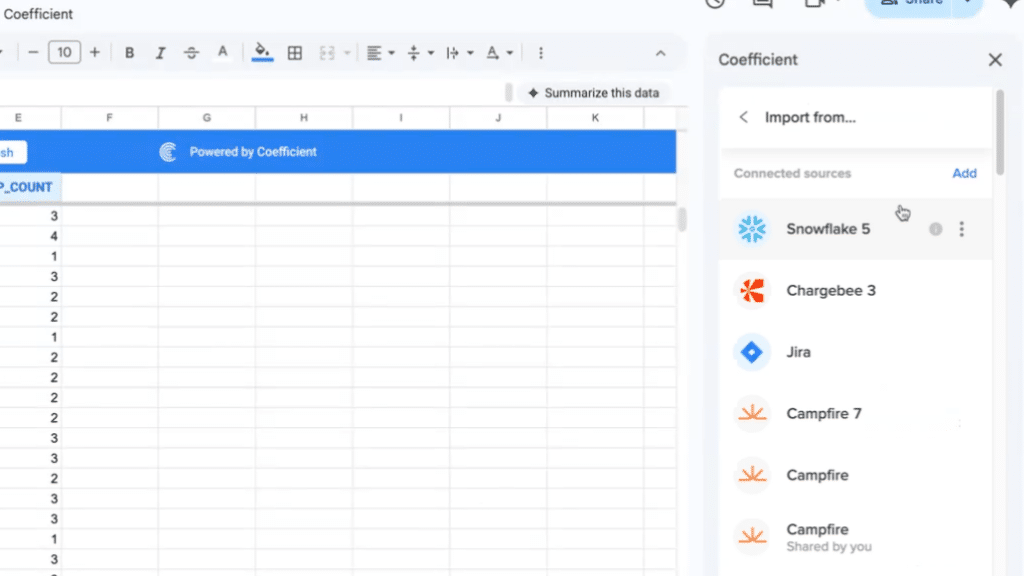
Step 3: Choose your import method. For most business users, Tables and Columns is the right choice. If your data team has built Semantic Views, look for the Semantic Views option in the tables list, it appears with a distinct icon alongside regular tables.
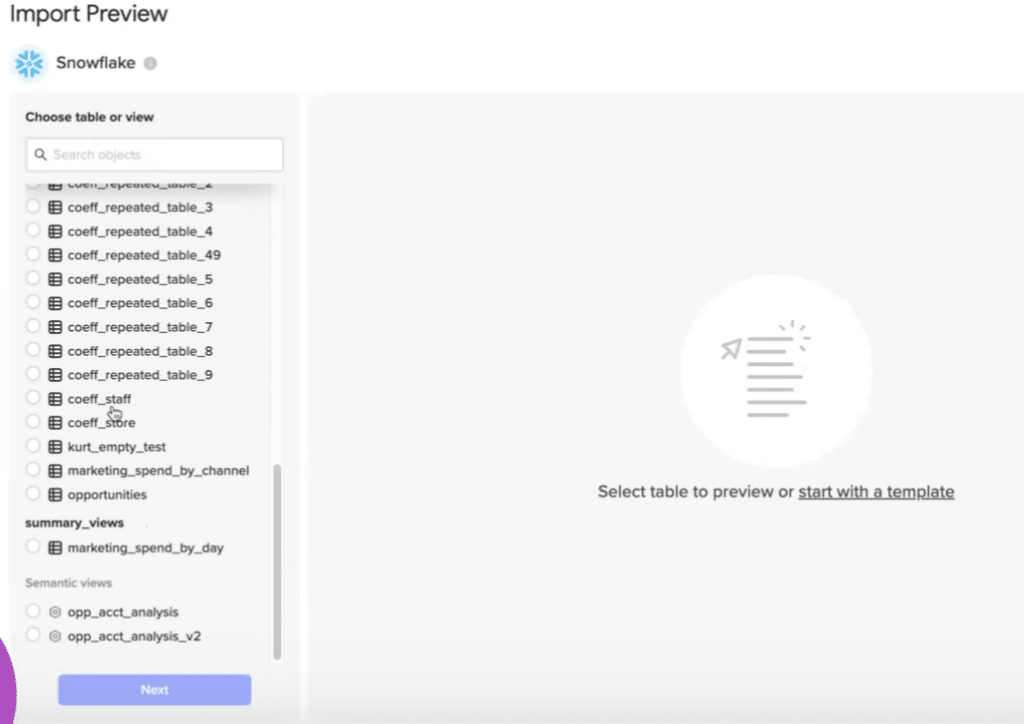
Step 4: Select your fields. For a standard table import, browse or search for the table you need, then select the specific columns you want. For a Semantic View, use the Metrics and Dimensions picker to select the KPIs and groupings your data team has defined.
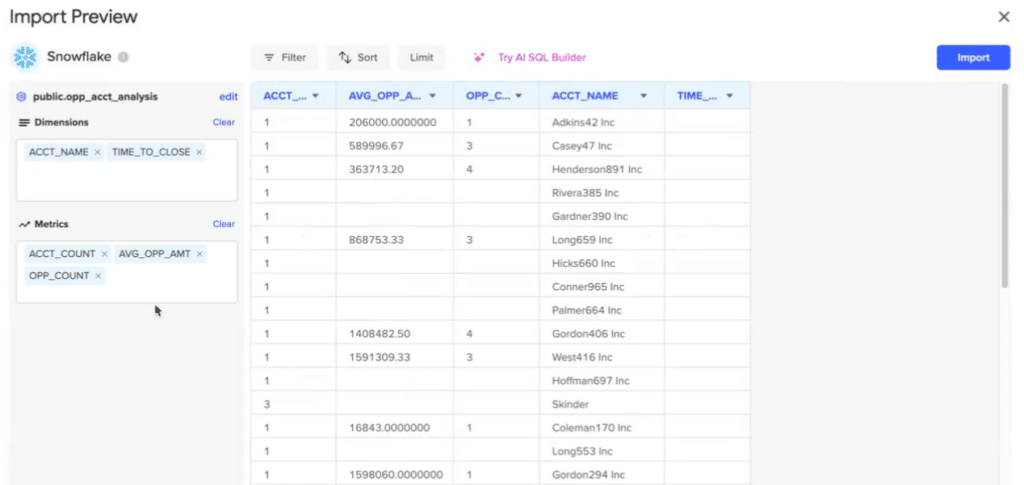
Step 5: Apply filters and limits. Narrow the dataset during import rather than after. You can filter by field value or any other column, and set a row limit to keep the sheet manageable. Preview and import. Coefficient shows you the first rows of your data before it lands in the sheet. Review the preview, adjust if needed, then click Import.
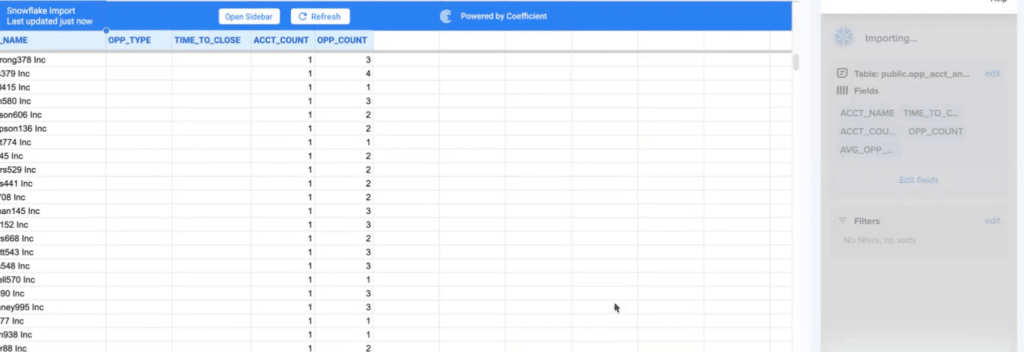
Step 6: Set your refresh schedule. After the import lands, open the Scheduled Run option in the sidebar and set the frequency: hourly, daily or weekly. The sheet updates automatically from that point on, no manual refreshes needed.
Tips for Data Imports & Writing Custom SQL
If you need to write data back to Snowflake from the spreadsheet, whether that is updating records, logging exceptions or syncing a budget model, Coefficient’s two-way sync handles that without leaving the sheet.
And if your pull requires more complex logic than the visual picker covers, the Custom SQL Query option lets you write or paste SQL directly inside the Coefficient import flow.
Klaviyo used Coefficient to extend their Snowflake data to 50+ business users across finance and RevOps. What previously took months of manual data operations was reduced to days. The governance chain stayed intact throughout. Read the full story.
Who Gets the Most Out of No-SQL Snowflake Access
This is not a universal solution for every Snowflake use case. But for specific roles, it removes a real blocker.
Finance Managers
The finance team’s core need is accurate, current data in the models they already maintain. Pulling Snowflake data directly into Google Sheets or Excel means their P&L, ARR tracker or budget versus actuals model stays live without a data engineer in the loop. Scheduled auto-refresh means the numbers are always current when leadership opens the file.
RevOps Leads
Pipeline dashboards built on Snowflake data without SQL means RevOps can build and maintain their own reporting rather than waiting on quarterly data pulls. Blending Snowflake data with CRM data in the same sheet, without exports or manual joins, is where the real operational leverage comes from.
FP&A Analysts
Forecasting models that connect directly to live warehouse data are more reliable than models built on CSV snapshots. When the underlying data updates, the model updates. Scenario changes flow through automatically. The analyst spends time on the analysis, not the data pipeline.
Sales Ops Teams
Sales ops often needs warehouse data alongside CRM data in the same view. Coefficient’s 100+ connectors mean you can pull Snowflake data and Salesforce or HubSpot data into the same spreadsheet without building a custom integration. The unified view that used to require a data engineer to assemble gets built in the tool the team already uses.
When You Still Need SQL
No-SQL access covers a lot of ground, but not everything. Complex multi-table joins with custom business logic, transformations that need to happen at the warehouse layer before the data is useful, and highly specific aggregations with nested filters are cases where SQL is still the right tool.
Coefficient’s Custom SQL Query option handles those cases for users who know SQL, and the GPT SQL Builder bridges the gap for most situations in between. But if your use case involves building a new data model, restructuring how tables relate to each other, or running performance-sensitive queries on large datasets, that work belongs in Snowflake with a data engineer, not in a spreadsheet connector.
The honest version: no-SQL Snowflake access is the right default for business users running recurring reports and operational workflows. It is not a replacement for the data engineering work that makes the underlying data trustworthy in the first place.
Start Querying Snowflake Without SQL
Business teams should not need a SQL ticket to access their own data. The governed numbers your data team built in Snowflake should reach the finance model, the pipeline dashboard and the FP&A forecast without a manual export in between. Coefficient closes that gap directly inside Google Sheets and Excel. Try it free and have live Snowflake data in your spreadsheet in under three minutes.