



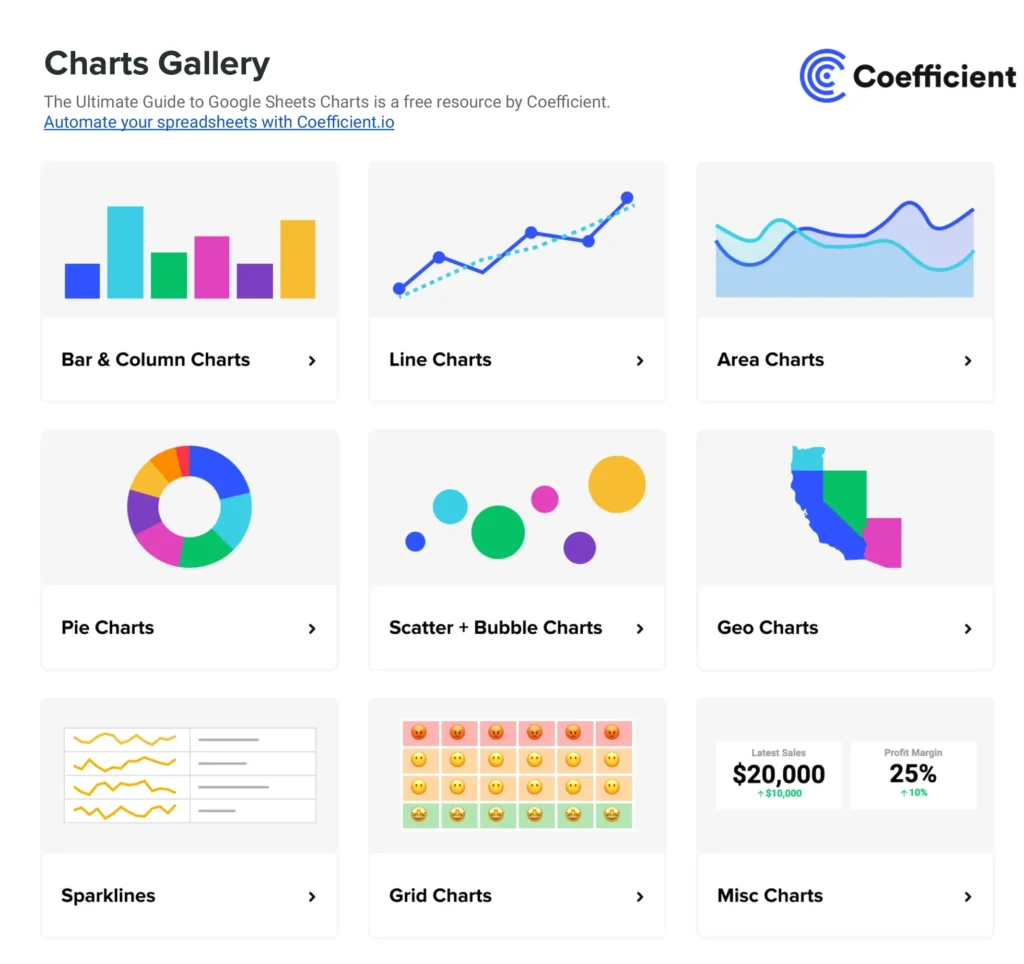





Free spreadsheet templates for every business workflow
Every team eventually builds the same spreadsheets from scratch: a simple budget tracker, a project plan, a cash flow model, sales pipeline graphs & charts. The structure is never the hard part. The hard part is rebuilding the formulas each time, reformatting a blank grid, and producing the deliverables a stakeholder can actually read. A good spreadsheet template gives you the right structure for the job so you can put data in and start working, not start designing.
This library covers 200+ free spreadsheet templates across Google Sheets and Microsoft Excel, organized by the workflows business teams reach for most. Every template is free to download and ready to use, built to be customized to the way your team actually works.
Types of spreadsheet templates
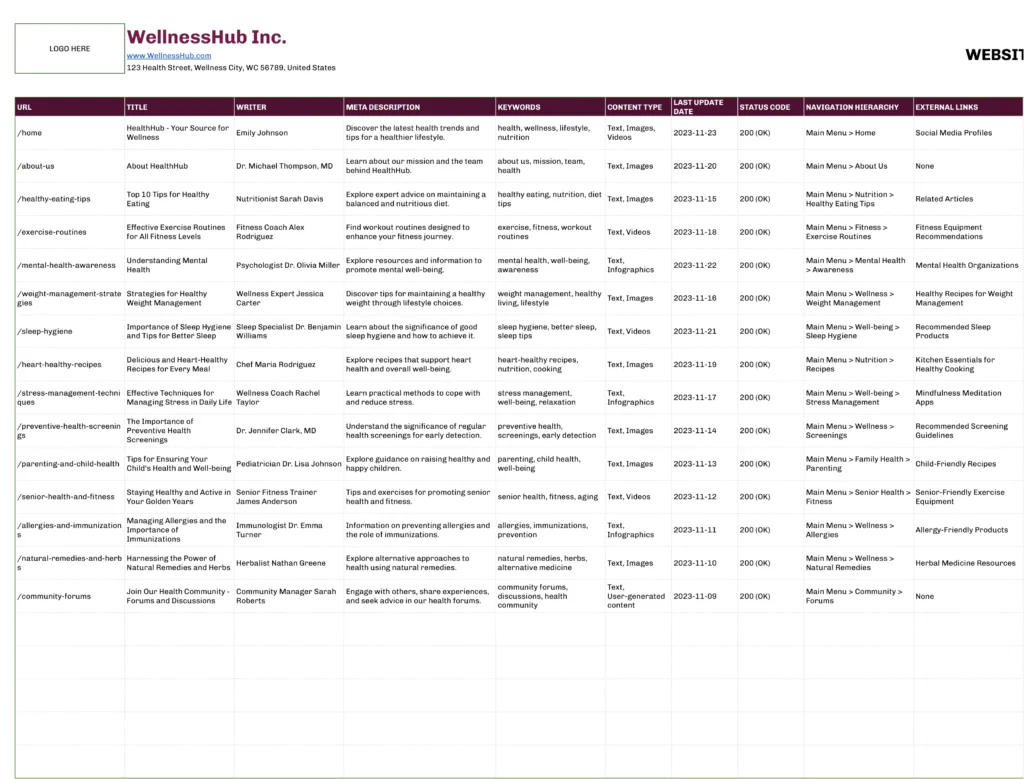
Spreadsheet templates fall into four broad categories, each built around a distinct type of work which is applicable for small businesses and enterprises. Understanding which category your use case belongs to makes it easier to find the right starting point and know what to look for in the template’s structure.
Financial and accounting templates
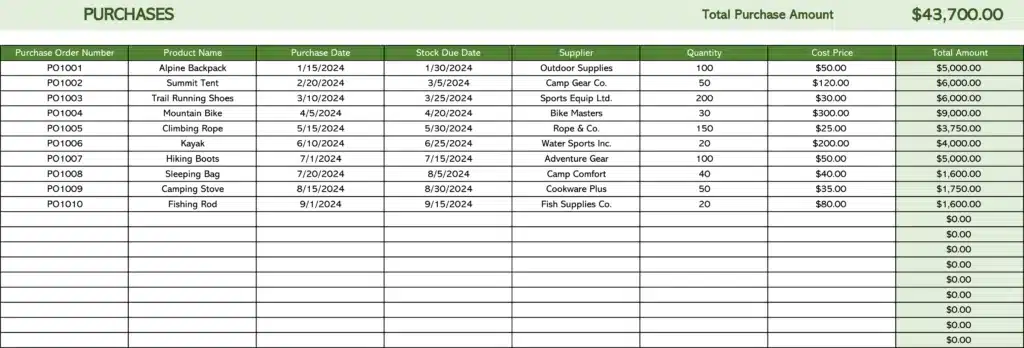
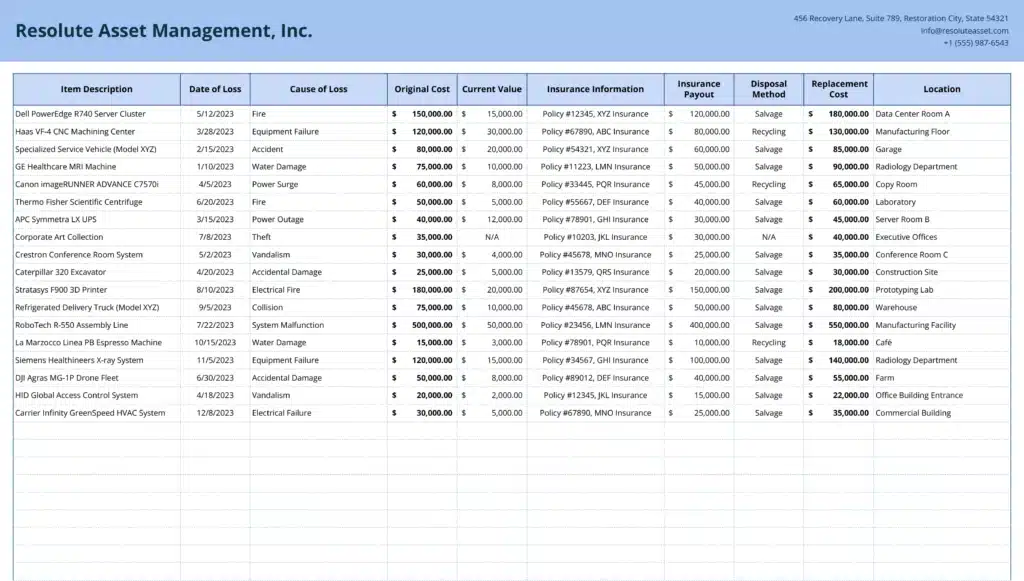
Financial templates are built around precision and repeatability. They cover the documents that finance and accounting teams produce on a recurring cycle: profit and loss statements, balance sheets, cash flow models, pricing models, budget tracker, ledgers, income statements and other financial planning models. The formulas do the calculation work so analysts can focus on interpretation rather than arithmetic. These templates are typically structured to be updated monthly or quarterly, with rows for actuals and columns for comparison periods. They prioritize data integrity over flexibility: locked cells, consistent formatting, and clear separation between input fields and calculated outputs.
Project and operations templates
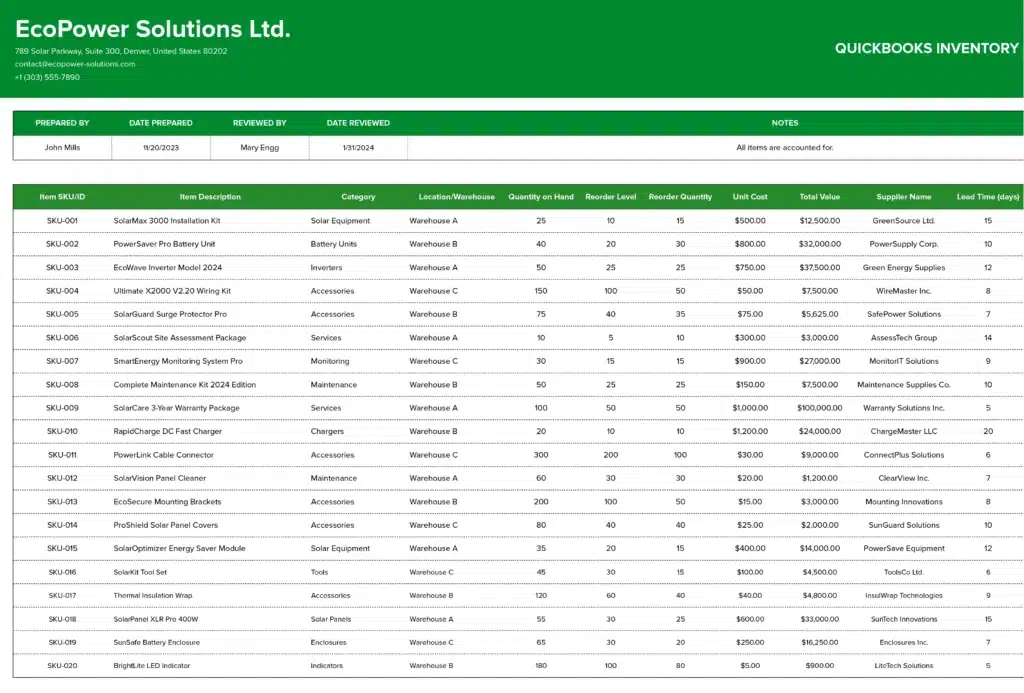
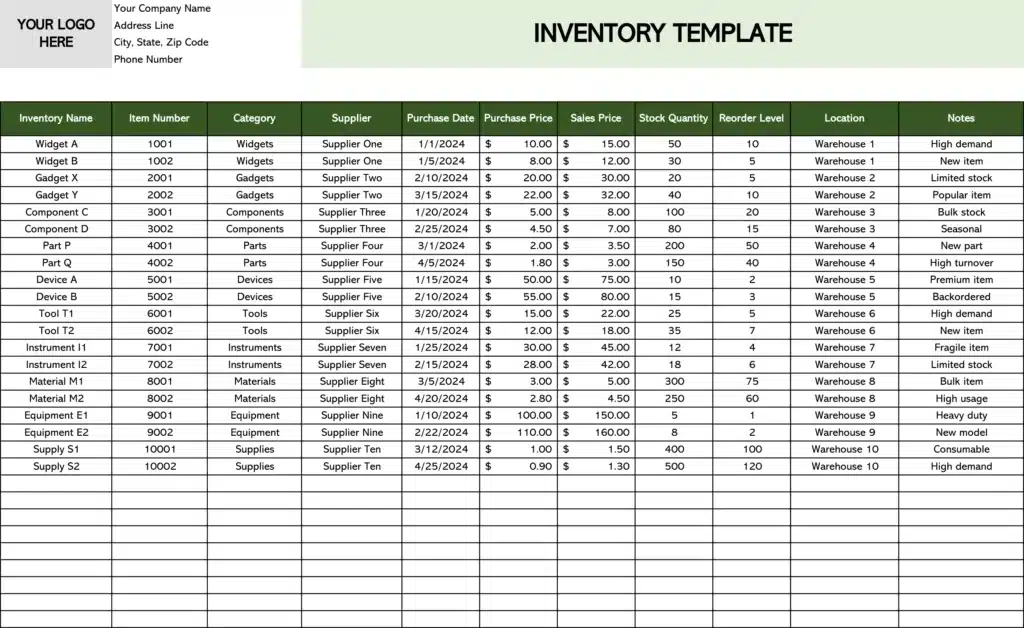
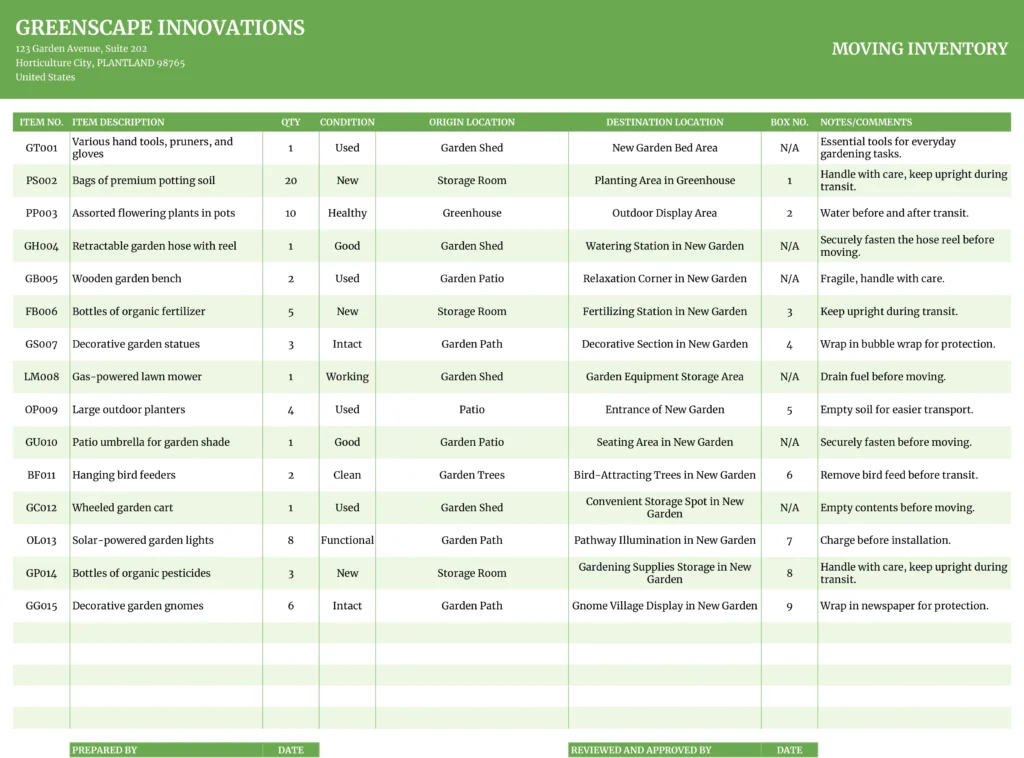
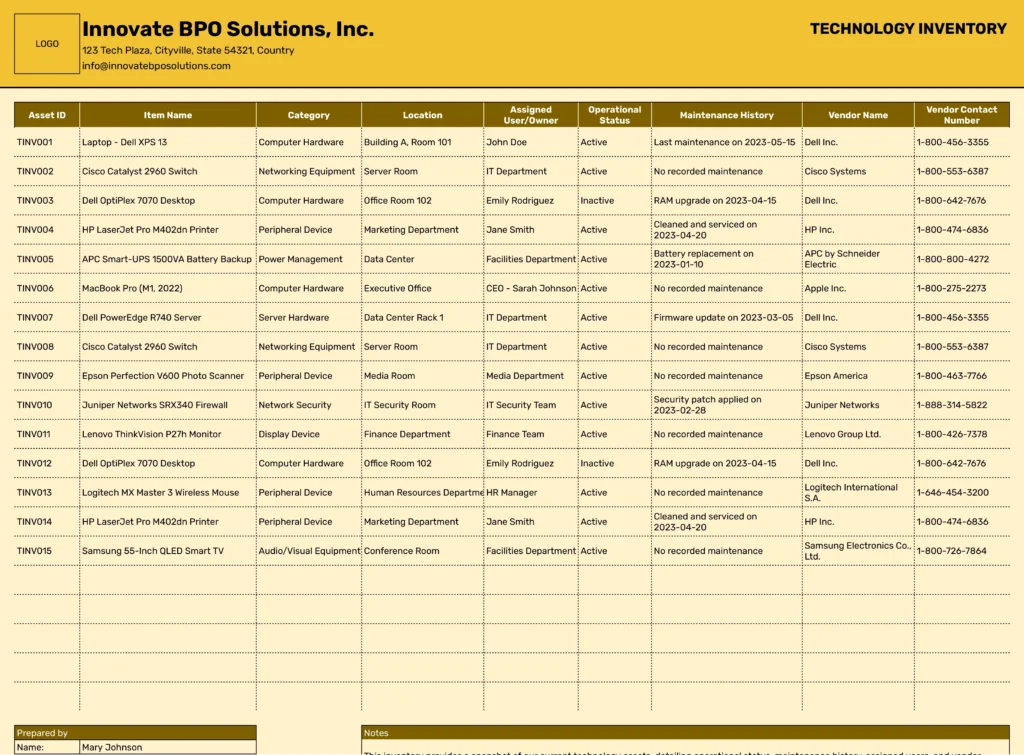
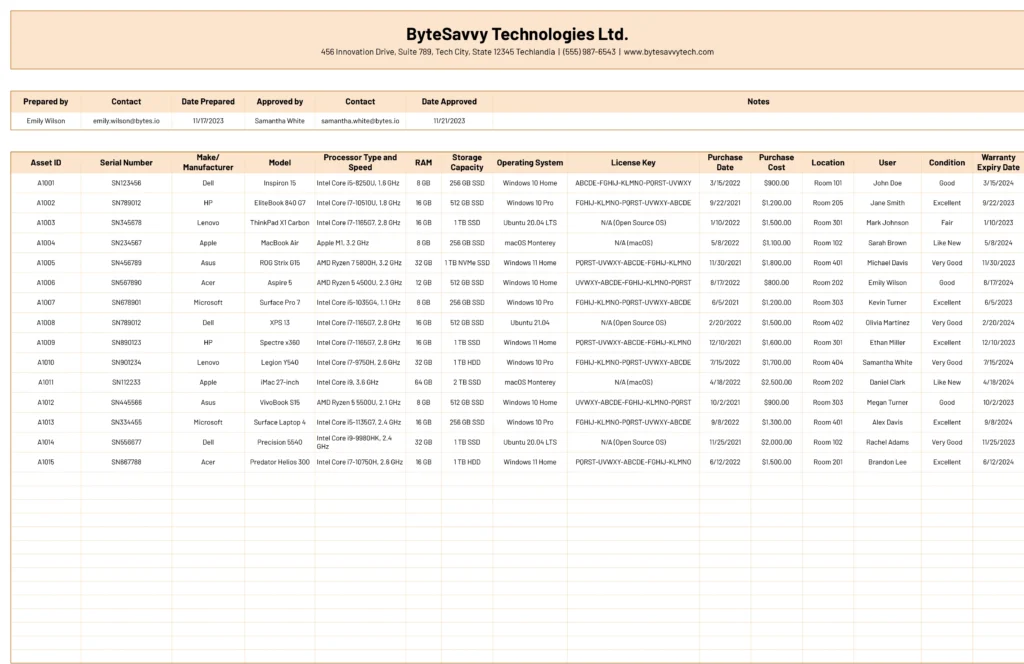
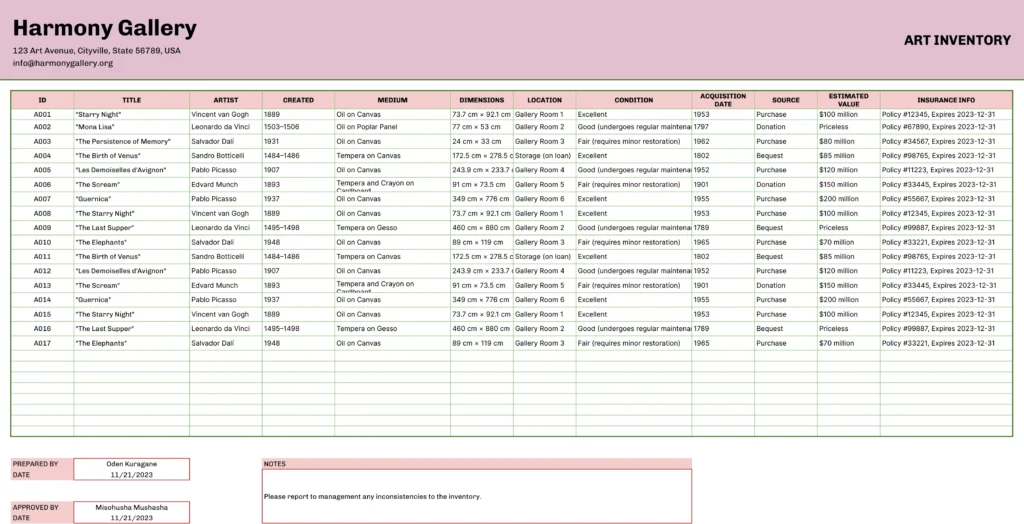
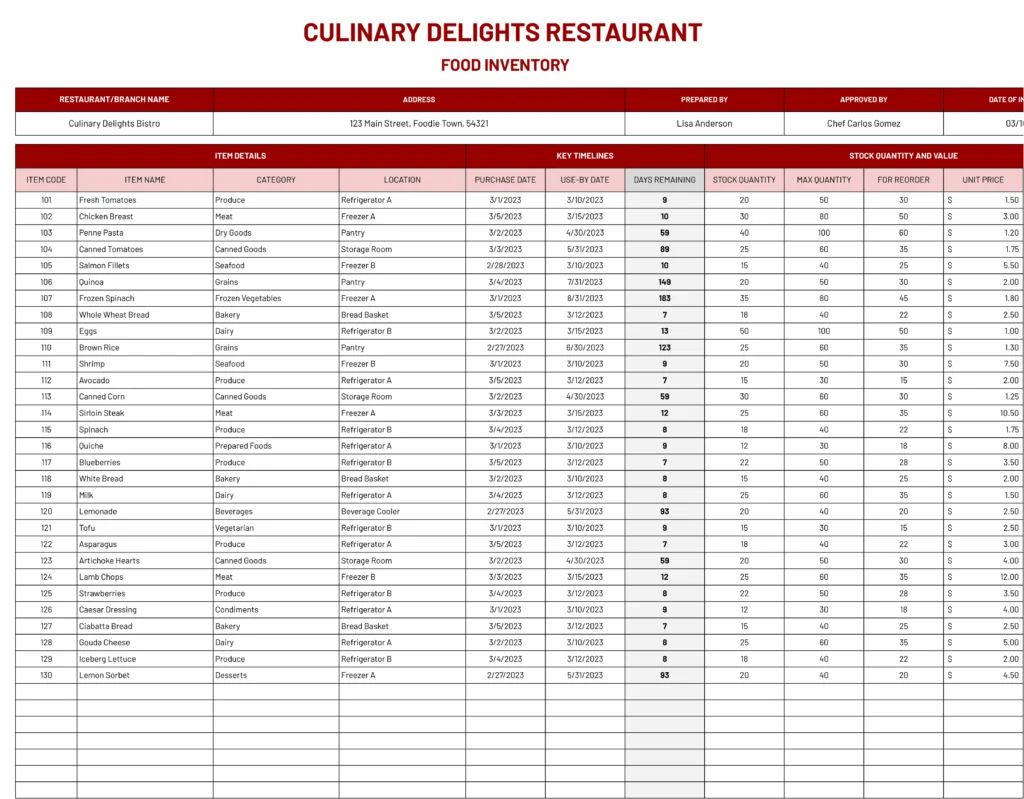
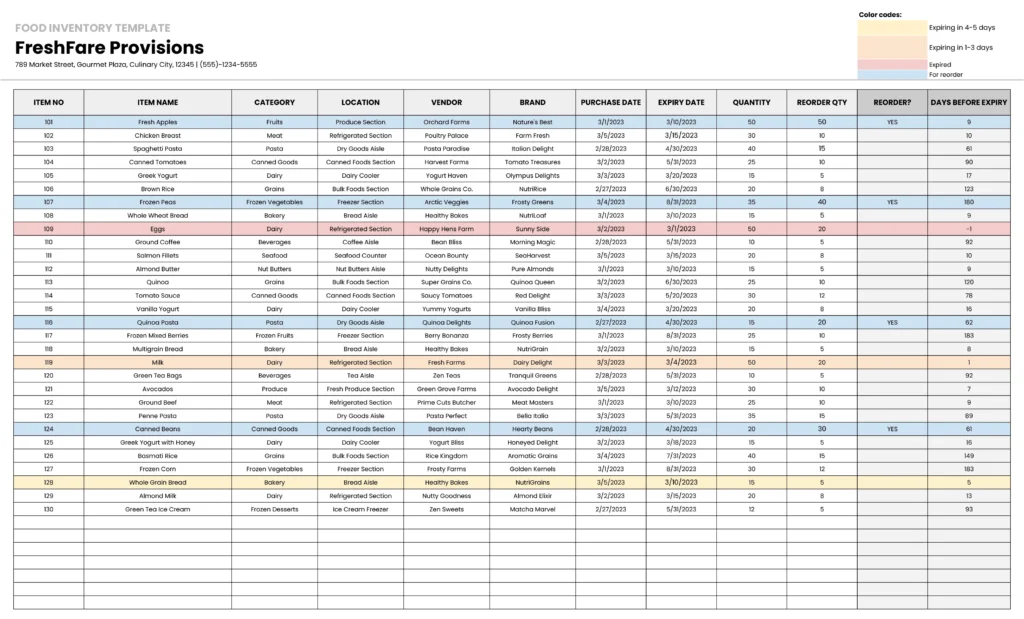
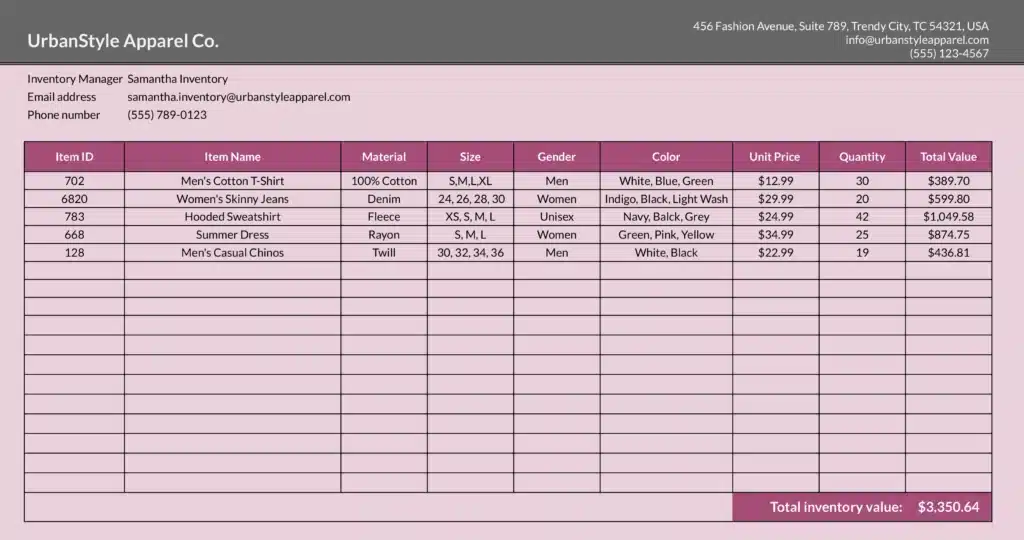
Operations templates are built around visibility and accountability. They track the state of work across people, timelines, and resources: project status reports, timelines, timesheets, issue trackers, RACI matrices, and inventory management. The formulas in these templates tend to be simpler than financial ones, but the structure matters more. A project tracker that does not reflect how your team stages work will be ignored within a week. These templates are designed to be updated frequently, often daily or weekly, by multiple contributors.
Sales and client operations templates
Sales templates are built to streamline process consistency. They standardize the documents that move through the revenue cycle: lead trackers, business quotes, invoices, receipts, expense reports, status updates, pay stubs, and contract tracking. The goal is not just organization but uniformity: every quote formatted the same way, every invoice following the same structure, every expense report submitted in a format the finance team can process without follow-up. These templates reduce the friction between doing the work and documenting it.
Strategy and planning templates
Strategy templates are built around alignment. They give teams a shared structure for setting direction and communicating it: OKR frameworks, SWOT analyses, product milestones, roadmaps, project tasks, competitor analyses, and content calendars. These are typically used less frequently than operational templates, but the cost of a poorly structured one is high. A product roadmap that does not reflect how your team thinks about priorities will be ignored in favour of a Slack thread. A good strategy template enforces the right questions before anyone starts filling in answers.
How to create a spreadsheet template
When no existing template fits your workflow closely enough, building one from scratch is often faster than adapting something that requires significant restructuring. The process is the same whether you are working in Google Sheets or Excel.
1. Define the purpose before opening a blank sheet
The most common mistake is starting with layout before defining what the template needs to do. Write one sentence describing the job: “This template tracks monthly marketing spend by channel against a quarterly budget, for the marketing manager to review weekly.” That sentence tells you who is reading it, how often, what data goes in, and what the output should communicate. Every column, formula, and formatting decision should follow from it.
2. Structure your columns and headers first
Map out the columns on paper or in a notes doc before building anything in the spreadsheet. Identify which fields are inputs (data someone enters manually), which are calculated outputs (formulas that derive from inputs), and which are reference data (static values like category names or targets). Keep inputs and outputs visually distinct, typically through cell shading or column grouping. Consistent, descriptive column headers matter more than most people expect: they determine how easy the template is to hand off to someone else.
3. Add formulas and data validation
Build formulas that handle the repetitive calculation work: running totals, variance against target, percentage completion, status flags based on date comparisons. Use data validation to constrain input fields where consistency matters, dropdown menus for category fields, date-only formatting for date columns, numeric limits for fields that should never accept text. Validation rules are what separate a template that stays clean from one that accumulates errors as soon as a second person touches it.
4. Format for the reader, not the builder
Strip out gridlines on any summary or dashboard tab. Use a consistent color palette: one color for input cells, one for calculated outputs, neutral for everything else. Make the most important numbers the largest and most prominent. Label every section clearly. The person reading the template may not be the person who built it, and they should not need an explanation to navigate it.
5. Save it as a reusable template file
In Excel, go to File > Save As and select Excel Template (.xltx) from the file type dropdown. This saves the template separately from any data you have entered, so opening it always starts from a clean state. In Google Sheets, make a master copy with sample data removed, then use File > Make a copy each time you need a fresh version. Alternatively, protect the master sheet so collaborators cannot accidentally overwrite the structure.
Skip the build: create a spreadsheet template with Coefficient’s AI Sheets Assistant
If you use Google Sheets, you do not have to build a template from scratch. Coefficient’s AI Sheets Assistant can create a template for you from a plain English description. Describe what you need: “a business budget template with columns for department, budgeted amount, actual spend, and variance” and the AI builds the structure, adds the formulas, and places it directly in your sheet. No formatting, no formula writing, no need to build pivot tables, no dependencies. It works for any template type: financial models, project trackers, sales pipelines, OKR frameworks, content calendars, creating gantt charts and more.
For team members that need the template connected to live data from Salesforce, HubSpot, QuickBooks, or another system, the AI assistant works alongside Coefficient’s data connectors, so the template it creates can pull real-time data from business systems rather than requiring manual data entry.
Available Templates in this Spreadsheet Library
The 26 template categories in this library cover the four areas where businesses most commonly reach for a spreadsheet.
Finance and accounting
The finance templates cover the core documents accounting and FP&A teams produce on a recurring basis. Profit and loss templates, income statement templates, balance sheet templates, and cash flow templates handle the financial reporting cycle. Budget templates and ledger templates cover planning and record-keeping. The finance checklists library adds the operational process layer: month-end close, bank reconciliation, AP processing, SOX compliance, rolling forecast checklists, and 25+ more structured workflows for teams that need a repeatable process, not just a place to store numbers.
Sales, revenue, and client operations
The sales and client-facing templates span the full revenue cycle. Lead tracking templates and competitor analysis templates support the front end of the pipeline. Business quote templates, invoice templates, receipt templates, and expense report templates handle client billing and internal reimbursement. Contract tracking templates and pay stub templates cover the administrative layer. Together these give revenue and operations teams a consistent format for every stage from prospect to payment.
Project and operations management
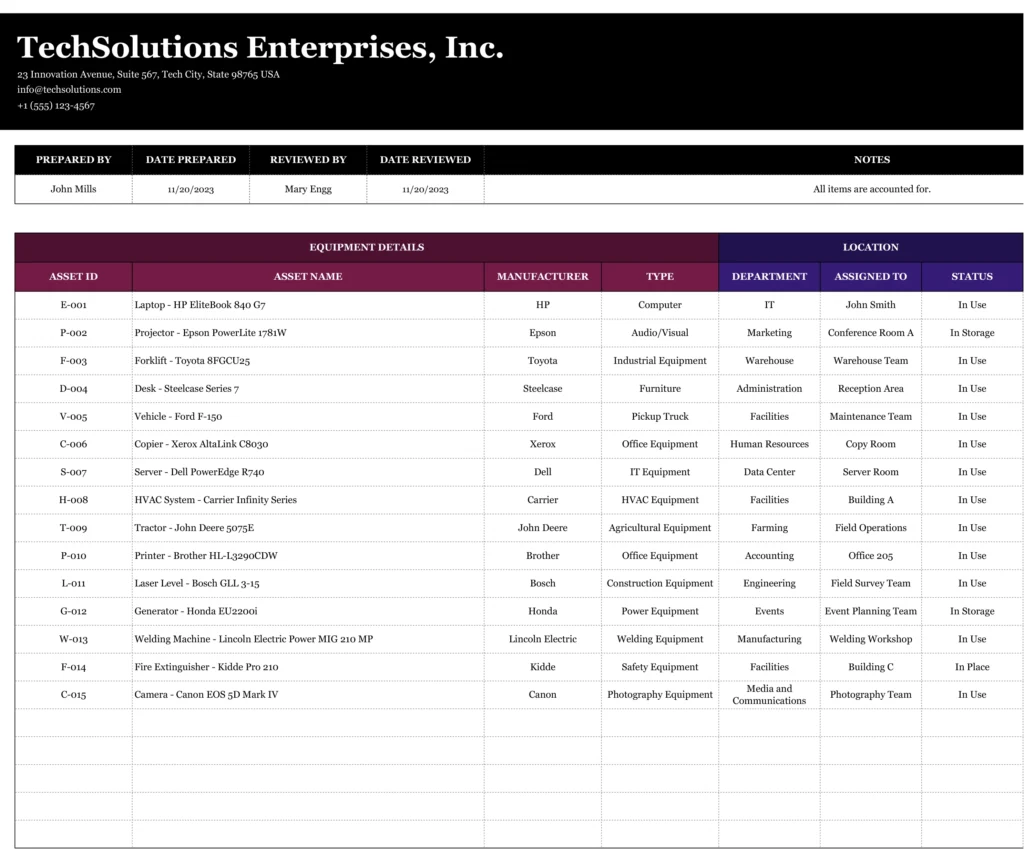
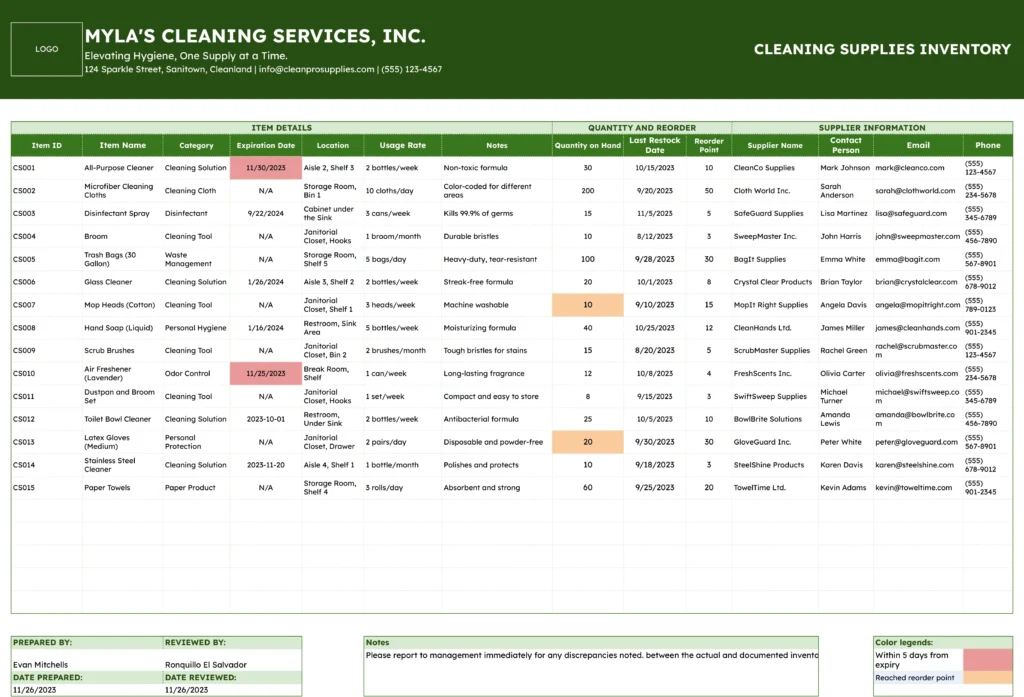
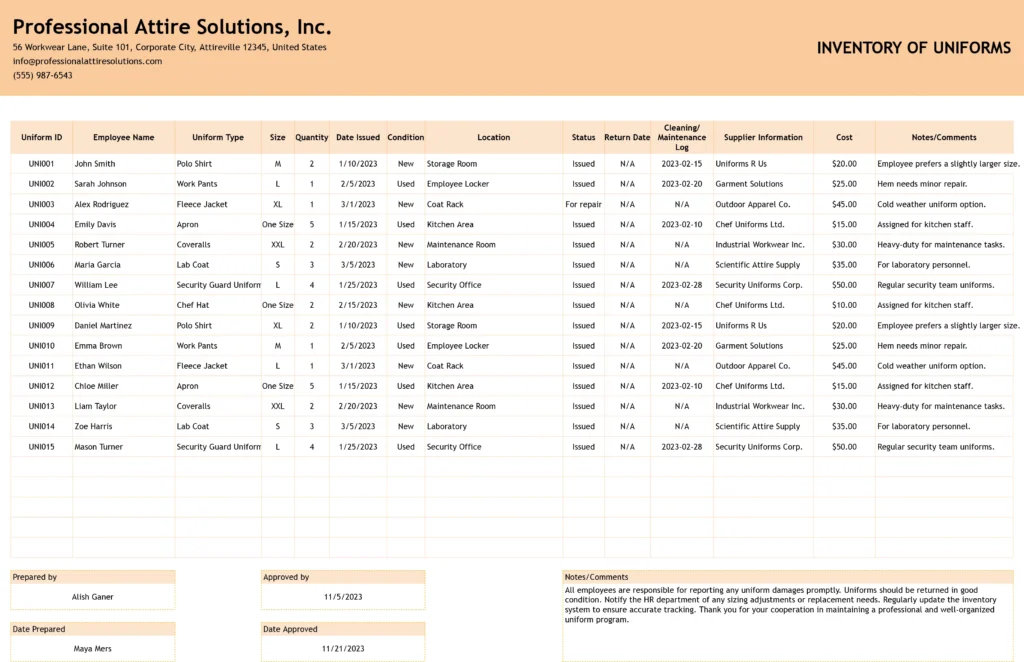
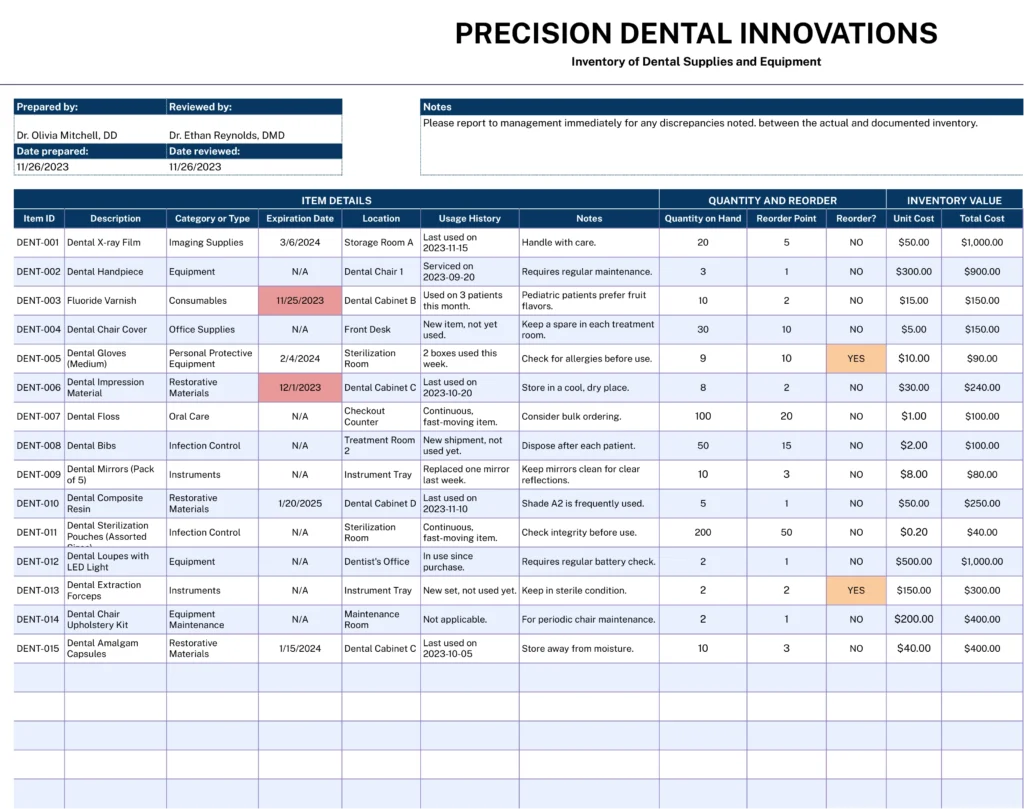
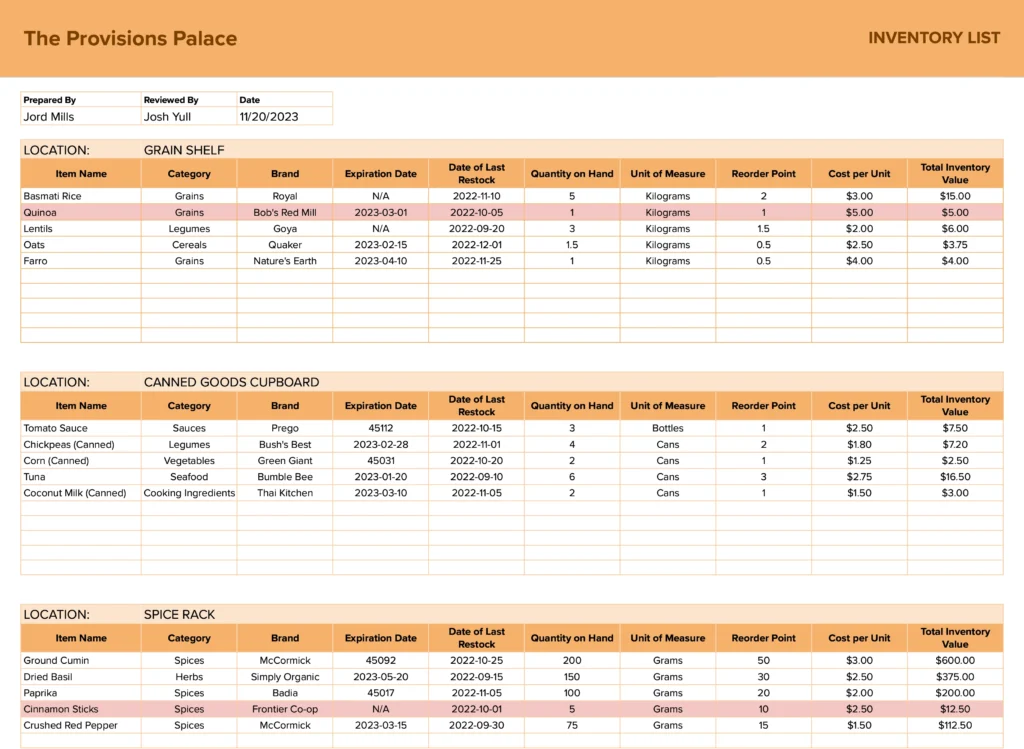
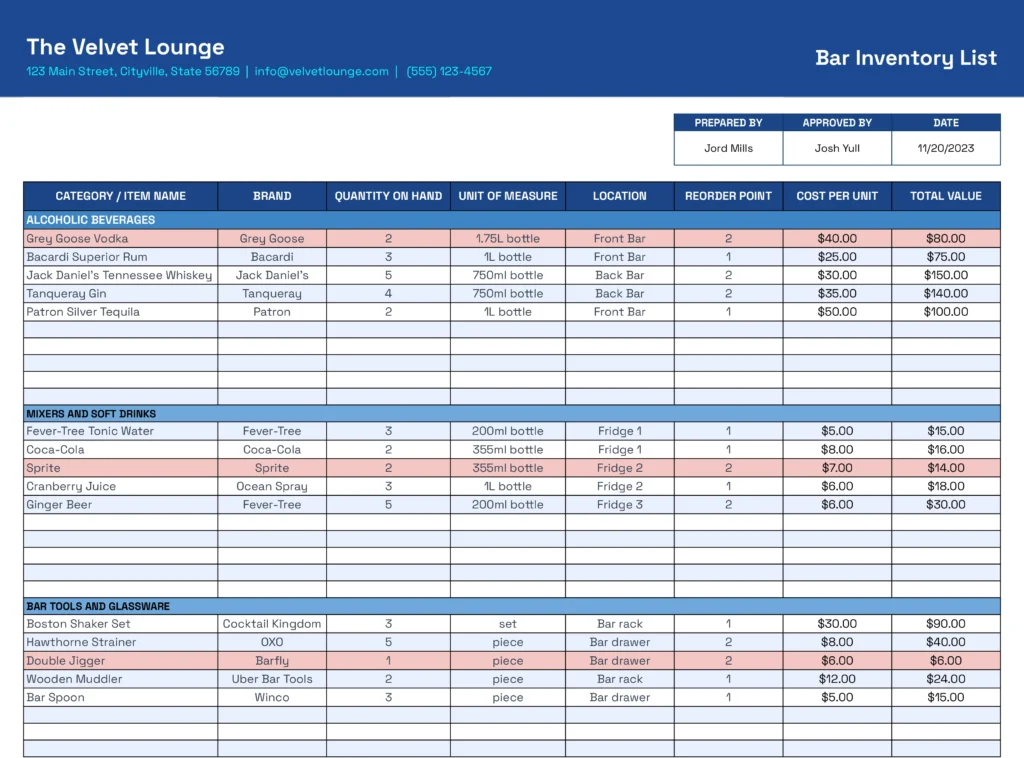
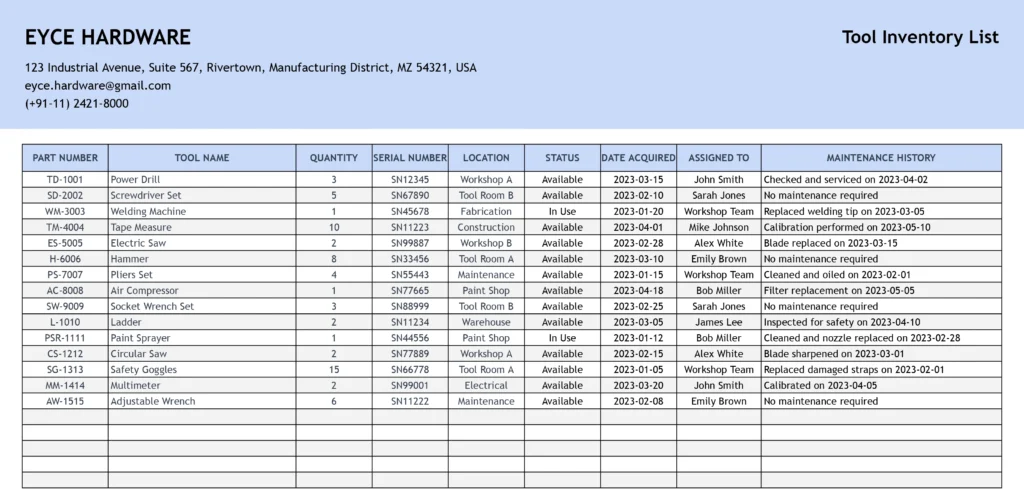
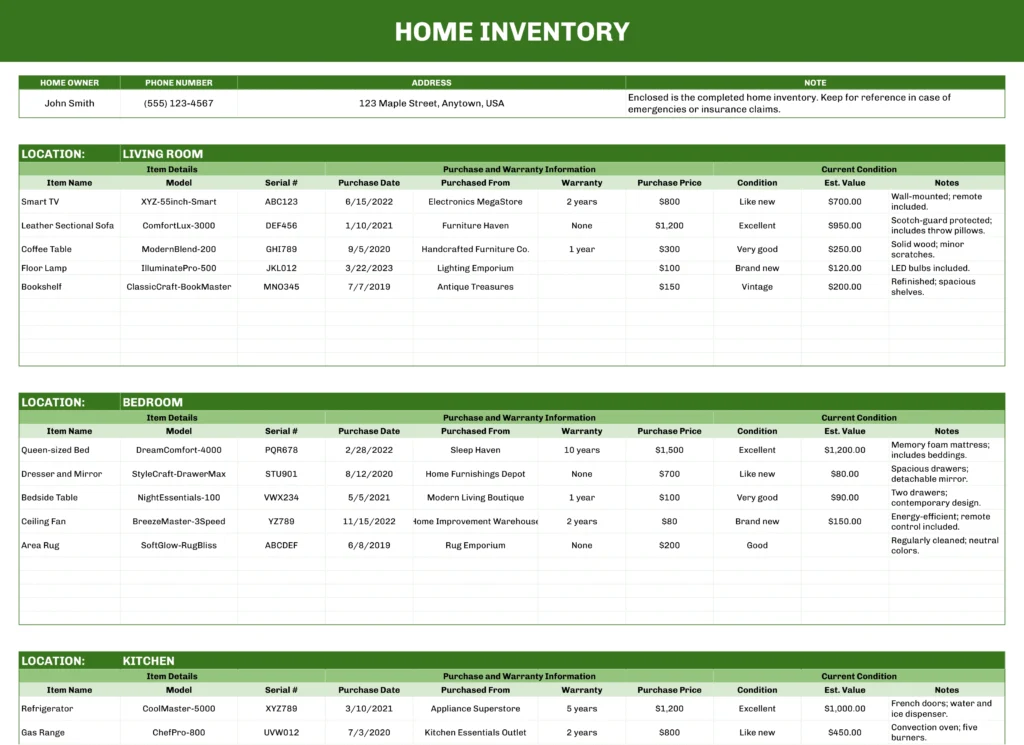
The operations templates give project managers and ops teams structured formats for tracking work. Project status report templates and timeline templates keep stakeholders informed on progress. Timesheet templates and issue tracking templates handle the day-to-day. RACI matrix templates clarify ownership on complex projects. Inventory list templates cover stock management across industries, with specific versions for equipment, food service, retail, and more.
Strategy and planning
The strategy templates cover the frameworks teams use to set direction and communicate it. OKR templates structure quarterly goal-setting and progress tracking. SWOT analysis templates and competitor analysis templates support strategic reviews. Product roadmap templates translate strategy into execution timelines. Content calendar templates and calendar templates bring structure to recurring planning cycles.
From static templates to live dashboards
The templates in this library are built to be downloaded, populated, and customized. For a large number of use cases, that is exactly the right tool for the job.
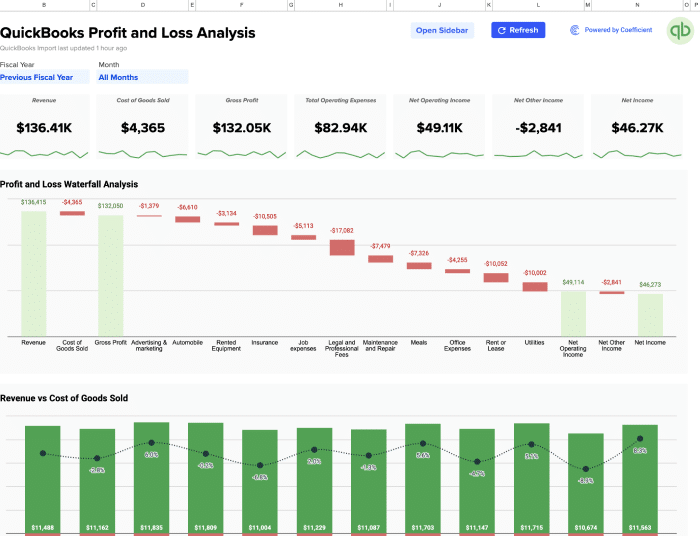
For teams whose data lives in external systems, Coefficient takes the next step. It connects Google Sheets and Excel directly to Salesforce, HubSpot, QuickBooks, NetSuite, Snowflake, and 150+ other systems, so the template pulls from live data on a schedule rather than requiring a manual export each time it needs to be current. The pipeline report reflects what is actually in Salesforce. The P&L pulls from QuickBooks directly. The cash flow model updates from real transactions, not last week’s CSV.
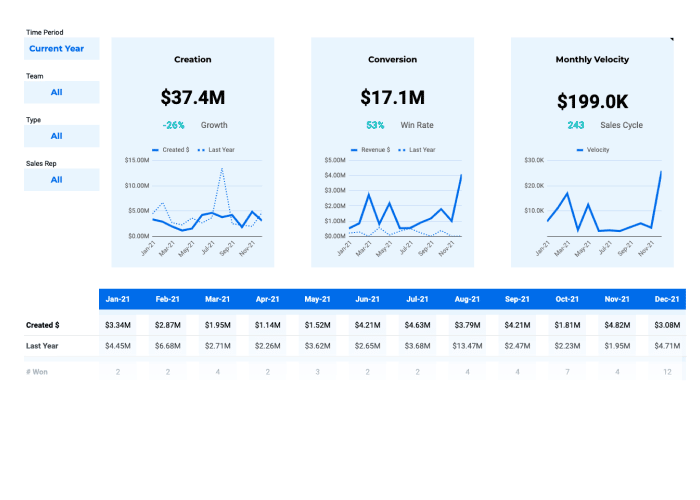
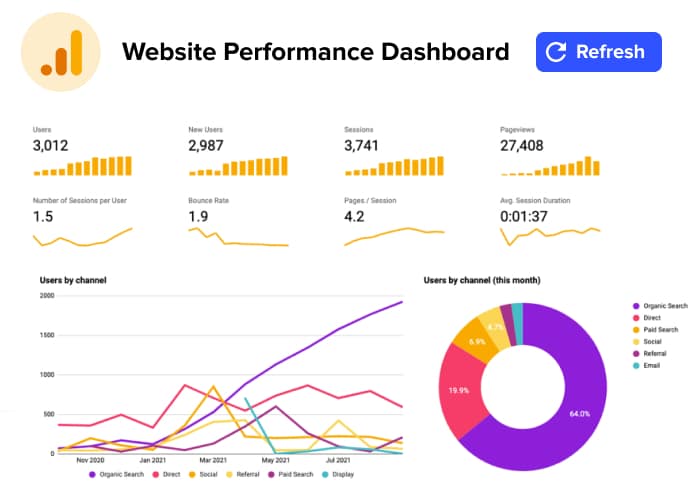
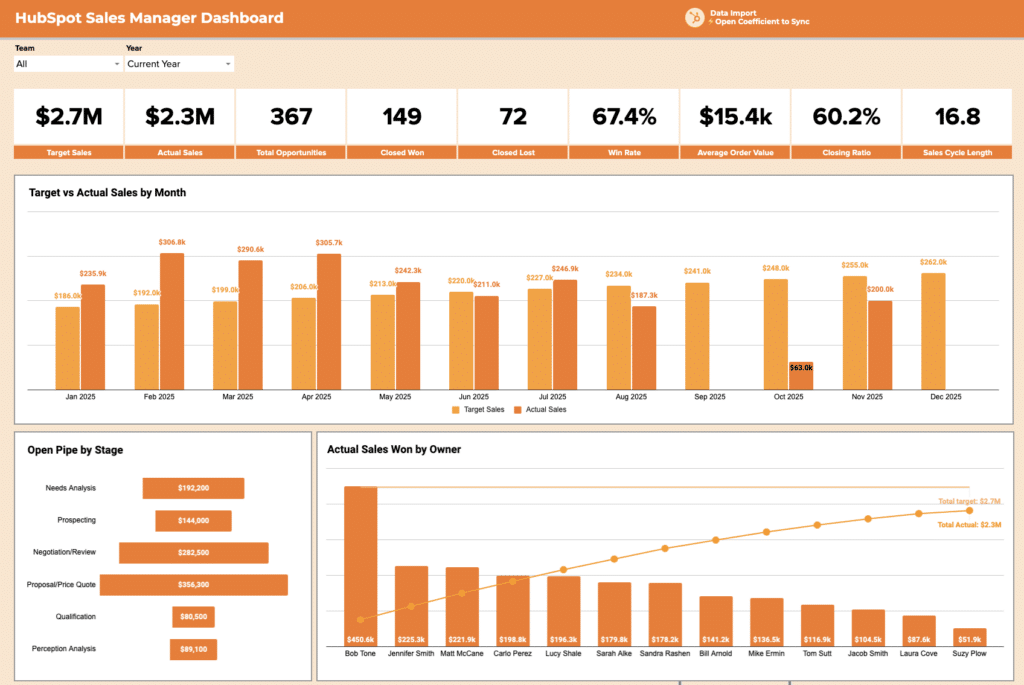
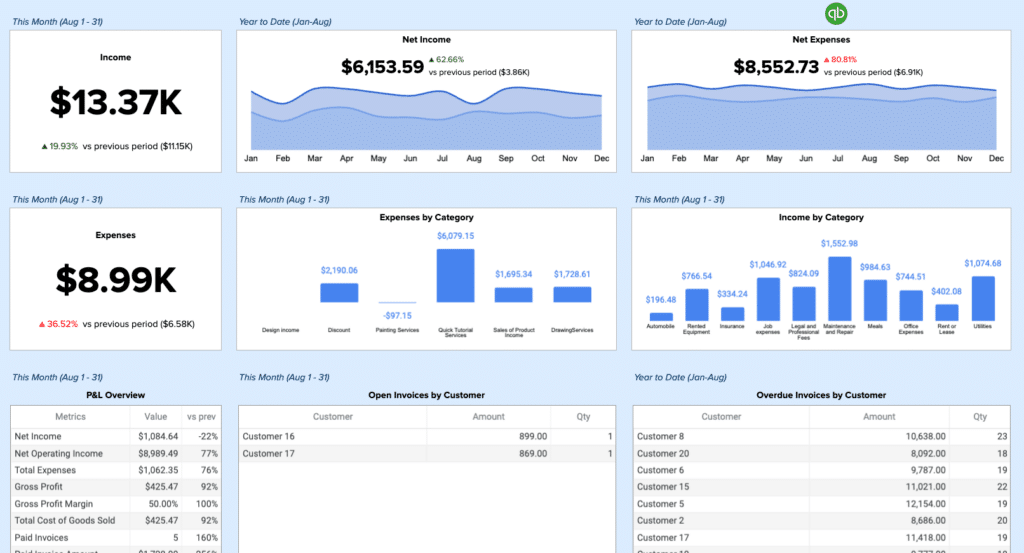
The live dashboard template library includes pre-built versions of the most common business dashboards connected to live data sources: sales pipeline, QuickBooks P&L, Google Analytics performance, HubSpot reporting, and more. If the template you need has to stay current automatically, that is the right starting point.
Frequently Asked Questions
What is a spreadsheet template?
A spreadsheet template is a pre-built file in Google Sheets or Excel spreadsheet that provides a ready-made structure for a specific task: tracking a budget, managing a project, recording invoices, planning a content calendar, and so on. Templates come with pre-set column headers, formatting, and formulas so you can start entering data immediately rather than building the layout from scratch. Most templates are free to download and designed to be customized to fit your specific workflow.
What is the best free spreadsheet template?
The best template is the one that most closely matches your workflow without requiring significant restructuring. A budget template that organizes costs the way your team already thinks about them, a project tracker that reflects the stages your team actually uses, a sales pipeline template that maps to your CRM stages. Start by identifying which category of work the template needs to support, then look for the version whose structure requires the fewest changes before you can use it.
Can I use these templates in both Google Sheets and Excel?
Most templates are offered in both Google Sheets and Excel, with supported formats listed on each download page. Google Sheets templates open in-browser. Excel templates download as .xlsx files. The core structure and formulas function similarly in both, though some advanced formatting may differ.
How do I customize a spreadsheet template?
Start by replacing the sample data with your own, then adjust column headers to match your team’s terminology. Add or remove columns based on what you actually need to track, and update any dropdown menus or data validation rules to reflect your categories. For formula-heavy templates, check that cell references still point to the correct cells after you restructure the layout. Delete sample rows once your real data is in place. Most templates are designed to be modified, so there is no need to preserve the original structure if it does not fit your workflow.
What is the difference between a spreadsheet template and a dashboard template?
A spreadsheet template is a structured file for recording and organizing data: a budget, a project plan, an invoice log. A dashboard template is built specifically for visualizing and monitoring that data, typically using charts, KPI cards, and summary metrics designed to be read at a glance rather than edited row by row. Coefficient’s live dashboard template library covers the latter: pre-built dashboards for sales pipeline, financial reporting, marketing performance, and more, connected to live data sources so the visuals stay current without manual updates.