Table of Contents

- 1. Top 6 QuickBooks Connectors to Use in 2025
-
2. QuickBooks Data Integration Tools That Cut Out the Manual Work
- QuickBooks Online vs QuickBooks Desktop: What It Means for Integrations
- QuickBooks-Specific Integration Challenges
- What to Look for in a QuickBooks Data Integration Tool
- The 7 Best QuickBooks Data Integration Tools
- QuickBooks Data Integration Tools: Quick Comparison
- How to Connect QuickBooks Online to Google Sheets with Coefficient
- How to Choose the Right QuickBooks Data Integration Tool
- Frequently Asked Questions
- 3. How to Connect Quickbooks to Snowflake? A Step-by-Step Guide
- 4. Top 7 QuickBooks Online Integrations in 2026
- 5. How to Connect QuickBooks to PostgreSQL? Top Methods with Walkthroughs
- 6. How to Connect QuickBooks to HubSpot? Top Methods and Tutorials
- 7. How to Connect QuickBooks to MySQL?
- 8. QuickBooks vs Xero: Which is Best in 2024?
- 9. 5 Best Shopify QuickBooks Integration Tools in 2024
- 10. How to Sync Stripe with QuickBooks?
- 11. How to Connect Quickbooks to Salesforce?
- 12. Connecting QuickBooks to SQL Server: A Comprehensive Guide for Businesses


QuickBooks Online is Intuit’s cloud-based accounting software used by over 7 million small businesses worldwide. It handles bookkeeping, invoicing, payroll, expense management, and financial reporting well. What it does not do is connect your financial data to the other tools your team depends on, or make that data easily accessible for analysis, automation, and real-time decision-making.
When business owners, finance teams, and accountants search for QuickBooks data integration tools, they are usually looking for one of three very different things. First, they want to automate workflows between QuickBooks Online and other apps like Shopify, Salesforce, or HubSpot, so data flows automatically without manual data entry. Second, they want to pull QuickBooks financial data into spreadsheets for reporting, forecasting, and cash flow analysis. Third, they want to load QuickBooks data into a data warehouse for broader analytics across multiple systems.
Most articles mix these use cases without separating them, so you end up reading about ETL tools for data engineers alongside simple add-ons for Shopify merchants. This guide separates them clearly. We review seven QuickBooks integration tools across three use case layers, cover the key difference between QuickBooks Online and QuickBooks Desktop for integration purposes, and include real user feedback from G2 and other review platforms with current pricing for every tool.
| Quick Answers How do finance and accounting teams get QuickBooks data into spreadsheets automatically? Coefficient connects QuickBooks Online directly to Google Sheets or Excel. Finance teams import P&L, balance sheet, cash flow, AR/AP aging, and transaction data with no-code setup, automated refresh schedules, and two-way write-back to QuickBooks. Free plan available. Which tool is best for automating workflows between QuickBooks and Shopify, Salesforce, or other apps? Zapier for simple trigger-based automation at lower cost. Workato for more complex, multi-step enterprise workflows where reliability and conditional logic matter more than price. Both support QuickBooks Online integrations with popular e-commerce and CRM platforms. What is the best tool for loading QuickBooks data into a data warehouse? Fivetran for a fully managed ELT pipeline with minimal setup. Integrate.io if you need built-in data transformations and accounting-specific data handling before the data lands in your warehouse. QuickBooks Online or Desktop — does it matter for integration tool choice? Yes. QuickBooks Online uses a modern REST API that most connectors support. QuickBooks Desktop uses a legacy API with limited cloud access — only some tools (Method CRM, SaasAnt, Coefficient via the QBO connector) support both editions. If you are still on QuickBooks Desktop, check edition compatibility before committing to any tool. |
QuickBooks Online vs QuickBooks Desktop: What It Means for Integrations
QuickBooks Online (QBO) is Intuit’s cloud-based accounting software. It uses a modern REST API that most integration tools support out of the box. Real-time data sync, webhook triggers, and OAuth-based authentication are all available through the QBO API, which is why the majority of third-party connectors focus on QBO.
QuickBooks Desktop (including QuickBooks Pro, Premier, and Enterprise) uses a legacy COM-based API via the Intuit Merchant Services Developer Program. Cloud-based connectors cannot access QuickBooks Desktop data directly — they require either a locally installed sync agent or a workaround via file export. Intuit stopped selling QuickBooks Desktop to new customers in most markets from 2024, but many businesses still run existing Desktop installations.
The practical implication: if your business runs QuickBooks Desktop, your integration options are narrower. Most of the tools in this guide support QBO only. Method CRM and SaasAnt are notable exceptions that maintain genuine QuickBooks Desktop support alongside QBO. If you are evaluating integrations and still on Desktop, confirm edition compatibility before investing time in any tool.
QuickBooks-Specific Integration Challenges
API rate limits. QuickBooks Online enforces rate limits on API calls. Tools that run frequent, large data syncs can exhaust these limits and experience throttled or failed syncs. Well-designed connectors use batching, incremental sync, and backoff strategies to work within these constraints.
Multi-company and multi-entity complexity. QuickBooks accounts are tied to a single company file. Businesses with multiple entities, subsidiaries, or client portfolios managed in separate QuickBooks accounts need integration tools that can handle multiple QBO connections within a single workflow. Not all tools support this cleanly.
Limited native reporting depth. QuickBooks Online’s built-in financial reporting is functional but inflexible. Finance teams frequently need to export data to spreadsheets for custom analysis, cash flow modelling, and board reporting. The native export is a static CSV — not a live connection. This is the gap that spreadsheet connectors like Coefficient are built to close.
QuickBooks Desktop legacy constraints. As noted above, QuickBooks Desktop’s API requires local tooling. Any integration relying on cloud-to-cloud connectivity will not work with Desktop without additional configuration or a dedicated sync agent.
What to Look for in a QuickBooks Data Integration Tool
Edition support. Confirm whether the tool supports QuickBooks Online, QuickBooks Desktop, or both. If you use QBO, most tools will work. If you use Desktop, your options are significantly narrower.
Two-way sync. Many tools only pull data from QuickBooks (read-only). If you need to push data back — updating customer records, creating invoices, logging payments — confirm the connector supports write operations with field mapping and preview functionality.
Multi-company support. Accounting firms and fractional CFOs managing multiple QuickBooks accounts need a tool that can connect to and sync data from several QBO company files. Single-company-only tools create manual overhead at scale.
Automated refresh and scheduling. For finance teams building live dashboards and reports, a connector that requires manual refresh defeats the purpose. Look for scheduled automation: hourly, daily, or weekly auto-refresh that keeps your data current without manual data entry.
No-code accessibility. Finance teams and accountants are not developers. The best QuickBooks integration tools for reporting and analysis workflows are genuinely no-code: sidebar-driven, point-and-click, with no SQL or API knowledge required for day-to-day use.
The 7 Best QuickBooks Data Integration Tools
For Finance Teams and Accountants — Spreadsheet-Native QuickBooks Connectors
Finance teams, accountants, bookkeepers, and fractional CFOs who need QuickBooks data in Google Sheets or Excel for reporting, forecasting, and cash flow analysis belong in this category. The goal is replacing the manual CSV export cycle with a live QuickBooks Online connection that updates automatically.
1. Coefficient
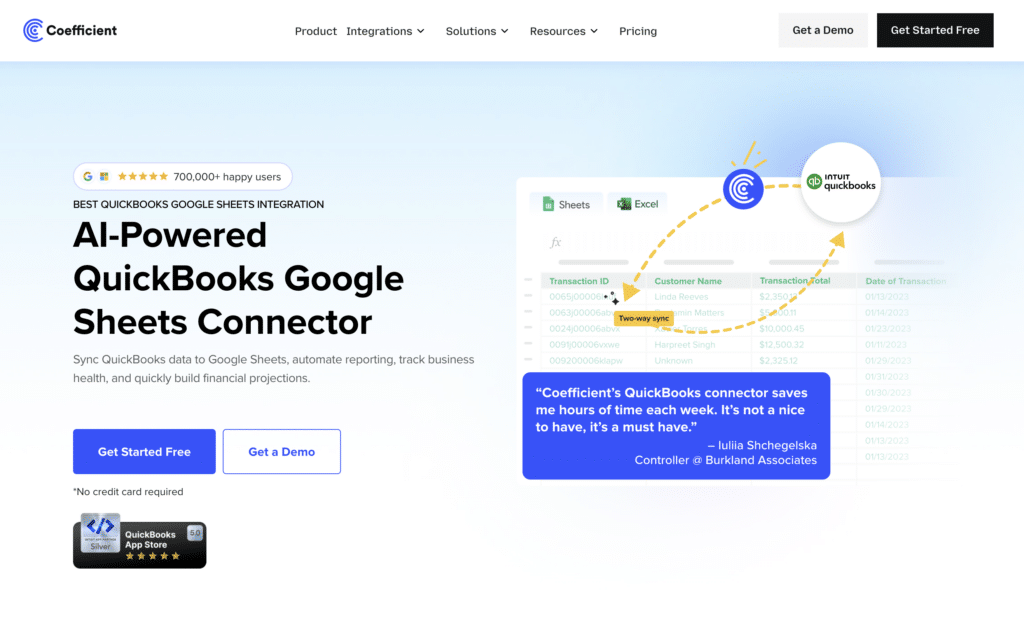
Best for: Finance teams, accountants, and fractional CFOs who need live QuickBooks Online data in Google Sheets or Excel, with automated refresh and two-way write-back.
Coefficient connects QuickBooks Online directly to Google Sheets and Excel. Finance teams import P&L statements, balance sheets, cash flow data, AR aging, AP aging, transaction lists, customer records, and vendor data with a no-code sidebar UI. No SQL required. No IT ticket. The connection is OAuth-authenticated and live — when QuickBooks data updates, the spreadsheet reflects it on the next scheduled refresh.
The core workflow Coefficient replaces is the manual QuickBooks export cycle. Instead of running a report in QBO, downloading a CSV, formatting it, and pasting it into a spreadsheet that goes stale within hours, finance teams connect once and set a refresh schedule. Cash flow dashboards, budget vs actuals reports, AR aging trackers, and revenue models stay current automatically. When an invoice is paid in QuickBooks Online, the spreadsheet reflects it.
For fractional CFOs and accounting firms managing multiple clients, Coefficient supports connections to multiple QuickBooks Online accounts, making it practical for multi-client reporting without rebuilding models from scratch for each engagement. The two-way sync lets teams push data back to QuickBooks: updating customer records, creating or modifying transactions, and writing financial data back to QBO directly from the spreadsheet without manual data entry back into the accounting software. Coefficient also works in Microsoft Excel alongside Google Sheets, which matters for finance teams that prefer Excel for modelling.
Coefficient also connects to 100-plus other data sources including Salesforce, HubSpot, Snowflake, and Shopify, so finance teams can blend QuickBooks financial data with CRM pipeline data or e-commerce revenue in a single spreadsheet — without exporting from each system separately.
Pros
- No-code setup. Point-and-click import from QuickBooks Online with no SQL or API knowledge required. Finance teams get live data without involving IT.
- Genuine two-way sync with write-back to QuickBooks Online. Supports update, insert, and upsert actions with field mapping and preview before execution.
- Works in both Google Sheets and Excel. Finance teams can use whichever spreadsheet environment they already operate in.
- Automated refresh scheduling (hourly, daily, weekly). Dashboards and reports stay current without manual exports or data entry.
- Free plan available. No per-user or per-row fees on paid plans.
Source: Coefficient user reviews on G2
Cons
- Supports QuickBooks Online only. QuickBooks Desktop users need to migrate to QBO or use a different connector.
- Initial setup requires OAuth authorization with QuickBooks Online. Straightforward, but not zero-touch.
Source: Coefficient pros and cons — G2 verified reviews
Pricing
Free tier available. Paid plans start from $49/month. See Coefficient pricing for full plan details.
For Workflow Automation — Connecting QuickBooks to Other Business Apps
If your goal is automating data flows and business processes between QuickBooks Online and other apps — e-commerce platforms like Shopify, Amazon, and eBay, CRM systems like Salesforce and HubSpot, payment platforms like PayPal and Stripe, or project management tools — you need a workflow automation platform. These tools automate the operational side of QuickBooks integration: syncing orders, creating invoices, updating customer records, and eliminating manual data entry between systems.
2. Zapier
Best for: Small businesses and individual users who need simple, trigger-based automation between QuickBooks Online and everyday apps, without a large budget or technical resources.
Zapier is the most accessible workflow automation tool on this list. Its trigger-action model (when X happens in QuickBooks, do Y in another app) makes it easy for non-technical small businesses and business owners to automate common QuickBooks integration workflows: creating invoices from Shopify orders, syncing new customers to a CRM, sending Slack notifications when invoices are paid, or logging expenses from receipt apps.
Zapier’s QuickBooks Online integration covers a broad range of triggers and actions including new invoices, new payments, new customers, new expenses, and new bills. For e-commerce businesses syncing Shopify or Amazon payouts, or service businesses connecting QuickBooks Online to project management tools, Zapier is the fastest path to automation with the lowest setup cost. Note that Zapier does not support QuickBooks Desktop, only QBO.
Pros
- Extremely easy to set up. Business owners and bookkeepers can configure workflows without technical skills.
- Free plan for basic use. Large library of pre-built QuickBooks Online integration templates for common use cases including Shopify, Stripe, PayPal, HubSpot, and Salesforce.
- Fast time-to-value. Most QuickBooks Online integration workflows are live within minutes using pre-built Zap templates.
Source: Zapier user reviews on G2
Cons
- QuickBooks Desktop not supported. QBO only.
- Limited for complex, multi-step workflows with conditional logic. Workato or a dedicated iPaaS handles those better.
- Transaction caps on paid plans. Businesses with high automation volume can hit limits and face unexpected cost increases.
Pricing
Free plan available. Paid plans from $19.99/month. Costs increase with higher automation volumes.
3. Workato
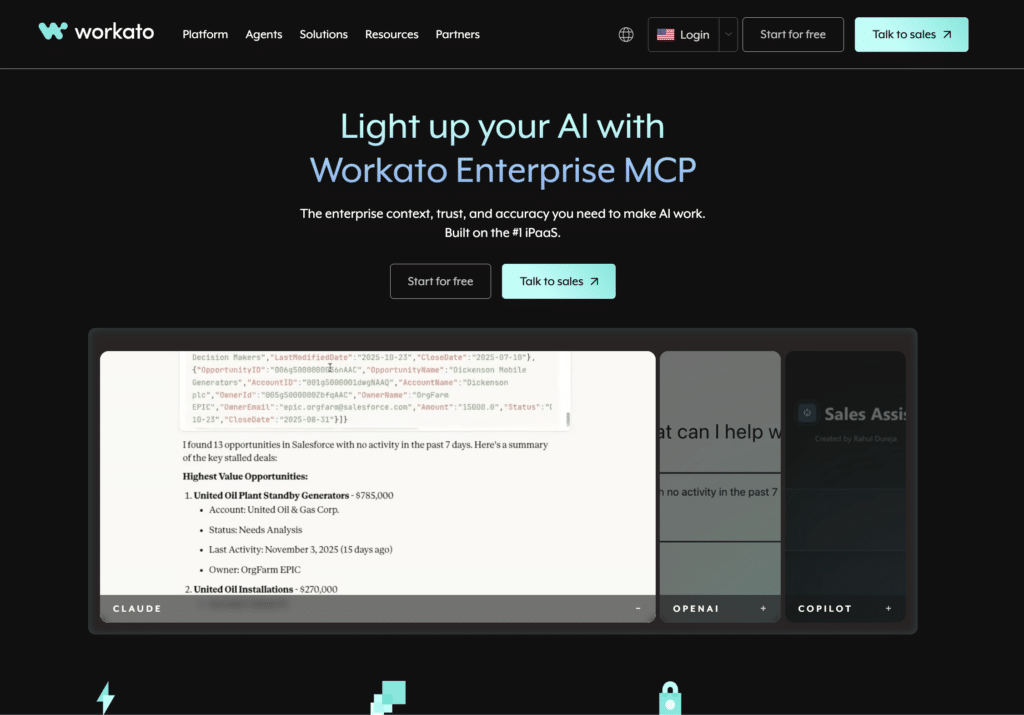
Best for: Mid-market and enterprise teams that need reliable, complex workflow automation between QuickBooks Online and mission-critical systems like Salesforce, NetSuite, HubSpot, or internal ERP platforms.
Workato is an enterprise iPaaS that handles more sophisticated QuickBooks integration scenarios than Zapier. Its recipe-based low-code builder allows conditional logic, multi-step workflows, error handling, and data transformation — capabilities that matter when connecting QuickBooks Online to other critical business systems in workflows where failures are costly.
A common use case for Workato with QuickBooks Online is syncing closed-won Salesforce opportunities to QBO as invoices, or creating QuickBooks customers automatically when deals are signed in a CRM. Users in Capterra reviews note that Workato ‘simply outperformed all of the other integration solutions we tested in terms of reliability and real hands-free automation’ for Salesforce-QuickBooks workflows. Workato holds Gartner Leader status for iPaaS for eight consecutive years through 2026.
Pros
- Handles complex, multi-step workflows with conditional logic, error handling, and data transformation. More reliable than Zapier for mission-critical QuickBooks integrations.
- 14,000-plus pre-built connectors covering virtually every enterprise SaaS and database system. Strong QuickBooks Online integration with Salesforce, NetSuite, and HubSpot.
- Enterprise governance: role-based access control, audit logs, and environment separation make it suitable for regulated businesses and finance compliance requirements.
Source: Workato G2 reviews — pros and cons
Cons
- Expensive. Custom enterprise pricing, typically starting around $10,000/year, puts it out of reach for most small businesses.
- Steep learning curve for advanced workflows. Building complex recipes with custom connectors requires meaningful investment in learning the platform.
- Not suited for data warehouse pipelines or spreadsheet-based reporting. Workato is a workflow automation tool, not an ETL or analytics connector.
Source: Workato Capterra verified reviews
Pricing
Custom enterprise pricing. Contact Workato for current rates. Typically starts around $10,000/year for entry-level plans.
4. Method CRM
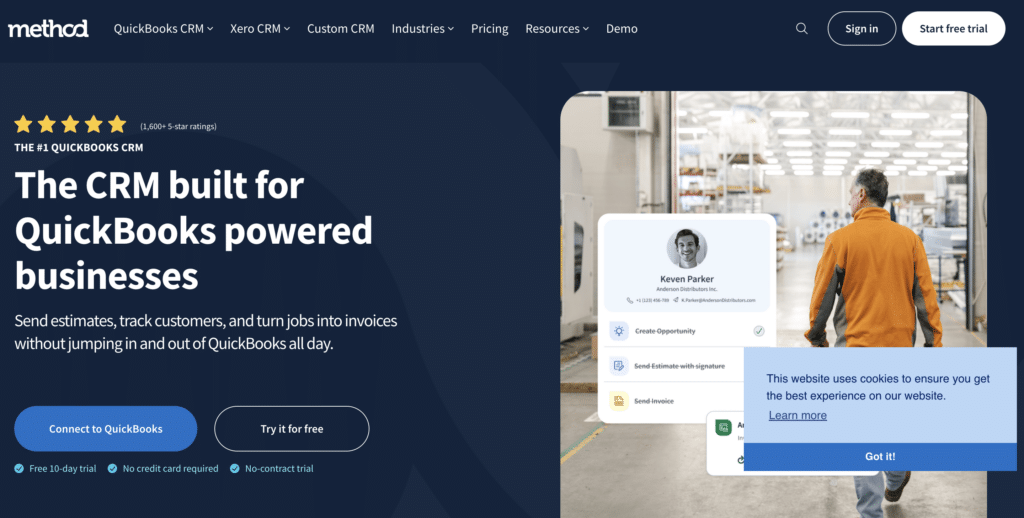
Best for: Small businesses and service companies that use QuickBooks as their accounting backbone and want a CRM built natively around it, with real-time two-way sync that works with both QuickBooks Online and QuickBooks Desktop.
Method CRM is the #1-rated QuickBooks CRM with over 1,400 five-star reviews on Intuit’s apps.com. Unlike generic CRM platforms that connect to QuickBooks via a third-party iPaaS, Method CRM was built from the ground up around QuickBooks integration. Its patented real-time, two-way sync keeps customer records, invoices, estimates, and payments in sync between Method and QuickBooks instantly — changes in either system appear in the other without delay or manual data entry.
The key use case: small businesses that use QuickBooks Online or QuickBooks Desktop for bookkeeping but need CRM capabilities — lead management, sales pipeline, estimate creation, and customer portals — that QBO does not provide. Method fills that gap without requiring the business to switch accounting software, while keeping financial data accurate across both systems. Method also supports QuickBooks Desktop, which is rare among modern integration tools and matters for businesses not yet ready to migrate to QBO.
Pros
- Patented real-time, two-way sync with QuickBooks Online and QuickBooks Desktop. One of the only CRM tools that genuinely supports both editions.
- Built natively for QuickBooks users. No complex field mapping or middleware required. The integration is the product’s core functionality, not an add-on.
- No-code workflow automation and customizable dashboards without developer involvement. Finance and operations teams can configure it without IT.
Source: Method CRM G2 reviews — QuickBooks integration
Cons
- Not as full-featured as standalone CRMs like Salesforce or HubSpot for complex sales processes. Better suited to small service businesses than large enterprise sales teams.
- Learning curve during initial setup and customisation. G2 and Capterra reviewers note that configuring the platform to match specific workflows takes time and occasionally requires support.
- Some users report occasional data sync issues with more complex transaction types. The Method team is responsive to support requests when these occur.
Source: Method CRM Capterra verified reviews
Pricing
From $25/user/month for the contact management plan. Sales pipeline and invoicing features start at $44/user/month. Enterprise at $74/user/month. 30-day free trial available.
For Data Warehouse Pipelines — QuickBooks ETL Tools
If your goal is loading QuickBooks Online data into Snowflake, BigQuery, Redshift, or another cloud data warehouse for cross-system analytics, these ETL tools are the right category. Unlike spreadsheet connectors, these tools extract QuickBooks financial data, handle schema management, and deliver it to your warehouse for downstream transformation and analysis via SQL or BI tools.
5. Fivetran
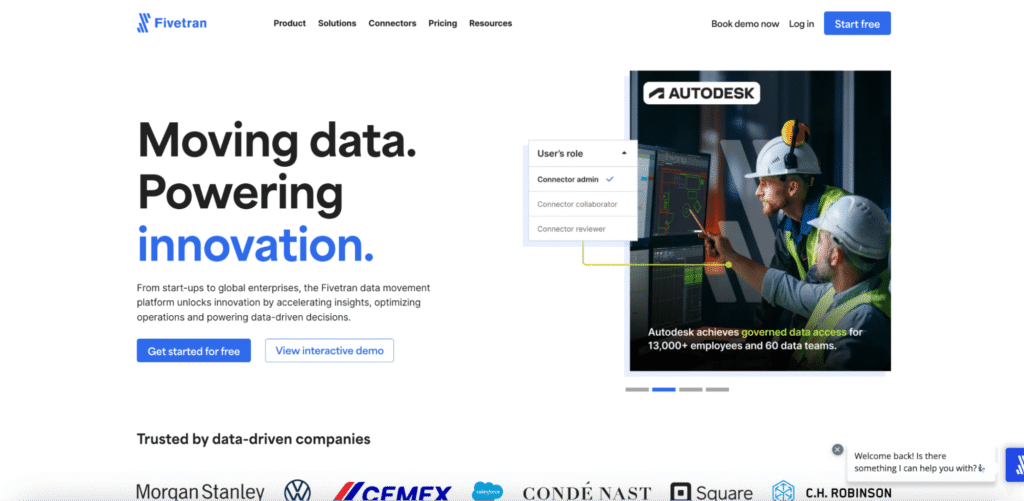
Best for: Data engineering teams that need a fully managed, low-maintenance ELT pipeline from QuickBooks Online into a cloud data warehouse.
Fivetran’s QuickBooks Online connector is a managed ELT integration that extracts a comprehensive set of QBO objects — invoices, bills, payments, customers, vendors, items, accounts, and journal entries — and loads them into your data warehouse in a clean, queryable schema. Schema management is handled automatically: if new fields appear in QBO, Fivetran updates the destination schema without manual intervention.
Fivetran changed its pricing model in March 2025, moving from an account-wide Monthly Active Rows model to a per-connector pricing structure. This has driven cost increases for some users with many connectors. For teams focused specifically on a QuickBooks integration alongside a handful of other connectors, the impact is more predictable.
Pros
- Fully managed ELT pipeline. No ongoing engineering overhead for schema changes, API updates, or data quality checks.
- Comprehensive QuickBooks Online object coverage including all core financial records: invoices, bills, payments, journal entries, chart of accounts, and customer/vendor master data.
- Wide destination support: Snowflake, BigQuery, Redshift, Databricks, and more.
Source: Fivetran G2 reviews — pros and cons
Cons
- Per-connector MAR pricing introduced March 2025 can be difficult to forecast. Costs escalate with data volume and connector count.
- QuickBooks Online only. No QuickBooks Desktop support.
- Extraction only. No transformation and no write-back to QuickBooks. Requires dbt or custom SQL downstream for any transformation logic.
Source: Fivetran Capterra verified reviews
Pricing
Usage-based pricing per connector based on Monthly Active Rows. Annual contracts start at $12,000/year minimum.
6. Integrate.io
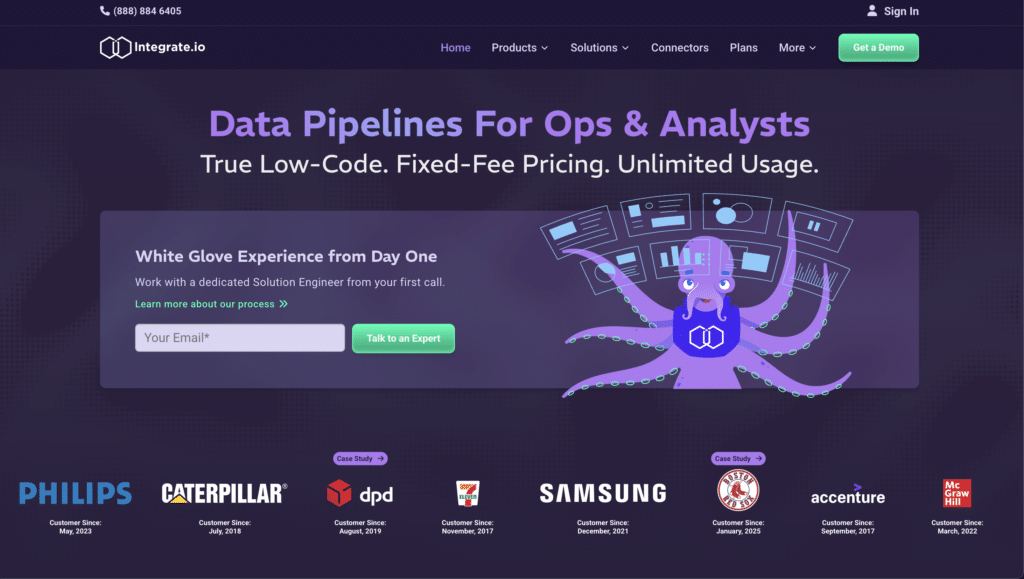
Best for: Finance and data teams that need ETL pipelines from QuickBooks Online into a data warehouse, with built-in data transformations and accounting-specific data handling.
Integrate.io is a low-code ETL platform with a QuickBooks connector designed with finance data quality in mind. Unlike generic ELT tools that load raw QuickBooks data as-is, Integrate.io supports incremental sync tracking by last-modified timestamps, deduplication logic for transactions, and 220-plus built-in data transformations before data lands in your warehouse. For finance teams building revenue dashboards that blend QuickBooks data with CRM pipeline data from Salesforce, this preprocessing matters.
Pros
- 220-plus built-in data transformations reduce the need for a separate dbt layer for teams without analytics engineering resources.
- Finance-aware QuickBooks integration: deduplication logic, incremental sync, and accounting entity validation built in.
- Fixed-fee pricing with white-glove support. More predictable cost structure than consumption-based alternatives.
Source: Integrate.io QuickBooks ETL overview
Cons
- Starts at $1,999/month, which is high relative to extraction-only alternatives like Fivetran for simpler use cases.
- QuickBooks Online only. No support for QuickBooks Desktop integration.
- Overkill for teams that only need basic extraction and are comfortable handling transformations downstream in dbt or SQL.
Pricing
From $1,999/month. Contact Integrate.io for current plan details.
For Accounting Firms and Multi-Client Management
Accounting professionals, bookkeepers, and fractional CFOs managing multiple QuickBooks accounts need tools designed for their specific workflow: bulk data operations across many QBO company files, clean import/export without disrupting existing data, and predictable flat-rate pricing that scales with client count rather than by data volume.
7. SaasAnt Transactions
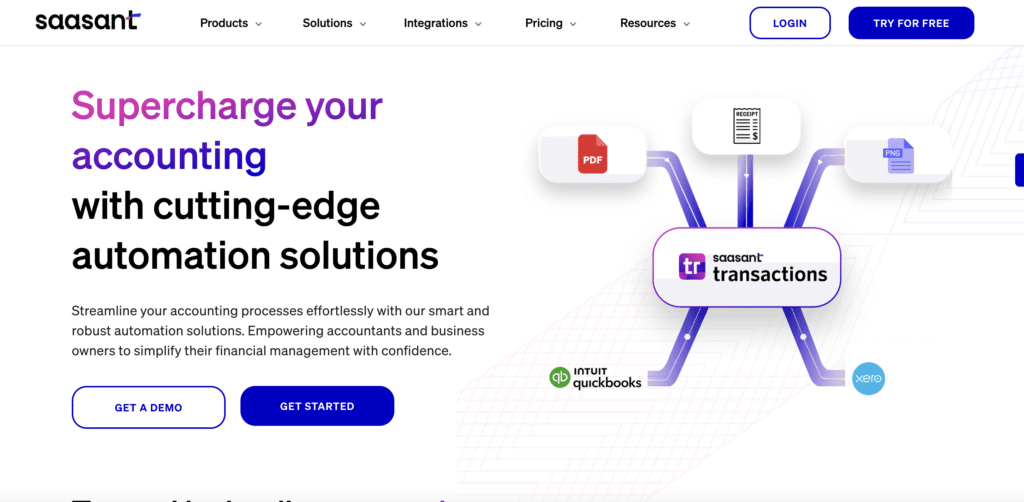
Best for: Accountants, bookkeepers, and accounting firms that need to bulk import, export, and manage transactions in QuickBooks Online or QuickBooks Desktop without manual data entry.
SaasAnt Transactions is a purpose-built data utility for QuickBooks users. It solves one problem extremely well: moving large volumes of financial data in and out of QuickBooks accounting software quickly and accurately. Accountants use it to import thousands of transactions from Excel or CSV files into QBO in minutes, export QBO data for review or audit purposes, and bulk delete test transactions before going live. A verified G2 reviewer notes it as a workaround for QBO’s lack of native batch import for credit card transfers.
SaasAnt supports both QuickBooks Online and QuickBooks Desktop, handles a wide range of transaction types including invoices, bills, journal entries, customers, vendors, and chart of accounts updates, and offers a straightforward per-company pricing model that is affordable for firms managing many client QuickBooks accounts.
Pros
- Supports both QuickBooks Online and QuickBooks Desktop. One of the few modern integration tools that maintains genuine Desktop compatibility.
- Handles all major QBO transaction types: invoices, bills, journal entries, payments, estimates, purchase orders, and master data updates.
- Flat, affordable per-company pricing makes it practical for accounting firms managing many client QuickBooks accounts.
Source: SaasAnt mentioned in QuickBooks Online Advanced G2 reviews
Cons
- A data utility tool, not a full integration platform. It handles bulk import/export well but does not automate ongoing workflows or provide live dashboards.
- Less suitable for real-time data integration use cases. Best for periodic batch operations rather than continuous sync.
Pricing
From approximately $10/month per company. Plans scale by transaction volume and features. See SaasAnt’s website for current pricing.
QuickBooks Data Integration Tools: Quick Comparison
Use this table to compare all seven tools across the criteria that matter most for your QuickBooks integration decision.
| Tool | Best For | Type | No-Code | Two-Way Sync | QBO / Desktop | Pricing |
|---|---|---|---|---|---|---|
| Coefficient | Finance teams, accountants in spreadsheets | Spreadsheet | Yes | Yes | QBO only | Free; from $49/month |
| Zapier | Simple automation, SMBs | Automation | Yes | Limited | QBO only | Free; from $19.99/month |
| Workato | Enterprise cross-system workflows | iPaaS | Partial | Yes | QBO only | Custom enterprise pricing |
| Method CRM | QuickBooks-native CRM for small business | CRM | Yes | Yes | QBO + Desktop | From $25/user/month |
| Fivetran | Data warehouse pipelines | ELT | Yes | No | QBO only | Per-connector MAR model |
| Integrate.io | Finance-aware ETL pipelines | ETL/ELT | Partial | No | QBO only | From $1,999/month |
| SaasAnt | Bulk import/export for accountants | Data utility | Yes | Yes | QBO + Desktop | From $10/month |
How to Connect QuickBooks Online to Google Sheets with Coefficient
For finance teams and accountants, connecting QuickBooks Online to Google Sheets with Coefficient takes under ten minutes and requires no technical setup. Here is the short version:
- Install Coefficient. Add the Coefficient add-on from the Google Workspace Marketplace. In Google Sheets, go to Extensions, click Add-ons, and search for Coefficient. Launch it from the Extensions menu once installed.
- Connect QuickBooks Online. In the Coefficient sidebar, click ‘Import From’ and select QuickBooks. Authorize via OAuth using your QBO credentials. No API key or developer setup required.
- Select your data. Choose the QuickBooks report or data object you want to import: P&L, balance sheet, cash flow, AR aging, AP aging, transaction list, customers, vendors, or items. Apply filters and field selections as needed.
- Set your refresh schedule. Choose hourly, daily, or weekly auto-refresh. Your spreadsheet stays current on the schedule you set without further manual data entry or exports.
- Enable write-back (optional). Use Export to QuickBooks to push changes from your spreadsheet back to QBO. Supports update, insert, and upsert actions with preview before execution.
For the full step-by-step guide with screenshots, see How to Connect QuickBooks to Google Sheets. For Excel, see coefficient.io/integrations-excel/quickbooks.
How to Choose the Right QuickBooks Data Integration Tool
Finance team or accountant needing live QuickBooks data in spreadsheets without manual exports: Coefficient. No-code setup, automated refresh, two-way write-back to QuickBooks Online, and support for all core financial reporting objects. Works in Google Sheets and Excel.
Small business owner automating simple workflows between QuickBooks and Shopify, PayPal, HubSpot, or eBay: Zapier. Pre-built QuickBooks Online integration templates for common e-commerce and CRM automation workflows. Fast setup at low cost.
Mid-market or enterprise team running complex, multi-step workflows between QuickBooks Online and Salesforce, NetSuite, or other critical systems: Workato. More reliable than Zapier for mission-critical QuickBooks integrations with conditional logic and error handling.
Small business or service company needing a CRM that works natively with QuickBooks (Online or Desktop): Method CRM. The only CRM with a patented real-time, two-way QuickBooks sync that covers both QBO and Desktop.
Data engineering team loading QuickBooks Online data into a data warehouse: Fivetran for a fully managed extraction pipeline. Integrate.io if you need built-in data transformations and finance-specific data handling before data lands in the warehouse.
Accountant or accounting firm needing bulk import/export for QuickBooks Online or Desktop: SaasAnt Transactions. Flat, affordable per-company pricing, covers both QBO and Desktop, and handles all major transaction types without complex setup.
Get Started with Coefficient for QuickBooks
If you are on a finance team, accounting firm, or working as a fractional CFO and want live QuickBooks Online data in your spreadsheet without manual CSV exports, try Coefficient for free. Connect your QBO account in minutes, import your first report or dataset, and set a refresh schedule that keeps your financial data current automatically.
For pricing details, see coefficient.io/pricing. For pre-built QuickBooks dashboard templates covering P&L, cash flow, and AR aging, see coefficient.io/dashboard-examples.
Frequently Asked Questions
Can I automate financial reporting from QuickBooks Online without a developer?
Yes. Coefficient connects QBO to Google Sheets or Excel with no-code setup. Finance teams can import P&L, balance sheet, cash flow, AR aging, and transaction data with automated refresh schedules — no SQL, no API knowledge required.
What is the difference between QuickBooks add-ons and QuickBooks data integration tools?
QuickBooks add-ons extend accounting software functionality within QBO (payroll, inventory, time tracking). Data integration tools connect QuickBooks data to external systems — spreadsheets, CRMs, data warehouses, and other business apps — to automate workflows and enable reporting across multiple data sources.
Can multiple QuickBooks accounts connect to one spreadsheet?
Yes with Coefficient. Fractional CFOs and accounting firms can connect multiple QuickBooks Online accounts and import data from different company files into a single Google Sheet or Excel workbook for consolidated reporting.
Is QuickBooks data integration secure?
The tools reviewed here use OAuth 2.0 authentication with the QuickBooks API. No credentials are stored in your spreadsheet. Coefficient, Fivetran, and Workato all maintain SOC 2 Type II certification. Always review the security documentation of any tool before connecting it to your QuickBooks account.