Analyzing individual ads data from Facebook Ads in Excel helps marketing teams identify which specific ads are performing best and understand what messaging, creative elements, and calls-to-action drive results.
Rather than manually exporting data that quickly becomes outdated, you can create a live connection that refreshes automatically with the latest ad performance metrics.
TLDR
-
Step 1:
Install Coefficient from the Office Add-ins store
-
Step 2:
Connect to your Facebook Ads account
-
Step 3:
Select Ads as your data object
-
Step 4:
Choose metrics to analyze by individual ad
-
Step 5:
Import into Excel and set up auto-refresh
Step 1: Install Coefficient and Connect to Facebook Ads
Begin by installing the Coefficient add-in and connecting it to your Facebook Ads account:
- Open Excel and navigate to the Insert tab
- Click on Get Add-ins
- Search for “Coefficient” in the Office Add-ins store
- Click Add to install the Coefficient add-in
- Once installed, the Coefficient sidebar will appear
- Click “Import” to begin connecting data sources
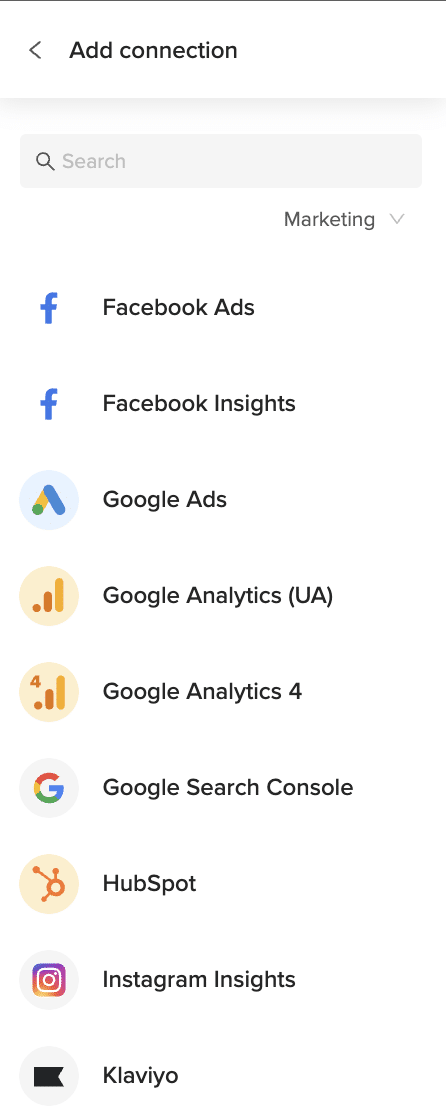
- Select “Facebook Ads” from the marketing integrations
- Log in with your Facebook account and authorize Coefficient to access your ads data

Step 2: Select and Configure Facebook Ads Individual Ads Data
After connecting your Facebook Ads account, configure your individual Ads data import:
- Choose your Facebook Ads account from the dropdown menu
- Set your desired date range (last 7 days, last 30 days, custom range, etc.)
- Select “Ads” as your data object
-
- Impressions, reach, and frequency to measure visibility
- Clicks and CTR to assess engagement
- Cost per click and CPM to evaluate efficiency
- Conversions and cost per conversion to measure effectiveness
- Apply filters if you want to focus on specific ads, ad sets, or campaigns
- Preview your selection to ensure it provides the insights you need
Step 3: Import and Set Up Auto-Refresh
Once you’ve configured your Facebook Ads individual ads data selection, import it into Excel and set up automatic refreshes:
- Click “Import” to bring the individual ads data into your Excel worksheet
- Choose where you want the data to be placed in your spreadsheet
-
- Navigate to the “Automations” tab in the Coefficient sidebar
- Select “Schedule Refresh” for your imported ads data
- Choose your preferred refresh frequency (hourly, daily, weekly)
- Optionally, set up alerts for significant changes in ad performance

Available Facebook Ads Data
Data Objects
- Ad Sets
- Ads
- Ad Creatives
Analyzing Facebook Ads Individual Ads Data in Excel
With your Facebook Ads individual ads data now in Excel, you can create valuable analyses like:
- Performance ranking of all ads by key metrics
- Comparison of different ad formats and creative approaches
- A/B test results visualization and analysis
- Performance trends over time for ongoing ads
- ROI analysis by ad to identify the most cost-effective content
Related Resources
For more information about working with Facebook Ads data in your spreadsheets:
Start importing your Facebook Ads individual ads data into Excel today with Coefficient and transform how your team analyzes and optimizes ad creative performance.
How to Import Ad Group Performance Data from Microsoft Ads into Excel
Analyzing your Microsoft Ads ad group performance metrics in Excel gives marketers the power to create custom reports, identify optimization opportunities, and make data-driven decisions faster.
Instead of manually exporting data that quickly becomes outdated, you can establish a live connection that automatically updates your dashboards.
TLDR
-
Step 1:
Install the Coefficient add-in from the Office Add-ins store
-
Step 2:
Connect your Microsoft Ads account to Coefficient
-
Step 3:
Import Ad Group Performance data using Coefficients import wizard
-
Step 4:
Set up auto-refresh to keep your data updated automatically
Step 1: Install Coefficient and Connect Your Microsoft Ads Account
Begin by installing the Coefficient add-in in your Excel workbook and connecting to your Microsoft Ads account.
- Open Excel and navigate to the Insert tab
- Click Get Add-ins and search for “Coefficient”
- Install the Coefficient add-in from the Office Add-ins store
- Once installed, open the Coefficient sidebar and click “Import”
- Select “Microsoft Ads” from the list of available connectors
- Follow the authentication prompts to connect your Microsoft Ads account
Step 2: Import Ad Group Performance Data
After connecting your Microsoft Ads account, you can import your Ad Group Performance data:
- In the Coefficient sidebar, click “Import from Microsoft Ads”
- Select “Ad Group Performance” from the list of available objects
- Choose which metrics and dimensions you want to import
- Apply any filters to limit the data (e.g., specific campaigns, date ranges)
- Click “Import” to bring the data into your Excel spreadsheet
Step 3: Set Up Auto-Refresh for Your Data
Keep your Microsoft Ads data fresh by setting up automatic refreshes:
- Select any cell in your imported data range
- Open the Coefficient sidebar and click “Refresh”
- Click “Schedule Refresh” to set up automated updates
- Choose your preferred refresh frequency (hourly, daily, or weekly)
- Confirm your settings to activate the auto-refresh schedule
Analyze Your Microsoft Ads Performance
With your Ad Group Performance data now in Excel, you can create pivot tables, charts, and custom formulas to gain deeper insights. Track key metrics like clicks, impressions, CTR, cost, and conversions all in one place.
For more advanced analytics, consider creating a dashboard that combines your Microsoft Ads data with information from other marketing channels to get a complete view of your advertising performance.
Microsoft Ads Data Available in Coefficient
Available Objects
- Campaign Performance
- Conversion Performance
- Keyword Performance
- Search Query Performance
- Account Performance
- Ad Dynamic Text Performance
- Ad Extension By Ad
- Ad Extension By Keyword
- Ad Extension Detail
- Ad Performance
- Age Gender Audience
- Audience Performance
How to Import Ad Extension By Keyword Data from Microsoft Ads into Excel
Analyzing Ad Extension By Keyword data from Microsoft Ads in Excel helps marketers understand how different extensions impact performance for specific keywords, enabling more strategic extension usage for maximum effectiveness.
Instead of manually downloading reports that quickly become outdated, you can create a live connection for always-current insights into your keyword-level extension performance.
TLDR
-
Step 1:
Install Coefficient from the Office Add-ins store in Excel
-
Step 2:
Connect your Microsoft Ads account to Coefficient
-
Step 3:
Import Ad Extension By Keyword data with relevant metrics
-
Step 4:
Set up auto-refresh to keep your extension data current
Step 1: Install Coefficient and Connect Your Microsoft Ads Account
Start by installing the Coefficient add-in in your Excel workbook and connecting to your Microsoft Ads account.
- Open Excel and navigate to the Insert tab
- Click Get Add-ins and search for “Coefficient”
- Install the Coefficient add-in from the Office Add-ins store
- Once installed, open the Coefficient sidebar and click “Import”
- Select “Microsoft Ads” from the list of available connectors
- Follow the authentication prompts to connect your Microsoft Ads account
Step 2: Import Ad Extension By Keyword Data
After connecting your Microsoft Ads account, you can import your Ad Extension By Keyword data:
- In the Coefficient sidebar, click “Import from Microsoft Ads”
- Select “Ad Extension By Keyword” from the list of available objects
- Choose which metrics you want to include (impressions, clicks, CTR, conversions, etc.)
- Apply any filters to focus on specific keywords or extension types
- Click “Import” to bring the data into your Excel spreadsheet
Step 3: Set Up Auto-Refresh for Your Data
Keep your Microsoft Ads extension by keyword data fresh by setting up automatic refreshes:
- Select any cell in your imported data range
- Open the Coefficient sidebar and click “Refresh”
- Click “Schedule Refresh” to set up automated updates
- Choose your preferred refresh frequency (hourly, daily, or weekly)
- Confirm your settings to activate the auto-refresh schedule
Analyze Your Keyword Extension Performance
With your Ad Extension By Keyword data now in Excel, you can identify which extension types work best with specific keywords or keyword groups. Create pivot tables to compare performance metrics across different extension types and keywords, and use Excel’s sorting and filtering capabilities to identify winning combinations.
Develop insights on which extensions boost performance for high-value keywords, helping you optimize your Microsoft Ads campaigns for better click-through rates, lower costs, and higher conversion rates.
Microsoft Ads Data Available in Coefficient
Available Objects
- Campaign Performance
- Conversion Performance
- Keyword Performance
- Search Query Performance
- Account Performance
- Ad Dynamic Text Performance
- Ad Extension By Ad
- Ad Extension By Keyword
- Ad Extension Detail
- Ad Performance
- Age Gender Audience
- Audience Performance
How to Import Ad Performance Data from Microsoft Ads into Excel
Analyzing Ad Performance data from Microsoft Ads in Excel gives marketers critical insights into which ad creatives drive clicks, conversions, and revenue, allowing for more effective copy and creative optimization.
Instead of manually downloading reports that quickly become outdated, you can create a live connection for always-current insights into your ad performance.
TLDR
-
Step 1:
Install Coefficient from the Office Add-ins store in Excel
-
Step 2:
Connect your Microsoft Ads account to Coefficient
-
Step 3:
Import Ad Performance data with key metrics
-
Step 4:
Set up auto-refresh to keep your ad data current
Step 1: Install Coefficient and Connect Your Microsoft Ads Account
Start by installing the Coefficient add-in in your Excel workbook and connecting to your Microsoft Ads account.
- Open Excel and navigate to the Insert tab
- Click Get Add-ins and search for “Coefficient”
- Install the Coefficient add-in from the Office Add-ins store
- Once installed, open the Coefficient sidebar and click “Import”
- Select “Microsoft Ads” from the list of available connectors
- Follow the authentication prompts to connect your Microsoft Ads account
Step 2: Import Ad Performance Data
After connecting your Microsoft Ads account, you can import your Ad Performance data:
- In the Coefficient sidebar, click “Import from Microsoft Ads”
- Select “Ad Performance” from the list of available objects
- Choose which metrics you want to include (impressions, clicks, CTR, conversions, etc.)
- Apply any filters to focus on specific campaigns or date ranges
- Click “Import” to bring the data into your Excel spreadsheet
Step 3: Set Up Auto-Refresh for Your Data
Keep your Microsoft Ads ad performance data fresh by setting up automatic refreshes:
- Select any cell in your imported data range
- Open the Coefficient sidebar and click “Refresh”
- Click “Schedule Refresh” to set up automated updates
- Choose your preferred refresh frequency (hourly, daily, or weekly)
- Confirm your settings to activate the auto-refresh schedule
Analyze Your Ad Performance
With your Ad Performance data now in Excel, you can identify which headlines, descriptions, and calls-to-action drive the best results. Create pivot tables to compare performance metrics across different ad types, campaigns, or audiences, and use Excel’s visualization tools to spot patterns.
Develop insights about messaging that resonates with your target audience, and use Excel’s sorting and filtering capabilities to quickly identify top-performing and underperforming ads that need optimization or pausing.
Microsoft Ads Data Available in Coefficient
Available Objects
- Campaign Performance
- Conversion Performance
- Keyword Performance
- Search Query Performance
- Account Performance
- Ad Dynamic Text Performance
- Ad Extension By Ad
- Ad Extension By Keyword
- Ad Extension Detail
- Ad Performance
- Age Gender Audience
- Audience Performance
How to Import Age Gender Audience Data from Microsoft Ads into Excel
Analyzing Age Gender Audience data from Microsoft Ads in Excel gives marketers valuable demographic insights into which age groups and genders respond best to their ads, enabling more targeted campaigns and budget allocation.
Instead of manually downloading reports that quickly become outdated, you can create a live connection for always-current demographic performance data.
TLDR
-
Step 1:
Install Coefficient from the Office Add-ins store in Excel
-
Step 2:
Connect your Microsoft Ads account to Coefficient
-
Step 3:
Import Age Gender Audience data with performance metrics
-
Step 4:
Set up auto-refresh to keep your demographic data current
Step 1: Install Coefficient and Connect Your Microsoft Ads Account
Start by installing the Coefficient add-in in your Excel workbook and connecting to your Microsoft Ads account.
- Open Excel and navigate to the Insert tab
- Click Get Add-ins and search for “Coefficient”
- Install the Coefficient add-in from the Office Add-ins store
- Once installed, open the Coefficient sidebar and click “Import”
- Select “Microsoft Ads” from the list of available connectors
- Follow the authentication prompts to connect your Microsoft Ads account
Step 2: Import Age Gender Audience Data
After connecting your Microsoft Ads account, you can import your Age Gender Audience data:
- In the Coefficient sidebar, click “Import from Microsoft Ads”
- Select “Age Gender Audience” from the list of available objects
- Choose which metrics you want to include (impressions, clicks, conversions by age and gender)
- Apply any filters to focus on specific campaigns or date ranges
- Click “Import” to bring the data into your Excel spreadsheet
Step 3: Set Up Auto-Refresh for Your Data
Keep your Microsoft Ads demographic data fresh by setting up automatic refreshes:
- Select any cell in your imported data range
- Open the Coefficient sidebar and click “Refresh”
- Click “Schedule Refresh” to set up automated updates
- Choose your preferred refresh frequency (hourly, daily, or weekly)
- Confirm your settings to activate the auto-refresh schedule
Analyze Your Demographic Performance
With your Age Gender Audience data now in Excel, you can create visualizations that show performance across different demographic segments. Identify which age groups and genders have the highest CTR, conversion rates, or lowest cost-per-conversion, and use these insights to refine your targeting strategy.
Use Excel’s charting capabilities to create heat maps or comparison charts that make demographic performance trends immediately visible, helping you allocate budget to the audience segments that deliver the best results for your business.
Microsoft Ads Data Available in Coefficient
Available Objects
- Campaign Performance
- Conversion Performance
- Keyword Performance
- Search Query Performance
- Account Performance
- Ad Dynamic Text Performance
- Ad Extension By Ad
- Ad Extension By Keyword
- Ad Extension Detail
- Ad Performance
- Age Gender Audience
- Audience Performance
How to Import Audience Insights Data from Facebook Insights into Excel
Understanding your audience is crucial for effective Facebook marketing. With Coefficient, you can bring all your Facebook Audience Insights directly into Excel for deeper demographic analysis.
This guide shows you how to import Facebook Audience Insights data into Excel quickly and efficiently.
TLDR
-
Step 1:
Install the Coefficient add-in for Excel from the Office Add-ins store
-
Step 2:
Connect your Facebook Insights account through Coefficient
-
Step 3:
Import Audience Insights data using Coefficients import tool
-
Step 4:
Set up auto-refresh to keep your audience data updated automatically
How to Import Facebook Audience Insights into Excel
Step 1: Install Coefficient and Connect Your Facebook Insights Account
First, you’ll need to install the Coefficient add-in and connect it to your Facebook account:
- Open Excel
- Go to the Insert tab
- Click Get Add-ins
- Search for “Coefficient” and install it from the Office Add-ins store
- Once installed, open the Coefficient sidebar
- Click “Import from…” to see available data sources
Step 2: Select Facebook Insights as Your Data Source
Now you’ll need to select Facebook Insights and authenticate your account:
- In the Coefficient sidebar, select “Marketing” from the categories
- Choose “Facebook Insights” from the available marketing integrations
- Click “Connect” and follow the authentication prompts to link your Facebook account
- Once connected, you’ll see the available data objects from Facebook Insights
Step 3: Import Facebook Audience Insights Data
After connecting your account, you can import your Audience Insights data:
- Select “Audience Insights” from the list of available objects
- Choose the specific metrics you want to import (demographics, locations, interests, etc.)
- Apply any filters needed (date range, page followers vs. engaged users, etc.)
- Select where to import the data in your spreadsheet
- Click “Import” to bring the audience data into Excel
With your audience insights in Excel, you can create detailed demographic reports, track audience evolution over time, and tailor your content strategy to better match your followers’ interests and behaviors.
What Facebook Insights Data Can You Import?
Objects
- Engagement Metrics
- Campaign Metrics
- Post Insights
- Page Insights
- Messaging Insights
- Audience Insights
How to Import Conversion Performance Data from Microsoft Ads into Excel
Tracking conversion performance from Microsoft Ads in Excel gives marketers the insights needed to optimize campaigns for revenue generation and lead acquisition rather than just clicks and impressions.
Instead of manually downloading reports that quickly become outdated, you can create a live connection that keeps your conversion data current.
TLDR
-
Step 1:
Install the Coefficient add-in from the Office Add-ins store
-
Step 2:
Connect your Microsoft Ads account to Coefficient
-
Step 3:
Select and import Conversion Performance data
-
Step 4:
Set up auto-refresh to keep your conversion data up-to-date
Step 1: Install Coefficient and Connect Your Microsoft Ads Account
Start by installing the Coefficient add-in in your Excel workbook and connecting to your Microsoft Ads account.
- Open Excel and navigate to the Insert tab
- Click Get Add-ins and search for “Coefficient”
- Install the Coefficient add-in from the Office Add-ins store
- Once installed, open the Coefficient sidebar and click “Import”
- Select “Microsoft Ads” from the list of available connectors
- Follow the authentication prompts to connect your Microsoft Ads account
Step 2: Import Conversion Performance Data
After connecting your Microsoft Ads account, you can import your Conversion Performance data:
- In the Coefficient sidebar, click “Import from Microsoft Ads”
- Select “Conversion Performance” from the list of available objects
- Choose which conversion metrics you want to include (conversions, revenue, value, etc.)
- Apply any filters to focus on specific campaigns or date ranges
- Click “Import” to bring the data into your Excel spreadsheet
Step 3: Set Up Auto-Refresh for Your Data
Keep your Microsoft Ads conversion data fresh by setting up automatic refreshes:
- Select any cell in your imported data range
- Open the Coefficient sidebar and click “Refresh”
- Click “Schedule Refresh” to set up automated updates
- Choose your preferred refresh frequency (hourly, daily, or weekly)
- Confirm your settings to activate the auto-refresh schedule
Analyze Your Conversion Data
With your Conversion Performance data now in Excel, you can calculate crucial metrics like cost-per-conversion, conversion rates, and ROAS. Create visualizations that highlight which campaigns, ad groups, or keywords are driving the most valuable conversions.
Use Excel’s formula capabilities to segment your conversion data by device, audience, or campaign type to uncover optimization opportunities that will improve your Microsoft Ads performance.
Microsoft Ads Data Available in Coefficient
Available Objects
- Campaign Performance
- Conversion Performance
- Keyword Performance
- Search Query Performance
- Account Performance
- Ad Dynamic Text Performance
- Ad Extension By Ad
- Ad Extension By Keyword
- Ad Extension Detail
- Ad Performance
- Age Gender Audience
- Audience Performance
How to Import Audience Performance Data from Microsoft Ads into Excel
Analyzing Audience Performance data from Microsoft Ads in Excel helps marketers understand how different audience segments interact with their ads, enabling more targeted campaigns and better budget allocation across customer segments.
Instead of manually downloading reports that quickly become outdated, you can create a live connection for always-current audience insights.
TLDR
-
Step 1:
Install Coefficient from the Office Add-ins store in Excel
-
Step 2:
Connect your Microsoft Ads account to Coefficient
-
Step 3:
Import Audience Performance data with relevant metrics
-
Step 4:
Set up auto-refresh to keep your audience data current
Step 1: Install Coefficient and Connect Your Microsoft Ads Account
Start by installing the Coefficient add-in in your Excel workbook and connecting to your Microsoft Ads account.
- Open Excel and navigate to the Insert tab
- Click Get Add-ins and search for “Coefficient”
- Install the Coefficient add-in from the Office Add-ins store
- Once installed, open the Coefficient sidebar and click “Import”
- Select “Microsoft Ads” from the list of available connectors
- Follow the authentication prompts to connect your Microsoft Ads account
Step 2: Import Audience Performance Data
After connecting your Microsoft Ads account, you can import your Audience Performance data:
- In the Coefficient sidebar, click “Import from Microsoft Ads”
- Select “Audience Performance” from the list of available objects
- Choose which metrics you want to include (impressions, clicks, CTR, conversions, etc.)
- Apply any filters to focus on specific audience types or date ranges
- Click “Import” to bring the data into your Excel spreadsheet
Step 3: Set Up Auto-Refresh for Your Data
Keep your Microsoft Ads audience data fresh by setting up automatic refreshes:
- Select any cell in your imported data range
- Open the Coefficient sidebar and click “Refresh”
- Click “Schedule Refresh” to set up automated updates
- Choose your preferred refresh frequency (hourly, daily, or weekly)
- Confirm your settings to activate the auto-refresh schedule
Analyze Your Audience Performance
With your Audience Performance data now in Excel, you can identify which audience segments deliver the best results for your business. Create comparison charts to visualize performance differences between remarketing lists, in-market audiences, custom audiences, and similar audiences.
Calculate key metrics like audience-specific conversion rates and cost-per-acquisition to determine which segments deserve increased investment. Use Excel’s filtering and sorting capabilities to quickly identify high-value audiences that can drive your campaign strategy.
Microsoft Ads Data Available in Coefficient
Available Objects
- Campaign Performance
- Conversion Performance
- Keyword Performance
- Search Query Performance
- Account Performance
- Ad Dynamic Text Performance
- Ad Extension By Ad
- Ad Extension By Keyword
- Ad Extension Detail
- Ad Performance
- Age Gender Audience
- Audience Performance
How to Import Budget Summary Data from Microsoft Ads into Excel
Analyzing Budget Summary data from Microsoft Ads in Excel helps marketers and finance teams track campaign spending, budget utilization, and pacing, ensuring optimal allocation of advertising dollars and preventing overspend.
Instead of manually downloading reports that quickly become outdated, you can create a live connection for always-current budget insights.
TLDR
-
Step 1:
Install Coefficient from the Office Add-ins store in Excel
-
Step 2:
Connect your Microsoft Ads account to Coefficient
-
Step 3:
Import Budget Summary data with spend metrics
-
Step 4:
Set up auto-refresh to keep your budget data current
Step 1: Install Coefficient and Connect Your Microsoft Ads Account
Start by installing the Coefficient add-in in your Excel workbook and connecting to your Microsoft Ads account.
- Open Excel and navigate to the Insert tab
- Click Get Add-ins and search for “Coefficient”
- Install the Coefficient add-in from the Office Add-ins store
- Once installed, open the Coefficient sidebar and click “Import”
- Select “Microsoft Ads” from the list of available connectors
- Follow the authentication prompts to connect your Microsoft Ads account
Step 2: Import Budget Summary Data
After connecting your Microsoft Ads account, you can import your Budget Summary data:
- In the Coefficient sidebar, click “Import from Microsoft Ads”
- Select “Budget Summary” from the list of available objects
- Choose which metrics you want to include (budget, spend, remaining budget, etc.)
- Apply any filters to focus on specific campaigns or date ranges
- Click “Import” to bring the data into your Excel spreadsheet
Step 3: Set Up Auto-Refresh for Your Data
Keep your Microsoft Ads budget data fresh by setting up automatic refreshes:
- Select any cell in your imported data range
- Open the Coefficient sidebar and click “Refresh”
- Click “Schedule Refresh” to set up automated updates
- Choose your preferred refresh frequency (hourly, daily, or weekly)
- Confirm your settings to activate the auto-refresh schedule
Track and Analyze Your Ad Budget
With your Budget Summary data now in Excel, you can create comprehensive budget tracking dashboards. Use Excel’s calculation capabilities to determine budget pacing, forecast month-end spend, and identify campaigns that are under or over budget.
Create visualizations that show budget allocation across campaigns and actual spend versus planned spend. Set up conditional formatting to highlight campaigns approaching their budget limits, helping you make timely adjustments to prevent overspend or underspend situations.
Microsoft Ads Data Available in Coefficient
Available Objects
- Campaign Performance
- Conversion Performance
- Keyword Performance
- Search Query Performance
- Account Performance
- Ad Dynamic Text Performance
- Ad Extension By Ad
- Ad Extension By Keyword
- Ad Extension Detail
- Ad Performance
- Age Gender Audience
- Audience Performance
How to Import Call Detail Data from Microsoft Ads into Excel
Analyzing Call Detail data from Microsoft Ads in Excel helps marketers track phone call leads generated through call extensions, providing insights into which campaigns, keywords, and ads drive valuable phone conversations.
Instead of manually downloading reports that quickly become outdated, you can create a live connection for always-current call performance data.
TLDR
-
Step 1:
Install Coefficient from the Office Add-ins store in Excel
-
Step 2:
Connect your Microsoft Ads account to Coefficient
-
Step 3:
Import Call Detail data with call metrics
-
Step 4:
Set up auto-refresh to keep your call data current
Step 1: Install Coefficient and Connect Your Microsoft Ads Account
Start by installing the Coefficient add-in in your Excel workbook and connecting to your Microsoft Ads account.
- Open Excel and navigate to the Insert tab
- Click Get Add-ins and search for “Coefficient”
- Install the Coefficient add-in from the Office Add-ins store
- Once installed, open the Coefficient sidebar and click “Import”
- Select “Microsoft Ads” from the list of available connectors
- Follow the authentication prompts to connect your Microsoft Ads account
Step 2: Import Call Detail Data
After connecting your Microsoft Ads account, you can import your Call Detail data:
- In the Coefficient sidebar, click “Import from Microsoft Ads”
- Select “Call Detail” from the list of available objects
- Choose which metrics you want to include (call duration, start time, end time, etc.)
- Apply any filters to focus on specific campaigns or date ranges
- Click “Import” to bring the data into your Excel spreadsheet
Step 3: Set Up Auto-Refresh for Your Data
Keep your Microsoft Ads call data fresh by setting up automatic refreshes:
- Select any cell in your imported data range
- Open the Coefficient sidebar and click “Refresh”
- Click “Schedule Refresh” to set up automated updates
- Choose your preferred refresh frequency (hourly, daily, or weekly)
- Confirm your settings to activate the auto-refresh schedule
Analyze Your Call Performance
With your Call Detail data now in Excel, you can analyze patterns in phone leads generated by your Microsoft Ads campaigns. Create pivot tables to identify which campaigns, ad groups, or keywords drive the most calls, and calculate metrics like average call duration to assess call quality.
Use Excel’s time-based functions to analyze call volume by day of week or time of day, helping you optimize your ad scheduling for when potential customers are most likely to call. Create visualizations that make call patterns immediately visible, improving your ability to drive more high-quality phone leads.
Microsoft Ads Data Available in Coefficient
Available Objects
- Campaign Performance
- Conversion Performance
- Keyword Performance
- Search Query Performance
- Account Performance
- Ad Dynamic Text Performance
- Ad Extension By Ad
- Ad Extension By Keyword
- Ad Extension Detail
- Ad Performance
- Age Gender Audience
- Audience Performance