Managing grant data in HubSpot is essential for tracking funding opportunities and recipient information. But analyzing this data directly in HubSpot can be limiting when you need to combine it with other business metrics or create custom reports.
This guide will show you how to import your HubSpot Grant data into Google Sheets using Coefficient, enabling powerful analysis and reporting capabilities.
TLDR
-
Step 1:
Install Coefficient from the Google Workspace Marketplace
-
Step 2:
Connect your HubSpot account to Coefficient
-
Step 3:
Select Grant from the Objects list
-
Step 4:
Choose the fields you want to import
-
Step 5:
Set up auto-refresh to keep your data current
Step-by-Step Guide to Importing HubSpot Grant Data
Step 1: Install Coefficient and Connect to HubSpot
First, you’ll need to install the Coefficient add-on and connect it to your HubSpot account:
- Open Google Sheets
- Click on Extensions > Add-ons > Get add-ons
- Search for “Coefficient” and install it from the Google Workspace Marketplace
- Once installed, open the Coefficient sidebar by clicking Extensions > Coefficient > Launch
- In the sidebar, click “Import Data”
- Select “HubSpot” from the list of available connectors
- Follow the authentication prompts to connect your HubSpot account

Step 2: Select and Import Grant Data
Now that you’re connected to HubSpot, you can import your Grant data:
- In the Coefficient sidebar, select “Import from Objects”
- Browse or search for “Grant” in the list of available objects
- Select the specific Grant fields you want to import (e.g., grant name, amount, status, recipient)
- Choose where in your spreadsheet you want the data to appear
- Click “Import” to bring your HubSpot Grant data into Google Sheets

Step 3: Set Up Auto-Refresh (Optional)
To ensure your Grant data stays up-to-date, set up an automatic refresh schedule:
- In the Coefficient sidebar, click on the “…” menu next to your imported data
- Select “Schedule Refresh”
- Choose your preferred refresh frequency (hourly, daily, weekly)
- Set specific times for the refresh to occur
- Click “Save” to activate your auto-refresh schedule

With auto-refresh enabled, your Google Sheet will always contain the most current Grant data from HubSpot, eliminating the need for manual updates.
Available HubSpot Objects in Coefficient
Coefficient allows you to import various types of data from HubSpot. Here’s a list of available objects you can import:
Objects
- Arr
- Billing histories
- Calls
- Clients
- Companies
- Contacts
- Contracts
- Custom objects
- Deal lists
- Dealers
- Demos
- Emails
- Leads
- Blueprints
- Carts
- Company lists
- Contact lists
- Communications
- Credit
- Deal history
- Deal split
- Deals
- Discounts
- Employees
Frequently Asked Questions
By following this guide, you can seamlessly import your HubSpot Grant data into Google Sheets using Coefficient. This integration enables you to create powerful custom reports, combine Grant data with other business metrics, and set up automated workflows to keep stakeholders informed.
For more information on connecting HubSpot with Google Sheets, check out our related resources:
How to Import HubSpot Blueprints Data into Google Sheets
HubSpot Blueprints provide valuable templates for your marketing and sales processes. Importing this data into Google Sheets allows you to analyze, customize, and share insights with your team without constantly logging into HubSpot.
In this guide, we’ll walk through how to import your HubSpot Blueprints data directly into Google Sheets using Coefficient.
TLDR
-
Step 1:
Install Coefficient from Google Workspace Marketplace and connect to HubSpot
-
Step 2:
Use the Coefficient sidebar to select and import Blueprints data
-
Step 3:
Configure filters and choose destination for your data
-
Step 4:
Set up auto-refresh to keep your data updated automatically
Step-by-Step Guide to Importing HubSpot Blueprints into Google Sheets
Step 1: Install Coefficient and Connect to HubSpot
First, you’ll need to install the Coefficient add-on and connect it to your HubSpot account:
- Open Google Sheets
- Click on Extensions > Add-ons > Get add-ons
- Search for “Coefficient” and install it from Google Workspace Marketplace
- Once installed, open the Coefficient sidebar by clicking Extensions > Coefficient > Launch
- In the sidebar, click “Import Data”
- Select “HubSpot” from the list of available connectors
- Log in with your HubSpot credentials and authorize the connection
Step 2: Import HubSpot Blueprints Data
Now that you’re connected, you can import your Blueprints data:
- In the Coefficient sidebar, select “Import from Objects”
- From the list of available objects, find and select “Blueprints”
- Choose the specific fields you want to import (e.g., name, creation date, status, etc.)
- Apply any filters if needed to narrow down the data
- Click “Import” to bring the data into your Google Sheet
Step 3: Set Up Auto-Refresh (Optional)
To keep your data fresh without manual updates:
- In the Coefficient sidebar, find your imported Blueprints data
- Click the three dots menu and select “Refresh Settings”
- Choose your preferred refresh frequency (hourly, daily, weekly)
- Set specific times for the refresh to occur
- Click “Save” to activate automatic refreshes
With auto-refresh enabled, your HubSpot Blueprints data will always be up-to-date in your Google Sheet, ensuring you’re working with the most current information.
Available HubSpot Objects in Coefficient
Coefficient allows you to import various types of data from HubSpot. Here’s a list of available objects you can import:
Objects
- Arr
- Billing histories
- Calls
- Clients
- Companies
- Contacts
- Contracts
- Custom objects
- Deal lists
- Dealers
- Leads
- Blueprints
- Carts
- Company lists
- Contact lists
- Communications
- Credit
- Deal history
- Deal split
- Deals
Frequently Asked Questions
Conclusion
Importing HubSpot Blueprints data into Google Sheets with Coefficient gives you the flexibility to analyze and share this information in ways that HubSpot alone can’t provide. With automatic refreshes, you’ll always have the most current data at your fingertips.
By following the steps in this guide, you can create a seamless connection between HubSpot and Google Sheets, enabling better reporting and decision-making for your team.
Related Resources
How to Import HubSpot Carts Data into Google Sheets
Accessing your HubSpot Carts data in Google Sheets can transform how you track abandoned carts, analyze customer behavior, and optimize your eCommerce strategy. Instead of manual exports that quickly become outdated, you can create a live connection that keeps your data fresh.
TLDR
-
Step 1:
Install Coefficient from the Google Workspace Marketplace
-
Step 2:
Connect your HubSpot account to Google Sheets
-
Step 3:
Select Carts from the HubSpot objects list
-
Step 4:
Configure columns and filters as needed
-
Step 5:
Import the data and set up auto-refresh schedules
Step-by-Step Guide to Importing HubSpot Carts Data
Step 1: Install Coefficient and Connect to HubSpot
First, you’ll need to install the Coefficient add-on and connect it to your HubSpot account:
- Open Google Sheets
- Click on Extensions > Add-ons > Get add-ons
- Search for “Coefficient” and install it from the Google Workspace Marketplace
- Once installed, click on Extensions > Coefficient > Launch
- In the Coefficient sidebar, click “Import Data”
- Select “HubSpot” from the list of available connectors
- Log in with your HubSpot credentials and authorize the connection
Step 2: Import Carts Data from HubSpot
Now that you’re connected, you can import your Carts data:
- In the Coefficient sidebar, select “Import from Objects”
- Browse or search for “Carts” in the objects list
- Select the specific fields you want to import (e.g., cart ID, customer information, products, abandoned date, etc.)
- Apply any filters if you only want to see specific cart data
- Choose where in your spreadsheet you want the data to appear
- Click “Import” to bring your HubSpot Carts data into Google Sheets
Step 3: Set Up Auto-Refresh (Optional)
To keep your Carts data up-to-date automatically:
- Click on the “⋮” menu next to your imported data
- Select “Schedule Refresh”
- Choose your preferred refresh frequency (hourly, daily, weekly)
- Set specific times for the refresh to occur
- Click “Save” to activate your auto-refresh schedule
With auto-refresh enabled, your HubSpot Carts data will always be current in your Google Sheet without manual updates.
Working with Your HubSpot Carts Data in Google Sheets
Once your data is imported, you can leverage Google Sheets’ functionality to analyze your cart information:
- Create pivot tables to analyze cart abandonment patterns
- Build charts to visualize cart value distribution
- Use formulas to calculate conversion rates from cart creation to purchase
- Set up conditional formatting to highlight high-value abandoned carts
The combination of live HubSpot data and Google Sheets’ analytical capabilities gives you powerful insights into customer shopping behavior.
Objects
- Arr
- Billing histories
- Calls
- Clients
- Companies
- Contacts
- Contracts
- Custom objects
- Deal lists
- Dealers
- Demos
- Emails
More Objects
- Leads
- Blueprints
- Carts
- Company lists
- Contact lists
- Communications
- Credit
- Deal history
- Deal split
- Deals
- Discounts
- Employees
Related Resources
- How to Connect HubSpot to Google Sheets
- Export HubSpot Contacts to Excel or Google Sheets
- HubSpot Writebacks: How to Upload Data to HubSpot
- HubSpot for Google Sheets
Conclusion
Importing your HubSpot Carts data into Google Sheets with Coefficient gives you the flexibility to analyze abandoned carts, track customer behavior, and optimize your eCommerce strategy—all with data that stays fresh through automated syncing.
By following the steps in this guide, you can create a powerful connection between your HubSpot eCommerce data and the analytical capabilities of Google Sheets, enabling better decision-making and more targeted customer recovery campaigns.
Start leveraging your cart data today by installing Coefficient and setting up your first import!
How to Import HubSpot Clients Data into Google Sheets
Managing client data in HubSpot is essential, but analyzing that data in Google Sheets offers greater flexibility for custom reporting and team collaboration. Instead of manual exports that quickly become outdated, you can create a live connection between HubSpot and Google Sheets.
In this guide, you’ll learn how to import your HubSpot Clients data directly into Google Sheets using Coefficient.
TLDR
-
Step 1:
Install Coefficient from the Google Workspace Marketplace
-
Step 2:
Connect your HubSpot account to Coefficient
-
Step 3:
Select Clients from the available HubSpot objects
-
Step 4:
Import the data and configure any necessary filters
-
Step 5:
Set up auto-refresh to keep your data updated automatically
Step-by-Step Guide to Import HubSpot Clients Data into Google Sheets
Step 1: Install Coefficient and Connect to HubSpot
First, you’ll need to install the Coefficient add-on and connect it to your HubSpot account:
- Open Google Sheets
- Click on Extensions > Add-ons > Get add-ons
- Search for “Coefficient” and install it from the Google Workspace Marketplace
- Once installed, open the Coefficient sidebar by clicking Extensions > Coefficient > Launch
- In the sidebar, click “Import Data”
- Select “HubSpot” from the list of available connectors
- Follow the authentication prompts to connect your HubSpot account
Step 2: Select and Import Clients Data
After connecting to HubSpot, you’ll need to select the Clients object and configure your import:
- In the Coefficient sidebar, select “Import from Objects”
- Browse or search for “Clients” in the list of available objects
- Choose the specific properties (columns) you want to import
- Apply any filters to narrow down the data if needed
- Select the destination in your spreadsheet where you want the data to appear
- Click “Import” to bring the data into your Google Sheet
Step 3: Set Up Auto-Refresh (Optional)
To ensure your data stays up-to-date, you can set up automatic refreshes:
- In the Coefficient sidebar, click on the “Automations” tab
- Select “Schedule Refresh” for your imported HubSpot Clients data
- Choose your preferred refresh frequency (hourly, daily, weekly, etc.)
- Optionally, set up email or Slack notifications for when the data refreshes
- Click “Save” to activate the auto-refresh schedule
Available HubSpot Objects and Data Types
HubSpot offers a wide range of objects that you can import into Google Sheets using Coefficient. Here’s a comprehensive list of what’s available:
Objects
- Arr
- Leads
- Billing histories
- Blueprints
- Calls
- Carts
- Clients
- Company lists
- Companies
- Contact lists
- Contacts
- Communications
More Objects
- Invoices
- Lead insights
- Licenses
- Line items
- Listings
- Marketing activities
- Marketing campaigns
- Marketing emails
- Merchant account
- Meetings
- Notes
- Onboarding
Frequently Asked Questions
By following this guide, you can easily import your HubSpot Clients data into Google Sheets using Coefficient. This integration allows you to analyze client information more effectively, create custom reports, and share insights with your team—all while maintaining a live connection to your HubSpot data.
With automatic refresh capabilities, you’ll never have to worry about working with outdated information again. Start leveraging the power of your HubSpot Clients data in Google Sheets today!
How to Import HubSpot Companies Data into Google Sheets
Accessing your HubSpot Companies data in Google Sheets lets you analyze customer information, track growth metrics, and share insights across teams without manual exports.
In this guide, you’ll learn how to create a live connection between HubSpot and Google Sheets that automatically refreshes your company data.
TLDR
-
Step 1:
Install Coefficient from the Google Workspace Marketplace
-
Step 2:
Connect your HubSpot account to Coefficient
-
Step 3:
Select Companies from the HubSpot objects list
-
Step 4:
Choose the fields you want to import
-
Step 5:
Set up auto-refresh to keep your data updated
Step-by-Step Guide to Import HubSpot Companies Data
Step 1: Install Coefficient and Connect to HubSpot
First, you’ll need to install the Coefficient add-on and connect it to your HubSpot account:
- Open your Google Sheet
- Click on Extensions > Add-ons > Get add-ons
- Search for “Coefficient” and install it from the Google Workspace Marketplace
- Once installed, open Coefficient from the Extensions menu
- In the Coefficient sidebar, click “Import Data”
- Select “HubSpot” from the list of available connectors
- Follow the prompts to authorize Coefficient to access your HubSpot account
Step 2: Import Companies Data from HubSpot
Now that you’re connected, you can import your Companies data:
- In the Coefficient sidebar, select “Import from Objects”
- Choose “Companies” from the list of available objects
- Select the specific fields you want to import (e.g., Company Name, Industry, Website, etc.)
- Apply any filters if needed to narrow down the data
- Click “Import” to bring the data into your Google Sheet
Step 3: Set Up Auto-Refresh (Optional)
Keep your HubSpot Companies data fresh by setting up automatic refreshes:
- Click on the Coefficient icon in your Google Sheet
- Select the imported data range
- Click “Schedule Refresh”
- Choose your preferred refresh frequency (hourly, daily, weekly)
- Set the specific time and days for the refresh
- Click “Save” to activate the auto-refresh schedule
With auto-refresh enabled, your HubSpot Companies data will always be up-to-date in your Google Sheet without manual intervention.
Available HubSpot Data in Coefficient
Coefficient allows you to import various types of data from HubSpot. Here’s a list of the available objects and reports you can access:
Objects
- Companies
- Contacts
- Tickets
- Marketing Emails
- Tasks
- Meetings
- Notes
More Objects
- Deals
- Products
- Custom Objects
- Forms
- Quotes
- Calls
- Line Items
Frequently Asked Questions
By following this guide, you can easily import your HubSpot Companies data into Google Sheets using Coefficient. This integration enables you to analyze your company data more effectively, build custom reports, and share insights across your organization—all while ensuring your data stays up-to-date through automated refreshes.
Get started with Coefficient’s HubSpot integration for Google Sheets todayReady to streamline your HubSpot data workflows?.
How to Import HubSpot Contacts Data into Google Sheets
Managing your HubSpot contacts in Google Sheets gives you the flexibility to analyze, segment, and share contact data with your team. But manually exporting this data is time-consuming and quickly becomes outdated.
This guide shows you how to create a live connection between HubSpot and Google Sheets that automatically updates your contact data.
Quick Walkthrough Demo
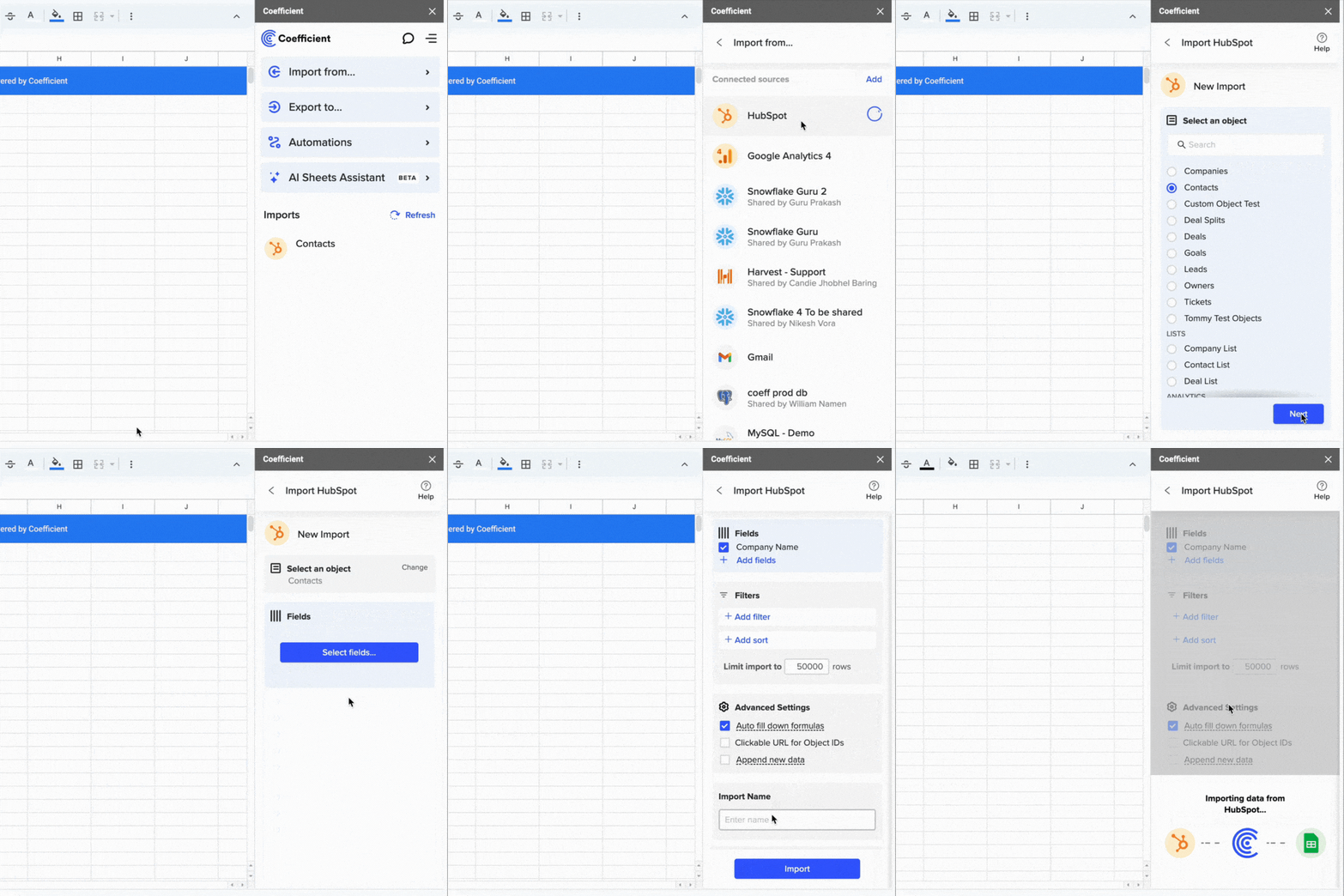
TLDR
-
Step 1:
Install Coefficient from the Google Workspace Marketplace
-
Step 2:
Connect your HubSpot account to Coefficient
-
Step 3:
Select Contacts from the HubSpot objects list
-
Step 4:
Choose the specific contact fields you want to import
-
Step 5:
Set up auto-refresh to keep your data current
Step-by-Step Guide to Import HubSpot Contacts into Google Sheets
Step 1: Install Coefficient and Connect to HubSpot
First, you’ll need to install the Coefficient add-on and connect it to your HubSpot account:
- Open your Google Sheet
- Click on Extensions > Add-ons > Get add-ons
- Search for “Coefficient” and install it from the Google Workspace Marketplace
- Once installed, open Coefficient from the Extensions menu
- In the Coefficient sidebar, click “Import Data”
- Select “HubSpot” from the list of available connectors
- Log in with your HubSpot credentials and authorize the connection
Step 2: Import HubSpot Contacts Data
Now that you’re connected, you can import your contacts data:
- In the Coefficient sidebar, select “Import from Objects”
- Choose “Contacts” from the list of available HubSpot objects
- Select the specific contact fields you want to import (e.g., First Name, Last Name, Email, Phone, etc.)
- Apply any filters if you want to import only specific contacts
- Click “Import” to bring your contacts data into Google Sheets
Step 3: Set Up Auto-Refresh (Optional)
To keep your contact data up-to-date automatically:
- Click on the Coefficient icon in your sheet
- Find your imported HubSpot Contacts data
- Click the “⋮” (three dots) menu and select “Schedule Refresh”
- Choose your preferred refresh frequency (hourly, daily, weekly)
- Set the specific time and days for the refresh to occur
- Click “Save” to activate the auto-refresh schedule
Now your HubSpot contacts will automatically update in your Google Sheet according to your schedule, ensuring you always have the most current data.
Available HubSpot Objects and Reports in Coefficient
Coefficient allows you to import various types of data from HubSpot. Here’s a list of the available objects you can import:
Objects
- Arr
- Billing histories
- Blueprints
- Calls
- Carts
- Clients
- Company lists
- Companies
- Contact lists
- Contacts
- Communications
- Contracts
More Objects
- Leads
- Licenses
- Line items
- Listings
- Marketing activities
- Marketing campaigns
- Marketing emails
- Merchant account
- Meetings
- Notes
- Onboarding
- Opportunities
Conclusion
Importing your HubSpot Contacts into Google Sheets with Coefficient gives you the flexibility to analyze and work with your contact data while ensuring it stays up-to-date. The auto-refresh feature eliminates the need for manual exports, saving you time and preventing data discrepancies.
With your contact data in Google Sheets, you can create custom reports, segment your audience, and share insights with your team—all while maintaining a live connection to your HubSpot database.
Ready to streamline your HubSpot contact management? Get started with Coefficient today and transform how you work with your HubSpot data.
How to Import HubSpot Custom Objects Data into Google Sheets
HubSpot Custom Objects let you track unique business data that doesn’t fit into standard objects. But analyzing this data often requires exporting it to a spreadsheet for deeper insights.
In this guide, you’ll learn how to import your HubSpot Custom Objects directly into Google Sheets for seamless analysis and reporting.
TLDR
-
Step 1:
Install Coefficient from the Google Workspace Marketplace
-
Step 2:
Connect your HubSpot account to Coefficient
-
Step 3:
Select Import from… and choose HubSpot as your data source
-
Step 4:
Select Custom objects from the objects list
-
Step 5:
Choose your specific custom object, configure any filters, and import
-
Step 6:
Set up auto-refresh to keep your data updated automatically
Step-by-Step Guide to Importing HubSpot Custom Objects
Step 1: Install Coefficient and Connect to HubSpot
First, you’ll need to install the Coefficient add-on and connect it to your HubSpot account:
- Open Google Sheets
- Click on Extensions > Add-ons > Get add-ons
- Search for “Coefficient” and install it from the Google Workspace Marketplace
- Once installed, click on Extensions > Coefficient > Launch
- In the Coefficient sidebar, click “Import from…”
- Select “HubSpot” from the list of available connectors
- Follow the authentication prompts to connect your HubSpot account
Step 2: Select and Import Custom Objects
Now that you’re connected, you can import your Custom Objects data:
- In the Coefficient sidebar, select “Objects” as the data type
- Scroll through the list of available objects and select “Custom objects”
- Choose the specific custom object you want to import (e.g., Projects, Programs, etc.)
- Select the properties (fields) you want to include in your import
- Apply any filters if needed to narrow down your data
- Click “Import” to bring the data into your Google Sheet
Step 3: Set Up Auto-Refresh (Optional)
To keep your data fresh without manual updates:
- Click on the Coefficient menu in your sheet
- Select “Manage imports”
- Find your HubSpot Custom Objects import
- Click on “Auto-refresh” and set your preferred schedule (hourly, daily, weekly)
- You can also set up conditional refresh rules based on specific triggers
With auto-refresh enabled, your HubSpot Custom Objects data will automatically update according to your schedule, ensuring you always have the most current information for analysis and reporting.
Available HubSpot Objects and Reports in Coefficient
Coefficient allows you to import various types of data from HubSpot. Here’s a comprehensive list of what’s available:
Reports
- Marketing Performance
- Sales Activity
- Deal Pipeline
- Contact Growth
- Email Performance
- Website Analytics
- Campaign Performance
- Lead Conversion
- Sales Productivity
- Customer Service
Objects
- Arr
- Leads
- Billing histories
- Blueprints
- Calls
- Carts
- Clients
- Company lists
- Companies
- Contact lists
- Contacts
- Communications
Frequently Asked Questions
By following this guide, you can seamlessly import your HubSpot Custom Objects data into Google Sheets, enabling more powerful analysis and reporting capabilities. With Coefficient’s auto-refresh feature, you can ensure your data is always up-to-date, saving you time and providing accurate insights for better decision-making.
How to Import HubSpot Deal Split Data into Google Sheets
Tracking deal splits in HubSpot is crucial for sales teams that collaborate on deals. But analyzing this data directly in HubSpot can be limiting. By importing your deal split data into Google Sheets, you can create custom reports, analyze commission structures, and share insights with stakeholders.
TLDR
-
Step 1:
Install Coefficient from the Google Workspace Marketplace
-
Step 2:
Connect your HubSpot account to Coefficient
-
Step 3:
Select Import from… and choose HubSpot as your data source
-
Step 4:
Navigate to Objects and select Deal split
-
Step 5:
Choose the fields you want to import and click Import
-
Step 6:
Set up auto-refresh to keep your data updated automatically
Step-by-Step Guide to Importing HubSpot Deal Split Data
Step 1: Install Coefficient and Connect to HubSpot
First, you’ll need to install the Coefficient add-on and connect it to your HubSpot account:
- Open Google Sheets
- Click on Extensions > Add-ons > Get add-ons
- Search for “Coefficient” and install it from the Google Workspace Marketplace
- Once installed, click on Extensions > Coefficient > Launch
- In the Coefficient sidebar, click “Import from…”
- Select “HubSpot” from the list of available connectors
- Follow the prompts to authorize Coefficient to access your HubSpot account
Step 2: Import Deal Split Data
Now that you’ve connected HubSpot, you can import your deal split data:
- In the Coefficient sidebar, select “Objects” (since Deal split is an object in HubSpot)
- Scroll through the list of available objects or use the search function to find “Deal split”
- Select “Deal split” from the list
- Choose the specific fields you want to import (e.g., Deal ID, Amount, Owner, Split percentage, etc.)
- Apply any filters if needed to narrow down the data
- Click “Import” to bring the data into your Google Sheet
Step 3: Set Up Auto-Refresh (Optional)
To ensure your deal split data stays up-to-date, set up an automatic refresh schedule:
- In the Coefficient sidebar, click on the three dots next to your imported data
- Select “Refresh settings”
- Choose your preferred refresh frequency (hourly, daily, weekly, etc.)
- Set the specific time and days for the refresh to occur
- Click “Save” to activate the auto-refresh schedule
With auto-refresh enabled, your HubSpot deal split data will automatically update according to your schedule, ensuring you always have the most current information for analysis and reporting.
Analyzing Your Deal Split Data in Google Sheets
Once you’ve imported your HubSpot deal split data, you can leverage Google Sheets’ functionality to gain deeper insights:
- Create pivot tables to analyze deal splits by rep, team, or time period
- Build commission calculations based on split percentages
- Generate visualizations like charts and graphs to track trends
- Combine deal split data with other metrics for comprehensive reporting
The flexibility of Google Sheets allows you to customize your analysis in ways that aren’t possible within HubSpot’s native reporting.
Objects
- Arr
- Companies
- Deal split
- Custom objects
- Products
- Tasks
Additional Objects
- Leads
- Contacts
- Deals
- Line items
- Quotes
- Tickets
Conclusion
Importing HubSpot Deal split data into Google Sheets using Coefficient gives you greater flexibility in how you analyze and share this critical sales information. With live data syncing and automated refreshes, you can ensure your reports always reflect the most current state of your deals.
This approach is particularly valuable for sales operations teams who need to track commission structures, analyze team collaboration patterns, or create custom reports that go beyond HubSpot’s native capabilities.
Ready to get started? Install Coefficient from the Google Workspace Marketplace today and transform how you work with your HubSpot deal split data.
How to Import HubSpot Deals Data into Google Sheets
Keeping track of your HubSpot deals in Google Sheets gives sales teams better visibility and reporting capabilities. Instead of manually exporting data that quickly becomes outdated, you can create a live connection that automatically refreshes.
In this guide, you’ll learn how to import your HubSpot Deals data into Google Sheets using Coefficient.
TLDR
-
Step 1:
Install Coefficient from the Google Workspace Marketplace
-
Step 2:
Connect your HubSpot account to Coefficient
-
Step 3:
Select Deals from the HubSpot objects list
-
Step 4:
Choose the specific deal fields you want to import
-
Step 5:
Set up auto-refresh to keep your data updated automatically
Step 1: Install Coefficient and Connect to HubSpot
First, you’ll need to install the Coefficient add-on and connect it to your HubSpot account:
- Open your Google Sheet
- Click on Extensions > Add-ons > Get add-ons
- Search for “Coefficient” and install it from the Google Workspace Marketplace
- Once installed, click on Extensions > Coefficient > Launch to open the sidebar
- In the sidebar, click “Import Data”
- Select “HubSpot” from the list of available data sources
- Follow the prompts to authorize Coefficient to access your HubSpot account
Step 2: Import HubSpot Deals Data
Now that you’ve connected Coefficient to HubSpot, you can import your Deals data:
- In the Coefficient sidebar, select “Import from HubSpot”
- Under “Objects,” select “Deals”
- Choose the specific deal fields you want to import (e.g., Deal Name, Amount, Close Date, Stage, Owner)
- Apply any filters if needed (e.g., only open deals, deals created in the last 30 days)
- Click “Import” to bring your deals data into your Google Sheet
Step 3: Set Up Auto-Refresh (Optional)
To ensure your deals data stays up-to-date, set up an automatic refresh schedule:
- In the Coefficient sidebar, click on the “…” menu next to your imported data
- Select “Schedule Refresh”
- Choose your preferred refresh frequency (hourly, daily, weekly)
- Set the specific time and days for the refresh to occur
- Click “Save” to activate the auto-refresh schedule
Customizing Your HubSpot Deals Data in Google Sheets
Once your deals data is imported, you can leverage Google Sheets’ functionality to create custom reports and visualizations:
- Use formulas to calculate win rates, average deal sizes, and sales cycle lengths
- Create pivot tables to analyze deals by owner, stage, or time period
- Build charts and graphs to visualize your sales pipeline
- Set up conditional formatting to highlight deals that need attention
With Coefficient’s live connection to HubSpot, your reports will always reflect the most current data without manual updates.
Reports
- Deal Pipeline
- Sales Activity
- Marketing Performance
- Sales Performance
- Lead Analytics
- Email Campaign Results
Objects
- Companies
- Contacts
- Deals
- Products
- Tickets
- Custom Objects
Related Resources
- How to Connect HubSpot to Google Sheets
- Export HubSpot Contacts to Excel or Google Sheets
- HubSpot Writebacks: How to Upload Data to HubSpot
- HubSpot for Google Sheets
Conclusion
Importing your HubSpot Deals data into Google Sheets with Coefficient gives you the flexibility to create custom reports while maintaining data accuracy through automatic refreshes. This approach eliminates manual exports and ensures your sales team always has access to the most current information.
By following the steps in this guide, you can quickly set up a live connection between HubSpot and Google Sheets, enabling better analysis and reporting of your deals data.
How to Import HubSpot Demos Data into Google Sheets
Managing your HubSpot demos data in Google Sheets gives you the flexibility to analyze performance, track conversion rates, and share insights with your team. But manually exporting this data is time-consuming and quickly becomes outdated.
This guide shows you how to create a live connection between HubSpot and Google Sheets to keep your demos data fresh and actionable.
TLDR
-
Step 1:
Install Coefficient from the Google Workspace Marketplace
-
Step 2:
Connect your HubSpot account to Google Sheets
-
Step 3:
Import Demos data using the Objects import option
-
Step 4:
Set up auto-refresh to keep your data current
-
Step 5:
Build custom reports and dashboards with your demos data
Step-by-Step Guide to Importing HubSpot Demos Data
Step 1: Install Coefficient and Connect to HubSpot
First, you’ll need to install the Coefficient add-on and connect it to your HubSpot account:
- Open Google Sheets
- Click on Extensions > Add-ons > Get add-ons
- Search for “Coefficient” and install it from the Google Workspace Marketplace
- Once installed, open the Coefficient sidebar by clicking Extensions > Coefficient > Launch
- Click “Import Data” in the sidebar
- Select “HubSpot” from the list of available connectors
- Follow the authentication prompts to connect your HubSpot account
Step 2: Import HubSpot Demos Data
Now that you’re connected, you can import your Demos data:
- In the Coefficient sidebar, select “Import from Objects”
- From the list of available objects, find and select “Demos”
- Choose the specific properties (columns) you want to import
- Apply any filters if needed (e.g., demos scheduled within a specific date range)
- Select where in your spreadsheet you want the data to appear
- Click “Import” to bring your HubSpot Demos data into Google Sheets
Step 3: Set Up Auto-Refresh (Optional but Recommended)
Keep your demos data fresh with automatic updates:
- Click on the “⟳” refresh icon next to your imported data
- Select “Schedule Refresh”
- Choose your preferred frequency (hourly, daily, weekly)
- Set specific times for the refresh to occur
- Click “Save” to activate your auto-refresh schedule
With auto-refresh enabled, your HubSpot Demos data will update automatically according to your schedule, ensuring you always have the most current information for analysis and reporting.
Available HubSpot Objects and Reports in Coefficient
Coefficient allows you to import various types of data from HubSpot. Here’s a list of available objects you can import:
Objects
- Arr
- Billing histories
- Calls
- Clients
- Companies
- Contacts
- Contracts
- Custom objects
- Deal lists
- Dealers
- Demos
- Emails
- Leads
- Blueprints
- Carts
- Company lists
- Contact lists
- Communications
- Credit
- Deal history
- Deal split
- Deals
- Discounts
- Employees
Frequently Asked Questions
By following this guide, you can seamlessly import your HubSpot Demos data into Google Sheets and keep it automatically updated. This allows you to create custom reports, analyze demo performance, and share insights with your team—all while ensuring your data remains current and accurate.
Need to import other HubSpot data or connect to different business systems? Coefficient supports 70+ integrations, enabling you to centralize your data in Google Sheets for comprehensive reporting and analysis.