Importing Tickets data from Intercom into Excel helps you analyze support performance and optimize your issue resolution process. Coefficient makes this process seamless and automatic.
This guide will show you how to import your Intercom Tickets data into Excel using Coefficient.
TLDR
-
Step 1:
Step 1. Open Excel > Insert tab > Get Add-ins > Install Coefficient from Office Add-ins store.
-
Step 2:
Step 2. Connect your Intercom account and select the Tickets object to import.
-
Step 3:
Step 3. (Optional) Enable auto-refresh to keep your data updated automatically.
Step-by-Step Guide to Import Intercom Tickets Data into Excel
Step 1: Install Coefficient in Excel
First, you need to install the Coefficient add-in from the Office Add-ins store:
- Open Excel
- Go to the Insert tab
- Click on Get Add-ins
- Search for “Coefficient”
- Click Add to install the add-in
- Once installed, click on the Coefficient icon to open the sidebar

Step 2: Connect to Intercom and Import Tickets Data
Now, connect Coefficient to your Intercom account:
- In the Coefficient sidebar, click on “Import from…”
- Scroll to find and select “Intercom” from the list of available connectors
- Log in with your Intercom credentials when prompted
- Once connected, select “Tickets” from the list of available objects
- Choose the fields you want to import
- Click “Import” to bring the data into your Excel spreadsheet

Step 3: Set Up Auto-Refresh (Optional)
To keep your Tickets data up to date automatically:
- Click on the three dots (…) next to your imported data
- Select “Auto-refresh”
- Choose your preferred refresh schedule (hourly, daily, or weekly)
- Click “Save” to activate auto-refresh

Available Intercom Objects
- Teams
- Company Segments
- Conversations
- All Help Centers
- All Collections
- News Items
- Tickets
- Articles
How to Import Issue Links Data from Jira into Excel
Bringing your Jira Issue Links data into Excel helps you track relationships between issues. Coefficient makes connecting Jira Issue Links to Excel simple and automatic.
Instead of relying on manual exports that are instantly out of date, you can create a live link that refreshes itself. This guide shows you exactly how to import your Jira Issue Links data into Excel using Coefficient.
TLDR
-
Step 1:
Step 1. Install Coefficient from the Office Add-ins store and connect to your Jira account.
-
Step 2:
Step 2. Select Import from… and choose the Issue Links object.
-
Step 3:
Step 3. Pick the fields you need, then import the data to your Excel sheet.
-
Step 4:
Step 4. Set up auto-refresh to keep your Issue Links data updated automatically on your schedule.
block:step-by-step
Step-by-step guide
Importing Jira Issue Links data into Excel with Coefficient is a simple process. Follow these steps to get your data connected and updating live.
step:1:Installation and Connection
First, you need to add Coefficient to your Excel application.
- Open Excel.
- Insert Go to thetab.
- Get Add-ins Click.
- Add Search for “”Coefficient”” and clickto install it from the Office Add-ins store.
Home Insert Once installed, open Coefficient from theortab. You’ll see the Coefficient sidebar. Click to connect a new data source, choose Jira, and log in to your account to authorize the connection.
step:2:Importing the Data
Now that Coefficient is connected to Jira, you can pull in your Issue Links data.
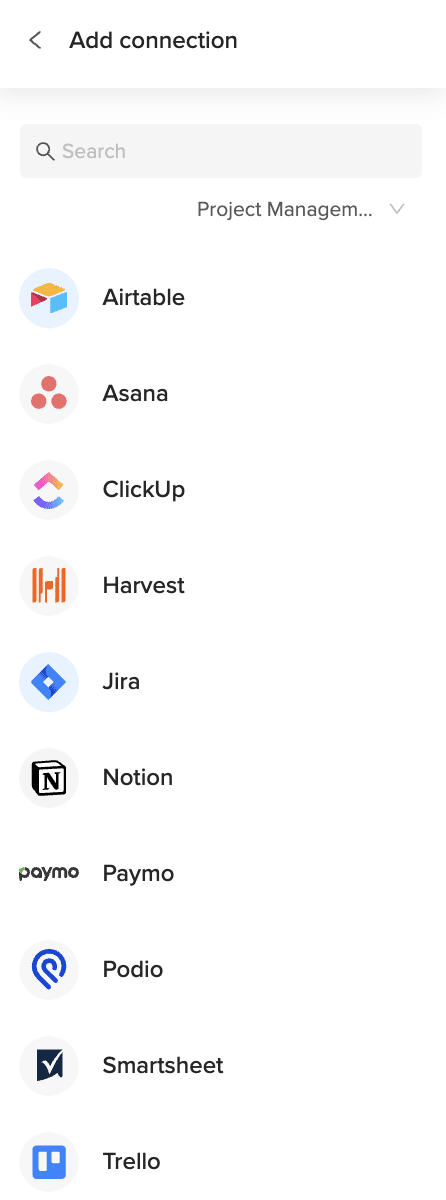
- Import from… In the Coefficient sidebar, click thebutton.
- Jira Selectfrom your list of connected sources.
- Coefficient will show you the types of data you can import. Choose the relevant option, likely “Objects”.
- Issue Links From the list of available Jira objects, select.
- Choose the specific fields (columns) you want to bring into your sheet.
- Apply any filters or criteria to narrow down the data, if needed.
- Import Clickto pull the data into your Excel sheet.
step:3:Setting up Auto-Refresh (Optional)
To ensure your Excel sheet always has the most current Jira Issue Links data, set up an auto-refresh schedule.
- With your imported data table selected in Excel, look for the auto-refresh options in the Coefficient sidebar.
- Click on the refresh icon associated with your Jira import.
- Set how often you want the data to update (e.g., daily, hourly, weekly).
- Choose the specific time for the automatic refresh to occur.
Your Excel sheet will now automatically stay in sync with the latest Jira Issue Links data based on the schedule you set.
Available Jira Objects
Objects
- Issues
- Issue Types
- Fields
- Versions
- Components
- Priorities
- Resolutions
- Statuses
- Users
- Groups
- Application Roles
- Project Roles
How to Import Profile Data from Outreach into Excel
Importing Outreach Profile records into Excel gives you a central view of user attributes like name, title, and department. Coefficient keeps your sheet synced so changes in Outreach reflect instantly.
This tutorial walks you through installing Coefficient, connecting Outreach, importing Profile data, and scheduling live updates in Excel.
TLDR
-
Step 1:
Step 1. Install Coefficient for Excel and authorize your Outreach account.
-
Step 2:
Step 2. Select “Import from Objects” and choose “Profile” under Outreach.
-
Step 3:
Step 3. Filter by attribute (e.g. department, role), select fields, and click “Import.”
-
Step 4:
Step 4. Enable auto-refresh to keep profile data up to date automatically.
Step-by-step guide
Use these steps to bring Outreach Profile data into Excel.
Step 1: Install and Connect Coefficient
In Excel, go to Insert → Get Add-ins → My Add-ins, search for Coefficient, and install. Then open Coefficient and connect to Outreach to grant access.
Step 2: Import Profile Data
Click “Import from Objects” in Coefficient, select Outreach, then choose “Profile.” You can filter by department or title and pick the exact fields you need before importing.
Step 3: Set Up Auto-Refresh (Optional)
After importing, click the refresh icon in the Coefficient pane and schedule hourly, daily, or weekly updates to keep your profiles current.
Available Outreach Objects
- Call
- Opportunity
- Sequence
- Call Disposition
- Call Purpose
- Compliance Request
- Content Category
- Content Category Membership
- Content Category Ownership
- Duty
- Email Address
- Event
How to Import Goals And Funnels Data from Microsoft Ads into Excel
Analyzing Goals And Funnels data from Microsoft Ads in Excel helps marketers understand their conversion paths, identify drop-off points, and optimize campaign targeting to improve goal completions and conversion rates.
Instead of manually downloading reports that quickly become outdated, you can create a live connection for always-current insights into your conversion funnel performance.
TLDR
-
Step 1:
Install Coefficient from the Office Add-ins store in Excel
-
Step 2:
Connect your Microsoft Ads account to Coefficient
-
Step 3:
Import Goals And Funnels data with conversion metrics
-
Step 4:
Set up auto-refresh to keep your goal data current
Step 1: Install Coefficient and Connect Your Microsoft Ads Account
Start by installing the Coefficient add-in in your Excel workbook and connecting to your Microsoft Ads account.
- Open Excel and navigate to the Insert tab
- Click Get Add-ins and search for “Coefficient”
- Install the Coefficient add-in from the Office Add-ins store
- Once installed, open the Coefficient sidebar and click “Import”
- Select “Microsoft Ads” from the list of available connectors
- Follow the authentication prompts to connect your Microsoft Ads account
Step 2: Import Goals And Funnels Data
After connecting your Microsoft Ads account, you can import your Goals And Funnels data:
- In the Coefficient sidebar, click “Import from Microsoft Ads”
- Select “Goals And Funnels” from the list of available objects
- Choose which metrics you want to include (goal completions, conversion rates, funnel steps, etc.)
- Apply any filters to focus on specific campaigns or date ranges
- Click “Import” to bring the data into your Excel spreadsheet

Step 3: Set Up Auto-Refresh for Your Data
Keep your Microsoft Ads goals and funnels data fresh by setting up automatic refreshes:
- Select any cell in your imported data range
- Open the Coefficient sidebar and click “Refresh”
- Click “Schedule Refresh” to set up automated updates
- Choose your preferred refresh frequency (hourly, daily, or weekly)
- Confirm your settings to activate the auto-refresh schedule
Analyze Your Conversion Funnel Performance
With your Goals And Funnels data now in Excel, you can create detailed conversion funnel visualizations that show progression through each step of the customer journey. Identify bottlenecks where prospects drop off, and analyze which campaigns, keywords, or ad groups drive the most valuable goal completions.
Use Excel’s calculation capabilities to determine conversion rates between funnel stages, and create custom formulas to calculate the value of different conversion actions. These insights will help you optimize your Microsoft Ads campaigns to improve overall conversion performance and ROI.
Microsoft Ads Data Available in Coefficient
Available Objects
- Campaign Performance
- Conversion Performance
- Keyword Performance
- Search Query Performance
- Account Performance
- Ad Dynamic Text Performance
- Ad Extension By Ad
- Ad Extension By Keyword
- Ad Extension Detail
- Ad Performance
- Age Gender Audience
- Audience Performance
How to Import Geographic Performance Data from Microsoft Ads into Excel
Analyzing Geographic Performance data from Microsoft Ads in Excel helps marketers understand how campaigns perform across different locations, enabling more targeted budget allocation and bid adjustments based on regional performance.
Instead of manually downloading reports that quickly become outdated, you can create a live connection for always-current insights into your geographic performance.
TLDR
-
Step 1:
Install Coefficient from the Office Add-ins store in Excel
-
Step 2:
Connect your Microsoft Ads account to Coefficient
-
Step 3:
Import Geographic Performance data with location metrics
-
Step 4:
Set up auto-refresh to keep your geo data current
Step 1: Install Coefficient and Connect Your Microsoft Ads Account
Start by installing the Coefficient add-in in your Excel workbook and connecting to your Microsoft Ads account.
- Open Excel and navigate to the Insert tab
- Click Get Add-ins and search for “Coefficient”
- Install the Coefficient add-in from the Office Add-ins store
- Once installed, open the Coefficient sidebar and click “Import”
- Select “Microsoft Ads” from the list of available connectors
- Follow the authentication prompts to connect your Microsoft Ads account
Step 2: Import Geographic Performance Data
After connecting your Microsoft Ads account, you can import your Geographic Performance data:
- In the Coefficient sidebar, click “Import from Microsoft Ads”
- Select “Geographic Performance” from the list of available objects
- Choose which metrics you want to include (impressions, clicks, conversions by location)
- Apply any filters to focus on specific campaigns or date ranges
- Click “Import” to bring the data into your Excel spreadsheet
Step 3: Set Up Auto-Refresh for Your Data
Keep your Microsoft Ads geographic data fresh by setting up automatic refreshes:
- Select any cell in your imported data range
- Open the Coefficient sidebar and click “Refresh”
- Click “Schedule Refresh” to set up automated updates
- Choose your preferred refresh frequency (hourly, daily, or weekly)
- Confirm your settings to activate the auto-refresh schedule
Analyze Your Geographic Performance
With your Geographic Performance data now in Excel, you can identify top-performing and underperforming regions for your Microsoft Ads campaigns. Create pivot tables to compare metrics like CTR, conversion rate, and cost-per-conversion across different locations, from countries down to cities.
Use Excel’s visualization tools to create heat maps or geo charts that make regional performance trends immediately visible. These insights will help you make location-specific optimizations, such as adjusting bids for high-performing regions or creating location-specific campaigns with tailored messaging.
Microsoft Ads Data Available in Coefficient
Available Objects
- Campaign Performance
- Conversion Performance
- Keyword Performance
- Search Query Performance
- Account Performance
- Ad Dynamic Text Performance
- Ad Extension By Ad
- Ad Extension By Keyword
- Ad Extension Detail
- Ad Performance
- Age Gender Audience
- Audience Performance
How to Import Google Analytics Conversions (Key Events) Data into Excel
Analyzing Conversions (Key Events) data from Google Analytics in Excel helps marketing and revenue teams understand which actions users are taking on your site and how effectively your funnels are performing.
Instead of manually exporting data that quickly becomes outdated, you can establish a live connection that refreshes automatically.
TLDR
-
Step 1:
Install Coefficient from the Office Add-ins store
-
Step 2:
Connect to your Google Analytics account
-
Step 3:
Select Conversions (Key Events) as your primary metric
-
Step 4:
Configure dimensions to segment your conversion data
-
Step 5:
Import into Excel and set up auto-refresh
Step 1: Install Coefficient and Connect to Google Analytics
Begin by installing the Coefficient add-in and connecting it to your Google Analytics account:
- Open Excel and navigate to the Insert tab
- Click on Get Add-ins
- Search for “Coefficient” in the Office Add-ins store
- Click Add to install the Coefficient add-in
- Once installed, the Coefficient sidebar will appear
- Click “Import” to begin connecting data sources
- Select “Google Analytics” from the marketing integrations
- Log in with your Google account and authorize Coefficient to access your data
Step 2: Select and Configure Conversions Data
After connecting your Google Analytics account, configure your Conversions data import:
- Choose your Google Analytics 4 property from the dropdown menu
- Set your desired date range (last 7 days, last 30 days, custom range, etc.)
- Select “Conversions” or specific conversion events as your primary metrics
-
- By event name to track different conversion types
- By date to monitor trends over time
- By source/medium to identify which channels drive conversions
- By user demographics to understand who converts best
- Apply filters if you want to focus on specific segments of your conversion data
- Preview your selection to ensure it provides the insights you need
Step 3: Import and Set Up Auto-Refresh
Once you’ve configured your Conversions data selection, import it into Excel and set up automatic refreshes:
- Click “Import” to bring the Conversions data into your Excel worksheet
- Choose where you want the data to be placed in your spreadsheet
-
- Navigate to the “Automations” tab in the Coefficient sidebar
- Select “Schedule Refresh” for your imported Conversions data
- Choose your preferred refresh frequency (hourly, daily, weekly)
- Optionally, set up alerts for significant changes in conversion metrics
Available Google Analytics Data
Metrics & Dimensions
- Sessions
- Pageviews
- Conversions (Key Events)
- Traffic Source / Medium
- Engaged Sessions
- Session Conversion Rate
- Total Revenue
- Landing Page
- Event Count
- Campaign
- Device Category
- New Users
Analyzing Conversions Data in Excel
With your Conversions data now in Excel, you can create valuable analyses like:
- Conversion rate trends over time
- Comparison of conversion performance across different channels
- Correlation between marketing campaigns and conversion spikes
- Custom visualizations that show conversion funnels and drop-off points
- ROI calculations based on conversion value and marketing spend
Related Resources
For more information about working with Google Analytics data in your spreadsheets:
Start importing your Google Analytics Conversions data into Excel today with Coefficient and transform how your team tracks and optimizes conversion performance.
How to Import Google Analytics Campaign Data into Excel
Analyzing Campaign data from Google Analytics in Excel helps marketing teams understand which promotional efforts are driving traffic, engagement, and conversions to your website.
Rather than manually exporting data that quickly becomes outdated, you can create a live connection that refreshes automatically with the latest campaign metrics.
TLDR
-
Step 1:
Install Coefficient from the Office Add-ins store
-
Step 2:
Connect to your Google Analytics account
-
Step 3:
Select Campaign as your primary dimension
-
Step 4:
Choose metrics to analyze by campaign
-
Step 5:
Import into Excel and set up auto-refresh
Step 1: Install Coefficient and Connect to Google Analytics
Begin by installing the Coefficient add-in and connecting it to your Google Analytics account:
- Open Excel and navigate to the Insert tab
- Click on Get Add-ins
- Search for “Coefficient” in the Office Add-ins store
- Click Add to install the Coefficient add-in
- Once installed, the Coefficient sidebar will appear
- Click “Import” to begin connecting data sources
- Select “Google Analytics” from the marketing integrations
- Log in with your Google account and authorize Coefficient to access your data
Step 2: Select and Configure Campaign Data
After connecting your Google Analytics account, configure your Campaign data import:
- Choose your Google Analytics 4 property from the dropdown menu
- Set your desired date range (last 7 days, last 30 days, custom range, etc.)
- Select “Campaign” as your primary dimension
-
- Sessions to measure traffic volume
- Conversions to track goal completions
- Revenue to assess monetary impact
- Engagement metrics to evaluate quality of traffic
- Apply filters if you want to focus on specific campaigns
- Preview your selection to ensure it provides the insights you need
Step 3: Import and Set Up Auto-Refresh
Once you’ve configured your Campaign data selection, import it into Excel and set up automatic refreshes:
- Click “Import” to bring the Campaign data into your Excel worksheet
- Choose where you want the data to be placed in your spreadsheet
-
- Navigate to the “Automations” tab in the Coefficient sidebar
- Select “Schedule Refresh” for your imported campaign data
- Choose your preferred refresh frequency (hourly, daily, weekly)
- Optionally, set up alerts for significant changes in campaign performance
Available Google Analytics Data
Metrics & Dimensions
- Sessions
- Pageviews
- Conversions (Key Events)
- Traffic Source / Medium
- Engaged Sessions
- Session Conversion Rate
- Total Revenue
- Landing Page
- Event Count
- Campaign
- Device Category
- New Users
Analyzing Campaign Data in Excel
With your Campaign data now in Excel, you can create valuable analyses like:
- Campaign performance comparison across key metrics
- ROI calculations for different marketing initiatives
- Performance trends over time for ongoing campaigns
- Custom visualizations highlighting your most effective campaigns
- Automated reports that track campaign effectiveness in real-time
Related Resources
For more information about working with Google Analytics data in your spreadsheets:
Start importing your Google Analytics Campaign data into Excel today with Coefficient and transform how your team analyzes marketing effectiveness.
How to Import Google Analytics Session Conversion Rate Data into Excel
Analyzing Session Conversion Rate data from Google Analytics in Excel helps marketing and revenue teams understand how effectively your site turns visitors into customers, leads, or other valuable conversions.
Rather than manually exporting data that quickly becomes outdated, you can establish a live connection that refreshes automatically.
TLDR
-
Step 1:
Install Coefficient from the Office Add-ins store
-
Step 2:
Connect to your Google Analytics account
-
Step 3:
Select Session Conversion Rate as your primary metric
-
Step 4:
Configure dimensions to segment your conversion rate data
-
Step 5:
Import into Excel and set up auto-refresh
Step 1: Install Coefficient and Connect to Google Analytics
Begin by installing the Coefficient add-in and connecting it to your Google Analytics account:
- Open Excel and navigate to the Insert tab
- Click on Get Add-ins
- Search for “Coefficient” in the Office Add-ins store
- Click Add to install the Coefficient add-in
- Once installed, the Coefficient sidebar will appear
- Click “Import” to begin connecting data sources
- Select “Google Analytics” from the marketing integrations
- Log in with your Google account and authorize Coefficient to access your data
Step 2: Select and Configure Session Conversion Rate Data
After connecting your Google Analytics account, configure your Session Conversion Rate data import:
- Choose your Google Analytics 4 property from the dropdown menu
- Set your desired date range (last 7 days, last 30 days, custom range, etc.)
- Select “Session Conversion Rate” as your primary metric
-
- By date to track trends over time
- By source/medium to identify best-converting channels
- By landing page to see which entry points convert best
- By device category to understand platform-based conversion differences
- Apply filters if you want to focus on specific segments of your conversion rate data
- Preview your selection to ensure it provides the insights you need
Step 3: Import and Set Up Auto-Refresh
Once you’ve configured your Session Conversion Rate data selection, import it into Excel and set up automatic refreshes:
- Click “Import” to bring the Session Conversion Rate data into your Excel worksheet
- Choose where you want the data to be placed in your spreadsheet
-
- Navigate to the “Automations” tab in the Coefficient sidebar
- Select “Schedule Refresh” for your imported conversion rate data
- Choose your preferred refresh frequency (hourly, daily, weekly)
- Optionally, set up alerts for significant changes in conversion rate metrics
Available Google Analytics Data
Metrics & Dimensions
- Sessions
- Pageviews
- Conversions (Key Events)
- Traffic Source / Medium
- Engaged Sessions
- Session Conversion Rate
- Total Revenue
- Landing Page
- Event Count
- Campaign
- Device Category
- New Users
Analyzing Session Conversion Rate Data in Excel
With your Session Conversion Rate data now in Excel, you can create valuable analyses like:
- Conversion rate trends over time
- Comparison of conversion rates across different traffic sources
- Landing page performance ranked by conversion effectiveness
- Custom visualizations that highlight conversion rate patterns
- Automated reports that refresh with the latest conversion rate data
Related Resources
For more information about working with Google Analytics data in your spreadsheets:
Start importing your Google Analytics Session Conversion Rate data into Excel today with Coefficient and transform how your team optimizes conversion performance.
How to Import Google Analytics Total Revenue Data into Excel
Analyzing Total Revenue data from Google Analytics in Excel helps finance, marketing, and revenue teams understand the monetary performance of your website and digital campaigns.
Instead of manually exporting data that quickly becomes outdated, you can create a live connection that refreshes automatically with the latest revenue metrics.
TLDR
-
Step 1:
Install Coefficient from the Office Add-ins store
-
Step 2:
Connect to your Google Analytics account
-
Step 3:
Select Total Revenue as your primary metric
-
Step 4:
Configure dimensions to segment your revenue data
-
Step 5:
Import into Excel and set up auto-refresh
Step 1: Install Coefficient and Connect to Google Analytics
Begin by installing the Coefficient add-in and connecting it to your Google Analytics account:
- Open Excel and navigate to the Insert tab
- Click on Get Add-ins
- Search for “Coefficient” in the Office Add-ins store
- Click Add to install the Coefficient add-in
- Once installed, the Coefficient sidebar will appear
- Click “Import” to begin connecting data sources
- Select “Google Analytics” from the marketing integrations
- Log in with your Google account and authorize Coefficient to access your data
Step 2: Select and Configure Total Revenue Data
After connecting your Google Analytics account, configure your Total Revenue data import:
- Choose your Google Analytics 4 property from the dropdown menu
- Set your desired date range (last 7 days, last 30 days, custom range, etc.)
- Select “Total Revenue” as your primary metric
-
- By date to track revenue trends over time
- By source/medium to identify which channels drive revenue
- By product or transaction ID for item-level analysis
- By campaign to measure marketing effectiveness
- Apply filters if you want to focus on specific segments of your revenue data
- Preview your selection to ensure it provides the insights you need
Step 3: Import and Set Up Auto-Refresh
Once you’ve configured your Total Revenue data selection, import it into Excel and set up automatic refreshes:
- Click “Import” to bring the Total Revenue data into your Excel worksheet
- Choose where you want the data to be placed in your spreadsheet
-
- Navigate to the “Automations” tab in the Coefficient sidebar
- Select “Schedule Refresh” for your imported revenue data
- Choose your preferred refresh frequency (hourly, daily, weekly)
- Optionally, set up alerts for significant changes in revenue metrics
Available Google Analytics Data
Metrics & Dimensions
- Sessions
- Pageviews
- Conversions (Key Events)
- Traffic Source / Medium
- Engaged Sessions
- Session Conversion Rate
- Total Revenue
- Landing Page
- Event Count
- Campaign
- Device Category
- New Users
Analyzing Total Revenue Data in Excel
With your Total Revenue data now in Excel, you can create valuable analyses like:
- Revenue trends over time (daily, weekly, monthly)
- Channel attribution showing which sources drive the most value
- Campaign ROI calculations
- Product performance breakdowns
- Custom dashboards that highlight revenue metrics alongside other KPIs
Related Resources
For more information about working with Google Analytics data in your spreadsheets:
Start importing your Google Analytics Total Revenue data into Excel today with Coefficient and transform how your team tracks and analyzes monetary performance.
How to Import Hotel Dimension Performance Data from Microsoft Ads into Excel
Analyzing Hotel Dimension Performance data from Microsoft Ads in Excel helps travel marketers understand how their hotel campaigns perform across different dimensions like hotel class, brand, and property, enabling more targeted optimizations for hotel advertising.
Instead of manually downloading reports that quickly become outdated, you can create a live connection for always-current insights into your hotel ad performance.
TLDR
-
Step 1:
Install Coefficient from the Office Add-ins store in Excel
-
Step 2:
Connect your Microsoft Ads account to Coefficient
-
Step 3:
Import Hotel Dimension Performance data with relevant metrics
-
Step 4:
Set up auto-refresh to keep your hotel dimension data current
Step 1: Install Coefficient and Connect Your Microsoft Ads Account
Start by installing the Coefficient add-in in your Excel workbook and connecting to your Microsoft Ads account.
- Open Excel and navigate to the Insert tab
- Click Get Add-ins and search for “Coefficient”
- Install the Coefficient add-in from the Office Add-ins store
- Once installed, open the Coefficient sidebar and click “Import”
- Select “Microsoft Ads” from the list of available connectors
- Follow the authentication prompts to connect your Microsoft Ads account
Step 2: Import Hotel Dimension Performance Data
After connecting your Microsoft Ads account, you can import your Hotel Dimension Performance data:
- In the Coefficient sidebar, click “Import from Microsoft Ads”
- Select “Hotel Dimension Performance” from the list of available objects
- Choose which metrics you want to include (impressions, clicks, bookings, revenue, etc.)
- Apply any filters to focus on specific hotel campaigns or dimensions
- Click “Import” to bring the data into your Excel spreadsheet
Step 3: Set Up Auto-Refresh for Your Data
Keep your Microsoft Ads hotel dimension data fresh by setting up automatic refreshes:
- Select any cell in your imported data range
- Open the Coefficient sidebar and click “Refresh”
- Click “Schedule Refresh” to set up automated updates
- Choose your preferred refresh frequency (hourly, daily, or weekly)
- Confirm your settings to activate the auto-refresh schedule
Analyze Your Hotel Dimension Performance
With your Hotel Dimension Performance data now in Excel, you can identify which hotel properties, brands, or classes drive the best results for your advertising investment. Create pivot tables to compare key metrics like booking rate, average booking value, and return on ad spend across different hotel dimensions.
Use Excel’s visualization tools to create charts that make performance trends immediately visible, and its sorting and filtering capabilities to quickly identify high-performing and underperforming hotel dimensions. These insights will help you optimize your hotel campaign targeting and bidding for maximum ROI.
Microsoft Ads Data Available in Coefficient
Available Objects
- Campaign Performance
- Conversion Performance
- Keyword Performance
- Search Query Performance
- Account Performance
- Ad Dynamic Text Performance
- Ad Extension By Ad
- Ad Extension By Keyword
- Ad Extension Detail
- Ad Performance
- Age Gender Audience
- Audience Performance