CoefficientHubSpotfully supportscustom properties sync, addressing the significant limitation of basic export functionality that requires manual field mapping and loses custom property relationships.
Here’s how to import all custom property types with automatic field mapping and preserved data relationships.
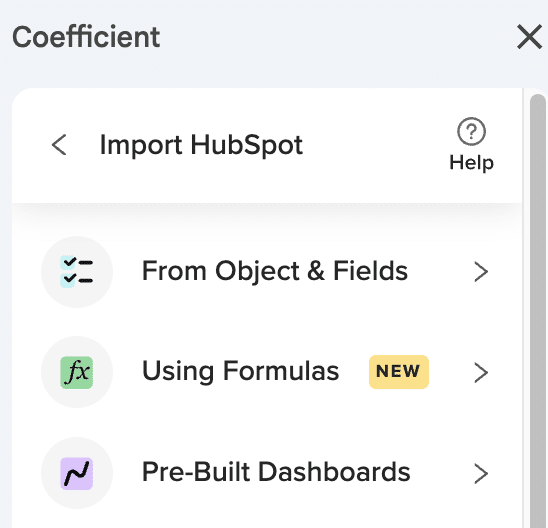
Import HubSpot custom properties with automatic field mapping
All custom property types are supported including text, number, dropdown, date, checkbox, and calculation properties from both standard and custom objects. Custom properties appear as selectable columns with friendly field names preserved.
How to make it work
Step 1. Access the import wizard and connect to HubSpot.
Open Coefficient’s sidebar and select your HubSpot connection. Choose the object type (contacts, deals, companies, etc.) that contains your custom properties.
Step 2. Browse and select custom properties.
All custom properties appear in the field selection alongside standard fields. Choose which custom properties to include as Google Sheets columns – you’ll see friendly field names rather than internal API names.
Step 3. Configure data type preservation and formatting.
Numbers, dates, and text maintain proper formatting in sheets automatically. Dropdown values, checkboxes, and calculation properties display correctly without additional formatting needed.
Step 4. Set up conditional filtering with custom properties.
Apply filters using custom property values (like “Lead Score” > 50) or reference sheet cells for dynamic custom property criteria that change based on your analysis needs.
Step 5. Enable historical tracking for custom property changes.
Use snapshots to preserve custom property value changes over time, allowing you to analyze lead scoring progressions, custom lifecycle stage movements, or industry-specific property trends.
Analyze your custom data without manual mapping
Start syncingThis eliminates manual mapping and data transformation while maintaining data relationships and enabling automated updates for all your custom HubSpot fields.your custom properties with Coefficient today.
CoefficientMost email tools like Mailgun, SendGrid, and Postmark don’t provide native HubSpot deliverability reporting, butconsolidates deliverability data from multiple platforms into unified HubSpot dashboards.
You’ll discover how to create comprehensive deliverability tracking that combines CRM data with external email metrics for complete visibility.
Build unified deliverability dashboards with data consolidation using Coefficient
HubSpotHubSpot’sCoefficient enables data consolidation from multiple email platforms, matching deliverability metrics withcontact properties to create comprehensive deliverability insights that individual tools cannot provide withininterface.
How to make it work
Step 1. Import HubSpot contact data with relevant properties.
Use Coefficient to pull HubSpot contacts with email addresses, industry, company size, lead source, and other segmentation properties. This creates your master contact list for deliverability analysis across different dimensions.
Step 2. Connect deliverability data from email tools.
Import deliverability reports from tools like Mailgun, SendGrid, or Amazon SES. Bring in metrics like delivery status, bounce rates, spam scores, and reputation data. Match email addresses between HubSpot contacts and deliverability records.
Step 3. Create advanced deliverability metrics with formulas.
Build formulas to calculate deliverability rates by contact segment. Useto track deliverability by industry. Create similar formulas for company size, lead source, and other properties.
Step 4. Set up automated deliverability scoring.
Create composite deliverability scores using formulas like. Calculate bounce rate trends and spam score tracking over time periods.
Step 5. Push deliverability insights back to HubSpot.
Use Coefficient’s scheduled exports to update HubSpot contact properties with deliverability scores. Create custom properties for delivery rates, bounce status, and reputation scores. Set up automated alerts when deliverability thresholds are breached.
Create dashboards that combine CRM data with deliverability insights. Track ROI analysis of different email service providers, segment-specific deliverability performance, and historical trends that help optimize email strategy.
Get complete deliverability visibility across all platforms
HubSpotYou need a reliable alternative to Superjoin for syncingdata to Google Sheets that offers automated refreshes and advanced filtering capabilities.
This guide shows you how to set up live data connections that eliminate manual exports and provide more flexibility than HubSpot’s basic reporting features.
Set up automated HubSpot to Google Sheets sync using Coefficient
Coefficientserves as a powerful Superjoin alternative that creates live, refreshable connections between HubSpot and Google Sheets. Unlike HubSpot’s static export functionality, you get automated updates with custom field selection and advanced filtering options.
How to make it work
Step 1. Install Coefficient from the Google Workspace Marketplace.
Open your Google Sheet and navigate to Extensions > Add-ons > Get add-ons. Search for “Coefficient” and install it to your workspace.
Step 2. Connect to HubSpot through Connected Sources.
Click the Coefficient sidebar and select “Connected Sources.” Choose HubSpot from the list and authenticate your account to establish the connection.
Step 3. Select your HubSpot objects and specific fields.
Choose which HubSpot objects you want to import (contacts, deals, companies, etc.) and select only the properties you need instead of downloading entire object exports.
Step 4. Configure filters and refresh schedule.
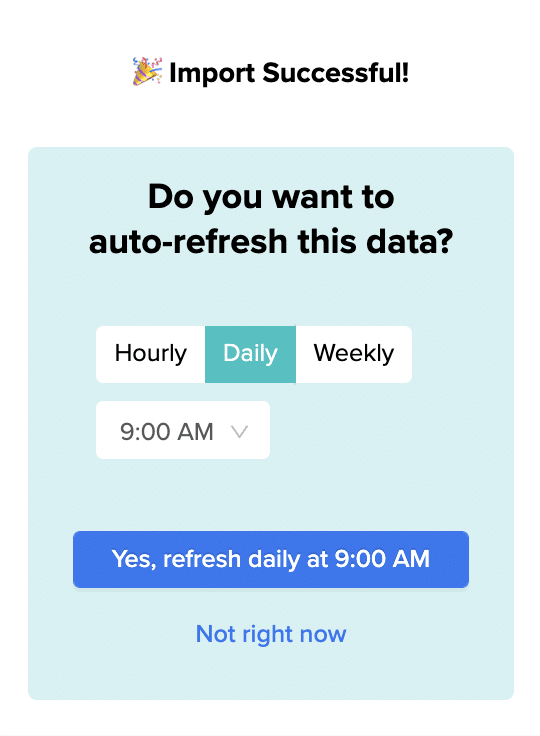
Apply up to 25 filters with AND/OR logic to focus your data imports. Set up automated refresh scheduling for hourly, daily, or weekly updates to eliminate manual export cycles.
Step 5. Enable Auto Fill Down for formula preservation.
Turn on the Auto Fill Down feature so your formulas automatically apply to new rows when data refreshes add records to your sheet.
Start syncing your HubSpot data automatically
Get startedThis approach eliminates the manual download-upload cycle while maintaining real-time data accuracy and supporting unlimited record imports.with Coefficient to automate your HubSpot data sync today.
HubSpot’sInstantly email opens don’t appear incontact timeline by default because the platform only displays activities from connected email accounts or native HubSpot emails, creating engagement tracking blind spots in your CRM.
But you can create a comprehensive tracking system that integrates this engagement data and provides better visibility than many native email integrations.
Email tracking integration using Coefficient
CoefficientHubSpotcan create a comprehensive tracking system that integrates Instantly engagement data with. This system provides better engagement visibility than many native email integrations by combining detailed Instantly metrics with HubSpot’s contact management capabilities.
How to make it work
Step 1. Export Instantly engagement data automatically.
Set up regular exports of Instantly campaign performance data including email opens, clicks, and contact details to Google Sheets. Use Coefficient’s Import Refreshes to automate this data collection process on a daily or weekly schedule.
Step 2. Match contacts across platforms.
Import your HubSpot contact data using Coefficient and create lookup formulas to match Instantly email recipients with HubSpot contact records using email addresses as the primary key. Use =VLOOKUP() or =INDEX(MATCH()) functions for accurate matching.
Step 3. Create engagement scoring system.
Build formulas to calculate email engagement scores based on Instantly opens, clicks, and responses. For example, assign 1 point for opens, 3 points for clicks, and 5 points for replies. Use Coefficient’s Formula Auto Fill Down to automatically apply these calculations to new engagement data.
Step 4. Update HubSpot contact properties.
Create custom contact properties in HubSpot for “Last Email Open Date,” “Email Engagement Score,” and “Instantly Campaign Status.” Use Coefficient’s UPDATE export actions to push this calculated data to HubSpot contacts automatically.
Step 5. Trigger HubSpot activities and workflows.
While you can’t directly add timeline activities, update contact properties that trigger HubSpot workflows. These workflows can create tasks, send internal notifications, or advance contacts through your sales process based on Instantly engagement activity.
Step 6. Build engagement reporting and history.
Use Coefficient’s Snapshots to preserve historical engagement data and create comprehensive reports that show email performance trends over time. This provides better long-term visibility than Instantly’s native reporting.
Step 7. Set up real-time alerts for high engagement.
Configure Coefficient’s Alerts to notify sales reps immediately when high-value contacts open emails in Instantly campaigns. Set thresholds like “3+ opens in 24 hours” to trigger immediate follow-up notifications.
Get complete email engagement visibility
Start trackingThis system provides better engagement visibility than many native email integrations by combining detailed Instantly metrics with HubSpot’s contact management capabilities.your email engagement across both platforms today.
HubSpot’s NPS reporting aggregates all responses into overall scores, making it impossible to track trends for specific products over time. You can see your general NPS direction but can’t identify which products are improving or declining in customer satisfaction.
Here’s how to build historical trend analysis for each product line using live data imports combined with snapshot capabilities that preserve data over time.
Combine live imports with historical snapshots using Coefficient
Coefficientenables product-specific NPS trend tracking by combining live data imports with snapshot capabilities. You can build time-series analysis that shows NPS evolution by product while maintaining current data for ongoing analysis.
How to make it work
Step 1. Set up live imports with product-specific filtering.
HubSpotConnect toand import NPS responses with timestamps and product associations. Use filtering to create separate datasets for each product line, giving you current NPS calculations that update automatically as new survey responses arrive.
Step 2. Capture historical data points with scheduled snapshots.
Use Coefficient’s snapshot feature to capture product-specific NPS scores on scheduled intervals – weekly, monthly, or quarterly. This preserves historical data points while your live imports continue updating with current responses, building the time-series data you need for trend analysis.
Step 3. Build comparative trend dashboards for multiple products.
Create dashboards showing multiple product NPS trends side-by-side using your captured snapshots. Track “Product A NPS” monthly while simultaneously monitoring “Product B NPS” and “Product C NPS” trends, identifying which products are improving or declining over time.
Step 4. Automate trend updates with scheduled refreshes.
HubSpotSet up scheduled imports that automatically update product-specific trend charts as new survey responses are collected from. Your trend analysis stays current while historical snapshots preserve the data points needed for long-term pattern recognition.
Identify product performance patterns over time
Start trackingProduct-specific NPS trends reveal which parts of your business are gaining or losing customer satisfaction momentum. Historical tracking combined with live updates gives you both current insights and long-term perspective.your product-specific NPS trends today.
HubSpotYou can update existingcontacts from Google Sheets without creating duplicates by using UPDATE export actions that modify existing records instead of creating new ones. This approach identifies contacts by email address and updates their information while preserving their contact history.
Here’s how to set up contact updates that maintain data integrity and prevent the duplicate management overhead that manual CSV imports typically create.
Update existing contacts without duplicates using Coefficient
Coefficientprovides UPDATE export actions specifically designed to modify existing HubSpot contacts rather than create new ones. This eliminates duplicate contact creation entirely while keeping your contact records current with Google Sheets information.
How to make it work
Step 1. Configure UPDATE export actions for existing contact modification.
Set up your Coefficient export to use UPDATE instead of INSERT. This tells the system to look for existing HubSpot contacts with matching email addresses and modify their information rather than creating new duplicate records.
Step 2. Map Google Sheets columns to specific contact properties for updating.
Choose which HubSpot contact properties you want to update from your Google Sheets data. Map columns like phone numbers, job titles, or custom fields to their corresponding HubSpot properties. The system updates only the specified fields while preserving other existing contact data.
Step 3. Use conditional logic for targeted record updates.
Set up conditional export rules to only update records that meet specific criteria. For example, only update contacts where a “last modified” timestamp in your Google Sheets is more recent than the last update, or where a status column indicates changes are ready.
Step 4. Enable bulk processing with error handling for large datasets.
Configure bulk update processing that handles large datasets efficiently without overwhelming HubSpot’s API limits. Turn on error handling to identify contacts that don’t exist or encounter update issues, with detailed logging for troubleshooting.
Keep your contact data current without duplicates
Set upUPDATE actions ensure data integrity while keeping contact records current, eliminating the duplicate management overhead that manual CSV imports create.your duplicate-free contact update system today.
HubSpotYou can upload Google Sheets data towithout downloading CSV files or using the manual import wizard. Direct spreadsheet-to-CRM integration eliminates the time-consuming download and upload process entirely.
Here’s how to set up automated data transfer that runs without any manual file handling or import steps.
Transfer Google Sheets data directly to HubSpot using Coefficient
Coefficientcreates a direct connection between your Google Sheets and HubSpot that bypasses the manual CSV workflow completely. Your spreadsheet data flows straight into your CRM on whatever schedule you choose.
How to make it work
Step 1. Connect your Google Sheets directly to HubSpot.
Install Coefficient and open your spreadsheet. In the sidebar, go to “Connected Sources” and add both your Google Sheets and HubSpot accounts. This establishes the direct connection that eliminates file downloads.
Step 2. Configure automatic field mapping between platforms.
Set up your export with automatic field mapping between Google Sheets columns and HubSpot contact properties. Choose INSERT for new contacts or UPDATE for existing ones. The system saves these mapping preferences for future transfers.
Step 3. Schedule automated runs for continuous data flow.
Set your exports to run hourly, daily, or weekly based on how current you need your HubSpot data. Add conditional logic to only export relevant data changes, like new rows or updated information since the last sync.
Step 4. Enable error handling and notifications.
Turn on automated alerts to get notified when transfers complete successfully or encounter issues. This gives you visibility into your data flow without having to manually check import status.
Eliminate manual CSV workflows permanently
Set upDirect Google Sheets to HubSpot integration transforms a manual, error-prone process into a fully automated system that requires no ongoing intervention.your automated contact import system today.
While HubSpot’s API supports creating tasks with contact associations, it requires significant development resources, multiple API calls, and complex error handling for reliable implementation.
Here’s how to achieve the same programmatic task creation with contact associations using a no-code approach that’s easier to implement and maintain.
Automate task creation with contact associations using Coefficient
CoefficientHubSpotprovides API-like automation through scheduled exports that function like programmatic calls but use familiar spreadsheet interfaces. You get the same automated task creation capabilities without the technical complexity of directAPI integration.
How to make it work
Step 1. Set up dynamic data sources for task triggers.
Connect external systems to your spreadsheet through Coefficient or other integrations. This could be support tickets, form submissions, deal stage changes, or any other trigger that should create tasks. Use scheduled imports to pull this trigger data automatically.
Step 2. Build task creation logic with spreadsheet formulas.
Use spreadsheet functions to determine when and how to create tasks with specific contact associations. Apply conditional logic with IF statements, lookup functions to find the right contacts, and date formulas to set due dates. This replaces the complex code you’d write for API integration.
Set up Coefficient’s scheduled export feature to automatically push new tasks to HubSpot with proper contact associations. Use conditional exports to only create tasks when specific criteria are met, mimicking the logic you’d build into API calls.
Step 4. Implement error handling and monitoring.
Use Coefficient’s built-in status reporting and email alerts to monitor task creation success. Set up notifications for failed exports or validation errors, giving you the same visibility you’d build into custom API integration.
Step 5. Scale with multiple automation scenarios.
Create different automated workflows for various use cases: follow-up tasks when deals reach certain stages, support tasks from ticket systems, or project tasks from external management tools. Each can have its own logic and contact association rules.
Get API-level automation without the complexity
Try CoefficientThis approach delivers programmatic task creation with the reliability and automation of API integration, but without requiring development resources or ongoing maintenance.to automate your task creation workflows with simple, powerful no-code tools.
HubSpotDirectAPI connections through Power Query hit strict rate limits of 100 requests per 10 seconds for most endpoints. This causes connection failures and incomplete data imports when pulling large datasets, requiring custom throttling logic in your M code.
Here’s how to import large HubSpot datasets without rate limit errors or custom retry mechanisms.
Import HubSpot data without rate limit failures using Coefficient
Coefficientautomatically manages HubSpot API rate limits and optimizes data retrieval to prevent connection errors. The platform handles request throttling, retry logic, and efficient batching behind the scenes.
How to make it work
Step 1. Connect HubSpot through Coefficient’s managed system.
Install Coefficient and connect your HubSpot account. The platform automatically configures optimal request patterns that respect HubSpot’s rate limits without requiring manual throttling configuration.
Step 2. Import large datasets without size restrictions.
Select your HubSpot objects and fields normally. Coefficient supports minimum 50,000 rows with no maximum limit, automatically managing the API calls needed to retrieve complete datasets without hitting rate limits.
Step 3. Let automatic retry logic handle temporary failures.
If rate limits are temporarily exceeded, Coefficient automatically implements retry mechanisms with appropriate delays. This eliminates the need for custom error handling code and ensures complete data retrieval.
Step 4. Monitor imports with built-in error alerts.
Set up Slack and email alerts to notify you if any connection issues occur during scheduled imports. The platform provides clear error messaging and automatic resolution for most rate limit scenarios.
Step 5. Schedule imports during optimal times.
Use Coefficient’s scheduling features to run large imports during off-peak hours when rate limits are less likely to be an issue. The platform optimizes request timing automatically.
Import large HubSpot datasets reliably
Start importingStop dealing with rate limit errors and incomplete imports. Coefficient handles all the technical complexity of API throttling so you can focus on analyzing your complete HubSpot dataset.without rate limit worries today.
If you’re here, you’ve probably spent the last hour searching for HubSpot’s OData feed URL format to connect Power Query to your CRM data. We have bad news and good news.
The bad news: HubSpot doesn’t provide OData feeds. At all.
The worse news: To connect HubSpot to Excel via Power Query, you’d need to:
Manually construct REST API URLs for each object type (contacts, deals, companies)
Handle complex JSON-to-table transformations
Write custom M code for pagination
Manage API rate limits and authentication tokens
Update everything manually when HubSpot changes their API
The good news: There’s a much simpler way to get your HubSpot data into Excel—without touching a single API endpoint.
Why Power Query + HubSpot = Hours of Frustration
Let’s be honest about what you’re facing if you try the Power Query route:
That’s just to get your first 100 contacts. Need deals? Different endpoint. Want associated data? Multiple API calls. Need more than 100 records? Welcome to pagination hell.
Most Excel users give up after realizing they need to become API experts just to pull a simple contact list.
A Better Way: Connect HubSpot to Excel in 2 Minutes (Not 2 Hours)
Coefficient is an Excel add-in that connects HubSpot (and 50+ other business systems) directly to your spreadsheets—no API knowledge required. Think of it as Power Query, but built specifically for business users who need data now, not after a coding bootcamp.
Here’s what makes it different:
Pre-built connectors for all HubSpot objects (contacts, deals, companies, tickets, custom objects)
Point-and-click interface instead of URL construction
Automatic updates so your data stays fresh
No API limits or throttling issues to manage
How to Import HubSpot Data to Excel (The Easy Way)
Step 1: Install Coefficient and Connect HubSpot
Install Coefficient directly from the Microsoft AppSource store (it takes 30 seconds). Once installed, click “Add Connection” and select HubSpot from the list of 50+ integrations.
Simply authorize your HubSpot account with one click—Coefficient handles all the OAuth authentication and API configuration behind the scenes.
Step 2: Select Your Data (No API Endpoints Required)
Instead of memorizing API endpoints, you’ll see a simple menu of all your HubSpot objects:
Contacts (with all custom properties)
Deals (including pipeline stages)
Companies
Tickets
Activities
Custom objects
Just check the boxes for the data you want. It’s like browsing a menu instead of writing a recipe from scratch.
Step 3: Configure Your Import (With Actual Filtering Options)
Apply filters using plain English instead of API parameters:
“Deals created this month”
“Contacts from California”
“Companies with revenue > $1M”
Select exactly which fields you want—no more downloading 200 columns when you only need 10.
Step 4: Set It and Forget It with Auto-Refresh
This is where Coefficient really shines. Set your data to refresh:
Every hour for live dashboards
Daily at 9 AM for morning reports
Weekly for executive summaries
Your Excel file becomes a living document that updates itself—no more manual exports or broken Power Query connections.
What This Means for Your Workflow
Instead of spending hours:
Learning HubSpot’s API documentation
Debugging Power Query M code
Manually refreshing data
Fixing broken connections
You can focus on:
Analyzing your data
Building dynamic reports
Making data-driven decisions
Actually using Excel for what it’s meant for
Real Results from Real Users
“We tried Power Query for months. Coefficient got us connected in minutes. Our sales reports now update automatically every morning—it’s been a game-changer.” – Robinson J, Analyst @ Miro
The Bottom Line: Stop Fighting with APIs
HubSpot’s lack of OData support isn’t going to change. But your approach to getting HubSpot data into Excel can change—today.
With Coefficient, you get:
✅ All your HubSpot data in Excel without writing a single line of code
✅ Automatic updates that keep your reports fresh
✅ Pre-built templates for common HubSpot reports
✅ Support for Excel formulas, pivot tables, and charts on live data
✅ Peace of mind knowing your connections won’t break
Ready to Skip the API Headache?
Stop searching for OData feeds that don’t exist. Start importing your HubSpot data the easy way.Start Free Trial →