Importing Invoices from Square into Excel gives you a live view of billing status and amounts due.
This guide walks you through importing your Invoices object with Coefficient and enabling auto-refresh.
TLDR
-
Step 1:
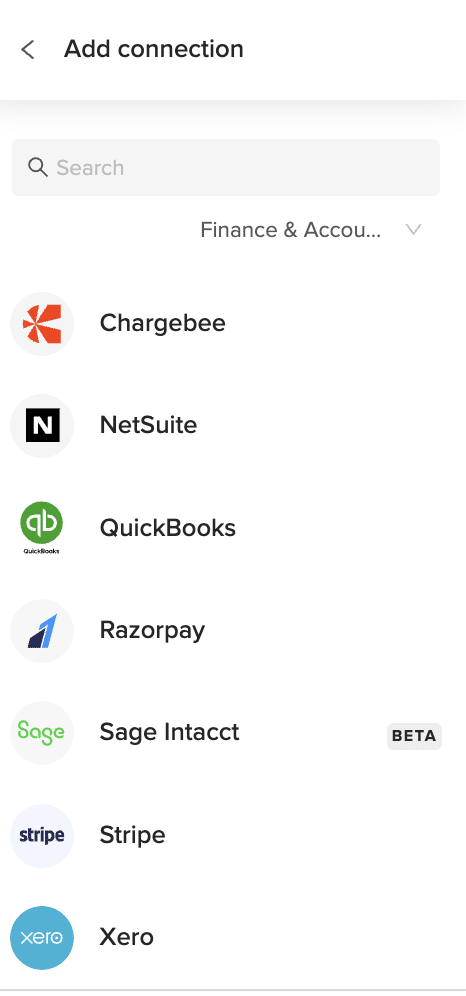
Install Coefficient, connect Square.
-
Step 2:
Select “Import from Objects” → “Invoices.”
-
Step 3:
Click “Import,” verify columns.
-
Step 4:
Enable auto-refresh as needed.
Step-by-Step Guide


What Square Data is Imported?
- Disputes
- Bank Accounts
- Gift Cards
- Merchants
- Locations
- Payments
- Invoices
- Payouts
- Customers
- Refunds
How to Import Locations Data from Square into Excel
Importing Locations from Square into Excel helps you track each store or online outlet in one place.
This tutorial covers importing your Locations object with Coefficient and setting up auto-refresh.
TLDR
-
Step 1:
Install Coefficient, connect Square.
-
Step 2:
Choose “Import from Objects” → “Locations.”
-
Step 3:
Click “Import,” verify fields.
-
Step 4:
Optionally, enable auto-refresh.
Step-by-Step Guide
What Square Data is Imported?
- Disputes
- Bank Accounts
- Gift Cards
- Merchants
- Locations
- Payments
- Invoices
- Payouts
- Customers
- Refunds
How to Import Merchants Data from Square into Excel
Importing Merchants from Square into Excel gives you centralized insight into each seller’s profile and status.
This guide shows you how to import your Merchants object with Coefficient and keep it updated automatically.
TLDR
-
Step 1:
Install Coefficient and connect to Square.
-
Step 2:
Select “Import from Objects” → “Merchants.”
-
Step 3:
Click “Import” and verify columns.
-
Step 4:
Enable auto-refresh if needed.
Step-by-Step Guide
What Square Data is Imported?
- Disputes
- Bank Accounts
- Gift Cards
- Merchants
- Locations
- Payments
- Invoices
- Payouts
- Customers
- Refunds
How to Import Payments Data from Sage Intacct into Excel
Importing Payments from Sage Intacct into Excel gives you live visibility into your disbursements and receipts.
This guide covers connecting Coefficient, importing your Payments object, and automating refresh.
TLDR
-
Step 1:
Install Coefficient, connect Sage Intacct.
-
Step 2:
Select “Import from Objects” → “Payments.”
-
Step 3:
Click “Import” and verify fields.
-
Step 4:
Enable auto-refresh for continuous updates.
Step-by-Step Guide
What Sage Intacct Data is Imported?
- Journal Entries
- Payments
- Tax Details
- Vendors
- ACCOUNTS PAYABLE
How to Import Payments Data from Square into Excel
Importing Payments from Square into Excel gives real-time visibility into transaction amounts, statuses, and methods.
Follow this guide to import your Payments object with Coefficient and enable auto-refresh.
TLDR
-
Step 1:
Install Coefficient, connect Square.
-
Step 2:
Pick “Import from Objects” → “Payments.”
-
Step 3:
Click “Import” and verify fields.
-
Step 4:
Enable auto-refresh if desired.
Step-by-Step Guide
What Square Data is Imported?
- Disputes
- Bank Accounts
- Gift Cards
- Merchants
- Locations
- Payments
- Invoices
- Payouts
- Customers
- Refunds
How to Import Payouts Reports from Razorpay into Google Sheets
Tracking your Razorpay payouts in Google Sheets gives you better visibility into your payment flows. But manual exports waste time and quickly become outdated.
With Coefficient, you can pull live Razorpay payout data directly into your spreadsheets.
TLDR
-
Step 1:
Install Coefficient from Google Workspace Marketplace
-
Step 2:
Connect your Razorpay account
-
Step 3:
Select Import from Reports and choose Payouts
-
Step 4:
Configure any filters and import the data
-
Step 5:
Set up auto-refresh to keep your data updated
Step-by-step guide to importing Razorpay Payouts reports
Step 1: Install Coefficient and connect to Razorpay
First, you’ll need to install the Coefficient add-on and connect it to your Razorpay account.
- Open Google Sheets
- Click Extensions > Add-ons > Get add-ons
- Search for “Coefficient” and install it from Google Workspace Marketplace
- Once installed, open the Coefficient sidebar by clicking Extensions > Coefficient > Launch
- In the sidebar, click “Import Data”
- Find and select “Razorpay” from the list of available connectors
- Follow the authentication prompts to connect your Razorpay account
Step 2: Import Payouts report data
Now that you’re connected, you can import your Payouts report data.
- In the Coefficient sidebar, select “Import from Reports”
- Browse or search for “Payouts” in the list of available reports
- Configure any filters you need (date range, status, etc.)
- Select the columns you want to import
- Choose where in your spreadsheet you want the data to appear
- Click “Import” to bring the data into your Google Sheet
Step 3: Set up auto-refresh (optional)
Keep your Razorpay data fresh with automatic updates.
- Click on the imported data in your spreadsheet
- In the Coefficient sidebar, click “Set Up Auto-Refresh”
- Choose your preferred refresh frequency (hourly, daily, weekly)
- Optionally, set up Slack or email notifications for when data changes
- Click “Save” to activate the auto-refresh schedule

Your Razorpay Payouts report will now update automatically according to your schedule, ensuring you always have the latest payment data at your fingertips.
Available Razorpay Data in Coefficient
Reports
- Vendor Payments
- Payouts
- Account Statement
- Purchase Orders
- Vendor Invoices
- Vendor Advances
Objects
- Customers
- Orders
- Settlements
- Documents
- Invoices
- Subscriptions
- Payments
- Refunds
- Payment Links
- Disputes
Take control of your payment data
Importing Razorpay Payouts reports into Google Sheets doesn’t have to be a manual chore. With Coefficient, you can create a live connection that keeps your payment data fresh and actionable.
The setup process takes just minutes. Once connected, you’ll have real-time visibility into your payouts without the hassle of manual exports.
You can build custom dashboards, set up automated alerts, and share insights with your team—all powered by live Razorpay data.
Best of all, the auto-refresh feature ensures you’re always working with the most current information, eliminating the risk of outdated reports.
Try Coefficient todayReady to streamline your payment reporting?and transform how you work with Razorpay data.
How to Import Quotes Data from Xero into Excel
Managing quotes in Xero is essential for tracking potential sales. But analyzing this data in Excel gives you more flexibility and reporting power.
Stop the manual exports. Create a live connection instead.
TLDR
-
Step 1:
Install Coefficient from the Office Add-ins store
-
Step 2:
Connect to your Xero account
-
Step 3:
Select Import from Objects and choose Quotes
-
Step 4:
Configure any filters and import the data
-
Step 5:
Set up auto-refresh to keep your data current
How to import Xero quotes into Excel
Follow these simple steps to get your Xero quotes data into Excel using Coefficient.
Step 1: Install Coefficient and connect to Xero
- Open Excel and navigate to the Insert tab
- Click on “Get Add-ins” in the ribbon
- Search for “Coefficient” in the Office Add-ins store
- Click “Add” to install Coefficient
- Once installed, click on the Coefficient icon in your Excel ribbon
- In the Coefficient sidebar, click “Import Data”
Step 2: Connect to Xero and select Quotes
- In the Import Data menu, select “Xero” under the Finance & Accounting section
- Log in to your Xero account when prompted
- Select “Import from Objects” (not Reports)
- Find and select “Quotes” from the list of available objects
Step 3: Configure and import your quotes data
- Choose which fields you want to import (e.g., Quote Number, Date, Customer, Status, Amount)
- Apply any filters if needed (e.g., only quotes from the last 30 days)
- Select your destination in the Excel sheet
- Click “Import” to bring your quotes data into Excel
Step 4: Set up auto-refresh (optional)
- Click on the “…” menu next to your imported data
- Select “Schedule Refresh”
- Choose your preferred refresh frequency (hourly, daily, weekly)
- Configure any notification settings for data changes
That’s it! Your Xero quotes data is now in Excel and can be refreshed automatically.
Available Xero data in Coefficient
Coefficient lets you access both reports and objects from Xero. Here’s what’s available:
Reports
- Balance Sheet Report
- Profit and Loss Report
- Trial Balance Report
Objects
- Accounts
- Budgets
- Users
- Bank Transfers
- Items
- Payments
- Prepayments
- Batch Payments
- Invoices
- Contacts
- Quotes
- Purchase Orders
Frequently asked questions
Take control of your Xero quotes data
Importing your Xero quotes into Excel opens up powerful analysis options. Track conversion rates, monitor quote values, and spot trends that drive business decisions.
No more manual exports. No more outdated data. Just a live connection that keeps your Excel workbooks current.
The best part? Once set up, Coefficient refreshes your data automatically. Your quotes data stays fresh without lifting a finger.
Finance teams can build custom reports. Sales teams can track performance. Everyone works from the same accurate data.
Try Coefficient todayReady to streamline your Xero quotes analysis?and transform how you work with your financial data.
How to Import Razorpay Datasets Data into Google Sheets
Managing payment data from Razorpay in Google Sheets gives you the power to analyze transactions, track customer payments, and build custom reports.
Skip the manual exports. Connect directly to live data instead.
TLDR
-
Step 1:
Install Coefficient from Google Workspace Marketplace
-
Step 2:
Connect your Razorpay account
-
Step 3:
Select Import from Objects and choose your desired dataset
-
Step 4:
Configure filters and import your data
-
Step 5:
Set up auto-refresh to keep your data current
How to import Razorpay data into Google Sheets
Follow these simple steps to import your Razorpay data directly into Google Sheets using Coefficient.
Step 1: Install Coefficient and connect to Razorpay
- Open Google Sheets
- Click Extensions > Add-ons > Get add-ons
- Search for “Coefficient” and install from Google Workspace Marketplace
- Once installed, open the Coefficient sidebar by clicking Extensions > Coefficient > Launch
- Click “Import Data” in the sidebar
- Select “Razorpay” from the list of available connectors
- Log in with your Razorpay credentials when prompted
Step 2: Select and import your Razorpay data
- After connecting, choose “Import from Objects”
- Browse the available objects (Customers, Orders, Payments, etc.)
- Select the specific dataset you want to import
- Apply any filters to narrow down your data (date range, status, etc.)
- Click “Import” to bring the data into your spreadsheet
Step 3: Set up auto-refresh (optional)
- Click the “⋮” menu next to your imported data
- Select “Schedule Refresh”
- Choose your preferred frequency (hourly, daily, weekly)
- Set specific times for the refresh to occur
- Click “Save” to activate automatic updates
With auto-refresh enabled, your Razorpay data will update automatically according to your schedule. No more manual exports or outdated information.
What can you do with Razorpay data in Google Sheets?
Once your Razorpay data is in Google Sheets, you can:
- Create custom payment analytics dashboards
- Track transaction trends over time
- Monitor customer payment behavior
- Generate financial reports for stakeholders
- Combine payment data with information from other systems
Available Razorpay Data in Coefficient
Reports
- Vendor Payments
- Payouts
- Account Statement
- Purchase Orders
- Vendor Invoices
- Vendor Advances
Objects
- Customers
- Orders
- Settlements
- Documents
- Invoices
- Subscriptions
- Payments
- Refunds
- Payment Links
- Disputes
Take control of your payment data
Importing Razorpay data into Google Sheets doesn’t have to be complicated. With Coefficient, you can create a live connection in minutes.
No more manual exports. No more outdated information. Just real-time payment data ready for analysis.
The ability to combine Razorpay data with other business metrics in Google Sheets gives you unprecedented visibility into your payment operations. Track trends, identify issues, and make data-driven decisions faster than ever before.
Finance teams can build custom reports without waiting for IT support. RevOps can monitor payment performance alongside other key metrics. Everyone gets the insights they need, when they need them.
Try Coefficient todayReady to transform how you work with Razorpay data?and experience the difference that live, automated data can make for your team.
How to Import Razorpay Invoices Data into Google Sheets
Managing your Razorpay invoices in Google Sheets gives you better visibility into your payment data. But manual exports waste time and quickly become outdated.
A live connection keeps your data fresh and analysis accurate.
Let’s get your Razorpay invoices flowing into Google Sheets.
TLDR
-
Step 1:
Install Coefficient from Google Workspace Marketplace
-
Step 2:
Connect your Razorpay account
-
Step 3:
Select Import from Objects and choose Invoices
-
Step 4:
Configure any filters and import the data
-
Step 5:
Set up auto-refresh to keep data updated
Step-by-step guide to importing Razorpay invoices
Step 1: Install Coefficient and connect to Razorpay
First, you’ll need to install the Coefficient add-on and connect it to your Razorpay account.
- Open Google Sheets
- Click Extensions > Add-ons > Get add-ons
- Search for “Coefficient” and install from Google Workspace Marketplace
- Once installed, open the Coefficient sidebar by clicking Extensions > Coefficient > Launch
- Click “Import Data” in the sidebar
- Select “Razorpay” from the list of connectors
- Follow the authentication prompts to connect your Razorpay account
Step 2: Import Razorpay invoices data
Now that you’re connected, you can import your invoices data.
- In the Coefficient sidebar, select “Import from Objects”
- Browse or search for “Invoices” in the list of available objects
- Select the fields you want to import (e.g., invoice ID, amount, status, customer details)
- Apply any filters if needed (e.g., date range, status)
- Click “Import” to bring the data into your spreadsheet
Step 3: Set up auto-refresh (optional)
Keep your invoice data fresh with automatic updates.
- Click on the Coefficient menu in your spreadsheet
- Select “Manage Imports”
- Find your Razorpay invoices import
- Click “Schedule Refresh”
- Choose your preferred frequency (hourly, daily, weekly)
- Set specific times or days for the refresh
- Click “Save” to activate the auto-refresh
With auto-refresh set up, your Razorpay invoice data will always be current. No more manual exports or outdated information.
Available Razorpay Data in Coefficient
Reports
- Vendor Payments
- Payouts
- Account Statement
- Purchase Orders
- Vendor Invoices
- Vendor Advances
Objects
- Customers
- Orders
- Settlements
- Documents
- Invoices
- Subscriptions
- Payments
- Refunds
- Payment Links
- Disputes
Take control of your Razorpay data
Importing your Razorpay invoices into Google Sheets gives you powerful analysis capabilities that aren’t available in the Razorpay dashboard. With Coefficient, you’ve eliminated manual exports and ensured your data is always current.
The live connection means your reports and dashboards will always reflect the latest invoice information. This real-time visibility helps you track payment trends, monitor outstanding invoices, and make better financial decisions.
You can now combine your Razorpay data with information from other systems in the same spreadsheet. This creates a unified view of your business that wasn’t possible before.
Plus, with automated refreshes and alerts, you’ll stay on top of important changes without constant manual checking.
Get startedReady to transform how you work with your Razorpay data?with Coefficient today and bring your payment data to life in Google Sheets.
How to Import Razorpay Records Data into Google Sheets
Managing payment data is crucial for financial tracking and business growth. But manually exporting Razorpay Records is time-consuming and error-prone.
With Coefficient, you can pull live Razorpay data directly into Google Sheets. No more CSV exports or stale data.
TLDR
-
Step 1:
Install Coefficient from Google Workspace Marketplace
-
Step 2:
Connect your Razorpay account
-
Step 3:
Select Import from Objects and choose Records
-
Step 4:
Configure any filters and import the data
-
Step 5:
Set up auto-refresh to keep your data updated
Step-by-step guide to importing Razorpay Records
Step 1: Install Coefficient and connect to Razorpay
First, you’ll need to install the Coefficient add-on and connect it to your Razorpay account.
- Open Google Sheets
- Click Extensions > Add-ons > Get add-ons
- Search for “Coefficient” and install it from Google Workspace Marketplace
- Once installed, open the Coefficient sidebar by clicking Extensions > Coefficient > Launch
- Click “Import Data” in the sidebar
- Select “Razorpay” from the list of connectors
- Follow the authentication prompts to connect your Razorpay account
Step 2: Import Razorpay Records data
Now that you’re connected, you can import your Records data.
- In the Coefficient sidebar, select “Import from Objects”
- Browse or search for “Records” in the objects list
- Choose the specific fields you want to import (or select “All Fields”)
- Apply any filters to narrow down the data if needed
- Click “Import” to bring the data into your Google Sheet
Step 3: Set up auto-refresh (Optional)
Keep your Razorpay data fresh with automatic updates.
- Click on the “⋮” menu next to your imported data
- Select “Schedule Refresh”
- Choose your preferred frequency (hourly, daily, weekly)
- Set specific times for the refresh to occur
- Click “Save” to activate the auto-refresh schedule
With auto-refresh set up, your Razorpay data will always be current. No more manual exports or outdated information.
Available Razorpay Data in Coefficient
Reports
- Vendor Payments
- Payouts
- Account Statement
- Purchase Orders
- Vendor Invoices
- Vendor Advances
Objects
- Customers
- Orders
- Settlements
- Documents
- Invoices
- Subscriptions
- Payments
- Refunds
- Payment Links
- Disputes
Take control of your payment data
Importing Razorpay Records into Google Sheets doesn’t have to be a manual, time-consuming process. With Coefficient, you can create a live connection that keeps your payment data fresh and accessible.
The ability to filter, sort, and analyze your Razorpay data directly in Google Sheets opens up new possibilities for financial reporting and decision-making. No more waiting for exports or dealing with outdated information.
Plus, with automated refreshes and alerts, you can ensure your team always has access to the most current payment data without any manual effort.
Your payment analytics deserve better than static CSV exports. They deserve the real-time power of Coefficient’s Razorpay integration.
Try Coefficient todayReady to transform how you work with Razorpay data?and experience the difference that live, automated data can make for your financial reporting.