
Table of Contents

- 1. How to close a month-end in QuickBooks
- 2. How to Close a Month-End in NetSuite
- 3. How to close a month-end in Sage Intacct
- 4. BlackLine vs FloQast: Choosing the Right Financial Close Platform for 2026
- 5. FloQast Pricing 2026: Plans, Real Costs & What Finance Teams Actually Pay
- 6. BlackLine Pricing 2026: What It Really Costs and How to Negotiate



Sage Intacct is a cloud-based accounting platform built for mid-market and growing companies. It handles complex financial operations including multi-entity management, dimensional reporting, and automated workflows.
Month-end close in Sage Intacct finalizes your accounting period and prepares your books for reporting. A clean close process ensures accurate financials, supports compliance requirements, and gives leadership confidence in the numbers.
Let’s get started!
Step-by-step guide: Month-end close in Sage Intacct
Before starting your close, gather the materials you’ll need:
- Bank and credit card statements for all accounts
- Outstanding vendor invoices and customer payments
- Payroll summaries and expense reports
- Intercompany transaction details (for multi-entity organizations)
Having documentation ready prevents delays and keeps your close on schedule.
Step 1: Reconcile bank and credit card accounts
Bank reconciliation confirms your Sage Intacct records match actual bank activity. This step catches missing transactions, duplicates, and errors before they affect your financials.
Navigate to Cash Management and select Bank Reconciliation. Choose the checking account you want to reconcile. Enter the ending balance and statement date from your bank statement.
Sage Intacct displays uncleared transactions. Match each item against your statement by checking the cleared box. The system calculates the difference automatically—your goal is zero.
Investigate any discrepancies. Common issues include:
- Transactions recorded in the wrong period
- Duplicate entries from manual imports
- Bank fees or interest not yet recorded
Repeat for each bank account and credit card. Don’t skip this step—unreconciled accounts are the leading cause of month-end errors.
Step 2: Review accounts receivable and payable
AR and AP directly impact your cash flow reporting and balance sheet accuracy. Both require review before closing.
For accounts receivable, navigate to Reports and run the AR Aging Report. This groups outstanding invoices by how long they’ve been unpaid. Review overdue balances and determine if any need write-off as bad debt. Create adjustment entries for uncollectible amounts.
For accounts payable, run the AP Aging Report. Verify all vendor bills are recorded for the period. Check with department managers for invoices that might still be in approval workflows or sitting unprocessed.
Sage Intacct’s dimensional reporting lets you slice AR and AP by location, department, or project. Use this to identify which business units have collection or payment issues.
Step 3: Record accruals and adjusting entries
Accrual accounting requires matching expenses to the period they were incurred, regardless of when cash changes hands. Month-end is when you record these adjustments.
Common accruals include:
- Wages earned but not yet paid
- Services received without invoices
- Prepaid expenses requiring amortization
- Revenue recognition adjustments
Navigate to General Ledger and select Journal Entries. Create a new entry with the appropriate date, accounts, and amounts. Sage Intacct supports recurring journal entries—set these up for predictable monthly accruals like rent or insurance amortization.
Review your chart of accounts for any transactions in suspense or clearing accounts. These need reclassification before close. Move items to their proper expense or asset accounts.
For multi-entity organizations, record intercompany eliminations and allocations. Sage Intacct’s allocation features can automate overhead distribution across entities.
Step 4: Run and review financial reports
With reconciliation and adjustments complete, generate your financial statements for review.
Navigate to Reports and run:
- Income Statement (for the month and year-to-date)
- Balance Sheet (as of period end)
- Cash Flow Statement
Sage Intacct’s dimensional reporting lets you run these by entity, department, location, or any custom dimension. Compare current period to prior periods and to budget. Flag variances that exceed your thresholds for investigation.
Look for anomalies: unexpected account balances, unusual fluctuations, or accounts that should have activity but don’t. These often signal missed entries or misclassifications.
For multi-entity organizations, run consolidated reports after completing individual entity closes. Verify eliminations processed correctly and intercompany balances net to zero.
Step 5: Close the accounting period
Once your books are final, close the period to prevent further changes.
Navigate to Company and select Open/Close Periods (or access through Setup > Company > Accounting Periods depending on your configuration). Find the period you want to close.
Sage Intacct offers soft close and hard close options:
- Soft close restricts posting but allows authorized users to make adjustments
- Hard close completely locks the period—no changes possible without reopening
Select the appropriate close type based on your audit and compliance needs. Most organizations use soft close initially, then hard close after final review or audit completion.
Set user permissions to control who can post to closed periods. This prevents unauthorized changes while allowing flexibility for audit adjustments.
How Coefficient speeds up month-end close
The manual close process works. But it’s slow. Finance teams often spend 1-2 days just pulling reports, exporting data, and rebuilding spreadsheets each month.
Coefficient eliminates this repetitive work by connecting Sage Intacct directly to your spreadsheets.
- Pull trial balances, financial statements, and transaction details into Excel or Google Sheets without manual exports. Build close checklists that update automatically. Create variance analysis workbooks that refresh with live data instead of stale CSV dumps.
- Coefficient supports Sage Intacct’s custom fields and multi-entity structure. Pull data from any object—GL accounts, journal entries, AR, AP, and custom reports. Schedule automatic refreshes so your close workbooks always reflect current data.
- Set up Slack or email alerts when key accounts hit thresholds. Create snapshots to preserve point-in-time data for audit documentation. Push approved adjustments back to Sage Intacct without switching between systems.
As the Loftium finance team discovered, automating manual workflows can save over 40 hours per month. That’s a full week back for analysis and strategic work instead of data wrangling.
Watch: Automating month-end close
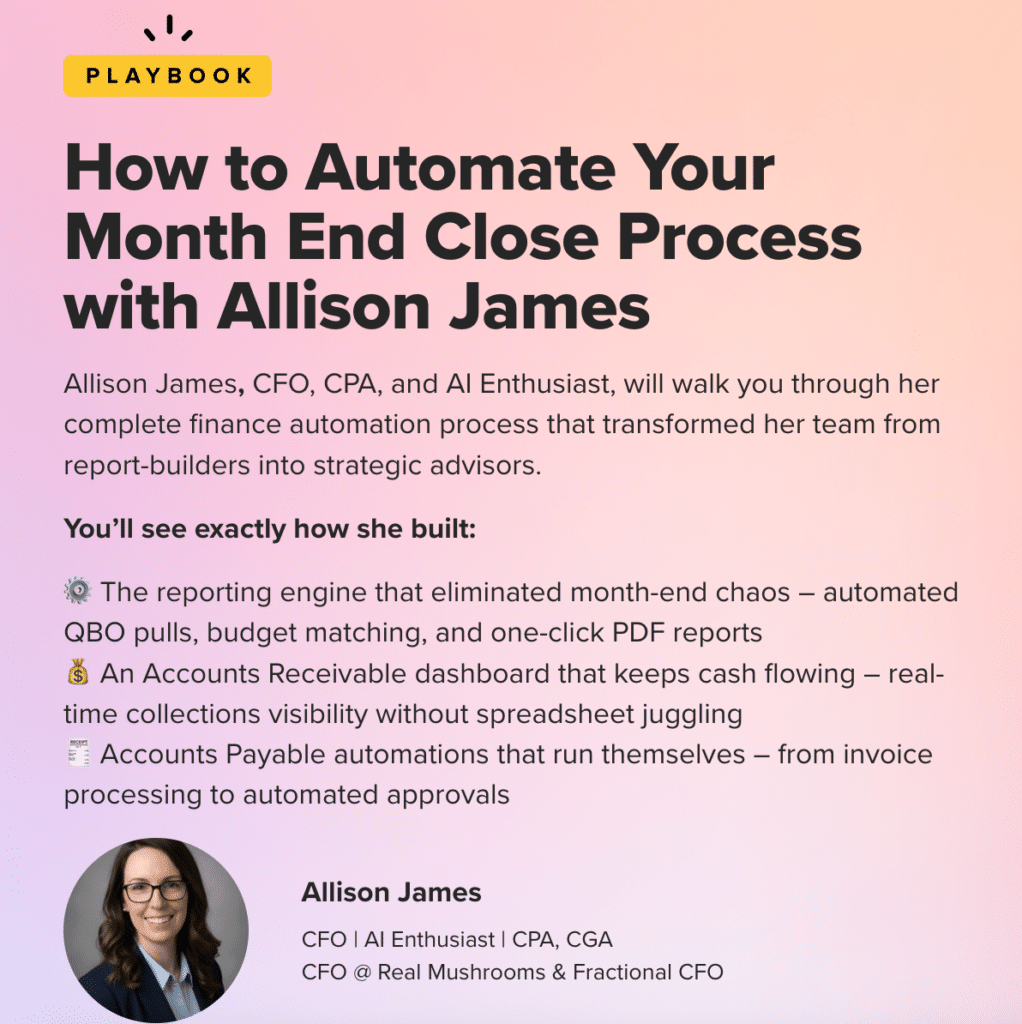
See how finance teams implement automated close processes. Watch our on-demand webinar featuring Allison James, where she walks through streamlining month-end close step by step.
Watch the webinar: Month-End Close with Allison James
Close your books faster
Month-end close in Sage Intacct follows a clear sequence: reconcile accounts, review AR and AP, record adjustments, run reports, and lock the period. Following these steps consistently keeps your books accurate and audit-ready.
But the manual parts—exporting data, rebuilding reports, copying and pasting—don’t have to eat your time. Automate the repetitive work with Coefficient and focus on the analysis that actually requires your expertise.
Ready to streamline your close process? Get started with Coefficient and connect your Sage Intacct data to your spreadsheets.
Related resources
Integration pages:
Video tutorial: