Are you looking to connect QuickBooks to MySQL? You’re in the right place.
In this guide, we’ll explore three methods – each suits different skill levels and needs. By the end, you’ll know which is best for you and how to set it up.
Let’s dive in!
Advantages of Connecting QuickBooks to MySQL
Before we dive into the “how,” let’s understand the “why.” Connecting QuickBooks to MySQL offers several benefits:
Accelerate accounts receivable process: Join QuickBooks invoice data with customer information in MySQL. This allows you to create automated aging reports and payment reminders, reducing days sales outstanding (DSO) and improving cash flow.
Enhance financial forecasting accuracy: Combine historical QuickBooks data with sales pipeline information in MySQL. This enables more precise revenue projections, helping you make informed decisions about hiring, investments, and expense management.
Streamline tax preparation: Store QuickBooks transaction details alongside tax-related information in MySQL. This makes it easier to generate comprehensive reports for different tax jurisdictions, saving time during tax season and reducing the risk of compliance issues.
Top 3 Methods to Connect QuickBooks to MySQL
Solution
Best For
Coefficient
Finance teams who want to use Google Sheets or Excel as an intermediary to move QuickBooks data to MySQL. Ideal for those who need to clean or transform data before loading it into the database.
CData SQL Gateway
IT departments that need to set up a direct, real-time connection between QuickBooks and MySQL. Suitable for scenarios requiring frequent, small data transfers or live querying of QuickBooks data.
Airbyte
Data engineers looking for a flexible, open-source solution to build custom data pipelines from QuickBooks to MySQL. Best for companies with complex data transformation needs or those wanting to avoid vendor lock-in.
Method #1: Using Coefficient to Connect QuickBooks to MySQL
Coefficient syncs live data from various business systems, like QuickBooks, directly into Excel and Google Sheets.
For QuickBooks users, this means you can build real-time financial reports, automate data updates, and streamline your accounting workflows without leaving your familiar spreadsheet environment.
Step-by-step walkthrough:
Step 1. Install Coefficient for your spreadsheet of choice
For Google Sheets
Open a new or existing Google Sheet, navigate to the Extensions tab, and select Add-ons > Get add-ons.
In the Google Workspace Marketplace, search for “Coefficient.”
Follow the prompts to grant necessary permissions.
Launch Coefficient from Extensions > Coefficient > Launch.
Coefficient will open on the right-hand side of your spreadsheet.
For Microsoft Excel
Open Excel from your desktop or in Office Online. Click ‘File’ > ‘Get Add-ins’ > ‘More Add-Ins.’
Type “Coefficient” in the search bar and click ‘Add.’
Follow the prompts in the pop-up to complete the installation.
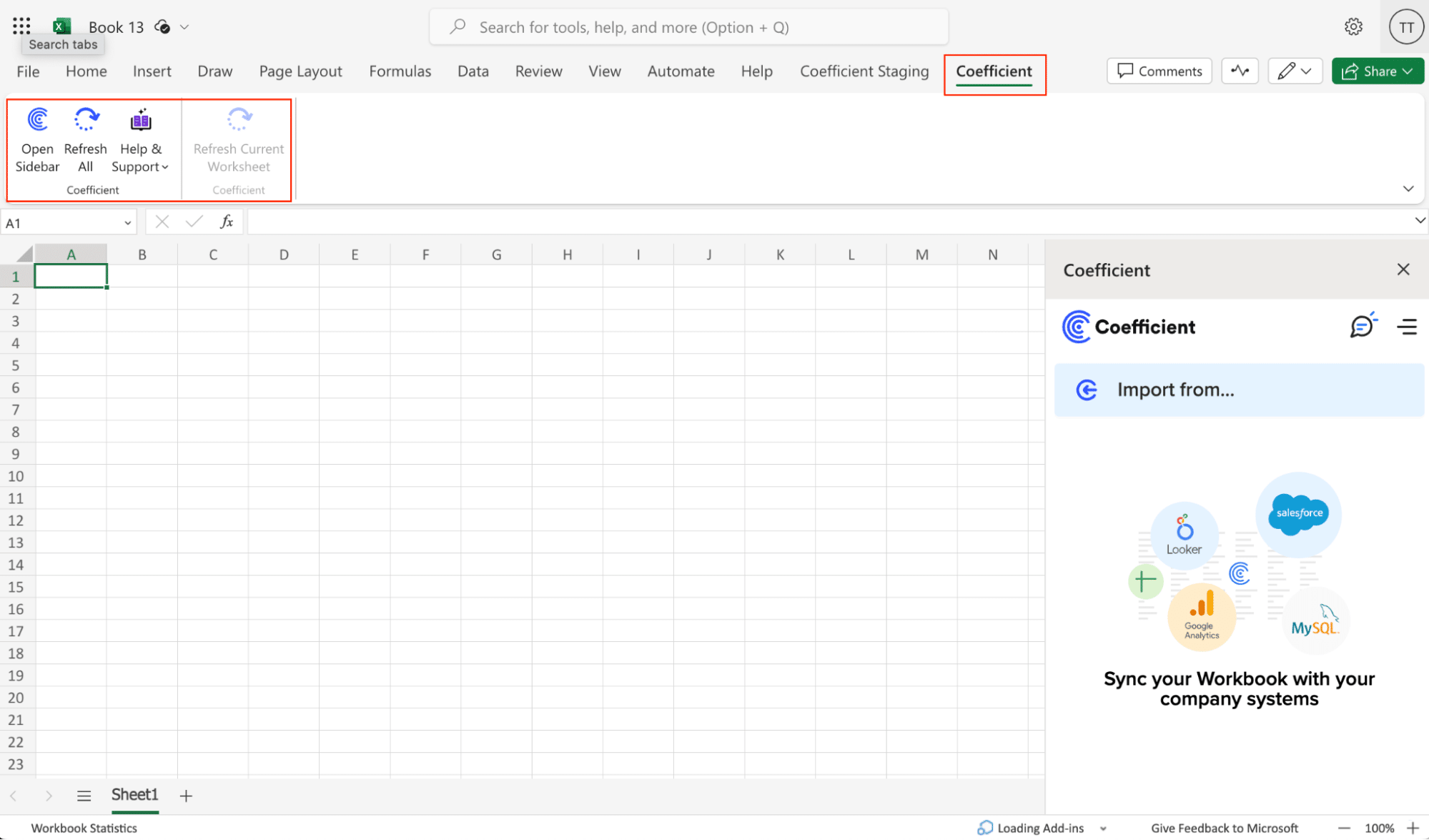
Once finished, you will see a “Coefficient” tab in the top navigation bar. Click ‘Open Sidebar’ to launch Coefficient.
Step 2. Import Data from QuickBooks to Your Spreadsheet
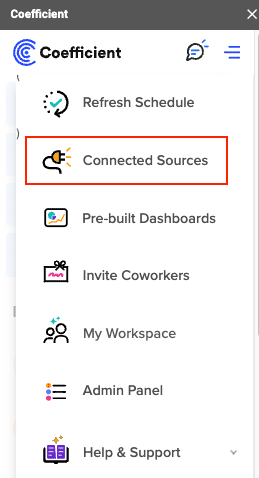
Open Coefficient Sidebar and Click on the Menu icon.
In the menu, Select “Import From…” and Select “Connected Sources.”
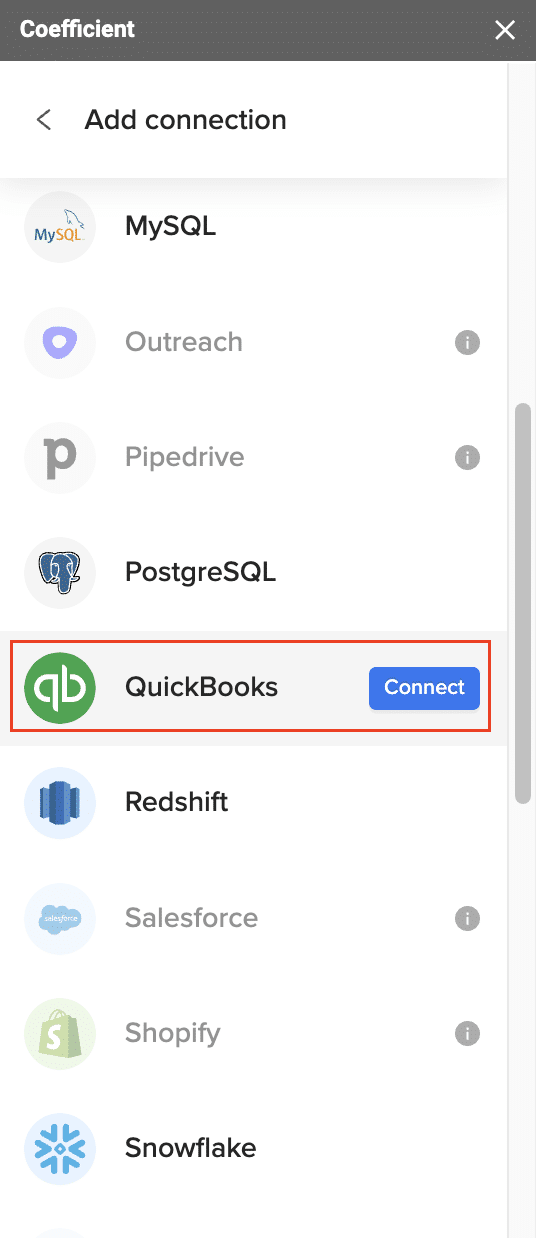
Select “Add Connection” at the bottom of the “Connected Sources” list and select QuickBooks.
Click on Connect. In the next window, you will be asked to authorize QuickBooks by providing your log in details and allowing data exchange to connect the Coefficient with the platform.
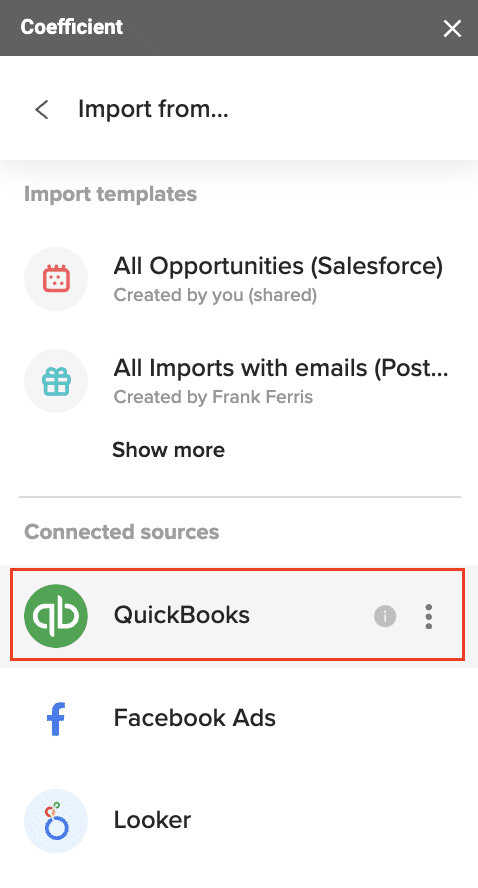
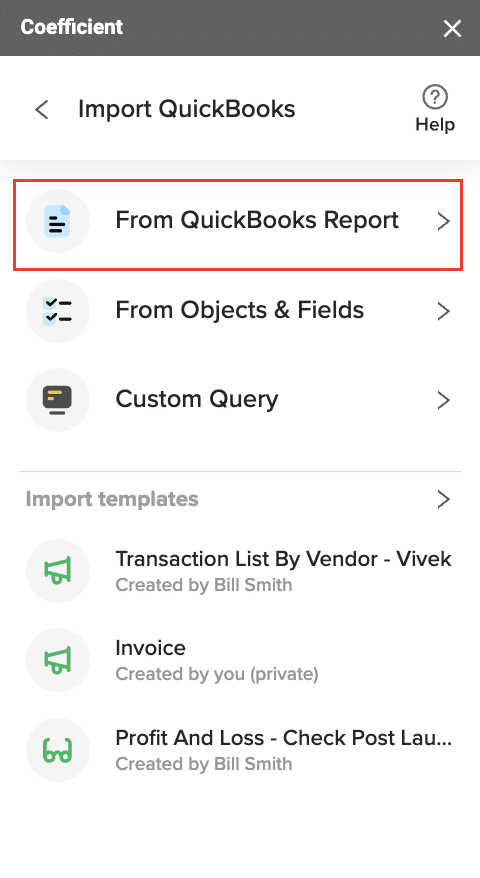
Open the Coefficient Sidebar and click the “Import from…” button to start the import. Choose “QuickBooks” from the provided list, and select “From QuickBooks Report“.
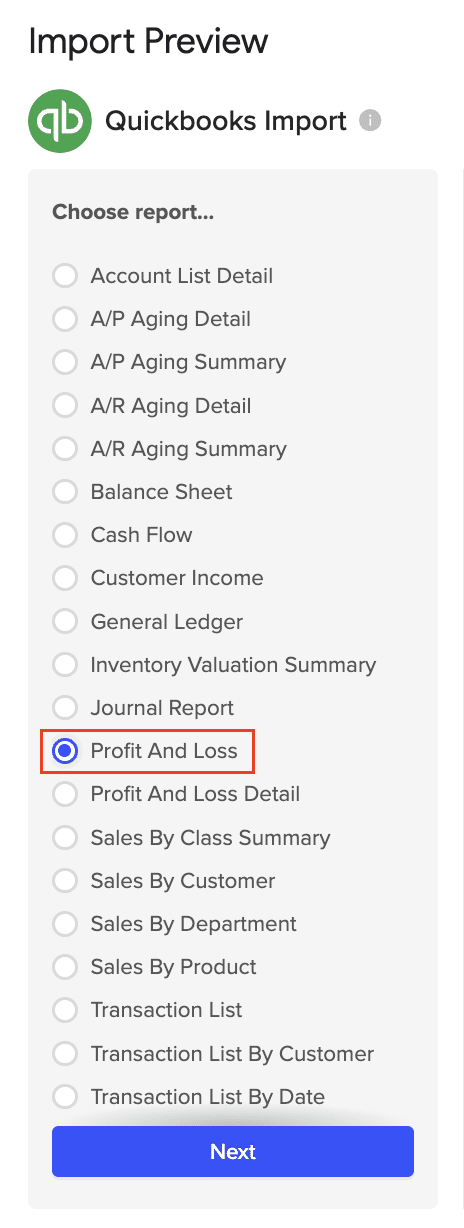
Pick the specific QuickBooks report you wish to import from your account (e.g., Profit and Loss).
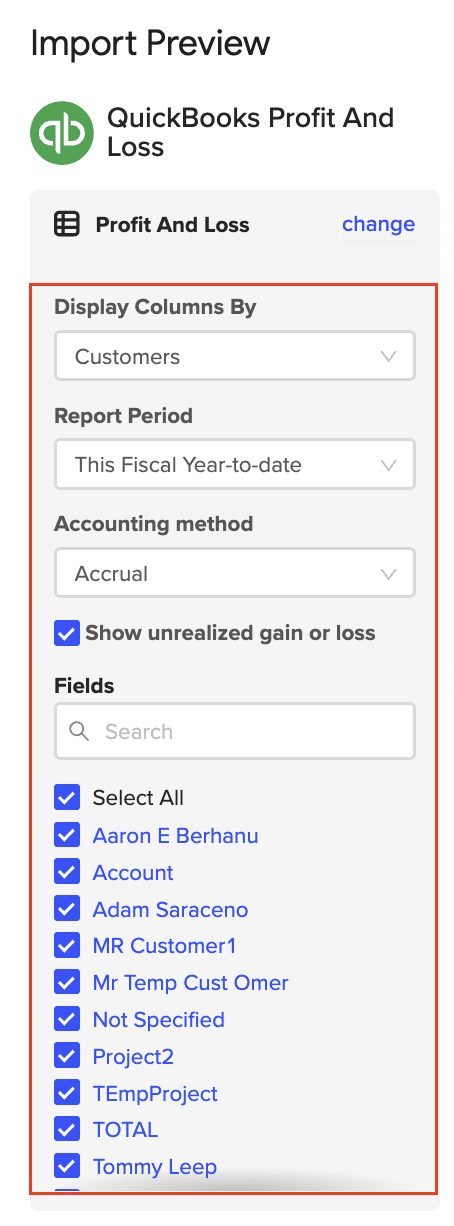
Personalize your import settings by selecting options for “Display Columns By, “”Report Period,” “Accounting Method,” and the necessary fields for this import.
Note: When adjusting your import settings, click “Refresh Preview” to see the updated sample data. The data will be sorted automatically based on the columns shown. For instance, “Customers” will appear alphabetically.
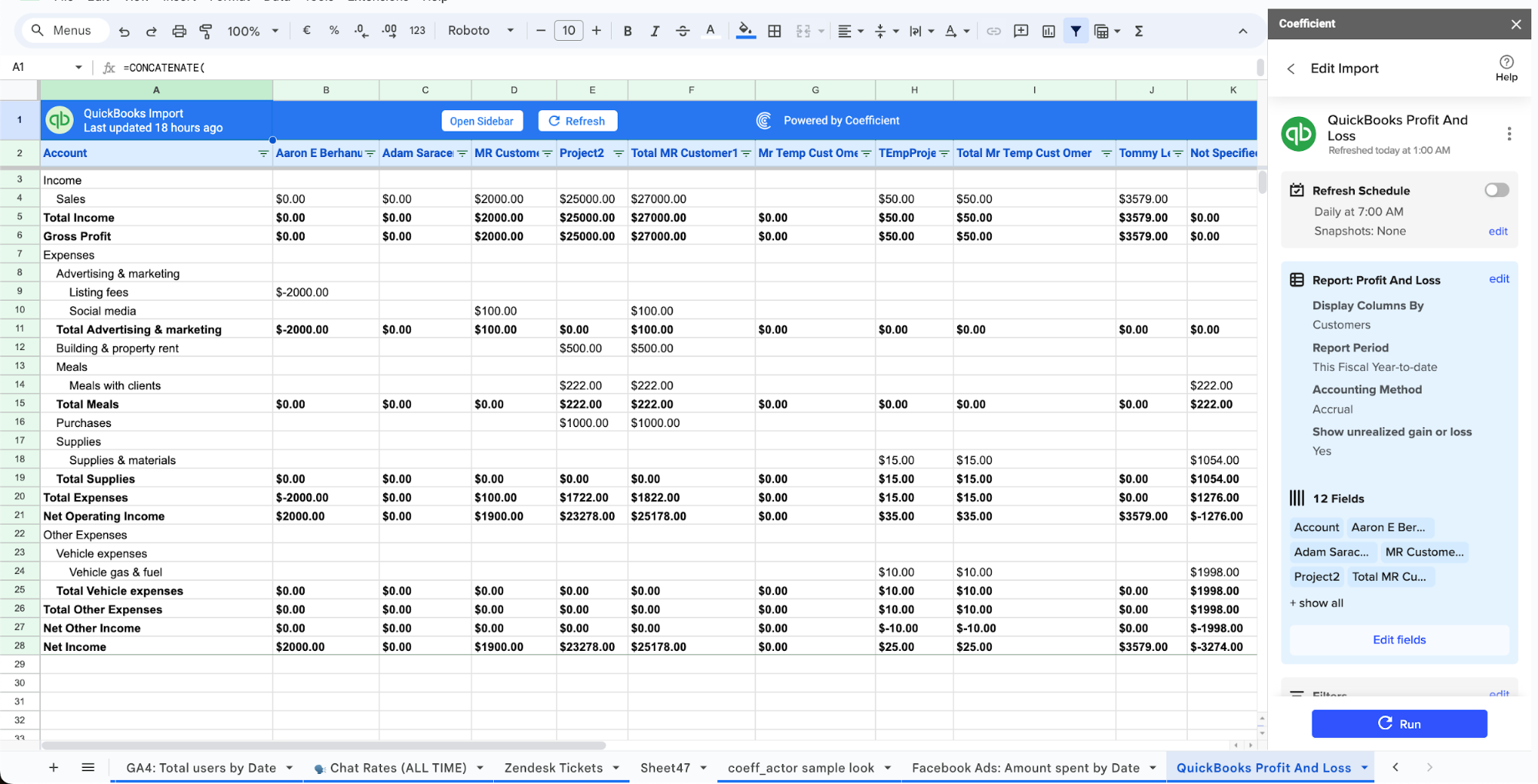
Click on Import in the top right corner, and you will have a spreadsheet synced with your QuickBooks!
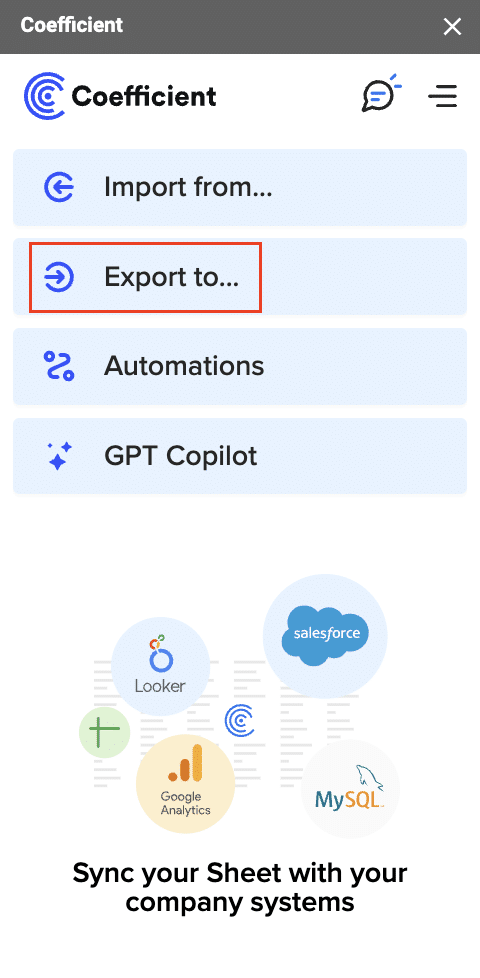
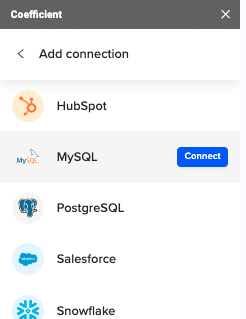
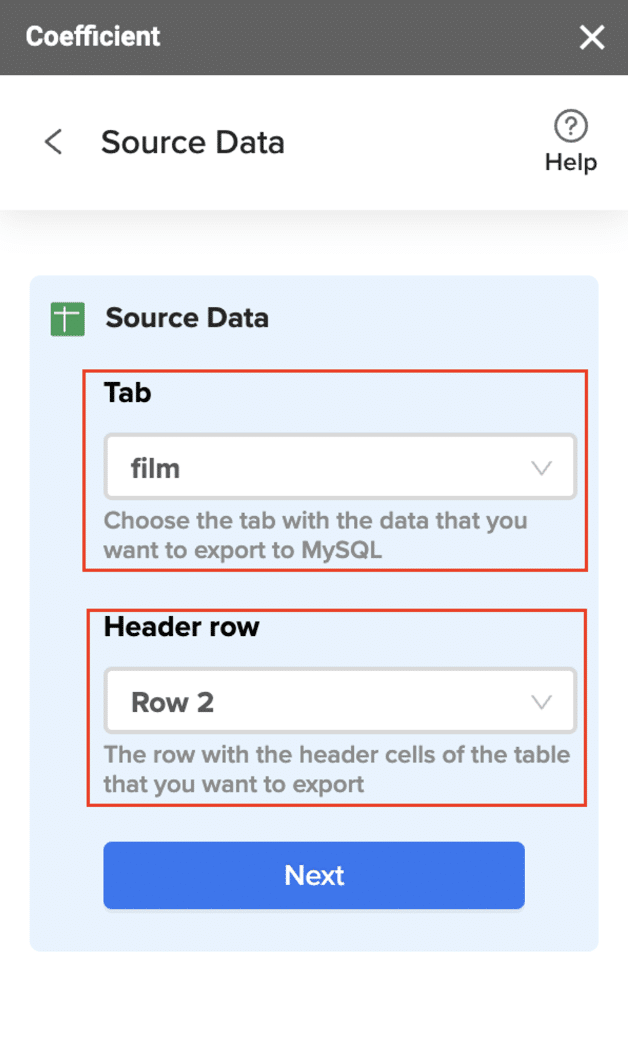
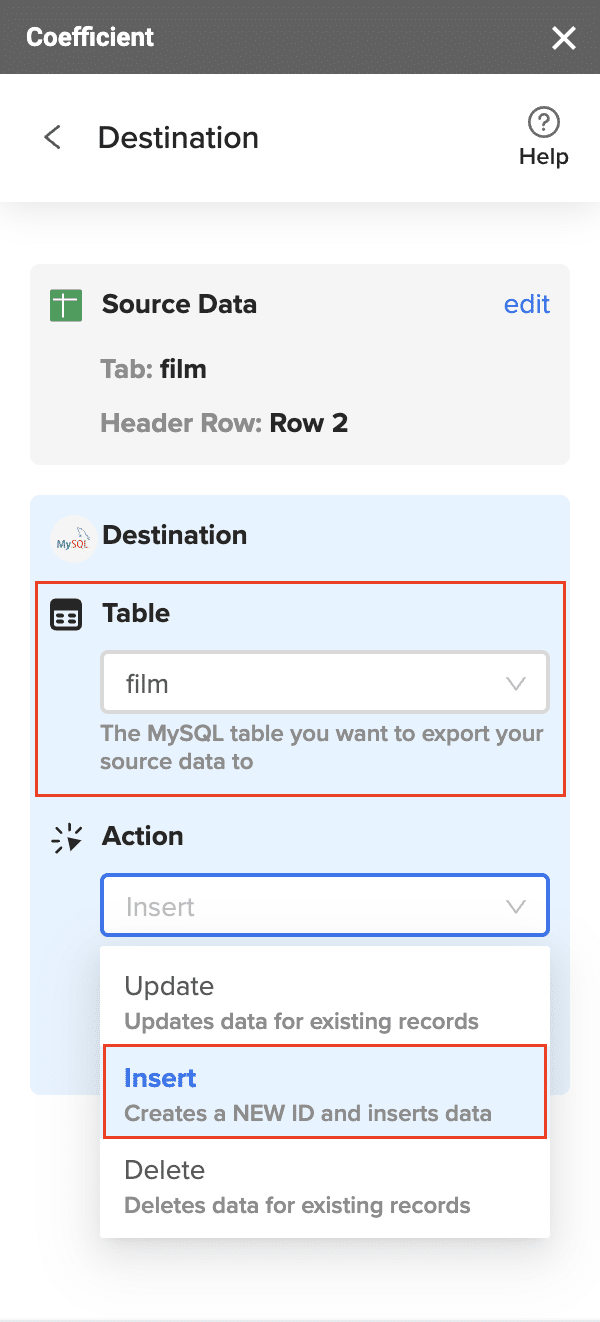
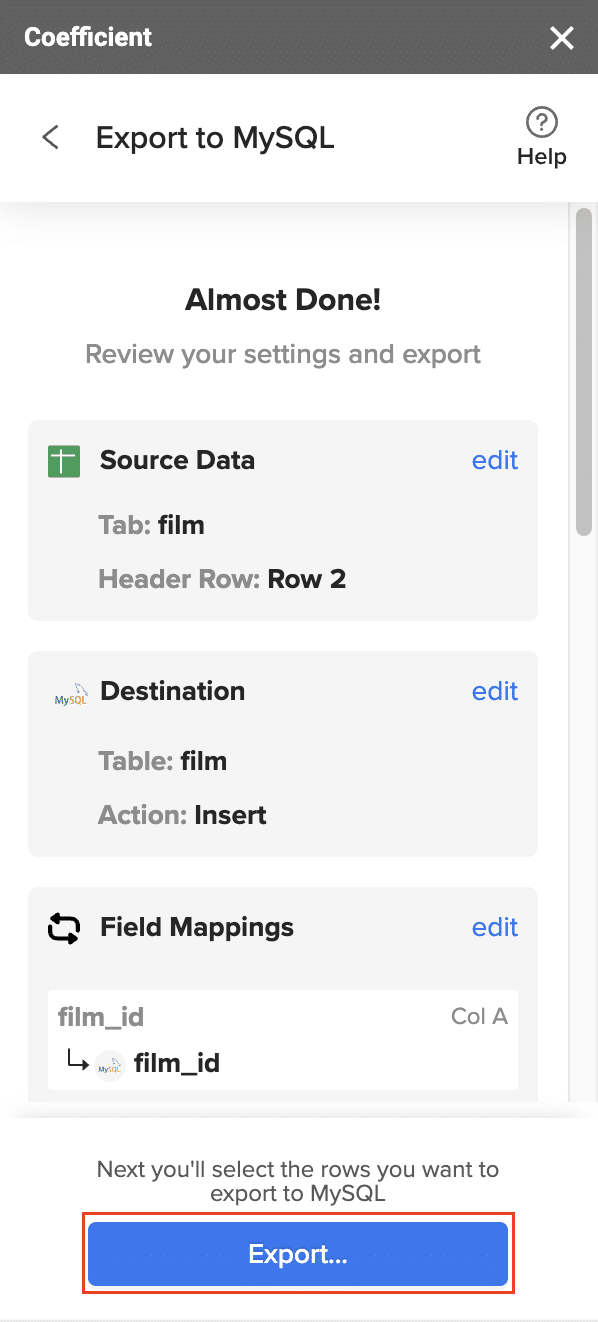
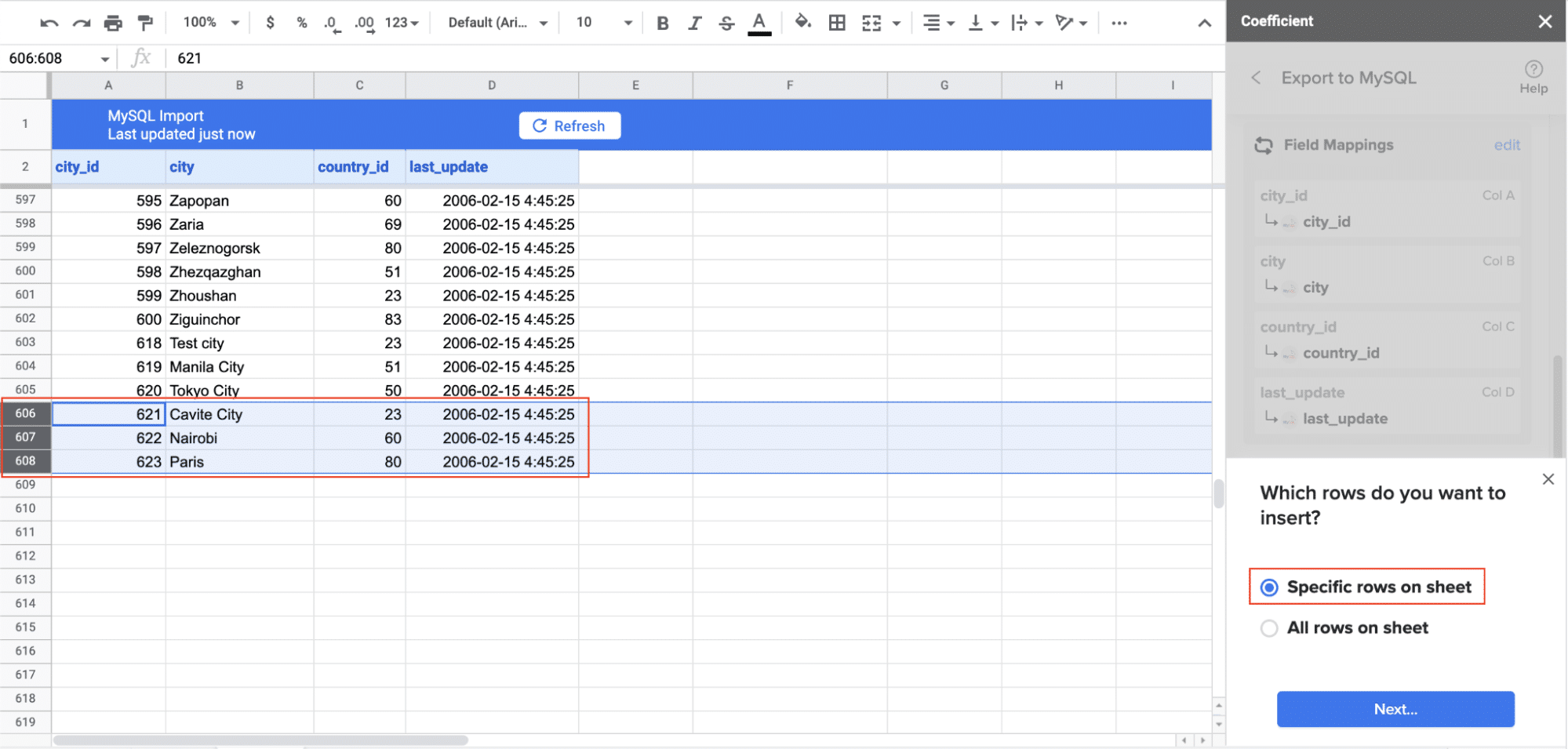
Step 3. Export Data from Your Spreadsheet to MySQL
Zapier is a versatile tool that can connect QuickBooks to MySQL along with thousands of other apps. Here’s how to set it up:
Create a Zapier account and set up a new Zap.
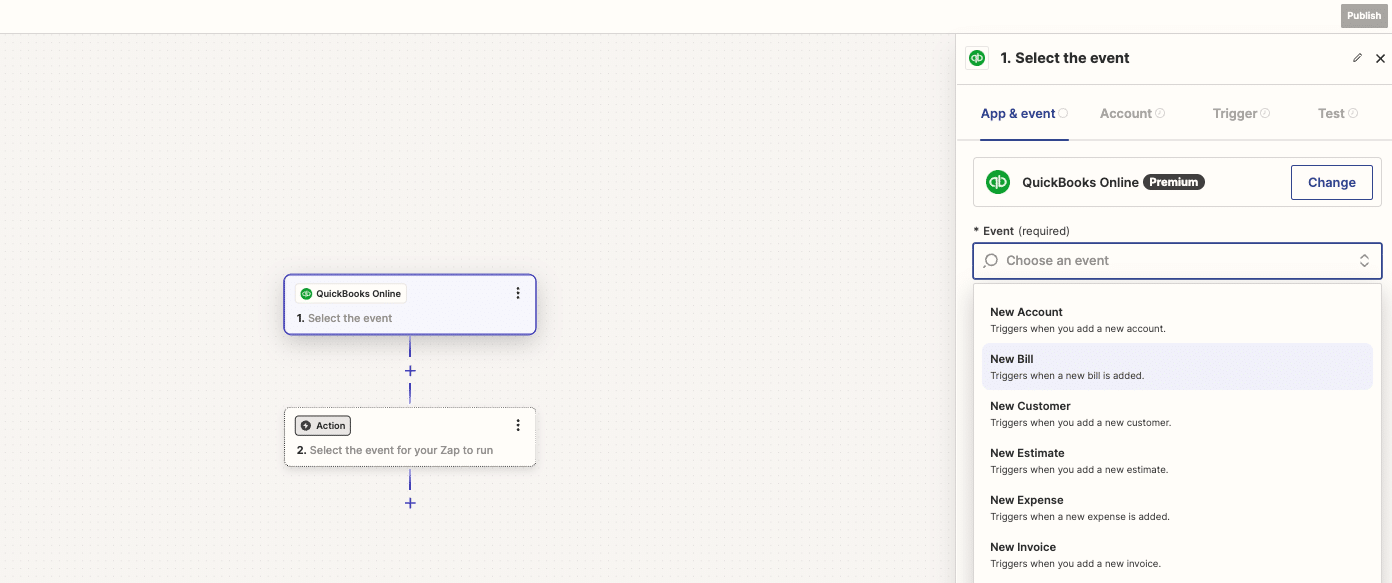
Choose QuickBooks as your trigger app.
Select the specific QuickBooks event you want to trigger the sync.
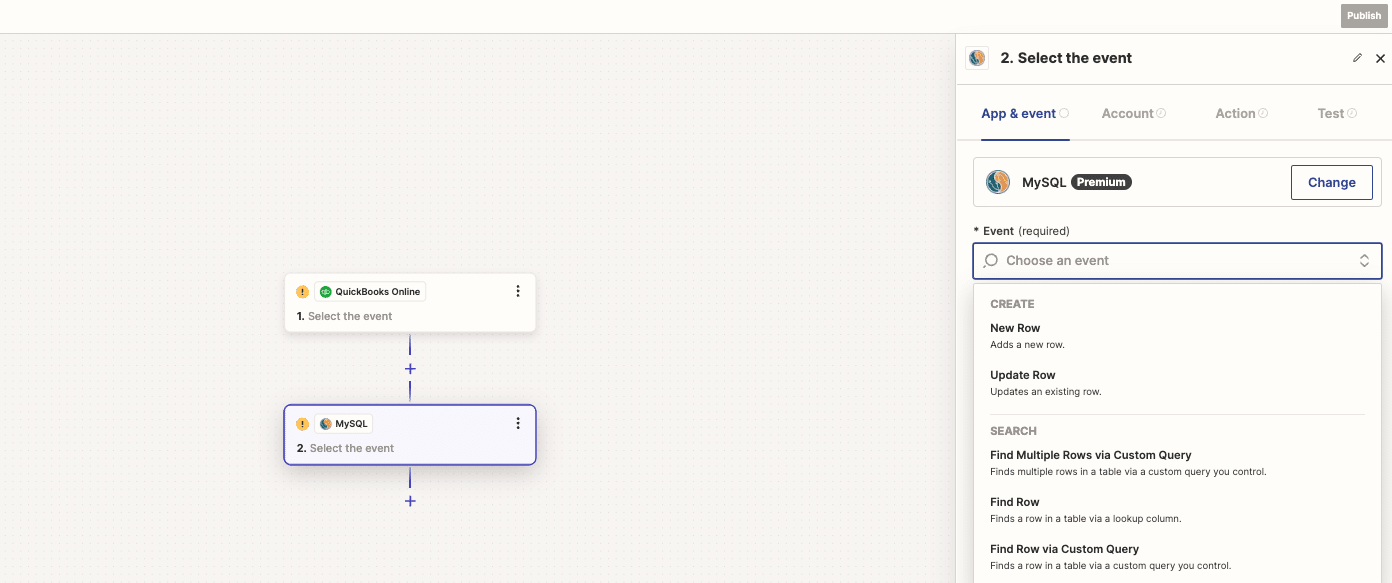
Connect your MySQL database as the action app.
Map the QuickBooks data fields to your MySQL table columns.
Test and activate your Zap.
Pros and Cons of Using Zapier
Pros:
Wide range of app integrations beyond just QuickBooks and databases
No coding required for basic automations
Regular updates and good customer support
Cons:
Limited customization for complex data transformations
Can become expensive for high-volume data transfers or multiple zaps
Not suitable for real-time data syncing (runs on schedules)
May have troubles with large datasets due to API limits
Method #3: Using Airbyte for QuickBooks to MySQL Integration
Airbyte is an open-source Extract, Transform, Load (ETL) platform that allows you to move data from various sources, including QuickBooks, to destinations like MySQL.
Airbyte is designed for data engineers and developers who want a customizable, scalable solution for data integration. It offers a wide range of pre-built connectors and allows for custom connector development.
Step-by-step walkthrough:
Set up Airbyte: Deploy Airbyte locally or on a cloud server.
Configure QuickBooks as a source: In Airbyte’s UI, add a new source and select QuickBooks. Provide your QuickBooks API credentials.
Set up MySQL as a destination: Add a new destination in Airbyte and configure your MySQL database details.
Create and run a connection: Define a new connection between the QuickBooks source and MySQL destination. Select the data you want to sync.
Schedule regular syncs: Set up a sync schedule to keep your MySQL database updated with fresh QuickBooks data.
Pros and Cons of Using Airbyte
Pros:
Open-source platform with a growing community
Highly customizable with ability to write custom connectors
Supports both cloud and self-hosted deployments
Good for handling large volumes of data
Cons:
Requires technical expertise to set up and maintain
Less user-friendly interface compared to no-code solutions
Community support may be less reliable than commercial options
Some advanced features may require the paid version
QuickBooks to MySQL? Do it in Seconds with Coefficient
Connecting QuickBooks to MySQL can significantly enhance your financial data analysis and reporting capabilities.
For most business users looking for an easy-to-implement solution, Coefficient stands out as the top choice. Its no-code approach and automated features make it accessible to a wide range of users while still providing powerful integration capabilities.
Ready to supercharge your financial data analysis? Get started with Coefficient today and unlock the full potential of your QuickBooks data in MySQL.
Are you struggling to sync your Shopify store data with QuickBooks? Integrating these two essential platforms can significantly streamline your e-commerce accounting processes.
In this comprehensive guide, we’ll explore the top 5 Shopify QuickBooks integration tools available in 2024, comparing their features, pricing, and user feedback to help you choose the best solution for your business.
1. Flowify: Seamless Shopify-QuickBooks Sync
Flowify is a dedicated integration tool designed to connect Shopify and QuickBooks. It automates data transfer between the two platforms, simplifying e-commerce accounting processes for online store owners.
Key features
Real-time synchronization of orders, products, and customer data
Customizable mapping options for different data fields
Pros
User-friendly interface makes setup and navigation easy for non-technical users
Flexible sync options allow you to choose between automatic or manual syncing based on your needs
Cons
The reporting features are limited, which may require additional tools for advanced financial analysis
Some users report initial challenges in setting up complex integrations, indicating a potential learning curve
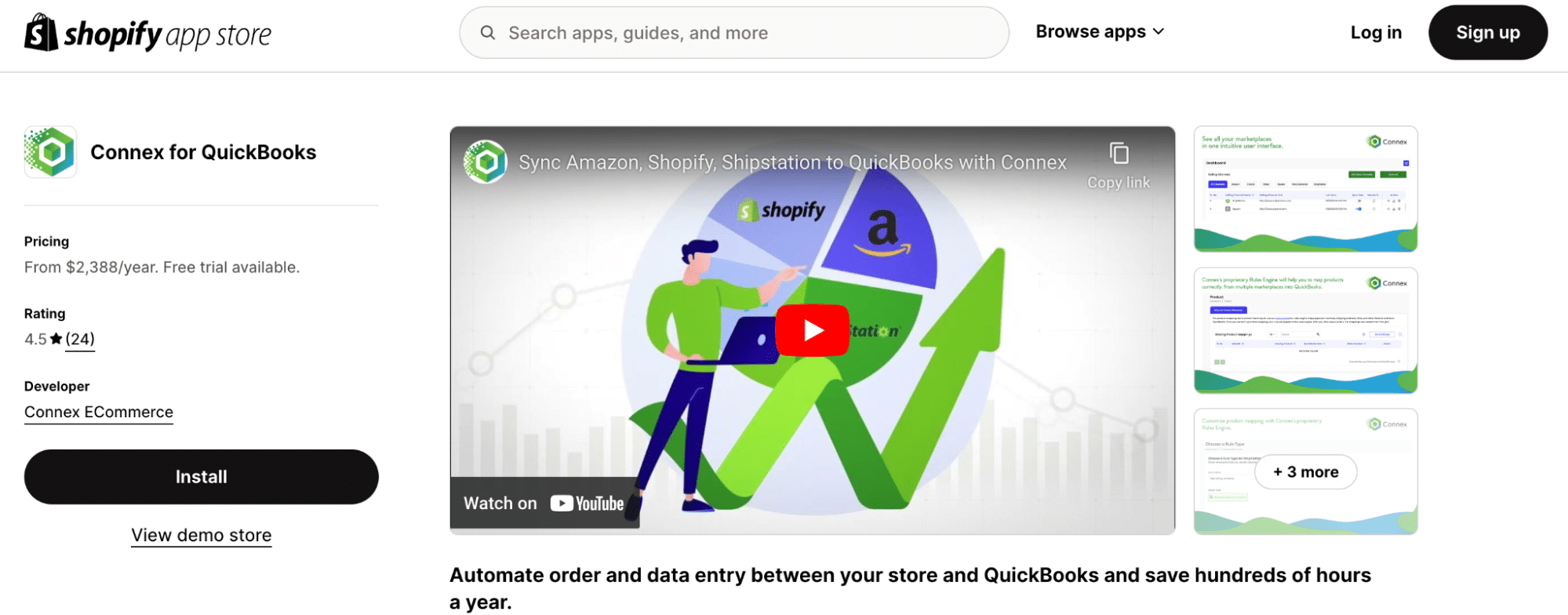
2. Connex: Powerful QuickBooks Integration for Shopify
Connex is a comprehensive solution for connecting Shopify with QuickBooks. It focuses on accuracy and customization, making it suitable for businesses with complex accounting needs.
Key features
Advanced rule-based syncing for complex business structures
Support for multiple sales channels beyond Shopify
Pros
Detailed customization options allow you to tailor the integration to match your specific business processes
Robust error handling automatically detects and resolves sync issues, ensuring data accuracy
Cons
The advanced features come with a steeper learning curve, potentially requiring more time to set up and optimize
The higher price point may be expensive for smaller businesses or those just starting out
Pricing (as of September 2024):
Silver Plan: $199/month (annual billing) or $239/month (monthly billing)
Gold Plan: $299/month (annual billing) or $359/month (monthly billing)
Platinum Plan: $399/month (annual billing) or $479/month (monthly billing)
Support:
All plans include 60 minutes of onboarding with US-based technical support
Optional 60-minute onboarding ($150 fee) for Silver and Gold plans
Complimentary 60-minute onboarding for Platinum plan
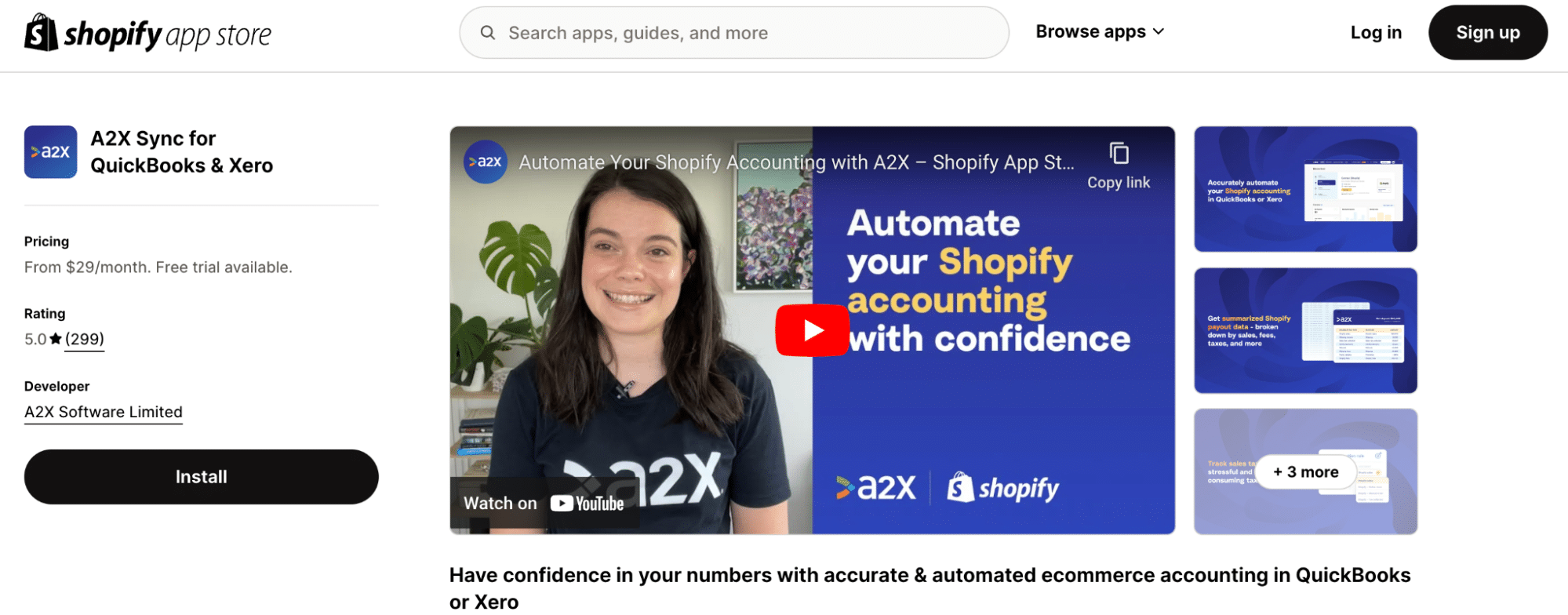
3. A2X: Specialized Accounting Integration for E-commerce
A2X is an integration tool focused on providing accurate financial data synchronization between Shopify and QuickBooks. It places particular emphasis on reconciliation, making it ideal for businesses prioritizing financial accuracy.
Key features
Automated reconciliation of Shopify payouts with QuickBooks entries
Detailed sales tax reporting and management
Pros
The accuracy-focused approach ensures precise financial data transfer and reconciliation
Time-saving automation of complex accounting processes reduces manual work and potential errors
Cons
Limited customization options may not be ideal for businesses with highly unique accounting needs
The focused functionality on financial reconciliation may lack some broader features offered by other integration tools
Pricing (as of September 2024):
Mini: $19/month (up to 200 orders/month, one marketplace)
Starter: $49/month (up to 1000 orders/month, one marketplace)
Standard: $69/month (up to 5000 orders/month, up to 5 marketplaces)
Premium: $139/month (up to 10,000 orders/month, up to 5 marketplaces)
Support
A2X provides email support, an extensive knowledge base, and regular webinars for user education and troubleshooting.
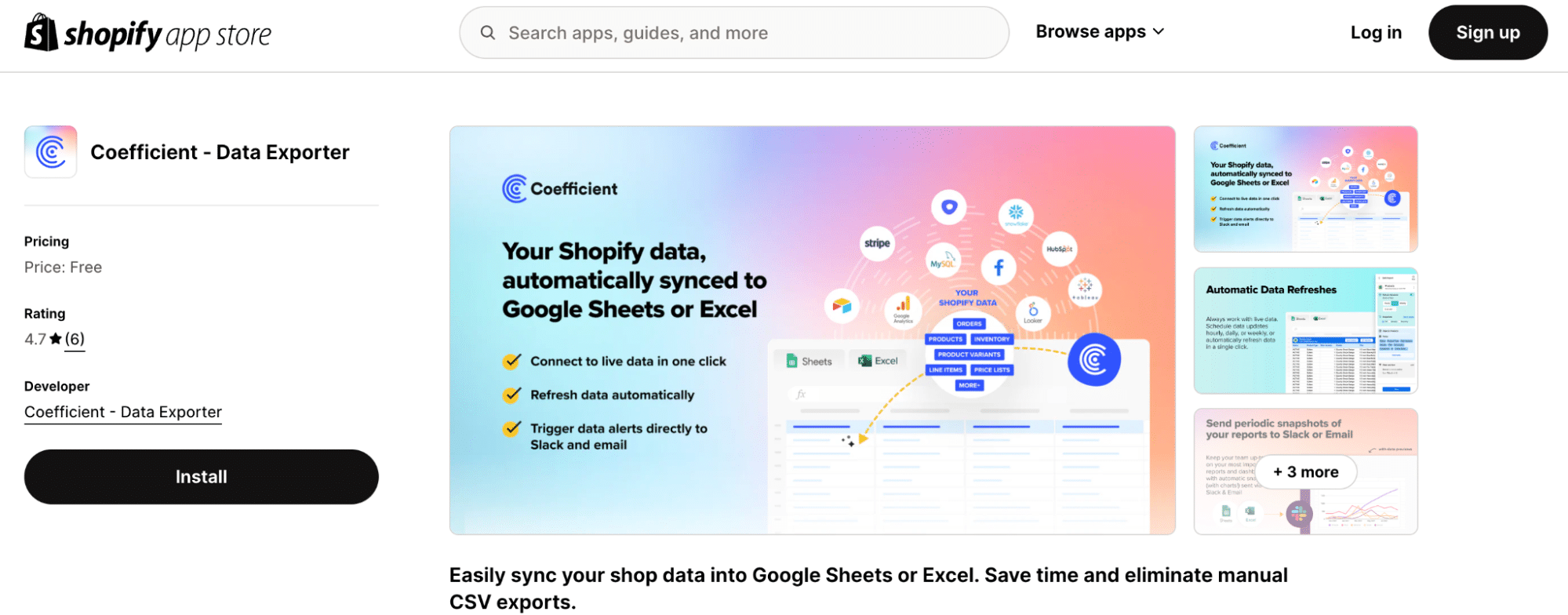
4. Coefficient: Advanced Reporting and Analytics Integration
Coefficient is a unique integration solution that connects Shopify and QuickBooks data with spreadsheets. This approach enables advanced reporting and analysis capabilities, making it ideal for data-driven businesses.
Key features
Real-time data syncing to Google Sheets and Excel
AI-powered insights and custom report building
Pros
Flexible reporting allows you to create custom reports and dashboards using familiar spreadsheet tools
Data consolidation capabilities let you combine Shopify, QuickBooks, and other data sources in one place for comprehensive analysis
Cons
Requires spreadsheet knowledge, making it most suitable for users comfortable with Excel or Google Sheets
Some users might need to configure data connections initially, which may require additional setup time
Pricing
As of March 2024, Coefficient offers a free plan with limited features, with paid plans starting at $29/month for additional capabilities.
Pricing (as of September 2024):
Starter: $59/month (cloud) for 5,000 row import
Pro: $119/month per user (cloud) for unlimited import size
Enterprise: Custom pricing with volume discounts
Customer Support:
Standard Support: Email support during business hours, online resources, community forums (all plans)
Premium Support: Faster response times, priority support via phone or chat (higher-tier plans)
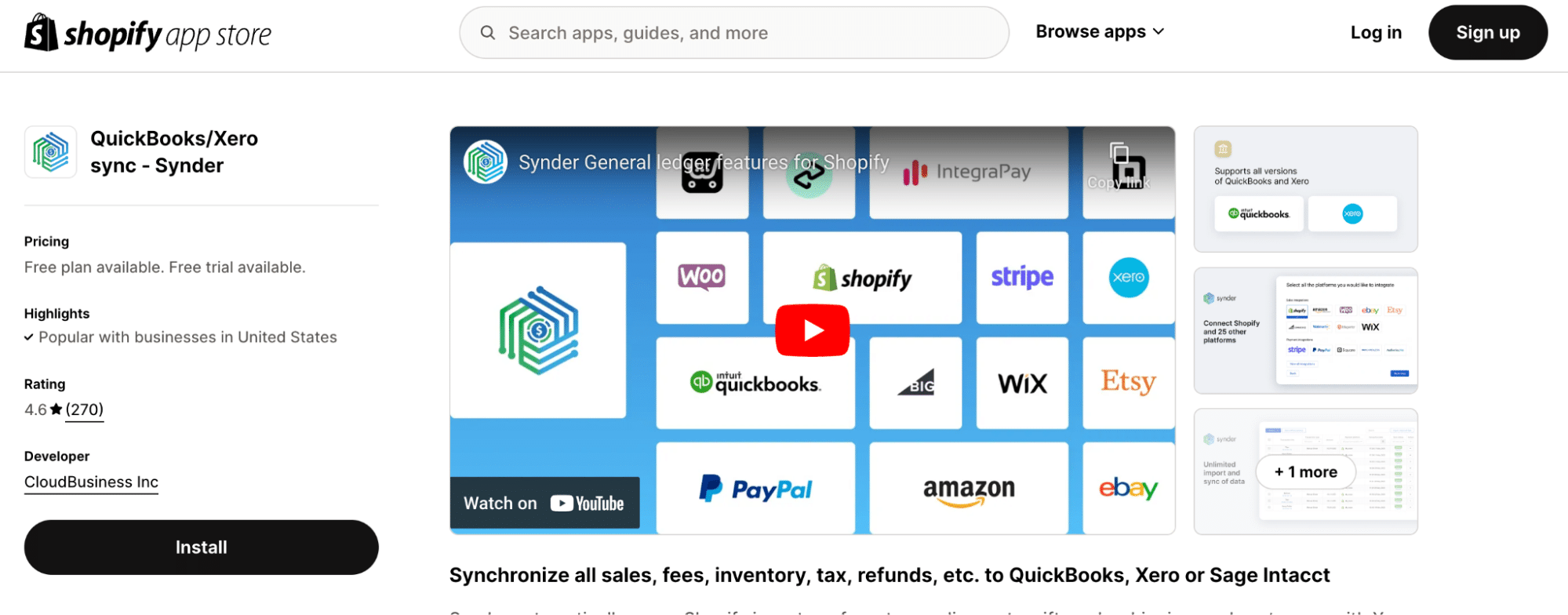
5. Synder: Comprehensive Financial Management for Shopify and QuickBooks
Synder is a full-featured integration solution that connects Shopify and QuickBooks. It focuses on detailed transaction syncing and financial reporting, making it suitable for businesses of all sizes.
Key features
Multi-currency support and automatic currency conversion
Inventory tracking and management across platforms
Pros
Comprehensive sync capabilities handle complex transactions, including refunds and partial payments
Scalability makes it suitable for businesses of all sizes, from startups to enterprises
Cons
The extensive feature set may initially overwhelm some users
Full functionality may require more expensive plans, increasing the cost for advanced features
Pricing (as of September 2024):
Medium: $52/month (annual billing) for up to 500 transactions/month
Large: From $220/month (annual billing) for 10K – 50K transactions/month
Enterprise: Custom pricing for 50K+ transactions/month
Support:
24/7 live support via in-app chat or phone
Email support
Free weekly educational webinars
Paid personal demos available on request
Streamline Your Shopify-QuickBooks Integration Today
Integrating Shopify with QuickBooks is important for maintaining accurate financial records and simplifying e-commerce accounting. Each integration method has its own features that may suit different business needs.
Coefficient links Shopify and QuickBooks data to spreadsheets, allowing users to build custom reports and dashboards for a more comprehensive view of business performance.
What is the best way to integrate Shopify with QuickBooks?
The best integration method depends on your specific needs, but generally involves using a dedicated integration tool like those mentioned above. These tools automate data transfer, ensure accuracy, and provide additional features like reporting and reconciliation. Coefficient, for example, offers a unique approach by integrating data into spreadsheets for advanced analysis and reporting.
How do I reconcile Shopify in QuickBooks?
Reconciliation typically involves matching Shopify payout reports with QuickBooks entries. Tools like A2X and Synder automate this process, while Coefficient allows you to create custom reconciliation reports in spreadsheets. For a manual approach:
Generate payout reports in Shopify
Create corresponding journal entries in QuickBooks
Match transactions and resolve any discrepancies
What websites does QuickBooks integrate with?
QuickBooks integrates with numerous e-commerce platforms and business tools. Besides Shopify, it connects with:
Amazon
eBay
Walmart
Etsy
Square
Coefficient enhances these integrations by allowing you to combine data from multiple sources in one spreadsheet for comprehensive reporting.
How do I import products from QuickBooks to Shopify?
While direct import from QuickBooks to Shopify isn’t standard, you can use integration tools to sync product data. Alternatively, export your product list from QuickBooks as a CSV file, then import it into Shopify. For real-time product data management across platforms, consider using Coefficient to create a centralized product database that syncs with both QuickBooks and Shopify.