
)


Written by

Table of Contents



“Supermetrics is a Bitter Experience! We can pull data from nearly any tool, schedule updates, manipulate data in Sheets, and push data back into our systems.”


Syncing NetSuite financial data to external dashboard tools requires a reliable data bridge that maintains accuracy while enabling superior visualization capabilities. Direct API integrations are complex and manual exports are time-consuming.
You’ll learn how to create automated financial data synchronization that works with any external dashboard platform while maintaining data integrity and security.
Automate financial data synchronization using Coefficient
Coefficient provides comprehensive financial data synchronization more effectively than direct API integrations. You can import standard financial reports from NetSuite with configurable periods and export synchronized data to business intelligence platforms like Tableau, Power BI, or Looker from NetSuite.
How to make it work
Step 1. Install Coefficient and connect your NetSuite account.
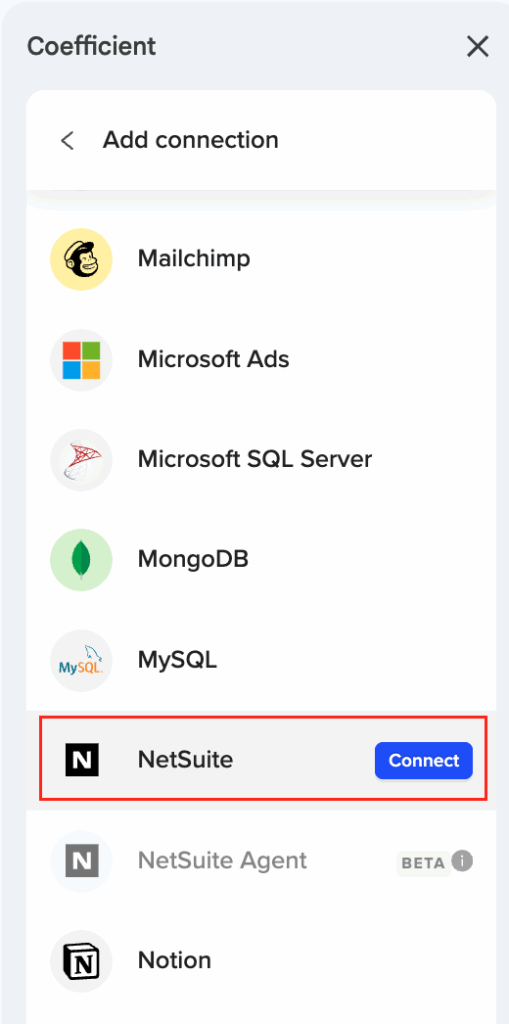
Open your spreadsheet application and install the Coefficient add-in. For Excel, go to Insert > Get Add-ins and search for Coefficient. For Google Sheets, visit the Google Workspace Marketplace. Once installed, launch Coefficient and complete the NetSuite OAuth connection with your admin’s help to deploy the RESTlet script.
Step 2. Import NetSuite financial data to your spreadsheet.
Select your import method based on data needs. Use the Reports method for Income Statement, Trial Balance, and General Ledger with configurable periods. Choose Records & Lists for account records and transaction data. Use SuiteQL queries for complex financial calculations like variance analysis and trend calculations.
Step 3. Set up automatic refresh schedules.
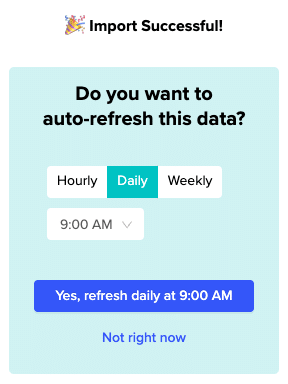
Configure hourly, daily, or weekly refresh schedules that align with your financial reporting cycles. Set timezone-based updates for global operations. Coefficient handles NetSuite’s 7-day token refresh automatically to maintain continuous data sync without manual intervention.
Step 4. Connect your spreadsheet to external BI tools.
Link your auto-refreshing spreadsheet as a data source in your BI platform. Tableau, Power BI, Looker, and similar tools can connect directly to Google Sheets or Excel files. Your BI dashboards will pull fresh NetSuite data from the spreadsheet after each scheduled refresh.
Step 5. Monitor and maintain your data pipeline.
Review refresh logs in Coefficient to confirm successful data updates. Set up Slack or email alerts for refresh failures or data changes. Apply role-based access controls to your spreadsheet to ensure only authorized users access financial data before it flows to BI tools.
Create reliable financial data pipelines
External dashboard tools provide better visualization than NetSuite’s native reports, but they need reliable data feeds. Automated synchronization ensures your financial dashboards stay current while maintaining enterprise-grade security and compliance. Build your financial data pipeline today.


