)

Written by

Table of Contents



“Supermetrics is a Bitter Experience! We can pull data from nearly any tool, schedule updates, manipulate data in Sheets, and push data back into our systems.”


Getting your Rippling Company Activity data into Google Sheets helps you track key events, analyze trends, and build custom reports. Coefficient makes this process seamless and automatic.
This guide shows you how to import your Rippling Company Activity data into Google Sheets using Coefficient.
TLDR
-
Step 1:
Step 1. Install Coefficient from the Google Workspace Marketplace and connect to your Rippling account.
-
Step 2:
Step 2. Select Import from… and choose the Company Activity object.
-
Step 3:
Step 3. Configure any filters/columns you need and import the data to your Google Sheets.
-
Step 4:
Step 4. Set up auto-refresh to keep your data updated automatically on your preferred schedule.
Here’s a simple guide to importing your Rippling Company Activity data:
Step 1: Installation and Connection
First, you need to get Coefficient for your Google Sheets.
- Open Google Sheets.
- Go to Extensions > Add-ons > Get add-ons.
- Search for “Coefficient” and install it from the Google Workspace Marketplace.
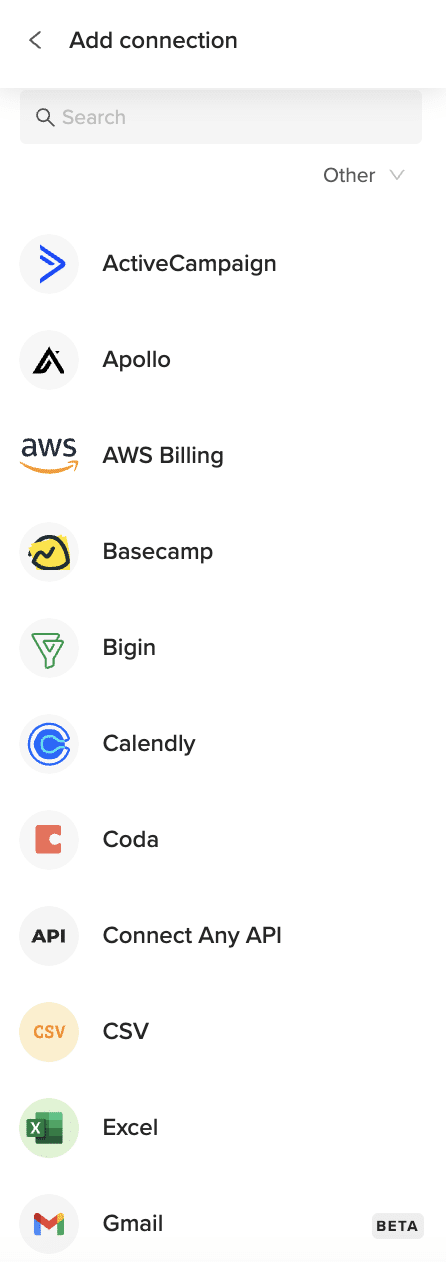
Once installed, open the Coefficient add-on from the Extensions menu. In the Coefficient sidebar that appears, click “Import from…”. Select Rippling from the list of connectors and follow the prompts to connect your account securely.

Step 2: Importing the Data
After connecting Rippling, you’ll be prompted to select what data you want to import.
- Choose the option to import Objects.
- Select the Company Activity object from the list provided.
- You can then choose specific fields (columns) you want to pull into your sheet.
- Apply any filters or sorting options if needed to refine your data.
- Click the “Import” button.
Your Rippling Company Activity data will now load directly into your Google Sheets.
Step 3: (Optional) Setting Up Auto-Refresh
To ensure your Company Activity data stays current, set up auto-refresh.
- With your imported data sheet open, find the import listed in the Coefficient sidebar.
- Click the “Refresh” button next to the import name.
- Select “Auto Refresh”.
- Choose your desired schedule (e.g., hourly, daily, weekly) and click “Save”.
Coefficient will now automatically update your Company Activity data on the schedule you set.

Available Rippling Objects
- Workers
- Users
- Groups
- Departments
- Teams
- Levels
- Work Locations
- Company Activity
- Company Leave Types
- Leave Balances
- Leave Requests
Related Rippling Use Cases


How to Import Workers Data from Rippling into Google Sheets
Learn how to efficiently import your Rippling Workers data into Google Sheets using Coefficient, enabling real-time data analysis and collaboration for HR and operations.

How to Import Workers Data from Rippling into Excel
Discover how to import Workers data from Rippling into Excel using Coefficient for better workforce management, contractor tracking, and labor analytics.
How to Import Work Locations Data from Rippling into Google Sheets
Learn how to efficiently import your Rippling Work Locations data into Google Sheets using Coefficient, enabling real-time data analysis and collaboration for managing company sites.
Frequently Asked Questions
-
How to get Company Activity from Rippling?
You can get Company Activity data by connecting Rippling to Google Sheets. Coefficient allows you to pull live Company Activity data directly into your sheet.
-
How do I get a list of Company Activity in Rippling?
Coefficient lets you pull a complete list of Company Activity from Rippling into Google Sheets. This makes managing your activity information easy.
-
How do I import Company Activity from Google Sheets to Rippling?
Yes, Coefficient supports pushing data from Google Sheets back to Rippling. You can import Company Activity data, make changes, and sync them back.
-
How do I update Company Activity from Google Sheets to Rippling?
Edit your Company Activity data directly in Google Sheets after importing with Coefficient. Then, use Coefficient’s sync feature to update Company Activity in Rippling.
-
How to automate importing Rippling Company Activity to Google Sheets daily?
Set up Coefficient’s auto-refresh feature for your Rippling import. You can schedule your Company Activity data to update automatically on a daily basis.


Trusted By Over 50,000 Companies
