Bringing Podio App market data into Excel helps you analyze trends, track app usage, and gain insights. Manually exporting this data is not efficient and quickly becomes old.
Using Coefficient creates a live connection for automatic data updates.
This guide shows you the steps to easily import your App market data from Podio into Excel.
TLDR
-
Step 1:
Step 1. Install Coefficient in Excel and connect your Podio account.
-
Step 2:
Step 2. Select Import from… and choose the Podio connector.
-
Step 3:
Step 3. Select the App market object and choose your desired fields.
-
Step 4:
Step 4. Import the data and set up auto-refresh for live updates.
Step-by-step guide to importing Podio App market into Excel
Step 1: Install and connect Coefficient
First, get Coefficient set up in your Excel application.
- Open Excel.
- Go to the Insert tab.
- Click Get Add-ins.
- Search for “”Coefficient”” and install it from the Office Add-ins store.
- Open the Coefficient sidebar, found under the Home or Add-ins tab.
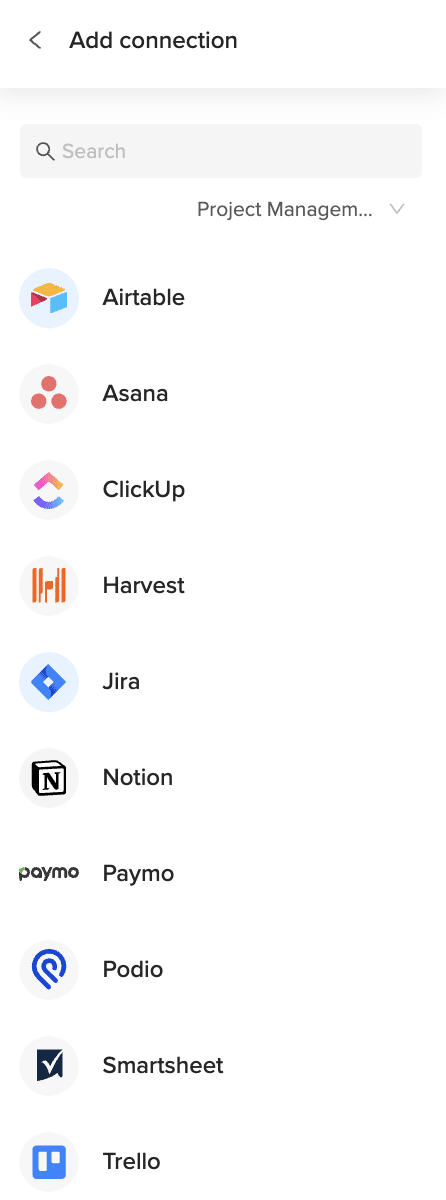
- Click “”Import from…”” and find the Podio connector. You’ll need to connect your Podio account by logging in.

Step 2: Import the App market data
Now you can pull your App market data.
- In the Coefficient sidebar for the Podio connector, choose to import from an **Object**.
- Find and select the “”App market”” object from the list.
- Choose the specific data fields related to the App market that you want in Excel.
- Apply any necessary filters or sorting.
- Click “”Import”” to bring the data into your sheet.
Step 3: Set up auto-refresh (Optional)
Keep your App market data current automatically.
- After the import, find your data connection in the Coefficient sidebar, next to the Refresh button.
- Click the refresh options icon.
- Select “”Schedule”” to set up automatic refreshes.
- Choose how often you want the data to update (e.g., daily) and select a time.
- Save your schedule. Your App market data will now refresh on its own.

Available Podio Objects
- Alerts
- App market
- Applications
- Batch
- Calendar
- Comments
- Contacts
- Conversations
- Devices
- Embeds
- Files
How to Import Applications Data from Podio into Excel
Importing your Podio Applications data into Excel helps you keep track of your setup, analyze usage, and manage your workspace structure. Manual data export is tedious and quickly goes out of date.
Coefficient provides a live link that automatically refreshes your data.
This guide shows you how to easily import your Applications data from Podio into Excel.
TLDR
-
Step 1:
Step 1. Install Coefficient in Excel and connect your Podio account.
-
Step 2:
Step 2. Select the Podio connector from Import from….
-
Step 3:
Step 3. Choose the Applications object and pick your desired fields.
-
Step 4:
Step 4. Import the data into your sheet and set up auto-refresh.
Step-by-step guide to importing Podio Applications into Excel
Step 1: Install and connect Coefficient
You need Coefficient installed in Excel to start.
- Open Excel.
- Go to the Insert tab.
- Click Get Add-ins.
- Search for “”Coefficient”” and install it from the Office Add-ins store.
- Once installed, open the Coefficient sidebar (usually in the Home or Add-ins tab).
- Click “”Import from…”” and find Podio. Follow the simple steps to connect your Podio account.
Step 2: Import the Applications data
With the connection ready, you can import your data.
- In the Coefficient sidebar for Podio, choose to import from an **Object**.
- Select the “”Applications”” object from the list.
- Choose the specific fields from your Applications data that you want to see in Excel.
- Add any filters or sorting as needed.
- Click the “”Import”” button to pull the data into your sheet.
Step 3: Set up auto-refresh (Optional)
Keep your Applications data current automatically.
- After importing, find your import listed in the Coefficient sidebar next to the Refresh button.
- Click the refresh settings icon.
- Select “”Schedule”” to automate updates.
- Choose how often the data should refresh (e.g., daily) and set a time.
- Save the schedule. Your Applications data will update automatically.
Available Podio Objects
- Alerts
- App market
- Applications
- Batch
- Calendar
- Comments
- Contacts
- Conversations
- Devices
- Embeds
- Files
How to Import Batch Data from Podio into Excel
Bringing Podio Batch data into Excel helps you process, analyze, and report on your batch operations. Relying on manual data export is inefficient and leads to outdated reports quickly.
Coefficient creates a live connection for automatic data refreshes.
This guide shows you the steps to easily import your Batch data from Podio into Excel.
TLDR
-
Step 1:
Step 1. Install Coefficient in Excel and connect your Podio account.
-
Step 2:
Step 2. Choose the Podio connector from the Import from… options.
-
Step 3:
Step 3. Select the Batch object and pick the relevant fields.
-
Step 4:
Step 4. Import the data into your sheet and set up auto-refresh.
Step-by-step guide to importing Podio Batch into Excel
Step 1: Install and connect Coefficient
You need Coefficient installed in your Excel application.
- Open Excel.
- Go to the Insert tab.
- Click Get Add-ins.
- Search for “”Coefficient”” and install it from the Office Add-ins store.
- Once installed, open the Coefficient sidebar from the Home or Add-ins tab.
- Click “”Import from…”” and find the Podio connector. You will be guided through connecting your Podio account.
Step 2: Import the Batch data
Now you can pull your Batch data into Excel.
- In the Coefficient sidebar for Podio, select to import from an **Object**.
- Choose the “”Batch”” object from the list.
- Select the specific data fields related to your Batch operations that you need in Excel.
- Apply any filters or sorting if required.
- Click the “”Import”” button to bring the data into your sheet.
Step 3: Set up auto-refresh (Optional)
Keep your Batch data current without manual updates.
- After the import is complete, find your import in the Coefficient sidebar next to the Refresh button.
- Click the settings icon for refresh options.
- Select “”Schedule”” to set up automated updates.
- Choose how often the data should refresh (e.g., hourly, daily) and set a specific time.
- Save your schedule. Your Batch data will now update automatically.
Available Podio Objects
- Alerts
- App market
- Applications
- Batch
- Calendar
- Comments
- Contacts
- Conversations
- Devices
- Embeds
- Files
How to Import Calendar Data from Podio into Excel
Bringing your Podio Calendar data into Excel helps you get a better overview of schedules, events, and deadlines. Manual data export is a slow task and the data quickly becomes outdated.
Coefficient creates a live connection for automatic data updates.
This guide shows you how to easily import your Calendar data from Podio into Excel.
TLDR
-
Step 1:
Step 1. Install Coefficient in Excel and connect your Podio account.
-
Step 2:
Step 2. Select the Podio connector via Import from….
-
Step 3:
Step 3. Choose the Calendar object and pick the fields you want.
-
Step 4:
Step 4. Import the data into your sheet and set up auto-refresh.
Step-by-step guide to importing Podio Calendar into Excel
Step 1: Install and connect Coefficient
You need Coefficient installed in your Excel application first.
- Open Excel.
- Go to the Insert tab.
- Click Get Add-ins.
- Search for “”Coefficient”” and install it from the Office Add-ins store.
- Launch the Coefficient sidebar, available from the Home or Add-ins tab.
- Click “”Import from…”” and find Podio. Follow the steps to connect your Podio account.
Step 2: Import the Calendar data
With the connection set up, you can now import your Calendar data.
- In the Coefficient sidebar for Podio, select to import from an **Object**.
- Choose the “”Calendar”” object from the list.
- Select the specific data fields from your Calendar that you need in your Excel sheet.
- Apply any filters or sorting if necessary.
- Click “”Import”” to bring the data into your sheet.
Step 3: Set up auto-refresh (Optional)
Keep your Calendar data current automatically.
- After the data is imported, find your import in the Coefficient sidebar next to the Refresh button.
- Click the refresh options icon (settings gear).
- Select “”Schedule”” to set up automated updates.
- Choose how often you want the data to refresh (e.g., daily, hourly) and select a time.
- Save your schedule. Your Calendar data will now refresh on its own.
Available Podio Objects
- Alerts
- App market
- Applications
- Batch
- Calendar
- Comments
- Contacts
- Conversations
- Devices
- Embeds
- Files
How to Import Comments Data from Podio into Excel
Bringing your Podio Comments data into Excel helps you analyze team discussions, track feedback, and review communication history. Manual export is a slow process, and the data quickly goes stale.
Coefficient offers a live connection for automatic data updates.
This guide shows you how to easily import your Comments data from Podio into Excel.
TLDR
-
Step 1:
Step 1. Install Coefficient in Excel and connect your Podio account.
-
Step 2:
Step 2. Use Import from… to select the Podio connector.
-
Step 3:
Step 3. Choose the Comments object and pick the fields you need.
-
Step 4:
Step 4. Import the data into your sheet and set up auto-refresh.
Step-by-step guide to importing Podio Comments into Excel
Step 1: Install and connect Coefficient
Get Coefficient installed in your Excel application to start.
- Open Excel.
- Go to the Insert tab.
- Click Get Add-ins.
- Search for and install “”Coefficient”” from the Office Add-ins store.
- Open the Coefficient sidebar, found in the Home or Add-ins tab.
- Click “”Import from…”” and select Podio. Follow the steps to connect your Podio account.
Step 2: Import the Comments data
With the connection ready, you can now bring in your Comments data.
- In the Coefficient sidebar for the Podio connector, choose to import from an **Object**.
- Find and select the “”Comments”” object from the list.
- Choose the specific data fields from Comments that you want in your Excel sheet.
- Apply any filters or sorting if needed.
- Click “”Import”” to pull the data into your sheet.
Step 3: Set up auto-refresh (Optional)
Keep your Comments data current automatically.
- After the data is imported, find your import listed in the Coefficient sidebar next to the Refresh button.
- Click the refresh settings icon.
- Select “”Schedule”” to automate updates.
- Choose how often the data should refresh (e.g., hourly, daily) and set a time.
- Save the schedule. Your Comments data will update automatically.
Available Podio Objects
- Alerts
- App market
- Applications
- Batch
- Calendar
- Comments
- Contacts
- Conversations
- Devices
- Embeds
- Files
How to Import Contacts Data from Podio into Excel
Bringing your Podio Contacts data into Excel helps you manage lists, analyze relationships, and integrate contact info with other data. Manually exporting contacts is slow and they quickly become outdated.
Coefficient provides a live link that automatically refreshes your data.
This guide shows you how to easily import your Contacts data from Podio into Excel.
TLDR
-
Step 1:
Step 1. Install Coefficient in Excel and connect your Podio account.
-
Step 2:
Step 2. Select the Podio connector using Import from….
-
Step 3:
Step 3. Choose the Contacts object and select the fields you need.
-
Step 4:
Step 4. Import the data and set up auto-refresh for live updates.
Step-by-step guide to importing Podio Contacts into Excel
Step 1: Install and connect Coefficient
You need Coefficient installed in your Excel application.
- Open Excel.
- Go to the Insert tab.
- Click Get Add-ins.
- Search for “”Coefficient”” and install it from the Office Add-ins store.
- Once installed, open the Coefficient sidebar from the Home or Add-ins tab.
- Click “”Import from…”” and find the Podio connector. You’ll be guided to log in and connect your Podio account.
Step 2: Import the Contacts data
Now that you’re connected, let’s get the data.
- In the Coefficient sidebar for Podio, choose to import from an **Object**.
- Find and select the “”Contacts”” object from the list.
- Choose the specific contact fields you want to bring into Excel.
- Apply any filters or sorting needed for your data.
- Click the “”Import”” button to pull the data into Excel.
Step 3: Set up auto-refresh (Optional)
Keep your Contacts data current without manual effort.
- After your data is imported, look for the “”Refresh”” button in the Coefficient sidebar next to your import.
- Click the refresh options icon.
- Choose “”Schedule”” to set up automatic refreshes.
- Select how often you want the data to update (e.g., daily) and pick a time.
- Save your schedule. Your Contacts data will now update on its own.
Available Podio Objects
- Alerts
- App market
- Applications
- Batch
- Calendar
- Comments
- Contacts
- Conversations
- Devices
- Embeds
- Files
How to Import Conversations Data from Podio into Excel
Getting your Podio Conversations data into Excel helps you analyze team discussions, track communication flow, and review historical chats. Manually exporting this data is difficult and the information quickly becomes old.
Coefficient provides a live link for automatic data updates.
This guide shows you how to easily import your Conversations data from Podio into Excel.
TLDR
-
Step 1:
Step 1. Install Coefficient in Excel and connect your Podio account.
-
Step 2:
Step 2. Select the Podio connector using Import from….
-
Step 3:
Step 3. Choose the Conversations object and select the fields you need.
-
Step 4:
Step 4. Import the data and set up auto-refresh for live updates.
Step-by-step guide to importing Podio Conversations into Excel
Step 1: Install and connect Coefficient
You need Coefficient installed in your Excel application first.
- Open Excel.
- Go to the Insert tab.
- Click Get Add-ins.
- Search for “”Coefficient”” and install it from the Office Add-ins store.
- Once installed, open the Coefficient sidebar from the Home or Add-ins tab.
- Click “”Import from…”” and find the Podio connector. Follow the steps to connect your Podio account.
Step 2: Import the Conversations data
Now that you’re connected, you can get the data.
- In the Coefficient sidebar for Podio, choose to import from an **Object**.
- Find and select the “”Conversations”” object from the list.
- Choose the specific conversation data fields you want to bring into Excel.
- Apply any filters or sorting needed for your data.
- Click the “”Import”” button to pull the data into Excel.
Step 3: Set up auto-refresh (Optional)
Keep your Conversations data current automatically.
- After your data is imported, look for the “”Refresh”” button in the Coefficient sidebar next to your import.
- Click the refresh options icon.
- Choose “”Schedule”” to set up automatic refreshes.
- Select how often you want the data to update (e.g., daily) and pick a time.
- Save your schedule. Your Conversations data will now update on its own.
Available Podio Objects
- Alerts
- App market
- Applications
- Batch
- Calendar
- Comments
- Contacts
- Conversations
- Devices
- Embeds
- Files
How to Import Devices Data from Podio into Excel
Bringing your Podio Devices data into Excel helps you keep track of connected devices and manage access. Manually exporting this information is not efficient and it quickly becomes old.
Coefficient offers a live connection for automatic data updates.
This guide shows you how to easily import your Devices data from Podio into Excel.
TLDR
-
Step 1:
Step 1. Install Coefficient in Excel and connect your Podio account.
-
Step 2:
Step 2. Select the Podio connector using Import from….
-
Step 3:
Step 3. Choose the Devices object and select the fields you need.
-
Step 4:
Step 4. Import the data and set up auto-refresh for live updates.
Step-by-step guide to importing Podio Devices into Excel
Step 1: Install and connect Coefficient
Get Coefficient installed in your Excel application to start.
- Open Excel.
- Go to the Insert tab.
- Click Get Add-ins.
- Search for and install “”Coefficient”” from the Office Add-ins store.
- Open the Coefficient sidebar, found in the Home or Add-ins tab.
- Click “”Import from…”” and select Podio. Follow the steps to connect your Podio account.
Step 2: Import the Devices data
With the connection ready, you can now bring in your Devices data.
- In the Coefficient sidebar for the Podio connector, choose to import from an **Object**.
- Find and select the “”Devices”” object from the list.
- Choose the specific data fields from Devices that you want in your Excel sheet.
- Apply any filters or sorting if needed.
- Click “”Import”” to pull the data into your sheet.
Step 3: Set up auto-refresh (Optional)
Keep your Devices data current automatically.
- After the data is imported, find your import listed in the Coefficient sidebar next to the Refresh button.
- Click the refresh settings icon.
- Select “”Schedule”” to automate updates.
- Choose how often the data should refresh (e.g., hourly, daily) and set a time.
- Save the schedule. Your Devices data will update automatically.
Available Podio Objects
- Alerts
- App market
- Applications
- Batch
- Calendar
- Comments
- Contacts
- Conversations
- Devices
- Embeds
- Files
How to Import Email Data from Podio into Excel
Getting your Podio Email data into Excel helps you track email communications linked to your Podio items and contacts. Manually exporting this data is tedious, and the information quickly goes stale.
Coefficient offers a live connection for automatic data updates.
This guide shows you how to easily import your Email data from Podio into Excel.
TLDR
-
Step 1:
Step 1. Install Coefficient in Excel and connect your Podio account.
-
Step 2:
Step 2. Use Import from… to select the Podio connector.
-
Step 3:
Step 3. Choose the Email object and select the fields you need.
-
Step 4:
Step 4. Import the data into your sheet and set up auto-refresh.
Step-by-step guide to importing Podio Email into Excel
Step 1: Install and connect Coefficient
Get Coefficient installed in your Excel application to start.
- Open Excel.
- Go to the Insert tab.
- Click Get Add-ins.
- Search for and install “”Coefficient”” from the Office Add-ins store.
- Open the Coefficient sidebar, found in the Home or Add-ins tab.
- Click “”Import from…”” and select Podio. Follow the steps to connect your Podio account.
Step 2: Import the Email data
With the connection ready, you can now bring in your Email data.
- In the Coefficient sidebar for the Podio connector, choose to import from an **Object**.
- Find and select the “”Email”” object from the list.
- Choose the specific data fields from Email that you want in your Excel sheet.
- Apply any filters or sorting if needed.
- Click “”Import”” to pull the data into your sheet.
Step 3: Set up auto-refresh (Optional)
Keep your Email data current automatically.
- After the data is imported, find your import listed in the Coefficient sidebar next to the Refresh button.
- Click the refresh settings icon.
- Select “”Schedule”” to automate updates.
- Choose how often the data should refresh (e.g., hourly, daily) and set a time.
- Save the schedule. Your Email data will update automatically.
Available Podio Objects
- Alerts
- App market
- Applications
- Batch
- Calendar
- Comments
- Contacts
- Conversations
- Devices
- Embeds
- Files
How to Import Embeds Data from Podio into Excel
Bringing your Podio Embeds data into Excel helps you manage, track, and analyze embedded content within your Podio items. Manually exporting this data is inefficient and quickly becomes old.
Coefficient creates a live connection for automatic data refreshes.
This guide shows you the steps to easily import your Embeds data from Podio into Excel.
TLDR
-
Step 1:
Step 1. Install Coefficient in Excel and connect your Podio account.
-
Step 2:
Step 2. Choose the Podio connector from the Import from… options.
-
Step 3:
Step 3. Select the Embeds object and pick the relevant fields.
-
Step 4:
Step 4. Import the data into your sheet and set up auto-refresh.
Step-by-step guide to importing Podio Embeds into Excel
Step 1: Install and connect Coefficient
You need Coefficient installed in your Excel application.
- Open Excel.
- Go to the Insert tab.
- Click Get Add-ins.
- Search for “”Coefficient”” and install it from the Office Add-ins store.
- Once installed, open the Coefficient sidebar from the Home or Add-ins tab.
- Click “”Import from…”” and find the Podio connector. You will be guided through connecting your Podio account.
Step 2: Import the Embeds data
Now you can pull your Embeds data into Excel.
- In the Coefficient sidebar for Podio, select to import from an **Object**.
- Choose the “”Embeds”” object from the list.
- Select the specific data fields related to your Embeds that you need in Excel.
- Apply any filters or sorting if required.
- Click the “”Import”” button to bring the data into your sheet.
Step 3: Set up auto-refresh (Optional)
Keep your Embeds data current without manual updates.
- After the import is complete, find your import in the Coefficient sidebar next to the Refresh button.
- Click the settings icon for refresh options.
- Select “”Schedule”” to set up automated updates.
- Choose how often the data should refresh (e.g., hourly, daily) and set a specific time.
- Save your schedule. Your Embeds data will now update automatically.
Available Podio Objects
- Alerts
- App market
- Applications
- Batch
- Calendar
- Comments
- Contacts
- Conversations
- Devices
- Embeds
- Files