Bringing your Podio Contacts data into Google Sheets helps you manage client lists, team member contact details, and external contacts associated with your projects.
Stop manually tracking contact information outside of Podio.
Learn how to quickly import your Contacts data from Podio to Google Sheets using the Coefficient add-on in this simple guide.
TLDR
-
Step 1:
Step 1. Install Coefficient in Google Sheets and connect your Podio account.
-
Step 2:
Step 2. Select Import from Objects and choose the Contacts object.
-
Step 3:
Step 3. Select the contact details you need and import the data into your sheet.
-
Step 4:
Step 4. Configure auto-refresh to keep your contacts data updated automatically.
block:step-by-step
Here’s how to pull your Podio contact data directly into Google Sheets with Coefficient.
Step 1: Install Coefficient and Connect to Podio
Open Google Sheets > Extensions > Add-ons > Get add-ons > Install Coefficient from Google Workspace Marketplace
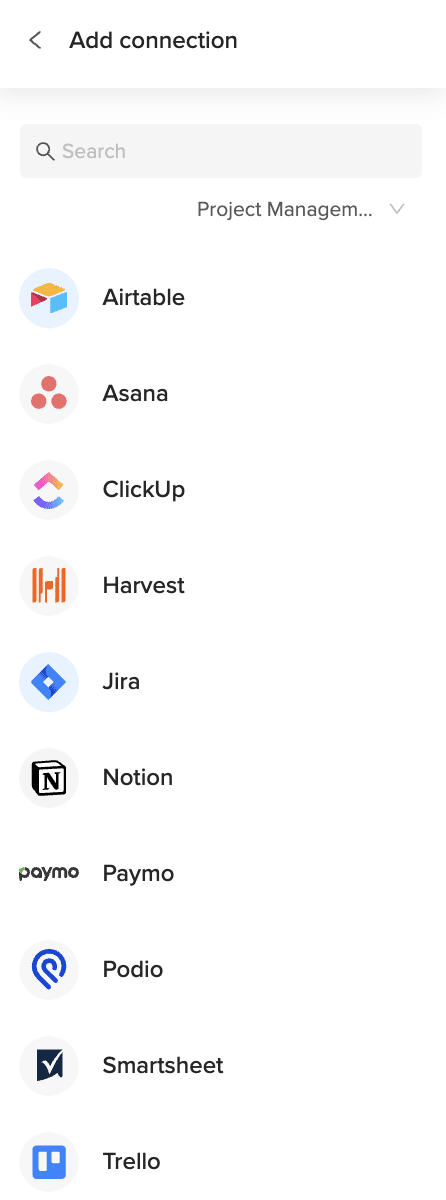
Once installed, open Coefficient from the Extensions menu. Click “”Import from…”” and look for Podio. Follow the prompts to connect your Podio account securely.

Step 2: Select Your Object
In the Coefficient sidebar, choose “”Import from Objects””.
Browse the list of Podio objects and select “”Contacts””.
Step 3: Configure and Import Data
Refine the contacts data you’re importing. Select specific columns like name, email, phone number, company, and associated workspaces or items. Apply filters if needed based on role or workspace.
Click the “”Import”” button, and your Podio contacts data will appear in your Google Sheet.

Step 4: (Optional) Set Up Auto-Refresh
Keep your contact lists current by setting up auto-refresh for your import.
In the Coefficient sidebar for your import configuration, toggle on “”Auto Refresh””. Choose a schedule (like hourly or daily) to automatically update the contacts data. You can also set up email notifications.
Available Podio Objects
- Alerts
- App market
- Applications
- Batch
- Calendar
- Comments
- Contacts
- Conversations
- Devices
- Embeds
- Files
block:related-resources:
How to Import Conversations Data from Podio into Google Sheets
Bringing your Podio Conversations data into Google Sheets helps you track internal messages, review communication history, and analyze team discussions related to your projects.
Stop losing valuable communication data within Podio.
Learn how to quickly import your Conversations data from Podio to Google Sheets using the Coefficient add-on in this simple guide.
TLDR
-
Step 1:
Step 1. Install Coefficient in Google Sheets and connect your Podio account.
-
Step 2:
Step 2. Select Import from Objects and choose the Conversations object.
-
Step 3:
Step 3. Select the conversation details you need and import the data into your sheet.
-
Step 4:
Step 4. Configure auto-refresh to keep your conversations data updated automatically.
block:step-by-step
Here’s how to pull your Podio conversation data directly into Google Sheets with Coefficient.
Step 1: Install Coefficient and Connect to Podio
Open Google Sheets > Extensions > Add-ons > Get add-ons > Install Coefficient from Google Workspace Marketplace
Once installed, open Coefficient from the Extensions menu. Click “”Import from…”” and look for Podio. Follow the prompts to connect your Podio account securely.
Step 2: Select Your Object
In the Coefficient sidebar, choose “”Import from Objects””.
Browse the list of Podio objects and select “”Conversations””.
Step 3: Configure and Import Data
Refine the conversations data you’re importing. Select specific columns like participants, subject, last message date, and associated workspace or item. Apply filters if needed based on participants or date ranges.
Click the “”Import”” button, and your Podio conversations data will appear in your Google Sheet.
Step 4: (Optional) Set Up Auto-Refresh
Keep your record of internal communication current by setting up auto-refresh for your import.
In the Coefficient sidebar for your import configuration, toggle on “”Auto Refresh””. Choose a schedule (like hourly or daily) to automatically update the conversations data. You can also set up email notifications.
Available Podio Objects
- Alerts
- App market
- Applications
- Batch
- Calendar
- Comments
- Contacts
- Conversations
- Devices
- Embeds
- Files
block:related-resources:
How to Import Comments Data from Podio into Google Sheets
Bringing your Podio Comments data into Google Sheets helps you track discussions on specific items or tasks, manage feedback, and analyze team communication.
Stop manually tracking comments across different Podio elements.
Learn how to quickly import your Comments data from Podio to Google Sheets using the Coefficient add-on in this simple guide.
TLDR
-
Step 1:
Step 1. Install Coefficient in Google Sheets and connect your Podio account.
-
Step 2:
Step 2. Select Import from Objects and choose the Comments object.
-
Step 3:
Step 3. Select the comment details you need and import the data into your sheet.
-
Step 4:
Step 4. Configure auto-refresh to keep your comments data updated automatically.
block:step-by-step
Here’s how to pull your Podio comment data directly into Google Sheets with Coefficient.
Step 1: Install Coefficient and Connect to Podio
Open Google Sheets > Extensions > Add-ons > Get add-ons > Install Coefficient from Google Workspace Marketplace
Once installed, open Coefficient from the Extensions menu. Click “”Import from…”” and look for Podio. Follow the prompts to connect your Podio account securely.
Step 2: Select Your Object
In the Coefficient sidebar, choose “”Import from Objects””.
Browse the list of Podio objects and select “”Comments””.
Step 3: Configure and Import Data
Refine the comments data you’re importing. Select specific columns like comment content, author, date, and associated item/task. Apply filters if needed based on author or date ranges.
Click the “”Import”” button, and your Podio comments data will appear in your Google Sheet.
Step 4: (Optional) Set Up Auto-Refresh
Keep your comment tracker current by setting up auto-refresh for your import.
In the Coefficient sidebar for your import configuration, toggle on “”Auto Refresh””. Choose a schedule (like hourly or daily) to automatically update the comments data. You can also set up email notifications.
Available Podio Objects
- Alerts
- App market
- Applications
- Batch
- Calendar
- Comments
- Contacts
- Conversations
- Devices
- Embeds
- Files
block:related-resources:
How to Import Calendar Data from Podio into Google Sheets
Bringing your Podio Calendar data into Google Sheets helps you manage project deadlines, team schedules, and important events in a familiar calendar view or list.
Stop manually transferring calendar items between systems.
Learn how to quickly import your Calendar data from Podio to Google Sheets using the Coefficient add-on in this simple guide.
TLDR
-
Step 1:
Step 1. Install Coefficient in Google Sheets and connect your Podio account.
-
Step 2:
Step 2. Select Import from Objects and choose the Calendar object.
-
Step 3:
Step 3. Select the calendar details you need and import the data into your sheet.
-
Step 4:
Step 4. Configure auto-refresh to keep your calendar data updated automatically.
block:step-by-step
Here’s how to pull your Podio calendar data directly into Google Sheets with Coefficient.
Step 1: Install Coefficient and Connect to Podio
Open Google Sheets > Extensions > Add-ons > Get add-ons > Install Coefficient from Google Workspace Marketplace
Once installed, open Coefficient from the Extensions menu. Click “”Import from…”” and look for Podio. Follow the prompts to connect your Podio account securely.
Step 2: Select Your Object
In the Coefficient sidebar, choose “”Import from Objects””.
Browse the list of Podio objects and select “”Calendar””.
Step 3: Configure and Import Data
Refine the calendar data you’re importing. Select specific columns like event title, start date, end date, participants, and related item or task. Apply filters if needed based on date ranges or participants.
Click the “”Import”” button, and your Podio calendar data will appear in your Google Sheet.
Step 4: (Optional) Set Up Auto-Refresh
Keep your project calendar current by setting up auto-refresh for your import.
In the Coefficient sidebar for your import configuration, toggle on “”Auto Refresh””. Choose a schedule (like hourly or daily) to automatically update the calendar data. You can also set up email notifications.
Available Podio Objects
- Alerts
- App market
- Applications
- Batch
- Calendar
- Comments
- Contacts
- Conversations
- Devices
- Embeds
- Files
block:related-resources:
How to Import App market Data from Podio into Google Sheets
Bringing your Podio App market data into Google Sheets helps you explore available apps, document useful extensions, and plan how to enhance your Podio workflows.
Stop manually searching the app market for useful tools.
Learn how to quickly import your App market data from Podio to Google Sheets using the Coefficient add-on in this simple guide.
TLDR
-
Step 1:
Step 1. Install Coefficient in Google Sheets and connect your Podio account.
-
Step 2:
Step 2. Select Import from Objects and choose the App market object.
-
Step 3:
Step 3. Select the app details you need and import the data into your sheet.
-
Step 4:
Step 4. Configure auto-refresh to keep your app market data updated automatically.
block:step-by-step
Here’s how to pull your Podio app market data directly into Google Sheets with Coefficient.
Step 1: Install Coefficient and Connect to Podio
Open Google Sheets > Extensions > Add-ons > Get add-ons > Install Coefficient from Google Workspace Marketplace
Once installed, open Coefficient from the Extensions menu. Click “”Import from…”” and look for Podio. Follow the prompts to connect your Podio account securely.
Step 2: Select Your Object
In the Coefficient sidebar, choose “”Import from Objects””.
Browse the list of Podio objects and select “”App market””.
Step 3: Configure and Import Data
Refine the app market data you’re importing. Select specific columns like app name, description, rating, and category. Apply filters if needed based on category or rating.
Click the “”Import”” button, and your Podio app market data will appear in your Google Sheet.
Step 4: (Optional) Set Up Auto-Refresh
Keep your documentation of useful Podio apps current by setting up auto-refresh for your import.
In the Coefficient sidebar for your import configuration, toggle on “”Auto Refresh””. Choose a schedule (like hourly or daily) to automatically update the app market data. You can also set up email notifications.
Available Podio Objects
- Alerts
- App market
- Applications
- Batch
- Calendar
- Comments
- Contacts
- Conversations
- Devices
- Embeds
- Files
block:related-resources:
How to Import Batch Data from Podio into Google Sheets
Bringing your Podio Batch data into Google Sheets helps you track the status and results of any batch operations you perform within your workspaces.
Stop manually monitoring batch job progress.
Learn how to quickly import your Batch data from Podio to Google Sheets using the Coefficient add-on in this simple guide.
TLDR
-
Step 1:
Step 1. Install Coefficient in Google Sheets and connect your Podio account.
-
Step 2:
Step 2. Select Import from Objects and choose the Batch object.
-
Step 3:
Step 3. Select the batch details you need and import the data into your sheet.
-
Step 4:
Step 4. Configure auto-refresh to keep your batch data updated automatically.
block:step-by-step
Here’s how to pull your Podio batch data directly into Google Sheets with Coefficient.
Step 1: Install Coefficient and Connect to Podio
Open Google Sheets > Extensions > Add-ons > Get add-ons > Install Coefficient from Google Workspace Marketplace
Once installed, open Coefficient from the Extensions menu. Click “”Import from…”” and look for Podio. Follow the prompts to connect your Podio account securely.
Step 2: Select Your Object
In the Coefficient sidebar, choose “”Import from Objects””.
Browse the list of Podio objects and select “”Batch””.
Step 3: Configure and Import Data
Refine the batch data you’re importing. Select specific columns like batch ID, status, start time, end time, and related items. Apply filters if needed based on status or date ranges.
Click the “”Import”” button, and your Podio batch data will appear in your Google Sheet.
Step 4: (Optional) Set Up Auto-Refresh
Keep your batch operation tracker current by setting up auto-refresh for your import.
In the Coefficient sidebar for your import configuration, toggle on “”Auto Refresh””. Choose a schedule (like hourly or daily) to automatically update the batch data. You can also set up email notifications.
Available Podio Objects
- Alerts
- App market
- Applications
- Batch
- Calendar
- Comments
- Contacts
- Conversations
- Devices
- Embeds
- Files
block:related-resources:
How to Import Alerts Data from Podio into Google Sheets
Bringing your Podio Alerts data into Google Sheets helps you centralize and monitor all your notifications from various workspaces and items in one place.
Stop missing important updates buried within Podio.
Learn how to quickly import your Alerts data from Podio to Google Sheets using the Coefficient add-on in this simple guide.
TLDR
-
Step 1:
Step 1. Install Coefficient in Google Sheets and connect your Podio account.
-
Step 2:
Step 2. Select Import from Objects and choose the Alerts object.
-
Step 3:
Step 3. Select the alert details you need and import the data into your sheet.
-
Step 4:
Step 4. Configure auto-refresh to keep your alerts data updated automatically.
block:step-by-step
Here’s how to pull your Podio alert data directly into Google Sheets with Coefficient.
Step 1: Install Coefficient and Connect to Podio
Open Google Sheets > Extensions > Add-ons > Get add-ons > Install Coefficient from Google Workspace Marketplace
Once installed, open Coefficient from the Extensions menu. Click “”Import from…”” and look for Podio. Follow the prompts to connect your Podio account securely.
Step 2: Select Your Object
In the Coefficient sidebar, choose “”Import from Objects””.
Browse the list of Podio objects and select “”Alerts””.
Step 3: Configure and Import Data
Refine the alerts data you’re importing. Select specific columns like alert type, date, associated item, and related user. Apply filters if needed based on type or date ranges.
Click the “”Import”” button, and your Podio alerts data will appear in your Google Sheet.
Step 4: (Optional) Set Up Auto-Refresh
Keep your alert monitoring sheet current by setting up auto-refresh for your import.
In the Coefficient sidebar for your import configuration, toggle on “”Auto Refresh””. Choose a schedule (like hourly or daily) to automatically update the alerts data. You can also set up email notifications.
Available Podio Objects
- Alerts
- App market
- Applications
- Batch
- Calendar
- Comments
- Contacts
- Conversations
- Devices
- Embeds
- Files
block:related-resources:
How to Import Actions Data from Podio into Google Sheets
Bringing your Podio Actions data into Google Sheets helps you monitor all activity within your workspaces, track user contributions, and analyze project timelines.
Stop manually piecing together activity streams.
Learn how to quickly import your Actions data from Podio to Google Sheets using the Coefficient add-on in this simple guide.
TLDR
-
Step 1:
Step 1. Install Coefficient in Google Sheets and connect your Podio account.
-
Step 2:
Step 2. Select Import from Objects and choose the Actions object.
-
Step 3:
Step 3. Select the action details you need and import the data into your sheet.
-
Step 4:
Step 4. Configure auto-refresh to keep your actions data updated automatically.
block:step-by-step
Here’s how to pull your Podio action data directly into Google Sheets with Coefficient.
Step 1: Install Coefficient and Connect to Podio
Open Google Sheets > Extensions > Add-ons > Get add-ons > Install Coefficient from Google Workspace Marketplace
Once installed, open Coefficient from the Extensions menu. Click “”Import from…”” and look for Podio. It might be under “”Project Management”” or “”Other””. Follow the prompts to connect your Podio account securely.
Step 2: Select Your Object
In the Coefficient sidebar, choose “”Import from Objects””.
Browse the list of Podio objects and select “”Actions””.
Step 3: Configure and Import Data
Refine the actions data you’re importing. Select specific columns like action type, date, user, and related item or task. Apply filters if needed based on user or date ranges.
Click the “”Import”” button, and your Podio actions data will appear in your Google Sheet.
Step 4: (Optional) Set Up Auto-Refresh
Keep your activity log current by setting up auto-refresh for your import.
In the Coefficient sidebar for your import configuration, toggle on “”Auto Refresh””. Choose a schedule (like hourly or daily) to automatically update the actions data. You can also set up email notifications.
Available Podio Objects
- Alerts
- App market
- Applications
- Batch
- Calendar
- Comments
- Contacts
- Conversations
- Devices
- Embeds
- Files
block:related-resources:
How to Import Actions Data from Podio into Excel
Accessing your Podio Actions data in Excel helps you track tasks, analyze workflows, and manage projects more effectively. Manually exporting data is slow and quickly goes out of date.
Using Coefficient creates a live link, keeping your data fresh automatically.
This guide shows you how to easily get your Actions data from Podio right into Excel.
TLDR
-
Step 1:
Step 1. Install Coefficient from the Office Add-ins store and connect to your Podio account.
-
Step 2:
Step 2. Select Import from… and choose the Podio connector.
-
Step 3:
Step 3. Pick the Actions object and configure your import options.
-
Step 4:
Step 4. Import the data to your Excel sheet and set up auto-refresh.
Step-by-step guide to importing Podio Actions into Excel
Step 1: Install and connect Coefficient
First, you need to get Coefficient for Excel.
- Open Excel.
- Go to the Insert tab.
- Click on Get Add-ins.
- Search for “”Coefficient”” and install it from the Office Add-ins store.
- Once installed, open the Coefficient add-in from the Home tab or the Add-ins tab.
- In the Coefficient sidebar, click “”Import from…”” and find the Podio connector. You’ll be guided to log in and connect your Podio account.
Step 2: Import the Actions data
Now that you’re connected, let’s get the data.
- In the Coefficient sidebar, with Podio selected, choose to import from an **Object**.
- Find and select the “”Actions”” object from the list.
- Choose the specific fields you want to bring into Excel.
- Apply any filters or sorting needed for your data.
- Click the “”Import”” button.
Step 3: Set up auto-refresh (Optional)
Keep your Actions data current without manual effort.
- After your data is imported, look for the “”Refresh”” button in the Coefficient sidebar next to your import.
- Click the refresh options icon (usually a small clock or settings gear).
- Choose “”Schedule”” to set up automatic refreshes.
- Select how often you want the data to update (e.g., daily, hourly) and pick a time.
- Save your schedule. Your Actions data will now update on its own.
Available Podio Objects
- Alerts
- App market
- Applications
- Batch
- Calendar
- Comments
- Contacts
- Conversations
- Devices
- Embeds
- Files
How to Import Alerts Data from Podio into Excel
Getting your Podio Alerts data into Excel helps you track important notifications and manage your workflow. Relying on manual exports means dealing with old information fast.
Coefficient provides a direct link that updates your data live.
This guide will walk you through the steps to easily import your Alerts data from Podio into Excel.
TLDR
-
Step 1:
Step 1. Install Coefficient from the Office Add-ins store and connect to your Podio account.
-
Step 2:
Step 2. Choose Import from… and select Podio.
-
Step 3:
Step 3. Select the Alerts object and pick the fields you need.
-
Step 4:
Step 4. Import the data and set up auto-refresh for automatic updates.
Step-by-step guide to importing Podio Alerts into Excel
Step 1: Install and connect Coefficient
Get Coefficient installed in your Excel first.
- Open Excel.
- Go to the Insert tab.
- Click on Get Add-ins.
- Search for and install “”Coefficient”” from the store.
- Launch the Coefficient add-in from the Home or Add-ins tab.
- Click “”Import from…”” in the sidebar and locate the Podio connector. Follow the steps to connect your Podio account.
Step 2: Import the Alerts data
With your account connected, you can now bring in the data.
- In the Coefficient sidebar for Podio, choose to import from an **Object**.
- Select the “”Alerts”” object from the list provided.
- Pick the specific data fields from Alerts that you want in your sheet.
- Set any filters or sort orders if needed.
- Click the “”Import”” button to pull the data into Excel.
Step 3: Set up auto-refresh (Optional)
Keep your Alerts data fresh without manual updates.
- After importing, find your import in the Coefficient sidebar next to the “”Refresh”” button.
- Click the settings icon next to Refresh.
- Select “”Schedule”” to set up automatic updates.
- Choose the frequency (like daily or hourly) and a time for the refresh to happen.
- Save your schedule. Your Alerts data will update automatically.
Available Podio Objects
- Alerts
- App market
- Applications
- Batch
- Calendar
- Comments
- Contacts
- Conversations
- Devices
- Embeds
- Files