Bringing your Podio Linked Accounts data into Google Sheets helps you manage external service connections and monitor the integrations configured for your Podio account.
Stop manually checking linked account details across different services.
Learn how to quickly import your Linked Accounts data from Podio to Google Sheets using the Coefficient add-on in this simple guide.
TLDR
-
Step 1:
Step 1. Install Coefficient in Google Sheets and connect your Podio account.
-
Step 2:
Step 2. Select Import from Objects and choose the Linked Accounts object.
-
Step 3:
Step 3. Select the linked account details you need and import the data into your sheet.
-
Step 4:
Step 4. Configure auto-refresh to keep your linked accounts data updated automatically.
block:step-by-step
Here’s how to pull your Podio linked account data directly into Google Sheets with Coefficient.
Step 1: Install Coefficient and Connect to Podio
Open Google Sheets > Extensions > Add-ons > Get add-ons > Install Coefficient from Google Workspace Marketplace
Once installed, open Coefficient from the Extensions menu. Click “”Import from…”” and look for Podio. Follow the prompts to connect your Podio account securely.

Step 2: Select Your Object
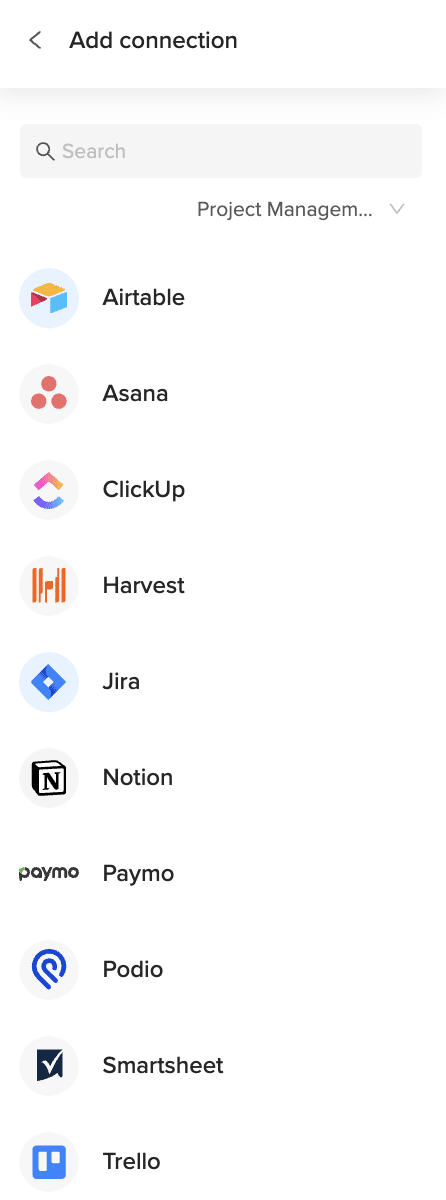
In the Coefficient sidebar, choose “”Import from Objects””.
Browse the list of Podio objects and select “”Linked Accounts””.
Step 3: Configure and Import Data
Refine the linked accounts data you’re importing. Select specific columns like service name, authorized user, and connection status. Apply filters if needed based on service name or status.
Click the “”Import”” button, and your Podio linked accounts data will appear in your Google Sheet.

Step 4: (Optional) Set Up Auto-Refresh
Keep your integration connections documentation current by setting up auto-refresh for your import.
In the Coefficient sidebar for your import configuration, toggle on “”Auto Refresh””. Choose a schedule (like hourly or daily) to automatically update the linked accounts data. You can also set up email notifications.
Available Podio Objects
- Alerts
- App market
- Applications
- Batch
- Calendar
- Comments
- Contacts
- Conversations
- Devices
- Embeds
- Files
block:related-resources:
How to Import Layout Data from Podio into Google Sheets
Bringing your Podio Layout data into Google Sheets helps you document the structure of your Podio apps, understand field types, and plan modifications to your workspace layouts.
Stop manually reviewing app layouts within Podio settings.
Learn how to quickly import your Layout data from Podio to Google Sheets using the Coefficient add-on in this simple guide.
TLDR
-
Step 1:
Step 1. Install Coefficient in Google Sheets and connect your Podio account.
-
Step 2:
Step 2. Select Import from Objects and choose the Layout object.
-
Step 3:
Step 3. Select the layout details you need and import the data into your sheet.
-
Step 4:
Step 4. Configure auto-refresh to keep your layout data updated automatically.
block:step-by-step
Here’s how to pull your Podio layout data directly into Google Sheets with Coefficient.
Step 1: Install Coefficient and Connect to Podio
Open Google Sheets > Extensions > Add-ons > Get add-ons > Install Coefficient from Google Workspace Marketplace
Once installed, open Coefficient from the Extensions menu. Click “”Import from…”” and look for Podio. Follow the prompts to connect your Podio account securely.
Step 2: Select Your Object
In the Coefficient sidebar, choose “”Import from Objects””.
Browse the list of Podio objects and select “”Layout””.
Step 3: Configure and Import Data
Refine the layout data you’re importing. Select specific columns like app name, field name, field type, and settings. Apply filters if needed based on app name or field type.
Click the “”Import”” button, and your Podio layout data will appear in your Google Sheet.
Step 4: (Optional) Set Up Auto-Refresh
Keep your app structure documentation current by setting up auto-refresh for your import.
In the Coefficient sidebar for your import configuration, toggle on “”Auto Refresh””. Choose a schedule (like hourly or daily) to automatically update the layout data. You can also set up email notifications.
Available Podio Objects
- Alerts
- App market
- Applications
- Batch
- Calendar
- Comments
- Contacts
- Conversations
- Devices
- Embeds
- Files
block:related-resources:
How to Import Items Data from Podio into Google Sheets
Bringing your core Podio Items data into Google Sheets helps you manage project details, track work progress, and analyze the data within your Podio apps.
Stop manually exporting item lists for reporting or analysis.
Learn how to quickly import your Items data from Podio to Google Sheets using the Coefficient add-on in this simple guide.
TLDR
-
Step 1:
Step 1. Install Coefficient in Google Sheets and connect your Podio account.
-
Step 2:
Step 2. Select Import from Objects and choose the Items object.
-
Step 3:
Step 3. Select the item fields you need and import the data into your sheet.
-
Step 4:
Step 4. Configure auto-refresh to keep your items data updated automatically.
block:step-by-step
Here’s how to pull your core Podio item data directly into Google Sheets with Coefficient.
Step 1: Install Coefficient and Connect to Podio
Open Google Sheets > Extensions > Add-ons > Get add-ons > Install Coefficient from Google Workspace Marketplace
Once installed, open Coefficient from the Extensions menu. Click “”Import from…”” and look for Podio. Follow the prompts to connect your Podio account securely.
Step 2: Select Your Object
In the Coefficient sidebar, choose “”Import from Objects””.
Browse the list of Podio objects and select “”Items””.
Step 3: Configure and Import Data
Refine the items data you’re importing. Select specific columns based on the fields in your Podio apps. Apply filters if needed based on status, assignee, or date ranges.
Click the “”Import”” button, and your Podio items data will appear in your Google Sheet.
Step 4: (Optional) Set Up Auto-Refresh
Keep your project tracker or data analysis current by setting up auto-refresh for your import.
In the Coefficient sidebar for your import configuration, toggle on “”Auto Refresh””. Choose a schedule (like hourly or daily) to automatically update the items data. You can also set up email notifications.
Available Podio Objects
- Alerts
- App market
- Applications
- Batch
- Calendar
- Comments
- Contacts
- Conversations
- Devices
- Embeds
- Files
block:related-resources:
How to Import Importer Data from Podio into Google Sheets
Bringing your Podio Importer data into Google Sheets helps you track the status and results of any data import operations you perform within your workspaces.
Stop manually monitoring import job progress.
Learn how to quickly import your Importer data from Podio to Google Sheets using the Coefficient add-on in this simple guide.
TLDR
-
Step 1:
Step 1. Install Coefficient in Google Sheets and connect your Podio account.
-
Step 2:
Step 2. Select Import from Objects and choose the Importer object.
-
Step 3:
Step 3. Select the importer details you need and import the data into your sheet.
-
Step 4:
Step 4. Configure auto-refresh to keep your importer data updated automatically.
block:step-by-step
Here’s how to pull your Podio importer data directly into Google Sheets with Coefficient.
Step 1: Install Coefficient and Connect to Podio
Open Google Sheets > Extensions > Add-ons > Get add-ons > Install Coefficient from Google Workspace Marketplace
Once installed, open Coefficient from the Extensions menu. Click “”Import from…”” and look for Podio. Follow the prompts to connect your Podio account securely.
Step 2: Select Your Object
In the Coefficient sidebar, choose “”Import from Objects””.
Browse the list of Podio objects and select “”Importer””.
Step 3: Configure and Import Data
Refine the importer data you’re importing. Select specific columns like import ID, status, file name, start time, end time, and number of items imported. Apply filters if needed based on status or date ranges.
Click the “”Import”” button, and your Podio importer data will appear in your Google Sheet.
Step 4: (Optional) Set Up Auto-Refresh
Keep your import history tracker current by setting up auto-refresh for your import.
In the Coefficient sidebar for your import configuration, toggle on “”Auto Refresh””. Choose a schedule (like hourly or daily) to automatically update the importer data. You can also set up email notifications.
Available Podio Objects
- Alerts
- App market
- Applications
- Batch
- Calendar
- Comments
- Contacts
- Conversations
- Devices
- Embeds
- Files
block:related-resources:
How to Import Grants Data from Podio into Google Sheets
Bringing your Podio Grants data into Google Sheets helps you manage user permissions, track access levels, and ensure proper control over your workspace data.
Stop manually verifying access rights within Podio settings.
Learn how to quickly import your Grants data from Podio to Google Sheets using the Coefficient add-on in this simple guide.
TLDR
-
Step 1:
Step 1. Install Coefficient in Google Sheets and connect your Podio account.
-
Step 2:
Step 2. Select Import from Objects and choose the Grants object.
-
Step 3:
Step 3. Select the grant details you need and import the data into your sheet.
-
Step 4:
Step 4. Configure auto-refresh to keep your grants data updated automatically.
block:step-by-step
Here’s how to pull your Podio grants data directly into Google Sheets with Coefficient.
Step 1: Install Coefficient and Connect to Podio
Open Google Sheets > Extensions > Add-ons > Get add-ons > Install Coefficient from Google Workspace Marketplace
Once installed, open Coefficient from the Extensions menu. Click “”Import from…”” and look for Podio. Follow the prompts to connect your Podio account securely.
Step 2: Select Your Object
In the Coefficient sidebar, choose “”Import from Objects””.
Browse the list of Podio objects and select “”Grants””.
Step 3: Configure and Import Data
Refine the grants data you’re importing. Select specific columns like user, workspace, access level, and granted by. Apply filters if needed based on user or access level.
Click the “”Import”” button, and your Podio grants data will appear in your Google Sheet.
Step 4: (Optional) Set Up Auto-Refresh
Keep your access control documentation current by setting up auto-refresh for your import.
In the Coefficient sidebar for your import configuration, toggle on “”Auto Refresh””. Choose a schedule (like hourly or daily) to automatically update the grants data. You can also set up email notifications.
Available Podio Objects
- Alerts
- App market
- Applications
- Batch
- Calendar
- Comments
- Contacts
- Conversations
- Devices
- Embeds
- Files
block:related-resources:
How to Import Forms Data from Podio into Google Sheets
Bringing your Podio Forms data into Google Sheets helps you manage webforms, track submissions from clients or colleagues, and analyze your data collection efforts.
Stop manually tracking form responses outside of Podio.
Learn how to quickly import your Forms data from Podio to Google Sheets using the Coefficient add-on in this simple guide.
TLDR
-
Step 1:
Step 1. Install Coefficient in Google Sheets and connect your Podio account.
-
Step 2:
Step 2. Select Import from Objects and choose the Forms object.
-
Step 3:
Step 3. Select the form details you need and import the data into your sheet.
-
Step 4:
Step 4. Configure auto-refresh to keep your forms data updated automatically.
block:step-by-step
Here’s how to pull your Podio form data directly into Google Sheets with Coefficient.
Step 1: Install Coefficient and Connect to Podio
Open Google Sheets > Extensions > Add-ons > Get add-ons > Install Coefficient from Google Workspace Marketplace
Once installed, open Coefficient from the Extensions menu. Click “”Import from…”” and look for Podio. Follow the prompts to connect your Podio account securely.
Step 2: Select Your Object
In the Coefficient sidebar, choose “”Import from Objects””.
Browse the list of Podio objects and select “”Forms””.
Step 3: Configure and Import Data
Refine the forms data you’re importing. Select specific columns like form name, description, URL, and associated app. Apply filters if needed based on the associated app.
Click the “”Import”” button, and your Podio forms data will appear in your Google Sheet.
Step 4: (Optional) Set Up Auto-Refresh
Keep your form documentation and submission tracking current by setting up auto-refresh for your import.
In the Coefficient sidebar for your import configuration, toggle on “”Auto Refresh””. Choose a schedule (like hourly or daily) to automatically update the forms data. You can also set up email notifications.
Available Podio Objects
- Alerts
- App market
- Applications
- Batch
- Calendar
- Comments
- Contacts
- Conversations
- Devices
- Embeds
- Files
block:related-resources:
How to Import Files Data from Podio into Google Sheets
Bringing your Podio Files data into Google Sheets helps you track documents uploaded to items and workspaces, manage project assets, and ensure everyone has access to the right files.
Stop manually searching for files across different Podio items.
Learn how to quickly import your Files data from Podio to Google Sheets using the Coefficient add-on in this simple guide.
TLDR
-
Step 1:
Step 1. Install Coefficient in Google Sheets and connect your Podio account.
-
Step 2:
Step 2. Select Import from Objects and choose the Files object.
-
Step 3:
Step 3. Select the file details you need and import the data into your sheet.
-
Step 4:
Step 4. Configure auto-refresh to keep your files data updated automatically.
block:step-by-step
Here’s how to pull your Podio file data directly into Google Sheets with Coefficient.
Step 1: Install Coefficient and Connect to Podio
Open Google Sheets > Extensions > Add-ons > Get add-ons > Install Coefficient from Google Workspace Marketplace
Once installed, open Coefficient from the Extensions menu. Click “”Import from…”” and look for Podio. Follow the prompts to connect your Podio account securely.
Step 2: Select Your Object
In the Coefficient sidebar, choose “”Import from Objects””.
Browse the list of Podio objects and select “”Files””.
Step 3: Configure and Import Data
Refine the files data you’re importing. Select specific columns like file name, size, type, upload date, uploader, and associated item or workspace. Apply filters if needed based on type or date ranges.
Click the “”Import”” button, and your Podio files data will appear in your Google Sheet.
Step 4: (Optional) Set Up Auto-Refresh
Keep your file tracker current by setting up auto-refresh for your import.
In the Coefficient sidebar for your import configuration, toggle on “”Auto Refresh””. Choose a schedule (like hourly or daily) to automatically update the files data. You can also set up email notifications.
Available Podio Objects
- Alerts
- App market
- Applications
- Batch
- Calendar
- Comments
- Contacts
- Conversations
- Devices
- Embeds
- Files
block:related-resources:
How to Import Email Data from Podio into Google Sheets
Bringing your Podio Email data into Google Sheets helps you track emails that have been linked to specific items or tasks, providing a centralized communication history.
Stop manually searching through emails to find context related to your Podio work.
Learn how to quickly import your Email data from Podio to Google Sheets using the Coefficient add-on in this simple guide.
TLDR
-
Step 1:
Step 1. Install Coefficient in Google Sheets and connect your Podio account.
-
Step 2:
Step 2. Select Import from Objects and choose the Email object.
-
Step 3:
Step 3. Select the email details you need and import the data into your sheet.
-
Step 4:
Step 4. Configure auto-refresh to keep your email data updated automatically.
block:step-by-step
Here’s how to pull your Podio email data directly into Google Sheets with Coefficient.
Step 1: Install Coefficient and Connect to Podio
Open Google Sheets > Extensions > Add-ons > Get add-ons > Install Coefficient from Google Workspace Marketplace
Once installed, open Coefficient from the Extensions menu. Click “”Import from…”” and look for Podio. Follow the prompts to connect your Podio account securely.
Step 2: Select Your Object
In the Coefficient sidebar, choose “”Import from Objects””.
Browse the list of Podio objects and select “”Email””.
Step 3: Configure and Import Data
Refine the email data you’re importing. Select specific columns like subject, sender, recipients, date, and associated item. Apply filters if needed based on date ranges or items.
Click the “”Import”” button, and your Podio email data will appear in your Google Sheet.
Step 4: (Optional) Set Up Auto-Refresh
Keep your communication history current by setting up auto-refresh for your import.
In the Coefficient sidebar for your import configuration, toggle on “”Auto Refresh””. Choose a schedule (like hourly or daily) to automatically update the email data. You can also set up email notifications.
Available Podio Objects
- Alerts
- App market
- Applications
- Batch
- Calendar
- Comments
- Contacts
- Conversations
- Devices
- Embeds
- Files
block:related-resources:
How to Import Embeds Data from Podio into Google Sheets
Bringing your Podio Embeds data into Google Sheets helps you track external content that has been embedded within your items, such as videos, documents, or links.
Stop manually tracking embedded resources related to your project work.
Learn how to quickly import your Embeds data from Podio to Google Sheets using the Coefficient add-on in this simple guide.
TLDR
-
Step 1:
Step 1. Install Coefficient in Google Sheets and connect your Podio account.
-
Step 2:
Step 2. Select Import from Objects and choose the Embeds object.
-
Step 3:
Step 3. Select the embed details you need and import the data into your sheet.
-
Step 4:
Step 4. Configure auto-refresh to keep your embeds data updated automatically.
block:step-by-step
Here’s how to pull your Podio embeds data directly into Google Sheets with Coefficient.
Step 1: Install Coefficient and Connect to Podio
Open Google Sheets > Extensions > Add-ons > Get add-ons > Install Coefficient from Google Workspace Marketplace
Once installed, open Coefficient from the Extensions menu. Click “”Import from…”” and look for Podio. Follow the prompts to connect your Podio account securely.
Step 2: Select Your Object
In the Coefficient sidebar, choose “”Import from Objects””.
Browse the list of Podio objects and select “”Embeds””.
Step 3: Configure and Import Data
Refine the embeds data you’re importing. Select specific columns like URL, title, type, and associated item. Apply filters if needed based on type or item.
Click the “”Import”” button, and your Podio embeds data will appear in your Google Sheet.
Step 4: (Optional) Set Up Auto-Refresh
Keep your documentation of embedded resources current by setting up auto-refresh for your import.
In the Coefficient sidebar for your import configuration, toggle on “”Auto Refresh””. Choose a schedule (like hourly or daily) to automatically update the embeds data. You can also set up email notifications.
Available Podio Objects
- Alerts
- App market
- Applications
- Batch
- Calendar
- Comments
- Contacts
- Conversations
- Devices
- Embeds
- Files
block:related-resources:
How to Import Devices Data from Podio into Google Sheets
Bringing your Podio Devices data into Google Sheets helps you track which devices are connected to your account, manage access, and monitor usage patterns.
Stop manually checking connected devices within Podio settings.
Learn how to quickly import your Devices data from Podio to Google Sheets using the Coefficient add-on in this simple guide.
TLDR
-
Step 1:
Step 1. Install Coefficient in Google Sheets and connect your Podio account.
-
Step 2:
Step 2. Select Import from Objects and choose the Devices object.
-
Step 3:
Step 3. Select the device details you need and import the data into your sheet.
-
Step 4:
Step 4. Configure auto-refresh to keep your devices data updated automatically.
block:step-by-step
Here’s how to pull your Podio device data directly into Google Sheets with Coefficient.
Step 1: Install Coefficient and Connect to Podio
Open Google Sheets > Extensions > Add-ons > Get add-ons > Install Coefficient from Google Workspace Marketplace
Once installed, open Coefficient from the Extensions menu. Click “”Import from…”” and look for Podio. Follow the prompts to connect your Podio account securely.
Step 2: Select Your Object
In the Coefficient sidebar, choose “”Import from Objects””.
Browse the list of Podio objects and select “”Devices””.
Step 3: Configure and Import Data
Refine the devices data you’re importing. Select specific columns like device name, last activity date, and associated user. Apply filters if needed based on user or activity date.
Click the “”Import”” button, and your Podio devices data will appear in your Google Sheet.
Step 4: (Optional) Set Up Auto-Refresh
Keep your device tracker current by setting up auto-refresh for your import.
In the Coefficient sidebar for your import configuration, toggle on “”Auto Refresh””. Choose a schedule (like hourly or daily) to automatically update the devices data. You can also set up email notifications.
Available Podio Objects
- Alerts
- App market
- Applications
- Batch
- Calendar
- Comments
- Contacts
- Conversations
- Devices
- Embeds
- Files