Bringing your Podio Stream data into Google Sheets helps you track activity feeds, monitor project updates in real-time, and review historical actions across your workspaces and items.
Stop manually scrolling through the stream within Podio for reporting or analysis.
Learn how to quickly import your Stream data from Podio to Google Sheets using the Coefficient add-on in this simple guide.
TLDR
-
Step 1:
Step 1. Install Coefficient in Google Sheets and connect your Podio account.
-
Step 2:
Step 2. Select Import from Objects and choose the Stream object.
-
Step 3:
Step 3. Select the stream details you need and import the data into your sheet.
-
Step 4:
Step 4. Configure auto-refresh to keep your stream data updated automatically.
block:step-by-step
Here’s how to pull your Podio stream data directly into Google Sheets with Coefficient.
Step 1: Install Coefficient and Connect to Podio
Open Google Sheets > Extensions > Add-ons > Get add-ons > Install Coefficient from Google Workspace Marketplace
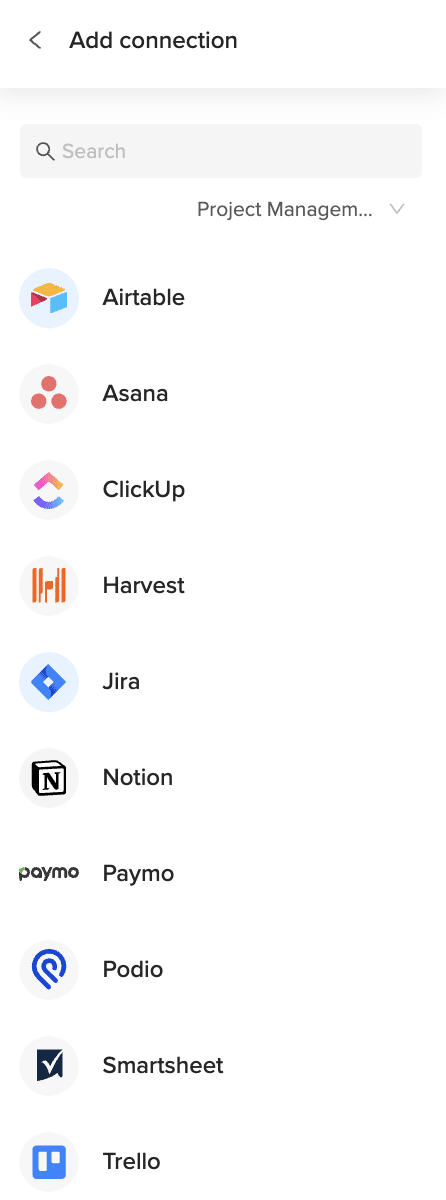
Once installed, open Coefficient from the Extensions menu. Click “”Import from…”” and look for Podio. Follow the prompts to connect your Podio account securely.

Step 2: Select Your Object
In the Coefficient sidebar, choose “”Import from Objects””.
Browse the list of Podio objects and select “”Stream””.
Step 3: Configure and Import Data
Refine the stream data you’re importing. Select specific columns like activity type, date, user, and related item or task. Apply filters if needed based on user or date ranges.
Click the “”Import”” button, and your Podio stream data will appear in your Google Sheet.

Step 4: (Optional) Set Up Auto-Refresh
Keep your activity log current by setting up auto-refresh for your import.
In the Coefficient sidebar for your import configuration, toggle on “”Auto Refresh””. Choose a schedule (like hourly or daily) to automatically update the stream data. You can also set up email notifications.
Available Podio Objects
- Alerts
- App market
- Applications
- Batch
- Calendar
- Comments
- Contacts
- Conversations
- Devices
- Embeds
- Files
block:related-resources:
How to Import Subscriptions Data from Podio into Google Sheets
Bringing your Podio Subscriptions data into Google Sheets helps you track which items, tasks, or workspaces you are following and manage your notification preferences efficiently.
Stop manually checking your subscriptions list within Podio.
Learn how to quickly import your Subscriptions data from Podio to Google Sheets using the Coefficient add-on in this simple guide.
TLDR
-
Step 1:
Step 1. Install Coefficient in Google Sheets and connect your Podio account.
-
Step 2:
Step 2. Select Import from Objects and choose the Subscriptions object.
-
Step 3:
Step 3. Select the subscription details you need and import the data into your sheet.
-
Step 4:
Step 4. Configure auto-refresh to keep your subscriptions data updated automatically.
block:step-by-step
Here’s how to pull your Podio subscription data directly into Google Sheets with Coefficient.
Step 1: Install Coefficient and Connect to Podio
Open Google Sheets > Extensions > Add-ons > Get add-ons > Install Coefficient from Google Workspace Marketplace
Once installed, open Coefficient from the Extensions menu. Click “”Import from…”” and look for Podio. Follow the prompts to connect your Podio account securely.
Step 2: Select Your Object
In the Coefficient sidebar, choose “”Import from Objects””.
Browse the list of Podio objects and select “”Subscriptions””.
Step 3: Configure and Import Data
Refine the subscriptions data you’re importing. Select specific columns like subscribed item/workspace, user, and date subscribed. Apply filters if needed based on user or item type.
Click the “”Import”” button, and your Podio subscriptions data will appear in your Google Sheet.
Step 4: (Optional) Set Up Auto-Refresh
Keep your subscription tracker current by setting up auto-refresh for your import.
In the Coefficient sidebar for your import configuration, toggle on “”Auto Refresh””. Choose a schedule (like hourly or daily) to automatically update the subscriptions data. You can also set up email notifications.
Available Podio Objects
- Alerts
- App market
- Applications
- Batch
- Calendar
- Comments
- Contacts
- Conversations
- Devices
- Embeds
- Files
block:related-resources:
How to Import Status Data from Podio into Google Sheets
Bringing your Podio Status data into Google Sheets helps you track the progress of your items and tasks, manage project milestones, and analyze workflow states across your workspaces.
Stop manually tracking status updates for individual items.
Learn how to quickly import your Status data from Podio to Google Sheets using the Coefficient add-on in this simple guide.
TLDR
-
Step 1:
Step 1. Install Coefficient in Google Sheets and connect your Podio account.
-
Step 2:
Step 2. Select Import from Objects and choose the Status object.
-
Step 3:
Step 3. Select the status details you need and import the data into your sheet.
-
Step 4:
Step 4. Configure auto-refresh to keep your status data updated automatically.
block:step-by-step
Here’s how to pull your Podio status data directly into Google Sheets with Coefficient.
Step 1: Install Coefficient and Connect to Podio
Open Google Sheets > Extensions > Add-ons > Get add-ons > Install Coefficient from Google Workspace Marketplace
Once installed, open Coefficient from the Extensions menu. Click “”Import from…”” and look for Podio. Follow the prompts to connect your Podio account securely.
Step 2: Select Your Object
In the Coefficient sidebar, choose “”Import from Objects””.
Browse the list of Podio objects and select “”Status””.
Step 3: Configure and Import Data
Refine the status data you’re importing. Select specific columns like status value, color, and associated items or tasks. Apply filters if needed based on status value or associated items.
Click the “”Import”” button, and your Podio status data will appear in your Google Sheet.
Step 4: (Optional) Set Up Auto-Refresh
Keep your status tracker current by setting up auto-refresh for your import.
In the Coefficient sidebar for your import configuration, toggle on “”Auto Refresh””. Choose a schedule (like hourly or daily) to automatically update the status data. You can also set up email notifications.
Available Podio Objects
- Alerts
- App market
- Applications
- Batch
- Calendar
- Comments
- Contacts
- Conversations
- Devices
- Embeds
- Files
block:related-resources:
How to Import Spaces Data from Podio into Google Sheets
Bringing your Podio Spaces data into Google Sheets helps you manage your different workspaces, track memberships, and maintain an overview of your collaboration areas.
Stop manually tracking space details and members within Podio.
Learn how to quickly import your Spaces data from Podio to Google Sheets using the Coefficient add-on in this simple guide.
TLDR
-
Step 1:
Step 1. Install Coefficient in Google Sheets and connect your Podio account.
-
Step 2:
Step 2. Select Import from Objects and choose the Spaces object.
-
Step 3:
Step 3. Select the space details you need and import the data into your sheet.
-
Step 4:
Step 4. Configure auto-refresh to keep your spaces data updated automatically.
block:step-by-step
Here’s how to pull your Podio space data directly into Google Sheets with Coefficient.
Step 1: Install Coefficient and Connect to Podio
Open Google Sheets > Extensions > Add-ons > Get add-ons > Install Coefficient from Google Workspace Marketplace
Once installed, open Coefficient from the Extensions menu. Click “”Import from…”” and look for Podio. Follow the prompts to connect your Podio account securely.
Step 2: Select Your Object
In the Coefficient sidebar, choose “”Import from Objects””.
Browse the list of Podio objects and select “”Spaces””.
Step 3: Configure and Import Data
Refine the spaces data you’re importing. Select specific columns like space name, description, type, and number of members. Apply filters if needed based on type or name.
Click the “”Import”” button, and your Podio spaces data will appear in your Google Sheet.
Step 4: (Optional) Set Up Auto-Refresh
Keep your workspace documentation current by setting up auto-refresh for your import.
In the Coefficient sidebar for your import configuration, toggle on “”Auto Refresh””. Choose a schedule (like hourly or daily) to automatically update the spaces data. You can also set up email notifications.
Available Podio Objects
- Alerts
- App market
- Applications
- Batch
- Calendar
- Comments
- Contacts
- Conversations
- Devices
- Embeds
- Files
block:related-resources:
How to Import Search Data from Podio into Google Sheets
Bringing your Podio Search data into Google Sheets helps you understand which content is searchable within your workspaces and document data accessibility for your team.
Stop manually checking search capabilities within Podio settings.
Learn how to quickly import your Search data from Podio to Google Sheets using the Coefficient add-on in this simple guide.
TLDR
-
Step 1:
Step 1. Install Coefficient in Google Sheets and connect your Podio account.
-
Step 2:
Step 2. Select Import from Objects and choose the Search object.
-
Step 3:
Step 3. Select the search details you need and import the data into your sheet.
-
Step 4:
Step 4. Configure auto-refresh to keep your search data updated automatically.
block:step-by-step
Here’s how to pull your Podio search data directly into Google Sheets with Coefficient.
Step 1: Install Coefficient and Connect to Podio
Open Google Sheets > Extensions > Add-ons > Get add-ons > Install Coefficient from Google Workspace Marketplace
Once installed, open Coefficient from the Extensions menu. Click “”Import from…”” and look for Podio. Follow the prompts to connect your Podio account securely.
Step 2: Select Your Object
In the Coefficient sidebar, choose “”Import from Objects””.
Browse the list of Podio objects and select “”Search””.
Step 3: Configure and Import Data
Refine the search data you’re importing. Select specific columns like searchable field names, associated apps, and types. Apply filters if needed based on app or field type.
Click the “”Import”” button, and your Podio search data will appear in your Google Sheet.
Step 4: (Optional) Set Up Auto-Refresh
Keep your documentation of searchable content current by setting up auto-refresh for your import.
In the Coefficient sidebar for your import configuration, toggle on “”Auto Refresh””. Choose a schedule (like hourly or daily) to automatically update the search data. You can also set up email notifications.
Available Podio Objects
- Alerts
- App market
- Applications
- Batch
- Calendar
- Comments
- Contacts
- Conversations
- Devices
- Embeds
- Files
block:related-resources:
How to Import Reminders Data from Podio into Google Sheets
Bringing your Podio Reminders data into Google Sheets helps you track upcoming deadlines, manage follow-up tasks, and ensure you stay organized across all your projects and items.
Stop manually tracking reminders scattered throughout Podio.
Learn how to quickly import your Reminders data from Podio to Google Sheets using the Coefficient add-on in this simple guide.
TLDR
-
Step 1:
Step 1. Install Coefficient in Google Sheets and connect your Podio account.
-
Step 2:
Step 2. Select Import from Objects and choose the Reminders object.
-
Step 3:
Step 3. Select the reminder details you need and import the data into your sheet.
-
Step 4:
Step 4. Configure auto-refresh to keep your reminders data updated automatically.
block:step-by-step
Here’s how to pull your Podio reminder data directly into Google Sheets with Coefficient.
Step 1: Install Coefficient and Connect to Podio
Open Google Sheets > Extensions > Add-ons > Get add-ons > Install Coefficient from Google Workspace Marketplace
Once installed, open Coefficient from the Extensions menu. Click “”Import from…”” and look for Podio. Follow the prompts to connect your Podio account securely.
Step 2: Select Your Object
In the Coefficient sidebar, choose “”Import from Objects””.
Browse the list of Podio objects and select “”Reminders””.
Step 3: Configure and Import Data
Refine the reminders data you’re importing. Select specific columns like reminder date, time, message, and associated item or task. Apply filters if needed based on date ranges or items.
Click the “”Import”” button, and your Podio reminders data will appear in your Google Sheet.
Step 4: (Optional) Set Up Auto-Refresh
Keep your reminder tracker current by setting up auto-refresh for your import.
In the Coefficient sidebar for your import configuration, toggle on “”Auto Refresh””. Choose a schedule (like hourly or daily) to automatically update the reminders data. You can also set up email notifications.
Available Podio Objects
- Alerts
- App market
- Applications
- Batch
- Calendar
- Comments
- Contacts
- Conversations
- Devices
- Embeds
- Files
block:related-resources:
How to Import Questions Data from Podio into Google Sheets
Bringing your Podio Questions data into Google Sheets helps you track questions asked on items or tasks, manage knowledge sharing, and analyze common queries within your workspaces.
Stop manually searching for answers across different Podio items.
Learn how to quickly import your Questions data from Podio to Google Sheets using the Coefficient add-on in this simple guide.
TLDR
-
Step 1:
Step 1. Install Coefficient in Google Sheets and connect your Podio account.
-
Step 2:
Step 2. Select Import from Objects and choose the Questions object.
-
Step 3:
Step 3. Select the question details you need and import the data into your sheet.
-
Step 4:
Step 4. Configure auto-refresh to keep your questions data updated automatically.
block:step-by-step
Here’s how to pull your Podio question data directly into Google Sheets with Coefficient.
Step 1: Install Coefficient and Connect to Podio
Open Google Sheets > Extensions > Add-ons > Get add-ons > Install Coefficient from Google Workspace Marketplace
Once installed, open Coefficient from the Extensions menu. Click “”Import from…”” and look for Podio. Follow the prompts to connect your Podio account securely.
Step 2: Select Your Object
In the Coefficient sidebar, choose “”Import from Objects””.
Browse the list of Podio objects and select “”Questions””.
Step 3: Configure and Import Data
Refine the questions data you’re importing. Select specific columns like question content, author, date, and associated item or task. Apply filters if needed based on author or date ranges.
Click the “”Import”” button, and your Podio questions data will appear in your Google Sheet.
Step 4: (Optional) Set Up Auto-Refresh
Keep your question log current by setting up auto-refresh for your import.
In the Coefficient sidebar for your import configuration, toggle on “”Auto Refresh””. Choose a schedule (like hourly or daily) to automatically update the questions data. You can also set up email notifications.
Available Podio Objects
- Alerts
- App market
- Applications
- Batch
- Calendar
- Comments
- Contacts
- Conversations
- Devices
- Embeds
- Files
block:related-resources:
How to Import Reference Data from Podio into Google Sheets
Bringing your Podio Reference data into Google Sheets helps you track relationships between different items, understand linked data across your apps, and visualize connections.
Stop manually tracing relationships between related items in Podio.
Learn how to quickly import your Reference data from Podio to Google Sheets using the Coefficient add-on in this simple guide.
TLDR
-
Step 1:
Step 1. Install Coefficient in Google Sheets and connect your Podio account.
-
Step 2:
Step 2. Select Import from Objects and choose the Reference object.
-
Step 3:
Step 3. Select the reference details you need and import the data into your sheet.
-
Step 4:
Step 4. Configure auto-refresh to keep your reference data updated automatically.
block:step-by-step
Here’s how to pull your Podio reference data directly into Google Sheets with Coefficient.
Step 1: Install Coefficient and Connect to Podio
Open Google Sheets > Extensions > Add-ons > Get add-ons > Install Coefficient from Google Workspace Marketplace
Once installed, open Coefficient from the Extensions menu. Click “”Import from…”” and look for Podio. Follow the prompts to connect your Podio account securely.
Step 2: Select Your Object
In the Coefficient sidebar, choose “”Import from Objects””.
Browse the list of Podio objects and select “”Reference””.
Step 3: Configure and Import Data
Refine the reference data you’re importing. Select specific columns like referencing item, referenced item, and relationship type. Apply filters if needed to focus on specific relationships or items.
Click the “”Import”” button, and your Podio reference data will appear in your Google Sheet.
Step 4: (Optional) Set Up Auto-Refresh
Keep your relationship mapping current by setting up auto-refresh for your import.
In the Coefficient sidebar for your import configuration, toggle on “”Auto Refresh””. Choose a schedule (like hourly or daily) to automatically update the reference data. You can also set up email notifications.
Available Podio Objects
- Alerts
- App market
- Applications
- Batch
- Calendar
- Comments
- Contacts
- Conversations
- Devices
- Embeds
- Files
block:related-resources:
How to Import OAuth authorization Data from Podio into Google Sheets
Bringing your Podio OAuth authorization data into Google Sheets helps you track which external applications have been authorized to access your Podio data and manage these connections.
Stop manually reviewing authorized apps within Podio settings.
Learn how to quickly import your OAuth authorization data from Podio to Google Sheets using the Coefficient add-on in this simple guide.
TLDR
-
Step 1:
Step 1. Install Coefficient in Google Sheets and connect your Podio account.
-
Step 2:
Step 2. Select Import from Objects and choose the OAuth authorization object.
-
Step 3:
Step 3. Select the authorization details you need and import the data into your sheet.
-
Step 4:
Step 4. Configure auto-refresh to keep your OAuth authorization data updated automatically.
block:step-by-step
Here’s how to pull your Podio OAuth authorization data directly into Google Sheets with Coefficient.
Step 1: Install Coefficient and Connect to Podio
Open Google Sheets > Extensions > Add-ons > Get add-ons > Install Coefficient from Google Workspace Marketplace
Once installed, open Coefficient from the Extensions menu. Click “”Import from…”” and look for Podio. Follow the prompts to connect your Podio account securely.
Step 2: Select Your Object
In the Coefficient sidebar, choose “”Import from Objects””.
Browse the list of Podio objects and select “”OAuth authorization””.
Step 3: Configure and Import Data
Refine the authorization data you’re importing. Select specific columns like authorized app name, user, date granted, and scopes. Apply filters if needed based on app name or user.
Click the “”Import”” button, and your Podio OAuth authorization data will appear in your Google Sheet.
Step 4: (Optional) Set Up Auto-Refresh
Keep your authorization documentation current by setting up auto-refresh for your import.
In the Coefficient sidebar for your import configuration, toggle on “”Auto Refresh””. Choose a schedule (like hourly or daily) to automatically update the authorization data. You can also set up email notifications.
Available Podio Objects
- Alerts
- App market
- Applications
- Batch
- Calendar
- Comments
- Contacts
- Conversations
- Devices
- Embeds
- Files
block:related-resources:
How to Import Notifications Data from Podio into Google Sheets
Bringing your Podio Notifications data into Google Sheets helps you track alerts, stay informed about activity on items and tasks, and manage your notification history efficiently.
Stop manually checking notifications within Podio’s interface for reporting or analysis.
Learn how to quickly import your Notifications data from Podio to Google Sheets using the Coefficient add-on in this simple guide.
TLDR
-
Step 1:
Step 1. Install Coefficient in Google Sheets and connect your Podio account.
-
Step 2:
Step 2. Select Import from Objects and choose the Notifications object.
-
Step 3:
Step 3. Select the notification details you need and import the data into your sheet.
-
Step 4:
Step 4. Configure auto-refresh to keep your notifications data updated automatically.
block:step-by-step
Here’s how to pull your Podio notification data directly into Google Sheets with Coefficient.
Step 1: Install Coefficient and Connect to Podio
Open Google Sheets > Extensions > Add-ons > Get add-ons > Install Coefficient from Google Workspace Marketplace
Once installed, open Coefficient from the Extensions menu. Click “”Import from…”” and look for Podio. Follow the prompts to connect your Podio account securely.
Step 2: Select Your Object
In the Coefficient sidebar, choose “”Import from Objects””.
Browse the list of Podio objects and select “”Notifications””.
Step 3: Configure and Import Data
Refine the notifications data you’re importing. Select specific columns like notification type, date, related item or task, and sender. Apply filters if needed based on type or date ranges.
Click the “”Import”” button, and your Podio notifications data will appear in your Google Sheet.
Step 4: (Optional) Set Up Auto-Refresh
Keep your notification log current by setting up auto-refresh for your import.
In the Coefficient sidebar for your import configuration, toggle on “”Auto Refresh””. Choose a schedule (like hourly or daily) to automatically update the notifications data. You can also set up email notifications.
Available Podio Objects
- Alerts
- App market
- Applications
- Batch
- Calendar
- Comments
- Contacts
- Conversations
- Devices
- Embeds
- Files