Importing Outreach Sequence Template records into Excel gives you insight into which cadence templates perform best. Coefficient keeps your spreadsheet synced so you always have the latest template metrics.
This guide covers installing Coefficient, selecting the Sequence Template object, importing data, and scheduling live updates.
TLDR
-
Step 1:
Step 1. Install Coefficient for Excel and authorize your Outreach account.
-
Step 2:
Step 2. Click “Import from Objects” and choose “Sequence Template” under Outreach.
-
Step 3:
Step 3. Apply filters (e.g. template name), select fields, and click “Import.”
-
Step 4:
Step 4. Enable auto-refresh to keep template metrics updated automatically.
Step-by-step guide
Follow these steps to import Sequence Template data into Excel.
Step 1: Install and Connect Coefficient
In Excel, go to Insert → Get Add-ins → My Add-ins, install Coefficient, then open the pane and connect to Outreach.

Step 2: Import Sequence Template Data
Click “Import from Objects,” select Outreach, and pick “Sequence Template.” Optionally filter by template or folder before importing.

Step 3: Set Up Auto-Refresh (Optional)
After import, click the auto-refresh icon in the Coefficient pane and schedule hourly, daily, or weekly updates to maintain live template data.

Available Outreach Objects
- Call
- Opportunity
- Sequence
- Call Disposition
- Call Purpose
- Compliance Request
- Content Category
- Content Category Membership
- Content Category Ownership
- Duty
- Email Address
- Event
How to Import Sequences Data from Apollo into Excel
Analyzing Apollo Sequences data in Excel helps you evaluate the effectiveness of your outreach campaigns. Coefficient connects Apollo directly to your spreadsheet seamlessly.
This guide shows you how to import your Apollo Sequences data into Excel using Coefficient.
TLDR
-
Step 1:
Step 1. Install Coefficient for Excel and connect to your Apollo account.
-
Step 2:
Step 2. Select Import from… and choose the Sequences object.
-
Step 3:
Step 3. Configure filters or select fields as needed and import into your Excel sheet.
-
Step 4:
Step 4. Set up auto-refresh to keep your sequence data automatically updated.
Step-by-step guide
Follow these steps to get your Apollo Sequences data into Excel.
Step 1: Install and Connect Coefficient
First, install Coefficient for Excel. Go to the Insert tab, click “Get Add-ins,” search for Coefficient, and install it from the store.
Open the Coefficient add-in from the Home tab. Select Apollo when prompted to connect a data source.
Log in to your Apollo account and authorize Coefficient to access your data.
Step 2: Import Sequences Data
With Apollo connected, click “Import from…” in the Coefficient sidebar.
Select Apollo as your source. Then, choose “Sequences” from the list of available objects to import.
You can refine the data by selecting specific fields or applying filters before clicking “Import” to add it to your Excel sheet.
Step 3: Set Up Auto-Refresh (Optional)
Keep your Sequences data in Excel automatically updated. After importing, find the auto-refresh options in the Coefficient sidebar.
Schedule refreshes hourly, daily, or weekly. Your Excel sheet will then sync automatically with the latest sequence information from Apollo.
Available Apollo Objects
- Tasks
- Contacts
- Contact Stages
- Deals
- Lists
- Accounts
- Account Stages
- Organization Job Postings
- Sequences
- Tags
How to Import Space members Data from Podio into Excel
Bringing your Podio Space members data into Excel helps you manage who has access to your spaces, track user roles, and get an overview of space membership. Manually exporting this data is inefficient and quickly becomes old.
Coefficient offers a live connection for automatic data updates.
This guide shows you how to easily import your Space members data from Podio into Excel.
TLDR
-
Step 1:
Step 1. Install Coefficient in Excel and connect your Podio account.
-
Step 2:
Step 2. Use Import from… to select the Podio connector.
-
Step 3:
Step 3. Choose the Space members object and select the fields you need.
-
Step 4:
Step 4. Import the data into your sheet and set up auto-refresh.
Step-by-step guide to importing Podio Space members into Excel
Step 1: Install and connect Coefficient
Get Coefficient installed in your Excel application to start.
- Open Excel.
- Go to the Insert tab.
- Click Get Add-ins.
- Search for and install “”Coefficient”” from the Office Add-ins store.
- Open the Coefficient sidebar, found in the Home or Add-ins tab.
- Click “”Import from…”” and select Podio. Follow the steps to connect your Podio account.
Step 2: Import the Space members data
With the connection ready, you can now bring in your Space members data.
- In the Coefficient sidebar for the Podio connector, choose to import from an **Object**.
- Find and select the “”Space members”” object from the list.
- Choose the specific data fields from Space members that you want in your Excel sheet.
- Apply any filters or sorting if needed.
- Click “”Import”” to pull the data into your sheet.
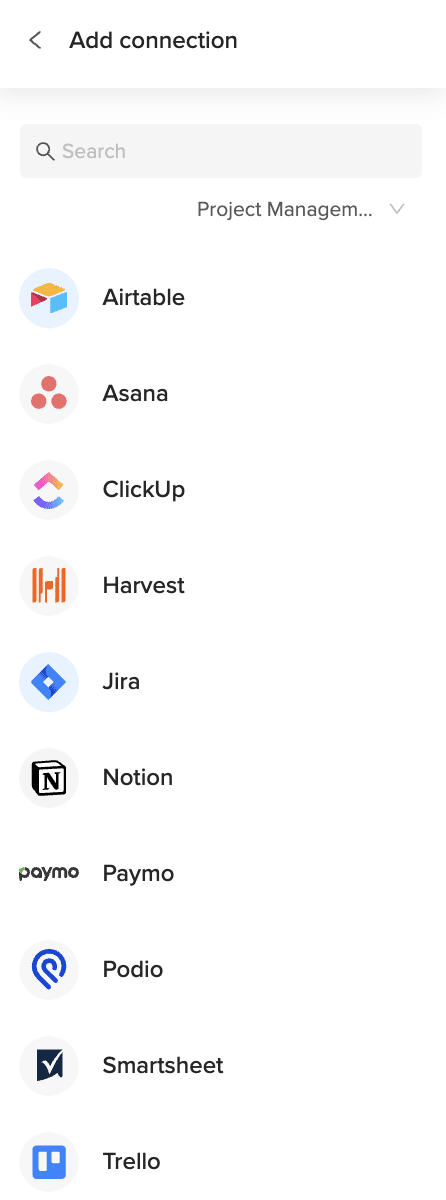
Step 3: Set up auto-refresh (Optional)
Keep your Space members data current automatically.
- After the data is imported, find your import listed in the Coefficient sidebar next to the Refresh button.
- Click the refresh settings icon.
- Select “”Schedule”” to automate updates.
- Choose how often the data should refresh (e.g., hourly, daily) and set a time.
- Save the schedule. Your Space members data will update automatically.
Available Podio Objects
- Alerts
- App market
- Applications
- Batch
- Calendar
- Comments
- Contacts
- Conversations
- Devices
- Embeds
- Files
How to Import Spaces Data from Podio into Excel
Bringing your Podio Spaces data into Excel helps you manage your workspaces, track their settings, and get an overview of your Podio setup. Manually exporting this data is inefficient and quickly becomes old.
Coefficient offers a live connection for automatic data updates.
This guide shows you the steps to easily import your Spaces data from Podio into Excel.
TLDR
-
Step 1:
Step 1. Install Coefficient in Excel and connect your Podio account.
-
Step 2:
Step 2. Use Import from… to select the Podio connector.
-
Step 3:
Step 3. Choose the Spaces object and select the fields you need.
-
Step 4:
Step 4. Import the data into your sheet and set up auto-refresh.
Step-by-step guide to importing Podio Spaces into Excel
Step 1: Install and connect Coefficient
Get Coefficient installed in your Excel application to start.
- Open Excel.
- Go to the Insert tab.
- Click Get Add-ins.
- Search for and install “”Coefficient”” from the Office Add-ins store.
- Open the Coefficient sidebar, found in the Home or Add-ins tab.
- Click “”Import from…”” and select Podio. Follow the steps to connect your Podio account.
Step 2: Import the Spaces data
With the connection ready, you can now bring in your Spaces data.
- In the Coefficient sidebar for the Podio connector, choose to import from an **Object**.
- Find and select the “”Spaces”” object from the list.
- Choose the specific data fields from Spaces that you want in your Excel sheet.
- Apply any filters or sorting if needed.
- Click “”Import”” to pull the data into your sheet.
Step 3: Set up auto-refresh (Optional)
Keep your Spaces data current automatically.
- After the data is imported, find your import listed in the Coefficient sidebar next to the Refresh button.
- Click the refresh settings icon.
- Select “”Schedule”” to automate updates.
- Choose how often the data should refresh (e.g., hourly, daily) and set a time.
- Save the schedule. Your Spaces data will update automatically.
Available Podio Objects
- Alerts
- App market
- Applications
- Batch
- Calendar
- Comments
- Contacts
- Conversations
- Devices
- Embeds
- Files
How to Import Stage Data from Outreach into Excel
Importing Outreach Snippet records into Excel lets you review and compare reusable message snippets across your team. Coefficient keeps your sheet synced so you always have the latest snippet content and usage metrics.
This guide walks through installing Coefficient, connecting Outreach, importing Snippet data, and setting up live refresh in Excel.
TLDR
-
Step 1:
Step 1. Install Coefficient for Excel and authorize your Outreach account.
-
Step 2:
Step 2. Click “Import from Objects” and select “Snippet” under Outreach.
-
Step 3:
Step 3. Apply filters (e.g. folder, author), choose fields, and click “Import.”
-
Step 4:
Step 4. Enable auto-refresh to keep your snippet library updated automatically.
Step-by-step guide
Follow these steps to pull your Outreach Snippet data into Excel.
Step 1: Install and Connect Coefficient
In Excel, go to Insert → Get Add-ins → My Add-ins, install Coefficient, then open the pane and connect to Outreach.
Step 2: Import Snippet Data
Click “Import from Objects,” choose Outreach, and pick “Snippet.” Optionally filter by folder or author before importing.
Step 3: Set Up Auto-Refresh (Optional)
After import, click the auto-refresh icon in the Coefficient pane and schedule hourly, daily, or weekly updates to maintain live snippet data.
Available Outreach Objects
- Snippet
Importing Outreach Stage records into Excel lets you track the progress of tasks, calls, and sequences across distinct stages. Coefficient keeps your sheet synced so you always see the current stage status.
This tutorial covers installing Coefficient, selecting the Stage object, importing data, and scheduling updates.
TLDR
-
Step 1:
Step 1. Install Coefficient for Excel and authorize your Outreach account.
-
Step 2:
Step 2. Click “Import from Objects” and select “Snippet” under Outreach.
-
Step 3:
Step 3. Apply filters (e.g. folder, author), choose fields, and click “Import.”
-
Step 4:
Step 4. Enable auto-refresh to keep your snippet library updated automatically.
Step-by-step guide
Use these steps to import Outreach Stage data into Excel.
Step 1: Install and Connect Coefficient
In Excel, navigate to Insert → Get Add-ins → My Add-ins, install Coefficient, then open and connect to Outreach.
Step 2: Import Stage Data
Click “Import from Objects,” select Outreach, and pick “Stage.” Optionally filter by stage category before importing.
Step 3: Set Up Auto-Refresh (Optional)
After import, click the auto-refresh icon and schedule updates—hourly, daily, or weekly—to maintain live stage data.
Available Outreach Objects
- Snippet
| Account |
| Call |
| Opportunity |
| Sequence |
| Call Disposition |
| Call Purpose |
| Compliance Request |
| Content Category |
| Content Category Membership |
| Content Category Ownership |
| Duty |
| Email Address |
| Event |
| Favorite |
| Mail Alias |
| Mailbox |
| Mailing |
| Opportunity Prospect Role |
| Opportunity Stage |
| Persona |
| Phone Number |
| Profile |
| Prospect |
| Recipient |
| Role |
| Ruleset |
| Sequence State |
| Sequence Step |
| Sequence Template |
| Snippet |
| Stage |
| Task |
| Task Priority |
| Team |
| Template |
| User |
| How can I filter by stage type? | Use Coefficient’s filter panel to select specific stages before importing. |
| Can I chart stage progression? | Use Excel charts on imported data to visualize movement through stages. |
| Will imports respect API quotas? | Coefficient batches calls and adheres to Outreach’s rate limits automatically. |
| Can I join stages with tasks? | Import both Stage and Task objects and use lookup formulas to map stages to tasks. |
| What if auto-refresh fails? | Open the Coefficient pane, verify settings, then retry the refresh. |
How to Import Status Data from Podio into Excel
Bringing your Podio Status data into Excel helps you track updates, monitor activity, and get an overview of recent changes. Manually accessing this data is not efficient and it quickly becomes old.
Coefficient offers a live connection for automatic data updates.
This guide shows you how to easily import your Status data from Podio into Excel.
TLDR
-
Step 1:
Step 1. Install Coefficient in Excel and connect your Podio account.
-
Step 2:
Step 2. Use Import from… to select the Podio connector.
-
Step 3:
Step 3. Choose the Status object and select the fields you need.
-
Step 4:
Step 4. Import the data into your sheet and set up auto-refresh.
Step-by-step guide to importing Podio Status into Excel
Step 1: Install and connect Coefficient
Get Coefficient installed in your Excel application to start.
- Open Excel.
- Go to the Insert tab.
- Click Get Add-ins.
- Search for and install “”Coefficient”” from the Office Add-ins store.
- Open the Coefficient sidebar, found in the Home or Add-ins tab.
- Click “”Import from…”” and select Podio. Follow the steps to connect your Podio account.
Step 2: Import the Status data
With the connection ready, you can now bring in your Status data.
- In the Coefficient sidebar for the Podio connector, choose to import from an **Object**.
- Find and select the “”Status”” object from the list.
- Choose the specific data fields from Status that you want in your Excel sheet.
- Apply any filters or sorting if needed.
- Click “”Import”” to pull the data into your sheet.
Step 3: Set up auto-refresh (Optional)
Keep your Status data current automatically.
- After the data is imported, find your import listed in the Coefficient sidebar next to the Refresh button.
- Click the refresh settings icon.
- Select “”Schedule”” to automate updates.
- Choose how often the data should refresh (e.g., hourly, daily) and set a time.
- Save the schedule. Your Status data will update automatically.
Available Podio Objects
- Alerts
- App market
- Applications
- Batch
- Calendar
- Comments
- Contacts
- Conversations
- Devices
- Embeds
- Files
How to Import Statuses Data from Jira into Excel
Bringing your Jira Statuses data into Excel helps you understand the different stages issues move through. Coefficient makes connecting Jira Statuses to Excel simple and automatic.
Instead of relying on manual exports that are instantly out of date, you can create a live link that refreshes itself. This guide shows you exactly how to import your Jira Statuses data into Excel using Coefficient.
TLDR
-
Step 1:
Step 1. Install Coefficient from the Office Add-ins store and connect to your Jira account.
-
Step 2:
Step 2. Select Import from… and choose the Statuses object.
-
Step 3:
Step 3. Pick the fields you need, then import the data to your Excel sheet.
-
Step 4:
Step 4. Set up auto-refresh to keep your Statuses data updated automatically on your schedule.
block:step-by-step
Step-by-step guide
Importing Jira Statuses data into Excel with Coefficient is a simple process. Follow these steps to get your data connected and updating live.
step:1:Installation and Connection
First, you need to add Coefficient to your Excel application.
- Open Excel.
- Insert Go to thetab.
- Get Add-ins Click.
- Add Search for “”Coefficient”” and clickto install it from the Office Add-ins store.
Home Insert Once installed, open Coefficient from theortab. You’ll see the Coefficient sidebar. Click to connect a new data source, choose Jira, and log in to your account to authorize the connection.
step:2:Importing the Data
Now that Coefficient is connected to Jira, you can pull in your Statuses data.
- Import from… In the Coefficient sidebar, click thebutton.
- Jira Selectfrom your list of connected sources.
- Coefficient will show you the types of data you can import. Choose the relevant option, likely “Objects”.
- Statuses From the list of available Jira objects, select.
- Choose the specific fields (columns) you want to bring into your sheet.
- Apply any filters or criteria to narrow down the data, if needed.
- Import Clickto pull the data into your Excel sheet.
step:3:Setting up Auto-Refresh (Optional)
To ensure your Excel sheet always has the most current Jira Statuses data, set up an auto-refresh schedule.
- With your imported data table selected in Excel, look for the auto-refresh options in the Coefficient sidebar.
- Click on the refresh icon associated with your Jira import.
- Set how often you want the data to update (e.g., daily, hourly, weekly).
- Choose the specific time for the automatic refresh to occur.
Your Excel sheet will now automatically stay in sync with the latest Jira Statuses data based on the schedule you set.
Available Jira Objects
Objects
- Issues
- Issue Types
- Fields
- Versions
- Components
- Priorities
- Resolutions
- Statuses
- Users
- Groups
- Application Roles
- Project Roles
How to Import Stories Data from Asana into Excel
Bringing your Asana Stories data into Excel helps you track activity updates, comments, and communication history on your tasks and projects. Manually accessing this data is not efficient and it quickly becomes old.
Coefficient offers a live connection for automatic data updates.
This guide shows you how to easily import your Stories data from Asana into Excel.
TLDR
-
Step 1:
Step 1. Install Coefficient in Excel and connect your Asana account.
-
Step 2:
Step 2. Use Import from… to select the Asana connector.
-
Step 3:
Step 3. Choose the Stories object and select the fields you need.
-
Step 4:
Step 4. Import the data into your sheet and set up auto-refresh.
Step-by-step guide to importing Asana Stories into Excel
Step 1: Install and connect Coefficient
Get Coefficient installed in your Excel application to start.
- Open Excel.
- Go to the Insert tab.
- Click Get Add-ins.
- Search for and install “”Coefficient”” from the Office Add-ins store.
- Open the Coefficient sidebar, found in the Home or Add-ins tab.
- Click “”Import from…”” and select Asana. Follow the steps to connect your Asana account.
Step 2: Import the Stories data
With the connection ready, you can now bring in your Stories data.
- In the Coefficient sidebar for Asana, choose to import from an **Object**.
- Find and select the “”Stories”” object from the list.
- Choose the specific data fields from Stories that you want in your Excel sheet.
- Apply any filters or sorting if needed.
- Click “”Import”” to pull the data into your sheet.
Step 3: Set up auto-refresh (Optional)
Keep your Stories data current automatically.
- After the data is imported, find your import listed in the Coefficient sidebar next to the Refresh button.
- Click the refresh settings icon.
- Select “”Schedule”” to automate updates.
- Choose how often the data should refresh (e.g., hourly, daily) and set a time.
- Save the schedule. Your Stories data will update automatically.
Available Asana Objects
- Users
- Teams
- Projects
- Tasks
- Sections
- Stories
- Tags
- Portfolios
- Goals
How to Import Stream Data from Podio into Excel
Bringing your Podio Stream data into Excel helps you analyze activity feeds, track updates, and get an overview of recent actions. Manually accessing this data is not efficient and it quickly becomes old.
Coefficient offers a live connection for automatic data updates.
This guide shows you how to easily import your Stream data from Podio into Excel.
TLDR
-
Step 1:
Step 1. Install Coefficient in Excel and connect your Podio account.
-
Step 2:
Step 2. Use Import from… to select the Podio connector.
-
Step 3:
Step 3. Choose the Stream object and select the fields you need.
-
Step 4:
Step 4. Import the data into your sheet and set up auto-refresh.
Step-by-step guide to importing Podio Stream into Excel
Step 1: Install and connect Coefficient
Get Coefficient installed in your Excel application to start.
- Open Excel.
- Go to the Insert tab.
- Click Get Add-ins.
- Search for and install “”Coefficient”” from the Office Add-ins store.
- Open the Coefficient sidebar, found in the Home or Add-ins tab.
- Click “”Import from…”” and select Podio. Follow the steps to connect your Podio account.
Step 2: Import the Stream data
With the connection ready, you can now bring in your Stream data.
- In the Coefficient sidebar for the Podio connector, choose to import from an **Object**.
- Find and select the “”Stream”” object from the list.
- Choose the specific data fields from Stream that you want in your Excel sheet.
- Apply any filters or sorting if needed.
- Click “”Import”” to pull the data into your sheet.
Step 3: Set up auto-refresh (Optional)
Keep your Stream data current automatically.
- After the data is imported, find your import listed in the Coefficient sidebar next to the Refresh button.
- Click the refresh settings icon.
- Select “”Schedule”” to automate updates.
- Choose how often the data should refresh (e.g., hourly, daily) and set a time.
- Save the schedule. Your Stream data will update automatically.
Available Podio Objects
- Alerts
- App market
- Applications
- Batch
- Calendar
- Comments
- Contacts
- Conversations
- Devices
- Embeds
- Files
How to Import Tags Data from Apollo into Excel
Importing Apollo Tags data into Excel helps you organize and analyze records based on tags. Coefficient provides a direct connection to your spreadsheet.
This guide shows you how to import your Apollo Tags data into Excel using Coefficient.
TLDR
-
Step 1:
Step 1. Install Coefficient for Excel and link your Apollo account.
-
Step 2:
Step 2. Click Import from… and choose the Tags object.
-
Step 3:
Step 3. Configure filters or select specific fields and import the data.
-
Step 4:
Step 4. Enable auto-refresh for automatic data updates on a schedule.
Step-by-step guide
Here is how to get your Apollo Tags data into Excel.
Step 1: Install and Connect Coefficient
First, install the Coefficient add-in. In Excel, go to the Insert tab, click “Get Add-ins,” search for Coefficient, and install it from the store.
Open the Coefficient add-in from the Home tab. When asked to connect a data source, select Apollo.
Log in to your Apollo account and grant Coefficient access to your data.
Step 2: Import Tags Data
With Apollo connected, click “Import from…” in the Coefficient sidebar.
Select Apollo as your source. Then, choose “Tags” from the list of available objects to import.
You can refine the data by selecting specific fields or applying filters before clicking “Import” to add it to your Excel sheet.
Step 3: Set Up Auto-Refresh (Optional)
Keep your Tags data in Excel automatically updated. After importing, find the auto-refresh options in the Coefficient sidebar.
Schedule refreshes hourly, daily, or weekly. Your Excel sheet will then sync automatically with the latest tag information from Apollo.
Available Apollo Objects
- Tasks
- Contacts
- Contact Stages
- Deals
- Lists
- Accounts
- Account Stages
- Organization Job Postings
- Sequences
- Tags