How to automatically export HubSpot contact records to Excel when deal stage changes

HubSpot workflows can’t create Excel files when deal stages change, but there’s a better approach that gives you live, automatically updating spreadsheets with your contact data.

Instead of trying to trigger one-time exports, you can set up a system that maintains real-time contact records and updates automatically in Excel whenever deal stages change.

Get live contact data that updates with deal stage changes using Coefficient

Rather than wrestling with workflow limitations, Coefficient’s 2-way sync between HubSpot and Excel connects your data directly to Excel with live sync capabilities. This means your contact records update automatically when deal stages change, without needing complex workflow triggers.

The key advantage is that you get a continuously updated spreadsheet instead of static exports. Your data stays current, and you can apply Excel’s full analytical power to your contact records and deal associations.

How to make it work

Feel free to read through the steps below or watch this quick tutorial on how to pull and sync HubSpot contact data to Excel. The video shows a walkthrough in Google Sheets, but you’ll experience the same setup process in Excel.

Now for our readers.

Step 1. Connect HubSpot to Excel and import contact records with deal associations.

Open Excel and install Coefficient from the add-ins menu. Connect to HubSpot and create an import for contacts. Select “Row Expanded” display to show multiple deals per contact, giving you complete visibility into deal stage relationships.
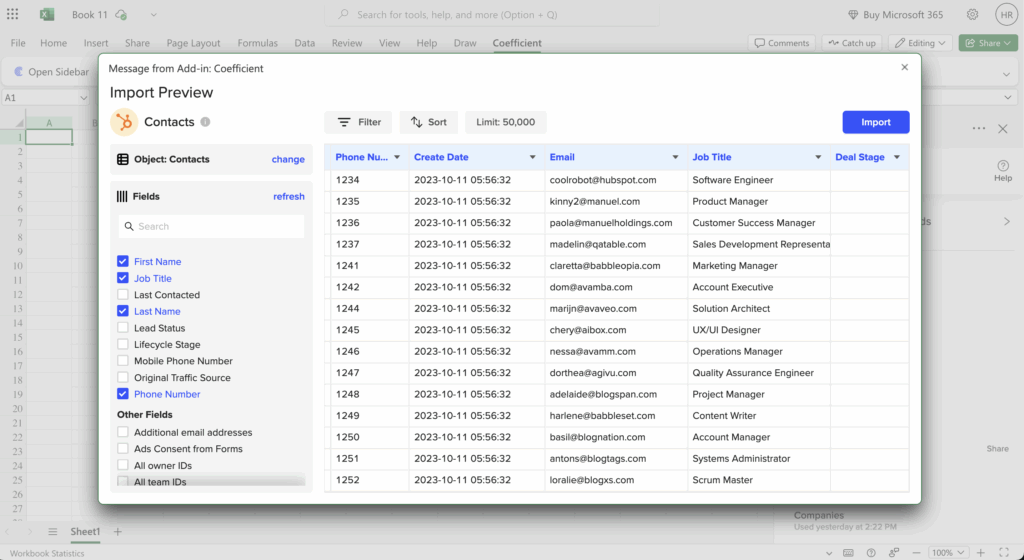
automatically export hubspot contacts excel deal stage

Step 2. Apply dynamic filters for specific deal stages.

Use Coefficient’s filtering system to focus on contacts associated with deals in specific stages. You can set up to 25 filters with AND/OR logic, and even reference spreadsheet cells for flexible criteria that you can change without rebuilding the import.
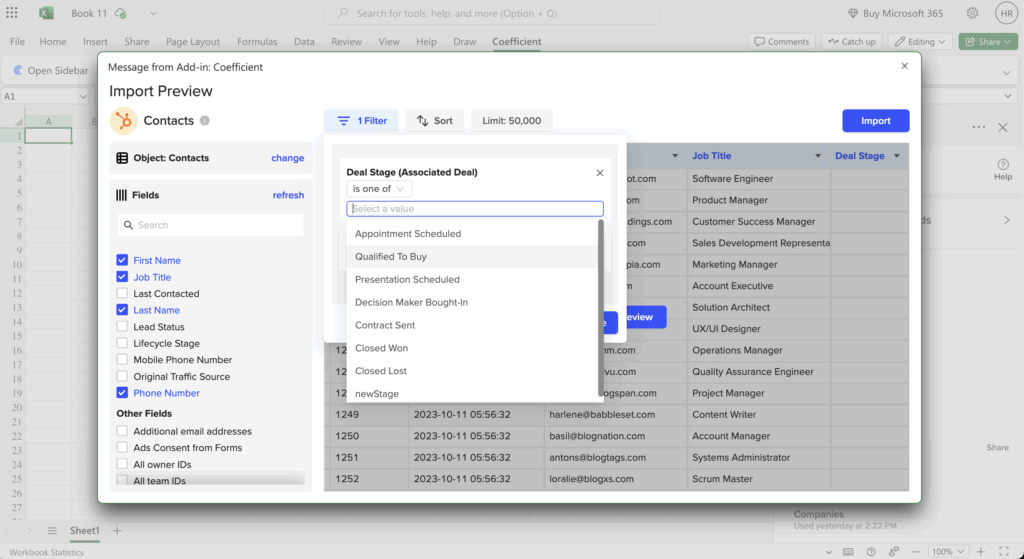
apply dynamic filters to hubspot deal stages

Step 3. Schedule automatic refreshes to capture deal stage changes.

Set up hourly, daily, or weekly refreshes so your spreadsheet updates automatically when deal stages change in HubSpot. This eliminates the need for workflow triggers while ensuring your data stays current.

Schedule automatic excel refreshes to capture hubspot deal stage changes

Step 4. Set up alerts for stakeholders when new records appear.

Configure Slack or email notifications to alert your team when new contact records meet your deal stage criteria. This gives you the notification benefits of workflows without the complexity.

trigger alerts on mysql data to slack or email

Start syncing your contact data automatically

This approach gives you more reliable contact data exports than workflow-based solutions, with the added benefit of live updates and Excel’s analytical capabilities.to set up your automated contact exports today. Try Coefficient’s HubSpot connector for Excel today.

How to bulk export report folder permissions for all user profiles in Salesforce

Salesforce admins can extract a complete permission matrix covering report folder access and object-level edit permissions across all profiles into Google Sheets or Excel automatically using Coefficient’s Salesforce connector and custom SOQL queries on the FolderShare and ObjectPermissions objects. Salesforce provides no consolidated view of report folder permissions across profiles. Auditing folder access means navigating through Setup and checking each folder individually, a process that is both slow and impossible to schedule or automate inside native Salesforce tooling.

A common challenge for Salesforce admins ahead of compliance reviews, security audits or org cleanup: the permission data exists in Salesforce but is only accessible folder by folder through the UI, which makes producing a full permission inventory a significant manual undertaking every time it is needed.

How to extract a complete Salesforce permission matrix automatically

Step 1. Query FolderShare for report folder access data

Open Coefficient in Google Sheets or Excel and select Import from Salesforce. Choose Custom SOQL Query. Write a query selecting ParentId, UserOrGroupId, AccessLevel and SharedTo from FolderShare where ParentId is in the set of your Report folder IDs. This returns every permission assignment across every report folder in your org in a single import, without navigating the Setup UI folder by folder.

Step 2. Query ObjectPermissions for profile edit access

Create a second import using Custom SOQL Query. Select Parent.Profile.Name, SobjectType and PermissionsEdit from ObjectPermissions where PermissionsEdit equals true. Add a filter on SobjectType to scope to the objects you need to audit, standard objects, custom objects ending in “__c” or specific named objects. This produces the full list of profiles with edit access to each object, which is the data that manual profile-by-profile checking in Setup is trying to surface.

Step 3. Cross-reference permissions with user and profile details

Create a third import for the User object, pulling Id, Name, ProfileId and UserRoleId. Use VLOOKUP in your main permission sheet to match UserOrGroupId from the FolderShare import and Parent.Profile.Name from the ObjectPermissions import to actual user names, profile names and roles. Apply conditional formatting to colour-code access levels, Manage, Edit and View, so the permission matrix is readable at a glance for a non-technical reviewer.

Step 4. Schedule weekly refresh and use Snapshots for compliance history

Set a weekly refresh in Coefficient so your permission matrix updates automatically after each change cycle. Enable Coefficient’s Snapshots feature to capture a timestamped copy of the permission state at each refresh. Snapshots give you a historical record of how permissions changed over time, which is exactly the audit trail compliance reviews require when they ask how a given profile gained access to a sensitive folder or object.

What you get

Your full Salesforce permission matrix covers report folder access and object-level edit rights across every profile, updated weekly and historically tracked through snapshots. Compliance reviews and security audits start with a current, structured export rather than a manual folder-by-folder exercise. Permission changes between periods are visible by comparing snapshot versions.

Start auditing your Salesforce permissions automatically at coefficient.io/get-started.

How to automatically export deals to multiple Excel files by team or territory

You can automatically export deals to multiple Excel files by team or territory using dynamic filtering that references team lookup tables, eliminating the need to manually create separate reports for each group.

This approach lets you manage multiple filtered exports from a single interface while automatically creating new team datasets when you add new territories or sales reps.

Create team-specific automated exports using Coefficient

CoefficientHubSpot’senables multi-file automation that addresseslimitation of single-output scheduled reports, which cannot automatically generate separate files for different teams or territories.

Unlike HubSpot’s native reporting that requires manual creation of separate reports for each team, Coefficient allows you to manage multiple filtered imports from a single interface. The dynamic filtering capability means adding new teams only requires updating your reference table, automatically creating new filtered datasets without rebuilding import configurations.

How to make it work

Step 1. Set up multiple deal imports filtered by team owner or territory.

Create separate deal imports in Coefficient, each filtered by team owner or territory custom properties. You can set up one import per team or use dynamic filtering to reference a master team list that automatically creates the right filters.

Step 2. Use dynamic filtering with team/territory lookup tables.

Create a reference table in your spreadsheet that lists all teams and territories. Point your import filters to reference this table, so adding new teams automatically creates new filtered datasets without reconfiguring each import manually.

Step 3. Create separate sheets or workbooks for each team.

Organize your team exports into separate sheets within the same workbook or create entirely separate workbooks for each team. This gives each team access to their specific data while maintaining centralized management of all imports.

Step 4. Schedule synchronized weekly refreshes across all team imports.

Set up coordinated refresh schedules so all team imports update at the same time. This ensures consistency across team reports and prevents confusion about data timing differences between territories.

Step 5. Set up team-specific email alerts for each import completion.

Configure separate email alerts for each team import, so team leaders get notified when their specific data refreshes. You can customize alert recipients and messaging for each territory or sales group.

Streamline your team reporting process

Start automatingAutomated multi-team deal exports eliminate the administrative overhead of maintaining dozens of individual team reports while ensuring each group gets their relevant data on schedule.your team-specific deal exports with dynamic filtering that scales as your organization grows.

Free alternatives to CloudAnswers Report Sender that support multi-factor authentication

CloudAnswers Report Sender fails with MFA compatibility, but you need automated report distribution without the licensing costs of enterprise solutions.

Here’s a free alternative that was built with modern authentication protocols in mind and provides enterprise-grade capabilities without budget constraints.

Get robust report automation for free using Coefficient

Coefficientstands out as a premier free alternative with full multi-factor authentication support. While CloudAnswers struggles with MFA compatibility, Coefficient’s connection process includes built-in MFA support with reauthorization capability, eliminating the profile permission errors that break CloudAnswers functionality.

SalesforceThe free tier provides robust functionality includingreport imports, automated scheduling, and alert capabilities that address your immediate cost constraints while delivering professional results.

How to make it work

Step 1. Set up your MFA-compatible connection.

SalesforceConnect your MFA-enabledorg through Coefficient’s OAuth authentication system. This operates independently of the SSO configuration that causes CloudAnswers to fail, providing stable authentication without profile conflicts.

Step 2. Import from all your Salesforce reports.

Access ALL Salesforce reports and standard objects (Account, Contact, Lead, Opportunity, Campaign, etc.) plus custom objects – broader access than CloudAnswers’ limited report selection. Use the “From Existing Report” feature to quickly recreate your current CloudAnswers workflows.

Step 3. Configure enhanced scheduling options.

Set up hourly (1, 2, 4, 8), daily, and weekly scheduling options with timezone-based execution. This provides more flexibility than CloudAnswers’ basic daily scheduling while maintaining the automation your team depends on.

Step 4. Enable advanced alert features.

Configure email and Slack notifications with customizable formatting, chart inclusions, and variable support for dynamic recipient routing based on data changes. These professional features typically require paid solutions but are included in Coefficient’s free tier.

Eliminate authentication bottlenecks without breaking the budget

Start using CoefficientThis solution provides enterprise-grade report automation capabilities in a free package that works reliably with your MFA requirements.to replace CloudAnswers with a more capable and cost-effective solution.

Free report scheduling tools that work with Salesforce MFA and SSO setup

Most free report scheduling tools fail in enterprise environments with MFA and SSO requirements, leaving you choosing between security compliance and automated reporting functionality.

Here’s a free solution specifically designed to work seamlessly with enterprise security configurations that challenge other tools, providing professional capabilities without compromising your security protocols.

Get enterprise-compatible free scheduling using Coefficient

CoefficientSalesforcestands out as the premier free report scheduling tool specifically designed to work seamlessly withMFA and SSO configurations that challenge other solutions. Unlike tools that struggle with multi-factor authentication, Coefficient was built with MFA requirements in mind.

The OAuth2 API authentication operates independently of your SSO configuration, eliminating the conflicts that cause other free tools to fail in enterprise security environments while maintaining all security protocols.

How to make it work

Step 1. Connect with enterprise security compatibility.

SalesforceEstablish connection to your MFA and SSO-enabledorg using Coefficient’s native MFA support with automatic reauthorization and token refresh capabilities. This prevents the authentication failures that break other free tools in secure environments.

Step 2. Access comprehensive data without restrictions.

Import from ALL Salesforce reports, standard objects (Account, Contact, Lead, Opportunity, Campaign Member, Task, Event, User, Opportunity Snapshot), and custom objects without the row limitations or restricted connectivity found in other free alternatives.

Step 3. Configure advanced scheduling options.

Set up hourly scheduling (1, 2, 4, 8 hour intervals), daily scheduling with timezone control, or weekly scheduling with multiple day selection. Include manual refresh capabilities for ad-hoc requirements that exceed typical free tool limitations.

Step 4. Enable professional distribution features.

Configure email alerts with customizable formatting including chart and screenshot inclusions. Set up dynamic routing using variable-based recipient selection, and configure multiple triggers including schedule-based, new data, or value change triggers for comprehensive automation.

Achieve enterprise-grade automation without compromising security

Implement enterprise-compatible schedulingThis combination makes Coefficient the optimal choice for organizations requiring reliable, free report scheduling in secure Salesforce environments where other tools fail.that works with your security requirements rather than against them.

Filtering dashboard by common field across Opportunities, Leads, and custom objects simultaneously

Salesforce’s architecture prevents native dashboard filtering across Opportunities, Leads, and custom objects simultaneously because these objects lack direct relational connections. Even when they share a common “Business Line” field, dashboard filters cannot span across unrelated objects in a single view.

Here’s how to create global dashboard filters that work across all object types, giving you the unified reporting view that Salesforce cannot provide natively.

Enable simultaneous filtering across all objects using Coefficient

CoefficientHubSpotHubSpoteliminates this multiple object reports filtering limitation through its comprehensive Salesforce integration. You can import data from Opportunities, Leads, and custom objects into a unified filtering interface that operates above Salesforce’s relational constraints inor.

How to make it work

Step 1. Import Opportunities data with all relevant fields.

Use Coefficient’s “From Objects & Fields” import method to pull specific fields from your Opportunities, including Business Line, close date, amount, and stage. This gives you complete control over which data points to include.

Step 2. Import Leads data with parallel field structure.

Pull your Leads data with consistent field naming, including Business Line, lead source, status, and created date. Structure this import in adjacent columns or tabs to maintain organization while enabling unified filtering.

Step 3. Import custom objects maintaining consistent Business Line field.

Add your custom Quota, Forecast, and other objects to the same workbook, ensuring the Business Line field is consistently named and formatted across all imports for seamless filtering.

Step 4. Create a unified filtering interface.

Set up a master filter cell that controls all datasets simultaneously. Use spreadsheet functionality to create dropdown menus or input fields that drive filtering across all object types.

Step 5. Implement dynamic filtering with cell references.

Configure each import to reference the same filter cell using Coefficient’s dynamic filtering capability. This ensures that changing your filter selection updates all datasets instantly, regardless of their Salesforce object origin.

Step 6. Apply advanced filtering logic.

Set up AND/OR logic combinations for complex business line filtering scenarios. Add date range filtering across objects with different date fields, numeric filtering for quota and forecast thresholds, and text-based filtering for specific business line subcategories.

Step 7. Configure conditional formatting for visual feedback.

Apply conditional formatting to highlight filtered results across all object types. This creates immediate visual confirmation of your filter selections and makes it easy to spot trends across different data sources.

Create the global filtering Salesforce cannot provide

Build your solutionThis approach creates global dashboard filters functionality that maintains data accuracy through automated refresh cycles while enabling cross-object analysis impossible in native Salesforce dashboards. You get complete control over your multi-object reporting needs in a single, dynamically filtered view.and start filtering across all your Salesforce objects today.

Fix HubSpot contact import frozen at column mapping screen

A frozen column mapping screen in HubSpot typically indicates browser resource issues, session timeouts, or data validation conflicts that cause the interface to become unresponsive and prevent your contact import from completing.

Here’s how to get around these browser-dependent limitations and import your contacts through a more stable process.

Use a stable import environment with Coefficient

CoefficientHubSpotoperates through secure API connections rather than browser-dependent interfaces, eliminating the freezing issues common with’s native import wizard. The import process runs in the background and doesn’t depend on maintaining an active browser session.

HubSpotYou get superior field mapping options that prevent the conflicts causing frozen screens, including automatic property detection, custom field support, and data type validation that ensures compatibility before attempting the import to.

How to make it work

Step 1. Set up Coefficient with your contact data.

Install Coefficient and connect to your Excel or Google Sheets file containing the contact information. The system efficiently processes large contact datasets without the memory limitations that cause browser freezing.

Step 2. Configure contact property mappings.

Use Coefficient’s automatic property detection to recognize HubSpot contact properties and get mapping suggestions. The system handles custom contact properties and validates data types to match HubSpot requirements before import.

Step 3. Validate your data before import.

Run validation checks to ensure data types match HubSpot property requirements and identify any potential issues with contact associations that could cause problems during import.

Step 4. Schedule automated imports.

Set up the import to run automatically without user intervention. The process includes automatic retry logic for failed imports and detailed error reporting, so you don’t need to monitor the browser or worry about session timeouts.

Import contacts without frozen mapping screens

Set upStop losing import progress to browser freezes and session timeouts. Coefficient’s server-side processing ensures your contact imports complete reliably without depending on browser performance or active sessions.your stable import process today.

Fix for CloudAnswers Report Sender profile permission errors with MFA enabled

CloudAnswers Report Sender throws profile permission errors when MFA is enabled, and lowering security permissions isn’t an acceptable solution for your organization.

Here’s why these authentication conflicts occur and how to implement a permanent solution that maintains your security requirements while delivering reliable automated reporting.

Replace CloudAnswers with MFA-native authentication using Coefficient

Salesforce’sCoefficientCloudAnswers Report Sender’s profile permission errors with MFA stem from how it attempts to accessnative report scheduler through user profile authentication, which conflicts with MFA security protocols. Rather than compromising security,provides a superior alternative that eliminates these authentication issues entirely.

Salesforce’sCoefficient usesREST API with OAuth2 authentication, which natively supports MFA without profile permission conflicts. This eliminates the core issue causing CloudAnswers to fail while maintaining full security compliance.

How to make it work

Step 1. Connect using MFA-compatible authentication.

Connect Coefficient to your MFA-enabled Salesforce org using OAuth2 API authentication that operates independently of user profile permissions. This eliminates the authentication conflicts that break CloudAnswers functionality without requiring profile modifications.

Step 2. Import your existing CloudAnswers reports.

Use Coefficient’s “From Existing Report” feature to recreate any reports that CloudAnswers was distributing before the MFA conflicts began. You can access all standard and custom objects without the permission limitations affecting CloudAnswers.

Step 3. Configure stable automated scheduling.

Set up daily, weekly, or hourly refresh schedules that operate through API access permissions aligned with modern security requirements. The built-in reauthorization capability handles MFA token refresh automatically, preventing authentication timeouts.

Step 4. Test and migrate distribution workflows.

Configure equivalent email alerts and distribution functionality, then test partner notification workflows before decommissioning CloudAnswers. This ensures business continuity while resolving authentication conflicts permanently.

Maintain security compliance while achieving automation goals

Implement this solutionThis approach resolves authentication conflicts permanently rather than applying temporary fixes to a fundamentally incompatible system.to eliminate profile permission errors while maintaining your MFA security requirements.

Export HubSpot pipeline velocity metrics and conversion rates to Excel

HubSpot lacks sophisticated velocity metrics and can’t calculate conversion rates across custom time periods or deal segments. You can’t track velocity changes over time or analyze conversion by specific pipeline stages effectively.

Here’s how to export the underlying deal data needed for advanced pipeline velocity and conversion rate analysis that HubSpot’s native reporting simply cannot provide.

Calculate advanced velocity metrics and conversion rates using Coefficient

CoefficientHubSpotenables advanced pipeline velocity and conversion rate analysis by importing the underlyingdeal data needed for these calculations. You get stage change timestamps, progression history, and all deal properties required for sophisticated Excel-based velocity analysis.

This approach provides custom velocity calculations and historical conversion tracking that HubSpot’s basic reports cannot match.

How to make it work

Step 1. Import deal data with stage progression timestamps.

Pull deal data including create date, stage progression dates, close date, and deal value. Include custom properties that affect velocity like deal source, sales rep, and company size for segmented analysis.

Step 2. Import historical data using Snapshots for trend analysis.

Set up monthly snapshots to capture deal progression over time. This historical data enables velocity trending analysis and conversion rate tracking across different time periods that HubSpot cannot provide natively.

Step 3. Create Excel formulas for velocity calculations.

Build formulas to calculate days in each pipeline stage using date differences. Create average time calculations from lead to close and stage-to-stage progression times. Use formulas like =AVERAGE(Close_Date-Create_Date) for overall sales cycle length.

Step 4. Calculate stage-to-stage conversion rates.

Use COUNTIFS formulas to calculate conversion percentages between each pipeline stage. Create formulas like =COUNTIFS(Stage,”Qualified”)/COUNTIFS(Stage,”Lead”) to track conversion rates across your sales funnel stages.

Step 5. Build advanced pipeline velocity metrics.

Calculate comprehensive pipeline velocity using the formula: (Number of qualified leads × average deal size × Win rate) ÷ Sales cycle length. Segment this calculation by deal source, rep performance, or company characteristics for detailed insights.

Get the velocity insights HubSpot can’t calculate

Start calculatingThis approach provides comprehensive pipeline velocity metrics and conversion rate analysis capabilities that exceed HubSpot’s native reporting limitations through live data access combined with Excel’s analytical power.the velocity metrics that actually drive revenue growth.

Export HubSpot deal forecast data with probability percentages to Excel

HubSpot’s forecast reports can’t be easily exported with all probability data and deal details needed for comprehensive Excel analysis. The native forecast exports lack field selection options and become outdated immediately after download.

Here’s how to export complete deal forecast data with probability percentages for advanced Excel-based forecast analysis that HubSpot’s native tools can’t match.

Access comprehensive forecast data with probability analysis using Coefficient

CoefficientHubSpotprovides superiordeal forecast access compared to HubSpot’s limited export options. You get live access to probability percentages, weighted values, and all custom forecast-related properties in Excel.

This enables sophisticated forecast analysis including weighted pipeline calculations and historical accuracy tracking that HubSpot simply cannot provide.

How to make it work

Step 1. Import deals filtered by close date and probability ranges.

Set up imports for deals within specific forecast periods using close date filters. Include probability ranges that matter for your forecasting – typically deals above 20% probability for pipeline analysis and above 70% for commit forecasts.

Step 2. Include probability percentages and weighted values.

Select deal probability, deal amount, and any custom forecast-related properties during field selection. Also include deal stage, close date, and deal owner to enable comprehensive forecast segmentation and analysis.

Step 3. Create Excel formulas for weighted pipeline calculations.

Build formulas to calculate probability-weighted pipeline values using =Deal_Amount*Probability_Percentage. Create SUMIFS formulas to calculate weighted totals by time period, sales rep, or deal source for detailed forecast analysis.

Step 4. Set up daily refreshes for current forecast data.

Configure daily scheduled refreshes to keep forecast data current as deal probabilities and amounts change. This ensures your Excel forecast analysis always reflects the latest pipeline updates without manual re-exports.

Step 5. Use Snapshots for forecast accuracy tracking.

Enable monthly snapshots to capture forecast states for accuracy analysis over time. Compare historical forecast snapshots to actual outcomes to calculate forecast accuracy metrics and improve future forecasting precision.

Build forecasts that actually help predict revenue

Start buildingThis approach provides live access to comprehensive deal forecast data with probability percentages, enabling sophisticated Excel-based analysis that HubSpot’s native forecast tools simply cannot deliver.more accurate forecasts today.