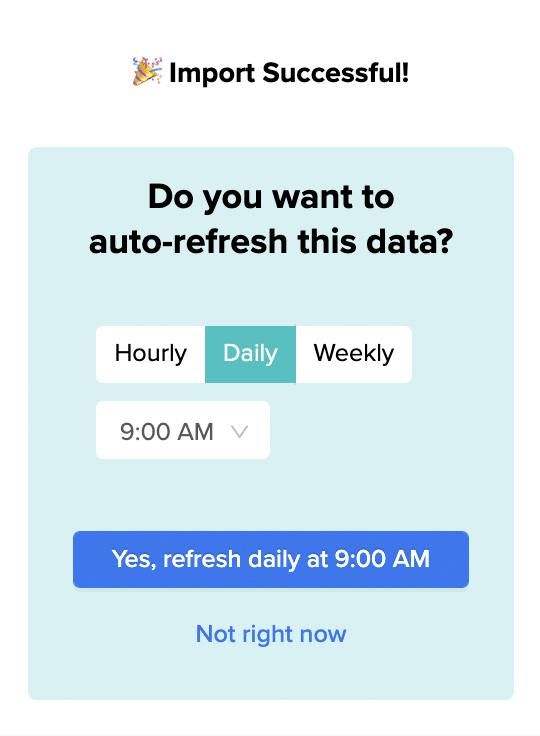
Frequent disconnections happen because of API rate limiting, timeout errors, or unstable authentication tokens that native Google Sheets can’t handle properly. These integrations lack retry logic and fail permanently after temporary network hiccups.
Here’s how to maintain stable data connections that survive temporary API issues and network problems without requiring manual reconnection.
Maintain persistent connections using Coefficient
CoefficientHubSpotprovides enterprise-level connection management with built-in resilience features that keep your data flowing even during temporary API issues. The platform maintains persistent connections toand other sources with automatic retry logic and intelligent rate limit handling.
How to make it work
Step 1. Migrate your data imports to Coefficient’s managed infrastructure.
Set up the same data pulls you were running before, but benefit from connection persistence that maintains live data access during temporary failures. The platform handles connection pooling and request timing automatically.
Step 2. Enable automatic retry logic for temporary failures.
When API calls timeout or hit rate limits, Coefficient waits and retries instead of permanently disconnecting like native integrations. Your data imports continue working without manual intervention.
Step 3. Monitor connection status with real-time indicators.
Check connection health in the sidebar and receive notifications when issues are resolved. Unlike custom scripts that fail silently, you’ll know exactly when connections recover from temporary problems.
Step 4. Set up scheduled refreshes that run reliably.
Configure your refresh timing knowing that the platform’s scheduling system continues working even when individual API requests experience temporary issues.
Keep your data connections stable
Switch toStop dealing with integrations that disconnect every few hours and require constant babysitting.Coefficient for connections that actually stay connected.
Google Sheets lacks native real-time refresh capabilities, requiring custom scripts that often fail to execute reliably. Data can become stale for hours without user awareness, creating significant problems for live dashboard reporting.
Here’s how to maintain current data in your dashboards with automated refresh capabilities and clear visibility into data freshness.
Enable near real-time dashboard updates using Coefficient
CoefficientHubSpotprovides automated refresh capabilities that maintain current data without manual intervention. You can scheduleimports to refresh hourly for near real-time reporting, or use manual refresh buttons for immediate updates when needed.
How to make it work
Step 1. Set up hourly refresh scheduling for near real-time data.
Configure your data imports to refresh every hour, providing the closest alternative to real-time data that Google Sheets can reliably support. This maintains dashboard currency without manual intervention.
Step 2. Add manual refresh buttons for immediate updates.
Embed refresh buttons directly in your spreadsheet for instant data updates when you need the latest information immediately. These buttons work reliably unlike custom script triggers that often break.
Step 3. Enable Formula Auto Fill Down for automatic calculations.
Set up formulas that automatically apply to new data rows as they’re imported during refreshes. This ensures your dashboard calculations and analyses update automatically with fresh data.
Step 4. Configure alerts for new data notifications.
Set up notifications to alert you immediately when new data is imported, so you know when your dashboards have fresh information for decision-making.
Keep your dashboards current
Build dashboardsStop working with stale dashboard data and eliminate the guesswork about data freshness.with Coefficient that maintain current data automatically.
Blank cells appear when authentication fails, API connections error out, or data mapping breaks while the integration appears to connect successfully. This often happens when OAuth tokens expire or source systems change field formats without updating the integration.
Here’s how to eliminate blank cell issues and ensure your data displays properly with clear error visibility and automatic data formatting.
Eliminate blank cells using Coefficient
CoefficientHubSpotprevents blank cell issues through robust data mapping and error handling systems. The platform provides automatic field mapping and displays clear error messages when data retrieval fails, ensuring you know exactly whenconnections encounter problems instead of showing blank results.
How to make it work
Step 1. Establish fresh data connections through Coefficient.
Set up new data imports that ensure proper data mapping and provide visibility into connection or retrieval issues that might cause blank results instead of failing silently.
Step 2. Benefit from automatic data type conversion.
Let the platform handle data formatting automatically, ensuring that data displays properly in Google Sheets regardless of source format changes that break native mappings.
Step 3. Monitor connection status with clear error reporting.
Check connection health and data refresh timestamps in the sidebar to confirm successful data retrieval. The platform shows specific error information instead of leaving you guessing about blank cells.
Step 4. Set up automated alerts for import failures.
Configure notifications to alert you immediately if data imports fail, preventing blank dashboards from going unnoticed while you continue working with empty spreadsheets.
Get your data back
Restore your dataStop dealing with blank cells that hide connection problems and eliminate the frustration of integrations that appear to work but don’t actually import data.with Coefficient for reliable imports that show clear results.
You know that sinking feeling when you realize you’ve created 500 duplicate customer records in HubSpot? Your sales team is calling the same leads twice, your reporting is completely off, and cleaning up the mess will take days.
Coefficient is an Excel add-in that connects HubSpot directly to your spreadsheets, letting you prevent duplicates before they happen with smart import controls and real-time data validation.
Why Duplicate Records Are Destroying Your Customer Data
Every time you import customer data from Excel to HubSpot, you’re playing duplicate roulette. Here’s what’s really happening:
Name inconsistencies multiply: “Robert Smith” and “Bob Smith” become different people in your CRM
Missing data creates ghosts: Blank email fields force new record creation even when the customer exists
Bulk imports compound errors: That monthly customer list import? It’s probably creating 10-20% duplicates each time
The result? Your sales team wastes hours calling the same prospects. Marketing sends duplicate emails that annoy customers. And your revenue reporting becomes fiction because you’re counting the same deals multiple times.
The Traditional Import Process Is Fundamentally Broken
Here’s how most teams handle Excel to HubSpot imports today (and why it fails):
The Manual Nightmare
Export your HubSpot contacts to check for existing records
Manually compare Excel data against exports using VLOOKUP
Try to clean data inconsistencies by hand
Cross your fingers and import
Spend days cleaning up the inevitable duplicates
Why This Never Works
Data changes constantly: By the time you finish comparing, HubSpot has new records
Human error is inevitable: Missing one typo creates cascading duplicates
Scale makes it impossible: Checking 10,000 records manually? Forget it
No prevention mechanism: You’re always reacting, never preventing
Prevent Duplicates Automatically with Coefficient’s Excel Add-in
Coefficient transforms Excel into a smart HubSpot client that prevents duplicates before they happen. Instead of blind imports that create chaos, you get intelligent data syncing that respects your existing records.
How Coefficient Eliminates Duplicates
Real-time HubSpot connection: Your Excel sheet sees current HubSpot data instantly, not yesterday’s export
Smart matching logic: Coefficient uses HubSpot’s email deduplication plus custom rules you define
Update vs. Create intelligence: Existing records get updated, only truly new customers create records
Pre-import validation: See exactly what will happen before you commit any changes
Step-by-Step: Set Up Duplicate Prevention in Excel
Let’s walk through setting up bulletproof duplicate prevention using Coefficient’s Excel add-in.
Step 1: Install Coefficient and Connect HubSpot
Open Excel and install the Coefficient add-in from the Microsoft Store. Connect your HubSpot account with one click – no API keys or complex setup required.
HubSpot workflows can’t handle phone number formatting well because they lack the string manipulation functions you need. The native concatenate and substring functions hit complexity limits fast and often break when chaining multiple operations.
Here’s how to format phone numbers with hyphens using spreadsheets instead, then sync the results back to HubSpot automatically.
Format phone numbers in spreadsheets using Coefficient
CoefficientHubSpotHubSpotlets you pullcontact data into spreadsheets where advanced formulas work reliably. You can format thousands of phone numbers at once, then push the clean data back towithout hitting workflow limits.
How to make it work
Step 1. Import your HubSpot contacts with unformatted phone numbers.
Connect to HubSpot through Coefficient and pull in your contact data. Select the phone number field and any other contact properties you need for processing.
Step 2. Apply phone number formatting formulas.
Use spreadsheet formulas to add hyphens to 10-digit numbers: =CONCATENATE(MID(A2,1,3),”-“,MID(A2,4,3),”-“,MID(A2,7,4)). For numbers with varying lengths, wrap this in IF statements to handle different formats.
Step 3. Add validation for different phone number lengths.
Create conditional formatting using IF statements: =IF(LEN(A2)=10,CONCATENATE(MID(A2,1,3),”-“,MID(A2,4,3),”-“,MID(A2,7,4)),”Invalid Length”). This catches malformed numbers before they go back to HubSpot.
Step 4. Export formatted phone numbers back to HubSpot.
Set up a scheduled export to push the properly formatted phone numbers back to HubSpot contact properties. This runs automatically, so new contacts get formatted without manual work.
Skip the workflow complexity entirely
Start formattingThis approach handles bulk phone number formatting that would break HubSpot workflows. You get reliable formatting, better error handling, and automatic processing.your phone numbers today.
HubSpot’s native Google Sheets marketplace integration provides limited auditing capabilities for sheet access through workflows, making it difficult to track specific user access patterns.
Here’s how to implement superior auditing and monitoring capabilities that provide complete visibility into who can access which sheets and when.
Enable connection-level audit trails with comprehensive monitoring using Coefficient
CoefficientThe broad permission model of HubSpot’s marketplace integration makes it difficult to determine who can access which sheets.offers superior auditing and monitoring capabilities for Google Sheets access through detailed connection-level tracking.
HubSpotSince each user maintains their ownconnections through Coefficient, you can easily audit individual user access patterns and sheet usage with precision.
How to make it work
Step 1. Set up connection-level audit trails.
Each Coefficient connection maintains detailed logs of user activity in the “Connected Sources” menu. You can see exactly who accessed which sheets and when, providing clear visibility into user access patterns.
Since each user maintains their own Coefficient connections, you can easily audit individual user access patterns and sheet usage. Navigate to connection management to review activity for specific users.
Step 3. Monitor data export activity.
Track all scheduled exports and data flows through Coefficient’s management interface, providing comprehensive oversight of contact data movement between HubSpot and Google Sheets.
Step 4. Enable permission change tracking.
Monitor when connections are created, modified, or deleted through the connection management dashboard, maintaining a complete audit trail of access control changes over time.
Step 5. Generate integration security reports.
Create reports on which users have active connections to specific sheets, supporting compliance and security auditing requirements. Export connection data for external audit reviews.
Step 6. Review granular access visibility.
Unlike HubSpot’s all-or-nothing marketplace app model, Coefficient shows exactly which sheets and ranges each user can access, making audit reviews more precise and actionable.
Step 7. Use centralized management dashboard.
Review all active connections across users through Coefficient’s “Connected Sources” menu, providing administrators with complete visibility into integration security settings and user access patterns.
Gain complete visibility into sheet access
Start implementingThis comprehensive auditing approach addresses the significant gaps in HubSpot’s native integration monitoring capabilities, ensuring proper workflow access control and compliance oversight.detailed audit trails today.
CoefficientExcel’s native data connections break when files move, require manual refresh, and offer limited scheduling options.solves these problems by providing reliable, automated row additions from external sources without the usual headaches.
You’ll learn how to set up automatic data imports that add new rows to your Excel spreadsheets on a schedule, keeping your data current without any manual work.
Set up automatic row additions with live data imports
Coefficient transforms Excel into a dynamic reporting tool that stays current with your operational data sources. Unlike Excel’s built-in features that often fail when files are moved or shared, Coefficient maintains reliable connections through its cloud-based approach.
The key advantage is the “Append New Data” feature, which adds only new rows without overwriting existing information. This means your historical data stays intact while fresh information flows in automatically.
How to make it work
Step 1. Install Coefficient and connect your data source.
Add Coefficient from the Office Store, then use the sidebar to authenticate with your external data sources. You can connect to 50+ sources including databases, CRMs, and APIs without any complex setup.
Step 2. Configure your import with append settings.
Select your data source and choose the specific fields you want to import. Enable “Append New Data” in the import settings to ensure new rows are added rather than replacing existing data.
Step 3. Set up automatic scheduling.
Choose your refresh schedule – hourly, daily, or weekly – based on how often your source data updates. Coefficient will automatically check for new data and add rows according to this schedule, even when your Excel file is closed.
Step 4. Enable formula auto-fill for calculations.
Turn on Formula Auto Fill Down to automatically copy formulas to new rows as they’re added. This ensures your calculations update automatically with each new data import.
Keep your Excel data current automatically
Start buildingAutomatic row addition eliminates the manual data entry bottleneck that slows down Office 365 workflows.your automated Excel reports today.
HubSpotYou can automatically updatecompany properties when your Google Sheets data changes using scheduled exports that run without any manual work on your part.
Here’s how to set up automatic syncing that keeps your CRM current with your spreadsheet calculations and data updates.
Set up automatic HubSpot updates using Coefficient
Coefficienthandles the heavy lifting by creating scheduled exports that push your Google Sheets data to HubSpot on whatever timeline works for your business – hourly, daily, or weekly.
How to make it work
Step 1. Import your HubSpot companies into Google Sheets.
Use Coefficient’s import feature to pull your company data with HubSpot IDs. This creates the foundation for matching records when you push updates back.
Step 2. Add your data columns in the spreadsheet.
Create columns for the metrics you want to sync back to HubSpot. For example, if you’re tracking active users, put company names in column A and active user counts in column C.
Step 3. Create a scheduled export in Coefficient.
Set up the export to run automatically on your preferred schedule. Map your Google Sheets columns to the corresponding HubSpot company properties – like mapping column C to your “Active Users” custom property.
Step 4. Configure error handling and notifications.
Enable alerts so you know when updates complete successfully or if any errors occur. Coefficient maintains update logs for troubleshooting and provides built-in error handling.
Keep your HubSpot data fresh automatically
Try CoefficientThis approach eliminates hours of manual data entry while ensuring your HubSpot properties stay current with your Google Sheets calculations.to automate your HubSpot updates today.
Building custom report types in Salesforce for email status tracking requires administrative permissions, complex object relationships setup, and may still have limitations in accessing email engagement metrics that aren’t stored natively.
Here’s a superior alternative that provides enhanced functionality with easier implementation and no administrative dependencies or approval processes.
Create dynamic email status reports without custom report type limitations using Coefficient
CoefficientSalesforceSalesforceprovides superior alternatives to custom report types by offering dynamic report building without administrative dependencies. Use the “From Objects & Fields” functionality to build ad-hoc email status reports fromthat can be modified instantly, while accessing email tracking data from multiple sources simultaneously to combine Salesforce contact data with external email platform engagement metrics that custom report types cannot access in.
How to make it work
Step 1. Build ad-hoc reports without admin permissions.
Use Coefficient’s direct object access to create email status reports instantly. Select from Task, EmailMessage, Contact, and Campaign Member objects with full field selection capabilities, avoiding the rigid structure limitations of custom report types.
Step 2. Create multi-object integrations without relationship constraints.
Build complex email status reports that join data from email platforms, Salesforce objects, and custom fields without the relationship limitations that constrain custom report types. Combine data sources that would be impossible to connect through native Salesforce reporting.
Step 3. Implement real-time flexibility for changing requirements.
Modify report parameters, add new fields, or change filtering logic instantly through Coefficient’s interface. Update email status reports as your tracking needs evolve without going through custom report type development and approval processes.
Step 4. Set up automated refresh and alerting capabilities.
Schedule automated email status reporting with hourly, daily, or weekly refreshes. Configure threshold alerts for email performance metrics, providing functionality that custom report types cannot offer natively.
Step 5. Export insights back to Salesforce or other systems.
Push email status insights back to Salesforce or export to other systems for broader distribution. This extends reporting capabilities beyond what custom report types allow while maintaining data synchronization.
Get flexible email tracking without development complexity
Start buildingThis approach provides more comprehensive and flexible email status tracking than custom report types while eliminating development complexity and administrative dependencies.your dynamic email status reports today.
Building reports that show records with minimum child record counts requires aggregate filtering capabilities that most standard reporting tools lack because they process filters before aggregations.
You’ll learn how to create comprehensive minimum record count reporting through advanced data import and spreadsheet-based aggregation that overcomes these fundamental limitations.
Build minimum child record count reports using Coefficient
CoefficientSalesforceprovides comprehensive solutions for minimum record count reporting through parent-child data import and spreadsheet-based aggregation that standardreporting cannot achieve due to architectural filtering limitations.
How to make it work
Step 1. Import parent and child records with relationship mapping.
Use Coefficient’s “From Objects & Fields” to import parent records (Accounts, Contacts, Campaigns) along with child record data through lookup relationships (Opportunities, Activities, Members). Include all relevant fields for both counting logic and filtering criteria.
Step 2. Create minimum count calculations with multiple criteria.
Apply counting formulas that combine different criteria: =COUNTIFS(Parent_ID_Column, Current_Parent_ID, Status_Column, “Open”) for active child records, or =COUNTIFS(Parent_ID_Column, Current_Parent_ID, Date_Column, “>=”&TODAY()-30) for recent activity counts.
Step 3. Set up dynamic minimum threshold filtering.
Create Coefficient dynamic filters pointing to threshold cells where child count >= minimum value. Filter accounts with minimum 3 opportunities in pipeline, contacts with 5+ activities in last quarter, or campaigns by minimum contact count thresholds.
Step 4. Configure automated updates and advanced features.
Schedule refresh to maintain current minimum record count accuracy and add conditional formatting to highlight records meeting or exceeding minimums. Set up multi-criteria counting that combines date ranges, status conditions, and value thresholds across multiple related object types.
Scale beyond standard reporting limitations
Start buildingSalesforceThis approach provides sophisticated minimum child record count reporting that standard CRM reports cannot achieve due to their architectural filtering limitations, with automated updates and cross-object aggregation capabilities.minimum count reports that work across anyobject relationship.