Third-party system to NetSuite data transformation workflows for recurring imports

Traditional extract-transform-load workflows between third-party systems and NetSuite require complex middleware and technical expertise. You need data transformation capabilities that don’t require custom development but still handle the business logic and validation NetSuite demands.

The answer is spreadsheet-based transformation workflows that connect external systems directly to NetSuite through a familiar interface.

Build seamless transformation workflows without middleware using Coefficient

Coefficient creates seamless data transformation workflows by eliminating traditional extract-transform-load bottlenecks. Instead of building complex middleware, you establish direct connections from external systems through a spreadsheet interface to NetSuite , handling transformations in the familiar spreadsheet environment where business logic is easy to implement and maintain.

How to make it work

Step 1. Connect your third-party system directly.

Use Coefficient’s various connectors to import data directly from external systems into your spreadsheet. This eliminates the extract step and provides immediate access to source data without file exports or API development.

Step 2. Transform data using familiar spreadsheet formulas.

Apply business logic and data transformations using standard spreadsheet functions. You can handle data type conversions, field concatenations, lookups, and complex calculations without writing custom code or configuring middleware.

Step 3. Validate against live NetSuite data.

Import NetSuite Records & Lists as reference tables to validate transformed data against existing NetSuite field requirements. Use VLOOKUP and conditional formatting to catch validation errors before any NetSuite interaction.

Step 4. Set up automated scheduling for recurring synchronization.

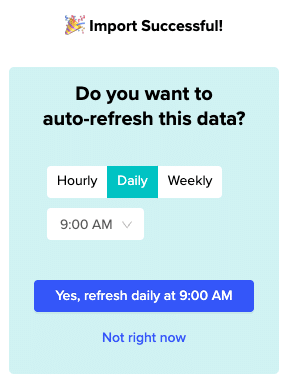
Configure hourly, daily, or weekly scheduling to automate the entire transformation workflow. The saved import configurations ensure consistency across recurring imports while maintaining your transformation rules.

Step 5. Push transformed data directly to NetSuite.

Use Coefficient’s Records & Lists import method with proper field mapping to send transformed data directly to NetSuite. The visual preview capabilities prevent data misalignment issues common with traditional ETL tools.

Transform data without technical complexity

Spreadsheet-based transformation workflows provide more flexibility than traditional ETL tools while eliminating the technical barriers of custom middleware development. Start building your transformation workflows today.

Third-party tools that integrate with NetSuite for automated report scheduling

Coefficient stands out among third-party NetSuite integration tools by specializing in automated report scheduling with direct spreadsheet integration. Unlike generic integration platforms that require complex mapping and transformation logic, Coefficient is purpose-built for NetSuite reporting automation.

You’ll discover why spreadsheet-native integration provides better results than generic dashboard solutions for financial reporting workflows.

Choose purpose-built NetSuite report scheduling with Coefficient

Generic integration platforms force data into unfamiliar dashboard formats or require additional transformation steps. NetSuite reporting automation works best when it delivers data directly to the spreadsheet workflows finance teams actually use.

How to make it work

Step 1. Connect through native NetSuite OAuth integration.

Direct OAuth connection with RESTlet deployment provides secure, real-time data access. No complex API mapping or middleware configuration required.

Step 2. Access comprehensive NetSuite data sources.

Import from all NetSuite data sources including Records & Lists, Datasets, Saved Searches, Reports, and SuiteQL queries. Complete data access without limitations.

Step 3. Configure flexible scheduling options.

Set up hourly, daily, and weekly automated refresh capabilities. Scheduling runs based on your timezone with reliable execution.

Step 4. Deliver results to spreadsheet-native output.

Results populate directly in Excel and Google Sheets with preserved formatting. No forced migration to unfamiliar dashboard interfaces.

Step 5. Implement with no-code setup.

No technical development or complex integration configuration required. NetSuite connection works through guided setup process.

Focus on spreadsheet workflows that finance teams prefer

Coefficient’s focus on spreadsheet-centric workflows makes it particularly effective for monthly financial packages and recurring reporting requirements. Experience purpose-built NetSuite automation today.

User permission mapping between NetSuite roles and CRM access levels

User permission mapping between NetSuite roles and CRM access levels creates security gaps and access control conflicts in traditional bidirectional sync workflows. Complex permission synchronization between disparate systems often fails, leaving sensitive data exposed.

The better approach is using NetSuite as your authoritative permission source instead of trying to synchronize role-based permissions across different system architectures.

Eliminate permission mapping complexity using Coefficient

Coefficient simplifies user permission mapping by leveraging NetSuite’s existing role-based security model rather than requiring complex permission synchronization. OAuth 2.0 authentication ensures users only access data they’re authorized to view in NetSuite, eliminating permission mapping conflicts.

This provides more secure data access than traditional integration solutions that require separate permission management layers.

How to make it work

Step 1. Configure automatic role-based data access.

Coefficient respects NetSuite role permissions automatically through OAuth 2.0 authentication. Users see only data they’re authorized to view in NetSuite, eliminating the need for complex permission mapping logic between NetSuite roles and CRM access levels.

Step 2. Leverage department and subsidiary controls.

Built-in support for NetSuite’s department and subsidiary access controls ensures users see only relevant data without custom permission mapping rules. This maintains data security while simplifying access management across your organization.

Step 3. Integrate with custom NetSuite roles.

Works seamlessly with NetSuite custom roles that have specific permissions configured, including SuiteAnalytics Workbook permissions for advanced reporting, REST Web Services access for API connectivity, and record-level permissions that automatically filter available data.

Step 4. Validate permissions with data preview.

Use the data preview feature to validate that users receive appropriate data based on their NetSuite roles before implementing automated refresh schedules. This ensures permission accuracy without complex testing procedures.

Use NetSuite as your permission authority

User permission mapping works best when you eliminate the mapping entirely. NetSuite’s role-based security provides the access control foundation your CRM integration needs. Secure your data access with role-based permissions today.

Using NetSuite CSV import/export vs saved searches for bulk data analysis

NetSuite CSV exports require constant manual work and become outdated immediately. Saved searches hit timeout limits with bulk datasets. Both approaches create bottlenecks that slow down your analysis workflow.

There’s a better way that combines the best aspects of both while eliminating their limitations entirely.

Automated bulk data access eliminates CSV and saved search limitations

Coefficient provides a superior alternative to both NetSuite CSV import/export and saved searches for bulk data analysis. Live data connection eliminates manual CSV export steps while scheduled refreshes provide automated updates that maintain current data without manual intervention.

Large dataset handling through SuiteQL queries processes up to 100K records efficiently, far exceeding CSV export limits or saved search timeout capabilities. Multiple data sources combine various NetSuite record types in single analysis workflows.

How to make it work

Step 1. Set up automated bulk data access methods.

Records & Lists provide direct access to transaction, customer, and item records without manual export steps. Financial reports enable automated import of Income Statement and Trial Balance data. Custom queries use SuiteQL for complex bulk data extraction and transformation. Multi-period analysis automates historical data compilation for trend analysis.

Step 2. Enable spreadsheet-native analysis capabilities.

Get immediate access to pivot tables, advanced formulas, and visualization tools without file conversion delays. Collaborative analysis and sharing capabilities work in real-time with current data. Version control and change tracking maintain analytical model integrity. Integration with external analysis tools and BI platforms expands analytical capabilities.

Step 3. Implement performance advantages over traditional methods.

Eliminate manual CSV download and upload cycles that consume hours of manual work. Bypass saved search timeout limitations that prevent bulk analysis completion. Reduce data preparation time from hours to minutes through automated formatting. Enable real-time collaboration on bulk data analysis with NetSuite current information.

Step 4. Ensure data integrity and security benefits.

Consistent data formatting and type handling eliminates conversion errors. Automated error detection and correction maintains data quality. Audit trail for data refresh and modification tracking provides accountability. Secure API connection eliminates file-based security risks associated with CSV exports.

Transform bulk analysis workflows

This approach transforms time-intensive bulk data analysis workflows into streamlined, automated processes that deliver superior analytical capabilities. Handle bulk datasets larger than CSV or saved search limits with automated optimization. Start streamlining your NetSuite bulk analysis today.

Using NetSuite saved searches with timestamp filtering for incremental data updates

NetSuite saved searches with timestamp filtering are excellent for incremental data updates, but they require manual export processes and lack automated refresh capabilities. You’re limited to NetSuite’s native search interface and must manually run searches to capture new changes.

Here’s how to enhance your existing saved searches with automated refresh capabilities and additional filtering options for seamless incremental updates.

Automate your saved searches with intelligent refresh scheduling

Coefficient enhances your existing NetSuite saved searches by providing automated refresh capabilities and additional filtering options. You can directly import from any existing saved search while preserving all search criteria and filters you’ve already configured.

The platform adds additional sorting capabilities beyond NetSuite’s native search interface, plus automated refresh scheduling (hourly, daily, weekly) that maintains your incremental update logic. You also get manual refresh options via on-sheet buttons for immediate incremental updates when needed.

How to make it work

Step 1. Import your existing saved search.

Select any saved search from your NetSuite account that includes timestamp filtering. The platform imports the search while maintaining all your carefully crafted date modified or date created filters. Use the real-time preview to verify the first 50 rows and confirm your incremental data capture logic.

Step 2. Set up automated refresh scheduling.

Configure hourly, daily, or weekly refresh schedules that automatically run your saved search and capture incremental updates. The system maintains your existing timestamp filtering logic while eliminating manual export processes. Each refresh only pulls records that meet your saved search criteria.

Step 3. Add manual refresh capabilities.

Include on-sheet buttons for immediate incremental updates when you need fresh data outside the scheduled refresh times. The platform automatically handles NetSuite’s 7-day token refresh cycle to ensure continuous incremental updates without interruption.

Step 4. Enhance with additional sorting and organization.

Use drag-and-drop column reordering to optimize your data layout beyond NetSuite’s native search interface. Apply import naming for organization and create multiple scheduled refreshes for different saved searches or stakeholder needs.

Transform your saved searches into automated data pipelines

This approach provides true incremental data updates without the complexity of custom API development or the risk of API rate limiting from frequent manual searches. Start automating your NetSuite saved searches today.

Using NetSuite scheduled scripts with queue management for continuous data streaming

NetSuite scheduled scripts with custom queue management for continuous data streaming require extensive development effort and careful API resource management. Custom implementations need complex queue logic, API governance, error recovery mechanisms, monitoring systems, and governance unit consumption optimization.

Here’s how to get pre-built scheduled refresh capabilities with intelligent queue management that delivers continuous data streaming without custom script development.

Replace custom scripts with automated streaming capabilities

Coefficient provides pre-built scheduled refresh capabilities with intelligent queue management that delivers continuous data streaming without custom script development. You get built-in queue management that handles multiple concurrent data requests automatically and automated scheduling options (hourly, daily, weekly) that provide continuous data streaming.

The platform includes intelligent API management that respects NetSuite’s 15 simultaneous RESTlet call limits plus automatic error handling and retry logic for failed requests. Unlike custom scheduled scripts, all the complex development and maintenance happens automatically.

How to make it work

Step 1. Set up multiple independent data streams.

Configure multiple import schedules that can run independently for different data streams. Each stream can target specific record types, saved searches, or custom criteria. The system automatically manages queue priorities and prevents conflicts between concurrent streaming operations.

Step 2. Configure incremental streaming with intelligent filtering.

Use AND/OR logic filtering on Date, Number, Text, and Boolean fields to enable incremental streaming that captures only changed data. This optimizes API usage while maintaining continuous data flow. The real-time preview validates streaming logic before implementation without consuming governance units.

Step 3. Implement automated scheduling for continuous flow.

Set up hourly, daily, or weekly refresh schedules based on your data change frequency. The system automatically handles NetSuite’s 7-day token refresh cycle for uninterrupted streaming. Manual refresh options provide immediate streaming when critical changes occur.

Step 4. Monitor and optimize streaming performance.

The platform provides built-in error handling and retry logic that custom scheduled scripts require extensive development to achieve. All API management, queue optimization, and performance monitoring happens automatically, ensuring reliable continuous data streaming without custom maintenance.

Start continuous data streaming without custom development

This approach delivers the continuous data streaming functionality of custom scheduled scripts while eliminating development complexity and providing superior reliability. Begin streaming NetSuite data continuously today.

Track sales cycle completion from Salesforce closed-won to NetSuite payment

Sales cycle tracking that stops at opportunity closure misses critical revenue conversion steps, leaving gaps in understanding actual cash collection timing and identifying bottlenecks in the complete lead-to-cash process.

Here’s how to track the complete cycle from deal closure through final payment collection with automated analytics and performance metrics.

Enable comprehensive sales cycle reporting using Coefficient

Coefficient enables comprehensive sales cycle reporting by connecting Salesforce opportunity closure data with NetSuite payment records through automated, synchronized data imports that track the complete lead-to-cash analytics cycle. The platform provides end-to-end tracking from Salesforce stage data through NetSuite invoice generation, payment monitoring, and cash application for complete payment reconciliation.

How to make it work

Step 1. Import Salesforce opportunity closure data.

Pull opportunities with close dates, amounts, won/lost status, and custom fields that link to customer records. Include sales rep and territory information for performance analysis by team or region.

Step 2. Import NetSuite invoice and payment tracking data.

Use Records & Lists to pull invoice generation timing and amounts, payment records showing collection dates, and cash receipt records for complete payment reconciliation. Apply filters to focus on transactions related to closed opportunities.

Step 3. Calculate sales cycle metrics automatically.

Create formulas to calculate days between Salesforce close date and NetSuite invoice creation, track collection timing from billing to cash receipt, and measure total duration from opportunity close to cash collection.

Step 4. Set up automated refresh for real-time updates.

Configure daily refresh to ensure current payment status visibility with synchronized imports that maintain accurate cycle time calculations. This enables quick identification of stalled invoices or overdue payments.

Step 5. Build advanced analytics dashboard.

Use SuiteQL Query to join customer records with transaction and payment data, calculate average collection periods by customer segment, and track seasonal variations in sales cycle completion timing.

Get complete revenue conversion visibility

This provides complete visibility into revenue conversion efficiency, enabling sales operations teams to identify and address bottlenecks in the opportunity-to-cash process. Start tracking your complete sales cycle today.

Triggering support outreach campaigns when NetSuite case volume increases per account

Rising case volumes signal customer health problems, but NetSuite case management lacks automated monitoring for volume spikes and proactive support campaign capabilities. You’re losing customers because case volume increases go unnoticed until relationships deteriorate.

Here’s how to trigger automated support outreach campaigns when customer case volumes increase beyond normal patterns.

Monitor case volume trends and trigger proactive outreach using Coefficient

Coefficient provides superior behavioral triggers by enabling continuous monitoring of case volume trends and immediate support outreach automation when customer health indicators deteriorate. You can intervene before customer satisfaction drops.

How to make it work

Step 1. Import comprehensive case data.

Use Records & Lists to import Case records with creation dates, customer information, case types, and resolution status. This gives you complete visibility into support activity trends and customer health indicators.

Step 2. Set up volume trend analysis.

Configure daily automated scheduling to refresh case data. Use spreadsheet calculations to identify accounts with increasing case volumes compared to historical baselines or defined thresholds. For example: =COUNTIFS(A:A,E2,B:B,”>=”&TODAY()-30) to count recent cases per customer.

Step 3. Correlate case volume with customer health.

Import related Customer records and transaction data to understand the relationship between case volume spikes and customer satisfaction, churn risk, or account value. This context helps prioritize intervention efforts.

Step 4. Segment by case type and urgency.

Apply Coefficient’s filtering capabilities to analyze case volume increases by type (technical issues, billing problems, feature requests). Create targeted support outreach strategies for different case categories and customer segments.

Step 5. Create escalation threshold monitoring.

Use conditional formatting to identify accounts exceeding normal case volume patterns. Set up formulas like =IF(B2>AVERAGE(C:C)*1.5,”ESCALATE”,”NORMAL”) to trigger immediate alerts for proactive customer success intervention.

Step 6. Track resolution performance.

Combine case volume data with resolution metrics to identify accounts experiencing both high volume and slow resolution times. Prioritize these accounts for immediate intervention through NetSuite retention automation.

Prevent churn through proactive support

This approach provides more proactive case management than NetSuite’s native capabilities. You’ll catch customer health issues early and intervene before they cause churn. Start monitoring case volumes today.

Triggering win-back sequences based on NetSuite customer lifecycle stage updates

Customer lifecycle stage regressions are early warning signs of churn, but NetSuite custom fields lack automated monitoring for stage changes. You’re stuck manually checking lifecycle stages and hoping you catch churning customers before they’re completely gone.

Here’s how to automatically trigger win-back sequences the moment customers move to inactive or churned lifecycle stages.

Monitor lifecycle stage changes and trigger win-back campaigns using Coefficient

Coefficient provides advanced lifecycle marketing capabilities by enabling continuous monitoring of stage changes and automated win-back campaign triggers. You can track historical stage patterns and predict optimal win-back timing.

How to make it work

Step 1. Import customer lifecycle stage data.

Import Customer records using Coefficient’s Records & Lists feature, focusing on lifecycle stage custom fields, last activity dates, and engagement metrics. This gives you comprehensive visibility into customer lifecycle progression and regression.

Step 2. Set up automated stage change detection.

Configure daily automated scheduling to refresh customer lifecycle data. Use spreadsheet conditional logic to identify customers who have moved to inactive or churned stages since the last refresh.

Step 3. Track historical stage patterns.

Maintain historical lifecycle stage data in spreadsheets to identify patterns and timing of stage regressions. Use this data to predict optimal win-back campaign timing and messaging strategies.

Step 4. Analyze stage change context.

Import related Transaction records, Case records, and activity data to understand the context behind lifecycle stage changes. This helps you tailor win-back messaging to address specific reasons for customer disengagement.

Step 5. Create segmented win-back triggers.

Apply Coefficient’s filtering capabilities to segment churned customers by previous lifecycle stage, industry, or value tier. Create personalized win-back sequences that speak to different customer segments and their specific needs.

Step 6. Build sophisticated engagement scoring.

Use SuiteQL Query feature to create custom queries combining multiple engagement indicators (login frequency, transaction volume, support interactions). The 100,000 row limit accommodates comprehensive customer lifecycle analysis across large customer bases from NetSuite .

Win back customers before they’re lost forever

The drag-and-drop column reordering helps organize complex lifecycle data for marketing automation platform integration. You’ll catch lifecycle regressions immediately and have the context needed for effective win-back campaigns. Start monitoring lifecycle changes today.

Troubleshoot NetSuite API connection issues when syncing P&L data to sheets

NetSuite API connection failures can break your automated P&L reporting right when you need it most. Authentication timeouts, permission changes, and rate limiting issues create sync failures that leave you scrambling to fix financial dashboards before important meetings.

Here’s how to diagnose and resolve common NetSuite API connection issues quickly.

Diagnose connection problems using Coefficient

Coefficient provides built-in diagnostics for NetSuite API connection issues, with specific error messages and resolution steps rather than generic failure notifications. The system identifies whether problems stem from authentication, permissions, or API limits.

How to make it work

Step 1. Check connection status.

Use Coefficient’s sidebar to verify authentication status and connection health indicators. NetSuite tokens refresh every 7 days, so check if re-authentication is needed when sync failures occur.

Step 2. Validate permissions and script deployment.

Ensure your NetSuite user has SuiteAnalytics Workbook permissions and REST Web Services access for financial data. Verify the RESTlet script is properly deployed company-wide with correct role permissions.

Step 3. Test P&L data access.

Use Coefficient’s “Refresh Preview” function to test P&L data access before scheduling automated imports. For multi-entity reporting, ensure proper subsidiary access rights and custom field permissions in NetSuite.

Step 4. Monitor API rate limits.

NetSuite limits simultaneous RESTlet calls (15 base + 10 per SuiteCloud Plus license). Coefficient manages these limits automatically but provides specific error messages when limits are exceeded, with guidance on resolution timing.

Maintain reliable financial reporting workflows

Proactive connection monitoring and detailed error diagnostics ensure your automated P&L reporting stays operational. Built-in health checks and backup authentication prevent single-point failures during critical reporting periods. Secure your NetSuite financial data sync today.