Standard NetSuite reports rarely match your exact business needs. Finance teams struggle with rigid formatting, limited customization options, and time-consuming manual workarounds.
Most professionals end up spending hours tweaking reports instead of analyzing the data that drives business decisions.
This guide covers two practical approaches to NetSuite report customization:
- Native tools within the platform
- Excel-based automation that eliminates most limitations
Two ways to customize NetSuite reports
NetSuite offers built-in customization tools through Report Builder, Saved Searches, and Financial Report Builder. These native options work well for basic modifications but quickly become restrictive for complex reporting needs.
Many finance teams find Excel-based solutions like Coefficient more flexible and efficient.
Instead of fighting NetSuite’s limitations, you can pull live data directly into Excel or Google Sheets where advanced formatting, calculations, and automation become simple.
Common custom NetSuite reporting limitations
NetSuite’s native reporting tools create several challenges that slow down finance teams:
Format and Design Issues
- Formatting restrictions that force you into predefined layouts instead of business-ready presentations
- Export issues that break formatting and require manual cleanup every time you share reports
Functional Limitations
- Limited calculation options that require complex workarounds for standard financial metrics
- Rigid scheduling that doesn’t match your actual reporting cycles and deadlines
Easy & flexible Excel-based customization using Coefficient
Why finance teams choose Excel for customizing NetSuite reports
Excel solves NetSuite’s core reporting problems with familiar tools and unlimited flexibility:
Advanced calculations
- Build complex financial models and variance analysis
- Create custom KPIs using Excel’s full formula library
- Go beyond NetSuite’s limited calculation engine
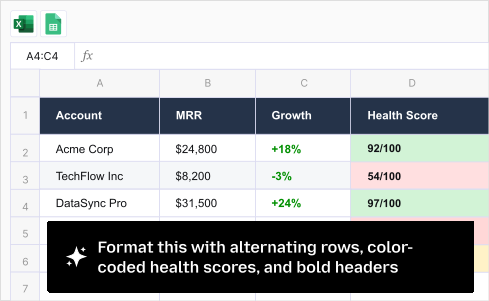
Professional formatting
- Create executive-ready reports with custom charts
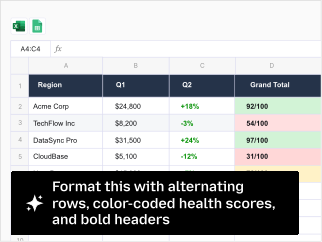
- Use conditional formatting and branded layouts
- Produce reports that actually look professional
Automated distribution
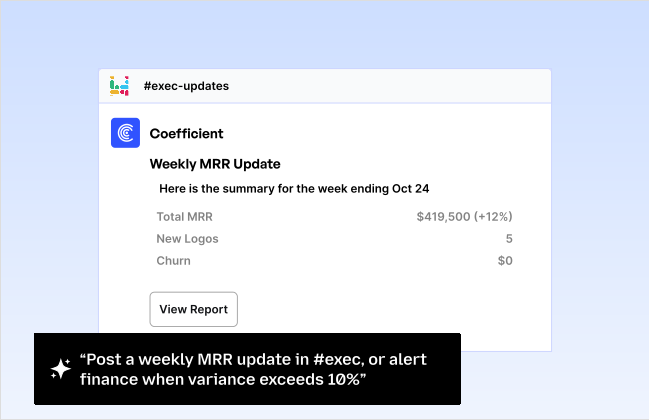
- Schedule reports to update and email automatically
- Eliminate manual export and formatting work every month
- Save 20+ hours monthly like companies such as Cyrq Energy
Customize NetSuite Reports using Coefficient
Companies like Cyrq Energy save 20+ hours monthly by using Coefficient instead of NetSuite’s native reporting tools. The live data connection eliminates export issues while Excel’s flexibility handles any customization need.
Step-by-step NetSuite connection:
1. Install Coefficient
- Add the Excel or Google Sheets extension from your platform’s app store
2. Connect to NetSuite
- Use OAuth authentication
- Requires one-time admin setup with restlet script deployment
3. Select your data source

Choose from multiple options:
- Records & Lists
- Datasets
- Saved Searches
- Reports
- Write custom SuiteQL queries
4. Configure import settings

- Select specific fields
- Apply filters to narrow your data
- Preview your data before importing
5. Import live data
- Your NetSuite data appears in Excel with automatic refresh capabilities
- Set up scheduled updates as needed
Get started faster: Use our pre-built NetSuite financial reporting template that includes:
- Income Statement formats ready for customization
- Balance Sheet templates
- Cash Flow formats
Benefits of using Coefficient to create NetSuite custom reports
Live data connections
- Reports update automatically without manual exports or broken formatting
- Schedule hourly, daily, or weekly refreshes
- No more outdated data in critical reports
Multiple import methods
- Access any NetSuite record, list, saved search, or standard report
- Write custom SuiteQL queries for complex data manipulation
- Pull data from multiple NetSuite modules simultaneously
Advanced filtering
- Apply AND/OR logic across date, number, text, and boolean fields
- More flexible than NetSuite’s native filtering
- Create dynamic filters that update automatically
No export limitations
- Skip NetSuite’s export formatting issues entirely
- Data flows directly into Excel where it belongs
- Maintain professional formatting throughout the process
Native NetSuite custom report creation
NetSuite’s built-in tools provide basic customization options when Excel-based solutions aren’t available:
Using Report Builder
Report Builder creates formatted reports from NetSuite transaction data with drag-and-drop field selection:
Setup process:
1. Navigate to Reports
- Go to Reports > New Report in your NetSuite dashboard
2. Select your data source
- Choose from available transaction types:
- Sales Orders
- Invoices
- Purchase Orders
- And other transaction types
3. Add columns
- Drag fields from the Available Fields panel to your report layout
- Organize fields in logical order
4. Configure filters
- Narrow results by date range, customer, vendor, or other criteria
- Set up multiple filter conditions as needed
5. Apply grouping and sorting
- Organize data logically for better readability
- Create subtotals and summary sections
6. Save and schedule
- Save your custom report for regular generation
- Set up automated scheduling if needed
Limitations:
- Fixed layouts limit design flexibility
- Limited calculation options
- Export formatting issues remain problematic for professional reporting
Creating Saved Searches
Saved Searches offer more flexibility than Report Builder but require deeper NetSuite knowledge:
Creation steps:
1. Navigate to Saved Searches
- Go to Lists > Search > Saved Searches and click New
2. Choose your record type Options include:
- Transactions
- Customers
- Items
- Vendors
- Other record types
3. Select criteria
- Filter which records appear in results
- Set up complex filter combinations
4. Choose results columns
- Display relevant data fields
- Organize columns for optimal viewing
5. Configure sorting and highlighting
- Improve data presentation
- Make important information stand out
6. Set availability
- Control who can access and run the search
- Manage permissions appropriately
Limitations:
- Complex interface requires NetSuite expertise
- Limited formatting options
- Still requires manual export for Excel analysis
Financial Report Builder
Financial Report Builder creates structured financial statements but with significant restrictions:
Setup process:
1. Access Financial Reports
- Go to Reports > Financial Reports > New in NetSuite
2. Select report type Choose from standard options:
- Income Statement
- Balance Sheet
- Cash Flow
- Other financial statement types
3. Configure accounting periods
- Set up comparative options
- Choose relevant time periods
4. Choose subsidiaries and departments
- Use advanced features if applicable
- Set up proper organizational filters
5. Customize account groupings
- Organize accounts logically
- Set up display options
6. Format headers and footers
- Work within NetSuite’s limited formatting options
- Add basic customization elements
Limitations:
- Rigid formatting prevents true customization
- Limited customization options overall
- Poor Excel export quality makes this unsuitable for:
- Board presentations
- Detailed financial analysis
- Executive reporting
Get the flexibility you need
NetSuite’s native tools work for basic reporting needs but fall short for professional finance work.
Key challenges that persist:
- Export formatting issues waste hours every month
- Rigid layouts prevent custom presentations executives expect
- Limited calculation capabilities restrict analysis depth
Excel-based solutions like Coefficient eliminate these limitations entirely:
- Live data connections maintain accuracy
- Unlimited formatting flexibility creates professional reports
- Automated distribution transforms NetSuite reporting from a chore into a competitive advantage
Modern finance teams need tools that enhance their expertise rather than limit their capabilities.
Start with Coefficient’s free plan and discover why thousands of finance professionals choose Excel over NetSuite’s native reporting tools.
Frequently asked questions
Can I customize any NetSuite report?
Most standard reports allow basic customization through NetSuite’s native tools. Key considerations:
- Complex customization often requires Saved Searches or external tools like Coefficient
- Some system-generated reports have limited modification options
- Advanced formatting typically requires external solutions
What’s the difference between Reports and Saved Searches?
Reports:
- Focus on formatted output with predefined layouts
- Better for standard, recurring reports
- Limited flexibility but easier to set up
Saved Searches:
- Offer more flexible data selection and filtering
- Can be converted to reports
- Provide better customization options for data analysis
- Require more NetSuite knowledge to use effectively
How do I avoid NetSuite export formatting issues?
Common export problems:
- NetSuite exports often lose formatting
- Formulas break during export
- Manual cleanup required after every export
Solution: Using direct data connections like Coefficient:
- Bypasses export entirely
- Maintains data integrity and formatting in Excel or Google Sheets
- Eliminates manual reformatting work
- Provides real-time data updates