
)


Written by

Table of Contents



“Supermetrics is a Bitter Experience! We can pull data from nearly any tool, schedule updates, manipulate data in Sheets, and push data back into our systems.”


HubSpot workflows create significant limitations for bidirectional sync: they only trigger on initial property assignments, lack real-time capabilities, and provide no reliable way to push spreadsheet changes back to HubSpot.
You need complete bidirectional synchronization that eliminates workflow dependencies. Here’s how to get reliable two-way data flow between HubSpot and Google Sheets.
Get complete bidirectional sync using Coefficient
Coefficient provides a complete bidirectional synchronization between HubSpot and Google Sheets or Excel by establishing direct API connections that bypass HubSpot’s trigger-based system entirely. This enables reliable inbound sync fromto Sheets and outbound sync from Sheets back to HubSpot.
The system captures every property modification through scheduled imports while pushing spreadsheet changes back to HubSpot through automated exports, creating seamless two-way data flow.
Coefficient is a certified HubSpot App Partner on HubSpot’s app marketplace. Here’s a full walkthrough of how it works.
How to make it work
Step 1. Set up comprehensive HubSpot contact import with all required properties.
Connect to HubSpot and select contact properties, custom fields, and association data from related deals, companies, and tickets. Use dynamic filtering to create flexible import criteria that adjust automatically.

Step 2. Configure scheduled refresh for inbound sync.
Set up automated imports every hour to capture all contact property changes from HubSpot. This detects every modification, not just “unknown to known” transitions that limit workflows.

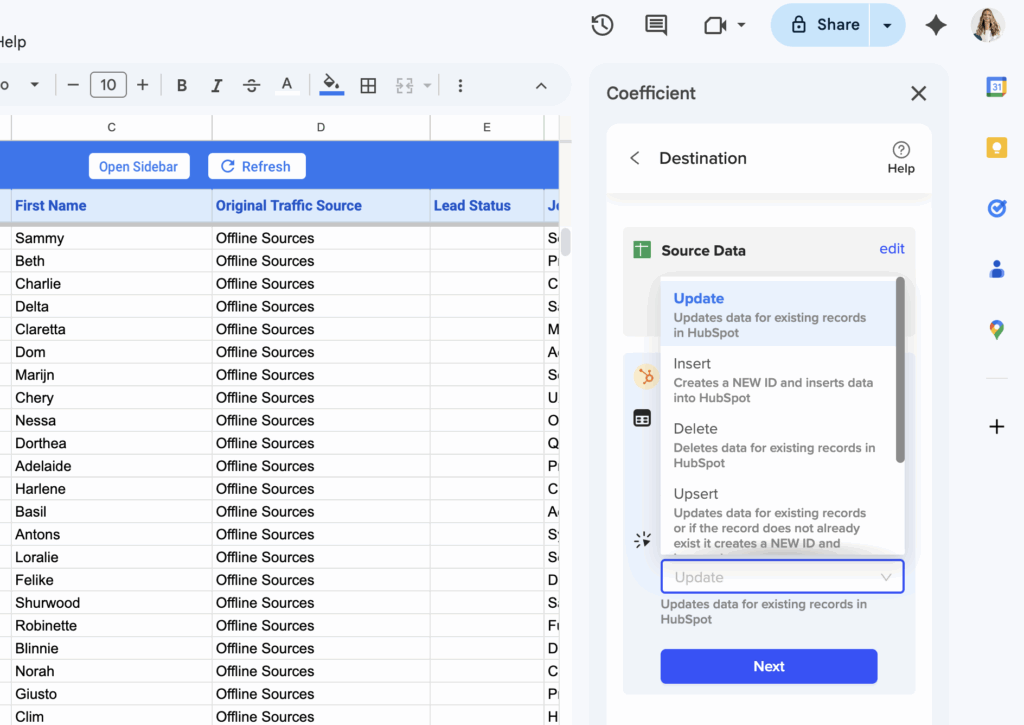
Step 3. Create export configuration for outbound sync to HubSpot.
Set up scheduled exports to push spreadsheet changes back to HubSpot using UPDATE, INSERT, UPSERT, or DELETE actions. Use conditional exports to only sync rows that meet specific criteria, like Status = “Updated”.
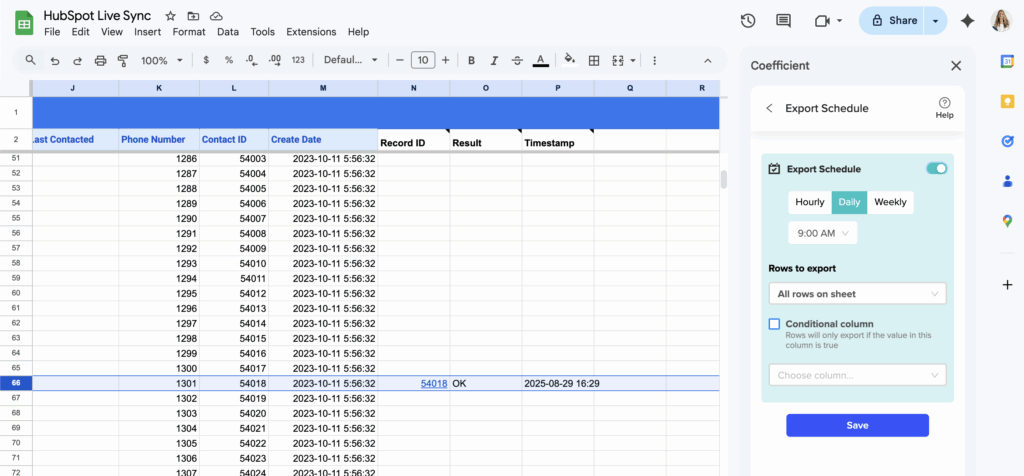
Step 4. Schedule bidirectional sync timing for optimal data flow.
Configure inbound sync every hour and outbound sync daily to maintain current data flow. Adjust timing based on your business needs and data change frequency.
Step 5. Enable contact list management for advanced HubSpot operations.
Add or remove contacts from HubSpot lists directly from spreadsheet data. Manage contact list memberships and object associations without workflow dependencies.
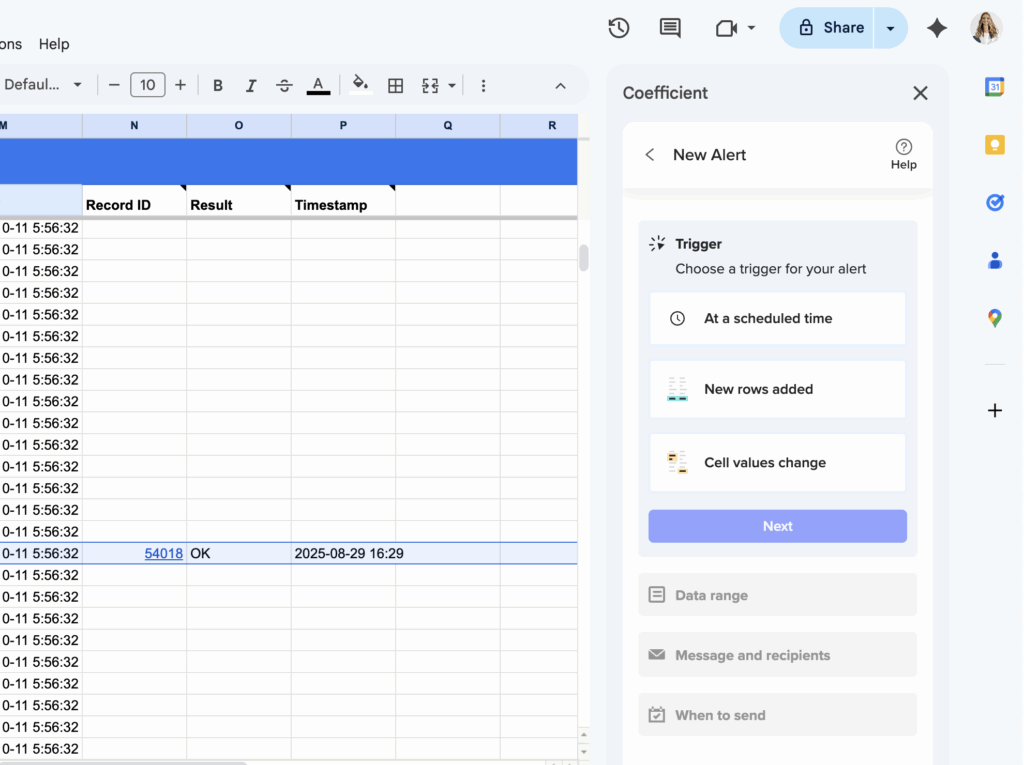
Step 6. Set up monitoring alerts for bidirectional sync health.
Configure Slack and email alerts for both import and export activities. Monitor connection status and get error logging with specific details for troubleshooting sync issues.
Start reliable two-way sync
Coefficient for HubSpot eliminates all workflow trigger limitations while providing automated bidirectional synchronization with complete transparency. You’ll get reliable data flow in both directions with comprehensive monitoring and error reporting.with bidirectional sync today.
Get Started with Coefficient for HubSpot


