Bringing your Podio Friends data into Google Sheets helps you manage your connections within Podio, track team relationships, and understand your network.
Stop manually tracking team connections in separate lists.
Learn how to quickly import your Friends data from Podio to Google Sheets using the Coefficient add-on in this simple guide.
TLDR
-
Step 1:
Step 1. Install Coefficient in Google Sheets and connect your Podio account.
-
Step 2:
Step 2. Select Import from Objects and choose the Friends object.
-
Step 3:
Step 3. Select the friend details you need and import the data into your sheet.
-
Step 4:
Step 4. Configure auto-refresh to keep your friends data updated automatically.
block:step-by-step
Here’s how to pull your Podio friends data directly into Google Sheets with Coefficient.
Step 1: Install Coefficient and Connect to Podio
Open Google Sheets > Extensions > Add-ons > Get add-ons > Install Coefficient from Google Workspace Marketplace
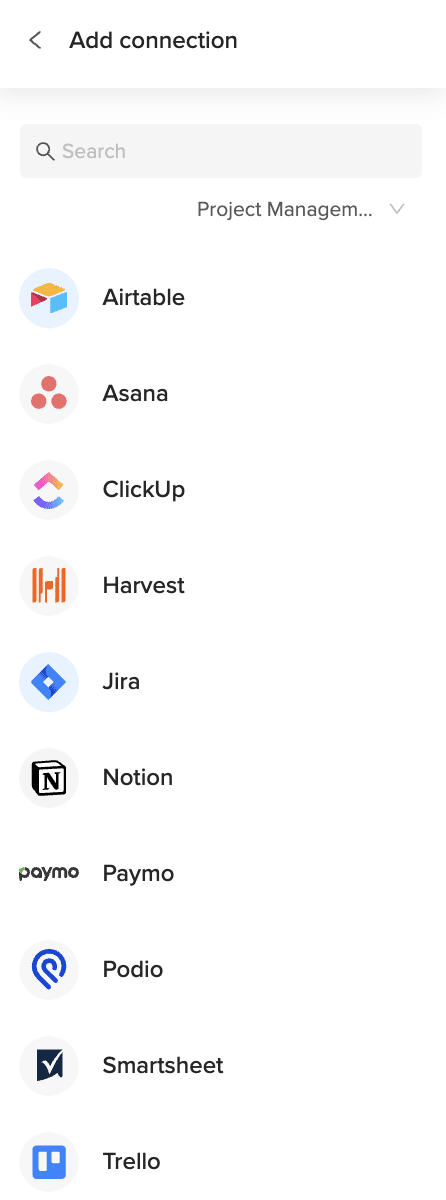
Once installed, open Coefficient from the Extensions menu. Click “”Import from…”” and look for Podio. Follow the prompts to connect your Podio account securely.

Step 2: Select Your Object
In the Coefficient sidebar, choose “”Import from Objects””.
Browse the list of Podio objects and select “”Friends””.
Step 3: Configure and Import Data
Refine the friends data you’re importing. Select specific columns like friend name, email, and associated workspaces. Apply filters if needed.
Click the “”Import”” button, and your Podio friends data will appear in your Google Sheet.

Step 4: (Optional) Set Up Auto-Refresh
Keep your network tracker current by setting up auto-refresh for your import.
In the Coefficient sidebar for your import configuration, toggle on “”Auto Refresh””. Choose a schedule (like hourly or daily) to automatically update the friends data. You can also set up email notifications.
Available Podio Objects
- Alerts
- App market
- Applications
- Batch
- Calendar
- Comments
- Contacts
- Conversations
- Devices
- Embeds
- Files
block:related-resources:
How to Import Space members Data from Podio into Google Sheets
Bringing your Podio Space members data into Google Sheets helps you manage who has access to your workspaces, track roles and permissions, and visualize your team structure.
Stop manually tracking space memberships and roles within Podio.
Learn how to quickly import your Space members data from Podio to Google Sheets using the Coefficient add-on in this simple guide.
TLDR
-
Step 1:
Step 1. Install Coefficient in Google Sheets and connect your Podio account.
-
Step 2:
Step 2. Select Import from Objects and choose the Space members object.
-
Step 3:
Step 3. Select the member details you need and import the data into your sheet.
-
Step 4:
Step 4. Configure auto-refresh to keep your space members data updated automatically.
block:step-by-step
Here’s how to pull your Podio space member data directly into Google Sheets with Coefficient.
Step 1: Install Coefficient and Connect to Podio
Open Google Sheets > Extensions > Add-ons > Get add-ons > Install Coefficient from Google Workspace Marketplace
Once installed, open Coefficient from the Extensions menu. Click “”Import from…”” and look for Podio. Follow the prompts to connect your Podio account securely.
Step 2: Select Your Object
In the Coefficient sidebar, choose “”Import from Objects””.
Browse the list of Podio objects and select “”Space members””.
Step 3: Configure and Import Data
Refine the space members data you’re importing. Select specific columns like member name, email, role, and associated spaces. Apply filters if needed based on role or space.
Click the “”Import”” button, and your Podio space members data will appear in your Google Sheet.
Step 4: (Optional) Set Up Auto-Refresh
Keep your team organization tracker current by setting up auto-refresh for your import.
In the Coefficient sidebar for your import configuration, toggle on “”Auto Refresh””. Choose a schedule (like hourly or daily) to automatically update the space members data. You can also set up email notifications.
Available Podio Objects
- Alerts
- App market
- Applications
- Batch
- Calendar
- Comments
- Contacts
- Conversations
- Devices
- Embeds
- Files
block:related-resources:
How to Import Users Data from Podio into Google Sheets
Bringing your Podio Users data into Google Sheets helps you manage team members, track their roles and permissions, and maintain an overview of users across your Podio account.
Stop manually tracking user details and access levels within Podio.
Learn how to quickly import your Users data from Podio to Google Sheets using the Coefficient add-on in this simple guide.
TLDR
-
Step 1:
Step 1. Install Coefficient in Google Sheets and connect your Podio account.
-
Step 2:
Step 2. Select Import from Objects and choose the Users object.
-
Step 3:
Step 3. Select the user details you need and import the data into your sheet.
-
Step 4:
Step 4. Configure auto-refresh to keep your users data updated automatically.
block:step-by-step
Here’s how to pull your Podio user data directly into Google Sheets with Coefficient.
Step 1: Install Coefficient and Connect to Podio
Open Google Sheets > Extensions > Add-ons > Get add-ons > Install Coefficient from Google Workspace Marketplace
Once installed, open Coefficient from the Extensions menu. Click “”Import from…”” and look for Podio. Follow the prompts to connect your Podio account securely.
Step 2: Select Your Object
In the Coefficient sidebar, choose “”Import from Objects””.
Browse the list of Podio objects and select “”Users””.
Step 3: Configure and Import Data
Refine the users data you’re importing. Select specific columns like user name, email, role, and associated workspaces. Apply filters if needed based on role or workspace.
Click the “”Import”” button, and your Podio users data will appear in your Google Sheet.
Step 4: (Optional) Set Up Auto-Refresh
Keep your team roster current by setting up auto-refresh for your import.
In the Coefficient sidebar for your import configuration, toggle on “”Auto Refresh””. Choose a schedule (like hourly or daily) to automatically update the users data. You can also set up email notifications.
Available Podio Objects
- Alerts
- App market
- Applications
- Batch
- Calendar
- Comments
- Contacts
- Conversations
- Devices
- Embeds
- Files
block:related-resources:
How to Import Hooks Data from Podio into Google Sheets
Bringing your Podio Hooks data into Google Sheets helps you manage your webhooks, track integrations with other systems, and monitor automated workflows triggered by events in Podio.
Stop manually checking webhook configurations and logs.
Learn how to quickly import your Hooks data from Podio to Google Sheets using the Coefficient add-on in this simple guide.
TLDR
-
Step 1:
Step 1. Install Coefficient in Google Sheets and connect your Podio account.
-
Step 2:
Step 2. Select Import from Objects and choose the Hooks object.
-
Step 3:
Step 3. Select the hook details you need and import the data into your sheet.
-
Step 4:
Step 4. Configure auto-refresh to keep your hooks data updated automatically.
block:step-by-step
Here’s how to pull your Podio hooks data directly into Google Sheets with Coefficient.
Step 1: Install Coefficient and Connect to Podio
Open Google Sheets > Extensions > Add-ons > Get add-ons > Install Coefficient from Google Workspace Marketplace
Once installed, open Coefficient from the Extensions menu. Click “”Import from…”” and look for Podio. Follow the prompts to connect your Podio account securely.
Step 2: Select Your Object
In the Coefficient sidebar, choose “”Import from Objects””.
Browse the list of Podio objects and select “”Hooks””.
Step 3: Configure and Import Data
Refine the hooks data you’re importing. Select specific columns like hook ID, URL, event type, and associated app or item. Apply filters if needed based on event type or app.
Click the “”Import”” button, and your Podio hooks data will appear in your Google Sheet.
Step 4: (Optional) Set Up Auto-Refresh
Keep your webhook documentation current by setting up auto-refresh for your import.
In the Coefficient sidebar for your import configuration, toggle on “”Auto Refresh””. Choose a schedule (like hourly or daily) to automatically update the hooks data. You can also set up email notifications.
Available Podio Objects
- Alerts
- App market
- Applications
- Batch
- Calendar
- Comments
- Contacts
- Conversations
- Devices
- Embeds
- Files
block:related-resources:
How to Import Integrations Data from Podio into Google Sheets
Bringing your Podio Integrations data into Google Sheets helps you document which services are connected to your Podio account and understand how your data flows between systems.
Stop manually tracking integration details across different platforms.
Learn how to quickly import your Integrations data from Podio to Google Sheets using the Coefficient add-on in this simple guide.
TLDR
-
Step 1:
Step 1. Install Coefficient in Google Sheets and connect your Podio account.
-
Step 2:
Step 2. Select Import from Objects and choose the Integrations object.
-
Step 3:
Step 3. Select the integration details you need and import the data into your sheet.
-
Step 4:
Step 4. Configure auto-refresh to keep your integrations data updated automatically.
block:step-by-step
Here’s how to pull your Podio integrations data directly into Google Sheets with Coefficient.
Step 1: Install Coefficient and Connect to Podio
Open Google Sheets > Extensions > Add-ons > Get add-ons > Install Coefficient from Google Workspace Marketplace
Once installed, open Coefficient from the Extensions menu. Click “”Import from…”” and look for Podio. Follow the prompts to connect your Podio account securely.
Step 2: Select Your Object
In the Coefficient sidebar, choose “”Import from Objects””.
Browse the list of Podio objects and select “”Integrations””.
Step 3: Configure and Import Data
Refine the integrations data you’re importing. Select specific columns like service name, status, authorization details, and associated workspaces or apps. Apply filters if needed based on service name or status.
Click the “”Import”” button, and your Podio integrations data will appear in your Google Sheet.
Step 4: (Optional) Set Up Auto-Refresh
Keep your integration documentation current by setting up auto-refresh for your import.
In the Coefficient sidebar for your import configuration, toggle on “”Auto Refresh””. Choose a schedule (like hourly or daily) to automatically update the integrations data. You can also set up email notifications.
Available Podio Objects
- Alerts
- App market
- Applications
- Batch
- Calendar
- Comments
- Contacts
- Conversations
- Devices
- Embeds
- Files
block:related-resources:
How to Import Flows Data from Podio into Google Sheets
Bringing your Podio Flows data into Google Sheets helps you document your automation workflows, understand process triggers, and manage your Podio automations more effectively.
Stop manually mapping out your Podio flows.
Learn how to quickly import your Flows data from Podio to Google Sheets using the Coefficient add-on in this simple guide.
TLDR
-
Step 1:
Step 1. Install Coefficient in Google Sheets and connect your Podio account.
-
Step 2:
Step 2. Select Import from Objects and choose the Flows object.
-
Step 3:
Step 3. Select the flow details you need and import the data into your sheet.
-
Step 4:
Step 4. Configure auto-refresh to keep your flows data updated automatically.
block:step-by-step
Here’s how to pull your Podio flows data directly into Google Sheets with Coefficient.
Step 1: Install Coefficient and Connect to Podio
Open Google Sheets > Extensions > Add-ons > Get add-ons > Install Coefficient from Google Workspace Marketplace
Once installed, open Coefficient from the Extensions menu. Click “”Import from…”” and look for Podio. Follow the prompts to connect your Podio account securely.
Step 2: Select Your Object
In the Coefficient sidebar, choose “”Import from Objects””.
Browse the list of Podio objects and select “”Flows””.
Step 3: Configure and Import Data
Refine the flows data you’re importing. Select specific columns like flow name, description, trigger, and actions. Apply filters if needed based on trigger type or workspace.
Click the “”Import”” button, and your Podio flows data will appear in your Google Sheet.
Step 4: (Optional) Set Up Auto-Refresh
Keep your automation documentation current by setting up auto-refresh for your import.
In the Coefficient sidebar for your import configuration, toggle on “”Auto Refresh””. Choose a schedule (like hourly or daily) to automatically update the flows data. You can also set up email notifications.
Available Podio Objects
- Alerts
- App market
- Applications
- Batch
- Calendar
- Comments
- Contacts
- Conversations
- Devices
- Embeds
- Files
block:related-resources:
How to Import Widgets Data from Podio into Google Sheets
Bringing your Podio Widgets data into Google Sheets helps you understand the configuration of dashboard widgets and analyze the underlying data they display.
Stop manually documenting widget settings and data sources.
Learn how to quickly import your Widgets data from Podio to Google Sheets using the Coefficient add-on in this simple guide.
TLDR
-
Step 1:
Step 1. Install Coefficient in Google Sheets and connect your Podio account.
-
Step 2:
Step 2. Select Import from Objects and choose the Widgets object.
-
Step 3:
Step 3. Select the widget details you need and import the data into your sheet.
-
Step 4:
Step 4. Configure auto-refresh to keep your widgets data updated automatically.
block:step-by-step
Here’s how to pull your Podio widget data directly into Google Sheets with Coefficient.
Step 1: Install Coefficient and Connect to Podio
Open Google Sheets > Extensions > Add-ons > Get add-ons > Install Coefficient from Google Workspace Marketplace
Once installed, open Coefficient from the Extensions menu. Click “”Import from…”” and look for Podio. Follow the prompts to connect your Podio account securely.
Step 2: Select Your Object
In the Coefficient sidebar, choose “”Import from Objects””.
Browse the list of Podio objects and select “”Widgets””.
Step 3: Configure and Import Data
Refine the widgets data you’re importing. Select specific columns like widget type, title, configuration options, and associated workspace or app. Apply filters if needed based on type or associated app.
Click the “”Import”” button, and your Podio widgets data will appear in your Google Sheet.
Step 4: (Optional) Set Up Auto-Refresh
Keep your widget documentation current by setting up auto-refresh for your import.
In the Coefficient sidebar for your import configuration, toggle on “”Auto Refresh””. Choose a schedule (like hourly or daily) to automatically update the widgets data. You can also set up email notifications.
Available Podio Objects
- Alerts
- App market
- Applications
- Batch
- Calendar
- Comments
- Contacts
- Conversations
- Devices
- Embeds
- Files
block:related-resources:
How to Import Views Data from Podio into Google Sheets
Bringing your Podio Views data into Google Sheets helps you document your saved filters, analyze custom data views, and share specific datasets with your team in a familiar spreadsheet format.
Stop manually recreating saved views outside of Podio.
Learn how to quickly import your Views data from Podio to Google Sheets using the Coefficient add-on in this simple guide.
TLDR
-
Step 1:
Step 1. Install Coefficient in Google Sheets and connect your Podio account.
-
Step 2:
Step 2. Select Import from Objects and choose the Views object.
-
Step 3:
Step 3. Select the view details you need and import the data into your sheet.
-
Step 4:
Step 4. Configure auto-refresh to keep your views data updated automatically.
block:step-by-step
Here’s how to pull your Podio views data directly into Google Sheets with Coefficient.
Step 1: Install Coefficient and Connect to Podio
Open Google Sheets > Extensions > Add-ons > Get add-ons > Install Coefficient from Google Workspace Marketplace
Once installed, open Coefficient from the Extensions menu. Click “”Import from…”” and look for Podio. Follow the prompts to connect your Podio account securely.
Step 2: Select Your Object
In the Coefficient sidebar, choose “”Import from Objects””.
Browse the list of Podio objects and select “”Views””.
Step 3: Configure and Import Data
Refine the views data you’re importing. Select specific columns like view name, filter criteria, sorting, and associated app. Apply filters if needed based on app or view name.
Click the “”Import”” button, and your Podio views data will appear in your Google Sheet.
Step 4: (Optional) Set Up Auto-Refresh
Keep your documentation of saved views current by setting up auto-refresh for your import.
In the Coefficient sidebar for your import configuration, toggle on “”Auto Refresh””. Choose a schedule (like hourly or daily) to automatically update the views data. You can also set up email notifications.
Available Podio Objects
- Alerts
- App market
- Applications
- Batch
- Calendar
- Comments
- Contacts
- Conversations
- Devices
- Embeds
- Files
block:related-resources:
How to Import Tasks Data from Podio into Google Sheets
Bringing your Podio Tasks data into Google Sheets helps you manage individual assignments, track progress and deadlines, and analyze task completion rates across your projects.
Stop manually tracking tasks in separate lists outside of Podio.
Learn how to quickly import your Tasks data from Podio to Google Sheets using the Coefficient add-on in this simple guide.
TLDR
-
Step 1:
Step 1. Install Coefficient in Google Sheets and connect your Podio account.
-
Step 2:
Step 2. Select Import from Objects and choose the Tasks object.
-
Step 3:
Step 3. Select the task details you need and import the data into your sheet.
-
Step 4:
Step 4. Configure auto-refresh to keep your tasks data updated automatically.
block:step-by-step
Here’s how to pull your Podio task data directly into Google Sheets with Coefficient.
Step 1: Install Coefficient and Connect to Podio
Open Google Sheets > Extensions > Add-ons > Get add-ons > Install Coefficient from Google Workspace Marketplace
Once installed, open Coefficient from the Extensions menu. Click “”Import from…”” and look for Podio. Follow the prompts to connect your Podio account securely.
Step 2: Select Your Object
In the Coefficient sidebar, choose “”Import from Objects””.
Browse the list of Podio objects and select “”Tasks””.
Step 3: Configure and Import Data
Refine the tasks data you’re importing. Select specific columns like task title, assignee, due date, status, and associated item or workspace. Apply filters if needed based on assignee, status, or date ranges.
Click the “”Import”” button, and your Podio tasks data will appear in your Google Sheet.
Step 4: (Optional) Set Up Auto-Refresh
Keep your task tracker current by setting up auto-refresh for your import.
In the Coefficient sidebar for your import configuration, toggle on “”Auto Refresh””. Choose a schedule (like hourly or daily) to automatically update the tasks data. You can also set up email notifications.
Available Podio Objects
- Alerts
- App market
- Applications
- Batch
- Calendar
- Comments
- Contacts
- Conversations
- Devices
- Embeds
- Files
block:related-resources:
How to Import Tags Data from Podio into Google Sheets
Bringing your Podio Tags data into Google Sheets helps you manage the tags used on items and tasks, organize your content, and analyze tagging usage across your workspaces.
Stop manually tracking tag definitions and usage within Podio.
Learn how to quickly import your Tags data from Podio to Google Sheets using the Coefficient add-on in this simple guide.
TLDR
-
Step 1:
Step 1. Install Coefficient in Google Sheets and connect your Podio account.
-
Step 2:
Step 2. Select Import from Objects and choose the Tags object.
-
Step 3:
Step 3. Select the tag details you need and import the data into your sheet.
-
Step 4:
Step 4. Configure auto-refresh to keep your tags data updated automatically.
block:step-by-step
Here’s how to pull your Podio tag data directly into Google Sheets with Coefficient.
Step 1: Install Coefficient and Connect to Podio
Open Google Sheets > Extensions > Add-ons > Get add-ons > Install Coefficient from Google Workspace Marketplace
Once installed, open Coefficient from the Extensions menu. Click “”Import from…”” and look for Podio. Follow the prompts to connect your Podio account securely.
Step 2: Select Your Object
In the Coefficient sidebar, choose “”Import from Objects””.
Browse the list of Podio objects and select “”Tags””.
Step 3: Configure and Import Data
Refine the tags data you’re importing. Select specific columns like tag name, count, and associated items or tasks. Apply filters if needed to focus on specific tags or items.
Click the “”Import”” button, and your Podio tags data will appear in your Google Sheet.
Step 4: (Optional) Set Up Auto-Refresh
Keep your tag management current by setting up auto-refresh for your import.
In the Coefficient sidebar for your import configuration, toggle on “”Auto Refresh””. Choose a schedule (like hourly or daily) to automatically update the tags data. You can also set up email notifications.
Available Podio Objects
- Alerts
- App market
- Applications
- Batch
- Calendar
- Comments
- Contacts
- Conversations
- Devices
- Embeds
- Files