Importing Outreach Event records into Excel lets you analyze meetings, demos, and other scheduled activities alongside your CRM data. In this guide, you’ll install Coefficient, select the Event object, import your data, and set up live refreshes.
TLDR
-
Step 1:
Step 1. In Excel, go to Insert → Get Add-ins → My Add-ins and install “Coefficient”.
-
Step 2:
Step 2. Open Coefficient, click “Import from Objects”, then choose “Event” under Outreach.
-
Step 3:
Step 3. Add filters on date range or type, then click “Import”.
-
Step 4:
Step 4. (Optional) Enable auto-refresh to keep your event data up to date.


What Outreach Objects Are Available?
Account
- Opportunity
- Sequence
- Call Disposition
- Call Purpose
- Compliance Request
- Content Category
- Content Category Membership
- Content Category Ownership
- Duty
- Email Address
- Event
- Favorite
How to Import Favorite Data from Outreach into Excel
Importing Outreach Favorite records into Excel surfaces your starred contacts, templates, and sequences for easy review. This tutorial shows you how to install Coefficient, select Favorite, import your data, and automate refreshes.
TLDR
-
Step 1:
Step 1. In Excel, go to Insert → Get Add-ins → My Add-ins and install “Coefficient”.
-
Step 2:
Step 2. Launch Coefficient, choose “Import from Objects”, and pick “Favorite” under Outreach.
-
Step 3:
Step 3. Add filters on type or date, then click “Import”.
-
Step 4:
Step 4. (Optional) Enable auto-refresh for live favorites tracking.
What Outreach Objects Are Available?
Account
- Opportunity
- Sequence
- Call Disposition
- Call Purpose
- Compliance Request
- Content Category
- Content Category Membership
- Content Category Ownership
- Duty
- Email Address
- Event
- Favorite
How to Import Mail Alias Data from Outreach into Excel
Importing Mail Alias records into Excel helps you manage outreach from multiple sending addresses. This guide shows you how to install Coefficient, select Mail Alias, import your data, and set up auto-refresh.
TLDR
-
Step 1:
Step 1. In Excel, navigate to Insert → Get Add-ins → My Add-ins and install “Coefficient”.
-
Step 2:
Step 2. Open Coefficient, choose “Import from Objects”, and pick “Mail Alias” under Outreach.
-
Step 3:
Step 3. Apply filters on alias or domain, then click “Import”.
-
Step 4:
Step 4. (Optional) Enable auto-refresh for live alias management.
What Outreach Objects Are Available?
Account
- Opportunity
- Sequence
- Call Disposition
- Call Purpose
- Compliance Request
- Content Category
- Content Category Membership
- Content Category Ownership
- Duty
- Email Address
- Event
- Favorite
How to Import Mailbox Data from Outreach into Excel
Importing Mailbox records into Excel gives you visibility into connected inboxes, letting you track deliverability and response rates. This tutorial walks through installation, selection, import, and scheduling auto-refresh with Coefficient.
TLDR
-
Step 1:
Step 1. In Excel, go to Insert → Get Add-ins → My Add-ins, search “Coefficient” and install it.
-
Step 2:
Step 2. Open Coefficient, select “Import from Objects”, then choose “Mailbox” under Outreach.
-
Step 3:
Step 3. Set filters on mailbox type or status, then click “Import”.
-
Step 4:
Step 4. (Optional) Enable scheduled auto-refresh to keep mailbox data live.
What Outreach Objects Are Available?
Account
- Opportunity
- Sequence
- Call Disposition
- Call Purpose
- Compliance Request
- Content Category
- Content Category Membership
- Content Category Ownership
- Duty
- Email Address
- Event
- Favorite
How to Import Opportunity Data from Outreach into Excel
Importing Outreach Opportunity records into Excel helps you visualize your pipeline, track deal progress, and share dashboards with stakeholders. This tutorial walks you through setup, import, and scheduling live updates using Coefficient.
TLDR
-
Step 1:
Step 1. In Excel, go to Insert → Get Add-ins → My Add-ins, search “Coefficient”, and install.
-
Step 2:
Step 2. Launch Coefficient, select “Import from Objects”, and pick “Opportunity” under Outreach.
-
Step 3:
Step 3. Add filters on stage or owner, then hit “Import”.
-
Step 4:
Step 4. (Optional) Schedule auto-refresh to keep your pipeline data current.
What Outreach Objects Are Available?
Account
- Opportunity
- Sequence
- Call Disposition
- Call Purpose
- Compliance Request
- Content Category
- Content Category Membership
- Content Category Ownership
- Duty
- Email Address
- Event
- Favorite
How to Import Sequence Data from Outreach into Excel
Importing your Outreach Sequence records into Excel lets you measure cadence effectiveness, compare teams, and optimize outreach strategies. Follow this guide to install Coefficient, select the Sequence object, import your data, and automate refreshes.
TLDR
-
Step 1:
Step 1. In Excel, go to Insert → Get Add-ins → My Add-ins, search “Coefficient” and install.
-
Step 2:
Step 2. Launch Coefficient, choose “Import from Objects”, and pick “Sequence” under Outreach.
-
Step 3:
Step 3. Add filters on status or team, then click “Import”.
-
Step 4:
Step 4. (Optional) Schedule auto-refresh to keep sequence metrics live.
What Outreach Objects Are Available?
Account
- Opportunity
- Sequence
- Call Disposition
- Call Purpose
- Compliance Request
- Content Category
- Content Category Membership
- Content Category Ownership
- Duty
- Email Address
- Event
- Favorite
How to Import Workers Data from Rippling into Excel
Importing Workers data from Rippling into Excel helps HR teams track both employees and contractors, analyze workforce composition, and optimize labor costs. Coefficient makes this process simple and automatic.
This guide will show you how to import your Rippling Workers data into Excel using Coefficient.
TLDR
-
Step 1:
Step 1. Open Excel > Insert tab > Get Add-ins > Install Coefficient from Office Add-ins store.
-
Step 2:
Step 2. Connect your Rippling account and select the Workers object to import.
-
Step 3:
Step 3. (Optional) Enable auto-refresh to keep your data updated automatically.
Step 1: Install Coefficient in Excel and Connect Your Rippling Account
Begin by installing the Coefficient add-in in your Excel workbook:
- Open Excel and navigate to the Insert tab in the ribbon.
- Click on “Get Add-ins” to open the Office Add-ins store.
- Search for “Coefficient” and click “Add” to install it.
- Once installed, open the Coefficient sidebar by clicking on the Coefficient icon in the ribbon.
- Click on “Import from…” to see available data sources.
Step 2: Import Workers Data from Rippling
Now it’s time to connect to Rippling and import your Workers data:
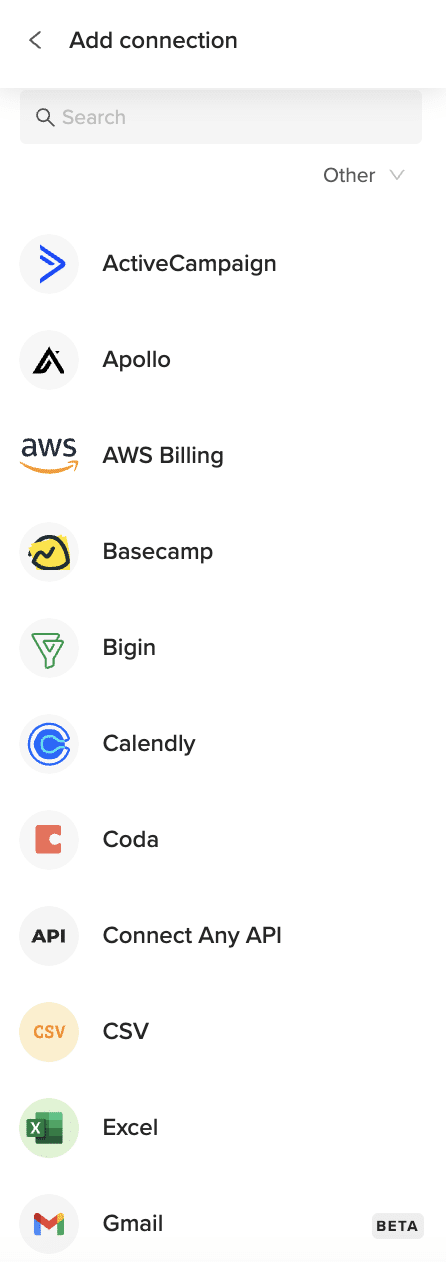
- In the Coefficient sidebar, navigate to the “Other” category.
- Find and select “Rippling” from the list of connectors.
- Log in to your Rippling account when prompted.
- Select “Workers” from the list of available objects.
- Configure any filters or select specific fields you want to import.
- Click “Import” to bring your Workers data into Excel.
Step 3: Set Up Auto-Refresh (Optional)
To ensure your Workers data stays up-to-date automatically:
- Hover over your imported data range in Excel.
- Click on the “Data Settings” icon that appears.
- Select “Schedule Refresh” from the menu.
- Choose your preferred refresh frequency (hourly, daily, or weekly).
- Set the specific timing for the refresh to occur.
- Click “Save” to confirm your auto-refresh settings.
Available Rippling Objects
- Workers
- Users
- Groups
- Departments
- Teams
- Levels
- Work Locations
- Company Activity
- Company Leave Types
- Leave Balances
- Leave Requests
How to Import Work Locations Data from Rippling into Excel
Importing Work Locations data from Rippling into Excel helps HR teams track office occupancy, analyze remote work patterns, and manage geographic workforce distribution. Coefficient makes this process simple and automatic.
This guide will show you how to import your Rippling Work Locations data into Excel using Coefficient.
TLDR
-
Step 1:
Step 1. Open Excel > Insert tab > Get Add-ins > Install Coefficient from Office Add-ins store.
-
Step 2:
Step 2. Connect your Rippling account and select the Work Locations object to import.
-
Step 3:
Step 3. (Optional) Enable auto-refresh to keep your data updated automatically.
Step 1: Install Coefficient in Excel and Connect Your Rippling Account
Begin by installing the Coefficient add-in in your Excel workbook:
- Open Excel and navigate to the Insert tab in the ribbon.
- Click on “Get Add-ins” to open the Office Add-ins store.
- Search for “Coefficient” and click “Add” to install it.
- Once installed, open the Coefficient sidebar by clicking on the Coefficient icon in the ribbon.
- Click on “Import from…” to see available data sources.
Step 2: Import Work Locations Data from Rippling
Now it’s time to connect to Rippling and import your Work Locations data:
- In the Coefficient sidebar, navigate to the “Other” category.
- Find and select “Rippling” from the list of connectors.
- Log in to your Rippling account when prompted.
- Select “Work Locations” from the list of available objects.
- Configure any filters or select specific fields you want to import.
- Click “Import” to bring your Work Locations data into Excel.
Step 3: Set Up Auto-Refresh (Optional)
To ensure your Work Locations data stays up-to-date automatically:
- Hover over your imported data range in Excel.
- Click on the “Data Settings” icon that appears.
- Select “Schedule Refresh” from the menu.
- Choose your preferred refresh frequency (hourly, daily, or weekly).
- Set the specific timing for the refresh to occur.
- Click “Save” to confirm your auto-refresh settings.
Available Rippling Objects
- Workers
- Users
- Groups
- Departments
- Teams
- Levels
- Work Locations
- Company Activity
- Company Leave Types
- Leave Balances
- Leave Requests
How to Import Teams Data from Rippling into Excel
Importing Teams data from Rippling into Excel helps managers track team compositions, analyze cross-functional collaboration, and optimize project staffing. Coefficient makes this process simple and automatic.
This guide will show you how to import your Rippling Teams data into Excel using Coefficient.
TLDR
-
Step 1:
Step 1. Open Excel > Insert tab > Get Add-ins > Install Coefficient from Office Add-ins store.
-
Step 2:
Step 2. Connect your Rippling account and select the Teams object to import.
-
Step 3:
Step 3. (Optional) Enable auto-refresh to keep your data updated automatically.
Step 1: Install Coefficient in Excel and Connect Your Rippling Account
Begin by installing the Coefficient add-in in your Excel workbook:
- Open Excel and navigate to the Insert tab in the ribbon.
- Click on “Get Add-ins” to open the Office Add-ins store.
- Search for “Coefficient” and click “Add” to install it.
- Once installed, open the Coefficient sidebar by clicking on the Coefficient icon in the ribbon.
- Click on “Import from…” to see available data sources.
Step 2: Import Teams Data from Rippling
Now it’s time to connect to Rippling and import your Teams data:
- In the Coefficient sidebar, navigate to the “Other” category.
- Find and select “Rippling” from the list of connectors.
- Log in to your Rippling account when prompted.
- Select “Teams” from the list of available objects.
- Configure any filters or select specific fields you want to import.
- Click “Import” to bring your Teams data into Excel.
Step 3: Set Up Auto-Refresh (Optional)
To ensure your Teams data stays up-to-date automatically:
- Hover over your imported data range in Excel.
- Click on the “Data Settings” icon that appears.
- Select “Schedule Refresh” from the menu.
- Choose your preferred refresh frequency (hourly, daily, or weekly).
- Set the specific timing for the refresh to occur.
- Click “Save” to confirm your auto-refresh settings.
Available Rippling Objects
- Workers
- Users
- Groups
- Departments
- Teams
- Levels
- Work Locations
- Company Activity
- Company Leave Types
- Leave Balances
- Leave Requests
How to Import Task Checklists Data from ClickUp into Excel
Getting your ClickUp Task Checklists data into Excel helps you analyze the breakdown and progress of tasks. Coefficient connects ClickUp directly to your spreadsheet.
This guide walks you through importing your ClickUp Task Checklists data into Excel using Coefficient.
TLDR
-
Step 1:
Step 1. Install Coefficient for Excel and connect your ClickUp account.
-
Step 2:
Step 2. Choose Import from… and select the Task Checklists object.
-
Step 3:
Step 3. Apply any necessary filters and import the data to your sheet.
-
Step 4:
Step 4. Set up an auto-refresh schedule to keep the data current.
Step-by-step guide
Follow these steps to bring your ClickUp Task Checklists data into Excel.
Step 1: Install and Connect Coefficient
To start, install the Coefficient add-in in Excel. Go to the Insert tab, click “Get Add-ins,” search for Coefficient, and install it from the store.
Open the Coefficient add-in from the Home tab. Select ClickUp when prompted to connect a data source.
Log in to your ClickUp account and authorize Coefficient to access your data.
Step 2: Import Task Checklists Data
With ClickUp connected, click “Import from…” in the Coefficient sidebar.
Select ClickUp, then choose “Task Checklists” from the list of objects to import.
You can select specific checklist fields or filter the data as needed before clicking “Import” to bring it into your Excel sheet.
Step 3: Set Up Auto-Refresh (Optional)
Keep your Task Checklists data in Excel automatically updated by setting up auto-refresh. Find the auto-refresh settings in the Coefficient sidebar after importing.
Schedule refreshes hourly, daily, or weekly. Your Excel sheet will then automatically sync with the latest task checklist information from ClickUp.
Available ClickUp Objects
- Authorization
- Attachments
- Comments
- Custom Task Types
- Custom Fields
- Docs
- Folders
- Goals
- Guests
- Lists
- Members
- Roles