The native Salesforce Data Connector can’t access custom objects because it was designed only for standard objects and lacks the flexibility to handle diverse schema variations.
Here’s how to import all your custom objects, fields, and relationships without any restrictions.
Import all Salesforce custom objects using Coefficient
Coefficient provides full support for ALL Salesforce custom objects, making it essential for organizations with customized Salesforce implementations. You can access any custom object visible to your Salesforce user, including all custom fields, formula fields, and complex relationships.
How to make it work
Step 1. Open Coefficient in Google Sheets and connect to Salesforce.
Install Coefficient from the Google Workspace Marketplace and authorize your Salesforce connection. The platform automatically detects all objects you have access to, including custom ones.
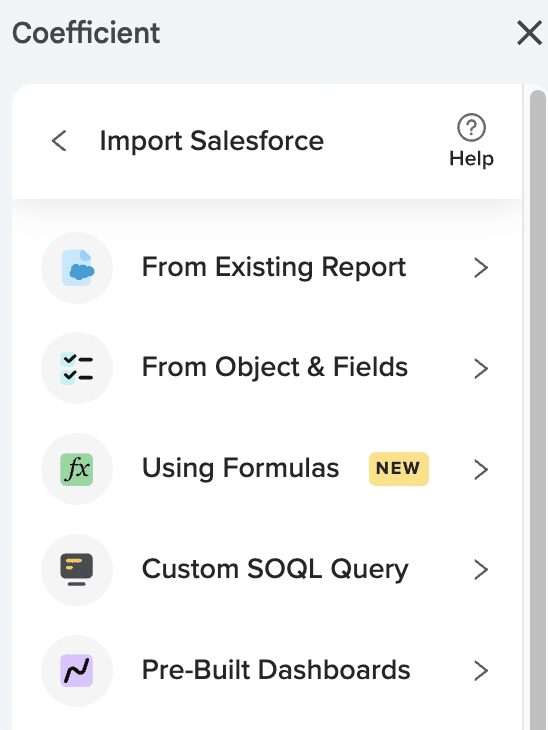
Step 2. Select “Import from Salesforce” and choose “From Objects & Fields”.
This method gives you access to the complete object schema. Your custom objects appear alongside standard objects in the selection list, clearly marked with their API names.
Step 3. Select your custom object and choose fields.
Browse through extensive field lists that include all custom fields, formula fields, and lookup relationships. You can select any combination of fields from your custom object and related objects.
Step 4. Apply filters using complex AND/OR logic.
Set up sophisticated filtering on custom fields using operators like equals, contains, greater than, and date ranges. Dynamic filters let you point to cell values for flexible querying.
Step 5. Use custom SOQL queries for advanced relationships.
Write custom queries to join multiple custom objects or access parent-child hierarchies. For example:
Access your complete Salesforce data model
Custom objects contain your most valuable business data, and you shouldn’t be limited by connector restrictions. Coefficient’s comprehensive custom object support ensures you can analyze all your Salesforce data in Google Sheets. Start importing your custom objects today.
Salesforce dashboard filters fail with multiple report types because the platform requires filter fields to exist identically across all underlying objects. When you have Forecasting Quota reports and Opportunity reports on the same dashboard, Salesforce cannot apply a filter unless every component’s underlying object contains that exact field name and type.
Here’s why this happens and how to solve cross-object dashboard filtering without modifying your Salesforce org structure.
Technical limitations behind incompatible field types in Salesforce dashboards
This incompatible field types limitation is a fundamental architectural constraint of Salesforce dashboard engine. The platform has specific technical requirements that create systematic filtering failures.
Dashboard filters must map to identical field API names across all report types. Field data types must match exactly (Date, Text, Number, Picklist). Custom objects often lack standard fields present on other objects, and cross-object lookups don’t resolve filter compatibility issues.
How to make it work
Step 1. Import all report types into a unified analytical environment.
Use Coefficient to pull Forecasting, Opportunity, and any other Salesforce reports into a spreadsheet environment. This moves beyond Salesforce’s dashboard architecture limitations entirely.
Step 2. Create universal filters that work across all data sources.
Build filtering logic that works across all data sources without field existence requirements. Use dynamic cell references to create filters that can simultaneously work with different field names and data types.
Step 3. Build advanced filter combinations with AND/OR logic.
Create complex filtering scenarios that are impossible in Salesforce dashboards. Combine multiple criteria across different objects using spreadsheet formulas that don’t require identical field structures.
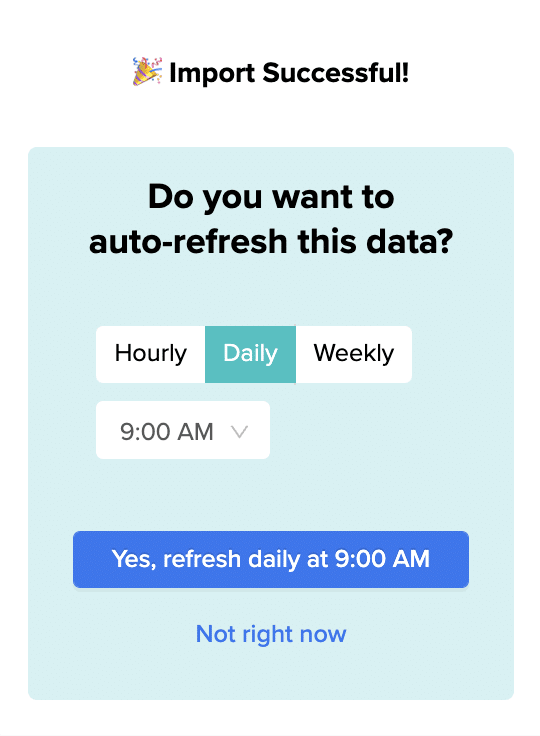
Step 4. Maintain live data with automated refresh scheduling.
Keep your analysis current with automated refresh scheduling while avoiding the technical debt of creating proxy fields in Salesforce. Set up hourly, daily, or weekly refreshes to maintain data accuracy across all imported objects.
Move beyond architectural constraints
This approach provides sales forecast dashboard error resolution without the complexity and maintenance burden of modifying your Salesforce org’s field structure. Start building unified cross-object dashboards that work beyond native limitations.
HubSpot’s merge logic prioritizes the “primary record” based on factors like creation date and recent activity rather than data completeness. This design assumes newer records contain more current information, but fails when older records have more complete data profiles.
You’ll learn why timestamp-based precedence creates data loss problems and how to implement data-driven merge prioritization that considers field completeness instead of record age.
Replace timestamp logic with data-driven merge prioritization using Coefficient
Coefficient addresses merge logic limitations by enabling data completeness analysis that HubSpot’s timestamp-based system cannot provide.
How to make it work
Step 1. Build data completeness scoring systems.
Import duplicate records from HubSpot to HubSpot and create automated scoring that evaluates data completeness rather than timestamps. Use formulas like =COUNTA(B2:Z2)/COLUMNS(B2:Z2)*100 to calculate completeness percentages for each record. Add weighted scoring for critical fields: =(COUNTA(B2:F2)*3+COUNTA(G2:Z2))/((COLUMNS(B2:F2)*3)+COLUMNS(G2:Z2))*100 where B2:F2 are high-priority fields.
Step 2. Create merge precedence analysis reports.
Build reports showing how HubSpot’s default merge logic would impact your data. Create columns for “HubSpot Would Choose” (based on creation date) and “Data-Driven Choice” (based on completeness scores). Use conditional formatting to highlight cases where newer records would overwrite valuable existing information with blanks.
Step 3. Implement alternative merge workflows.
Use Coefficient to identify the most complete record in each duplicate pair, then prepare data updates that ensure complete information is preserved. Create formulas like =IF(completeness_score_A>completeness_score_B,”Prepare Record A”,”Prepare Record B”) to determine optimal merge direction regardless of record age.
Step 4. Build custom merge validation rules.
Create spreadsheet-based validation that flags merges where newer records would cause data loss. Use formulas like =IF(AND(newer_record_score
Step 5. Develop merge impact forecasting.
Before implementing merge operations, model different merge scenarios and their data preservation outcomes. Create “what-if” analysis that shows data retention rates under timestamp-based vs. completeness-based merge logic, helping you choose the approach that preserves the most valuable information.
Prioritize data quality over record timestamps
By implementing data-driven merge prioritization, you can preserve valuable information regardless of when records were created. This approach addresses the fundamental limitations in HubSpot’s timestamp-based merge logic and ensures your most complete data survives the merge process. Start building smarter merge logic today.
HubSpot’s merge logic prioritizes the “primary record” (typically the newer one) for most properties, which means blank fields from newer records will overwrite valuable existing data without considering data completeness.
This happens because HubSpot’s default merge behavior doesn’t evaluate whether fields are populated. You’ll learn how to analyze merge impacts before they happen and protect your data.
Analyze merge impacts before losing data using Coefficient
The key to preventing data loss is understanding exactly what will be overwritten before you merge. Coefficient lets you import both duplicate records into your spreadsheet to compare field completeness and make informed decisions about which record should be primary.
How to make it work
Step 1. Import your duplicate records for analysis.
Connect HubSpot to HubSpot through Coefficient and import both records with all their properties. Use filters to pull specific contact or company IDs you’re planning to merge. This gives you a complete side-by-side view that HubSpot’s merge preview doesn’t provide.
Step 2. Create formulas to identify potential data loss.
Build spreadsheet formulas that compare each field between the two records. Use conditional formatting to highlight cells where the newer record has blank values that would overwrite populated data in the older record. For example, =IF(AND(B2=””,C2<>“”),”DATA LOSS”,”OK”) will flag fields at risk.
Step 3. Calculate data completeness scores.
Create a formula that counts populated fields for each record: =COUNTA(B2:B50) for record one and =COUNTA(C2:C50) for record two. This helps you determine which record actually has more complete information, regardless of creation date.
Step 4. Set up automated backup snapshots.
Use Coefficient’s snapshot feature to capture complete record states before performing any merges. Schedule daily or weekly snapshots of your contact and company data so you always have recovery points if merge operations cause unexpected data loss.
Protect your data with smart merge analysis
HubSpot’s timestamp-based merge logic doesn’t consider data quality, but you can. By analyzing field completeness before merging, you’ll prevent valuable data from being overwritten with blanks. Start protecting your merge data today.
Your Salesforce formula fields contain critical business calculations—profit margins, lead scores, commission calculations. But when you import to Google Sheets using native connectors, they either vanish completely or arrive as useless static text.
The worst part? You don’t discover this until after building your entire reporting workflow, forcing you to rebuild everything from scratch.
Why Native Salesforce Connectors Drop Your Formula Fields (And Cost You Hours)
Here’s what actually happens when you try importing Salesforce data with formula fields:
The Silent Data Loss Problem
Native connectors like Salesforce Data Connector have fundamental API limitations that either:
Skip formula fields entirely – They simply don’t appear in your import
Import as static text – Your calculated values become frozen snapshots
Break on refresh – Formula results don’t update when source data changes
One frustrated user put it perfectly: “I spent 3 hours building a commission dashboard only to realize none of my formula fields were calculating. Had to manually recreate everything in Sheets.”
Why This Keeps Happening
Limited Field Recognition: Basic connectors can’t properly interpret Salesforce’s formula field types. They treat them like optional metadata instead of critical data.
Outdated API Implementation: Most connectors use simplified API calls that exclude calculated fields to “improve performance”—sacrificing your data completeness.
No Relationship Preservation: Formula fields that reference other objects break completely, leaving you with #ERROR values or blank cells.
Why 500,000+ Users Choose Coefficient Instead
“Coefficient saved our RevOps team 15+ hours per week. We finally have real-time Salesforce calculations flowing into our forecasting sheets.” – Sarah M., Revenue Operations Manager
“I bring Coefficient to every organization I join. It’s the only tool that actually preserves our complex Salesforce formulas.” – Mike T., Sales Analytics Lead
With a 4.8/5 star rating on Google Workspace and consistent recognition as a G2 Leader, Coefficient has become the go-to solution for teams who need complete Salesforce data—formula fields included.
How to Import ALL Your Salesforce Formula Fields with Coefficient (5 Simple Steps)
Step 1: Install Coefficient and Connect to Salesforce
Install the Coefficient add-on from Google Sheets in one click. Connect to Salesforce with enterprise-grade OAuth that stays connected (no more daily re-authentication nightmares).
Step 2: Select Your Salesforce Object with Formula Fields
Use Coefficient’s “From Objects & Fields” import method. You’ll immediately see ALL your fields—including formula fields clearly marked and ready to import.
What makes this different: Coefficient’s deep Salesforce integration recognizes and preserves every field type:
Currency formulas maintain formatting
Date calculations stay dynamic
Cross-object formulas resolve correctly
Percentage fields import with proper decimals
Step 3: Import with Live Formula Calculations
Select any combination of regular and formula fields. Watch as Coefficient imports not just the values, but maintains the calculation logic for automatic updates.
Step 4: Set Up Automated Refreshes That Actually Work
Configure refreshes on your schedule—hourly, daily, weekly, or custom intervals. Each refresh recalculates all formula values automatically.
Real user experience:“Our lead scoring formula updates every hour now. Sales gets fresh prioritization without me lifting a finger.” – Jessica R., Sales Ops
Step 5: Combine Salesforce Formulas with Google Sheets Power
Layer Google Sheets formulas on top of your Salesforce calculations. Coefficient’s Auto Fill Down feature ensures new rows automatically get your custom formulas applied.
Example: Import your Salesforce Probability_Score__c formula field, then add a Sheets formula like =IF(B2>80,”Hot Lead”,”Nurture”) for additional segmentation.
Beyond Formula Fields: Why Teams Stick with Coefficient
Built-in AI Sheets Assistant
The AI doesn’t just make suggestions—it builds actual charts, pivots, and formulas using your live Salesforce data.
Two-Way Sync That Actually Works
Update Salesforce directly from your sheets. Change opportunity stages, update contact info, or mass-edit records—all while preserving formula field integrity.
Native Salesforce Functions
Use formulas like =SALESFORCE_LOOKUP() to query live data on demand. No exports, no delays, just real-time Salesforce data in familiar spreadsheet formulas.
Enterprise-Grade Reliability
Smart error handling with clear messages (not cryptic failures)
Automatic retry logic for network issues
Row limit flexibility (not capped at 10,000 like native connectors)
Real-time alerts via Slack or email when data changes
The Hidden Cost of Broken Formula Fields
Every time formula fields fail to import correctly, you’re losing:
3-5 hours rebuilding calculations manually
Data accuracy from outdated static values
Team trust when reports show incorrect numbers
Decision speed from delayed insights
“Before Coefficient, I was manually updating 47 formula calculations every Monday. Now it’s automated and 100% accurate.” – Rachel S., Finance Manager
See Coefficient in Action with Your Own Data
Stop wrestling with broken formula field imports. Join 500,000+ users who’ve eliminated this problem completely.
The Salesforce Data Connector fails with complex SOQL queries because its basic query parser can’t handle advanced syntax, relationships, joins, subqueries, or aggregations.
Here’s how to run sophisticated SOQL queries that include relationships, aggregations, and complex filtering logic.
Run advanced SOQL queries using Coefficient
Coefficient provides enterprise-grade SOQL support with full syntax compatibility, including complex JOIN operations, aggregate functions, GROUP BY clauses, and date functions that the native connector simply can’t handle.
How to make it work
Step 1. Select “Custom SOQL Query” in Coefficient.
Choose this option when importing from Salesforce to access the full SOQL query builder. This unlocks all advanced SOQL capabilities that aren’t available through the basic connector.
Step 2. Write your complex SOQL query with full syntax support.
Use advanced features like subqueries, relationships, and aggregations. For example:
Step 3. Validate your query syntax with real-time feedback.
Coefficient provides immediate syntax validation and error checking as you write your query. This prevents common SOQL mistakes and ensures your query will execute successfully.
Step 4. Preview results before importing.
Test your query with a small sample to verify the results match your expectations. You can see the data structure and field types before committing to the full import.
Step 5. Schedule automated refreshes for dynamic reporting.
Set up hourly, daily, or weekly refreshes to keep your complex query results current. The same advanced SOQL capabilities work seamlessly with automated scheduling.
Unlock advanced Salesforce data analysis
Complex SOQL queries are essential for meaningful data analysis, but the native connector’s limitations force you to settle for basic data pulls. Coefficient’s full SOQL support enables sophisticated reporting and analysis directly in Google Sheets. Start running advanced queries today.
The 2000 row limit exists because of Salesforce API governor limits and the native connector’s basic architecture that can’t handle larger datasets efficiently.
Here’s how to bypass this limitation completely and import unlimited rows from Salesforce into your spreadsheets.
Import unlimited Salesforce rows using Coefficient
Coefficient eliminates the 2000 row restriction by using both REST API and Bulk API support with smart batch processing. You can import hundreds of thousands of records without hitting artificial limits, with the only exception being MFA-enabled orgs without unique ID fields.
How to make it work
Step 1. Connect your Salesforce account to Coefficient.
Install Coefficient from the Google Workspace Marketplace and authorize your Salesforce connection. The platform handles OAuth authentication and maintains stable connections even with MFA enabled.
Step 2. Choose your import method.
Select “Import from Objects & Fields” for standard imports or “Custom SOQL Query” for complex data needs. Both methods support unlimited row imports through intelligent batch processing.
Step 3. Select your object and fields without worrying about limits.
Choose any Salesforce object and select all the fields you need. Coefficient automatically optimizes the query and uses parallel batch execution to handle large datasets efficiently.
Step 4. Apply filters to optimize performance.
Use dynamic filters to point to cell values or set up complex AND/OR logic. This helps manage data volume while maintaining fast import speeds even for enterprise-level datasets.
Step 5. Set up automated refresh schedules.
Configure hourly, daily, or weekly refreshes to keep your data current. Coefficient maintains the same unlimited import capacity across all scheduled updates.
Start importing unlimited Salesforce data today
The native connector’s 2000 row limit doesn’t have to restrict your data analysis. Coefficient’s enterprise-grade architecture handles datasets of any size with reliable performance. Get started with unlimited Salesforce imports today.
Salesforce Maps separates temporal data from spatial layer information because of its underlying data architecture, which treats time-based visit tracking and geographic visualization as distinct functional areas with separate data models.
Here’s why this separation exists and how to overcome it for comprehensive geographic data consolidation and analysis.
The platform prioritizes real-time visualization over analytical reporting
This architectural separation occurs because visit tracking data lives in time-series objects focused on chronological events, while spatial layer data is stored in geographic objects optimized for mapping visualization. Salesforce Maps’ reporting engine lacks built-in cross-object relationship mapping between these data types, and the platform prioritizes real-time geographic visualization over complex analytical reporting needs in Salesforce .
How to make it work
Step 1. Use Coefficient as an external data consolidation platform.
Coefficient solves this architectural limitation by importing from both temporal and spatial data sources simultaneously. It can establish relationships that Salesforce Maps cannot create natively, enabling the spatial-temporal data merge that Maps’ separated architecture prevents.
Step 2. Import both data types and establish cross-dimensional relationships.
Pull visit tracking data (timestamps, duration) and spatial layer data (territories, marker colors, geographic boundaries) into your spreadsheet. Use common identifiers like User ID, Territory ID, or Location coordinates to connect these separate datasets.
Step 3. Create unified reports showing visit duration patterns by territory.
Build analysis that combines both temporal and spatial dimensions, such as average visit duration by territory assignment, rep performance metrics with geographic context, and time-based analysis across different marker layer categories.
Step 4. Build historical trending with combined dimensions.
Create reports that show historical patterns combining both temporal and spatial elements, such as territory performance over time, seasonal visit patterns by geographic region, and rep efficiency trends across different territorial assignments.
Step 5. Set up automated refresh for ongoing integrated analysis.
Schedule regular data updates to maintain current information across both temporal and spatial dimensions. Your integrated reports stay synchronized with Salesforce Maps activity automatically.
Get the integrated reporting Maps’ architecture prevents
This approach provides comprehensive geographic data consolidation that overcomes Salesforce Maps’ architectural separation, delivering integrated spatial-temporal analysis for enhanced sales and field service management. Create your unified territory analysis today.
Your Salesforce custom object history report likely isn’t showing all quarterly status changes due to multiple platform limitations. These include field history retention policies, the 5 million record limit, report row limits, and missing records from before history tracking was enabled.
Here’s how to capture complete historical data and overcome every limitation that’s causing you to miss critical status changes.
Capture complete quarterly status changes using Coefficient
Coefficient overcomes all Salesforce limitations by importing unlimited historical records, preserving data indefinitely through Snapshots, and capturing every single change with custom SOQL queries. You’ll never lose quarterly data again.
How to make it work
Step 1. Import all available historical data immediately.
Use “From Objects & Fields” to import your complete custom object history before any more data is lost to retention policies. Include all fields and use custom SOQL queries like SELECT Id, Field, OldValue, NewValue, CreatedDate FROM Custom_Object__History WHERE Field = ‘Status__c’ ORDER BY CreatedDate ASC to capture every change.
Step 2. Set up ongoing data capture.
Configure hourly or daily refreshes to catch all new changes and set up quarterly Snapshots for permanent retention. Create a “Status Change Log” that appends new changes to your historical dataset, ensuring no future data is lost.
Step 3. Validate data completeness.
Compare record counts between Salesforce and Coefficient, check for gaps in date sequences, and verify all status values are captured. Cross-reference with audit trails and use CreatedDate with time components to catch rapid status changes on the same day.
Step 4. Build comprehensive quarterly analysis.
Create calculated quarter fields using =”Q”&CEILING(MONTH(Date)/3)&” “&YEAR(Date) and build pivot tables showing all status changes by quarter. Include transition counts, duration analysis, and trend identification that was impossible with limited Salesforce reports.
Step 5. Create validation and monitoring.
Set up alerts for unusual patterns, monitor data capture success rates, and create quarterly validation reports that confirm all expected changes are captured. Filter by CreatedById to ensure all users’ changes are included and verify API permissions haven’t hidden records.
Never miss quarterly status changes again
By implementing Coefficient, you eliminate virtually all native Salesforce limitations for quarterly custom object history tracking, ensuring accurate historical analysis for decision-making. Start capturing complete quarterly data that you can actually rely on for strategic planning.
Native HubSpot reporting falls short for client-facing deliverables because it prioritizes internal team functionality over external client communication needs. Fundamental design limitations prevent the professional presentation, custom branding, and contextual explanations that clients expect.
Here’s how to transform HubSpot data into professional client deliverables that justify premium service fees.
Create professional client reports using Coefficient
Coefficient transforms raw HubSpot data into polished client deliverables with branded formatting, executive summaries, and contextual explanations that HubSpot dashboards cannot provide.
How to make it work
Step 1. Address presentation quality limitations.
Import HubSpot data into Google Sheets or Excel where you can apply custom branding, professional formatting, and cohesive narrative structure. Create executive summaries and contextual explanations that guide client understanding.
Present data in familiar spreadsheet environments that don’t require CRM training. Translate technical field names into business language and add guided explanations for complex metrics.
Step 3. Enable advanced data analysis.
Perform sophisticated calculations like customer lifetime value trends, attribution modeling, and ROI analysis that HubSpot’s report builder cannot handle. Combine HubSpot data with other business intelligence sources for comprehensive insights.
Step 4. Build narrative-driven reports.
Structure reports to tell a story, starting with key insights and drilling down to supporting data. Include comment sections for explaining trends, highlighting specific insights, and providing actionable recommendations.
Step 5. Create flexible delivery formats.
Generate professional PDF exports, interactive spreadsheets, or presentation-ready visuals that work in client meetings and board presentations. Enable offline review capabilities with maintained formatting.
Combine HubSpot CRM data with website analytics, advertising performance, and other business metrics for comprehensive performance reporting that’s impossible with native dashboards alone.
Deliver reports that justify premium pricing
Professional client deliverables enable agencies to demonstrate sophisticated analysis capabilities while ensuring clients can easily understand and act on insights provided. This approach supports higher service fees through improved perceived value. Start creating professional client reports today.