What retry intervals work best for NetSuite concurrent request limit (CRL) violations

NetSuite concurrent request limit violations require careful retry interval tuning based on your organization’s API license limits and current system load. Determining optimal retry intervals involves complex calculations considering NetSuite’s 15 simultaneous RESTlet API calls plus 10 additional calls per SuiteCloud Plus license, but dynamic load balancing makes static intervals unreliable.

Here’s how to eliminate CRL violations entirely without calculating retry intervals.

Intelligent API management that prevents CRL violations using Coefficient

Coefficient addresses NetSuite rate limiting and CRL violations through intelligent API call management that eliminates the need for custom retry interval optimization. The platform’s scheduling system distributes data imports across time periods, reducing concurrent API usage that triggers CRL violations.

How to make it work

Step 1. Configure distributed data imports.

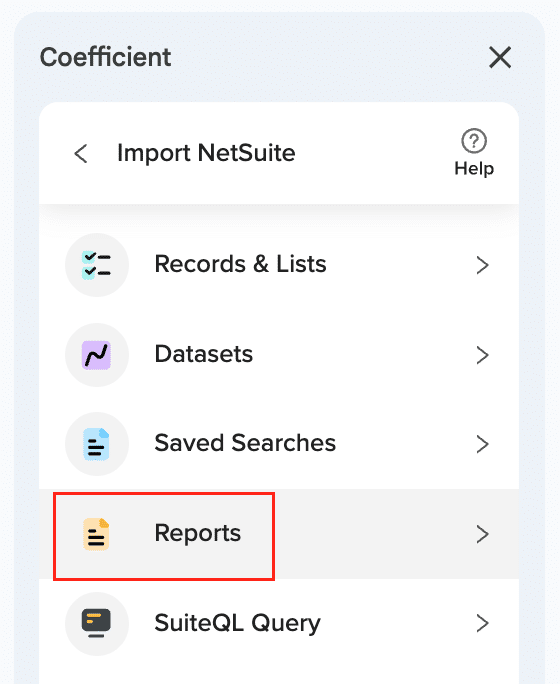
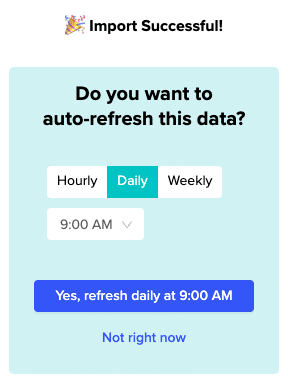
Set up NetSuite imports through Records & Lists, Datasets, or Saved Searches with automated scheduling. Choose hourly, daily, or weekly intervals that spread API calls efficiently rather than creating burst traffic that hits concurrent request limits. The RESTlet script deployment includes built-in handling for NetSuite’s concurrent request management.

Step 2. Use optimized API call patterns.

The platform automatically manages API call timing to stay within NetSuite’s concurrent request limits when importing data. This prevents most rate limiting scenarios through optimized API usage patterns rather than reactive retry logic after CRL violations occur.

Step 3. Monitor performance without complex calculations.

View import status and performance directly in the interface without tracking concurrent request usage or calculating optimal retry intervals. When temporary rate limiting does occur, built-in retry mechanisms handle recovery automatically. Manual refresh options provide immediate data access when NetSuite API capacity is available.

Predictable data access without retry complexity

Intelligent API call management provides more predictable NetSuite data access than custom retry interval calculations while reducing operational overhead of monitoring concurrent request limits. Get started with reliable NetSuite API access today.

What security considerations apply when exposing NetSuite data through third-party dashboards

Exposing NetSuite data through third-party dashboards creates significant security risks including unauthorized access, data transmission vulnerabilities, and compliance violations. Direct API integrations and manual exports often lack comprehensive protection strategies.

You’ll learn how to implement enterprise-grade security controls that protect sensitive financial and operational data while enabling effective dashboard functionality.

Implement comprehensive security using Coefficient

Coefficient addresses security considerations more effectively than direct API integrations. You get OAuth 2.0 implementation with NetSuite ‘s secure authentication protocols, end-to-end encryption for all API communications, and role-based data access controls that respect NetSuite ‘s permission structure.

How to make it work

Step 1. Configure authentication and authorization controls.

Implement OAuth 2.0 with NetSuite’s secure authentication protocols and automatic token refresh management with 7-day rotation cycle. Set up role-based data access controls that respect NetSuite’s permission structure. Enable multi-factor authentication support for additional security layers.

Step 2. Establish data transmission protection.

Use end-to-end encryption for all NetSuite API communications with HTTPS-only connections and certificate validation. Deploy secure RESTlet scripts with company-wide access controls. Implement encrypted storage of authentication tokens and connection credentials.

Step 3. Apply granular access control implementation.

Configure field-level permissions aligned with NetSuite roles and department/subsidiary filtering to prevent cross-functional data exposure. Implement user identity verification before data access authorization. Set up session management with automatic timeout and re-authentication requirements.

Step 4. Enable audit and compliance features.

Maintain comprehensive logging of all data access and export activities. Implement data lineage tracking from NetSuite source to dashboard destination. Set up automated compliance reporting for regulatory requirements and data retention controls with automated purging capabilities.

Step 5. Monitor and maintain security controls.

Apply the principle of least privilege by configuring data imports to include only necessary fields. Implement real-time monitoring of unusual data access patterns. Set up automated alerts for failed authentication attempts or suspicious activities with regular security assessments.

Protect sensitive data while enabling dashboard functionality

Security shouldn’t prevent teams from accessing the data they need. By implementing comprehensive protection strategies, you can expose NetSuite data through third-party dashboards while meeting enterprise security standards and regulatory compliance requirements. Secure your data exposure today.

What third-party tools connect NetSuite financial records to Google Sheets seamlessly

Coefficient leads the market for NetSuite third-party connectors specifically designed for seamless Google Sheets integration, offering superior capabilities compared to generic integration platforms like Zapier, Workato, or Celigo.

Here’s why Coefficient provides the most specialized NetSuite financial data sync solution available.

Specialized financial data access beats generic platforms

While other solutions exist, they fall short for comprehensive financial analysis. Zapier is limited to basic record triggers with no comprehensive financial reporting, Workato requires complex workflow building with expensive enterprise pricing, and Celigo focuses on system-to-system integration rather than spreadsheet analysis.

How to make it work

Step 1. Access comprehensive NetSuite financial data.

Pull complete financial records including Accounts, Transactions, and Journal Entries. Import all standard financial reports like Income Statement, Trial Balance, and General Ledger with custom field support across all NetSuite record types.

Step 2. Leverage seamless Google Sheets integration.

Use the native Google Sheets add-on without external platforms. Get real-time data preview with drag-and-drop field selection, automated refresh scheduling, and maintained Google Sheets formatting and formula compatibility.

Step 3. Utilize financial-specific features.

Handle multi-subsidiary support for complex organizational structures, select accounting periods and books for accurate reporting, map custom financial fields with transformation capabilities, and support NetSuite’s complex chart of accounts hierarchies.

Step 4. Benefit from simple implementation.

Complete one-time OAuth setup by your NetSuite admin with no ongoing technical maintenance required. Get built-in error handling and authentication management with 7-day automatic token refresh cycle.

Choose the right NetSuite connector

Coefficient provides the most specialized NetSuite financial data sync solution, designed specifically for comprehensive financial analysis within Google Sheets without generic platform complexity. Start connecting your NetSuite financial data seamlessly today.

What to do when Google Ads attribution window doesn’t align with NetSuite sales cycle data

Attribution window misalignment between Google Ads and NetSuite sales cycles creates significant ROI measurement challenges. Google Ads’ default 30-day window often misses B2B sales cycles that extend 90+ days, leading to inaccurate campaign performance assessment.

Here’s how to create custom attribution modeling that reflects your actual business sales cycle timing.

Extended data range imports solve attribution window conflicts

Coefficient enables flexible attribution modeling through custom data integration. While Google Ads uses standard attribution windows, automated data correlation allows you to build attribution models that match your actual NetSuite sales cycle length.

How to make it work

Step 1. Import Google Ads data with extended date ranges.

Pull Google Ads campaign data with custom date ranges that match your actual NetSuite sales cycle length. Import 60, 90, or 120+ days of campaign data to capture the full customer journey from initial click to final purchase.

Step 2. Build custom attribution models in spreadsheets.

Import both Google Ads click data and NetSuite transaction records to create sophisticated attribution models that account for your specific sales cycle timing. Use formulas to correlate campaigns with revenue events across extended timeframes.

Step 3. Track the complete lead-to-revenue journey.

Pull NetSuite Lead and Opportunity records alongside Customer transactions using Records & Lists. This maps the complete customer journey from initial Google Ads click through final revenue recognition.

Step 4. Create custom date-based correlations.

Use SuiteQL Query functionality to create custom date-based correlations between Google Ads campaigns and NetSuite revenue events. This works regardless of standard attribution window limitations.

Step 5. Calculate multi-period ROI performance.

Schedule automated imports that track campaign performance across multiple NetSuite accounting periods. This provides accurate long-term marketing attribution analysis that reflects your actual business cycle.

Match attribution to your actual sales cycle

Custom attribution modeling enables accurate ad spend revenue correlation that reflects your actual business timing rather than being constrained by standard attribution limitations. Start building attribution models that match your real sales cycle.

What to do when NetSuite connector stops working after NetSuite system updates or maintenance

NetSuite system updates and maintenance frequently break basic connectors due to API changes, authentication resets, and schema modifications. These failures leave you without data access during critical business periods, often requiring complete connector reconfiguration.

Here’s how to build update-resistant connections with automatic recovery mechanisms. You’ll learn enterprise-grade recovery procedures that restore functionality quickly without losing your existing automation setup.

Build update-resistant connections with automatic recovery using Coefficient

Coefficient provides enterprise-grade architecture that resists NetSuite updates through automatic RESTlet script management and robust authentication recovery. Unlike basic connectors that require complete reconfiguration, Coefficient maintains all settings through update cycles.

How to make it work

Step 1. Set up automatic RESTlet script monitoring.

Enable Coefficient’s automatic update notifications for RESTlet script compatibility. When NetSuite updates affect API communication, you receive immediate alerts with updated script files and version control information. This proactive monitoring prevents connectivity issues before they impact your data imports.

Step 2. Implement streamlined authentication recovery.

Use Coefficient’s authentication recovery process that preserves all import configurations, field selections, filters, and scheduling settings. When NetSuite updates require re-authentication, the recovery process maintains your existing setup work rather than forcing complete reconfiguration like basic connectors.

Step 3. Test connections immediately after NetSuite maintenance.

Use manual refresh capabilities to test connections right after known NetSuite maintenance windows. The manual refresh button allows you to verify connectivity and data flow without affecting scheduled automation. This immediate testing catches update-related issues before they impact live reporting.

Step 4. Validate data integrity with import preview.

After NetSuite updates, use the import preview system to verify that data is flowing correctly. The preview shows the first 50 rows and validates that schema changes haven’t affected data accuracy. This validation ensures your reports remain reliable after system changes.

Step 5. Leverage dynamic schema adaptation.

Take advantage of Coefficient’s dynamic field detection system that automatically adapts to NetSuite schema changes during updates. The Records & Lists import method refreshes available fields without breaking existing imports, handling schema modifications that typically break other connectors.

Step 6. Maintain multiple import method backups.

Set up backup import methods (Records & Lists, Saved Searches, SuiteQL Query) as alternatives if one method is temporarily affected by updates. This redundancy ensures data access even when specific API endpoints are impacted by NetSuite maintenance.

Never lose data access during NetSuite updates

Update-resistant connections eliminate the panic of broken integrations after NetSuite maintenance. With automatic recovery and preserved configurations, system updates become minor interruptions rather than major disruptions. Build resilient NetSuite connections that survive any update.

What to do when NetSuite sandbox data conflicts with Excel production models

NetSuite sandbox data conflicts with Excel production models occur when development environments contain different record structures, field configurations, or data volumes than production, causing Excel models to fail or produce incorrect results.

Here’s how to manage these environment differences using separate import configurations and systematic testing workflows that protect production models while enabling safe development testing.

Create environment-specific imports that enable safe NetSuite development testing without compromising production models

Coefficient provides solutions for managing sandbox-production conflicts through environment-specific imports, field selection control, and flexible import configuration that accommodates differences between NetSuite environments.

How to make it work

Step 1. Create separate Coefficient imports for sandbox and production environments.

Set up distinct OAuth configurations for each NetSuite environment, allowing you to test model changes against sandbox data without disrupting production Excel models. This enables parallel development and testing workflows.

Step 2. Use Records & Lists method to select only fields that exist in both environments.

Focus on fields that are consistent across sandbox and production to ensure Excel models work reliably in both environments. This prevents conflicts from experimental custom fields that exist only in sandbox.

Step 3. Build data validation workflows that compare environments before deployment.

Create parallel sandbox imports for testing NetSuite changes, then compare data structures using import preview before deploying changes to production. This validates compatibility before committing to structural changes.

Step 4. Use drag-and-drop field ordering to match sandbox data structure to production expectations.

When sandbox environments have different field configurations, arrange the import columns to match your production model expectations. This minimizes conflicts during testing phases and ensures consistent formula behavior.

Step 5. Maintain separate Excel workbooks for sandbox testing and production analysis.

Create dedicated testing workbooks that connect to sandbox data, keeping them separate from production analysis workbooks. This prevents accidental data mixing and provides clear separation between development and production workflows.

Enable safe NetSuite development without compromising production reliability

This systematic approach allows you to test NetSuite changes thoroughly while maintaining the reliability of your production Excel models and data flows. Start building environment-specific NetSuite connections today.

What triggers customer record updates when using NetSuite multi-system sync tools

NetSuite customer record update triggers vary from manual data entry to automated workflows, but standard reporting can’t effectively track these trigger patterns or their impact on multi-system sync processes.

This guide shows you how to monitor and analyze customer record update triggers to optimize your sync strategies and identify potential system load issues.

Monitor update triggers with comprehensive tracking using Coefficient

NetSuite’s standard reports can’t monitor real-time customer record changes or identify specific update triggers. Coefficient provides advanced tracking capabilities that make update patterns visible and help optimize multi-system sync performance.

How to make it work

Step 1. Import customer records with modification tracking fields.

Use Records & Lists to import customer records with “Date Modified” and “Last Modified By” fields to track exactly when and who triggers customer updates. Include fields like lastmodifieddate, lastmodifiedby, and datecreated to establish comprehensive change tracking that reveals update trigger patterns.

Step 2. Set up real-time change detection.

Configure automated hourly refreshes to monitor customer record changes as they occur. This real-time monitoring identifies update patterns that trigger sync processes and helps you understand peak modification periods that might impact system performance. The automated scheduling catches changes immediately rather than after sync issues develop.

Step 3. Create SuiteQL queries for field-level change analysis.

Write custom queries to identify which specific customer fields are modified most frequently. Use queries like “SELECT customer.entityid, customer.lastmodifieddate, customer.lastmodifiedby FROM customer WHERE lastmodifieddate > CURRENT_DATE – 7 ORDER BY lastmodifieddate DESC” to understand what changes trigger multi-system sync events.

Step 4. Build historical pattern analysis reports.

Create time-based reports showing customer modification trends using date range filtering. Apply advanced AND/OR logic filters to isolate customer updates by specific criteria like date ranges, user types, or field changes. This analysis reveals peak sync trigger periods and helps identify potential system load issues during high-activity periods.

Optimize your sync trigger strategy

Understanding customer record update triggers requires monitoring capabilities that standard NetSuite reporting can’t provide. With comprehensive change tracking and pattern analysis, you can optimize your multi-system sync strategies and prevent performance issues. Start monitoring your update triggers today.

What triggers NetSuite HubSpot integration to stop syncing customer updates

NetSuite HubSpot integration stops syncing customer updates due to authentication token expiration, API rate limits being exceeded, permission changes, and custom field structure modifications. These failures interrupt customer data flow and break marketing automation.

Here’s how to maintain continuous customer data synchronization with faster failure detection and recovery than traditional integration platforms.

Ensure continuous sync reliability with transparent error handling using Coefficient

Coefficient provides more reliable sync continuity with transparent error handling that shows exactly what caused sync failures and how to fix them quickly. Unlike traditional integrations that fail silently, you get immediate visibility into problems and clear recovery steps.

How to make it work

Step 1. Monitor authentication status proactively to prevent token expiration.

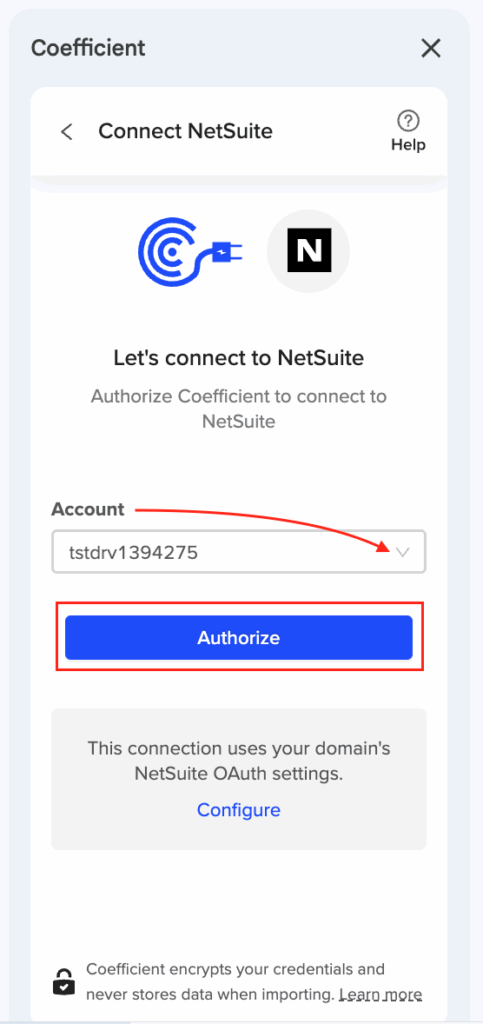
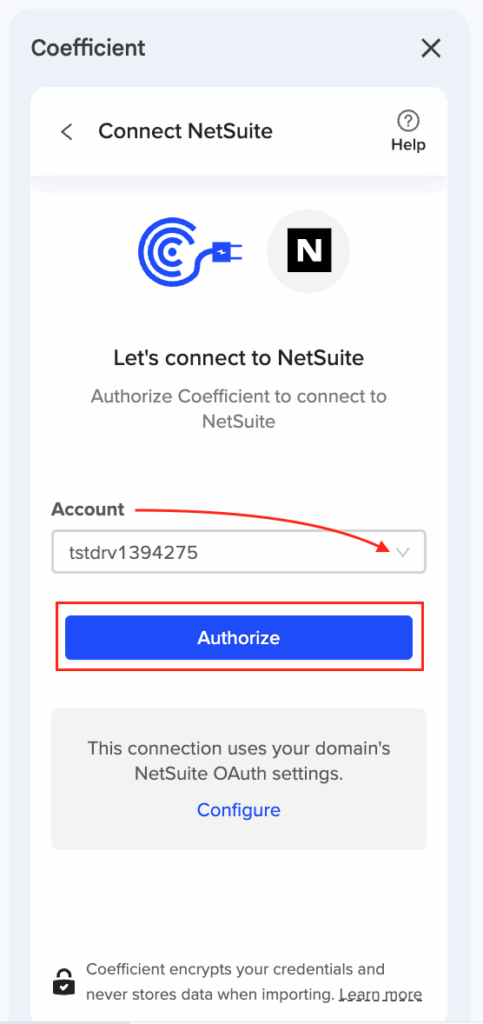
Track NetSuite authentication status and schedule re-authentication before the mandatory 7-day token refresh automatically disconnects your integration. Receive clear notifications when tokens expire with straightforward re-authentication workflow.

Step 2. Handle API rate limits with flexible error recovery.

When NetSuite ‘s 15 simultaneous RESTlet call limit causes sync failures during high-volume customer updates, use the manual refresh capability to immediately retry when automated sync fails, bypassing scheduled integration delays.

Step 3. Validate permissions regularly to prevent access blocks.

Perform regular connection testing to ensure NetSuite permissions remain intact and SuiteAnalytics Workbook access hasn’t been revoked. Get detailed error messages that identify specific causes of sync failures for faster resolution than generic integration error messages.

Step 4. Adapt to custom field structure changes dynamically.

Use dynamic field selection that accommodates NetSuite custom field changes without breaking sync processes. Track NetSuite custom field modifications that might impact HubSpot field mapping and adjust imports accordingly.

Step 5. Implement backup sync methods for critical updates.

Maintain alternative data export processes for critical customer updates during integration downtime. Use incremental catch-up with date filters to sync only customer updates missed during integration failures, ensuring no data loss during recovery.

Maintain reliable customer data flow

This approach ensures continuous customer data synchronization with faster failure detection and recovery compared to traditional NetSuite HubSpot integration platforms. Start building more reliable sync processes today.

What triggers should activate automated purchase order creation from spreadsheet data in NetSuite

Choosing the right triggers for automated NetSuite purchase order creation determines how smoothly your procurement workflow operates. The wrong trigger setup can flood approvers with incomplete orders or miss urgent purchasing needs entirely.

Here’s how to configure trigger mechanisms that match your team’s workflow and ensure purchase orders flow into NetSuite at the right time with complete, validated data.

Configure intelligent triggers using Coefficient

Coefficient provides multiple trigger mechanisms that offer more flexibility than NetSuite’s native workflow triggers. You can control exactly when and how purchase order data flows from your spreadsheets into NetSuite’s approval workflows.

How to make it work

Step 1. Set up time-based triggers for batch processing.

Configure Coefficient’s automated scheduling to trigger purchase order creation on hourly, daily, or weekly intervals. This works perfectly for recurring purchase orders or when you accumulate purchase requests in spreadsheets throughout a period, then automatically process them into NetSuite at scheduled intervals without overwhelming approvers.

Step 2. Create manual trigger controls for immediate processing.

Use Coefficient’s on-sheet button functionality to create manual triggers that let users initiate purchase order creation when specific conditions are met. Set triggers to activate when all required approvals are marked complete, vendor information is validated, or budget approval is confirmed in your spreadsheet.

Step 3. Configure data completion triggers for quality control.

Set up triggers based on spreadsheet data completeness where purchase order creation only activates when all required fields are populated. Configure the system to check that vendor, items, quantities, and delivery dates are complete before pushing records to NetSuite, preventing incomplete submissions.

Step 4. Implement approval status triggers for workflow integration.

If your spreadsheets include approval workflow columns, configure Coefficient to trigger NetSuite purchase order creation only when internal approval status reaches “approved” or similar completion markers. This ensures purchase orders enter NetSuite’s approval workflows only after passing your preliminary approval process.

Step 5. Connect external system triggers for seamless integration.

Configure Coefficient to work alongside form submissions or other data collection tools that populate your spreadsheets. Set triggers to activate NetSuite purchase order creation when new validated data appears in designated spreadsheet ranges, creating a complete automated procurement pipeline.

Optimize your purchase order automation today

The right trigger configuration ensures purchase orders flow smoothly from spreadsheets to NetSuite without overwhelming approvers or missing critical purchases. Smart triggers give you granular control over timing and data quality. Start configuring your automated triggers with Coefficient.

What user permissions are required for automated purchase order creation in NetSuite

Automated purchase order creation in NetSuite requires specific user permissions and role configurations to function properly. Insufficient permissions cause automation failures, while excessive permissions create security risks that violate organizational policies.

Here’s how to configure the precise permissions needed for automated purchase order creation while maintaining security best practices and organizational access controls.

Configure optimal permissions using Coefficient

Coefficient requires specific NetSuite user permissions and role configurations to enable automated purchase order creation, with additional considerations for organizational security and workflow integration.

How to make it work

Step 1. Set up core integration permissions.

Configure the NetSuite user account for Coefficient automation with SuiteAnalytics Workbook permissions and REST Web Services access enabled. These permissions allow Coefficient’s RESTlet scripts to communicate with NetSuite and create purchase order records through the API while maintaining secure authentication protocols.

Step 2. Grant purchase order creation and related record access.

Assign “Full” level access to Purchase Order records in the user’s role configuration, including creation, editing, and potentially deletion permissions. The automation user must also have read access to Vendor records and Item records to validate vendor IDs and item codes during the automation process.

Step 3. Configure custom field and organizational unit permissions.

If your purchase orders use custom fields, ensure the automation user has appropriate permissions for those custom fields. For multi-subsidiary environments, grant access to relevant subsidiaries and locations where purchase orders will be created, plus necessary department and class permissions for proper assignment.

Step 4. Implement secure role-based access controls.

Create a dedicated role for purchase order automation that includes only necessary permissions, following security best practices. This role should have purchase order creation rights, vendor/item read access, and appropriate subsidiary permissions without unnecessary administrative access that could create security vulnerabilities.

Step 5. Plan for API capacity and approval workflow integration.

Consider NetSuite’s base 15 simultaneous RESTlet API calls that apply to the automation user. Organizations with high automation volumes may need SuiteCloud Plus licenses (+10 calls each) to support adequate API capacity. The automation user creates purchase orders but doesn’t need approval permissions since approval workflow permissions remain with individual approvers.

Secure your automated procurement with proper permissions

Precise permission configuration ensures automated purchase order creation functions reliably while maintaining organizational security standards and compliance requirements. Proper role design prevents both automation failures and security risks. Configure secure automation with Coefficient’s permission guidance.