Your NetSuite data lives in one place. Your analysis happens in Excel. Getting them to talk? That’s the challenge every finance team faces.
NetSuite doesn’t play nice with Excel out of the box. No native connection exists.
But fret not, this guide shows you two ways to bridge that gap:
- The technical ODBC method
- The simple Coefficient approach
Choose what works for your team’s skills and needs.
Connecting NetSuite to Excel via ODBC
ODBC is the old-school way. Technical. Powerful. Complex.
This method appeals to IT teams who want direct database access. Think of it as building your own bridge between systems.
What you need first
Before you start, gather these requirements:
- Purchase SuiteAnalytics Connect – This costs about $5,000 per year. No way around it.
- Get the right permissions – You need Data Warehouse Integrator role in NetSuite. Your admin handles this.
- Have IT support ready – You’ll need help. Driver issues happen. Connection problems arise.
Step-by-step ODBC setup
Step 1: Download the driver
- Log into NetSuite
- Find SuiteAnalytics Connect
- Download the ODBC driver
- Install it on your computer (admin rights required)
- The installer creates system files Excel uses to talk to NetSuite
Step 2: Set up the data source
- Open Windows ODBC Data Source Administrator
- Create a new System DSN
- Use the NetSuite ODBC driver
- Enter your connection details:
- Server name (NetSuite provides this)
- Port number (usually 1433)
- Database name (your account ID)
- Login method (SQL Server style)
Step 3: Test it works
- Click “Test Connection” in the ODBC tool
- Fix any errors now
- Better to catch problems early
Step 4: Connect Excel
- Open Excel
- Go to the Data tab
- Choose Get Data > From Other Sources > From ODBC
- Pick your NetSuite connection from the list
Step 5: Log in and pick data
- Enter your NetSuite username and password
- Browse the available tables
- Select what you want to analyze
Step 6: Clean your data
Use Excel’s Power Query to fix your data:
- Filter out junk
- Change column types
- Remove fields you don’t need
Step 7: Set up refresh (maybe)
Want fresh data automatically? Configure Excel’s refresh settings:
- Your computer must stay online
- NetSuite must be reachable
- Manual setup required
The ODBC reality check
Here’s what they don’t tell you:
- ODBC creates a snapshot. Your Excel file shows NetSuite data from import time. Want fresh data? Manually refresh or build complex schedules.
- Move your file to another computer? The connection breaks. That computer needs the same ODBC setup.
- Technical problems happen. Driver conflicts. Permission errors. Network issues. You’ll need IT support.
Connecting NetSuite to Excel using Coefficient
Coefficient takes a different path. Simple. Fast. Built for business users.
No data science background required. No expensive licenses. Just connect and go.
The easy way
Step 1: Get Coefficient
- Download Coefficient from the Office store (takes 60 seconds)
- Or visit coefficient.io to start
Step 2: Connect NetSuite to Excel

- Open Coefficient in Excel
- Pick NetSuite from the source list
- Coefficient walks you through the login process
Step 3: Pick your data
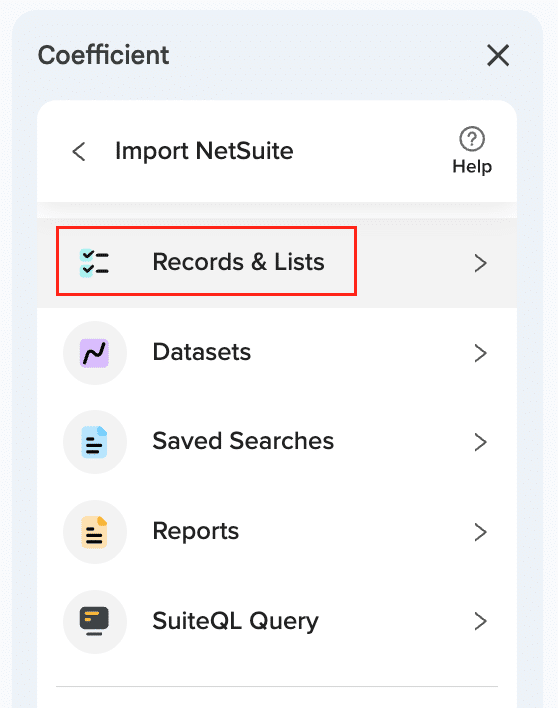
Choose how you want your data:
- Records and Lists – All NetSuite records, pick your fields
- Saved Searches – Import your existing NetSuite searches
- Reports – Standard reports like Income Statement, Trial Balance
- Datasets – Pre-built data packages with custom fields
- SuiteQL Query – Write custom queries for power users
Step 4: Preview before import
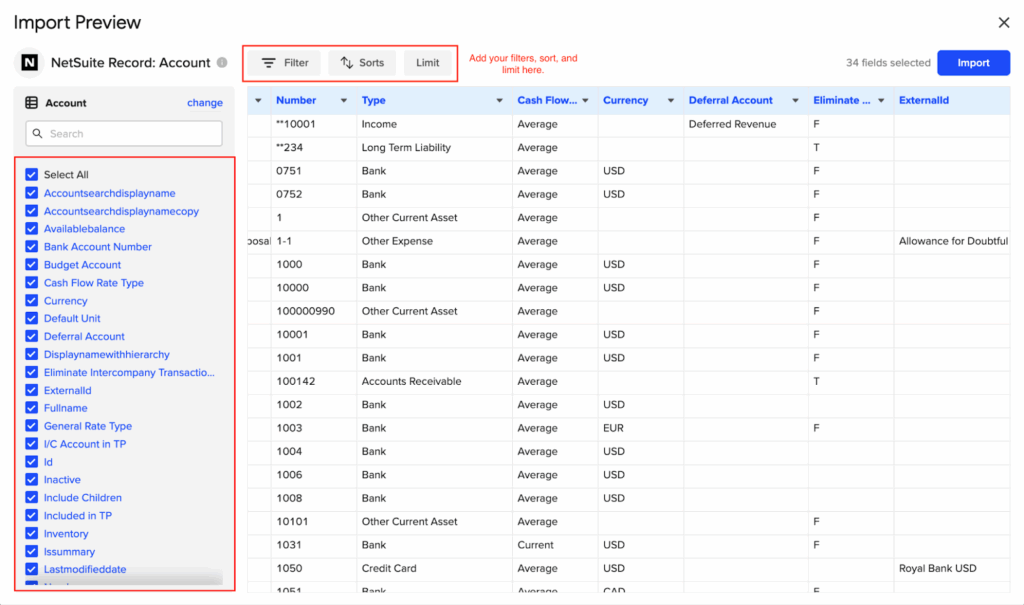
See your data before it hits Excel:
- Drag columns around
- Pick specific fields
- Set up filters
- Everything updates in real-time
Step 5: Schedule updates
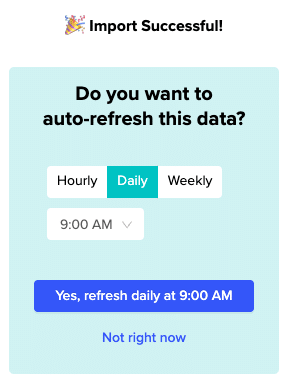
Want fresh data automatically?
- Every hour
- Every day
- Every week
- Pick your schedule. Coefficient handles the rest.
Why choose Coefficient for NetSuite connections?
Built for business users
Finance teams don’t want to mess with drivers. Operations teams don’t care about database config.
Coefficient eliminates the tech stuff. Connect NetSuite in minutes, not hours.
Skip the IT queue
Stop waiting for help desk tickets. Stop bugging developers.
Business users connect independently. Everything happens through Excel’s normal interface.
Start free
Test the NetSuite connection for free:
- No purchase orders
- No long sales calls
- Upgrade only when you need advanced features like automated refresh or team sharing
Automatic updates work
Schedule NetSuite data to refresh itself:
- Your Excel reports always show current info
- Set different schedules for different sheets
- Based on what you need
Enterprise security included
Your data stays protected:
- OAuth 2.0 keeps your login safe
- Encrypted data transfer protects your info
- Coefficient handles API limits and connection issues automatically
- Your NetSuite password stays secure
ODBC vs Coefficient side by side
| What matters | ODBC | Coefficient |
| Setup pain | High – driver installs, database config | Low – Excel add-in, guided setup |
| Tech skills | Database admin knowledge required | Zero – made for business users |
| Cost | SuiteAnalytics Connect (~$5,000/year) | Free plan available, paid from $49/month |
| Row limits | Depends on NetSuite license | Up to 100K rows per query |
| Fresh data | Manual refresh or complex setup | Built-in scheduling |
| Support | IT team needed for fixes | Automatic updates and fixes |
Skip the complexity
ODBC works if you have technical teams and big NetSuite budgets. Most finance teams want something simpler.
Coefficient bridges NetSuite and Excel without the technical mess:
- Business users get live data access
- No IT tickets
- No expensive licenses
- Works from day one
Ready to connect your NetSuite data to Excel the easy way? Get started with Coefficient’s free plan and see why thousands of teams choose the simple path over the technical one.