Confluence organises data around Spaces, Pages and Attachments. Export formats and methods differ significantly between Confluence Cloud and Confluence Data Center/Server. This guide covers Cloud unless stated otherwise.
This guide covers all methods: native page and space export, Word document import, XML backup and Coefficient for recurring data exports to Google Sheets or Excel.
| What data can you import and export from Confluence? |
| Confluence supports export of individual pages or full spaces as PDF, Word or XML. XML exports are the only format that includes the full space structure, page history and attachments for backup purposes. Import accepts Word documents (.docx) into pages and XML archives for full space restore. The Confluence REST API and Atlassian API support programmatic access to all page and space data. |
Confluence Cloud vs Data Center: key export differences
Export capabilities differ between versions. On Cloud, space exports can be limited in size and may not include all page history on large spaces. Data Center supports full XML exports with all historical revisions. Both versions support PDF and Word export at the page level.
How to import data into Confluence
Method 1: Import a Word document into a page
- Open the Confluence page where you want to import content, or create a new page.
- Click the … menu (top right of the page editor) and select Import Word Document.
- Select your .docx file. Confluence converts the document content into Confluence page format.
- Review the imported content. Formatting may not map perfectly — headings, tables and images generally import well. Complex layouts may need adjustment.
Supported format: .docx only. Older .doc files must be converted to .docx before import.
Method 2: Restore a space from XML backup
XML import restores a full Confluence space including page hierarchy, attachments and (depending on the export settings) page history. Go to Space Settings > Manage Space > Import Pages and upload the XML archive file. This is an administrator action and requires space admin permissions or higher.
Method 3: Confluence REST API
The Confluence REST API supports creating and updating pages, spaces and attachments programmatically. Use it for automated content publishing, bulk page creation or integrating external content into Confluence. Authentication uses Atlassian API tokens.
How to export data from Confluence
Method 1: Export a single page
- Open the page and click … (top right), then Export.
- Choose PDF or Word (.docx) format.
- PDF export includes all page content and child pages if you select that option.
Permissions note: any user with view access to a page can export it. Admin permissions are not required for single-page exports.
Method 2: Export a full space
- Go to Space Settings > Manage Space > Export Space.
- Choose your format: PDF (visual), HTML (structured) or XML (full backup with attachments and history).
- For XML, choose whether to include page history and attachments.
- Confluence prepares the export. Larger spaces can take several minutes. You receive a download link when ready.
Format comparison:
- PDF: best for sharing and reading. Preserves visual formatting. Does not preserve page structure for re-import.
- HTML: preserves page hierarchy. Useful for archival or migration to other wiki systems.
- XML: the only format suitable for full backup and restore. Includes attachments and page history.
Admin permissions required: space export requires Space Admin role or higher.
Method 3: Coefficient for live data exports
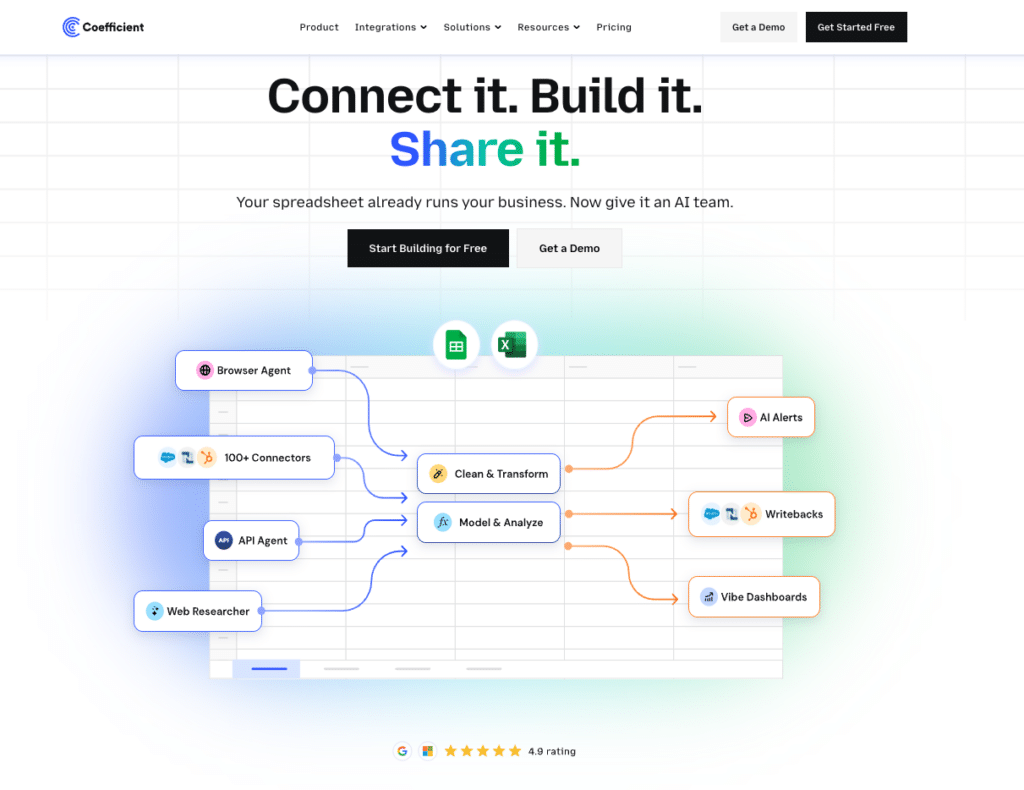
Confluence’s native exports are static files. For teams that pull Confluence page data, space metrics or content inventory into spreadsheets on a regular basis, Coefficient provides a live, auto-refreshing connection.
Coefficient connects Confluence to Google Sheets or Excel. Page metadata, space data and content inventory refresh automatically on the schedule you set.
What you can do with the Coefficient Confluence connector:
- Import page lists, space metadata and content data with field-level selection and filter logic.
- Set auto-refresh to track content changes, new pages and space activity over time.
- Turn live Confluence data into a shareable web dashboard. Coefficient AI dashboards build it in plain English.
How to connect Confluence to a spreadsheet with Coefficient:
- Install Coefficient from the Google Workspace Marketplace or Microsoft AppSource.
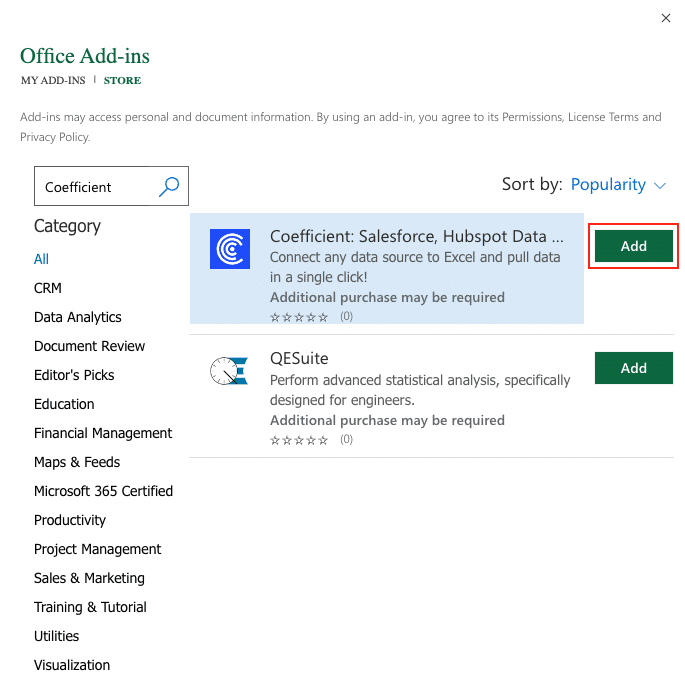
- Open Coefficient from the Extensions menu in Google Sheets, or the add-in menu in Excel.
- Click Import From and select Confluence. When prompted, enter your Atlassian API token to complete the connection.
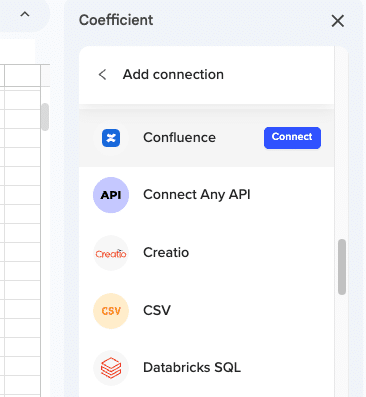
- Select the data type (pages, spaces, etc.), choose fields and apply any filters.
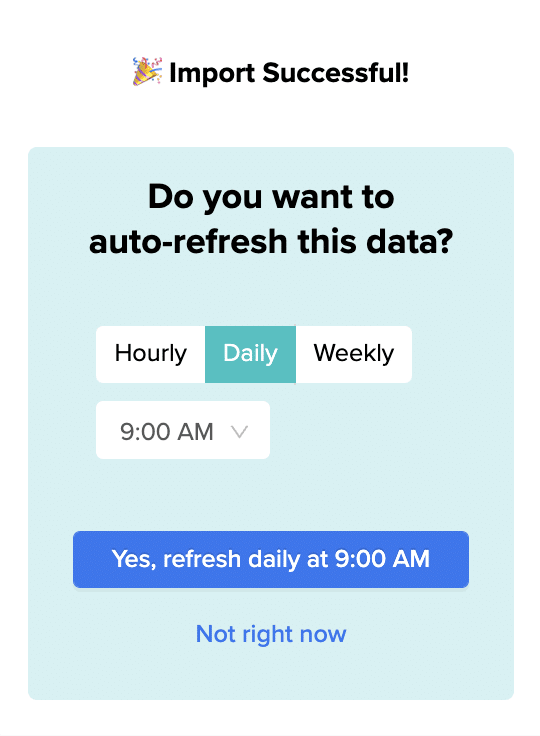
- Set a Scheduled Run to refresh automatically.
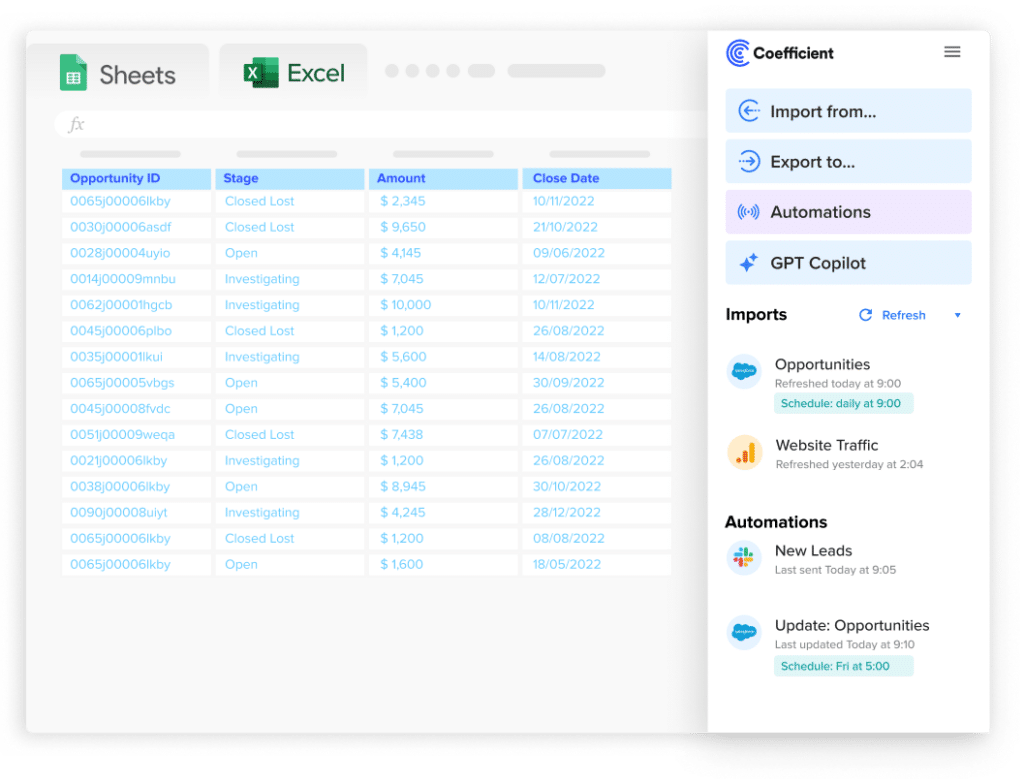
Stop exporting data manually. Sync data from your business systems into Google Sheets or Excel with Coefficient and set it on a refresh schedule.
Get Started
Method 4: Confluence REST API for programmatic export
The Confluence REST API provides access to page content, space data, user information, labels and more in JSON format. Use it for content audits, automated backups or migration pipelines. Pagination is required for large spaces.
Import and export method comparison
| Method | Direction | Data covered | Format | Best for |
|---|---|---|---|---|
| Word document import | Import | Page content from .docx | .docx | Moving Word docs into Confluence pages |
| XML space restore | Import | Full space with history and attachments | XML | Restoring a space from backup |
| Confluence API (import) | Import | Pages, spaces, attachments | JSON | Automated content publishing, bulk creation |
| Single page export | Export | Individual page content | PDF, Word | Sharing or archiving a single page |
| Full space export | Export | Entire space, history, attachments | PDF, HTML, XML | Backup, migration, full space archive |
| Coefficient | Export | Page metadata, space data | Live sync to Sheets or Excel | Recurring exports, content inventory tracking |
| Confluence API (export) | Export | All content and metadata | JSON | Automated backups, migration pipelines |
FAQs
What permissions are needed to export a Confluence space?
Space Admin role or higher is required for space-level export (PDF, HTML, XML). Any user with view access can export individual pages. Site Admins can export all spaces.
Does Confluence export include page history?
XML export includes page history when you select that option during export. PDF and HTML exports do not include revision history.
Can you export Confluence data to Google Sheets automatically?
Yes, with Coefficient. Connect Confluence, select page or space data and set a refresh schedule. Content metadata updates in Google Sheets or Excel automatically.
Can you import a Word document into Confluence?
Yes. Confluence Cloud supports importing .docx files into pages via the Import Word Document option in the page editor menu. The content converts to Confluence format. Complex formatting may need manual adjustment after import.
What is the best format for a full Confluence backup?
XML. It is the only export format that includes page history, attachments and the full space structure in a re-importable format. PDF and HTML are suitable for reading but not for restoring a space.
If you need Confluence page data refreshed automatically in a spreadsheet for content audits or reporting, try Coefficient free and connect Confluence in a few clicks.