Close CRM is built around Leads, not Contacts. Every contact, opportunity and activity record lives inside a parent Lead. That structural fact controls how every import and export works: which method to pick, which format to use and what data you will or will not get in the output.
This guide covers every method for moving data into and out of Close. That includes the native Lead Importer, CRM-to-CRM migration, the Close API, built-in CSV and JSON export and Coefficient for recurring scheduled exports to Google Sheets or Excel. Format requirements, common import errors and a FAQ block are at the end.
| What data can you import and export from Close CRM? |
| Close supports import and export of Leads (companies or accounts), Contacts and Opportunities. Import accepts CSV, XLSX and XLS files, plus direct CRM migration from 27 source systems. Export formats are CSV and JSON. Activity data, including calls, emails, SMS and notes, cannot be exported via CSV. JSON export or the Close API is required to get full activity history out of Close. |
Close CRM data model: understand this before moving anything
Close organises data around Leads. A Lead represents a company or account. Under each Lead sit Contacts (individual people), Opportunities (deals in the pipeline) and Activities (calls, emails, SMS messages, notes and tasks).
This hierarchy matters when exporting. Exporting Contacts does not pull Lead-level custom fields attached to those contacts. If you need both, export Leads and Contacts separately and join them on the Lead ID field afterward.
One rule that catches people out: exports only work from a Leads Smart View. If your Smart View was built under the Contacts tab, it will not have an export option. Rebuild it under the Leads tab first.
- Close CRM data model: understand this before moving anything
- How to import data into Close CRM
- How to export data from Close CRM
- Import and export method comparison
- Close CRM import: data format requirements
- Common errors when importing into Close CRM
- How to get your data out of Close CRM if you cancel
- FAQs
How to import data into Close CRM
Three methods are available. The right one depends on where your data is coming from and how much you need to move.
Method 1: CSV or Excel file import
The Lead Importer is the standard path for bringing leads and contacts into Close from a spreadsheet or any system that exports CSV.
- Click your name in the top right of Close and select Import Data.
- Upload your file by browsing, drag and drop, or copy-paste directly from a spreadsheet.
- Map each column to a Close field. Close auto-detects column names where possible. Unrecognised columns appear as Custom Field suggestions and admins can create new fields on the spot.
- Review any flagged errors. Fields turn yellow when there is a problem. Fix them in the importer before proceeding.
- Click Import. Monitor progress from the import page.
Format requirements:
- File types: CSV, XLSX or XLS. No other formats are accepted.
- File size limit: 15 MB per upload. Split larger files into separate batches.
- Header row: the first row must contain column names. Close uses these to auto-assign fields.
- Date format: yyyy-mm-dd only. For example, 2024-02-05 for 5 February 2024. Ambiguous formats will import incorrectly.
- Phone numbers: include the plus country code prefix. Use +18334625673, not (833) 462-5673. Without a country code, Close falls back to the account-level default country.
- Multiple values in one field: separate with a semicolon. For example, two email addresses in one cell.
- Custom fields: prepend column names with “custom.” for automatic field matching. For example, custom.Industry.
- Lead Status and choice-type custom fields must already exist in Close before import. Create them in Customizations first.
One hard limit: the Lead Importer cannot bring in notes, calls, emails or SMS. Those require the API or the CRM migration path below.
Method 2: CRM-to-CRM migration via Import2
Close uses Import2 for direct migrations from other CRMs. Use this path when switching to Close and needing to carry over activity history that CSV cannot handle.
- Go to the Lead Importer page (click your name in the top right, then Import Data).
- Select your source CRM from the dropdown and connect your account. Some systems require an API token.
- Run a sample import first. Review the mapped data in both Close and the Import2 dashboard.
- Fix any mapping errors then click Perform Full Import.
- Import2 sends an email notification when the full import is complete.
Supported source CRMs include: Act!, ActiveCampaign, Agile CRM, Attio, Capsule CRM, Copper, Firmao, GoHighLevel, HubSpot, Insightly, Keap, Less Annoying CRM, MS Dynamics, Nimble, Nutshell, Onepage CRM, Pipedrive, PipelineDeals, Redtail CRM, Salesforce, Streak, Sugar CRM, SuiteCRM, Wealthbox, Zendesk Sell and Zoho CRM. If your source system is not listed, contact Close support for help.
This is a one-time migration, not a recurring sync. Activity data portability varies by source CRM. Check Import2 documentation for specifics before starting.
Method 3: Close API
The API is the developer path. Use it for bulk migrations over 50,000 records, automated data pipelines or connecting Close to a data warehouse. The REST API supports creating leads and contacts programmatically and returns 100 records per request. Loop with offset increments for large datasets. Full details are in the Close API docs.
How to export data from Close CRM
Four methods are available. The right choice depends on what data types you need, the volume and whether the export is a one-time pull or something you need on a recurring schedule.
Method 1: Built-in CSV export
The built-in exporter handles the most common export cases and requires no technical setup.
- Go to Leads in the left navigation.
- Use filters or a Smart View to narrow your dataset, or leave it unfiltered to export everything.
- Click the … menu at the top right of the leads list and select Export.
- Choose your export type: Leads, Contacts or Opportunities.
- Choose your format: CSV or JSON.
- Choose your field set: Common Fields or All Fields.
- Start the export. Close emails a download link when the file is ready. The link expires after 7 days.
A few things to know before running this:
- Contacts must be exported from the Leads page, not the Contacts tab. Set the export type to Contacts after opening the dialog from the Leads view.
- Smart Views used for export must be Leads-based. A Contacts Smart View will not show the Export option.
- All Fields includes Smart Fields: calculated fields like total number of calls on a lead, number of emails and primary opportunity data. Common Fields skips these.
- For Opportunities with granular filters by pipeline, status, date or assigned user, go to the Opportunities List View and use the Export button there instead of the Leads page.
Method 2: Coefficient for scheduled exports & reporting
The built-in exporter is a one-time pull. Every reporting cycle that needs fresh Close data, the manual process repeats: navigate to the export dialog, configure the settings, wait for the email, download the file, paste it into a spreadsheet. That does not scale as a reporting workflow.
Coefficient connects Close CRM directly to Google Sheets or Excel and keeps that data live on a refresh schedule you set. Hourly, daily or weekly, your Close data updates automatically in the spreadsheet without anyone touching the export flow.
What you can do with the Coefficient Close connector:
- Import Leads, Contacts and Opportunities into a spreadsheet with field-level selection and filter logic.
- Set auto-refresh on any schedule so pipeline data is always current without manual exports.
- Apply filters on import to pull exactly the segment you need: by status, date range, assigned user or any custom field.
- Turn live Close data into a shareable web dashboard. Coefficient AI dashboards let you describe the view you need in plain English and the AI builds it from your live data. No BI tool required.
How to connect Close to a spreadsheet with Coefficient:
- Install Coefficient from the Google Workspace Marketplace or Microsoft AppSource.
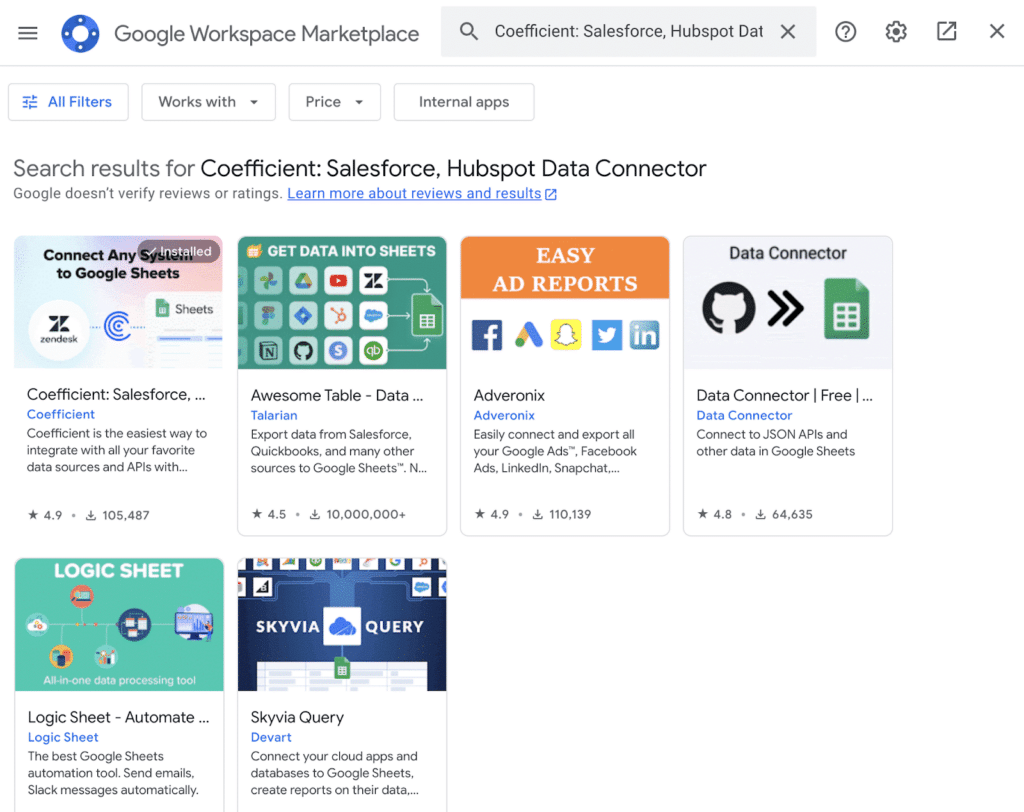
- Open Coefficient from the Extensions menu in Google Sheets, or the add-in menu in Excel.
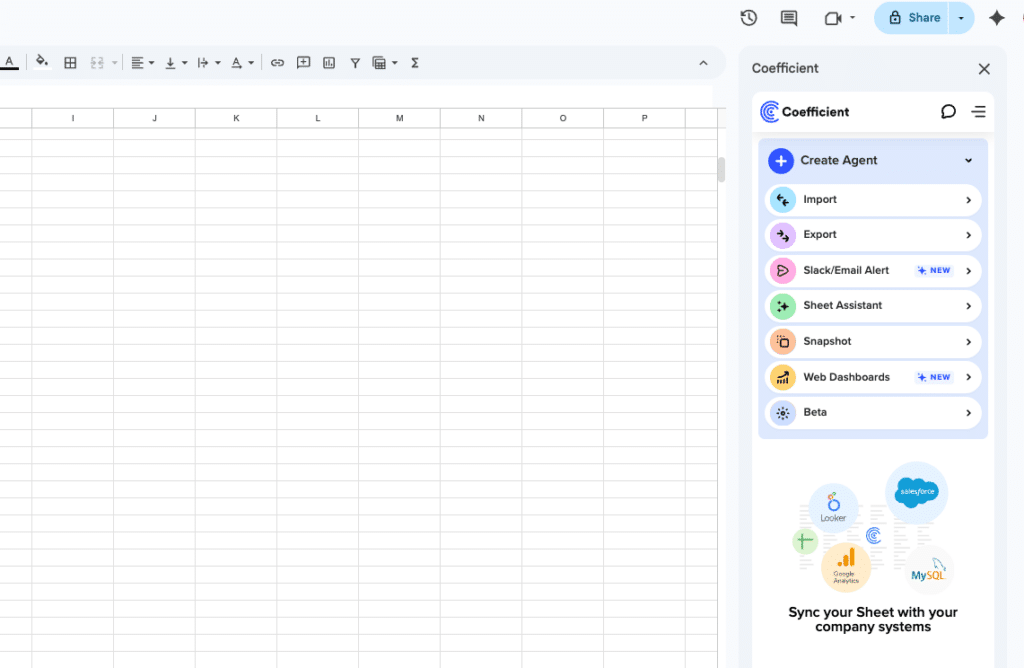
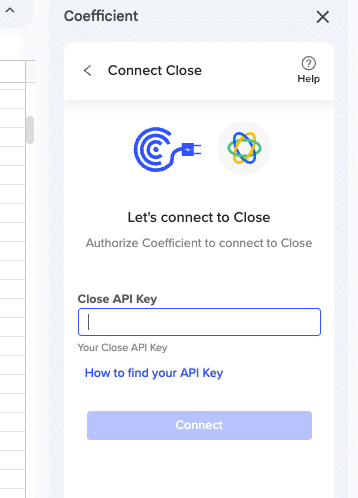
- Click Import From and select Close CRM. Authenticate your Close account with Close API key
- Select your object (Leads, Contacts or Opportunities), choose fields and apply any filters.
- Set a Scheduled Run to keep the data refreshing automatically.
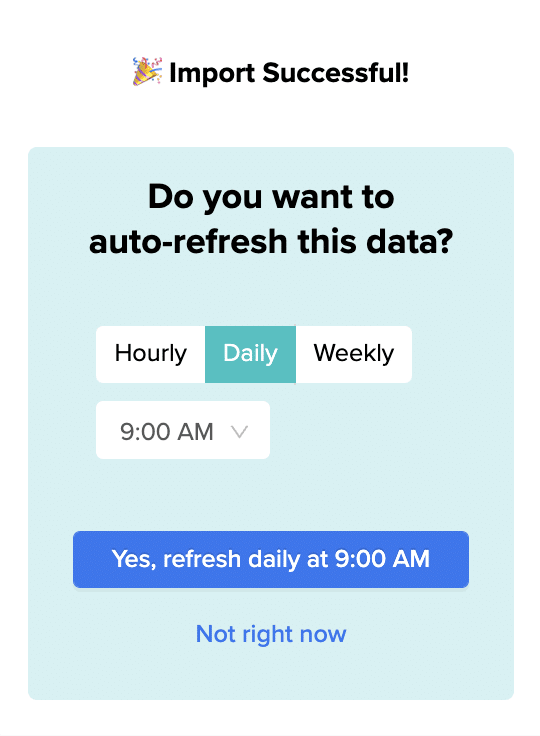
Not a standalone BI platform. Requires Google Sheets or Excel. Try Coefficient free.
Method 3: JSON export and activity data
CSV cannot carry activity history. If you need calls, emails, SMS messages or notes for a backup, a migration or communication analysis, JSON is the only native format that covers it.
The export flow is the same as CSV: Leads, then the … menu, then Export, then select JSON as the format. JSON is recommended for full data migrations. The output is a superset of what CSV returns, including all activity tied to each lead.
For specific activity types not covered by the main exporter, Close provides support tools that generate targeted CSV exports. All tools require a Close API key, generated at Settings, then Developer, then API Keys. Tools are accessible at Close support tools.
| Data type | Tool | Format | Notes |
|---|---|---|---|
| Email messages | Export Email Messages | CSV | Filter by Smart View, date range or email address |
| SMS messages | Export SMS Messages | CSV | Filter by date, direction, status or phone number |
| Notes | Export Notes | CSV | Filter by date range and user |
| Smart Views | Export Smart Views | CSV | Includes private and shared Smart Views |
| Phone numbers | Export Phone Numbers | CSV | Includes user info, settings and forwarding details |
| Email and SMS templates | Export Templates | CSV | Includes private and shared templates |
Method 4: Close API for bulk export
The Close export API is the right path when exporting over 10,000 leads, running automated recurring exports or piping Close data into a warehouse like Snowflake or Redshift.
Format options:
- CSV: one row per lead, or one row per contact. Best for targeted structured exports.
- JSON: recommended for full backups and data migrations. Includes all activity data. Output is GZIP compressed.
The API paginates at 100 records per request. For large datasets, loop with incrementing offset values (0, 100, 200 and so on) until the response returns no further records. Close emails a download link for asynchronous exports once the file is ready.
Import and export method comparison
Use this to pick the right method for your situation.
| Method | Direction | Data types covered | Format | Best for |
|---|---|---|---|---|
| Lead Importer (CSV/XLSX) | Import | Leads, Contacts | CSV, XLSX, XLS | One-time file imports up to 15 MB |
| CRM migration (Import2) | Import | Leads, Contacts, Opportunities, some activity | Varies by source CRM | Switching to Close from another CRM |
| Close API (import) | Import | Leads, Contacts, Opportunities, Activities | JSON | Bulk migrations over 50,000 records |
| Built-in CSV export | Export | Leads, Contacts, Opportunities | CSV | One-time exports, no activity data needed |
| JSON export and support tools | Export | Leads, Contacts, Opportunities, Activities | JSON, CSV | Full backups, migrations, activity history |
| Coefficient | Export | Leads, Contacts, Opportunities | Live sync to Sheets or Excel | Recurring exports, live reporting, auto-refresh |
| Close API (export) | Export | Leads, Contacts, Opportunities, Activities | CSV, JSON (GZIP) | Bulk exports, automated pipelines, warehouse ingestion |
Close CRM import: data format requirements
This is a reference for anyone preparing a file before import. Getting these right before upload prevents the most common errors.
- File types: CSV, XLSX or XLS. No other formats are accepted.
- File size limit: 15 MB per upload. Files larger than 15 MB must be split into batches.
- Header row: the first row must contain column names. Close uses these to auto-assign fields.
- Date format: yyyy-mm-dd only. Use 2024-02-05 for 5 February 2024. Ambiguous formats will import incorrectly.
- Phone numbers: include the plus country code prefix. For example, +18334625673. Without it, Close falls back to the account-level default country.
- Multiple values in one field: separate with a semicolon. Applies to multiple emails, phone numbers or choice field values.
- Custom fields: prepend column names with “custom.” for automatic field matching. For example, custom.Industry.
- Lead Status and choice-type custom fields must already exist in Close before import. Create them in Customizations first.
- Activity data (notes, calls, emails, SMS) cannot be imported via file upload. Use CRM migration or the API for activity history.
Common errors when importing into Close CRM
Wrong date format
A date like 04/08/2024 is ambiguous. Close cannot determine whether it means April 8 or August 4, so dates import incorrectly or fail.
Use yyyy-mm-dd throughout. Reformat the date column in your spreadsheet before uploading.
Missing country code on phone numbers
Phone numbers without a plus country code are imported using the account-level default country, which produces wrong dial codes for international contacts.
Add the plus prefix and full country code to every phone number before import. For example, +447911123456 for a UK number.
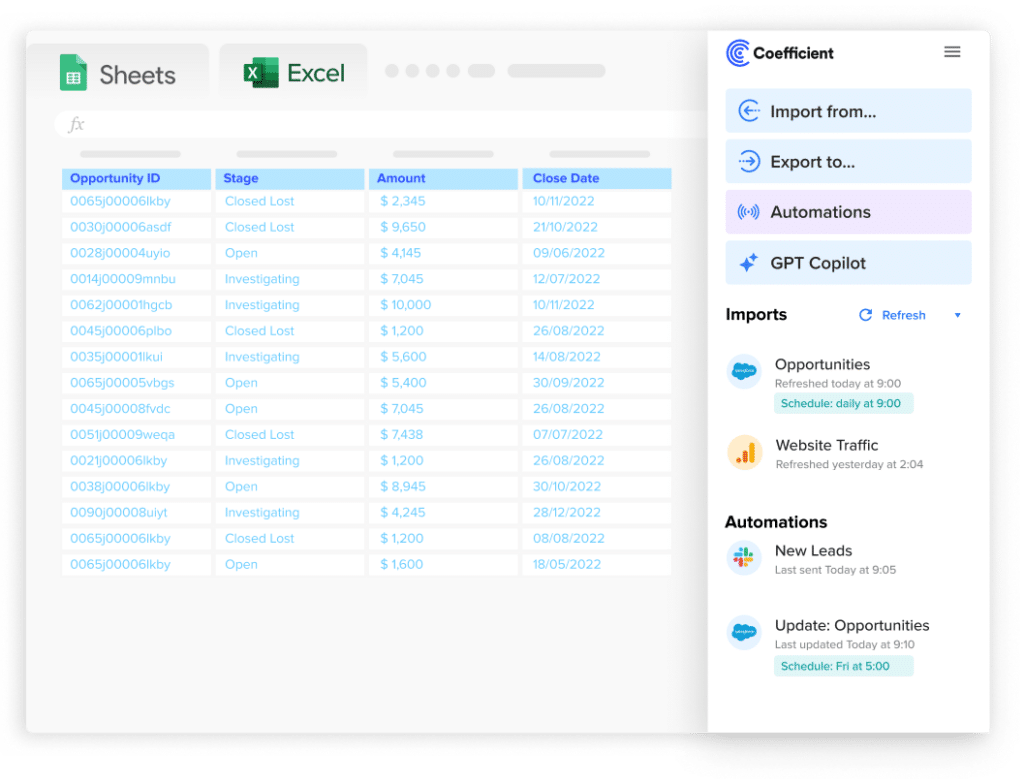
Stop exporting data manually. Sync data from your business systems into Google Sheets or Excel with Coefficient and set it on a refresh schedule.
Get Started
File over 15 MB
The importer rejects files larger than 15 MB with an upload error before any data is processed.
Split the file into smaller batches and import them one at a time. Use the grouping feature if contacts belonging to the same lead span multiple rows.
Lead Status not pre-created
If a Lead Status value in your import file does not already exist in Close, the importer flags the field yellow and blocks import of those rows.
Go to Settings, then Customizations and create every required status before running the import. Return to the importer and re-map the field once that is done.
Custom field type mismatch
Importing text into a field configured as Number type, or a free-text value into a choices field with a fixed option list, causes field-level errors.
Check the field type for each custom field in Customizations before importing. For choices fields, confirm that every value in your import file matches an existing option.
How to get your data out of Close CRM if you cancel
Close does not lock you in. You can export your data at any point without contacting support.
Use the built-in exporter (Leads, then the … menu, then Export) to download Leads, Contacts and Opportunities as CSV or JSON. For full activity history including calls, emails and SMS, select JSON as the format. JSON is the only native format that carries activity data in a single file.
For a complete backup across all data types including Smart Views, phone numbers, templates and notes, use the support tools at Close support tools with your API key.
Initiate the export before cancelling your account. Close emails a download link when the file is ready and that link expires after 7 days. For very large accounts, allow time for the export to process before closing the account.
FAQs
Can you export Close CRM data to Google Sheets automatically?
Yes, with Coefficient. Install the add-on, connect your Close account, select the objects you want (Leads, Contacts and Opportunities) and set a refresh schedule. Your Close data updates in Google Sheets or Excel automatically on the cadence you choose, without any manual export steps.
What is the file size limit for Close CRM imports?
15 MB per CSV or Excel file. If your file is larger, split it into separate batches and import them one at a time. There is no cap on the total number of records you can import, only on individual file size per upload.
Can you import activity history into Close via CSV?
No. The Lead Importer supports Leads and Contacts only. Activity history, including calls, emails, SMS messages and notes, cannot be imported via file upload. To bring activity history into Close, use the CRM migration tool (Import2) when switching from a supported source CRM, or use the Close API to create activity records programmatically.
How do you export opportunities from Close CRM?
Two ways. From the Leads page: open the … menu, select Export and set the type to Opportunities. This returns opportunities tied to leads matching your current search or Smart View. For more granular filtering by pipeline, status, date range or assigned user, go directly to the Opportunities List View and use the Export button there.
Does Close CRM support two-way sync with spreadsheets?
Not natively, and Coefficient’s Close connector is import only: it pulls Close data into Google Sheets or Excel and keeps it live with auto-refresh. Writing data back to Close from a spreadsheet is not currently supported via Coefficient. For write-back to a CRM from a spreadsheet, Coefficient supports two-way sync with Salesforce and HubSpot, among others.
How long does a Close CRM export take?
Small exports complete in seconds and the download is available immediately. Larger exports are processed asynchronously. Close sends an email with a download link when the file is ready. For very large accounts with tens of thousands of leads, this can take several minutes. The download link expires after 7 days, so save the file promptly after receiving it.
How is Close CRM data structured differently from HubSpot for migration?
Close is Lead-centric. A Lead is the top-level object, with Contacts and Opportunities nested beneath it. HubSpot is Contact-centric. Contacts are the primary object, associated with Companies and Deals. Migrating between them requires restructuring the data to match the destination model. A direct CRM migration via Import2 handles the field mapping automatically when moving from HubSpot into Close. For Close to HubSpot migration, export Close data as JSON to preserve all fields, then import into HubSpot using its import tool with column mapping to HubSpot contact and company properties.
If you need Close data refreshed automatically in a spreadsheet for reporting or dashboards, try Coefficient free and connect Close in a few clicks.