How to Import and Export BambooHR Data
BambooHR organises data around employee records. Every field you capture — job details, pay history, time off, org structure — lives under an employee profile. That structure determines which import and export methods work, and which data types each method can handle.
This guide covers all methods: the native import tool, report-based CSV export, the BambooHR API and live sync to Google Sheets or Excel using Coefficient.
| What data can you import and export from BambooHR? |
| BambooHR supports import of employee records via CSV, plus custom dashboard data. Export covers employee fields, time-off records, payroll data and custom reports via CSV download. Full activity and historical data is accessible via the BambooHR API. Coefficient connects BambooHR to Google Sheets or Excel for live, auto-refreshing exports. |
How to import data into BambooHR
Two native methods and one developer path are available.
Method 1: Employee importer (CSV)
The Employee Importer is the standard path for bringing employee records into BambooHR in bulk from a spreadsheet.
- Navigate to your BambooHR account and go to the Import page. The URL uses your company subdomain: yourcompany.bamboohr.com/employees/import.
- Prepare a CSV or Excel file. The first row must be column headers matching BambooHR field names.
- Upload the file. BambooHR auto-maps recognised field names.
- Review the field mapping. Adjust any mismatches before continuing.
- Run the import. BambooHR flags errors row by row for correction.
Format requirements:
- File types: CSV or XLSX.
- Required fields: First Name and Last Name are mandatory for each employee row.
- Date format: MM/DD/YYYY unless your account locale differs.
- Unique identifier: Employee ID prevents duplicate records on re-import.
- What cannot be imported: time-off history, custom report data and payroll entries require the API or manual entry.
Method 2: Custom Dashboard CSV import (Elite plan)
Elite plan customers can upload external CSV datasets directly into Custom Dashboards. Go to Manage Dashboards > New Analysis > Blank Table and upload a CSV with up to 500,000 rows. BambooHR auto-detects data types. This is for analysis only — it does not create employee records.
Method 3: BambooHR API
The REST API supports programmatic creation and update of employee records. Use it for automated onboarding pipelines, HRIS integrations or bulk operations over the 500,000-row limit. Full reference at BambooHR API docs.
How to export data from BambooHR
Three native methods plus Coefficient for recurring exports.
Method 1: Custom Report export (CSV)
The most flexible native export. Build a report with exactly the fields you need, then download as CSV.
- Go to the Reports tab in BambooHR.
- Click New Report > Custom Report. Name it clearly.
- Select the employee fields to include. You can pull any standard or custom field.
- Choose which employees to include (all, active only, or a filtered subset).
- Click Export > CSV. The file downloads immediately.
Custom reports support virtually any employee field. For payroll-specific exports, the Payroll module has its own dedicated export flow under the Payroll tab.
Method 2: Standard Report export
BambooHR provides pre-built reports for common needs: Employee Directory, Headcount, Time Off, Compensation, Turnover and more. Open any standard report, apply filters as needed and click Export to download as CSV or Excel.
Method 3: Coefficient for live, scheduled exports
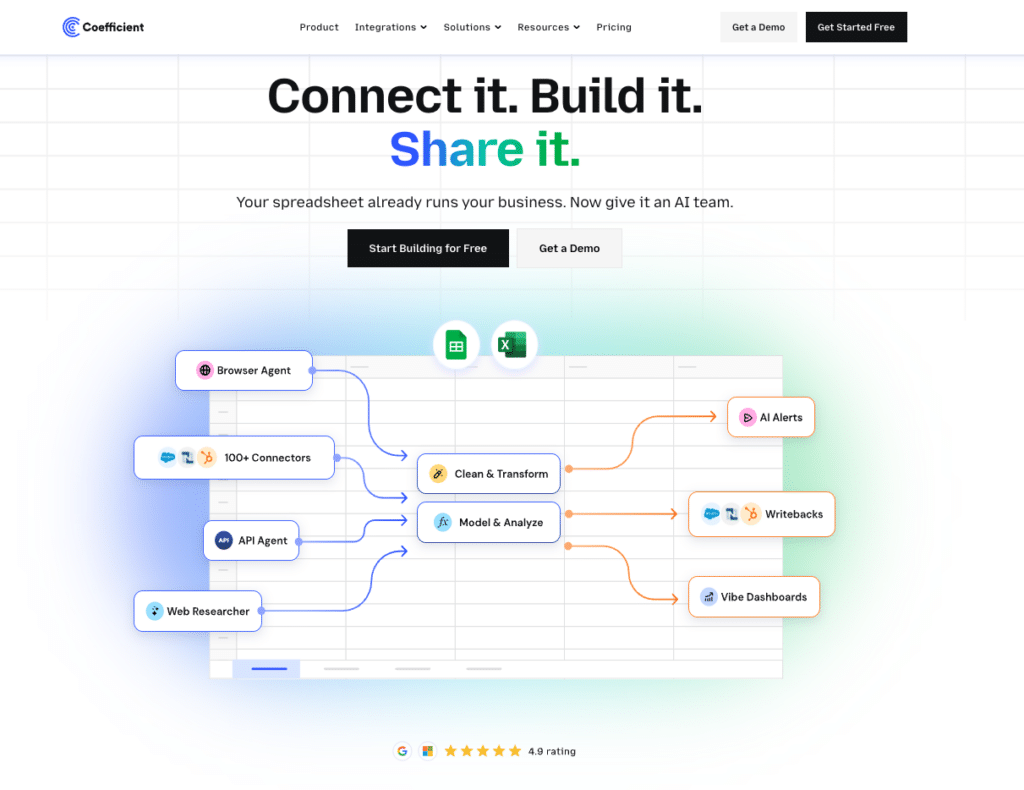
The native CSV export is a one-time pull. Every time you need fresh headcount or payroll data for a report or dashboard, you repeat the process manually. Coefficient removes that cycle.
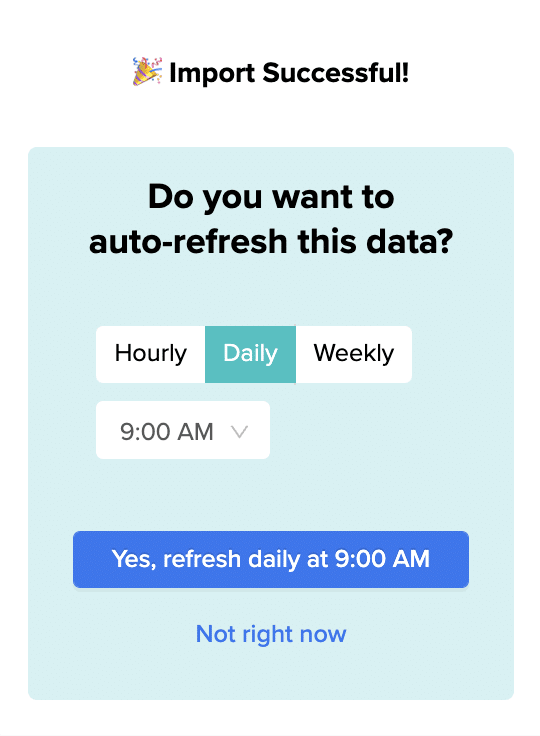
Coefficient connects BambooHR directly to Google Sheets or Excel. Your employee data refreshes automatically on a schedule you set — hourly, daily or weekly — without anyone downloading a file.
What you can do with the Coefficient BambooHR connector:
- Import employee records, time-off data and org structure into a spreadsheet with field-level selection and filter logic.
- Set auto-refresh on any schedule so headcount and payroll data is always current.
- Apply filters to pull only the segment you need: active employees, specific departments, date ranges.
- Turn live BambooHR data into a shareable web dashboard. Coefficient AI dashboards build it from your live data in plain English.
How to connect BambooHR to a spreadsheet with Coefficient:
- Install Coefficient from the Google Workspace Marketplace or Microsoft AppSource.
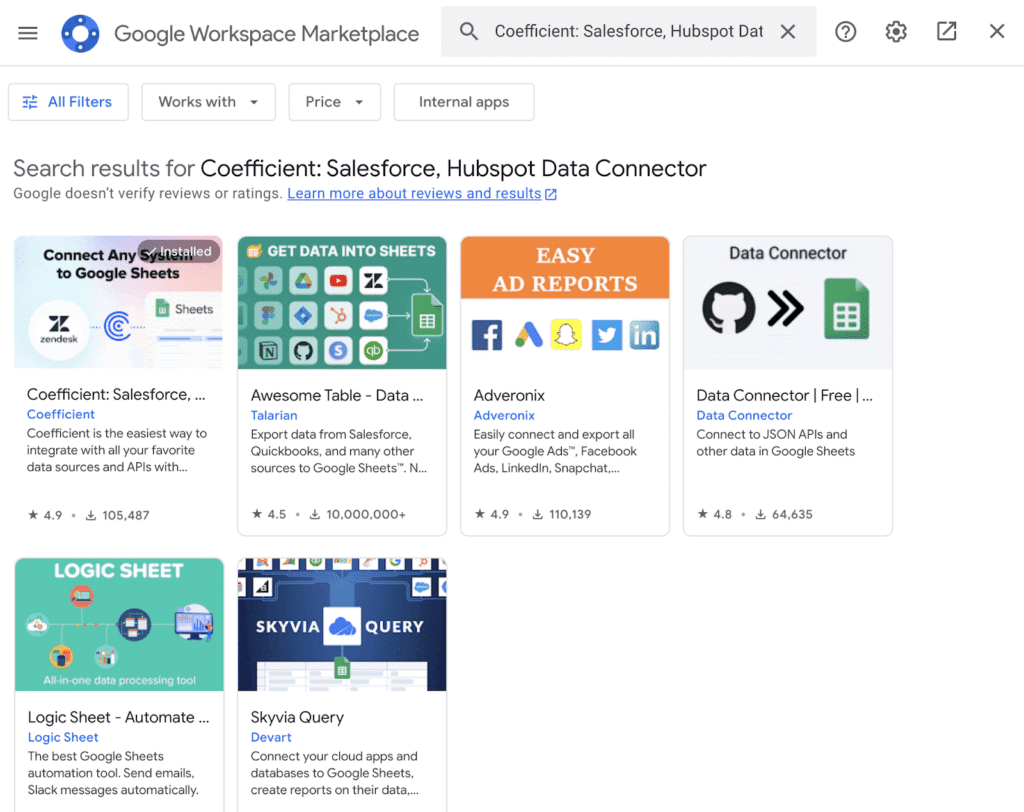
- Open Coefficient from the Extensions menu in Google Sheets, or the add-in menu in Excel.
- Click Import From and select BambooHR. When prompted, enter your BambooHR API key to complete the connection.
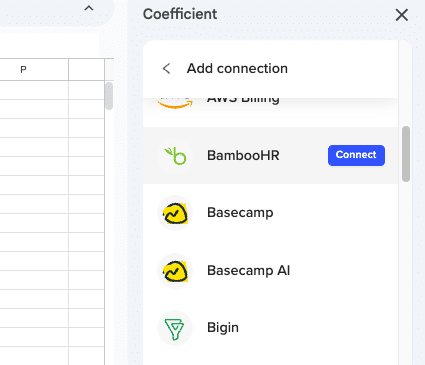
- Select the data type (Employees, Time Off, etc.), choose fields and apply filters.
- Set a Scheduled Run to keep the data refreshing automatically.
Not a standalone BI platform. Requires Google Sheets or Excel. Try Coefficient free.
Method 4: BambooHR API for bulk or programmatic export
The BambooHR API supports export of employee records, time-off data, payroll details and custom fields via REST endpoints. Use it for scheduled automated exports to a data warehouse or for custom reporting pipelines. The API paginates results and requires an API key generated from your account settings.
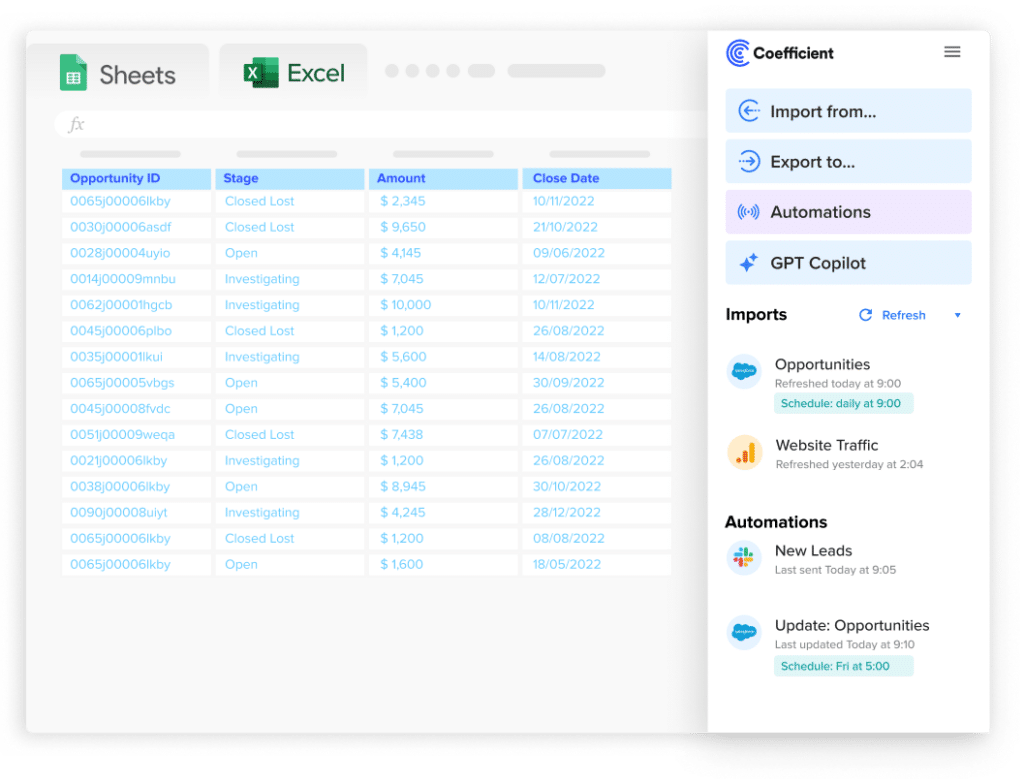
Stop exporting data manually. Sync data from your business systems into Google Sheets or Excel with Coefficient and set it on a refresh schedule.
Get Started
Import and export method comparison
Use this to pick the right method for your situation.
| Method | Direction | Data covered | Format | Best for |
|---|---|---|---|---|
| Employee Importer (CSV) | Import | Employee records | CSV, XLSX | Bulk employee onboarding or updates |
| Custom Dashboard import | Import | External datasets | CSV | Analytics on non-employee data (Elite only) |
| BambooHR API (import) | Import | Employee records, custom fields | JSON | Automated pipelines, large-scale operations |
| Custom Report export | Export | Any employee field | CSV | One-time reports with custom field selection |
| Standard Report export | Export | Pre-built report data | CSV, XLSX | Quick exports of common HR datasets |
| Coefficient | Export from BambooHR | Employee records, time-off, org data | Live sync to Sheets or Excel | Recurring exports, live reporting, auto-refresh |
| BambooHR API (export) | Export | All employee and HR data | JSON | Automated pipelines, warehouse ingestion |
BambooHR import: data format requirements
Reference this before preparing any import file.
- File types: CSV or XLSX.
- Header row: the first row must contain field names. BambooHR uses these to auto-map columns.
- Required fields: First Name and Last Name. All other fields are optional but recommended for complete records.
- Date fields: use MM/DD/YYYY format by default. Check your account locale settings if dates import incorrectly.
- Employee ID: include this to update existing records rather than create duplicates.
- Department and Job Title: must match values already configured in BambooHR, or they are created as new entries.
- What cannot be imported via CSV: time-off history, payroll transactions, documents and training records require the API or manual entry.
FAQs
Can you export BambooHR data to Google Sheets automatically?
Yes, with Coefficient. Install the add-on, connect BambooHR and set a refresh schedule. Employee records, time-off data and org structure update in Google Sheets or Excel automatically without manual exports.
What data can be exported from BambooHR?
Custom and standard reports can export any employee field including personal details, job information, compensation, time off and custom fields. Full activity history and payroll details are accessible via the API.
Can you import time-off history into BambooHR via CSV?
No. The native CSV importer handles employee records only. Time-off history, payroll transactions and document records require the BambooHR API or must be entered manually.
How do you export payroll data from BambooHR?
Go to the Payroll tab and use the export function there. You can filter by pay period and export as CSV. For custom payroll field combinations, build a Custom Report and include the relevant payroll fields before exporting.
Does BambooHR support two-way sync with spreadsheets?
Not natively. BambooHR exports are one-directional downloads. Coefficient provides live, scheduled import of BambooHR data into Google Sheets or Excel. Writing data back to BambooHR from a spreadsheet is not supported via Coefficient — use the API or the native importer for updates.
What is the row limit for BambooHR CSV imports?
BambooHR does not publish a hard row limit for the employee importer. For very large imports, split files into batches of a few thousand rows to reduce the risk of timeout errors and make error correction easier.
If you need BambooHR data refreshed automatically in a spreadsheet for reporting or dashboards, try Coefficient free and connect BambooHR in a few clicks.