Odoo uses a concept called External ID for data management. Understanding it is the single most important thing before attempting any import or export. External ID is a unique reference that lets Odoo link records across modules and update existing records rather than creating duplicates on re-import.
This guide covers native CSV and Excel import, the Export feature, the Odoo API and Coefficient for recurring exports to Google Sheets or Excel.
| What data can you import and export from Odoo? |
| Odoo supports CSV and Excel import for most model types including contacts, products, sales orders, invoices and custom models. Export covers any filterable list view as CSV. The External ID field is critical for updating existing records via import. The Odoo API (JSON-RPC and REST) provides full programmatic access to all models. Coefficient connects Odoo to Google Sheets or Excel for live, auto-refreshing ERP data exports. |
Understanding External ID before you import
Every record in Odoo has an External ID (also called XML ID). This is a unique string reference used by Odoo internally to link records across modules. When importing data, include the External ID column to update existing records. Without it, Odoo creates new records on every import, resulting in duplicates.
To find the External ID of existing records, export a list with the External ID option checked. The value follows the format “module.record_name”.
How to import data into Odoo
Method 1: CSV or Excel import via the UI
- In Odoo, open the list view of the model you want to import (Contacts, Products, Sales Orders, etc.).
- Click the Action dropdown and select Import Records.
- Upload your CSV or Excel file. Odoo reads the column headers and attempts auto-mapping.
- Review field mappings. Map any unrecognised columns manually.
- Click Test to validate the data before importing. Odoo flags errors row by row.
- Click Import. Odoo processes records and reports successes and failures.
Format requirements:
- File types: CSV or XLSX.
- External ID: include for updates. Omit only for net-new record creation.
- Related records: use External ID or the record name to reference related objects (e.g. a customer name on a sales order).
- Products with variants: import the product template first, then variants as separate rows with the product template External ID as the parent reference.
- Date fields: use YYYY-MM-DD format.
- Many2many fields: separate multiple values with commas.
Method 2: Odoo API (JSON-RPC)
The Odoo external API supports full CRUD operations on all models via XML-RPC or JSON-RPC. Use it for automated data pipelines, bulk operations or integrating Odoo with external systems.
How to export data from Odoo
Method 1: Smart Export from list view
- Open any list view in Odoo (Contacts, Invoices, Products, etc.).
- Apply filters to narrow your dataset as needed.
- Click the Action dropdown and select Export.
- Choose which fields to include in the export. Odoo shows all available fields including related model fields.
- Check Include External ID if you plan to re-import this data later for updates.
- Click Export and download the CSV file.
Export to update tip: always include the External ID column if you plan to modify the exported data and re-import it. This ensures Odoo updates existing records rather than creating duplicates.
Method 2: Coefficient for live, scheduled exports
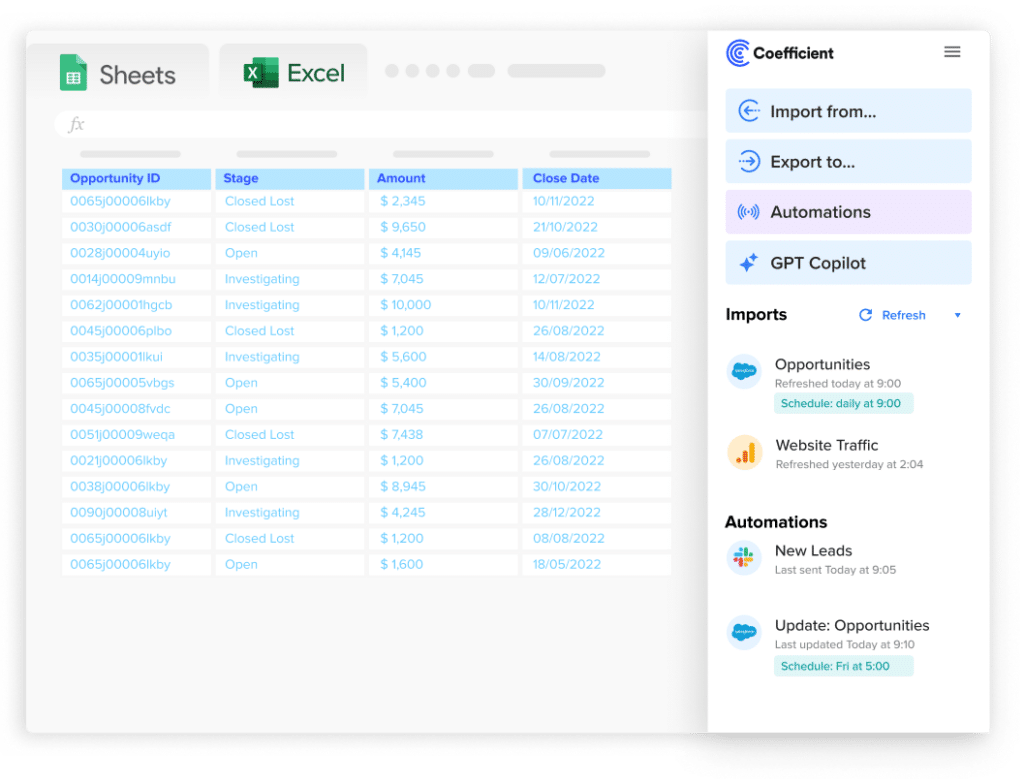
Odoo’s native export is a one-time manual download. For finance teams that need fresh invoice data, operations teams tracking inventory or sales teams monitoring pipeline in a spreadsheet, Coefficient removes the manual export cycle.
Coefficient connects Odoo to Google Sheets or Excel and keeps ERP data live on a schedule.
- Import contacts, products, sales orders, invoices and any Odoo model with field-level selection and filter logic.
- Set auto-refresh so finance dashboards and inventory reports are always current.
- Turn live Odoo data into a shareable web dashboard. Coefficient AI dashboards build it in plain English.
How to connect Odoo to a spreadsheet with Coefficient:
- Install Coefficient from the Google Workspace Marketplace or Microsoft AppSource.
- Open Coefficient from the Extensions menu in Google Sheets, or the add-in menu in Excel.
- Click Import From and select Odoo. When prompted, enter your Odoo instance URL and API key to complete the connection.
- Select the model (Contacts, Products, Sales Orders, etc.), choose fields and apply filters.
- Set a Scheduled Run to refresh data automatically.
Method 3: Odoo API for programmatic export
The Odoo external API supports reading and searching all models programmatically. Use search_read to query and export records with field-level selection and domain filters. Output is JSON.
Common errors when importing into Odoo
Duplicate records on re-import
Importing without External ID creates new records each time, resulting in duplicates.
Always export the data with External ID checked first, modify it, and re-import with the External ID column intact.
Related record not found
Referencing a customer, product or account by name that does not exactly match an existing record in Odoo causes the import to fail on that row.
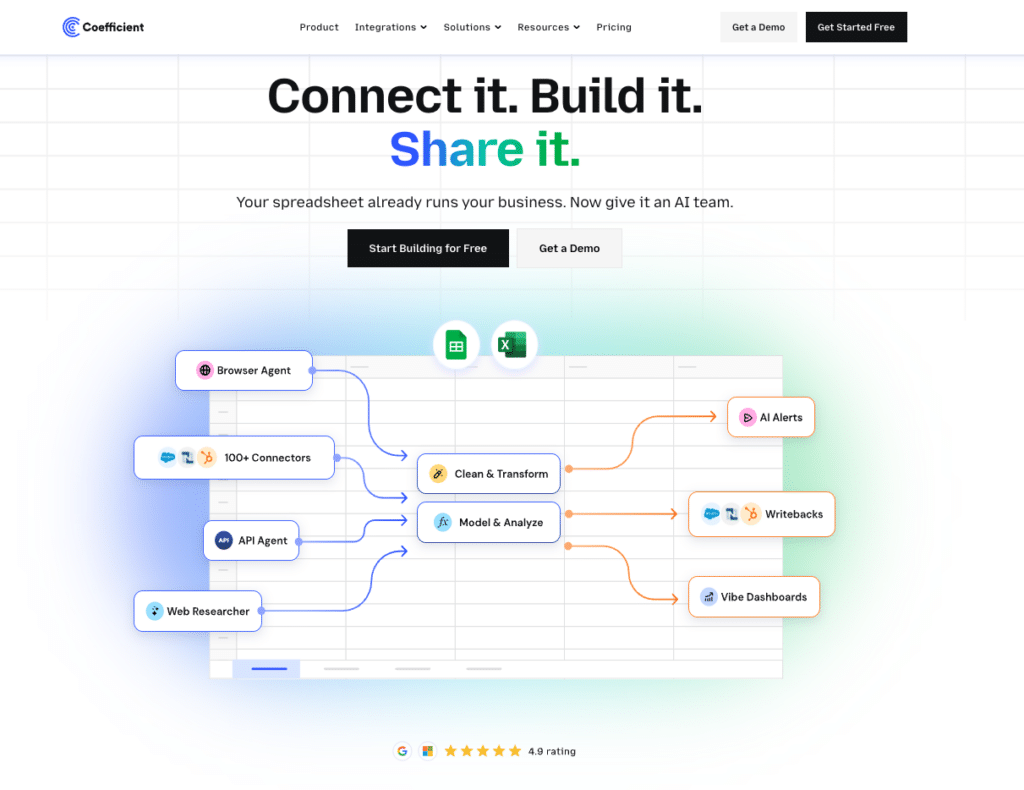
Stop exporting data manually. Sync data from your business systems into Google Sheets or Excel with Coefficient and set it on a refresh schedule.
Get Started
Export the related records first and use their External IDs as references in your import file, rather than plain text names.
Wrong date format
Dates not in YYYY-MM-DD format are rejected or parsed incorrectly.
Reformat all date columns to YYYY-MM-DD before uploading.
FAQs
What is External ID in Odoo and why does it matter for import?
External ID is a unique string identifier for every Odoo record. It is used to link records during import and to update existing records rather than creating duplicates. Always include the External ID column when exporting data you plan to modify and re-import. Find External IDs by enabling developer mode and checking Settings > Technical > External Identifiers, or by exporting records with the Include External ID option checked.
Can you import products with variants into Odoo via CSV?
Yes. Import the product template first, then import variants in a separate file using the product template External ID as the parent reference. Include the variant attributes (size, colour, etc.) as additional columns mapped to the appropriate attribute fields.
Can you export Odoo data to Google Sheets automatically?
Yes, with Coefficient. Connect your Odoo instance, select the model and fields you need and set a refresh schedule. ERP data updates in Google Sheets or Excel automatically.
How do you back up an Odoo database?
For Odoo.com (cloud), go to Settings > Database Management to download a full database backup. For self-hosted Odoo, use standard PostgreSQL backup tools (pg_dump) or the Odoo built-in backup tool at /web/database/manager. This is a full database backup, not a CSV-based export.
If you need Odoo ERP data refreshed automatically in a spreadsheet for reporting or finance dashboards, try Coefficient free and connect Odoo in a few clicks.