Metabase is primarily a querying and visualisation layer, not a data storage system. “Importing data” means uploading a CSV to create a new question or model. “Exporting data” means downloading query results. The application’s own configuration (questions, dashboards, collections) is managed via serialization, not standard import/export.
This guide covers all methods: CSV upload for question creation, result export, serialization for migrations, the API and Coefficient for live sync to Google Sheets or Excel.
| What data can you import and export from Metabase? |
| Metabase supports CSV upload to create new questions and models (Pro/Enterprise plans). Export covers question and dashboard results in CSV, JSON, XLSX or PNG. Full application state (questions, dashboards, collections, permissions) is managed via serialization using the Metabase CLI or API. The Metabase API provides programmatic access to all data and application objects. Coefficient connects Metabase to Google Sheets for live, scheduled result exports. |
How to import data into Metabase
Method 1: Upload a CSV to create a question or model
Available on Pro and Enterprise plans. This creates a managed table in Metabase that you can query immediately without a database connection.
- In Metabase, click the + icon or go to New > Upload a file.
- Select your CSV file. Metabase auto-detects column types.
- Name the new model. Metabase creates a queryable table from the CSV data.
- Build questions and dashboards from the uploaded model as you would from any database table.
- Plan requirement: CSV upload is a Pro/Enterprise feature. Free/Open Source Metabase does not support this.
- Size consideration: very large CSV files may timeout during upload. For datasets over a few hundred thousand rows, load data directly into your connected database instead.
- What cannot be imported: Metabase application objects (questions, dashboards, collections) cannot be imported via CSV. Use serialization for those.
Method 2: Serialization (for migrating Metabase instances)
“Serialization” is Metabase’s term for exporting and importing the application’s configuration — questions, dashboards, collections, permissions and settings — between Metabase instances. This is used to migrate from staging to production, or from one server to another. Available on Pro/Enterprise plans. Access via Metabase serialization docs.
Method 3: Metabase API
The Metabase API supports programmatic creation of questions, dashboards and collections, as well as executing queries and retrieving results. Use it for automated workflows, scheduled exports or custom integrations.
How to export data from Metabase
Method 1: Export question results
- Open any question or model in Metabase.
- Click the Download button (bottom right of the results table).
- Choose your format: CSV, JSON or XLSX.
- The file downloads immediately for smaller result sets. Larger exports may process in the background.
Format notes:
- CSV: plain text, universally compatible. Best for further analysis in spreadsheets.
- JSON: structured format. Best for developer workflows and API ingestion.
- XLSX: Excel format with basic formatting. Best for sharing with non-technical stakeholders.
- Row limit: Metabase applies a default export row limit. Very large result sets may be truncated. Adjust via the MAX_RESULTS setting in Metabase configuration for self-hosted instances.
Method 2: Export a dashboard as PDF or PNG
- Open the dashboard and click the … menu (top right).
- Select Export as PDF or Export as PNG.
- The file downloads. PDF preserves layout for sharing. PNG is a flat image.
Dashboard exports capture the visual state only. They do not contain raw data. For the underlying data, export the individual questions from each dashboard card instead.
Method 3: Coefficient for live, scheduled result exports

Metabase’s native export is a one-time download. For teams that need Metabase query results refreshed regularly in a spreadsheet — weekly sales metrics, monthly operational reports, recurring data quality checks — Coefficient removes the manual step.
Coefficient connects Metabase to Google Sheets or Excel and keeps question results live on a refresh schedule you set.
What you can do with the Coefficient Metabase connector:
- Import question results into a spreadsheet with field-level selection and parameter filters.
- Set auto-refresh hourly, daily or weekly so reports are always current.
- Combine Metabase results with data from other sources in the same spreadsheet.
How to connect Metabase to a spreadsheet with Coefficient:
- Install Coefficient from the Google Workspace Marketplace or Microsoft AppSource.
- Open Coefficient from the Extensions menu in Google Sheets, or the add-in menu in Excel.
- Click Import From and select Metabase. When prompted, enter your Metabase API key to complete the connection.
- Select the question or dashboard card to pull results from.
- Set a Scheduled Run to refresh data automatically.
Not a standalone BI platform. Requires Google Sheets or Excel. Try Coefficient free.
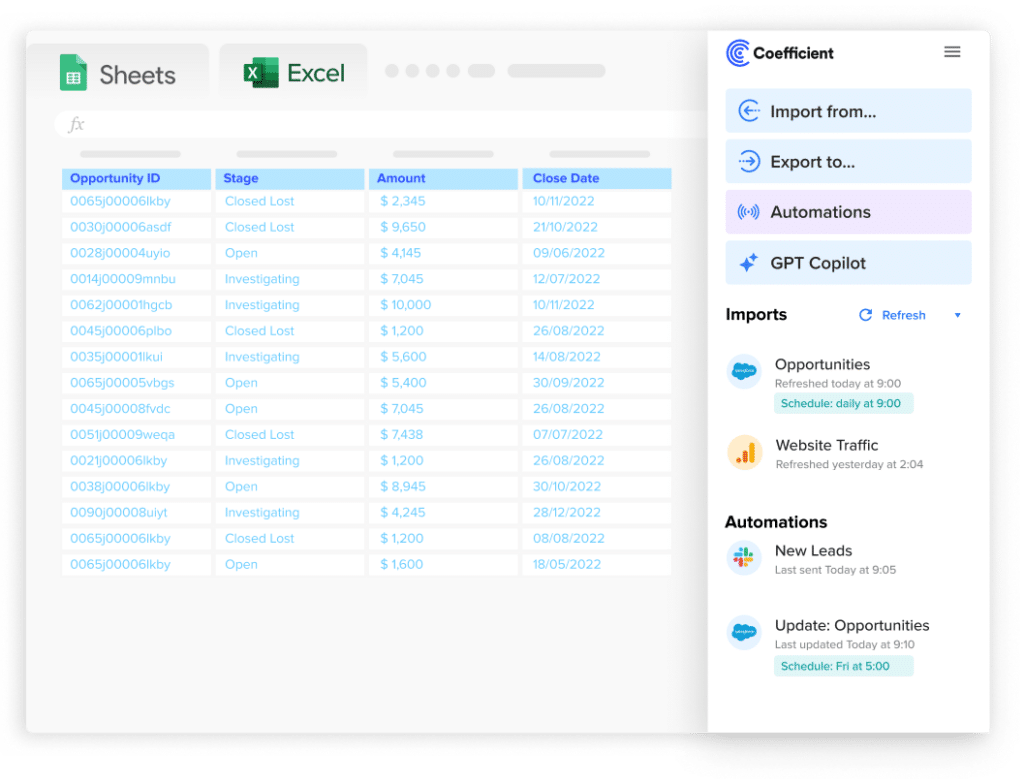
Stop exporting data manually. Sync data from your business systems into Google Sheets or Excel with Coefficient and set it on a refresh schedule.
Get Started
Method 4: Metabase API for programmatic export
The Metabase API supports executing questions and retrieving results programmatically via the /api/card/:id/query endpoint. Results return in JSON by default. Use it for automated scheduled exports, integration with data pipelines or feeding Metabase results into external systems.
Import and export methods of MetaBase
| Method | Direction | Data covered | Format | Best for |
|---|---|---|---|---|
| CSV upload (Pro/Enterprise) | Import | CSV datasets as queryable models | CSV | Ad-hoc analysis without a database connection |
| Serialization | Import | Questions, dashboards, collections, settings | YAML/JSON | Migrating Metabase instances |
| Metabase API (import) | Import | Questions, dashboards, users | JSON | Automated workflows, programmatic creation |
| Question result export | Export | Query result data | CSV, JSON, XLSX | One-time data extraction from a question |
| Dashboard export | Export | Visual snapshot only | PDF, PNG | Sharing dashboard visuals with stakeholders |
| Coefficient | Export from Metabase | Question results | Live sync to Sheets or Excel | Recurring exports, live reporting, auto-refresh |
| Metabase API (export) | Export | All question results and metadata | JSON | Automated pipelines, scheduled data delivery |
FAQs
What file formats does Metabase support for export?
Question result exports support CSV, JSON and XLSX. Dashboard exports support PDF and PNG. There is no native XML export. JSON export from the API is available for all object types including questions, dashboards and collections.
Can you export a Metabase dashboard as a PDF?
Yes. Open the dashboard, click the … menu and select Export as PDF. This exports the visual layout. For the underlying data, export each question individually via the Download button on the question card.
Can you export Metabase data to Google Sheets automatically?
Yes, with Coefficient. Connect Metabase, select the questions you want to pull results from and set a refresh schedule. Data updates in Google Sheets or Excel automatically.
Is there a row limit on Metabase exports?
Yes. Metabase applies a default export row limit. For self-hosted instances, this can be adjusted via the MB_UNAGGREGATED_QUERY_ROW_LIMIT environment variable. Very large result sets that exceed the limit are truncated. For large exports, use the API or query your underlying database directly.
If you need Metabase question results refreshed automatically in a spreadsheet, try Coefficient free and connect Metabase in a few clicks.