Linear is an issue tracking and project management tool built for speed. Its export is straightforward: workspace admins can export all issue data as CSV. Import supports native assistants for Jira, GitHub, Asana, Shortcut and Trello, plus CSV for other sources.
This guide covers all methods: native importers, CSV import and export, the Linear API and Coefficient for live sync to Google Sheets or Excel.
| What data can you import and export from Linear? |
| Linear supports CSV export of all workspace issue data including ID, team, title, description, status, priority, labels, assignee, cycle, project and dates. Native importers are available for Jira, GitHub Issues, Asana, Shortcut and Trello. CSV import is supported via the CLI tool. The Linear API provides full programmatic access to all workspace data including issues, projects, cycles, teams and members. Coefficient connects Linear to Google Sheets for live issue data exports. |
How to import data into Linear
Two main paths: the in-product import assistants (recommended) and the CLI tool for CSV-based imports.
Method 1: Native import assistants (recommended)
Linear offers dedicated import assistants that preserve more data than CSV, including comments and project structure.
- Go to Settings > Workspace > Import/Export.
- Select your source: Jira, GitHub Issues, Asana, Shortcut or Trello.
- Connect your source account and select the issues or projects to import.
- Map users from your source tool to Linear workspace members.
- Review the data and click Finish. Linear imports issues, labels, projects and comments.
Jira and GitHub Issues note: if you are not ready for a full migration, both support two-way sync while you trial Linear. New issues created in either tool appear in both.
Trello note: import must run from individual board exports, not the overall workspace export.
Method 2: CSV import via CLI
For tools not covered by the native assistants, use the Linear CLI import tool with a CSV file. Access it at Settings > Workspace > Import/Export or install the Linear CLI.
- Export issues from your source tool as CSV.
- Run the Linear CLI import command pointing to your CSV file.
- Map CSV columns to Linear fields as prompted.
Important: the CLI importer does not import comments or projects. Use the native import assistants when available to preserve those fields.
Method 3: Linear workspace-to-workspace import
To import teams from one Linear workspace to another, ensure you have an admin account in both workspaces using the same email login, then use Settings > Import/Export and select Linear as the source.
How to export data from Linear
Method 1: Full workspace CSV export
- Go to Settings > Administration > Import Export.
- Click Export data at the bottom of the page.
- Optionally toggle to include private teams.
- Linear emails you a download link when the export is ready.
The workspace export contains these fields for each issue: ID, Team, Title, Description, Status, Estimate, Priority, Project ID, Project, Creator, Assignee, Labels, Cycle, Created date, Updated date, Started, Completed, Canceled, Archived, Due Date, Parent issue, Initiatives and SLA Status.
Admin or Owner role required on Enterprise plans for full workspace export.
Method 2: Issue or project CSV export
- Open any issue view, project or custom view in Linear.
- Use Ctrl/Cmd + K to open the command menu and search for “Export issues as CSV”.
- Alternatively, click the view or project name and choose “Export issues as CSV…” from the dropdown.
- The CSV downloads immediately.
Member export: go to Settings > Administration > Members and click Export CSV to download the member list.
Method 3: Coefficient for live, scheduled exports
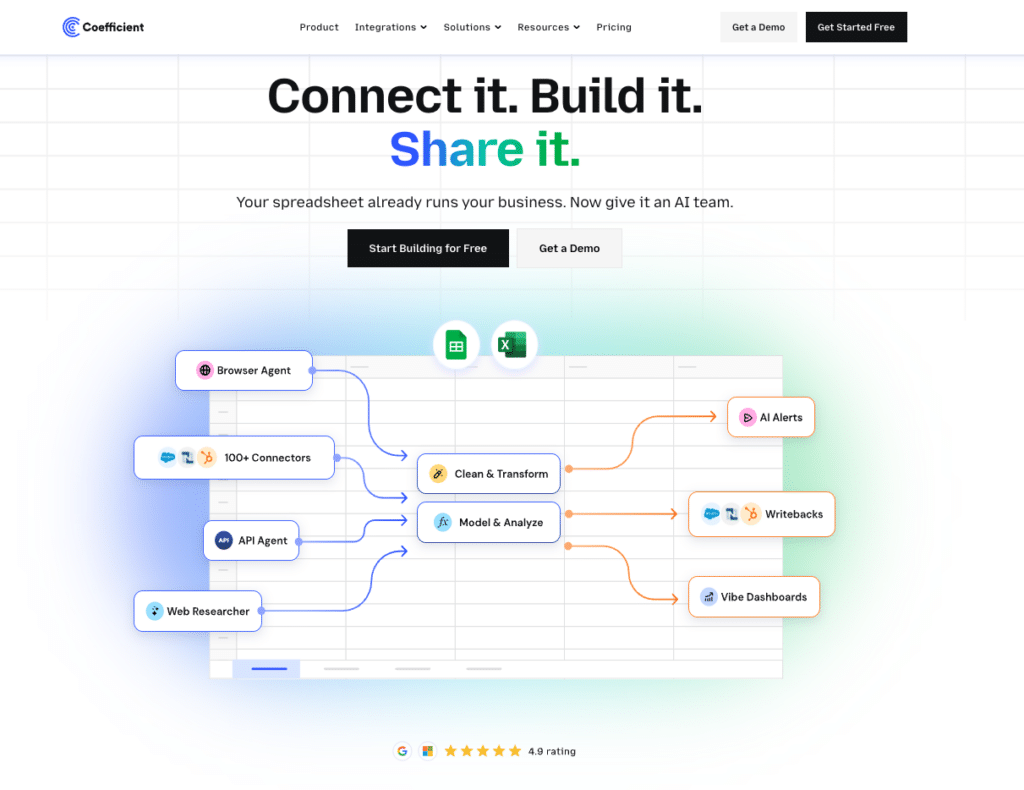
Linear’s native export is a one-time CSV. For engineering leaders and project managers who need fresh issue data in a spreadsheet regularly like sprint reviews, backlog health reports, team velocity tracking. Coefficient removes the manual export cycle.
Coefficient connects Linear to Google Sheets or Excel. Issue and project data refreshes automatically on the schedule you set.
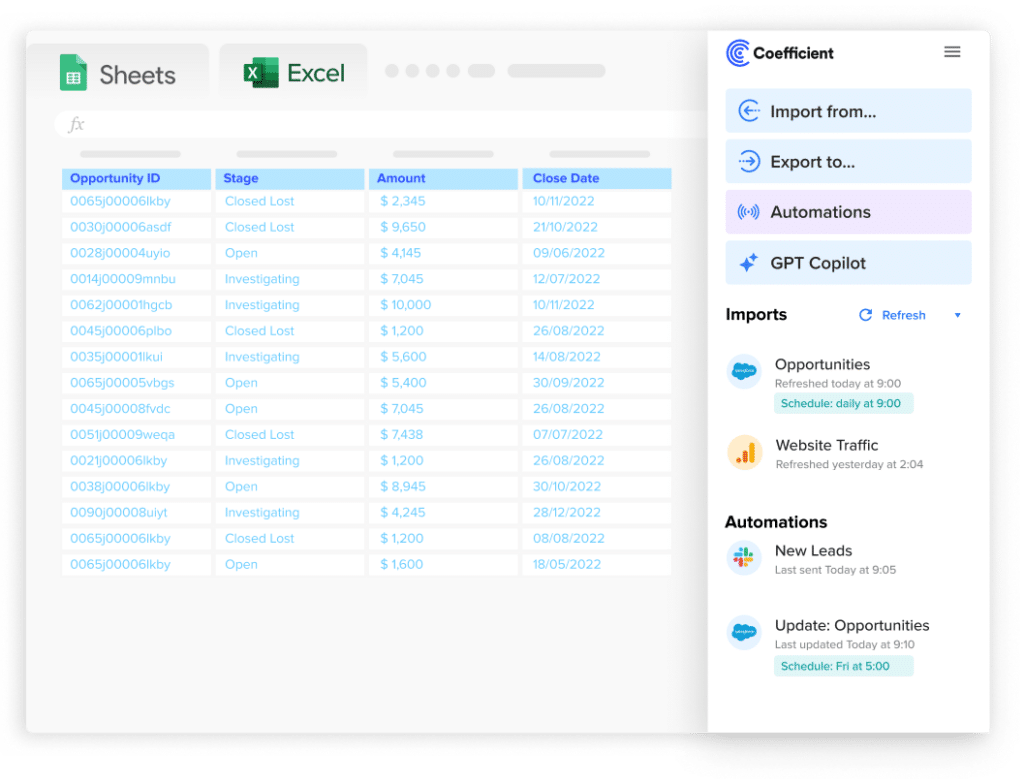
Stop exporting data manually. Sync data from your business systems into Google Sheets or Excel with Coefficient and set it on a refresh schedule.
Get Started
What you can do with the Coefficient Linear connector:
- Import issues, projects and cycle data with field-level selection and team or status filters.
- Set auto-refresh so sprint and velocity dashboards are always current.
- Combine Linear data with data from other tools in the same spreadsheet for cross-team reporting.
- Turn live Linear data into a shareable web dashboard. Coefficient AI dashboards build it in plain English.
How to connect Linear to a spreadsheet with Coefficient:
- Install Coefficient from the Google Workspace Marketplace or Microsoft AppSource.
- Open Coefficient from the Extensions menu in Google Sheets, or the add-in menu in Excel.
- Click Import From and select Linear. When prompted, enter your Linear API key to complete the connection.
- Select the data type (Issues, Projects, Cycles), choose fields and apply filters.
- Set a Scheduled Run to refresh data automatically.
Not a standalone BI platform. Requires Google Sheets or Excel. Try Coefficient free.
Method 4: Linear API
The Linear API (GraphQL) provides full programmatic access to issues, projects, cycles, teams, members and all workspace data. Use it for automated export pipelines, building custom dashboards or integrating Linear with external reporting systems. Linear also supports webhooks for real-time event-driven integrations. A native Google Sheets integration is available for one-way sync from Settings > Workspace > Integrations > Google Sheets.
Import and export method comparison
| Method | Direction | Data covered | Format | Best for |
|---|---|---|---|---|
| Native import assistants | Import | Issues, comments, projects, labels | Via OAuth from source tool | Migrating from Jira, GitHub, Asana, Shortcut or Trello |
| CSV import (CLI) | Import | Issues (no comments or projects) | CSV | Migrating from other tools not natively supported |
| Workspace CSV export | Export | All issues and fields | CSV | Full workspace backup, admin reporting |
| Project or view CSV export | Export | Issues in a project or view | CSV | Targeted exports for specific projects or sprints |
| Coefficient | Export from Linear | Issues, projects, cycles | Live sync to Sheets or Excel | Recurring exports, sprint reviews, velocity tracking |
| Linear API (GraphQL) | Export | All workspace data | JSON | Custom pipelines, real-time integrations via webhooks |
FAQs
Can you export Linear data to Google Sheets automatically?
Yes, two ways. Linear has a native Google Sheets integration (Settings > Integrations > Google Sheets) that creates a one-time linked sheet. For ongoing auto-refresh, Coefficient provides scheduled exports that keep your sheet current automatically.
What types of data can be exported from Linear?
Issues (with all fields including ID, title, description, status, priority, labels, assignee, cycle and dates), projects, members and initiatives can be exported. Comments are included in imports but not the native CSV export.
How do you import issues into Linear from a CSV file?
Use the Linear CLI tool. Install it, export your source data as CSV and run the import command from Settings > Workspace > Import/Export. For Jira, GitHub, Asana, Shortcut and Trello, use the native import assistants instead — they preserve more data including comments.
Does Linear support migrating from Jira?
Yes. Linear has a native Jira import assistant at Settings > Workspace > Import/Export. It imports issues, labels, projects and epics. Jira and Linear also support two-way sync if you want to trial Linear while keeping Jira active.
What permissions are required to export Linear data?
Admin or Owner role is required for full workspace CSV export on Enterprise plans. Any member can export issues from a project or view they have access to using the command menu or project dropdown.
If you need Linear issue data refreshed automatically in a spreadsheet for sprint reviews or team reporting, try Coefficient free and connect Linear in a few clicks.