Your NetSuite system was flying six months ago. Pages loaded fast, reports ran smooth, and users were happy. Now everything crawls, pages timeout, and reports hang.
Most growing companies hit these same NetSuite performance issues as data piles up and customizations multiply over time.
This guide shows you the most common problems, exactly how to fix them, and both quick wins and long-term solutions to get your system running fast again.
The Real Cost of Slow NetSuite
Slow systems hurt more than productivity. They fundamentally damage trust in your data and decision-making capabilities.
When NetSuite drags:
- Your month-end close takes longer, delaying critical financial reporting and strategic planning activities
- Customer service stalls as representatives struggle to access account information quickly enough to resolve issues
- Users doubt the data they’re viewing, questioning whether the information is current and accurate
- Decision-makers can’t access the reports they need when time-sensitive choices must be made
According to recent analysis, IT downtime now costs large organizations up to $9,000 per minute in lost productivity and revenue.
Every extra second adds up across your team. A two-second delay becomes hours of lost time when multiplied across users and daily transactions. Eventually, users start working around the system instead of with it, creating data integrity issues.
A Popular Workaround to Combat NetSuite Slowness
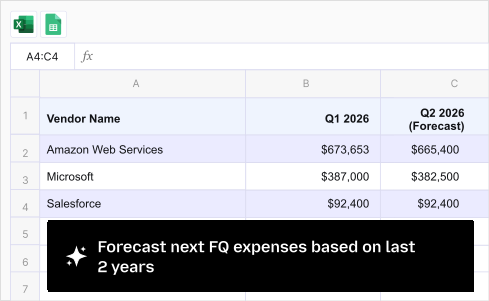
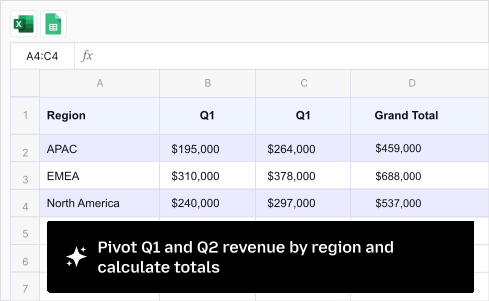
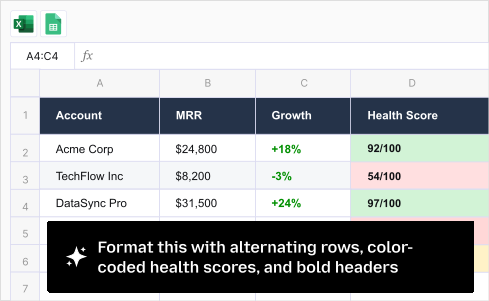
Users pull the data into external systems like Excel or Google Sheets and do their analysis or reporting on it. Companies like Cyrq Energy have not only saved time but also capital upto $50k/yr to automate data pulls from NetSuite using tools like Coefficient.
Top NetSuite Performance Problems
- Slow Page Loads – Over 5 Seconds for Each Page
Your NetSuite pages should load in under 3 seconds for optimal user experience and productivity. Anything longer frustrates users significantly and signals deeper systemic issues.
Common causes:
- Too many custom scripts running on page load events, each consuming processing resources before the page can render
- Heavy saved searches embedded in forms that execute each time the record loads unnecessarily
- Large sublists with hundreds of line items that must all render before the page displays completely
- Complex workflows firing on every record view, adding processing overhead even when changes aren’t being saved
Quick diagnostic: Double-click the “Oracle NetSuite” logo after any slow page loads to access Performance Details. Check if Server time exceeds 2 seconds. High server time points specifically to backend processing issues.
- Saved Searches That Timeout
Reports that worked fine last year now spin endlessly or throw timeout errors when users attempt to run them.
Why this happens:
- Search pulls entire datasets without filters, spanning multiple years of unnecessary historical data
- Queries span multiple years of transactions when only recent data is needed for current analysis
- Too many columns selected, requiring the system to retrieve and process fields users don’t actually need
- Searches run during peak usage hours when system resources are already strained by concurrent operations
- Data volume has grown substantially since the search was created, but configuration hasn’t been updated
- Scripts Hitting Governance Limits
Your SuiteScripts work perfectly in testing but fail in production with governance errors that interrupt processes.
Root causes:
- Scripts make too many database calls instead of batching operations efficiently to minimize API usage
- Multiple scripts run on the same record events, creating redundant processing and multiplying governance consumption
- User event scripts process large datasets synchronously instead of deferring heavy operations to scheduled scripts
- No optimization for production data volumes that far exceed test environment datasets
- Dashboard Widgets Won’t Load
KPI dashboards show spinning loaders or blank tiles where charts should appear, preventing at-a-glance insights.
What’s wrong:
- Dashboard portlets run complex saved searches pulling thousands of records each time the dashboard loads
- Multiple widgets compete for system resources, creating bottlenecks during the rendering process
- Cache settings configured incorrectly or aren’t being utilized effectively to reduce redundant data retrieval
- Widgets refresh too frequently during busy periods when the system is already under heavy load
- Integration Delays and 429 Errors
Third-party apps connect slowly or fail with “too many requests” errors that disrupt automated processes.
Technical issues:
- API calls exceed concurrent request limits because integrations haven’t been properly throttled
- Integration scripts don’t handle throttling or implement retry logic with exponential backoff mechanisms
- Bulk operations overwhelm the system by attempting to process too many records simultaneously without batching
- Poor retry logic in middleware causes repeated API hammering when rate limits are hit
Solutions To Tackle NetSuite Performance Issues
Clean Up Your Scripts
1. Audit existing customizations. Most accounts accumulate scripts over time as requirements evolve. Many become redundant or poorly optimized for production volumes.
2. Remove duplicate scripts. Multiple scripts on the same event multiply processing time and consume governance units unnecessarily. Consolidate similar logic into single, efficient scripts.
3. Move heavy processing offline. Convert user event scripts to scheduled scripts when possible so they run during off-peak hours. Users don’t need to wait for complex calculations during record saves.
Optimize search usage in scripts. Each database query consumes governance units:
- Cache results in script-level variables when the same data will be used multiple times
- Use specific filters to reduce result sets returned from the database dramatically
- Avoid nested searches in loops—this creates exponential growth in database queries
- Retrieve all needed data in a single query and process it in memory
Fix Your Saved Searches
1. Add date filters. Never run searches across all years of data unless specifically needed:
- Default to current year or last 90 days for routine reports focusing on relevant activity
- Use rolling date ranges when possible to ensure searches remain performant over time
- Archive old data separately for historical reporting needs and compliance requirements
2. Limit columns. Each column adds processing time:
- Include only fields users actually need for their decision-making processes
- Remove calculated fields when simpler alternatives exist or calculations can happen elsewhere
- Use summary columns instead of details when aggregate data is sufficient
3. Remove complex formulas.
- Move calculations to custom fields where they’re calculated once and stored permanently
- Use separate processing scripts to pre-calculate complex metrics during off-peak hours
- Simplify multi-step calculations by breaking them into intermediate stored values
4. Schedule heavy reports.
- Run large reports during off-peak hours when system resources are more available
- Email results rather than generating real-time so users don’t wait for processing
- Cache results for multiple users, refreshing on a scheduled basis instead of each view
5. Extract data with Coefficient NetSuite Connector
For reports you run frequently, consider pulling the data into Excel or Google Sheets with NetSuite Connector instead of running saved searches in NetSuite. This lets you build automated reports and dashboards in spreadsheets without taxing NetSuite’s servers. Schedule automatic data refreshes during off-peak hours to minimize system impact.
Optimize Data Architecture
1. Archive old data. Historical transactions slow current operations across the board:
- Move completed records to separate accounts dedicated to historical data storage
- Use external storage for historical data required for long-term compliance purposes
- Implement automated processes that run regularly to prevent accumulation over time
2. Clean duplicate records.
- Merge redundant customers, items, vendors using NetSuite’s built-in deduplication tools
- Fewer records mean faster searches and quicker page loads across all operations
- Regular cleanup prevents duplicates from accumulating and becoming recurring problems
3. Review custom fields.
- Every custom field adds database overhead and impacts performance across record types
- Remove unused fields from forms and records rather than just hiding them
- Consolidate similar fields when possible to reduce total count without losing functionality
4. Implement data retention policies.
- Automatically purge records based on age using scheduled scripts aligned with business needs
- Follow business rules for data lifecycle management and industry compliance requirements
- Balance compliance needs, analysis capabilities, and optimal system performance
Manage Integrations Properly
1. Respect API limits. NetSuite enforces concurrent request limits:
- Build retry logic with exponential backoff that reduces load when limits are hit
- Monitor usage against limits using the Integration Governance dashboard proactively
- Distribute load across time windows to avoid concentrated spikes in consumption
Related Read: Learn how to overcome NetSuite API rate limits
2. Use multiple integration users.
- Distribute API calls across several users to multiply your throughput capacity effectively
- Separate integration types by user to isolate rate limiting and troubleshoot more easily
- Configure appropriate permissions rather than giving all integrations full administrator access
3. Batch operations intelligently.
- Process bulk data during off-peak hours when system resources are more available
- Spread large imports across smaller batches executed sequentially rather than massive single imports
- Monitor system load during operations and adjust batch sizes dynamically based on performance
4. Monitor the Integration Governance dashboard.
- Track API usage patterns to identify trends and predict when you’ll approach limits
- Identify integrations consuming disproportionate resources or generating excessive errors
- Set alerts for when usage approaches thresholds so you can intervene before failures
Streamline Workflows
1. Simplify complex workflows. Each step adds processing time:
- Combine similar actions when possible to reduce the total number of workflow states
- Remove unnecessary approval steps that add little value but significant overhead
- Use conditional logic to skip irrelevant actions based on record state and field values
2. Remove inactive workflows.
- Deactivate workflows related to discontinued processes or superseded by newer implementations
- Clean up old definitions created for one-time projects and never properly removed
- Regular audits prevent workflow bloat from accumulating and impacting performance
3. Optimize workflow triggers.
- Use specific criteria to prevent unnecessary executions on records that don’t require processing
- Avoid broad triggers on high-volume records that execute unnecessarily on most transactions
- Test conditions in sandbox with production-like data to validate performance impact
Improve User Experience
1. Customize roles and forms.
- Show only relevant fields and tabs for each role’s daily responsibilities and workflows
- Simpler forms load faster and reduce cognitive load for users accessing information
- Role-based customization improves both performance and productivity by eliminating unnecessary elements
2. Use summary dashboards.
- Replace detailed reports with high-level KPIs using cached data for faster loading
- Refresh periodically rather than continuously to reduce redundant database queries
- Cache dashboard data when possible to minimize queries for information that changes infrequently
3. Train users on efficient workflows.
- Teach best practices for searching and filtering to minimize unnecessary system load
- Show navigation shortcuts that reduce clicks and page loads during daily operations
- Help users understand how their actions impact performance so they make informed choices
Monitor and Maintain
1. Regular performance audits.
- Monthly reviews of slowest pages, scripts, and searches catch problems early
- Identify degradation trends before they significantly impact user productivity
- Track improvement trends to validate optimization efforts are delivering measurable results
2. Update NetSuite features.
- Each release includes performance improvements and optimizations to core functionality
- Stay current with platform updates to benefit from ongoing enhancements automatically
- Test new features for performance impact before enabling in production environments
3. Set performance benchmarks.
- Establish acceptable load times for key processes and critical user workflows
- Monitor against these standards to ensure performance remains within acceptable ranges
- Alert when thresholds are exceeded so administrators can investigate and resolve issues
Offload Reporting to Reduce NetSuite Load Using Coefficient
One often-overlooked strategy for improving NetSuite performance is reducing the number of heavy reports and searches running directly in the system. Coefficient connects your NetSuite data to Excel or Google Sheets, allowing you to:
1. Build reports without impacting NetSuite performance:
- Pull trial balances, transaction details, and operational data directly into spreadsheets
- Run complex analyses using familiar spreadsheet functions instead of resource-intensive saved searches
- Combine NetSuite data with information from QuickBooks, Xero, or other sources in unified reports.
Here’s a pre-built NetSuite Finance Forecasting Dashboard template using live NetSuite data in Spreadsheets.

2. Automate data refreshes intelligently:

- Schedule refreshes during off-peak hours when your NetSuite system has available capacity
- Set hourly, daily, or weekly refresh schedules that align with your close calendar and reporting needs
- Let reports update automatically in the background without users initiating manual exports
3. Maintain live connections without manual work:
- Eliminate CSV exports and manual data entry that create version control issues
- Keep formulas and formatting intact while data refreshes automatically underneath
- Share up-to-date reports with stakeholders who don’t need full NetSuite access
Get Started with the Coefficient NetSuite Connector to move your heaviest reporting workloads out of NetSuite while maintaining access to real-time data.
How to Diagnose & Monitor NetSuite Slowdowns
Before fixing anything, identify precisely where the bottleneck lives in your system architecture.
1. Use Built-in Performance Tools
Performance Details window:
Double-click the NetSuite logo after any page action to access detailed metrics. This shows:
- Total time – complete operation duration from initiation to completion
- Server time – backend processing including script execution and workflow processing
- Network time – connection speed issues and data transfer delays
- Client time – browser rendering delays and local device performance
What each metric means:
- High server time indicates backend problems with scripts, workflows, or database queries needing optimization
- High network time suggests connection issues related to VPN, firewall configuration, or ISP problems
- High client time points to browser performance, device limitations, or excessive JavaScript execution
2. Install the APM SuiteApp
NetSuite’s Application Performance Management bundle provides deep insights:
- Script execution times by type, allowing you to identify which custom code consumes the most resources
- Slowest saved searches across your account, ranked by execution time and frequency of use
- Cache hit rates and database performance metrics revealing opportunities for optimization
- User session analysis and bottleneck identification correlating complaints with measurable issues
Download it free from the SuiteApp Marketplace. Essential for any serious performance optimization initiative.
3. Monitor System Health Regularly
Check these metrics weekly to catch degradation trends early:
- Average page load times by record type to identify which areas are degrading over time
- Script governance consumption trends to catch optimization opportunities before scripts start failing
- Failed integration attempts and 429 errors indicating your middleware needs tuning
- User complaints about specific workflows, correlated with actual performance data
Best Practises to Keep NetSuite Performance High
NetSuite performance isn’t “set and forget”—growing businesses need ongoing optimization.
Monthly Maintenance Checklist
- Review slowest saved searches and optimize filters to improve execution times
- Check script governance consumption trends to identify scripts approaching limits
- Clean up old records and unused customizations that accumulate over time
- Update user training on efficient workflows to maintain productivity
Quarterly Deep Dives
- Audit all custom scripts for optimization opportunities and refactoring needs
- Review integration patterns and API usage to identify improvement opportunities
- Assess data archiving needs and retention policies based on current volumes
- Update performance benchmarks based on business growth and changing usage patterns
Your NetSuite system can stay fast as your business scales. The key is staying proactive about performance management.
Get NetSuite Data Without the Slowdown
Ready to speed up your NetSuite performance? Coefficient helps you get live NetSuite data into spreadsheets without slowing down your system.
Connect real-time reports that refresh automatically while keeping your ERP running smooth. Get started with fast, reliable NetSuite reporting today.