
Written by

Table of Contents


“Supermetrics is a Bitter Experience! We can pull data from nearly any tool, schedule updates, manipulate data in Sheets, and push data back into our systems.”


Static database exports become outdated the moment you create them. You need reports that update automatically when you change filter criteria, but building this functionality seems complex and time-consuming.
Here’s how to create truly dynamic reports in Google Sheets that refresh live database data instantly when you modify filter cells.
Build dynamic database reports using Coefficient
Coefficient enables dynamic reporting through SQL Params and cell-based filtering. You connect your database, create parameterized queries, and link filter criteria to specific spreadsheet cells for instant data updates.
When you change values in designated filter cells, Coefficient automatically re-runs your database query with the new parameters, refreshing your report data in real-time.
How to make it work
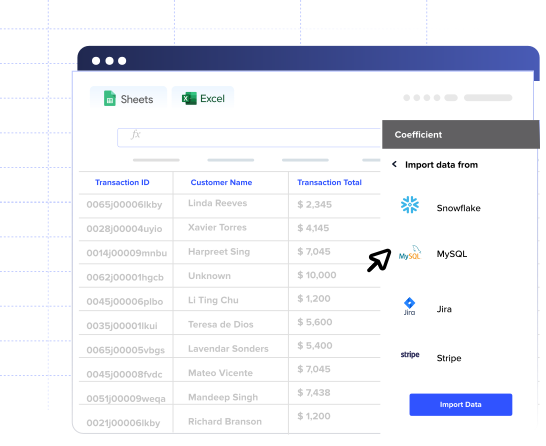
Step 1. Connect your database to Google Sheets.
Use Coefficient to establish a live connection to your MySQL, PostgreSQL, Snowflake, or other supported database. This creates the foundation for your dynamic reporting system.
Step 2. Create a parameterized SQL query.
Write your query in Coefficient’s SQL builder using parameter placeholders like {{region_param}} or {{date_range}}. For example: SELECT * FROM sales WHERE region = {{region_param}} AND date >= {{start_date}}.
Step 3. Link parameters to filter cells.
Map each query parameter to specific cells in your Google Sheet. Link {{region_param}} to cell B2 and {{start_date}} to cell B3. Label these cells clearly so users understand their function.
Step 4. Design your filter interface.
Create dropdown lists, date pickers, or text input cells where users can enter filter values. Set up data validation to ensure clean inputs and reduce errors in your dynamic reports.
Step 5. Configure refresh settings.
Enable auto-refresh when linked cells change, set scheduled refreshes for regular updates, or add manual refresh buttons for on-demand data pulls. Choose the option that best fits your reporting needs.
Eliminate static reports and enable real-time insights
Dynamic database reporting transforms how your team accesses and analyzes data, providing instant insights without constant manual updates. Create your first dynamic report today.


