NetSuite saved search results automatically updating in Excel spreadsheets

You can automatically update NetSuite saved search results in Excel without manual exports or static data snapshots. This maintains live connections that refresh your spreadsheets with current NetSuite data on schedule.

Here’s how to connect any NetSuite saved search directly to Excel with automated refresh capabilities that eliminate repetitive export and import processes.

Connect saved searches directly to Excel with automatic updates using Coefficient

Coefficient imports NetSuite saved searches directly into Excel while preserving all search criteria and logic. The live connection updates automatically, so your Excel data stays current without manual intervention.

How to make it work

Step 1. Install Coefficient in Excel.

Get Coefficient running in your Excel environment. Open Excel, navigate to the Insert tab, click Get Add-ins, and search for Coefficient. Install the add-in and authorize your NetSuite connection through Coefficient’s setup wizard.
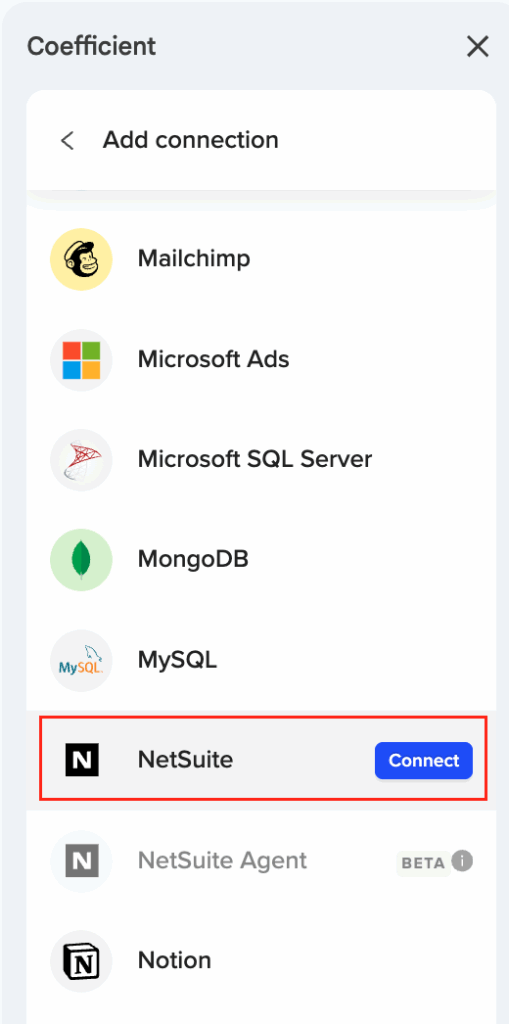
Step 2. Select any existing saved search.

Choose from all saved searches in your NetSuite account through Coefficient’s interface. The system imports the search exactly as configured in NetSuite, maintaining all filters, criteria, and custom logic without modification.
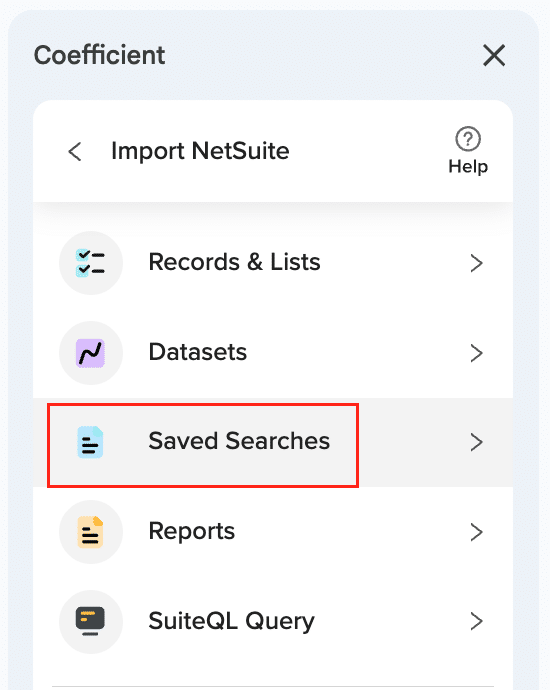
Step 3. Preview and organize the data layout.

View the first 50 rows with drag-and-drop column reordering capabilities. This lets you organize the Excel layout to match your reporting needs while preserving the underlying saved search structure and results.

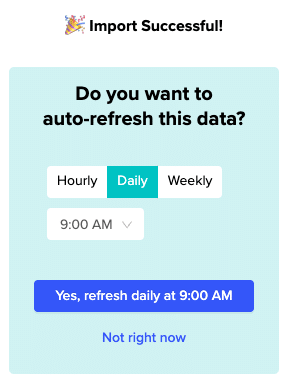
Step 4. Configure automatic refresh schedules.

Set up hourly, daily, or weekly refresh schedules based on how frequently your saved search data changes. The system handles up to 100,000 rows per search without the timeout errors that manual exports often encounter.
Step 5. Maintain Excel formatting and formulas.

Since data flows directly into Excel instead of through CSV files, your spreadsheet formatting and formulas that reference the saved search data remain intact. The live connection updates data while preserving your Excel customizations.

Start automating your saved search updates

Direct saved search connections eliminate the repetitive work of manual exports while ensuring your Excel analysis uses current NetSuite data. The automated refresh system handles large datasets and complex searches reliably. Connect your NetSuite saved searches to Excel today.

NetSuite saved search timeout errors when query takes longer than 5 minutes

NetSuite’s 5-minute timeout limit kills your saved searches right when you need them most. The web interface enforces strict resource limits that make large dataset queries nearly impossible.

But there’s a way around this that doesn’t involve rebuilding your searches or splitting them into smaller pieces.

Bypass NetSuite’s web interface to eliminate timeouts

Coefficient connects to NetSuite through REST API endpoints that don’t face the same 5-minute web interface timeout. Your large datasets get retrieved through optimized API calls that can handle what the web interface cannot.

Instead of fighting with timeout-prone saved searches, you get reliable data extraction through NetSuite SuiteQL queries that support up to 100K rows per execution, plus automated chunking for even larger datasets.

Best practices to reduce timeout errors

While these practices can help minimize timeout issues within NetSuite’s native interface, they don’t eliminate the underlying 5-minute limitation:

  • Simplify your saved search criteria. Remove unnecessary joins and reduce the number of custom formula fields. Each additional criterion increases processing time and brings you closer to the timeout threshold.
  • Select only required fields. Import specific fields instead of pulling entire record sets. This reduces the data volume that NetSuite needs to process during each query execution.
  • Apply targeted filters using AND/OR logic. Narrow your dataset before processing begins. More specific filters mean less data to process and lower timeout risk.
  • Schedule queries during off-peak hours. Run large data extractions at night or on weekends when system resources are more available. Peak-hour congestion significantly increases timeout frequency.
  • Use incremental data loading patterns. Pull only recent changes rather than complete historical datasets. Daily refreshes that capture new transactions avoid the timeouts caused by processing years of data at once.

How Coefficient eliminates timeout errors

Coefficient bypasses NetSuite’s web interface limitations entirely by connecting through REST API endpoints that have different performance characteristics and timeout thresholds.

What makes Coefficient different

API-based data extraction. REST API calls don’t face the same 5-minute timeout that kills web interface queries. Your large datasets get retrieved reliably regardless of size or complexity.

SuiteQL query support. Write SQL-like queries that handle complex logic with up to 100K rows per execution. This gives you significantly more capacity than timeout-limited saved searches.

Records & Lists import method. Select specific record types (transactions, customers, items) and apply filters using simple AND/OR logic. This approach reduces processing overhead by importing only necessary fields.

Automated scheduling with retry logic. Configure hourly, daily, or weekly refreshes that run during off-peak hours. Built-in retry logic ensures data extraction completes even when individual queries encounter temporary resource constraints.

Automatic authentication handling. OAuth 2.0 management handles NetSuite’s 7-day token refresh automatically. No manual re-authentication required to maintain continuous data access.

Stop fighting with NetSuite timeouts

API-based data extraction transforms your unreliable saved searches into consistent, automated data feeds. You get complete results regardless of dataset size or system load. Start using Coefficient to eliminate timeout frustrations for good.

NetSuite schema mapping challenges for Snowflake data warehouse integration

NetSuite’s complex normalized schema with intricate relationships between records, subsidiaries, custom fields, and transaction types creates major mapping challenges when designing Snowflake table structures. Traditional ETL approaches require extensive schema documentation and custom transformation logic.

You’ll learn how to simplify schema mapping with intuitive data structure handling that eliminates the need to manually map NetSuite’s internal field relationships.

Simplify complex schema mapping with user-friendly interfaces using Coefficient

Coefficient simplifies NetSuite schema mapping for Snowflake integration by providing intuitive data structure handling. Instead of managing complex joins between NetSuite tables, you get a user-friendly interface that presents NetSuite’s complex schema in an accessible way.

How to make it work

Step 1. Use Records & Lists for simplified field selection.

Coefficient’s Records & Lists import method presents NetSuite’s complex schema in a user-friendly interface. You can select specific fields without understanding underlying table relationships, eliminating the need to manually map NetSuite’s internal field IDs to readable names.

Step 2. Handle custom fields automatically.

Coefficient handles NetSuite custom fields automatically, importing them with proper naming conventions. This is crucial for Snowflake integration since custom fields often contain critical business-specific data that’s difficult to extract via standard APIs.

Step 3. Flatten relationships for Snowflake’s columnar structure.

Instead of managing complex joins between NetSuite tables like Customer → Transaction → Item relationships, Coefficient’s import methods can flatten these relationships into denormalized datasets that are more suitable for Snowflake’s columnar structure.

Step 4. Preview and validate schema mapping.

Use the 50-row data preview feature to validate schema mapping before full extraction. This ensures your Snowflake table design matches the actual NetSuite data structure and field types before you commit to the full import.

Step 5. Structure exports to match Snowflake schemas.

Use Coefficient’s drag-and-drop column reordering and header customization features to structure data exports to match your Snowflake table schemas exactly. This reduces transformation requirements in your data pipeline.

Build better data warehouse integrations

Coefficient’s intuitive schema handling eliminates the complexity of NetSuite data mapping, making Snowflake integration straightforward and maintainable. Start building your integration today.

NetSuite subsidiary data filtering in Excel multi-entity dashboard setup

Multi-entity NetSuite environments require complex subsidiary filtering that traditional Excel connections handle poorly, especially when users need different subsidiary access levels or when subsidiary structures change. Permission management and data segregation become critical challenges.

Here’s how to set up proper subsidiary data filtering for multi-entity Excel dashboards while maintaining security and access controls.

Handle multi-entity filtering with role-based permissions using Coefficient

Coefficient handles NetSuite subsidiary data filtering through role-based permissions and advanced filtering capabilities. The OAuth configuration supports multiple subsidiaries and departments, respecting NetSuite’s permission structure while providing Excel access.

How to make it work

Step 1. Configure OAuth for multi-subsidiary access.

Set up OAuth authentication that supports multiple subsidiaries and departments while respecting NetSuite’s permission structure. Department and subsidiary access controls are maintained through NetSuite’s native permission system.

Step 2. Apply subsidiary filters using AND/OR logic.

Use Coefficient’s filtering system on Records & Lists imports to apply subsidiary filters with AND/OR logic, ensuring dashboards display only relevant entity data. The filtering works with Date, Number, Text, and Boolean fields for sophisticated subsidiary-based data segmentation.

Step 3. Leverage Reports import for entity-specific financial data.

Use the Reports import method with subsidiary selection for standard financial reports (Income Statement, Trial Balance, etc.), enabling entity-specific financial dashboards with proper subsidiary segregation.

Step 4. Create complex multi-entity queries with SuiteQL.

For advanced multi-entity scenarios, use SuiteQL Query to create custom SQL-like queries with subsidiary joins and filtering logic, enabling comprehensive multi-entity dashboard functionality while maintaining data security.

Build secure multi-entity dashboards with proper access controls

Role-based permissions and advanced filtering ensure users only access authorized entity data while enabling comprehensive multi-entity analysis. Try Coefficient to set up secure subsidiary filtering for your Excel dashboards.

NetSuite subsidiary data isolation when syncing with multi-tenant CRM

Multi-tenant CRM scenarios require strict subsidiary data isolation to prevent cross-contamination between different business units or regions. Traditional NetSuite CRM sync workflows often struggle with complex subsidiary filtering, leading to data security breaches.

Here’s how to implement bulletproof subsidiary data isolation without complex sync configuration.

Ensure automatic subsidiary isolation using Coefficient

Coefficient provides excellent subsidiary data isolation through its role-based permission system and advanced filtering options. The OAuth 2.0 authentication respects NetSuite’s subsidiary access controls automatically, ensuring users only access authorized data without complex sync configuration.

This eliminates cross-subsidiary data contamination while providing better data security than traditional integration solutions.

How to make it work

Step 1. Configure role-based subsidiary access.

Coefficient respects NetSuite’s subsidiary access controls through OAuth 2.0 authentication. Users automatically see only data from subsidiaries they’re authorized to view in NetSuite, ensuring automatic data isolation without additional configuration steps.

Step 2. Apply subsidiary-specific filtering.

Use Records & Lists filtering with AND/OR logic to restrict imports to specific subsidiaries. Filter customer records by subsidiary field, apply subsidiary restrictions to transaction data, and isolate inventory levels by subsidiary location for precise data control.

Step 3. Create subsidiary-bounded SuiteQL queries.

Write custom queries that enforce subsidiary boundaries: SELECT customer.companyname, customer.subsidiary FROM customer WHERE customer.subsidiary = ‘Subsidiary A’. This ensures each CRM tenant receives only data from their authorized subsidiaries.

Step 4. Implement multi-subsidiary reporting.

The Reports import method supports subsidiary selection for financial reports, enabling isolated data views for each tenant in your multi-tenant CRM structure. Each business unit gets their own data without seeing other subsidiaries’ information.

Protect subsidiary data with automatic isolation

Subsidiary data isolation works best when it’s built into the access layer rather than added as an afterthought. Role-based permissions ensure each CRM tenant sees only their authorized data. Secure your multi-tenant CRM sync today.

NetSuite SuiteAnalytics Connect setup for automated data refresh workflows

While NetSuite SuiteAnalytics Connect provides data warehouse connectivity, it requires complex setup and ongoing maintenance for automated refresh workflows. Coefficient offers a more accessible alternative with superior automation capabilities for most business reporting needs.

Here’s how to get automated data refresh without the complexity and infrastructure requirements of data warehouse management.

Skip data warehouse complexity with direct NetSuite automation

SuiteAnalytics Connect creates implementation challenges. You need dedicated data warehouse infrastructure, complex ETL pipeline setup, limited real-time refresh capabilities, and significant technical expertise. NetSuite data warehouse connectivity often exceeds what most businesses actually need.

How to make it work

Step 1. Set up simplified NetSuite connection without data warehouse requirements.

Direct NetSuite connection through OAuth integration eliminates the need for dedicated server or database management. No data warehouse infrastructure setup required.

Step 2. Access real-time data instead of batch ETL processes.

Live data connectivity provides current information rather than batch ETL processes that create data delays. Real-time access eliminates the lag time common with data warehouse solutions.

Step 3. Configure flexible refresh scheduling with timezone management.

Hourly, daily, and weekly automated refresh options with timezone management. No complex ETL scheduling or pipeline management required.

Step 4. Eliminate infrastructure management overhead.

Cloud-based solution works without dedicated server or database management. NetSuite data flows directly to spreadsheets without intermediate storage systems.

Get faster implementation with lower maintenance overhead

Coefficient provides faster implementation and lower maintenance overhead than SuiteAnalytics Connect while delivering live data to spreadsheets on flexible schedules. Simplify your NetSuite data refresh workflows today.

NetSuite SuiteAnalytics Connect vs direct API integration for Excel dashboards

SuiteAnalytics Connect provides NetSuite’s native ODBC connectivity but has significant limitations: connection timeouts with large datasets, limited real-time refresh capabilities, and performance issues with concurrent users. Direct API integration offers more control but requires extensive development resources.

Here’s how to get the best of both approaches through no-code direct API integration that eliminates SuiteAnalytics Connect’s limitations.

Bridge the gap with no-code direct API integration using Coefficient

Coefficient provides direct NetSuite API integration through a no-code interface that combines SuiteAnalytics Connect’s ease of use with custom API development’s power. Unlike SuiteAnalytics Connect’s ODBC limitations, Coefficient uses REST API calls with intelligent rate limiting and automatic retry logic.

How to make it work

Step 1. Set up OAuth 2.0 authentication transparently.

Coefficient handles NetSuite’s OAuth 2.0 authentication complexity automatically, eliminating the development overhead required for custom API integration while providing enterprise-grade security.

Step 2. Choose from multiple data access methods.

Access NetSuite data through Records & Lists for direct field selection, Saved Searches for leveraging existing NetSuite logic, Reports for standard financial statements, or SuiteQL Query for complex data manipulation. Each method provides capabilities beyond SuiteAnalytics Connect’s limitations.

Step 3. Leverage unlimited concurrent users.

Unlike SuiteAnalytics Connect’s concurrent user limitations, Coefficient supports multiple users accessing NetSuite data simultaneously without performance degradation or connection conflicts.

Step 4. Handle large datasets with 100,000 row query limits.

Process significantly more data than typical ODBC restrictions allow, with built-in filtering and sorting capabilities that reduce data volume before it reaches Excel.

Step 5. Maintain automatic schema adaptation.

When NetSuite changes, Coefficient automatically adapts without the manual updates required for custom API development or the connection breaks common with SuiteAnalytics Connect.

Get enterprise API power without the development overhead

No-code direct API integration eliminates SuiteAnalytics Connect’s limitations while avoiding custom development complexity. Try Coefficient to get reliable NetSuite Excel integration with enterprise-grade capabilities.

NetSuite SuiteAnalytics limitations for executive dashboard creation and workarounds

NetSuite SuiteAnalytics falls short for executive dashboard creation with limited visualization options, no external data sharing, and poor mobile responsiveness for C-level access.

Here’s how to work around SuiteAnalytics limitations and create executive-grade dashboards with comprehensive data access and modern visualization capabilities.

Bypass SuiteAnalytics constraints with comprehensive data access using Coefficient

Coefficient provides access to ALL NetSuite records, lists, and custom fields through direct data extraction methods. Unlike SuiteAnalytics Workbook’s limited dataset options, you can create sophisticated executive dashboards with advanced KPI calculations, automated refresh capabilities, and integration with modern visualization platforms.

How to make it work

Step 1. Extract comprehensive NetSuite data using Records & Lists imports.

Access ALL NetSuite records and custom fields that SuiteAnalytics restricts. Select specific fields needed for executive KPIs while maintaining data relationships and applying filters for focused reporting that goes beyond SuiteAnalytics’ dataset limitations.

Step 2. Build advanced KPI calculations using SuiteQL queries.

Create sophisticated queries with SQL-like syntax that support complex joins, aggregations, and custom calculations. The 100K row capacity handles enterprise-scale data while enabling KPI development that surpasses SuiteAnalytics’ reporting constraints.

Step 3. Set up automated refresh for real-time executive reporting.

Schedule hourly, daily, or weekly data updates that keep executive dashboards current without manual intervention. This automated capability addresses SuiteAnalytics’ lack of external data refresh for modern dashboard integration.

Step 4. Create executive-ready visualizations in modern platforms.

Export data to Tableau, Power BI, or Google Data Studio for sophisticated interactive dashboards with drill-down capabilities. Alternatively, build executive-ready spreadsheet dashboards with advanced formatting and visualization options that exceed SuiteAnalytics’ native presentation quality.

Step 5. Enable multi-subsidiary consolidation and cross-entity reporting.

Combine data across subsidiaries and departments using filtering and custom queries, overcoming SuiteAnalytics’ cross-entity reporting limitations while maintaining proper access controls and data security.

Build executive dashboards that exceed SuiteAnalytics capabilities

This approach delivers comprehensive data access, automated refresh, and superior visualization options that SuiteAnalytics cannot provide. Start creating executive-grade NetSuite dashboards today.

NetSuite SuiteAnalytics vs custom formulas for MRR ARR tracking

NetSuite SuiteAnalytics provides basic reporting capabilities but lacks the flexibility for complex MRR ARR tracking formulas required by SaaS businesses. SuiteAnalytics can’t handle upgrade/downgrade scenarios, prorated calculations, or custom cohort analysis without significant limitations in formula complexity.

Here’s how to bridge this gap by combining NetSuite’s data access with advanced spreadsheet formula capabilities for recurring revenue tracking.

Overcome SuiteAnalytics limitations with advanced custom formulas using Coefficient

Coefficient bridges this gap by combining NetSuite’s data access with advanced spreadsheet formula capabilities for recurring revenue tracking. Unlike SuiteAnalytics’ rigid reporting structure, Coefficient enables unlimited custom formulas while maintaining live NetSuite data connections.

How to make it work

Step 1. Import subscription data with custom filtering for accurate MRR segmentation.

Use Records & Lists to import subscription transaction data with filters that SuiteAnalytics can’t handle effectively. Apply custom filtering for subscription tiers, acquisition cohorts, and revenue recognition scenarios. This gives you clean data foundation that SuiteAnalytics struggles to provide.

Step 2. Build unlimited custom formulas for complex ARR calculations.

Create sophisticated formulas for upgrade/downgrade revenue recognition, prorated calculations for mid-month subscription changes, and churn impact calculations on ARR projections. These formula complexities exceed what SuiteAnalytics can handle natively.

Step 3. Use SuiteQL Query for advanced revenue recognition scenarios.

Apply SuiteQL Query for complex revenue recognition scenarios that require joining multiple NetSuite tables. Handle subscription lifecycle complexities with custom logic that SuiteAnalytics’ rigid structure cannot accommodate.

Step 4. Set up automated refresh scheduling for predictive MRR ARR modeling.

Configure automated refresh scheduling to maintain current MRR ARR metrics while building predictive models with custom formulas. This enables forward-looking analysis that SuiteAnalytics cannot provide with its historical reporting focus.

Get predictive MRR ARR modeling beyond SuiteAnalytics capabilities

SuiteAnalytics shows what happened, while this approach enables predictive MRR ARR modeling with custom formulas that account for subscription lifecycle complexities. Build your advanced recurring revenue tracking today.

NetSuite SuiteFlow automation to bypass email and send reports to file server paths

NetSuite SuiteFlow workflows cannot directly send reports to file server paths. SuiteFlow is designed for internal NetSuite record management and lacks native file system integration capabilities.

Here’s a more practical solution that delivers live NetSuite data to file servers without SuiteFlow complexity.

Create live NetSuite data connections in network-accessible spreadsheets using Coefficient

Coefficient eliminates the need for SuiteFlow automation by creating live NetSuite data connections in spreadsheets that can be stored on network-accessible file servers. Stakeholders get always-current data without workflow complexity.

How to make it work

Step 1. Complete your NetSuite OAuth setup.

Your NetSuite Admin handles the one-time configuration, eliminating the need for custom SuiteScript development, external web service integration, and file server API management.

Step 2. Import your NetSuite data using the appropriate method.

Access NetSuite data through Records & Lists imports, standard Reports, Saved Searches, or SuiteQL queries. Each method populates spreadsheets stored on file servers with live NetSuite data that refreshes automatically.

Step 3. Configure automated refresh scheduling.

Set up hourly, daily, or weekly refresh schedules to ensure file server-stored spreadsheets contain current NetSuite data without requiring SuiteFlow triggers. The data updates automatically based on your configured schedule.

Step 4. Store your spreadsheet on network-accessible file servers.

Save your live-connected spreadsheet to any network file server where stakeholders can access current NetSuite data. Standard file sharing handles the delivery mechanism while Coefficient manages the data connectivity.

Skip workflow development for reliable data delivery

This approach provides more reliable data delivery than custom SuiteFlow solutions while eliminating workflow dependencies, network connectivity issues, and ongoing maintenance requirements. Start creating your live NetSuite connections today.