Importing Charge Card Transactions from Sage Intacct into Excel gives you a detailed view of card spend.
This tutorial covers connecting Coefficient, importing your Charge Card Transactions object, and setting up auto-refresh.
TLDR
-
Step 1:
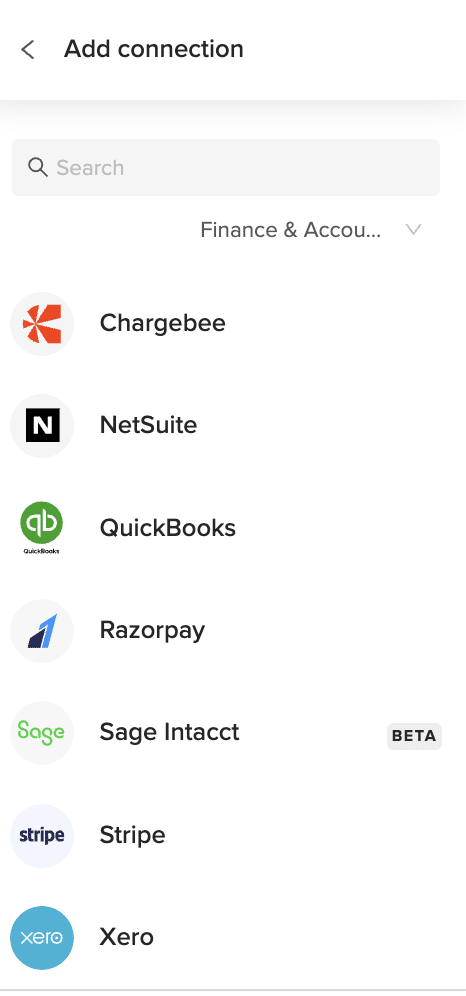
Install Coefficient, connect Sage Intacct.
-
Step 2:
Select “Import from Objects” → “Charge Card Transactions.”
-
Step 3:
Click “Import,” verify fields.
-
Step 4:
Enable auto-refresh for up-to-date data.
Step-by-Step Guide

What Sage Intacct Data is Imported?
- Charge Card Transactions
- Charge Payoffs
- Charge Payoff Lines
- Checking Account Reconciliations
- Credit Card Charges/Other Fees
How to Import Charge Payoff Lines Data from Sage Intacct into Excel
Importing Charge Payoff Lines from Sage Intacct into Excel gives you granular insight into each payoff component.
This guide shows you how to connect Coefficient, import your Charge Payoff Lines object, and automate updates.
TLDR
-
Step 1:
Install Coefficient, connect Sage Intacct.
-
Step 2:
Select “Import from Objects” → “Charge Payoff Lines.”
-
Step 3:
Click “Import,” verify fields.
-
Step 4:
Enable auto-refresh for detailed updates.
Step-by-Step Guide
What Sage Intacct Data is Imported?
- Charge Payoff Lines
- Checking Account Reconciliations
- Credit Card Charges/Other Fees
How to Import Charge Payoffs Data from Sage Intacct into Excel
Importing Charge Payoffs from Sage Intacct into Excel helps you monitor payoff schedules and balances.
This guide covers connecting Coefficient, importing your Charge Payoffs object, and automating refresh.
TLDR
-
Step 1:
Install Coefficient, connect Sage Intacct.
-
Step 2:
Select “Import from Objects” → “Charge Payoffs.”
-
Step 3:
Click “Import,” verify fields.
-
Step 4:
Enable auto-refresh for live payoff data.
Step-by-Step Guide
What Sage Intacct Data is Imported?
- Charge Payoffs
- Charge Payoff Lines
- Checking Account Reconciliations
- Credit Card Charges/Other Fees
How to Import Checking Account Reconciliations Data from Sage Intacct into Excel
Importing Checking Account Reconciliations from Sage Intacct into Excel gives you live reconciliation status for each account.
This guide shows you how to connect Coefficient, import your Checking Account Reconciliations object, and automate refresh.
TLDR
-
Step 1:
Install Coefficient, connect Sage Intacct.
-
Step 2:
Select “Import from Objects” → “Checking Account Reconciliations.”
-
Step 3:
Click “Import,” verify fields.
-
Step 4:
Enable auto-refresh for ongoing updates.
Step-by-Step Guide
Complete Sage Intacct Object List
Bills
- Deposits
- Fund Transfers
- Journal Entries
- Tax Details
- Accounts Payable
- Bank Interest Income/Charges
- Charge Payoffs
- Checking Account Reconciliations
- Other Receipts
- Audit History
- Entities
- Offline Jobs
Customers
- Expense Reports
- Invoices
- Payments
- Vendors
- Accounts Receivable
- Charge Card Transactions
- Charge Payoff Lines
- Credit Card Charges/Other Fees
- Advanced Audit Trails
- Contacts
- Locations
- Roles
How to Import Contacts Data from Sage Intacct into Excel
Importing Contacts from Sage Intacct into Excel lets you manage all your client and vendor contacts in one sheet.
This guide shows you how to connect Coefficient, import Contacts, and automate refresh.
TLDR
-
Step 1:
Install Coefficient, connect Sage Intacct.
-
Step 2:
Select “Import from Objects” → “Contacts.”
-
Step 3:
Click “Import,” verify fields.
-
Step 4:
Enable auto-refresh for up-to-date contacts.
Step-by-Step Guide
Complete Sage Intacct Object List
Bills
- Deposits
- Fund Transfers
- Journal Entries
- Tax Details
- ACCOUNTS PAYABLE
- Bank Interest Income/Charges
- Charge Payoffs
- Checking Account Reconciliations
- Other Receipts
- Audit History
- Entities
- Offline Jobs
Customers
- Expense Reports
- Invoices
- Payments
- Vendors
- ACCOUNTS RECEIVABLE
- Charge Card Transactions
- Charge Payoff Lines
- Credit Card Charges/Other Fees
- Advanced Audit Trails
- Contacts
- Locations
- Roles
How to Import Credit Card Charges/Other Fees Data from Sage Intacct into Excel
Importing Credit Card Charges/Other Fees from Sage Intacct into Excel gives you full transparency on all card fees and service charges.
This tutorial shows you how to connect Coefficient, import your Credit Card Charges/Other Fees object, and set up auto-refresh.
TLDR
-
Step 1:
Install Coefficient, connect Sage Intacct.
-
Step 2:
Select “Import from Objects” → “Credit Card Charges/Other Fees.”
-
Step 3:
Click “Import,” verify fields.
-
Step 4:
Enable auto-refresh for live fee data.
Step-by-Step Guide
Complete Sage Intacct Object List
Bills
- Deposits
- Fund Transfers
- Journal Entries
- Tax Details
- Accounts Payable
- Bank Interest Income/Charges
- Charge Payoffs
- Checking Account Reconciliations
- Other Receipts
- Audit History
- Entities
- Offline Jobs
Customers
- Expense Reports
- Invoices
- Payments
- Vendors
- Accounts Receivable
- Charge Card Transactions
- Charge Payoff Lines
- Credit Card Charges/Other Fees
- Advanced Audit Trails
- Contacts
- Locations
- Roles
How to Import Customers Data from Sage Intacct into Excel
Importing Customers from Sage Intacct into Excel lets you analyze customer records without manual exports.
This guide shows how to set up Coefficient, import your Customers object, and automate updates.
TLDR
-
Step 1:
Install Coefficient and connect to Sage Intacct.
-
Step 2:
Select “Import from Objects” → “Customers.”
-
Step 3:
Click “Import” and confirm fields.
-
Step 4:
Optionally, enable auto-refresh.
Step-by-Step Guide
What Sage Intacct Data is Imported?
- Bills
- Customers
- Deposits
- Expense Reports
- Fund Transfers
- Invoices
- Journal Entries
- Payments
- Tax Details
- Vendors
- ACCOUNTS PAYABLE
- ACCOUNTS RECEIVABLE
How to Import Deposits Data from Sage Intacct into Excel
Importing Deposits from Sage Intacct into Excel gives you a clear view of bank deposit details.
This guide shows how to import your Deposits object with Coefficient and set up auto-refresh.
TLDR
-
Step 1:
Install Coefficient, connect Sage Intacct.
-
Step 2:
Select “Import from Objects” → “Deposits.”
-
Step 3:
Click “Import,” verify fields.
-
Step 4:
Enable auto-refresh if desired.
Step-by-Step Guide
What Sage Intacct Data is Imported?
- Bills
- Customers
- Deposits
- Expense Reports
- Fund Transfers
- Invoices
- Journal Entries
- Payments
- Tax Details
- Vendors
- ACCOUNTS PAYABLE
- ACCOUNTS RECEIVABLE
How to Import Expense Reports Data from Sage Intacct into Excel
Importing Expense Reports from Sage Intacct into Excel gives a clear view of employee expenses.
This guide demonstrates how to import your Expense Reports object with Coefficient and automate updates.
TLDR
-
Step 1:
Install Coefficient, connect Sage Intacct.
-
Step 2:
Select “Import from Objects” → “Expense Reports.”
-
Step 3:
Click “Import,” verify fields.
-
Step 4:
Enable auto-refresh if needed.
Step-by-Step Guide
content-image:coefficient_sidebar_import_from.png:Coefficient sidebar menu
Excel → Insert → Get Add-ins → install Coefficient → authorize Sage Intacct.What Sage Intacct Data is Imported?
- Bills
- Customers
- Deposits
- Expense Reports
- Fund Transfers
- Invoices
- Journal Entries
- Payments
- Tax Details
- Vendors
- ACCOUNTS PAYABLE
- ACCOUNTS RECEIVABLE
How to Import Entities Data from Sage Intacct into Excel
Importing Entities from Sage Intacct into Excel lets you report across multiple entities in one sheet.
This guide shows you how to connect Coefficient, import Entities, and automate refresh.
TLDR
-
Step 1:
Install Coefficient, connect Sage Intacct.
-
Step 2:
Select “Import from Objects” → “Entities.”
-
Step 3:
Click “Import,” verify fields.
-
Step 4:
Enable auto-refresh for live entity data.
Step-by-Step Guide
Complete Sage Intacct Object List
Bills
- Deposits
- Fund Transfers
- Journal Entries
- Tax Details
- ACCOUNTS PAYABLE
- Bank Interest Income/Charges
- Charge Payoffs
- Checking Account Reconciliations
- Other Receipts
- Audit History
- Entities
- Offline Jobs
Customers
- Expense Reports
- Invoices
- Payments
- Vendors
- ACCOUNTS RECEIVABLE
- Charge Card Transactions
- Charge Payoff Lines
- Credit Card Charges/Other Fees
- Advanced Audit Trails
- Contacts
- Locations
- Roles