Importing Fund Transfers from Sage Intacct into Excel keeps your inter-account transactions up to date.
This guide covers importing your Fund Transfers object with Coefficient and automating refresh.
TLDR
-
Step 1:
Install Coefficient, connect Sage Intacct.
-
Step 2:
Select “Import from Objects” → “Fund Transfers.”
-
Step 3:
Click “Import,” verify fields.
-
Step 4:
Enable auto-refresh if desired.
Step-by-Step Guide

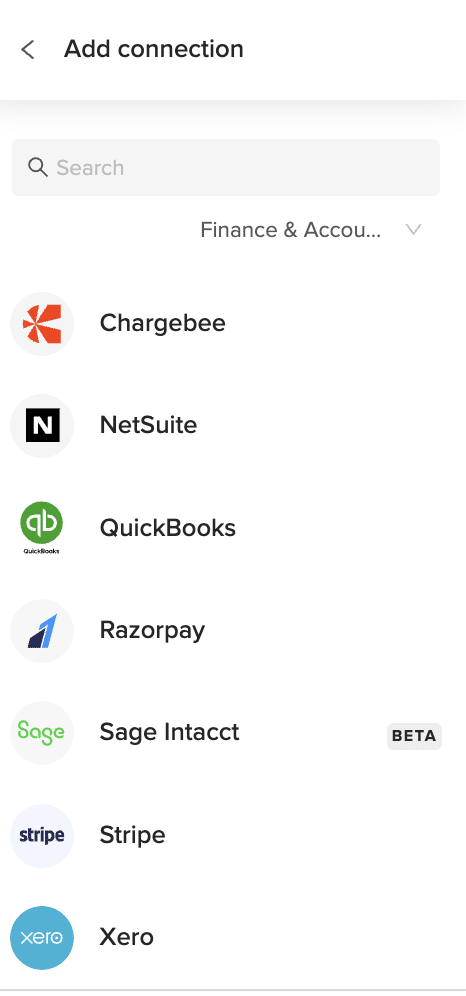
What Sage Intacct Data is Imported?
- Bills
- Customers
- Deposits
- Expense Reports
- Fund Transfers
- Invoices
- Journal Entries
- Payments
- Tax Details
- Vendors
- ACCOUNTS PAYABLE
- ACCOUNTS RECEIVABLE
How to Import Invoices Data from Sage Intacct into Excel
Importing Invoices from Sage Intacct into Excel gives you a live view of billing amounts and statuses.
This guide shows how to import your Invoices object with Coefficient and set up auto-refresh.
TLDR
-
Step 1:
Install Coefficient, connect Sage Intacct.
-
Step 2:
Select “Import from Objects” → “Invoices.”
-
Step 3:
Click “Import,” verify fields.
-
Step 4:
Enable auto-refresh as needed.
Step-by-Step Guide
What Sage Intacct Data is Imported?
- Bills
- Customers
- Deposits
- Expense Reports
- Fund Transfers
- Invoices
- Journal Entries
- Payments
- Tax Details
- Vendors
- ACCOUNTS PAYABLE
- ACCOUNTS RECEIVABLE
How to Import Project Estimates Data from Sage Intacct into Excel
Importing Employee Positions from Sage Intacct into Excel helps you keep track of staff roles and hierarchies.
This tutorial covers connecting Coefficient, importing your Employee Positions object, and automating refresh.
TLDR
-
Step 1:
Install Coefficient, connect Sage Intacct.
-
Step 2:
Select “Import from Objects” → “Employee Positions.”
-
Step 3:
Click “Import,” verify fields.
-
Step 4:
Enable auto-refresh for live updates.
Step-by-Step Guide
Complete Sage Intacct Object List
Bills
- Deposits
- Fund Transfers
- Journal Entries
- Tax Details
- ACCOUNTS PAYABLE
- Bank Interest Income/Charges
- Charge Payoffs
- Checking Account Reconciliations
- Other Receipts
- Audit History
- Entities
- Offline Jobs
Customers
- Expense Reports
- Invoices
- Payments
- Vendors
- ACCOUNTS RECEIVABLE
- Charge Card Transactions
- Charge Payoff Lines
- Credit Card Charges/Other Fees
- Advanced Audit Trails
- Contacts
- Locations
- Roles
Importing Labor Unions from Sage Intacct into Excel keeps all union membership details centralized.
This guide covers connecting Coefficient, importing Labor Unions, and automating refresh.
TLDR
-
Step 1:
Install Coefficient, connect Sage Intacct.
-
Step 2:
Select “Import from Objects” → “Employee Positions.”
-
Step 3:
Click “Import,” verify fields.
-
Step 4:
Enable auto-refresh for live updates.
Step-by-Step Guide
Complete Sage Intacct Object List
Bills
- Deposits
- Fund Transfers
- Journal Entries
- Tax Details
- ACCOUNTS PAYABLE
- Bank Interest Income/Charges
- Charge Payoffs
- Checking Account Reconciliations
- Other Receipts
- Audit History
- Entities
- Offline Jobs
Customers
- Expense Reports
- Invoices
- Payments
- Vendors
- ACCOUNTS RECEIVABLE
- Charge Card Transactions
- Charge Payoff Lines
- Credit Card Charges/Other Fees
- Advanced Audit Trails
- Contacts
- Locations
- Roles
| Bills | Customers |
| Deposits | Expense Reports |
| Fund Transfers | Invoices |
| Journal Entries | Payments |
| Tax Details | Vendors |
| ACCOUNTS PAYABLE | ACCOUNTS RECEIVABLE |
| Bank Interest Income/Charges | Charge Card Transactions |
| Charge Payoffs | Charge Payoff Lines |
| Checking Account Reconciliations | Credit Card Charges/Other Fees |
| Other Receipts | Advanced Audit Trails |
| Audit History | Contacts |
| Entities | Locations |
| Offline Jobs | Roles |
| Role Assignments | Users |
| Employee Positions | Labor Unions |
| Payroll Report Checks | Project Contracts |
| Project Estimates | Rate Table Timesheet Entries |
| Rate Table Purchase Order Entries | Rate Table Credit Card Entries |
| Rate Table Employee Expense Entries | Rate Table Accounts Payable Entries |
| Rate Table General Ledger Entries | Standard Tasks |
| Contract Expenses | Contracts |
| Employees | Expense Adjustments |
| Adjustment Lines | Expense Payment Types |
| Reimbursements | Reimbursement Requests |
| GENERAL LEDGER | Raw Account Balances |
| Budgets | Budget Details |
| Journal Entry Lines | Available Inventory |
| Cost of Goods Sold Adjustments | Inventory Price Lists |
| Inventory Total Details | Inventory Transactions |
| Item GL Groups | Items |
| Warehouse Transfers | Warehouses |
| Order Entry Transactions | Order Entry Transaction Lines |
| Order Entry Transaction Subtotals | Order Entry Price Lists |
| Object Audit Trail Logs | Positions and Skills |
| Project Group | Observed Percent Completed Entries |
| Projects | Task Resources |
| Tasks | Timesheets |
| Timesheet Entries | Timesheet Approval History |
| Transaction Rules | Transaction Rule Details |
| Purchasing Price Lists | Purchasing Transactions |
| Purchasing Transaction Subtotals | Vendor Compliance Definitions |
| Vendor Compliance Records | Vendor Compliance Types |
| Tax Records | Tax Solutions |
| How to get Labor Unions from Sage Intacct? | 1. Open Coefficient pane → “Import from Objects.”2. Select “Labor Unions” → “Import.”Coefficient loads union data into Excel. |
| How do I get a list of Labor Unions in Sage Intacct? | Use “Import from Objects,” choose “Labor Unions.”All union records load instantly. |
| How to export Labor Unions to Excel? | Click “Export to Excel,” map fields, then run.Your sheet syncs back to Sage Intacct. |
| How do I update Labor Unions from Excel to Sage Intacct? | Choose “Export to Sage Intacct,” configure mappings, then “Update.”Edits push back. |
| How to send email alerts about Labor Unions data? | Configure an email automation in Coefficient.Select union fields and schedule.Receive notifications on changes. |
Importing Payroll Report Checks from Sage Intacct into Excel helps you reconcile payroll expenses quickly.
This guide covers connecting Coefficient, importing Payroll Report Checks, and automating refresh.
TLDR
-
Step 1:
Install Coefficient, connect Sage Intacct.
-
Step 2:
Select “Import from Objects” → “Employee Positions.”
-
Step 3:
Click “Import,” verify fields.
-
Step 4:
Enable auto-refresh for live updates.
Step-by-Step Guide
Complete Sage Intacct Object List
Bills
- Deposits
- Fund Transfers
- Journal Entries
- Tax Details
- ACCOUNTS PAYABLE
- Bank Interest Income/Charges
- Charge Payoffs
- Checking Account Reconciliations
- Other Receipts
- Audit History
- Entities
- Offline Jobs
Customers
- Expense Reports
- Invoices
- Payments
- Vendors
- ACCOUNTS RECEIVABLE
- Charge Card Transactions
- Charge Payoff Lines
- Credit Card Charges/Other Fees
- Advanced Audit Trails
- Contacts
- Locations
- Roles
| Bills | Customers |
| Deposits | Expense Reports |
| Fund Transfers | Invoices |
| Journal Entries | Payments |
| Tax Details | Vendors |
| ACCOUNTS PAYABLE | ACCOUNTS RECEIVABLE |
| Bank Interest Income/Charges | Charge Card Transactions |
| Charge Payoffs | Charge Payoff Lines |
| Checking Account Reconciliations | Credit Card Charges/Other Fees |
| Other Receipts | Advanced Audit Trails |
| Audit History | Contacts |
| Entities | Locations |
| Offline Jobs | Roles |
| Role Assignments | Users |
| Employee Positions | Labor Unions |
| Payroll Report Checks | Project Contracts |
| Project Estimates | Rate Table Timesheet Entries |
| Rate Table Purchase Order Entries | Rate Table Credit Card Entries |
| Rate Table Employee Expense Entries | Rate Table Accounts Payable Entries |
| Rate Table General Ledger Entries | Standard Tasks |
| Contract Expenses | Contracts |
| Employees | Expense Adjustments |
| Adjustment Lines | Expense Payment Types |
| Reimbursements | Reimbursement Requests |
| GENERAL LEDGER | Raw Account Balances |
| Budgets | Budget Details |
| Journal Entry Lines | Available Inventory |
| Cost of Goods Sold Adjustments | Inventory Price Lists |
| Inventory Total Details | Inventory Transactions |
| Item GL Groups | Items |
| Warehouse Transfers | Warehouses |
| Order Entry Transactions | Order Entry Transaction Lines |
| Order Entry Transaction Subtotals | Order Entry Price Lists |
| Object Audit Trail Logs | Positions and Skills |
| Project Group | Observed Percent Completed Entries |
| Projects | Task Resources |
| Tasks | Timesheets |
| Timesheet Entries | Timesheet Approval History |
| Transaction Rules | Transaction Rule Details |
| Purchasing Price Lists | Purchasing Transactions |
| Purchasing Transaction Subtotals | Vendor Compliance Definitions |
| Vendor Compliance Records | Vendor Compliance Types |
| Tax Records | Tax Solutions |
| How to get Payroll Report Checks from Sage Intacct? | 1. Open Coefficient pane → “Import from Objects.”2. Select “Payroll Report Checks” → “Import.”Coefficient syncs check data into Excel. |
| How do I get a list of Payroll Report Checks in Sage Intacct? | Use “Import from Objects,” choose “Payroll Report Checks.”All check entries load instantly. |
| How to export Payroll Report Checks to Excel? | Click “Export to Excel,” map fields, then run.Your sheet syncs back to Sage Intacct. |
| How do I update Payroll Report Checks from Excel to Sage Intacct? | Choose “Export to Sage Intacct,” configure mappings, then “Update.”Edits push back. |
| How to send email alerts about Payroll Report Checks data? | Configure an email automation in Coefficient.Select check fields and schedule.Receive notifications on new checks. |
Importing Project Contracts from Sage Intacct into Excel lets you track contract details alongside project financials.
This guide covers connecting Coefficient, importing Project Contracts, and automating refresh.
TLDR
-
Step 1:
Install Coefficient, connect Sage Intacct.
-
Step 2:
Select “Import from Objects” → “Employee Positions.”
-
Step 3:
Click “Import,” verify fields.
-
Step 4:
Enable auto-refresh for live updates.
Step-by-Step Guide
Complete Sage Intacct Object List
Bills
- Deposits
- Fund Transfers
- Journal Entries
- Tax Details
- ACCOUNTS PAYABLE
- Bank Interest Income/Charges
- Charge Payoffs
- Checking Account Reconciliations
- Other Receipts
- Audit History
- Entities
- Offline Jobs
Customers
- Expense Reports
- Invoices
- Payments
- Vendors
- ACCOUNTS RECEIVABLE
- Charge Card Transactions
- Charge Payoff Lines
- Credit Card Charges/Other Fees
- Advanced Audit Trails
- Contacts
- Locations
- Roles
| Bills | Customers |
| Deposits | Expense Reports |
| Fund Transfers | Invoices |
| Journal Entries | Payments |
| Tax Details | Vendors |
| ACCOUNTS PAYABLE | ACCOUNTS RECEIVABLE |
| Bank Interest Income/Charges | Charge Card Transactions |
| Charge Payoffs | Charge Payoff Lines |
| Checking Account Reconciliations | Credit Card Charges/Other Fees |
| Other Receipts | Advanced Audit Trails |
| Audit History | Contacts |
| Entities | Locations |
| Offline Jobs | Roles |
| Role Assignments | Users |
| Employee Positions | Labor Unions |
| Payroll Report Checks | Project Contracts |
| Project Estimates | Rate Table Timesheet Entries |
| Rate Table Purchase Order Entries | Rate Table Credit Card Entries |
| Rate Table Employee Expense Entries | Rate Table Accounts Payable Entries |
| Rate Table General Ledger Entries | Standard Tasks |
| Contract Expenses | Contracts |
| Employees | Expense Adjustments |
| Adjustment Lines | Expense Payment Types |
| Reimbursements | Reimbursement Requests |
| GENERAL LEDGER | Raw Account Balances |
| Budgets | Budget Details |
| Journal Entry Lines | Available Inventory |
| Cost of Goods Sold Adjustments | Inventory Price Lists |
| Inventory Total Details | Inventory Transactions |
| Item GL Groups | Items |
| Warehouse Transfers | Warehouses |
| Order Entry Transactions | Order Entry Transaction Lines |
| Order Entry Transaction Subtotals | Order Entry Price Lists |
| Object Audit Trail Logs | Positions and Skills |
| Project Group | Observed Percent Completed Entries |
| Projects | Task Resources |
| Tasks | Timesheets |
| Timesheet Entries | Timesheet Approval History |
| Transaction Rules | Transaction Rule Details |
| Purchasing Price Lists | Purchasing Transactions |
| Purchasing Transaction Subtotals | Vendor Compliance Definitions |
| Vendor Compliance Records | Vendor Compliance Types |
| Tax Records | Tax Solutions |
| How to get Project Contracts from Sage Intacct? | 1. Open Coefficient pane → “Import from Objects.”2. Select “Project Contracts” → “Import.”Coefficient brings contract data into Excel. |
| How do I get a list of Project Contracts in Sage Intacct? | Use “Import from Objects,” choose “Project Contracts.”All contract records load instantly. |
| How to export Project Contracts to Excel? | Click “Export to Excel,” map fields, then run.Your sheet syncs back to Sage Intacct. |
| How do I update Project Contracts from Excel to Sage Intacct? | Choose “Export to Sage Intacct,” configure mappings, then “Update.”Edits push back. |
| How to send email alerts about Project Contracts data? | Configure an email automation in Coefficient.Select contract fields and schedule.Receive notifications on new contracts. |
Importing Project Estimates from Sage Intacct into Excel provides live budget vs. actual comparisons.
This guide covers connecting Coefficient, importing Project Estimates, and automating refresh.
TLDR
-
Step 1:
Install Coefficient, connect Sage Intacct.
-
Step 2:
Select “Import from Objects” → “Employee Positions.”
-
Step 3:
Click “Import,” verify fields.
-
Step 4:
Enable auto-refresh for live updates.
Step-by-Step Guide
Complete Sage Intacct Object List
Bills
- Deposits
- Fund Transfers
- Journal Entries
- Tax Details
- ACCOUNTS PAYABLE
- Bank Interest Income/Charges
- Charge Payoffs
- Checking Account Reconciliations
- Other Receipts
- Audit History
- Entities
- Offline Jobs
Customers
- Expense Reports
- Invoices
- Payments
- Vendors
- ACCOUNTS RECEIVABLE
- Charge Card Transactions
- Charge Payoff Lines
- Credit Card Charges/Other Fees
- Advanced Audit Trails
- Contacts
- Locations
- Roles
| Bills | Customers |
| Deposits | Expense Reports |
| Fund Transfers | Invoices |
| Journal Entries | Payments |
| Tax Details | Vendors |
| ACCOUNTS PAYABLE | ACCOUNTS RECEIVABLE |
| Bank Interest Income/Charges | Charge Card Transactions |
| Charge Payoffs | Charge Payoff Lines |
| Checking Account Reconciliations | Credit Card Charges/Other Fees |
| Other Receipts | Advanced Audit Trails |
| Audit History | Contacts |
| Entities | Locations |
| Offline Jobs | Roles |
| Role Assignments | Users |
| Employee Positions | Labor Unions |
| Payroll Report Checks | Project Contracts |
| Project Estimates | Rate Table Timesheet Entries |
| Rate Table Purchase Order Entries | Rate Table Credit Card Entries |
| Rate Table Employee Expense Entries | Rate Table Accounts Payable Entries |
| Rate Table General Ledger Entries | Standard Tasks |
| Contract Expenses | Contracts |
| Employees | Expense Adjustments |
| Adjustment Lines | Expense Payment Types |
| Reimbursements | Reimbursement Requests |
| GENERAL LEDGER | Raw Account Balances |
| Budgets | Budget Details |
| Journal Entry Lines | Available Inventory |
| Cost of Goods Sold Adjustments | Inventory Price Lists |
| Inventory Total Details | Inventory Transactions |
| Item GL Groups | Items |
| Warehouse Transfers | Warehouses |
| Order Entry Transactions | Order Entry Transaction Lines |
| Order Entry Transaction Subtotals | Order Entry Price Lists |
| Object Audit Trail Logs | Positions and Skills |
| Project Group | Observed Percent Completed Entries |
| Projects | Task Resources |
| Tasks | Timesheets |
| Timesheet Entries | Timesheet Approval History |
| Transaction Rules | Transaction Rule Details |
| Purchasing Price Lists | Purchasing Transactions |
| Purchasing Transaction Subtotals | Vendor Compliance Definitions |
| Vendor Compliance Records | Vendor Compliance Types |
| Tax Records | Tax Solutions |
| How to get Project Estimates from Sage Intacct? | 1. Open Coefficient pane → “Import from Objects.”2. Select “Project Estimates” → “Import.”Coefficient brings estimate data into Excel. |
| How do I get a list of Project Estimates in Sage Intacct? | Use “Import from Objects,” choose “Project Estimates.”All estimate records load instantly. |
| How to export Project Estimates to Excel? | Click “Export to Excel,” map fields, then run.Your sheet syncs back to Sage Intacct. |
| How do I update Project Estimates from Excel to Sage Intacct? | Choose “Export to Sage Intacct,” configure mappings, then “Update.”Edits push back. |
| How to send email alerts about Project Estimates data? | Configure an email automation in Coefficient.Select estimate fields and schedule.Receive notifications on estimate changes. |
How to Import Locations Data from Sage Intacct into Excel
Importing Locations from Sage Intacct into Excel lets you analyze data by site or office.
This guide covers connecting Coefficient, importing your Locations object, and automating refresh.
TLDR
-
Step 1:
Install Coefficient, connect Sage Intacct.
-
Step 2:
Select “Import from Objects” → “Locations.”
-
Step 3:
Click “Import,” verify fields.
-
Step 4:
Enable auto-refresh for live location data.
Step-by-Step Guide
Complete Sage Intacct Object List
Bills
- Deposits
- Fund Transfers
- Journal Entries
- Tax Details
- ACCOUNTS PAYABLE
- Bank Interest Income/Charges
- Charge Payoffs
- Checking Account Reconciliations
- Other Receipts
- Audit History
- Entities
- Offline Jobs
Customers
- Expense Reports
- Invoices
- Payments
- Vendors
- ACCOUNTS RECEIVABLE
- Charge Card Transactions
- Charge Payoff Lines
- Credit Card Charges/Other Fees
- Advanced Audit Trails
- Contacts
- Locations
- Roles
How to Import Journal Entries Data from Sage Intacct into Excel
Importing Journal Entries from Sage Intacct into Excel provides a complete view of your ledger movements without manual exports.
This guide shows you how to connect Coefficient, import your Journal Entries object, and automate updates.
TLDR
-
Step 1:
Install Coefficient and authorize Sage Intacct in Excel.
-
Step 2:
Select “Import from Objects” → “Journal Entries.”
-
Step 3:
Click “Import” and verify fields.
-
Step 4:
Enable auto-refresh to keep entries current.
Step-by-Step Guide
What Sage Intacct Data is Imported?
- Journal Entries
- Payments
- Tax Details
- Vendors
- ACCOUNTS PAYABLE
How to Import Other Receipts Data from Sage Intacct into Excel
Importing Other Receipts from Sage Intacct into Excel lets you capture miscellaneous income and receipts in one place.
This guide demonstrates how to connect Coefficient, import your Other Receipts object, and automate refresh.
TLDR
-
Step 1:
Install Coefficient, connect Sage Intacct.
-
Step 2:
Select “Import from Objects” → “Other Receipts.”
-
Step 3:
Click “Import,” verify fields.
-
Step 4:
Enable auto-refresh for live receipt data.
Step-by-Step Guide
Complete Sage Intacct Object List
Bills
- Deposits
- Fund Transfers
- Journal Entries
- Tax Details
- Accounts Payable
- Bank Interest Income/Charges
- Charge Payoffs
- Checking Account Reconciliations
- Other Receipts
- Audit History
- Entities
- Offline Jobs
Customers
- Expense Reports
- Invoices
- Payments
- Vendors
- Accounts Receivable
- Charge Card Transactions
- Charge Payoff Lines
- Credit Card Charges/Other Fees
- Advanced Audit Trails
- Contacts
- Locations
- Roles
How to Import Offline Jobs Data from Sage Intacct into Excel
Importing Offline Jobs from Sage Intacct into Excel lets you monitor long-running processes and retries in one sheet.
This guide covers connecting Coefficient, importing your Offline Jobs object, and automating refresh.
TLDR
-
Step 1:
Install Coefficient, connect Sage Intacct.
-
Step 2:
Select “Import from Objects” → “Offline Jobs.”
-
Step 3:
Click “Import,” verify fields.
-
Step 4:
Enable auto-refresh for live job data.
Step-by-Step Guide
Complete Sage Intacct Object List
Bills
- Deposits
- Fund Transfers
- Journal Entries
- Tax Details
- ACCOUNTS PAYABLE
- Bank Interest Income/Charges
- Charge Payoffs
- Checking Account Reconciliations
- Other Receipts
- Audit History
- Entities
- Offline Jobs
Customers
- Expense Reports
- Invoices
- Payments
- Vendors
- ACCOUNTS RECEIVABLE
- Charge Card Transactions
- Charge Payoff Lines
- Credit Card Charges/Other Fees
- Advanced Audit Trails
- Contacts
- Locations
- Roles
How to Import Role Assignments Data from Sage Intacct into Excel
Importing Role Assignments from Sage Intacct into Excel lets you see which users have which roles at a glance.
This guide covers connecting Coefficient, importing your Role Assignments object, and automating refresh.
TLDR
-
Step 1:
Install Coefficient, connect Sage Intacct.
-
Step 2:
Select “Import from Objects” → “Role Assignments.”
-
Step 3:
Click “Import,” verify fields.
-
Step 4:
Enable auto-refresh for live assignment data.
Step-by-Step Guide
Complete Sage Intacct Object List
Bills
- Deposits
- Fund Transfers
- Journal Entries
- Tax Details
- ACCOUNTS PAYABLE
- Bank Interest Income/Charges
- Charge Payoffs
- Checking Account Reconciliations
- Other Receipts
- Audit History
- Entities
- Offline Jobs
Customers
- Expense Reports
- Invoices
- Payments
- Vendors
- ACCOUNTS RECEIVABLE
- Charge Card Transactions
- Charge Payoff Lines
- Credit Card Charges/Other Fees
- Advanced Audit Trails
- Contacts
- Locations
- Roles
How to Import Roles Data from Sage Intacct into Excel
Importing Roles from Sage Intacct into Excel lets you audit user permissions and access levels quickly.
This guide covers connecting Coefficient, importing your Roles object, and automating refresh.
TLDR
-
Step 1:
Install Coefficient, connect Sage Intacct.
-
Step 2:
Select “Import from Objects” → “Roles.”
-
Step 3:
Click “Import,” verify fields.
-
Step 4:
Enable auto-refresh for live role data.
Step-by-Step Guide
Complete Sage Intacct Object List
Bills
- Deposits
- Fund Transfers
- Journal Entries
- Tax Details
- ACCOUNTS PAYABLE
- Bank Interest Income/Charges
- Charge Payoffs
- Checking Account Reconciliations
- Other Receipts
- Audit History
- Entities
- Offline Jobs
Customers
- Expense Reports
- Invoices
- Payments
- Vendors
- ACCOUNTS RECEIVABLE
- Charge Card Transactions
- Charge Payoff Lines
- Credit Card Charges/Other Fees
- Advanced Audit Trails
- Contacts
- Locations
- Roles
How to Import Tax Details Data from Sage Intacct into Excel
Importing Tax Details from Sage Intacct into Excel gives you live access to tax rate and liability information.
This tutorial covers connecting Coefficient, importing your Tax Details object, and automating refresh.
TLDR
-
Step 1:
Install Coefficient, connect Sage Intacct.
-
Step 2:
Select “Import from Objects” → “Tax Details.”
-
Step 3:
Click “Import,” verify fields.
-
Step 4:
Enable auto-refresh for real-time tax data.
Step-by-Step Guide
What Sage Intacct Data is Imported?
- Journal Entries
- Payments
- Tax Details
- Vendors
- ACCOUNTS PAYABLE