
Table of Contents

Quick Answer
Tableau webhooks enable automated notifications when specific events occur in your Tableau environment—like data refresh failures, workbook updates, or user permission changes.
Setting up webhooks requires site administrator access, REST API authentication via Personal Access Tokens, and secure HTTPS endpoints to receive notifications. Webhooks support datasource events (refresh started/succeeded/failed), workbook events (created/updated/deleted), and user events (admin promoted/demoted).
Prerequisites and Requirements
Before implementing Tableau webhook integrations, ensure you meet these essential requirements:
Tableau Environment Access:
- Administrator Permissions: Must be a site administrator on Tableau Server or Tableau Cloud to configure webhooks
- Tableau Version: Requires Tableau Server 2019.4 or later, or current Tableau Cloud environment
- Personal Access Token: Generate secure authentication token from your Tableau user settings
Technical Infrastructure:
- HTTPS Endpoint: Webhook destination URL must use HTTPS with valid SSL certificate
- REST API Knowledge: Basic familiarity with Tableau’s REST API structure and authentication methods
- Response Handling: Endpoint must return HTTP 200 status for successful webhook delivery
Development Environment (Optional):
- API Testing Tools: Postman or similar for testing webhook configurations
- Python Library: tableauserverclient for programmatic webhook management
- Automation Platforms: Integration with Slack, IFTTT, Zapier for processing webhook notifications
API Limitations and Considerations:
| Limitation Type | Specification | Impact |
| Request Quotas | Varies by Tableau instance | May limit webhook creation frequency |
| Admin Permissions | Site/Server admin only | Restricts who can manage webhooks |
| HTTPS Requirement | Valid SSL certificate mandatory | Blocks non-secure endpoints |
| Concurrent Webhooks | Instance-specific limits | Contact Tableau support for details |
| Event Coverage | Limited to supported events | Plan for unsupported event types |
Supported Webhook Events: Tableau webhooks currently support datasource events (refresh started/succeeded/failed, created/updated/deleted), workbook events (created/updated/deleted, refresh events), and user administrative events (admin promoted/demoted). Verify specific event support in your Tableau version before implementation.
Step-by-Step Tableau Webhooks Setup
Step 1: Generate Personal Access Token
Access your Tableau environment and navigate to your user settings page. Locate the “Personal Access Tokens” section in the settings menu.
Click “Create New Token” and provide a descriptive name for your webhook integration token. Copy the generated token immediately—you won’t be able to view it again.
Store this token securely as an environment variable or in secure credential storage. This token will authenticate all webhook management API calls.
Test token authentication using a simple REST API call to verify connectivity before proceeding with webhook configuration.
Step 2: Install and Configure API Library
For Python-based webhook management, install the official Tableau Server Client library:
bash
Configure your environment with authentication details:
python
Verify successful authentication by testing a simple API call like listing available sites or projects.
Step 3: Create Webhook Configuration
Define your webhook parameters based on your integration requirements. Choose from supported event types and configure your destination endpoint.
Create Datasource Refresh Webhook:
python
Create Workbook Event Webhook:
python
Step 4: Implement Tableau Webhooks Endpoint
Create a secure HTTPS endpoint to receive webhook notifications from Tableau. Your endpoint must handle POST requests and return HTTP 200 status.
Python Flask Example:
python
Step 5: Test Webhook Delivery
Use Tableau’s built-in test functionality to verify webhook connectivity:
python
Alternatively, use the REST API directly:
bash
Monitor your endpoint logs to confirm test webhook delivery and proper payload processing.
Step 6: Monitor and Manage Webhooks
Implement ongoing webhook management and monitoring:
python
Set up logging and monitoring for webhook delivery failures, endpoint downtime, and event processing errors.
Common Integration Issues
Endpoint Connectivity and HTTPS Enforcement
Issue Explanation: Tableau strictly requires webhook destinations to use HTTPS with valid SSL certificates. Many integration attempts fail because endpoints use HTTP, have self-signed certificates, or aren’t accessible from Tableau’s servers due to firewall restrictions.
Solution: Ensure your webhook endpoint uses HTTPS with a valid certificate from a trusted certificate authority. For development environments, consider using services like ngrok to create secure tunnels to local servers. Verify endpoint accessibility from external networks by testing with curl or online tools.
Authentication and Permissions Missteps
Issue Explanation: Webhook management requires site or server administrator permissions, which many users lack. Additionally, Personal Access Token authentication can fail due to expired tokens, incorrect site specification, or insufficient token permissions.
Solution: Verify your Tableau account has appropriate administrator privileges before attempting webhook setup. Generate fresh Personal Access Tokens regularly and store them securely. Test authentication with simple API calls before implementing webhook configurations.
Firewall, Proxy, and Network Obstacles
Issue Explanation: Enterprise environments often have outbound proxy requirements or firewall rules that prevent Tableau from reaching webhook endpoints. This commonly manifests as successful webhook creation but failed delivery attempts.
Solution: Configure the HTTPS_PROXY environment variable on Tableau Server if your environment requires proxy usage. Work with network administrators to ensure Tableau servers can reach your webhook endpoints on the specified ports.
Endpoint Response and Debugging Complexity
Issue Explanation: Webhook delivery failures often provide minimal error information, making debugging difficult. Common issues include endpoints not returning HTTP 200, request timeouts, or service unavailability during webhook attempts.
Solution: Implement comprehensive logging in your webhook endpoint to capture all incoming requests and processing details. Use monitoring tools to track endpoint availability and response times. Consider implementing retry logic and queue mechanisms for handling temporary failures.
No-code Webhook Workflows for Google Sheets or Excel
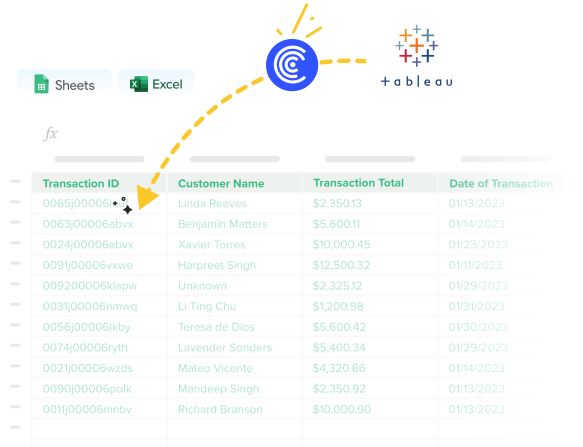
Managing Tableau data in spreadsheets traditionally requires manual exports, complex API integrations, or scheduled ETL processes. Coefficient transforms this entirely, providing seamless connectivity between your Tableau environment and Excel or Google Sheets without requiring webhook development expertise.
Instead of building custom webhook handlers and managing server infrastructure, Coefficient handles all technical complexity while delivering enterprise-grade reliability. Your analytics team gets real-time data synchronization without depending on IT resources or custom development cycles.
Revolutionize Tableau-to-Spreadsheet Integration:
Webhooks let you trigger live data pulls into Coefficient from Tableau, which means your Tableau environment can now tell Coefficient exactly when to refresh a data import. Whether datasource refreshes complete, workbook content updates, or new visualizations are published in Tableau, your spreadsheet can react in real-time.
Instead of waiting for scheduled syncs or refreshing manually, you can keep executive dashboards and operational reports up to date the moment your source data changes.
Step-by-Step Coefficient Webhook Implementation:
- Import Tableau Data: Begin by importing data from your Tableau datasources into your spreadsheet using the Coefficient sidebar
- Access Import Settings: Locate your Tableau import in the “Imports” section of the Coefficient interface
- Open Configuration Menu: Click the three-dot menu icon next to your import’s name
- Select Edit Option: Choose “Edit” from the dropdown to access import configuration
- Generate Webhook URL: Click the three-dot menu again and select “Webhook URL” to open the webhook configuration panel
- Choose Refresh Scope: Select either single-import refresh for specific data or comprehensive sheet refresh for all connected data
- Implement in Tableau: Configure your Tableau webhook to call the Coefficient URL when data events occur
When Tableau processes datasource refreshes, updates workbooks, or completes extract operations, your spreadsheet automatically refreshes with the latest information—no manual exports or data delays.
Custom Tableau Webhooks vs. Coefficient Comparison
| Aspect | Custom Development | Coefficient |
| Setup Time | 2-4 weeks | 5 minutes |
| Development Cost | $5,000-$15,000 | $29-$299/month |
| Maintenance | Ongoing dev resources | Fully managed |
| Security | Must implement yourself | Enterprise-grade built-in |
| Monitoring | Build your own | 24/7 automated monitoring |
| Scaling | Handle infrastructure yourself | Auto-scaling included |
| Updates | Maintain API changes | Automatic updates |
Streamline Your Analytics Workflow
Tableau webhooks open powerful automation possibilities, but implementing them shouldn’t require weeks of development effort or ongoing infrastructure management. Whether you choose custom development for maximum flexibility or modern no-code solutions for rapid deployment, the key is selecting an approach that scales with your organization’s analytical needs.
Ready to eliminate manual data transfers between Tableau and spreadsheets? Get started with Coefficient today and experience effortless real-time synchronization that keeps your team focused on insights rather than data management tasks.
Your analytics team will spend more time discovering trends and making strategic decisions instead of wrestling with data exports and version control challenges.
FAQs
What is a Tableau webhook?
A Tableau webhook is an automated notification system that sends HTTP POST requests to specified URLs when specific events occur in your Tableau environment. Events include datasource refresh status, workbook creation/updates, and user permission changes. Webhooks enable real-time integration with external systems like Slack, email platforms, or custom applications without constant API polling.
Can you connect an API to Tableau?
Yes, Tableau provides comprehensive REST API access for both reading data and managing server operations. You can connect external applications to Tableau using the REST API for tasks like publishing workbooks, managing users, triggering extract refreshes, and retrieving metadata. API access requires authentication via Personal Access Tokens or OAuth, and permissions vary based on user roles.
What are webhooks used for?
Webhooks enable real-time automation by notifying external systems when specific events occur. Common use cases include sending Slack alerts when datasource refreshes fail, automatically filing support tickets for failed extracts, triggering email notifications when new workbooks are published, generating and distributing PDF reports when refreshes complete successfully, and maintaining synchronized data across multiple platforms.
What web server does Tableau use?
Tableau Server uses Apache Tomcat as its primary web server for handling HTTP requests and serving content. The architecture includes multiple components: the Application Server (Tomcat) handles web requests, the Data Engine serves data queries, and the VizQL Server renders visualizations. Tableau Cloud uses similar architecture but is fully managed by Tableau in their cloud infrastructure.