Pull live Vendor Compliance Types from Sage Intacct into Excel to organize your compliance rules by category. In this guide, you’ll install Coefficient, import compliance types, and configure auto-refresh for continuous clarity.
TLDR
-
Step 1:
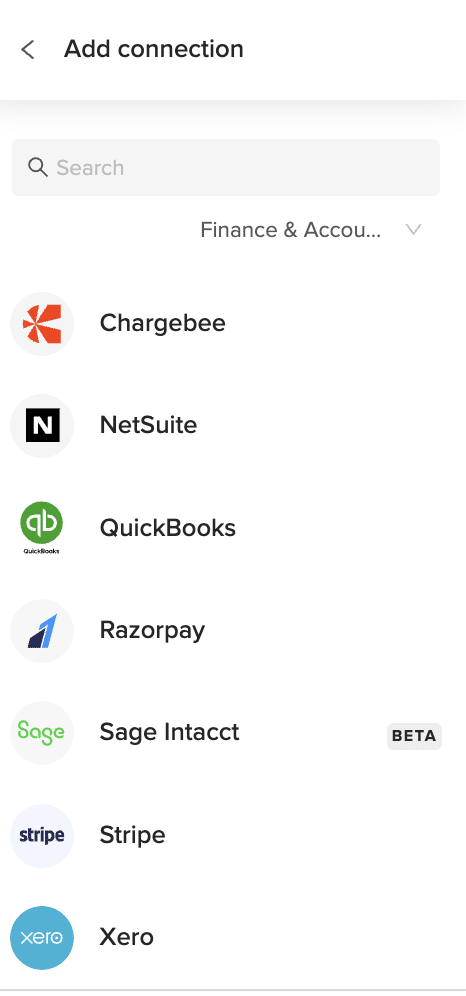
Install the Coefficient add-in and connect to Sage Intacct.
-
Step 2:
Select “Import from Objects” > “Vendor Compliance Types” > Import.
-
Step 3:
Apply filters if needed, then confirm.
-
Step 4:
Enable auto-refresh to keep data updated automatically.
Step-by-Step Guide


What Sage Intacct Data Is Imported?
Rate Table Timesheet Entries
- Rate Table Credit Card Entries
- Rate Table Employee Expense Entries
- Rate Table Accounts Payable Entries
- Rate Table General Ledger Entries
- Standard Tasks
- Contract Expenses
- Contracts
- Employees
- Expense Adjustments
- Adjustment Lines
- Expense Payment Types
- Expense Reports
How to Import Warehouse Transfers Data from Sage Intacct into Excel
Track live Warehouse Transfers from Sage Intacct in Excel to manage stock movements between locations. In this guide, you’ll install Coefficient, import transfer data, and set up automatic refresh.
TLDR
-
Step 1:
Install the Coefficient add-in and connect to Sage Intacct.
-
Step 2:
Choose “Import from Objects” > “Warehouse Transfers” > Import.
-
Step 3:
Apply filters if needed, then confirm.
-
Step 4:
Enable auto-refresh to keep data updated automatically.
Step-by-Step Guide
What Sage Intacct Data Is Imported?
Rate Table Timesheet Entries
- Rate Table Credit Card Entries
- Rate Table Employee Expense Entries
- Rate Table Accounts Payable Entries
- Rate Table General Ledger Entries
- Standard Tasks
- Contract Expenses
- Contracts
- Employees
- Expense Adjustments
- Adjustment Lines
- Expense Payment Types
- Expense Reports
How to Import Warehouses Data from Sage Intacct into Excel
Pull live Warehouses from Sage Intacct into Excel to view all your storage locations in one sheet. In this guide, you’ll install Coefficient, import warehouse records, and set up automatic refresh for always-current data.
TLDR
-
Step 1:
Install the Coefficient add-in and connect to Sage Intacct.
-
Step 2:
Choose “Import from Objects” > “Warehouses” > Import.
-
Step 3:
Apply filters if needed, then confirm.
-
Step 4:
Enable auto-refresh to keep data updated automatically.
Step-by-Step Guide
What Sage Intacct Data Is Imported?
Rate Table Timesheet Entries
- Rate Table Credit Card Entries
- Rate Table Employee Expense Entries
- Rate Table Accounts Payable Entries
- Rate Table General Ledger Entries
- Standard Tasks
- Contract Expenses
- Contracts
- Employees
- Expense Adjustments
- Adjustment Lines
- Expense Payment Types
- Expense Reports
How to Import Timesheet Entries Data from Sage Intacct into Excel
Bring live Timesheet Entries from Sage Intacct into Excel to review individual time records. In this guide, you’ll install Coefficient, import entry data, and set up automatic refresh for accurate reporting.
TLDR
-
Step 1:
Install the Coefficient add-in and connect to Sage Intacct.
-
Step 2:
Select “Import from Objects” > “Timesheet Entries” > Import.
-
Step 3:
Apply filters if needed, then confirm.
-
Step 4:
Enable auto-refresh to keep data updated automatically.
Step-by-Step Guide
What Sage Intacct Data Is Imported?
Rate Table Timesheet Entries
- Rate Table Credit Card Entries
- Rate Table Employee Expense Entries
- Rate Table Accounts Payable Entries
- Rate Table General Ledger Entries
- Standard Tasks
- Contract Expenses
- Contracts
- Employees
- Expense Adjustments
- Adjustment Lines
- Expense Payment Types
- Expense Reports
How to Import Expense Adjustments Data from Sage Intacct into Excel
Fetch live expense adjustment records from Sage Intacct into Excel to ensure your ledgers reflect true costs. This tutorial walks you through setting up Coefficient, importing adjustments, and enabling auto-refresh.
TLDR
-
Step 1:
Install Coefficient and connect your account.
-
Step 2:
Select “Import from Objects” > “Expense Adjustments.”
-
Step 3:
Apply filters as needed, then click Import.
-
Step 4:
Enable auto-refresh to stay up to date.
Step-by-Step Guide
What Sage Intacct Data Is Imported?
Rate Table Timesheet Entries
- Rate Table Credit Card Entries
- Rate Table Employee Expense Entries
- Rate Table Accounts Payable Entries
- Rate Table General Ledger Entries
- Standard Tasks
- Contract Expenses
- Contracts
- Employees
- Expense Adjustments
- Adjustment Lines
- Expense Payment Types
- Expense Reports
How to Import Employees Data from Sage Intacct into Excel
Bring live employee records from Sage Intacct into Excel to view headcounts, roles, and statuses in one place. This guide shows you how to set up Coefficient, pull employee data, and schedule automatic updates.
TLDR
-
Step 1:
Install Coefficient add-in and connect to Sage Intacct.
-
Step 2:
Select “Import from Objects” > “Employees” and click Import.
-
Step 3:
Apply filters if needed, then confirm.
-
Step 4:
Enable auto-refresh to keep data current.
Step-by-Step Guide
What Sage Intacct Data Is Imported?
Rate Table Timesheet Entries
- Rate Table Credit Card Entries
- Rate Table Employee Expense Entries
- Rate Table Accounts Payable Entries
- Rate Table General Ledger Entries
- Standard Tasks
- Contract Expenses
- Contracts
- Employees
- Expense Adjustments
- Adjustment Lines
- Expense Payment Types
- Expense Reports
How to Import Expense Payment Types Data from Sage Intacct into Excel
Pull live Expense Payment Types from Sage Intacct into Excel to analyze how your organization pays for expenses. In this guide, you’ll install Coefficient, import payment types, and set up automatic refresh for always-current data.
TLDR
-
Step 1:
Install the Coefficient add-in and connect to Sage Intacct.
-
Step 2:
Choose “Import from Objects” > “Expense Payment Types” > Import.
-
Step 3:
Apply filters if needed, then confirm.
-
Step 4:
Enable auto-refresh to keep this data updated automatically.
Step-by-Step Guide
What Sage Intacct Data Is Imported?
Rate Table Timesheet Entries
- Rate Table Credit Card Entries
- Rate Table Employee Expense Entries
- Rate Table Accounts Payable Entries
- Rate Table General Ledger Entries
- Standard Tasks
- Contract Expenses
- Contracts
- Employees
- Expense Adjustments
- Adjustment Lines
- Expense Payment Types
- Expense Reports
How to Import GENERAL LEDGER Data from Sage Intacct into Excel
Import live GENERAL LEDGER entries from Sage Intacct into Excel to monitor transactions as they occur. This guide covers installing Coefficient, importing ledger entries, and automating refresh.
TLDR
-
Step 1:
Install the Coefficient add-in and connect to Sage Intacct.
-
Step 2:
Select “Import from Objects” > “GENERAL LEDGER” > Import.
-
Step 3:
Apply filters if needed, then confirm.
-
Step 4:
Enable auto-refresh to keep data updated automatically.
Step-by-Step Guide
What Sage Intacct Data Is Imported?
Rate Table Timesheet Entries
- Rate Table Credit Card Entries
- Rate Table Employee Expense Entries
- Rate Table Accounts Payable Entries
- Rate Table General Ledger Entries
- Standard Tasks
- Contract Expenses
- Contracts
- Employees
- Expense Adjustments
- Adjustment Lines
- Expense Payment Types
- Expense Reports
How to Import Adjustment Lines Data from Sage Intacct into Excel
Pull Adjustment Lines from Sage Intacct into Excel to get transaction-level detail for audit and reconciliation. This guide covers installing Coefficient, importing line items, and enabling auto-refresh.
TLDR
-
Step 1:
Install Coefficient and connect to Sage Intacct.
-
Step 2:
Select “Import from Objects” > “Adjustment Lines.”
-
Step 3:
Apply filters if needed, then click Import.
-
Step 4:
Enable auto-refresh for live updates.
Step-by-Step Guide
What Sage Intacct Data Is Imported?
Rate Table Timesheet Entries
- Rate Table Credit Card Entries
- Rate Table Employee Expense Entries
- Rate Table Accounts Payable Entries
- Rate Table General Ledger Entries
- Standard Tasks
- Contract Expenses
- Contracts
- Employees
- Expense Adjustments
- Adjustment Lines
- Expense Payment Types
- Expense Reports
How to Import Order Entry Price Lists Data from Sage Intacct into Excel
Bring live Order Entry Price Lists from Sage Intacct into Excel to analyze pricing structures and discounts. In this guide, you’ll install Coefficient, import price list data, and configure automatic refresh.
TLDR
-
Step 1:
Install the Coefficient add-in and connect to Sage Intacct.
-
Step 2:
Choose “Import from Objects” > “Order Entry Price Lists” > Import.
-
Step 3:
Apply filters if needed, then confirm.
-
Step 4:
Enable auto-refresh to keep data updated automatically.
Step-by-Step Guide
What Sage Intacct Data Is Imported?
Rate Table Timesheet Entries
- Rate Table Credit Card Entries
- Rate Table Employee Expense Entries
- Rate Table Accounts Payable Entries
- Rate Table General Ledger Entries
- Standard Tasks
- Contract Expenses
- Contracts
- Employees
- Expense Adjustments
- Adjustment Lines
- Expense Payment Types
- Expense Reports