Importing Apollo Organization Job Postings data into Excel helps you track hiring trends for accounts. Coefficient connects Apollo directly to your spreadsheet.
This guide shows you exactly how to import your Apollo Organization Job Postings data into Excel using Coefficient.
TLDR
-
Step 1:
Step 1. Install the Coefficient add-in for Excel and connect to your Apollo account.
-
Step 2:
Step 2. Select Import from… and choose the Organization Job Postings object.
-
Step 3:
Step 3. Filter data or select fields as needed and import into your Excel sheet.
-
Step 4:
Step 4. Set up auto-refresh to keep your job posting data automatically updated.
Step-by-step guide
Follow these steps to get your Apollo Organization Job Postings data into Excel.
Step 1: Install and Connect Coefficient
First, install Coefficient for Excel. Go to the Insert tab, click “Get Add-ins,” search for Coefficient, and install it from the store.
Open the Coefficient add-in from the Home tab. Select Apollo when prompted to connect a data source.
Log in to your Apollo account and authorize Coefficient to access your data.

Step 2: Import Organization Job Postings Data
With Apollo connected, click “Import from…” in the Coefficient sidebar.
Select Apollo as your source. Then, choose “Organization Job Postings” from the list of available objects to import.
You can refine the data by selecting specific fields or applying filters before clicking “Import” to add it to your Excel sheet.

Step 3: Set Up Auto-Refresh (Optional)
Keep your Organization Job Postings data in Excel automatically updated. After importing, find the auto-refresh options in the Coefficient sidebar.
Schedule refreshes hourly, daily, or weekly. Your Excel sheet will then sync automatically with the latest job posting information from Apollo.

Available Apollo Objects
- Tasks
- Contacts
- Contact Stages
- Deals
- Lists
- Accounts
- Account Stages
- Organization Job Postings
- Sequences
- Tags
How to Import People Data from Basecamp into Excel
Getting your Basecamp People data into Excel helps you manage team lists, track roles, and get an overview of users. Relying on manual exports means dealing with old information fast.
Coefficient provides a direct link that updates your data live.
This guide will walk you through the steps to easily import your People data from Basecamp into Excel.
TLDR
-
Step 1:
Step 1. Install Coefficient from the Office Add-ins store and connect to your Basecamp account.
-
Step 2:
Step 2. Choose Import from… and select Basecamp.
-
Step 3:
Step 3. Select the People object and pick the fields you need.
-
Step 4:
Step 4. Import the data and set up auto-refresh for automatic updates.
Step-by-step guide to importing Basecamp People into Excel
Step 1: Install and connect Coefficient
Get Coefficient installed in your Excel first.
- Open Excel.
- Go to the Insert tab.
- Click on Get Add-ins.
- Search for and install “”Coefficient”” from the store.
- Launch the Coefficient add-in from the Home or Add-ins tab.
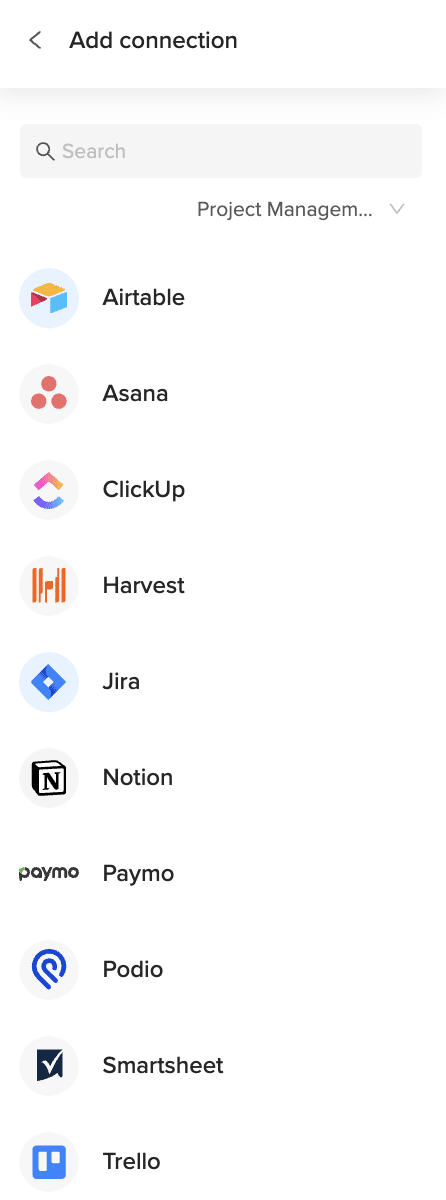
- Click “”Import from…”” in the sidebar and locate the Basecamp connector. Follow the steps to connect your Basecamp account.
Step 2: Import the People data
With your account connected, you can now bring in the data.
- In the Coefficient sidebar for Basecamp, choose to import from an **Object**.
- Select the “”People”” object from the list provided.
- Pick the specific data fields from People that you want in your sheet.
- Set any filters or sort orders if needed.
- Click the “”Import”” button to pull the data into Excel.
Step 3: Set up auto-refresh (Optional)
Keep your People data fresh without manual updates.
- After importing, find your import in the Coefficient sidebar next to the “”Refresh”” button.
- Click the settings icon next to Refresh.
- Select “”Schedule”” to set up automatic updates.
- Choose the frequency (like daily or hourly) and a time for the refresh to happen.
- Save your schedule. Your People data will update automatically.
Available Basecamp Objects
- People
- Messages
- To-Do List
- Calendar Events
How to Import Permission Schemes Data from Jira into Excel
Bringing your Jira Permission Schemes data into Excel helps you document and track access controls for projects. Coefficient makes connecting Jira Permission Schemes to Excel simple and automatic.
Instead of relying on manual exports that are instantly out of date, you can create a live link that refreshes itself. This guide shows you exactly how to import your Jira Permission Schemes data into Excel using Coefficient.
TLDR
-
Step 1:
Step 1. Install Coefficient from the Office Add-ins store and connect to your Jira account.
-
Step 2:
Step 2. Select Import from… and choose the Permission Schemes object.
-
Step 3:
Step 3. Pick the fields you need, then import the data to your Excel sheet.
-
Step 4:
Step 4. Set up auto-refresh to keep your Permission Schemes data updated automatically on your schedule.
block:step-by-step
Step-by-step guide
Importing Jira Permission Schemes data into Excel with Coefficient is a simple process. Follow these steps to get your data connected and updating live.
step:1:Installation and Connection
First, you need to add Coefficient to your Excel application.
- Open Excel.
- Insert Go to thetab.
- Get Add-ins Click.
- Add Search for “”Coefficient”” and clickto install it from the Office Add-ins store.
Home Insert Once installed, open Coefficient from theortab. You’ll see the Coefficient sidebar. Click to connect a new data source, choose Jira, and log in to your account to authorize the connection.
step:2:Importing the Data
Now that Coefficient is connected to Jira, you can pull in your Permission Schemes data.
- Import from… In the Coefficient sidebar, click thebutton.
- Jira Selectfrom your list of connected sources.
- Coefficient will show you the types of data you can import. Choose the relevant option, likely “Objects”.
- Permission Schemes From the list of available Jira objects, select.
- Choose the specific fields (columns) you want to bring into your sheet.
- Apply any filters or criteria to narrow down the data, if needed.
- Import Clickto pull the data into your Excel sheet.
step:3:Setting up Auto-Refresh (Optional)
To ensure your Excel sheet always has the most current Jira Permission Schemes data, set up an auto-refresh schedule.
- With your imported data table selected in Excel, look for the auto-refresh options in the Coefficient sidebar.
- Click on the refresh icon associated with your Jira import.
- Set how often you want the data to update (e.g., daily, hourly, weekly).
- Choose the specific time for the automatic refresh to occur.
Your Excel sheet will now automatically stay in sync with the latest Jira Permission Schemes data based on the schedule you set.
Available Jira Objects
Objects
- Issues
- Issue Types
- Fields
- Versions
- Components
- Priorities
- Resolutions
- Statuses
- Users
- Groups
- Application Roles
- Project Roles
How to Import Phone Number Data from Outreach into Excel
Importing Outreach Phone Number records into Excel makes it easy to maintain and validate your contact list in one place. Coefficient keeps your sheet in sync with Outreach so you always have the latest numbers.
This guide shows you how to install Coefficient, connect to Outreach, import Phone Number data, and enable automatic updates in Excel.
TLDR
-
Step 1:
Step 1. Install Coefficient for Excel and link your Outreach account.
-
Step 2:
Step 2. Click “Import from Objects” and select the “Phone Number” object under Outreach.
-
Step 3:
Step 3. Apply filters (e.g. type, status), choose fields, and click “Import.”
-
Step 4:
Step 4. Enable auto-refresh to keep your phone list up to date on a schedule.
Step-by-step guide
Follow these steps to pull your Outreach Phone Number data into Excel.
Step 1: Install and Connect Coefficient
In Excel, navigate to Insert → Get Add-ins → My Add-ins, search for Coefficient, and install it. Then open the Coefficient pane and authorize Outreach as a data source.
Step 2: Import Phone Number Data
Within the Coefficient pane, click “Import from Objects,” choose Outreach, and select “Phone Number.” Optionally filter by number type (e.g. mobile, work) or verification status before importing.
Step 3: Set Up Auto-Refresh (Optional)
After importing, click the auto-refresh icon in Coefficient and choose hourly, daily, or weekly updates so your Excel sheet automatically syncs with Outreach.
Available Outreach Objects
- Call
- Opportunity
- Sequence
- Call Disposition
- Call Purpose
- Compliance Request
- Content Category
- Content Category Membership
- Content Category Ownership
- Duty
- Email Address
- Event
How to Import Portfolios Data from Asana into Excel
Bringing your Asana Portfolios data into Excel helps you track your project portfolios, manage their status, and get an overview of key projects. Manually exporting this data is inefficient and quickly becomes old.
Coefficient offers a live connection for automatic data updates.
This guide shows you the steps to easily import your Portfolios data from Asana into Excel.
TLDR
-
Step 1:
Step 1. Install Coefficient in Excel and connect your Asana account.
-
Step 2:
Step 2. Use Import from… to select the Asana connector.
-
Step 3:
Step 3. Choose the Portfolios object and select the fields you need.
-
Step 4:
Step 4. Import the data into your sheet and set up auto-refresh.
Step-by-step guide to importing Asana Portfolios into Excel
Step 1: Install and connect Coefficient
Get Coefficient installed in your Excel application to start.
- Open Excel.
- Go to the Insert tab.
- Click Get Add-ins.
- Search for and install “”Coefficient”” from the Office Add-ins store.
- Open the Coefficient sidebar, found in the Home or Add-ins tab.
- Click “”Import from…”” and select Asana. Follow the steps to connect your Asana account.
Step 2: Import the Portfolios data
With the connection ready, you can now bring in your Portfolios data.
- In the Coefficient sidebar for Asana, choose to import from an **Object**.
- Find and select the “”Portfolios”” object from the list.
- Choose the specific data fields from Portfolios that you want in your Excel sheet.
- Apply any filters or sorting if needed.
- Click “”Import”” to pull the data into your sheet.
Step 3: Set up auto-refresh (Optional)
Keep your Portfolios data current automatically.
- After the data is imported, find your import listed in the Coefficient sidebar next to the Refresh button.
- Click the refresh settings icon.
- Select “”Schedule”” to automate updates.
- Choose how often the data should refresh (e.g., hourly, daily) and set a time.
- Save the schedule. Your Portfolios data will update automatically.
Available Asana Objects
- Users
- Teams
- Projects
- Tasks
- Sections
- Stories
- Tags
- Portfolios
- Goals
How to Import Priorities Data from Jira into Excel
Bringing your Jira Priorities data into Excel helps you understand how issues are ranked and managed. Coefficient makes connecting Jira Priorities to Excel simple and automatic.
Instead of relying on manual exports that are instantly out of date, you can create a live link that refreshes itself. This guide shows you exactly how to import your Jira Priorities data into Excel using Coefficient.
TLDR
-
Step 1:
Step 1. Install Coefficient from the Office Add-ins store and connect to your Jira account.
-
Step 2:
Step 2. Select Import from… and choose the Priorities object.
-
Step 3:
Step 3. Pick the fields you need, then import the data to your Excel sheet.
-
Step 4:
Step 4. Set up auto-refresh to keep your Priorities data updated automatically on your schedule.
block:step-by-step
Step-by-step guide
Importing Jira Priorities data into Excel with Coefficient is a simple process. Follow these steps to get your data connected and updating live.
step:1:Installation and Connection
First, you need to add Coefficient to your Excel application.
- Open Excel.
- Insert Go to thetab.
- Get Add-ins Click.
- Add Search for “”Coefficient”” and clickto install it from the Office Add-ins store.
Home Insert Once installed, open Coefficient from theortab. You’ll see the Coefficient sidebar. Click to connect a new data source, choose Jira, and log in to your account to authorize the connection.
step:2:Importing the Data
Now that Coefficient is connected to Jira, you can pull in your Priorities data.
- Import from… In the Coefficient sidebar, click thebutton.
- Jira Selectfrom your list of connected sources.
- Coefficient will show you the types of data you can import. Choose the relevant option, likely “Objects”.
- Priorities From the list of available Jira objects, select.
- Choose the specific fields (columns) you want to bring into your sheet.
- Apply any filters or criteria to narrow down the data, if needed.
- Import Clickto pull the data into your Excel sheet.
step:3:Setting up Auto-Refresh (Optional)
To ensure your Excel sheet always has the most current Jira Priorities data, set up an auto-refresh schedule.
- With your imported data table selected in Excel, look for the auto-refresh options in the Coefficient sidebar.
- Click on the refresh icon associated with your Jira import.
- Set how often you want the data to update (e.g., daily, hourly, weekly).
- Choose the specific time for the automatic refresh to occur.
Your Excel sheet will now automatically stay in sync with the latest Jira Priorities data based on the schedule you set.
Available Jira Objects
Objects
- Issues
- Issue Types
- Fields
- Versions
- Components
- Priorities
- Resolutions
- Statuses
- Users
- Groups
- Application Roles
- Project Roles
How to Import Projects Data from Asana into Excel
Accessing your Asana Projects data in Excel helps you track project status, analyze performance, and manage your portfolio. Manually exporting this data is slow and quickly becomes outdated.
Using Coefficient creates a live link that automatically refreshes.
This guide shows you how to easily get your Projects data from Asana right into Excel.
TLDR
-
Step 1:
Step 1. Install Coefficient from the Office Add-ins store and connect to your Asana account.
-
Step 2:
Step 2. Select Import from… and choose the Asana connector.
-
Step 3:
Step 3. Pick the Projects object and configure your import options.
-
Step 4:
Step 4. Import the data to your Excel sheet and set up auto-refresh.
Step-by-step guide to importing Asana Projects into Excel
Step 1: Install and connect Coefficient
First, you need to get Coefficient for Excel.
- Open Excel.
- Go to the Insert tab.
- Click on Get Add-ins.
- Search for “”Coefficient”” and install it from the Office Add-ins store.
- Once installed, open the Coefficient add-in from the Home tab or the Add-ins tab.
- In the Coefficient sidebar, click “”Import from…”” and find the Asana connector. You’ll be guided to log in and connect your Asana account.
Step 2: Import the Projects data
Now that you’re connected, let’s get the data.
- In the Coefficient sidebar, with Asana selected, choose to import from an **Object**.
- Find and select the “”Projects”” object from the list.
- Choose the specific fields you want to bring into Excel.
- Apply any filters or sorting needed for your data.
- Click the “”Import”” button.
Step 3: Set up auto-refresh (Optional)
Keep your Projects data current without manual effort.
- After your data is imported, look for the “”Refresh”” button in the Coefficient sidebar next to your import.
- Click the refresh options icon (usually a small clock or settings gear).
- Choose “”Schedule”” to set up automatic refreshes.
- Select how often you want the data to update (e.g., daily, hourly) and pick a time.
- Save your schedule. Your Projects data will now update on its own.
Available Asana Objects
- Users
- Teams
- Projects
- Tasks
- Sections
- Stories
- Tags
- Portfolios
- Goals
How to Import Project Roles Data from Jira into Excel
Bringing your Jira Project Roles data into Excel helps you manage user roles within specific projects. Coefficient makes connecting Jira Project Roles to Excel simple and automatic.
Instead of relying on manual exports that are instantly out of date, you can create a live link that refreshes itself. This guide shows you exactly how to import your Jira Project Roles data into Excel using Coefficient.
TLDR
-
Step 1:
Step 1. Install Coefficient from the Office Add-ins store and connect to your Jira account.
-
Step 2:
Step 2. Select Import from… and choose the Project Roles object.
-
Step 3:
Step 3. Pick the fields you need, then import the data to your Excel sheet.
-
Step 4:
Step 4. Set up auto-refresh to keep your Project Roles data updated automatically on your schedule.
block:step-by-step
Step-by-step guide
Importing Jira Project Roles data into Excel with Coefficient is a simple process. Follow these steps to get your data connected and updating live.
step:1:Installation and Connection
First, you need to add Coefficient to your Excel application.
- Open Excel.
- Insert Go to thetab.
- Get Add-ins Click.
- Add Search for “”Coefficient”” and clickto install it from the Office Add-ins store.
Home Insert Once installed, open Coefficient from theortab. You’ll see the Coefficient sidebar. Click to connect a new data source, choose Jira, and log in to your account to authorize the connection.
step:2:Importing the Data
Now that Coefficient is connected to Jira, you can pull in your Project Roles data.
- Import from… In the Coefficient sidebar, click thebutton.
- Jira Selectfrom your list of connected sources.
- Coefficient will show you the types of data you can import. Choose the relevant option, likely “Objects”.
- Project Roles From the list of available Jira objects, select.
- Choose the specific fields (columns) you want to bring into your sheet.
- Apply any filters or criteria to narrow down the data, if needed.
- Import Clickto pull the data into your Excel sheet.
step:3:Setting up Auto-Refresh (Optional)
To ensure your Excel sheet always has the most current Jira Project Roles data, set up an auto-refresh schedule.
- With your imported data table selected in Excel, look for the auto-refresh options in the Coefficient sidebar.
- Click on the refresh icon associated with your Jira import.
- Set how often you want the data to update (e.g., daily, hourly, weekly).
- Choose the specific time for the automatic refresh to occur.
Your Excel sheet will now automatically stay in sync with the latest Jira Project Roles data based on the schedule you set.
Available Jira Objects
Objects
- Issues
- Issue Types
- Fields
- Versions
- Components
- Priorities
- Resolutions
- Statuses
- Users
- Groups
- Application Roles
- Project Roles
How to Import Projects Data from Basecamp into Excel
Accessing your Basecamp Projects data in Excel helps you track project status, analyze performance, and manage your portfolio. Manually exporting this data is slow and quickly becomes outdated.
Using Coefficient creates a live link that automatically refreshes.
This guide shows you how to easily get your Projects data from Basecamp right into Excel.
TLDR
-
Step 1:
Step 1. Install Coefficient from the Office Add-ins store and connect to your Basecamp account.
-
Step 2:
Step 2. Select Import from… and choose the Basecamp connector.
-
Step 3:
Step 3. Pick the Projects object and configure your import options.
-
Step 4:
Step 4. Import the data to your Excel sheet and set up auto-refresh.
Step-by-step guide to importing Basecamp Projects into Excel
Step 1: Install and connect Coefficient
First, you need to get Coefficient for Excel.
- Open Excel.
- Go to the Insert tab.
- Click on Get Add-ins.
- Search for “”Coefficient”” and install it from the Office Add-ins store.
- Once installed, open the Coefficient add-in from the Home tab or the Add-ins tab.
- In the Coefficient sidebar, click “”Import from…”” and find the Basecamp connector. You’ll be guided to log in and connect your Basecamp account.
Step 2: Import the Projects data
Now that you’re connected, let’s get the data.
- In the Coefficient sidebar, with Basecamp selected, choose to import from an **Object**.
- Find and select the “”Projects”” object from the list.
- Choose the specific fields you want to bring into Excel.
- Apply any filters or sorting needed for your data.
- Click the “”Import”” button.
Step 3: Set up auto-refresh (Optional)
Keep your Projects data current without manual effort.
- After your data is imported, look for the “”Refresh”” button in the Coefficient sidebar next to your import.
- Click the refresh options icon (usually a small clock or settings gear).
- Choose “”Schedule”” to set up automatic refreshes.
- Select how often you want the data to update (e.g., daily, hourly) and pick a time.
- Save your schedule. Your Projects data will now update on its own.
Available Basecamp Objects
- People
- Messages
- To-Do List
- Calendar Events
How to Import Projects Data from Jira into Excel
Getting your Jira Projects data into Excel helps you manage and track project portfolios effectively. Coefficient makes connecting Jira Projects to Excel simple and automatic.
Instead of relying on manual exports that get old fast, you can set up a live link that refreshes itself. This guide shows you exactly how to import your Jira Projects data into Excel using Coefficient.
TLDR
-
Step 1:
Step 1. Install Coefficient from the Office Add-ins store and connect to your Jira account.
-
Step 2:
Step 2. Select Import from… and choose the Projects object.
-
Step 3:
Step 3. Pick the fields and filters you need, then import the data to your Excel sheet.
-
Step 4:
Step 4. Set up auto-refresh to keep your Projects data updated automatically on your schedule.
block:step-by-step
Step-by-step guide
Importing Jira Projects data into Excel with Coefficient is a quick process. Follow these simple steps to get your data connected.
step:1:Installation and Connection
First, you need to add Coefficient to your Excel application.
- Open Excel.
- Insert Go to thetab.
- Get Add-ins Click.
- Add Search for “”Coefficient”” and clickto install it from the Office Add-ins store.
Home Insert Once installed, open Coefficient from theortab. You’ll see the Coefficient sidebar. Click to connect a new data source, choose Jira, and log in to your account to authorize the connection.
step:2:Importing the Data
Now that Coefficient is connected to Jira, you can pull in your Projects data.
- Import from… In the Coefficient sidebar, click thebutton.
- Jira Selectfrom your list of connected sources.
- Coefficient will show you the types of data you can import. Choose the relevant option, likely “Objects”.
- Projects From the list of available Jira objects, select.
- Choose the specific fields (columns) you want to bring into your sheet, like Project Name, Key, Lead, etc.
- Apply any filters to narrow down the data, if needed.
- Import Clickto pull the data into your Excel sheet.
step:3:Setting up Auto-Refresh (Optional)
To keep your Projects data current without manual work, set up an auto-refresh schedule.
- With your imported data table selected in Excel, find the auto-refresh option in the Coefficient sidebar.
- Click on the refresh icon next to your import.
- Set your desired schedule (e.g., daily, hourly, weekly).
- Choose the time you want the data to update automatically.
Your Excel sheet will now stay updated with the latest Projects data from Jira based on your schedule.
Available Jira Objects
Objects
- Issues
- Issue Types
- Fields
- Versions
- Components
- Priorities
- Resolutions
- Statuses
- Users
- Groups
- Application Roles
- Project Roles