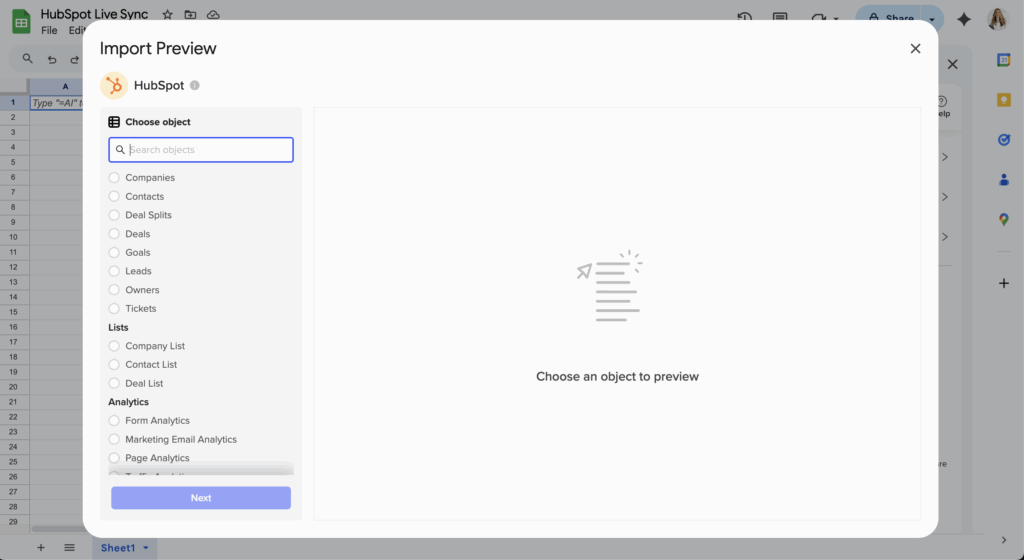
Pull closed won sum from CRM report with multiple filters through API

Most CRM APIs return raw record data rather than pre-calculated report totals, forcing you to recreate complex filter logic and write custom aggregation code.

Here’s how to get filtered closed won sums without API complexity or rate limit concerns across any CRM platform.

Connect to any CRM and get filtered closed won sums using Coefficient

Coefficient provides universal CRM connectivity through a single interface. You can apply complex filters that match your report criteria exactly, then use simple spreadsheet functions for automatic sum calculations.

How to make it work

Step 1. Connect your CRM platform.

Coefficient supports HubSpot, Salesforce, Pipedrive, and other CRMs through one interface. No need to manage multiple API authentication methods or learn different parameter structures.

Step 2. Apply complex filters without code.

Use up to 25 filters with AND/OR logic to match your CRM report criteria exactly. Set Stage equals “Closed Won”, date ranges, territory assignments, deal source, and any other conditions your report uses.

Step 3. Import filtered data for automatic aggregation.

Import your filtered deal data directly into spreadsheets where SUM functions automatically calculate totals. No custom aggregation code required, and you avoid API rate limits that complicate large filtered datasets.

Step 4. Set up dynamic filter management.

Reference spreadsheet cells in filter values so you can change date ranges or other criteria and refresh data without rebuilding API queries. Schedule automatic refreshes to maintain current closed won sums.

Get CRM report totals without API headaches

This approach eliminates API complexity while providing the exact filtered closed won sums your reports show, plus spreadsheet-based analysis capabilities. Start using Coefficient for seamless CRM data access.

Pull historical data of companies processed through non-property-setting workflows

HubSpot’s native tools cannot retrieve historical data from workflows that don’t set properties, creating significant gaps in workflow analytics and company tracking. This limitation makes it impossible to analyze historical workflow performance or identify past processing patterns.

You can recover this missing historical data through comprehensive data reconstruction capabilities that overcome these limitations.

Recover historical workflow data through comprehensive reconstruction using Coefficient

Coefficient provides powerful historical data reconstruction capabilities that overcome these limitations through comprehensive data analysis. You’ll transform your spreadsheet into a historical workflow tracking system that recovers and analyzes data that HubSpot’s native tools cannot access or report on.

How to make it work

Step 1. Import comprehensive historical datasets.

Pull complete company datasets with historical owner assignment data, modification timestamps, and property change logs. Import associated contact and deal data that might correlate with historical workflow triggers, and use Coefficient’s ability to access historical snapshots of company data over extended periods.

Step 2. Build timeline reconstruction and pattern recognition.

Create time-series analysis of owner assignments to identify workflow processing periods and use Coefficient’s Snapshots feature to capture historical data states and compare changes over time. Build chronological mapping of companies that received owner assignments during specific workflow active periods, then analyze historical owner assignment clusters that indicate workflow batch processing.

Step 3. Conduct multi-period analysis and validation.

Set up analysis across different time periods to capture various workflow iterations and use Coefficient’s filtering capabilities to segment historical data by workflow activation periods. Create comparative analysis showing workflow processing trends over time, then cross-reference historical owner assignments with known workflow enrollment criteria from those time periods.

Step 4. Preserve data and set up ongoing historical monitoring.

Use Coefficient’s Snapshots to preserve historical analysis results while continuing to refresh current data. Create historical reporting dashboards that show workflow processing trends over time and export historical findings back to HubSpot as custom properties for permanent tracking. Schedule regular historical data pulls to continuously expand the historical dataset and set up automated analysis that identifies previously missed historical workflow processing.

Unlock your complete workflow history

This approach transforms Coefficient into a historical workflow tracking system that recovers and analyzes data that HubSpot’s native tools cannot access or report on. You’ll have complete historical workflow visibility with ongoing monitoring and trend analysis. Start recovering your historical workflow data today.

Query historical deal property data at specific timestamps HubSpot API

The HubSpot API’s history endpoints show when properties changed but don’t provide property values at arbitrary timestamps. You’d need complex logic to reconstruct what deal scores or custom properties were at specific moments like “2:30 PM on January 15th.”

Here’s how to build a queryable time-series dataset that lets you find property values at any specific timestamp without API complexity.

Query timestamp-based property data using Coefficient

Coefficient creates a time-series dataset by importing your HubSpot deals data every 30-60 minutes with automatic timestamps. Instead of parsing API change events to reconstruct historical states, you get actual property values captured at regular intervals. This approach lets you query any timestamp and find the closest captured values, with spreadsheet functions handling the lookup logic without any coding required.

How to make it work

Step 1. Build automated time-series dataset.

Configure a HubSpot import that runs every 30-60 minutes and includes all deal properties you want to query historically. Enable append mode so each import creates a timestamped record, building a comprehensive time-series dataset of property values.

Step 2. Implement timestamp precision capture.

Coefficient automatically adds precise import timestamps to each appended row. Increase import frequency to every 30 minutes for better timestamp precision, ensuring you can find property values within 30 minutes of any specific moment you want to query.

Step 3. Create timestamp query functions.

Use spreadsheet functions like =INDEX(MATCH()) to find property values at specific timestamps. For example, create a formula that finds the deal score closest to “2024-01-15 14:30:00” by matching the nearest timestamp in your historical dataset.

Step 4. Build advanced querying capabilities.

Create lookup formulas that return property values for multiple deals at the same timestamp, or build queries that show how properties changed over specific time ranges. Use FILTER functions to find all deals in a specific stage at any given timestamp.

Get true timestamp-based queries

This approach creates a queryable historical database that’s impossible to achieve through standard API calls. You can find property values at any timestamp, compare multiple time points, and analyze property changes over specific periods. Start building your timestamp-queryable dataset with Coefficient today.

Query total deal value from custom report fields through CRM API

Querying total deal value from custom report fields through CRM APIs requires mapping API field names to display names, handling different field types, and writing custom aggregation logic.

Here’s how to access custom field deal values without field mapping complexity or custom aggregation code.

Import custom deal fields with automatic discovery using Coefficient

Coefficient automatically detects and displays all available custom fields by their user-friendly names, eliminating the need to map API field names or handle different field types separately.

How to make it work

Step 1. Connect to your CRM with automatic field discovery.

Set up your CRM connection and let Coefficient automatically detect all custom fields. They appear with their user-friendly display names, not confusing API field names.

Step 2. Select custom fields without type complexity.

Choose specific custom currency, number, text, date, and picklist fields to import alongside standard deal data. All field types are handled automatically without different API calls or processing logic.

Step 3. Filter directly on custom field values.

Apply filters to custom field values like Deal Source = “Website” or Custom Stage = “Negotiation” using the same intuitive interface as standard fields. No need to understand custom field API syntax.

Step 4. Get instant total value aggregation.

Use SUM, AVERAGE, or other spreadsheet functions on imported custom currency and number fields for immediate totals. No custom aggregation code required, and calculated fields can be recreated using spreadsheet formulas.

Step 5. Include cross-object custom data.

Pull custom fields from associated contacts, companies, or other objects alongside deal custom fields for comprehensive reporting that goes beyond single-object API limitations.

Access custom field deal values without API complexity

This method eliminates custom field API management while providing more flexible analysis capabilities than most CRM reporting interfaces. Try Coefficient to simplify custom field data access.

Real-time Excel to HubSpot sync alternatives when Power Automate fails

Power Automate often fails to deliver reliable real-time Excel to HubSpot synchronization due to timeout issues, missed triggers, and inconsistent performance with large datasets.

Here’s a robust alternative that provides near-real-time capabilities with superior reliability and comprehensive error handling that Power Automate lacks.

Replace Power Automate with reliable near-real-time sync using Coefficient

When Power Automate fails to deliver reliable real-time Excel to HubSpot synchronization, Coefficient offers a robust alternative with near-real-time capabilities. While not instantaneous, Coefficient provides hourly scheduled syncs that offer practical near-real-time updates with better stability than webhook-based solutions, eliminating Power Automate’s timeout issues and providing consistent performance regardless of data volume.

How to make it work

Step 1. Set up high-frequency scheduling for near-real-time updates.

Configure imports and exports to run every hour for near-real-time updates. Use Coefficient’s “Append New Data” feature to process only changed records, reducing processing time and API calls. Set up cascading updates with 15-minute offsets between different processes to ensure smooth data flow.

Step 2. Implement smart triggers and priority processing.

Create separate workflows for time-sensitive data that need faster processing. Use conditional logic to identify and prioritize critical updates, and set up different schedules for different data types based on urgency requirements.

Step 3. Configure comprehensive monitoring and error handling.

Set up real-time Slack or email notifications for sync completion with detailed status information. Enable automatic retry mechanisms for failed syncs and configure detailed error logs that pinpoint exact issues, unlike Power Automate’s often vague error messages.

Step 4. Establish performance optimization and batch processing.

Leverage Coefficient’s ability to handle 50,000+ rows efficiently in batch operations. Set up parallel processing for multiple HubSpot object types and configure API rate limit management that Coefficient handles automatically, eliminating the throttling issues common with Power Automate.

Get predictable sync performance without Power Automate’s limitations

This alternative provides the reliability and performance that Power Automate often lacks while maintaining practical update frequencies that meet most business needs without the complexity of webhook infrastructure. Switch to Coefficient for dependable Excel to HubSpot synchronization.

Recreate HubSpot coverage metrics using deal stage probability

HubSpot’s coverage metrics use deal stage probabilities in calculations you can’t see or modify. Recreating these metrics gives you complete transparency and the ability to customize probability weights based on your actual sales performance.

Here’s how to precisely recreate and enhance HubSpot’s coverage calculations using deal stage probabilities.

Recreate coverage metrics with transparency using Coefficient

Coefficient enables precise recreation of HubSpot’s coverage metrics using deal stage probabilities in HubSpot , with added flexibility and complete transparency into your calculation methodology.

How to make it work

Step 1. Import deal data with comprehensive stage information.

Pull all open deals with amounts, stages, and close dates. Include deal properties that affect probability like deal type, source, and age. Import pipeline stage configuration for accurate probability mapping.

Step 2. Create probability mapping tables.

Build a probability reference table in your spreadsheet: – Appointment Scheduled: 20% – Qualified to Buy: 40% – Presentation Scheduled: 60% – Decision Maker Bought-In: 80% – Contract Sent: 90%

Step 3. Build coverage calculation formulas.

Create: Weighted Pipeline = SUMIF(Deal_Stages, “Appointment Scheduled”, Deal_Amounts) * 0.2 + SUMIF(Deal_Stages, “Qualified to Buy”, Deal_Amounts) * 0.4 + [continue for all stages]. Then calculate Coverage = Weighted Pipeline / Revenue Goal.

Step 4. Enhance with custom probability adjustments.

Override default stage probabilities based on historical win rates, adjust probabilities by sales rep performance, and modify probabilities based on time in stage for more accurate coverage.

Step 5. Validate and refine your calculations.

Compare your calculations with HubSpot’s forecasting module, use Coefficient’s snapshot feature to track accuracy over time, and refine probability percentages based on actual close rates.

Step 6. Set up automated updates and historical tracking.

Schedule refreshes to maintain real-time coverage calculations that update as deals progress through stages. Use snapshots to build historical accuracy data that HubSpot doesn’t provide.

Take control of your coverage methodology

Recreating coverage metrics gives you complete visibility into calculation methodology and the ability to optimize based on your actual sales data. Start building transparent coverage calculations that you can trust and improve over time.

Retrieve calculated metrics from CRM dashboard via API authentication

Most CRM APIs don’t expose dashboard calculations directly, requiring you to recreate complex metric formulas in application code while managing authentication tokens and rate limits.

Here’s how to get the same calculated metrics from your CRM dashboard without API authentication complexity or custom calculation code.

Recreate CRM dashboard metrics in spreadsheets using Coefficient

Coefficient handles all API authentication automatically and imports the underlying CRM data that feeds your dashboard calculations. You can then recreate metrics using familiar spreadsheet formulas.

How to make it work

Step 1. Set up one-time CRM connection.

Connect to your CRM without managing API tokens, refresh cycles, or permission scoping. Coefficient handles all authentication automatically, eliminating ongoing maintenance.

Step 2. Import underlying dashboard data.

Pull the CRM data that feeds your dashboard calculations. This includes deals, contacts, activities, and any custom objects needed to recreate your specific metrics.

Step 3. Recreate metrics with spreadsheet formulas.

Use standard spreadsheet functions to calculate conversion rates, average deal size, sales velocity, and pipeline coverage. This replaces complex application code with familiar formulas like AVERAGE, SUMIF, and COUNTIF.

Step 4. Combine multi-source data for complex calculations.

Pull data from multiple CRM objects (deals, contacts, activities) to recreate complex dashboard calculations that would require multiple API calls and custom aggregation logic.

Step 5. Set up automated metric updates.

Schedule automatic data refreshes on hourly, daily, or weekly schedules to keep calculated metrics current. Add Slack or email notifications when metrics cross specific thresholds.

Access CRM dashboard metrics without API complexity

This method provides the same calculated metrics as your CRM dashboard while eliminating authentication management and calculation maintenance overhead. Get started with Coefficient for simplified CRM metric access.

Retrieve companies from completed workflow that doesn’t update trackable fields

HubSpot workflows that only assign owners without updating properties create a tracking vacuum where completed workflow activity becomes invisible to standard reporting. This makes it impossible to retrieve companies that have been processed through these workflows.

You can retrieve these “invisible” companies by analyzing owner assignment data and workflow patterns to reconstruct completion activity.

Retrieve invisible workflow companies through completion detection using Coefficient

Coefficient provides a comprehensive solution by analyzing owner assignment data and workflow patterns to retrieve companies from completed workflows. You’ll effectively retrieve companies from completed workflows by reconstructing workflow activity through data analysis that HubSpot’s native tools cannot perform.

How to make it work

Step 1. Extract comprehensive completion data.

Import all company records with owner assignment timestamps, modification dates, and source tracking. Pull associated deal and contact data that might correlate with workflow triggers, and include all company properties that serve as workflow enrollment criteria.

Step 2. Build completion detection logic.

Analyze owner assignment dates against known workflow execution schedules and use Coefficient’s advanced filtering to identify companies with owner assignments during specific workflow active periods. Create calculated fields that determine workflow completion probability based on timing and criteria alignment.

Step 3. Reconstruct historical workflow activity.

Leverage Coefficient’s ability to pull historical data snapshots to identify past workflow activity and build timeline analysis showing owner assignment patterns that correlate with workflow execution. Use spreadsheet functions to backtrack and identify companies processed during different workflow phases.

Step 4. Set up automated retrieval and future-proofing.

Set up scheduled imports to continuously capture newly completed workflow companies and use Coefficient’s append functionality to build cumulative lists without losing historical data. Configure alerts when new companies show workflow completion indicators, then export tracking properties back to HubSpot to mark retrieved companies and create ongoing monitoring dashboards.

Recover your missing workflow data

This method effectively retrieves companies from completed workflows by reconstructing workflow activity through data analysis that HubSpot’s native tools cannot perform. You’ll recover all your missing workflow completion data with automated ongoing tracking. Start retrieving your workflow companies today.

Retrieve past property values for deals that exited stages HubSpot

HubSpot doesn’t maintain point-in-time snapshots of property values, so retrieving what deal scores or custom properties were when deals exited stages in the past is nearly impossible. The platform only shows current values and basic change logs.

Here’s how to build a historical dataset going forward and create analysis capabilities for deals that have already moved through your pipeline.

Build historical property retrieval using Coefficient

Coefficient can’t retrieve past values that weren’t previously logged, but it immediately starts building a comprehensive historical database of all your HubSpot deal properties. By setting up hourly snapshots and continuous logging, you create a queryable historical record that preserves exact property values at regular intervals. For deals that already exited stages, you can analyze available property change patterns and establish baselines for future tracking.

How to make it work

Step 1. Establish immediate historical data collection.

Set up a HubSpot import that includes all deals and properties you need to track historically. Configure hourly snapshots using Coefficient’s append feature to begin building your historical record immediately, ensuring you capture future stage exits with complete property context.

Step 2. Create comprehensive stage exit logging.

Build a dedicated import that checks for deals with recent stage changes every 30 minutes. When stage changes are detected, append the complete deal data including all property values, creating a permanent log of property states at transition moments.

Step 3. Build historical data query system.

Design sheets that group historical records by Deal ID and use spreadsheet functions like VLOOKUP or INDEX/MATCH to find specific property values at any captured timestamp. Create pivot tables to analyze property patterns at stage exits and identify trends across multiple deals.

Step 4. Implement retroactive analysis approach.

For deals that already exited stages, import current deal data with available property histories and create comparison sheets to analyze property change patterns. Use formulas to estimate likely values based on change patterns and establish baselines for future tracking accuracy.

Start building your property history

While you can’t retrieve unlogged past values, this system immediately begins creating the comprehensive historical database HubSpot lacks. You’ll have queryable property data for all future stage exits and analytical tools for understanding past patterns. Begin building your historical property database with Coefficient today.

Scheduling automatic Excel file imports to HubSpot custom objects

Manual Excel file imports to HubSpot custom objects are time-consuming and prone to errors. You need a way to automatically import your Excel data to custom objects on a reliable schedule without constant manual intervention.

Here’s how to set up comprehensive automation that handles custom objects, associations, and bulk operations with full scheduling control.

Automate Excel imports to HubSpot custom objects using Coefficient

Coefficient excels at scheduling automatic imports to HubSpot custom objects, providing robust automation that surpasses manual Excel file imports. The system fully supports all HubSpot custom objects, automatically detecting them once connected to your HubSpot instance, including custom properties and associations with standard objects.

How to make it work

Step 1. Prepare your data and establish the connection.

Store your Excel data in Google Sheets or cloud storage where Coefficient can access it. Install Coefficient and connect it to your HubSpot account. The system will automatically detect all your custom objects and their properties, making them available for import configuration.

Step 2. Configure your custom object import settings.

Select your target custom object from Coefficient’s HubSpot connection menu. Map your spreadsheet columns to the custom object properties, and configure unique identifier fields for UPDATE operations. This ensures existing records are updated rather than creating duplicates.

Step 3. Set up your automated scheduling with multiple options.

Choose from hourly, daily, weekly, or monthly schedules based on your data update frequency. You can set up multiple schedules for different custom objects and configure timezone-aware scheduling for global operations. For example, import product inventory daily at 6 AM and export to your “Product Inventory” custom object at 6:30 AM.

Step 4. Configure association management and monitoring.

Set up automatic linking between your custom objects and standard HubSpot objects like contacts, companies, or deals. Enable Slack or email notifications on completion with record counts, and configure duplicate prevention using unique identifiers to maintain data integrity.

Transform manual imports into reliable automation

This solution eliminates human error in repetitive tasks while handling complex data relationships automatically and providing a complete audit trail of all import activities. Get started with Coefficient to automate your HubSpot custom object imports.