Monday.com organises work around boards, groups and items. Every import and export flows through that structure. Before moving any data, knowing the hard limits upfront prevents the most painful failures: a 50-column cap on new boards that ignores extra columns silently, a date format that cannot deviate from ISO standard and a subitem limitation that turns hierarchy into flat rows.
This guide covers all methods: CSV and Excel import, board export to Excel, full account export, scheduled PDF export, the monday.com API and Coefficient for recurring live exports to Google Sheets or Excel.
| What data can you import and export from monday.com? |
| Monday.com supports CSV and Excel import of items into boards. Supported column types on import are: Status, Number, Text, Date, Email and Phone. Export covers board data as Excel (up to 10,000 items), with optional inclusion of updates and subitems. Dashboards export as PDF or scheduled PDF. Full account export (admin only) downloads a zip of all boards and files. The monday.com GraphQL API provides programmatic access to all data types. Coefficient connects monday.com to Google Sheets or Excel for live, auto-refreshing board data exports. |
What to know before you move any monday.com data
The 50-column limit is silent. When creating a new board from an import file, monday.com reads only the first 50 columns. Columns beyond that are dropped without any warning or error message. Move your most critical data into the first 50 columns before uploading. For imports into existing boards, the limit is 100 columns.
Dates must be ISO format. Monday.com requires YYYY-MM-DD for all date fields. Formats like MM/DD/YYYY or DD/MM/YYYY will not parse correctly. If you are exporting from Excel before re-importing, reformat the date column to YYYY-MM-DD before saving as CSV.
Subitems import as regular items. Monday.com cannot import subitems from CSV or Excel. Every row becomes a top-level item. Hierarchy must be rebuilt manually after import. This is a long-standing platform limitation.
Disable automations before importing. Any automations that trigger on status change, new item creation or date arrival will fire on every imported row. Turn off board automations before running a large import and re-enable them after you verify the data.
Undo has a 1-minute window. The general undo function does not cover column value changes from imports. Export a board backup before any large import so you have a rollback point.
How to import data into monday.com
Two native paths: import to create a new board, or import items into an existing board.
Method 1: Create a new board from Excel or CSV
The simplest path. Monday.com reads the file and builds a new board automatically.
- Click your profile picture (top right) and select Import Data.
- Choose Excel or CSV from the popup.
- Drag and drop your file or click to browse. The file must have at least 2 columns.
- Select the header row. This row contains your column names. Everything above it is ignored.
- Choose which column becomes the item name (the first column on your new board).
- Map remaining columns to board column types. Supported types: Status, Number, Text, Date, Email and Phone. Unmapped columns default to Text.
- Click Import. Monday.com creates the board and adds all rows as items.
Column limit: 50 columns maximum for new boards. Extra columns are silently dropped.
Row limit: 8,000 rows per import file. Files over 10 MB are rejected.
First sheet only: for multi-tab Excel files, monday.com reads only the first tab. Consolidate data onto one sheet before importing.
Method 2: Import items into an existing board
Use this to add rows to a board that already exists, without losing the board’s existing structure or column types.
- Open the board. Click the New Item button (or New Contact / New Project depending on your board type) at the top.
- Select Import Items from the dropdown.
- Upload your CSV or Excel file.
- Map your file columns to the existing board columns. Status label values must match the board exactly (including capitalisation and spacing).
- Choose Create new and skip existing items to add only net-new rows without overwriting anything.
- Click Import.
Column limit for existing boards: 100 columns (standard boards), 50 columns (CRM boards).
Status labels: if a status value in your file does not match a label on the board exactly, monday.com creates a new status label rather than mapping to the existing one. Export the board first to see exact label text before building your import file.
People columns: if a team member and team share the same name, prefix the value with “user:” or “team:” (e.g. “user:Jeremy”) to resolve the ambiguity.
Upload rate limit: one file per board at a time. Maximum 100 files per account per hour.
Method 3: Import from other tools
Monday.com supports direct import from Google Sheets (via the import flow or the native Google Sheets integration for a live connection), Trello (boards, lists and cards) and Asana (projects, tasks and due dates). Access these via the Import Data menu under your profile picture and select the relevant source.
For migrations from other project management tools not natively supported, export your data as CSV from the source tool and import via the CSV path above. Monday.com also has certified partner services for large or complex migrations, accessible via monday.com partners.
Method 4: monday.com API
The monday.com GraphQL API supports programmatic creation of items, columns, groups and boards. Use it for automated data pipelines, migrating large datasets that exceed the 8,000-row import limit or integrating monday.com with external systems. The API uses OAuth 2.0 or API token authentication.
How to export data from monday.com
Four native methods plus Coefficient for recurring live exports.
Method 1: Export a board to Excel
The primary export path for board data. Supports up to 10,000 items.
- Open the board and click the … three-dot menu at the top right.
- Click More actions > Export board to Excel.
- Choose what to include: table only, table with updates or table with subitems. You can also send a copy to your email.
- Click Export. The Excel file downloads immediately.
What the export includes and excludes:
- Included: all item data, column values, group names, status labels, dates, numbers, text, email and phone fields.
- Updates: if included, updates appear on a separate tab in the Excel file. Subitem updates are not included even when subitems are exported.
- Subitems: if included, subitems appear as rows in the export.
- Not included: board views other than the main table. Grouping, sorting and conditional colouring settings are not reflected in the export. Auto Number columns are not supported.
- Item limit: 10,000 items per export. For larger boards, apply filters first to reduce the result set before exporting.
- Filters: the export respects active board filters. Filter by person, status, date or any column before exporting to get a targeted dataset.
Export by group or individual items: click the three-dot menu to the left of a group name and select Export to Excel to export just that group. Or use Batch Actions to select specific items and click Export in the toolbar.
Enterprise plan note: admins on Enterprise plans can disable the Export to Excel permission for non-admin users.
Method 2: Coefficient for live, scheduled exports
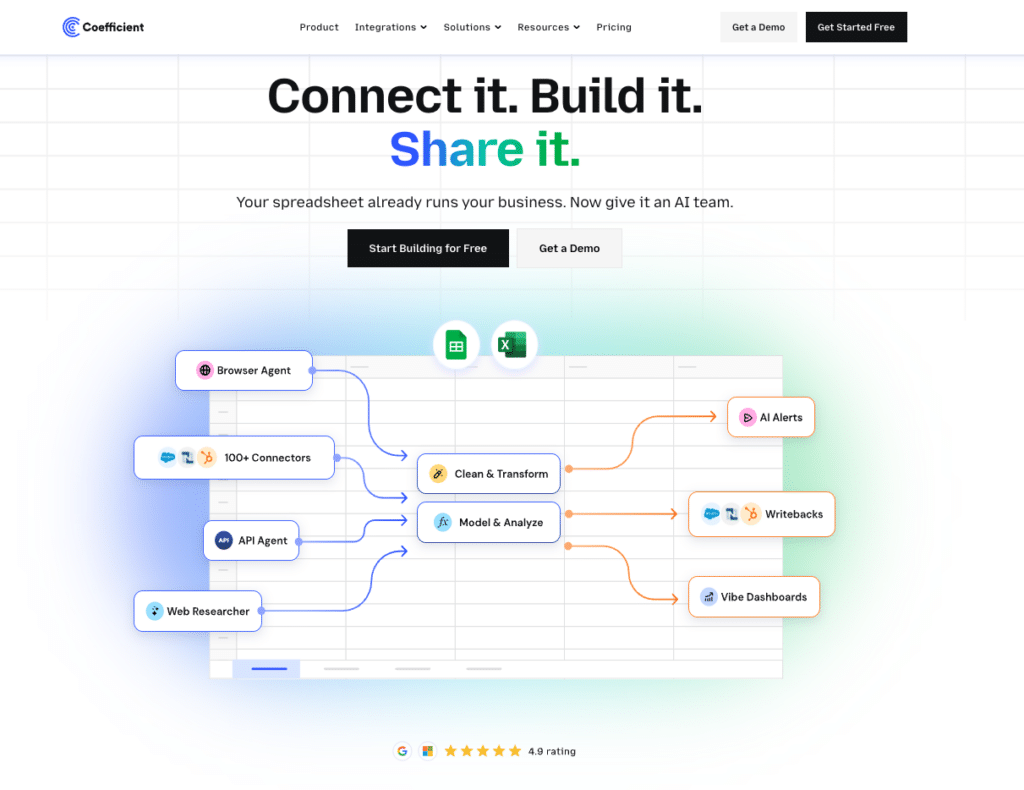
Every native export method above is a one-time manual download. For operations managers, RevOps teams or project leads who need fresh monday.com board data in a spreadsheet on a regular basis (weekly workload reviews, monthly project reporting, recurring capacity tracking), Coefficient removes the manual export cycle entirely.
Coefficient connects monday.com directly to Google Sheets or Excel. Board data refreshes automatically on the schedule you set: hourly, daily or weekly, without anyone touching the export flow.
What you can do with the Coefficient monday.com connector:
- Import board items, column values and group structure with field-level selection and filter logic.
- Set auto-refresh so dashboards and workload reports are always current without weekly manual exports.
- Apply filters on import to pull only the items that match your criteria: by status, assignee, group or date range.
- Combine monday.com data with other sources in the same spreadsheet. Pull in CRM data from HubSpot or financial data from QuickBooks alongside your board data.
- Turn live monday.com data into a shareable web dashboard. Coefficient AI dashboards build it from your live data in plain English. No BI tool required.
How to connect Monday.com to a spreadsheet with Coefficient:
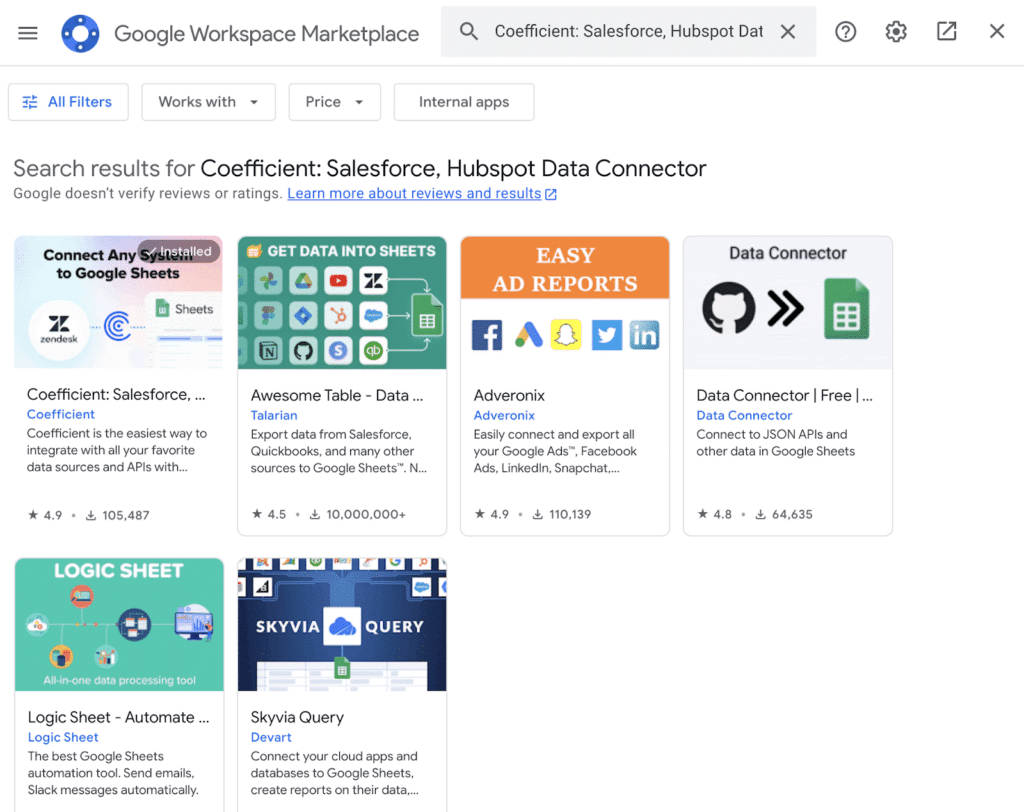
- Install Coefficient from the Google Workspace Marketplace or Microsoft AppSource.
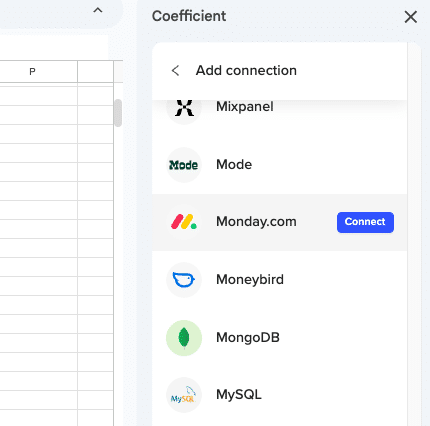
- Open Coefficient from the Extensions menu in Google Sheets, or the add-in menu in Excel.
- Click Import From and select monday.com. When prompted, enter your monday.com API key to complete the connection.
- Select the board and columns to import. Apply any status, group or assignee filters.
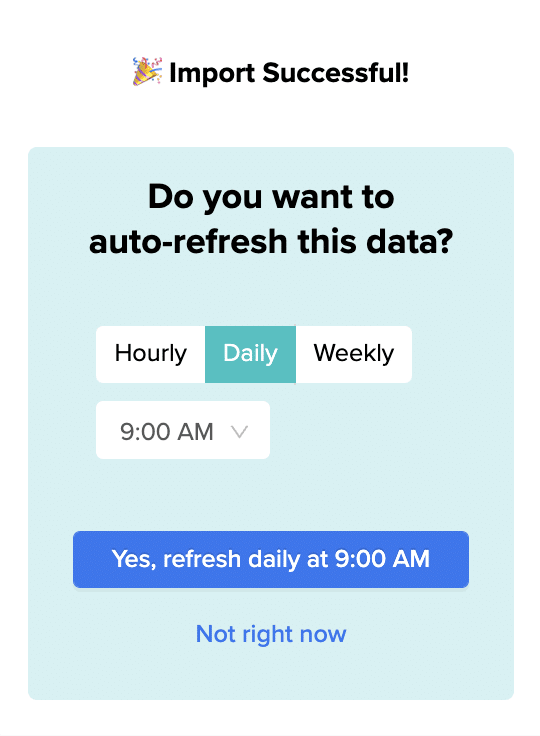
- Set a Scheduled Run (hourly, daily or weekly) to keep the data refreshing automatically.
Not a standalone BI platform. Requires Google Sheets or Excel. Try Coefficient free.
Method 3: Full account data export (admin only)
Account admins can download a zip file containing all boards and files in the account, including private and shareable boards. This is the closest thing to a full account backup that monday.com offers natively.
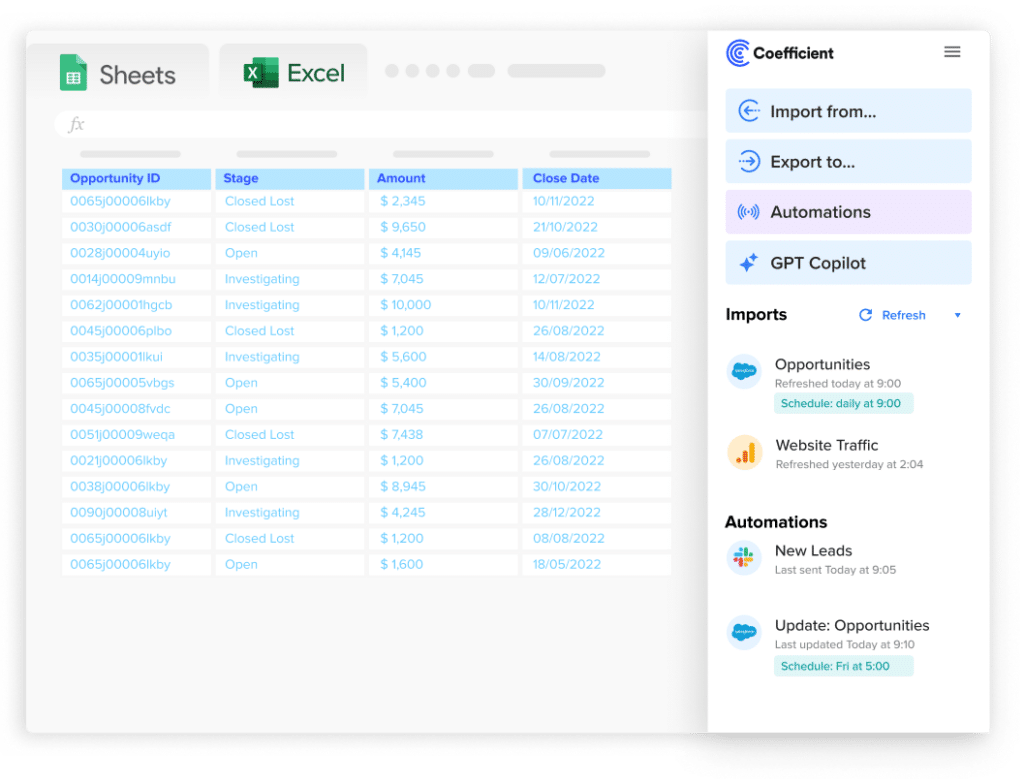
Stop exporting data manually. Sync data from your business systems into Google Sheets or Excel with Coefficient and set it on a refresh schedule.
Get Started
- Go to your profile picture and navigate to Admin > General > Export Account Data.
- Click Export. Monday.com prepares the zip file and emails a download link when it is ready.
- Download the zip within the link’s expiry window.
What is included: all boards and their data, files attached to items. Dashboards are not included in the zip, but all dashboard data comes from boards that are included.
Admin permission required: this action is only available to account administrators.
Method 4: Dashboard and board view PDF export
All board views and dashboard widgets can be exported as PDF. For recurring reports, monday.com supports scheduled PDF export . Set a schedule and add recipients, and monday.com sends the PDF automatically.
- On a board view or dashboard, click the Export button in the top right.
- Select Export as PDF for a one-time export, or Schedule PDF export to set up a recurring delivery.
- For scheduled export: choose recipients, subject line, delivery date and PDF layout. Click Save.
Plan note: the number of scheduled PDF exports available varies by plan tier. The limit applies to the number of schedules you can set up, not the number of times each schedule runs.
Method 5: Monday.com API for programmatic or bulk export
The monday.com GraphQL API provides full programmatic access to boards, items, columns, groups, updates and user data in JSON format. Use it for automated reporting pipelines, data warehouse ingestion, exporting datasets larger than 10,000 items or building custom integrations with external tools. The API paginates results using cursor-based pagination.
Import and export method comparison
Use this to pick the right method for your situation.
| Method | Direction | Data covered | Format | Best for |
|---|---|---|---|---|
| Excel/CSV to new board | Import | Items and supported column types | CSV, XLSX | One-time data entry, migration from a spreadsheet (max 8,000 rows, 50 cols) |
| Import items to existing board | Import | Items into an existing board structure | CSV, XLSX | Adding data without losing existing board setup (max 8,000 rows, 100 cols) |
| Native tool import (Trello, Asana, Google Sheets) | Import | Projects, tasks, boards from specific tools | Via OAuth from source | Direct migration from supported source tools |
| monday.com API (import) | Import | All data types including subitems | JSON (GraphQL) | Large-scale migrations, automated pipelines, subitem hierarchy |
| Board export to Excel | Export | Board items, updates, subitems | XLSX | One-time board backup or data analysis (max 10,000 items) |
| Full account export | Export | All boards and files | ZIP | Complete account backup (admin only) |
| Dashboard/view PDF export | Export | Visual board view or dashboard | Scheduled reporting to stakeholders | |
| Coefficient | Export | Board items, columns, groups | Live sync to Sheets or Excel | Recurring exports, live reporting, auto-refresh |
| monday.com API (export) | Export | All data types | JSON (GraphQL) | Bulk export, data warehouse ingestion, automated pipelines |
Monday.com import: data format requirements
Reference this before preparing any import file.
- File types: CSV or XLSX. Multi-tab Excel files: only the first tab is imported.
- File size limit: 10 MB maximum per import file.
- Row limit: 8,000 rows per import.
- Column limit: 50 columns for new boards. 100 columns for existing standard boards. 50 columns for existing CRM boards. Extra columns are silently dropped.
- Minimum columns: the file must have at least 2 columns.
- Header row: the first row used as headers must contain column names. Rows above it are ignored.
- Date format: YYYY-MM-DD only. For example, 2024-03-15. No other formats are accepted.
- Status values: must match board status label text exactly, including capitalisation and spacing. Mismatches create new labels rather than mapping to existing ones.
- People columns: if a team member and team share the same name, prefix the value with “user:” or “team:” to resolve the conflict.
- Subitems: cannot be imported. Every row becomes a top-level item.
- Supported column types on import: Status, Number, Text, Date, Email and Phone. All other column types (Timeline, Formula, Dependency, Attachment, Mirror) cannot be directly imported. Use Text columns and convert after import.
- Supported encoding: UTF-8. Save as “CSV UTF-8” from Excel to preserve special characters and non-English text.
How to back up all your Monday.com account data
For a full account backup, an account administrator can download all board data via the Export Account Data option in Admin settings. This produces a zip file containing all boards and their files. Dashboards are not included as separate files, but all dashboard data originates from boards that are in the zip.
For continuous automated backup, monday.com has partnered with Rewind which provides daily backups, on-demand backups, unlimited storage and item-level or full-account restore. It is available as an app on the monday.com Marketplace.
Before any large import or migration, export the affected board first. One-time board export takes seconds and gives you a rollback point. The native undo function has a 1-minute timeout and does not cover import-related column value changes.
FAQ
Can you export monday.com data to Google Sheets automatically?
Yes, with Coefficient. Connect monday.com using your API key, select the board and columns you need and set a refresh schedule. Board data updates in Google Sheets or Excel automatically on the cadence you choose, without any manual export steps.
What file formats does monday.com support for data import?
CSV and Excel (XLSX). Only the first tab of a multi-tab Excel file is imported. Files must be under 10 MB. The file must contain at least 2 columns and a header row.
What are the row and column limits for monday.com import?
8,000 rows and 50 columns per import when creating a new board. For existing standard boards the column limit is 100. For existing CRM boards the column limit is 50. The row limit of 8,000 applies in both cases. For larger datasets, split into multiple imports or use the monday.com API which has no equivalent hard cap.
Can you import subitems into monday.com via CSV?
No. Every row in an import file becomes a top-level item. Subitem hierarchy cannot be preserved through native CSV or Excel import. After importing, you can manually convert items to subitems using batch actions. For datasets with parent-child relationships, use the monday.com GraphQL API which supports creating subitems programmatically.
How do you export a monday.com board to Excel?
Open the board and click the … three-dot menu at the top right. Select More actions > Export board to Excel. Choose whether to include updates and subitems, then click Export. The file downloads immediately. Export respects any active board filters: filter first to get a targeted export. Maximum 10,000 items per export.
Does monday.com support two-way sync with Google Sheets?
Not natively. Monday.com’s built-in export is a one-time download. Coefficient provides live, scheduled import of monday.com board data into Google Sheets or Excel. Writing data back to monday.com from a spreadsheet is not currently supported via Coefficient. Use the monday.com API or native import for updating board data.
How do you export your entire monday.com account?
Account admins can go to Admin > General > Export Account Data to download a zip file of all boards and files, including private and shareable boards. This is admin-only. The zip does not include dashboards as separate files, but dashboard data is covered by the board exports inside the zip.
What column types can be imported into monday.com?
The native import supports: Status, Number, Text, Date, Email and Phone. Column types not supported on import include Timeline, Formula, Dependency, Attachment, Mirror, Auto Number, Rating and Votes. For unsupported types, import the data as a Text column and change the column type afterward inside monday.com.
If you need monday.com board data refreshed automatically in a spreadsheet for reporting or project dashboards, try Coefficient free and connect monday.com in a few clicks.