Attio is a relationship-intelligence CRM built around records, lists and attributes. Unlike traditional CRMs, Attio is highly flexible in its data model where you define the objects and attributes that matter to your team. That flexibility also means import and export mapping requires some preparation.
This guide covers all methods: native CSV import, record export, the Attio API and Coefficient for recurring live exports to Google Sheets or Excel.
| What data can you import and export from Attio? |
| Attio supports CSV import of contacts, companies and custom objects. Export covers records and list data as CSV. The Attio API provides full programmatic access to all record types, attributes, lists and workspace data. Coefficient connects Attio to Google Sheets or Excel for live, auto-refreshing exports of CRM data. |
How to import data into Attio
Method 1: CSV import
The CSV importer is the standard path for bringing contacts, companies or custom object records into Attio.
- In Attio, go to the object type you want to import (Contacts, Companies or a custom object).
- Click Import or look for the import option in the object settings.
- Upload your CSV file. Attio reads the column headers and attempts auto-mapping to your attributes.
- Review and adjust field mappings. Pay attention to any attributes that did not auto-map.
- Run the import. Attio processes records and reports any errors.
Format requirements:
- File type: CSV.
- Header row: the first row must contain column names. Attio uses these to auto-map to attributes.
- Custom attributes: must be pre-created in Attio before import. Attio cannot create new attribute types on the fly during import.
- Relationships: linking records across object types (e.g. a company linked to a contact) requires a matching identifier field in both the import file and the existing records.
- What cannot be imported: Attio activity history and workspace configuration cannot be imported via CSV. Use the API for those.
Method 2: Migration from another CRM
For migrations from Salesforce, HubSpot or other CRMs, prepare your data export from the source system as CSV, remap column headers to match Attio’s attribute naming and then import via the CSV importer. For complex migrations with relationship data, the Attio API provides more control over record linking and attribute mapping.
Method 3: Attio API
The Attio API supports programmatic creation and update of records, attributes and list entries. Use it for automated CRM pipelines, migrating from systems not easily exported as CSV or building custom integrations. The API uses OAuth 2.0 or API key authentication.
How to export data from Attio
Method 1: Record export (CSV)
- Open the object view (Contacts, Companies or a custom object) in Attio.
- Apply any filters to narrow the records you want to export.
- Click the Export option. Attio exports all visible records and attributes to CSV.
- The CSV downloads directly. Column headers match your Attio attribute names.
Lists and attributes: when exporting from a list view, the export includes the list entries and all attribute columns visible in that view. To export structural data (list configurations, attribute definitions), use the API.
Method 2: Coefficient for live, scheduled exports
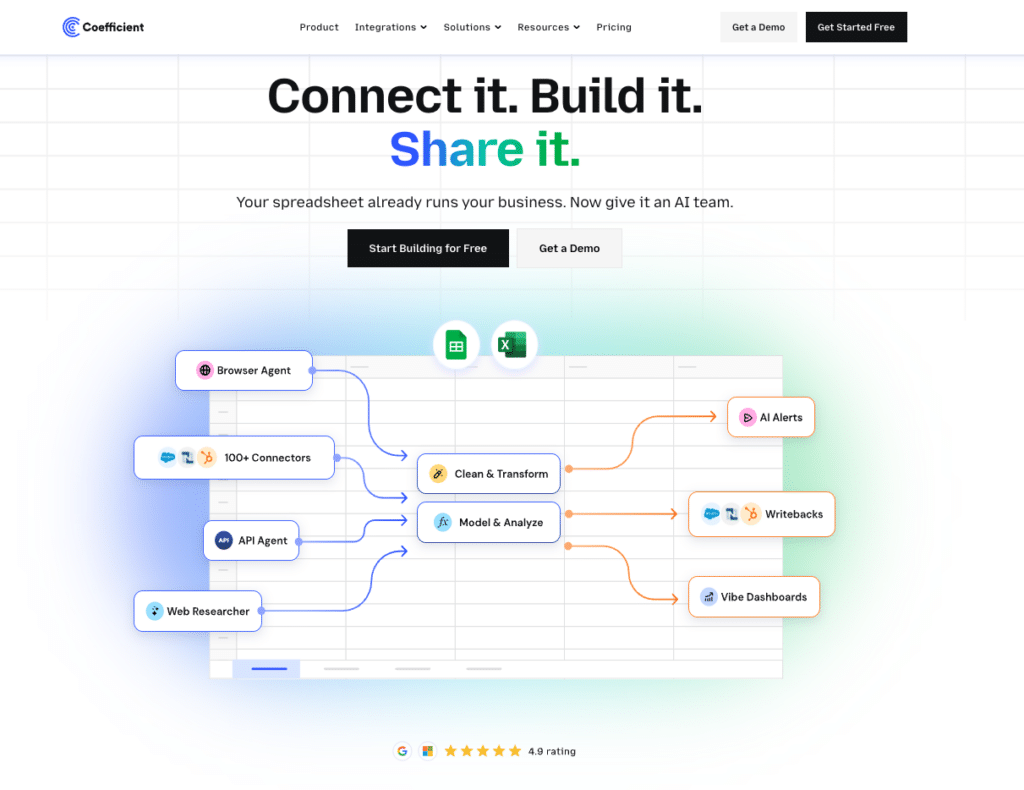
The native CSV export is a one-time pull. For sales teams that need fresh pipeline data, contact records or account information in a spreadsheet regularly for weekly pipeline reviews, monthly account health reports. Coefficient removes the manual export cycle.
Coefficient connects Attio directly to Google Sheets or Excel. CRM records refresh automatically on the schedule you set.
What you can do with the Coefficient Attio connector:
- Import contact, company and deal records with field-level selection and list filters.
- Set auto-refresh so pipeline data is always current for weekly reviews and reporting.
- Apply filters on import to pull only the records that match your criteria.
- Turn live Attio data into a shareable web dashboard. Coefficient AI dashboards build it in plain English.
How to connect Attio to a spreadsheet with Coefficient:
- Install Coefficient from the Google Workspace Marketplace or Microsoft AppSource.
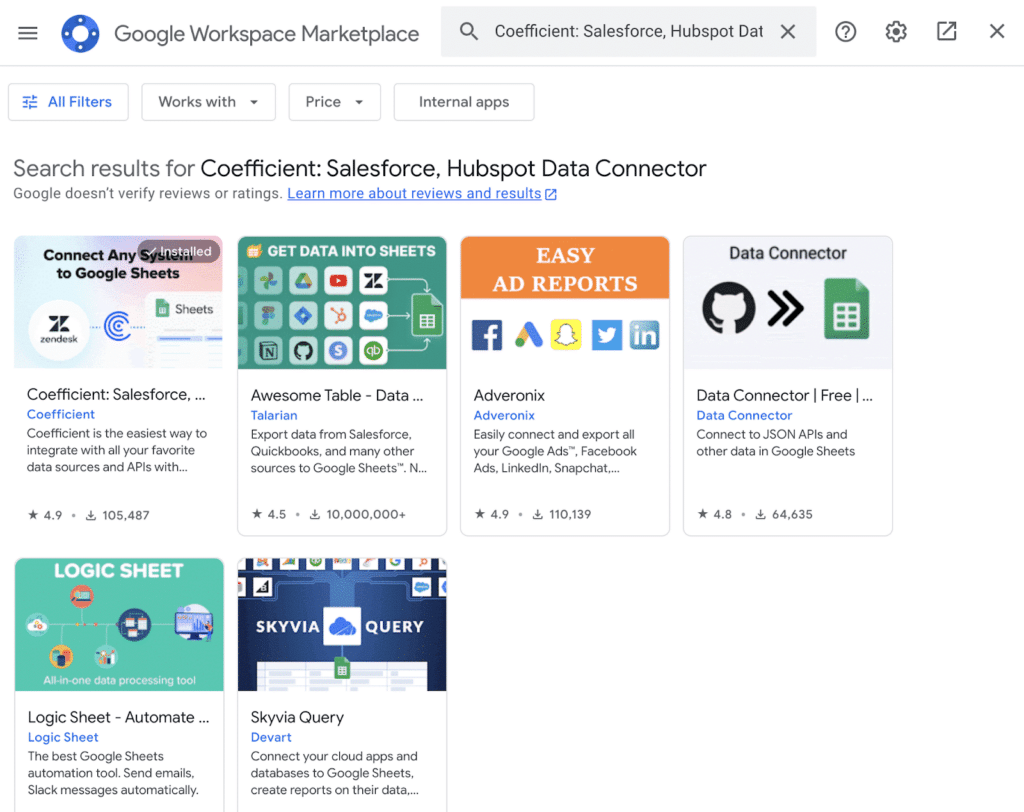
- Open Coefficient from the Extensions menu in Google Sheets, or the add-in menu in Excel.
- Click Import From and select Attio. When prompted, enter your Attio API key to complete the connection.
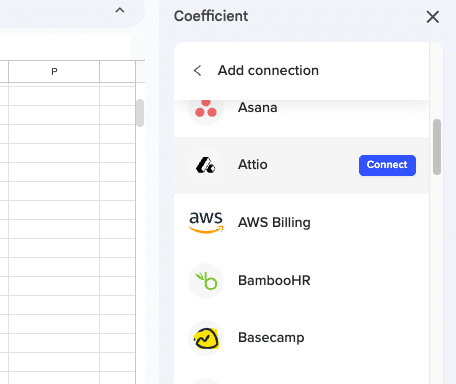
- Choose the object type (Contacts, Companies, or custom objects), select attributes and apply filters.
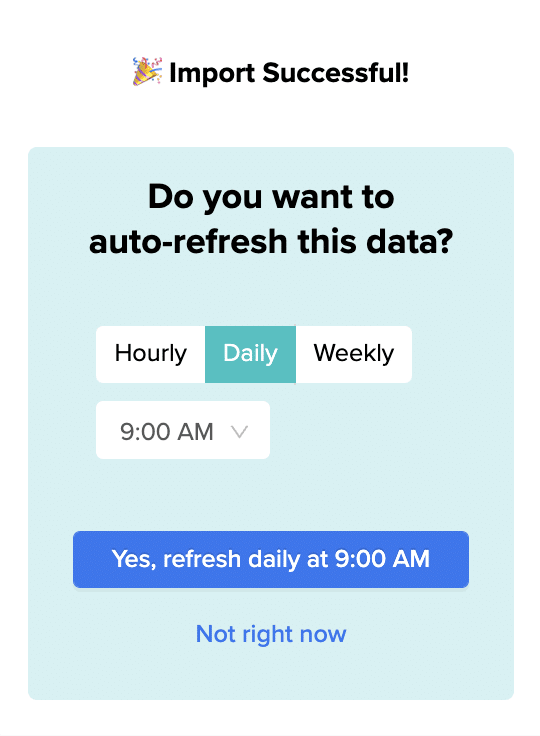
- Set a Scheduled Run to refresh data automatically.
Not a standalone BI platform. Requires Google Sheets or Excel. Try Coefficient free.
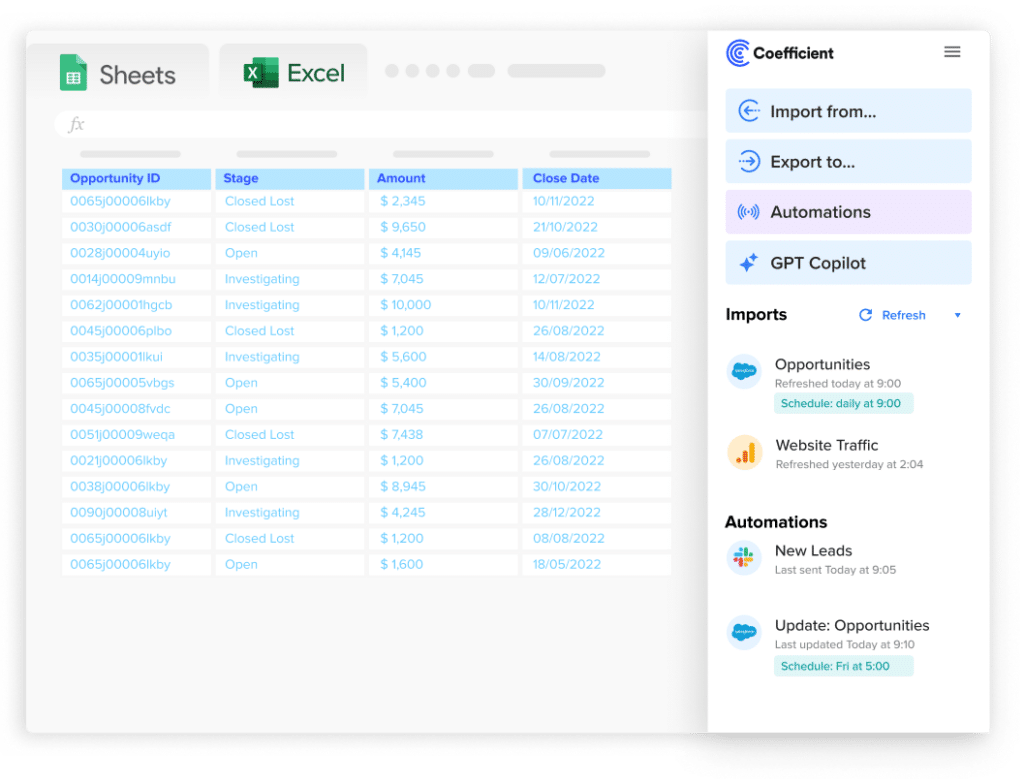
Stop exporting data manually. Sync data from your business systems into Google Sheets or Excel with Coefficient and set it on a refresh schedule.
Get Started
Method 3: Attio API for programmatic or bulk export
The Attio API supports full export of record data, attribute values, list entries and workspace metadata in JSON format. Use it for building custom export pipelines, backing up all CRM data or integrating Attio with a data warehouse. The API supports pagination for large record sets.
Import and export method comparison
| Method | Direction | Data covered | Format | Best for |
|---|---|---|---|---|
| CSV import | Import | Contacts, companies, custom objects | CSV | Bulk record import, initial CRM setup |
| CRM migration (via CSV or API) | Import | Records, relationships | CSV, JSON | Switching to Attio from another CRM |
| Attio API (import) | Import | All record types, attributes, lists | JSON | Automated pipelines, complex migrations |
| Record export (CSV) | Export | Records and attribute values | CSV | One-time exports from object or list views |
| Coefficient | Export | Contacts, companies, deals | Live sync to Sheets or Excel | Recurring exports, live reporting, auto-refresh |
| Attio API (export) | Export | All records, attributes, lists | JSON | Full backups, warehouse ingestion, custom pipelines |
FAQs
Can you bulk upload contacts to Attio from CSV?
Yes. Open the Contacts object view, click Import and upload your CSV. Map the column headers to Attio attributes and run the import. Attio processes records and reports any errors that need correction.
Can you export Attio data to Google Sheets automatically?
Yes, with Coefficient. Connect Attio, select the object type and attributes you need and set a refresh schedule. Contact, company and deal data updates in Google Sheets or Excel automatically.
What file formats does Attio support for import?
CSV is the supported format for native import. Attio does not support XLSX or vCard import natively. For other formats, convert to CSV before importing.
Can you transfer data between Attio workspaces?
Not via a native tool. To move data between workspaces, export records as CSV from the source workspace and import them into the destination workspace. Use the Attio API for more complex migrations involving relationships and custom attributes.
Does Attio support two-way sync with spreadsheets?
Not natively. Attio’s built-in export produces a one-time CSV file. Coefficient provides live import of Attio records into Google Sheets or Excel with auto-refresh. Writing data back to Attio from a spreadsheet is not supported via Coefficient.
If you need Attio CRM data refreshed automatically in a spreadsheet for pipeline reviews or reporting, try Coefficient free and connect Attio in a few clicks.