
Table of Contents

HubSpot stores your customer data. But accessing that data when you need it isn’t always simple. You need CRM records in spreadsheets. You want live sales metrics for reports. You have to sync contact lists across tools.
Most teams face the same challenge: how do you pull HubSpot data without switching between platforms or waiting for manual exports? The API offers a solution, but the path you choose depends on your technical skills, time constraints, and specific use case.
In this guide, you’ll learn three practical methods to connect to the HubSpot API—from no-code spreadsheet imports to custom development—so you can choose the right approach for your needs.
Top 3 methods to connect to HubSpot API
| Method | Best For | Technical Skills Required | Setup Time |
| Coefficient | Spreadsheet-based imports and analysis | None – no-code solution | Under 5 minutes |
| Direct HubSpot API | Custom development and proprietary integrations | Advanced – requires coding | Days to weeks |
| Zapier | Multi-app workflow automation | Basic – no coding needed | 15-30 minutes |
Method 1: Coefficient

Coefficient solves a specific problem: getting HubSpot data into the tools you already use daily. No API keys. No code. No waiting for IT to build something custom.
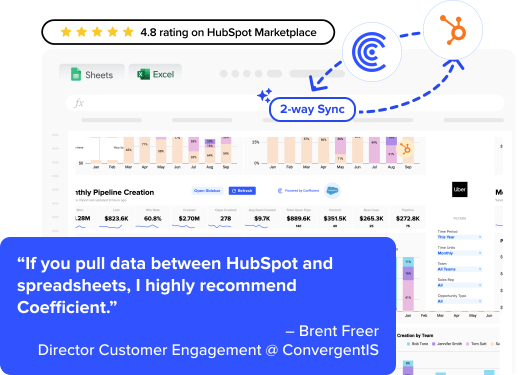
Most teams need HubSpot data in spreadsheets for analysis, reporting, and sharing with stakeholders who don’t log into the CRM. Coefficient creates a live connection between HubSpot and your spreadsheets, updating automatically on schedules you set.
Benefits of using Coefficient for HubSpot data access
- Two-way sync lets you update HubSpot records directly from spreadsheets
- Automatic refresh keeps data current without manual exports
- No technical skills required—connect in under 5 minutes
- Pre-built snapshots for common reports (contacts, deals, companies)
- Custom queries to filter exactly the records you need
How to connect HubSpot to Google Sheets with Coefficient
Start by installing Coefficient from the Google Workspace Marketplace or Excel App Store. Open a spreadsheet where you want your HubSpot data to appear.
Click Extensions > Coefficient > Launch in Google Sheets. Select Import from and choose HubSpot from the data sources menu.

Authorize the connection. Coefficient uses OAuth for secure authentication—you won’t need to find or copy API keys. Grant permissions for the data objects you want to access.

Choose your import method. From Objects & Fields works best for most use cases. Select the HubSpot object (Contacts, Companies, Deals, etc.) and pick specific fields to import.

Add filters to narrow results. For example:
- Pull only contacts created in the last 30 days.
- Show deals in a specific pipeline stage.
- Filter companies by industry or size.
Click Import and watch your HubSpot data populate the spreadsheet in real-time.

Set your refresh schedule. Coefficient can update your data hourly, daily, or weekly. Choose the frequency that matches how current you need the information.

Pros and cons
Pros:
- Zero technical expertise needed – anyone on your team can set up and maintain connections without involving IT or developers
- Live two-way sync – data refreshes automatically on your schedule and you can push updates back to HubSpot directly from spreadsheets
- Fastest time to value – get live HubSpot data flowing into spreadsheets in under 5 minutes with no custom code or API management
Cons:
- Limited to spreadsheet environments – works specifically for Google Sheets and Excel, not for custom applications or websites
- Best for analysis workflows – optimized for reporting and data analysis rather than complex multi-app automation chains
- Requires Coefficient subscription – needs a paid plan for advanced features and higher refresh frequencies beyond the free tier
Method 2: Direct HubSpot API integration
The direct API approach gives you complete control. You write code. You decide how data flows. You build exactly what you need.
HubSpot offers a comprehensive REST API with endpoints for every major object: contacts, companies, deals, tickets, custom objects. Authentication uses private app access tokens or OAuth 2.0 for user-specific permissions.
Setting up authentication
Create a private app in your HubSpot account settings. Navigate to Settings > Integrations > Private Apps and click Create a private app.
Name your app and select scopes. Scopes determine which data your app can read or write. For contact data, enable crm.objects.contacts.read and crm.objects.contacts.write.
Copy the access token. This authenticates your API requests. Store it securely—treat it like a password.
Making your first API request
Here’s a basic Python example to fetch contacts:
/hu
import requests

ACCESS_TOKEN = 'your_access_token_here'

HUBSPOT_API_URL = 'https://api.hubapi.com'

headers = {

    'Authorization': f'Bearer {ACCESS_TOKEN}',

    'Content-Type': 'application/json'

}

# Get contacts

response = requests.get(

    f'{HUBSPOT_API_URL}/crm/v3/objects/contacts',

    headers=headers,

    params={

        'limit': 100,

        'properties': 'firstname,lastname,email,company'

    }

)

contacts = response.json()

print(contacts)
This fetches the first 100 contacts with specific properties. The API returns JSON you parse and process according to your needs.
Handling pagination and rate limits
HubSpot paginates large result sets. Each response includes a paging.next.after value. Use it to fetch the next batch:
def get_all_contacts():
contacts = []
after = None
while True:
params = {‘limit’: 100, ‘properties’: ‘firstname,lastname,email’}
if after:
params[‘after’] = after
response = requests.get(
f'{HUBSPOT_API_URL}/crm/v3/objects/contacts’,
headers=headers,
params=params
)
data = response.json()
contacts.extend(data[‘results’])
if ‘paging’ not in data or ‘next’ not in data[‘paging’]:
break
after = data[‘paging’][‘next’][‘after’]
return contacts
Rate limits vary by subscription tier. Professional accounts get 100 requests per 10 seconds. Enterprise accounts get more. Implement exponential backoff when you hit limits:
import time
def api_request_with_retry(url, headers, params, max_retries=3):
for attempt in range(max_retries):
response = requests.get(url, headers=headers, params=params)
if response.status_code == 429: # Rate limited
wait_time = 2 ** attempt
time.sleep(wait_time)
continue
return response
raise Exception(‘Max retries exceeded’)
Working with different data types
Update a contact record:
contact_id = ‘12345’
update_data = {
‘properties’: {
‘phone’: ‘555-0123’,
‘lifecyclestage’: ‘customer’
}
}
response = requests.patch(
f'{HUBSPOT_API_URL}/crm/v3/objects/contacts/{contact_id}’,
headers=headers,
json=update_data
)
Create a new deal:
deal_data = {
‘properties’: {
‘dealname’: ‘New Enterprise Deal’,
‘amount’: ‘50000’,
‘dealstage’: ‘qualifiedtobuy’,
‘pipeline’: ‘default’
}
}
response = requests.post(
f'{HUBSPOT_API_URL}/crm/v3/objects/deals’,
headers=headers,
json=deal_data
)
Associate records (e.g., link a contact to a company):
contact_id = ‘12345’
company_id = ‘67890’
response = requests.put(
f'{HUBSPOT_API_URL}/crm/v3/objects/contacts/{contact_id}/associations/companies/{company_id}/contact_to_company’,
headers=headers
)
Pros and cons
Pros:
- Complete customization – build exactly the integration you need with full control over data flow, transformation logic, and business rules
- Embed in proprietary systems – integrate HubSpot data directly into your custom applications, internal tools, or customer-facing products
- High-volume capabilities – handle thousands of API calls per hour and process large datasets with optimized batch operations
Cons:
- Requires developer resources – needs experienced engineers who understand REST APIs, authentication protocols, and error handling best practices
- Significant time investment – initial development takes days to weeks, plus ongoing maintenance for API updates, bug fixes, and monitoring
- Technical debt and complexity – creates code you must maintain, monitor, and update as HubSpot’s API evolves, requiring dedicated engineering capacity
Method 3: Zapier
Zapier connects apps through automated workflows. A trigger in one app causes an action in another. HubSpot serves as either the trigger source or the action destination.
The platform works well for event-driven automation. When someone fills out a form, create a HubSpot contact. When a deal closes, send a Slack notification. When a contact reaches a lifecycle stage, add them to a Google Sheet.
Setting up a basic Zapier automation
Create a Zap starting with a trigger. Choose HubSpot and select the trigger event—”New Contact,” “Updated Deal,” “New Company,” etc.

Authenticate your HubSpot account. Zapier uses OAuth like Coefficient, so no manual API key management.

Configure trigger filters. Only run the Zap when specific conditions match. Example: trigger only for contacts in a certain lifecycle stage or deals above a certain amount.
Add an action step. This is what happens when the trigger fires.

You might:
- Add a row to Google Sheets
- Send an email via Gmail
- Create a task in Asana
- Post to a Slack channel
- Update a record in another CRM
Map fields from HubSpot to your destination app. Zapier shows available fields from the trigger. Select which data goes where in the action.
Test your Zap with real data. Zapier pulls a recent example from HubSpot and runs the workflow. Check that data appears correctly in the destination.

Turn on the Zap. It now runs automatically whenever the trigger conditions match.
Pros and cons
Pros:
- No-code cross-app automation – connect HubSpot to 5,000+ other apps without writing any code or managing API connections
- Event-driven workflows – automatically trigger actions in other tools the moment something happens in HubSpot, enabling real-time responsiveness
- Quick setup for simple automations – get basic workflows running in 15-30 minutes with pre-built integrations and templates
Cons:
- Not designed for data analysis – runs workflows one record at a time, making it inefficient for pulling large datasets into spreadsheets for reporting
- Limited data transformation – can’t easily aggregate, pivot, or perform complex calculations on data before sending it to other apps
- Task consumption costs – each workflow execution counts against your task limit, which becomes expensive for high-volume operations or frequent syncs
Choose the right method for your needs
Your best option depends on your goals. Need HubSpot data in spreadsheets for reporting and analysis? Coefficient gets you there fastest. Building a custom app that integrates HubSpot with proprietary systems? The direct API gives you full control. Want to automate workflows across multiple tools when events happen? Zapier handles cross-app automation well.
Most teams choose Coefficient because they need current HubSpot data in the tools they already use—without learning to code or managing API tokens. Sales ops, marketing ops, and revenue teams get live CRM data in Google Sheets or Excel within minutes, not weeks.
The time savings add up fast. No more manual exports. No more copy-paste. No more stale reports. Just current data that refreshes automatically while you focus on analysis and decisions.
Try Coefficient today to connect your HubSpot data to spreadsheets in under 5 minutes.