SendGrid is a transactional email and marketing platform. Its data model covers contact lists, suppressions (unsubscribes, bounces, spam reports), email templates, campaigns and statistics. Import and export capabilities differ significantly between these data types.
This guide covers contact import, suppression management, template import, the SendGrid API and Coefficient for recurring exports to Google Sheets or Excel.
| What data can you import and export from SendGrid? |
| SendGrid supports CSV import of contacts into marketing lists and suppression lists. Export covers contact lists, suppression lists (unsubscribes, bounces, invalid emails, spam reports) and campaign statistics as CSV. Email template content is accessible via the API. The SendGrid API provides full programmatic access to all data types. Coefficient connects SendGrid to Google Sheets or Excel for live, auto-refreshing email marketing data exports. |
Understanding SendGrid data types before you move anything
SendGrid separates data into two main areas. Marketing contacts are the people you send campaigns to, stored in lists and segments. Suppressions are lists of contacts who should not receive email: unsubscribes, bounces, invalid addresses and spam reporters. Both have their own import/export flows. Keep them separate — suppression lists are compliance-critical and should be carried over to any new email system before you start sending.
How to import data into SendGrid
Method 1: Marketing contact import (CSV)
- In SendGrid, go to Marketing > Contacts.
- Click Add Contacts > Upload CSV.
- Upload your CSV file. Map column headers to SendGrid contact fields.
- Add contacts to an existing list or create a new list during import.
- Click Import. SendGrid processes the file and emails a summary when complete.
Format requirements:
- File type: CSV only.
- Required field: Email.
- Reserved fields: Email, First Name, Last Name, Address Line 1, Address Line 2, City, State Province Region, Postal Code, Country, Phone Number and Whatsapp. Use these exact names for automatic mapping.
- Custom fields: must be pre-created in SendGrid (Marketing > Custom Fields) before import.
- File size limit: 2 GB maximum per upload file.
Method 2: Suppression list import (compliance-critical)
- Go to Suppressions in SendGrid and select the list type: Unsubscribes, Bounces, Invalid Emails or Spam Reports.
- Click Add Emails or Upload CSV depending on the suppression type.
- Upload a CSV with a single Email column.
- SendGrid adds all listed addresses to the suppression group.
Compliance note: always import your suppression list from any previous email platform before sending from SendGrid. Emailing suppressed contacts damages sender reputation and violates CAN-SPAM and GDPR.
Method 3: Email template import
SendGrid does not support direct HTML template import via the UI. To use an HTML template in SendGrid, go to Email API > Dynamic Templates, create a new template and paste your HTML directly into the code editor. Alternatively, use the SendGrid API to create and update templates programmatically.
Method 4: SendGrid API
The SendGrid API supports full CRUD on contacts, lists, suppression groups, templates and campaigns. Use it for automated contact sync, managing suppression lists programmatically or integrating SendGrid with a CRM or data warehouse.
How to export data from SendGrid
Method 1: Marketing contact export (CSV)
- Go to Marketing > Contacts in SendGrid.
- Filter or select a list to narrow the contacts you want to export.
- Click Export or look for the download option.
- SendGrid emails a download link when the export is ready.
- Included: email, first name, last name, all custom field values, list membership, created and updated dates.
- Not included: email engagement history (opens, clicks). Use the Statistics API for engagement data.
Method 2: Suppression list export (CSV)
- Go to Suppressions in SendGrid.
- Select the suppression type: Global Unsubscribes, Bounces, Invalid Emails or Spam Reports.
- Click Export or the download icon.
- The CSV downloads immediately with email addresses and suppression timestamps.
Best practice: export all suppression lists before switching email providers. Import them into the new provider before your first send.
Method 3: Coefficient for live, scheduled exports
SendGrid’s native exports are one-time CSV downloads. For email marketing managers and ops teams who need fresh contact counts, deliverability metrics or suppression list sizes in a spreadsheet regularly, Coefficient automates this.

Coefficient connects SendGrid to Google Sheets or Excel. Email marketing data refreshes automatically.
- Import contact lists, suppression data and campaign statistics with field-level selection and list filters.
- Set auto-refresh so deliverability and list health metrics are always current.
- Turn live SendGrid data into a shareable web dashboard. Coefficient AI dashboards build it in plain English.
How to connect SendGrid to a spreadsheet with Coefficient:
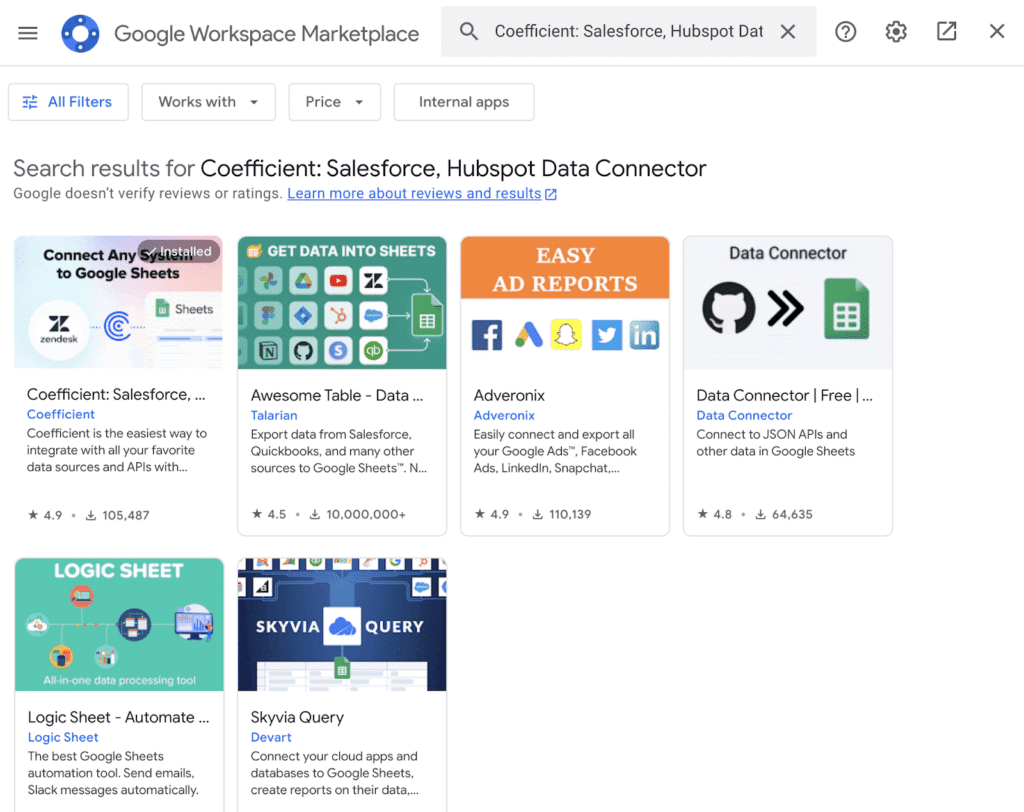
- Install Coefficient from the Google Workspace Marketplace or Microsoft AppSource.
- Open Coefficient from the Extensions menu in Google Sheets, or the add-in menu in Excel.
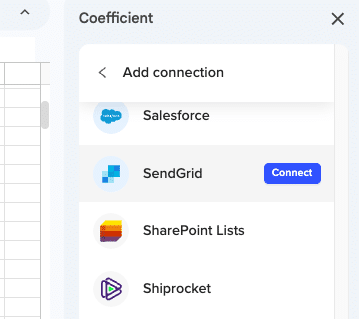
- Click Import From and select SendGrid. When prompted, enter your SendGrid API key to complete the connection.
- Select the data type (contacts, suppressions, stats), choose fields and apply filters.
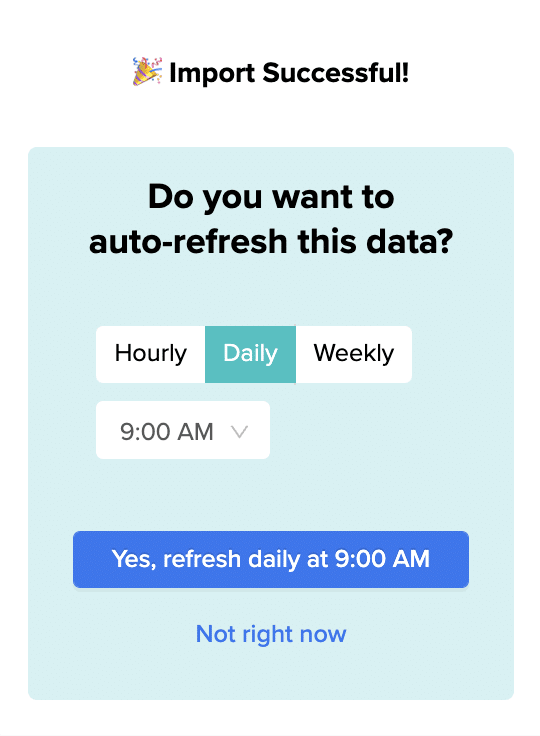
- Set a Scheduled Run to refresh data automatically.
Method 4: SendGrid API for programmatic export
The SendGrid API provides JSON access to contacts, lists, suppression groups, campaign statistics and template data. Use it for automated reporting pipelines, data warehouse ingestion or building custom dashboards on top of SendGrid data. The Statistics API provides engagement metrics (opens, clicks, bounces) per campaign or per date range.
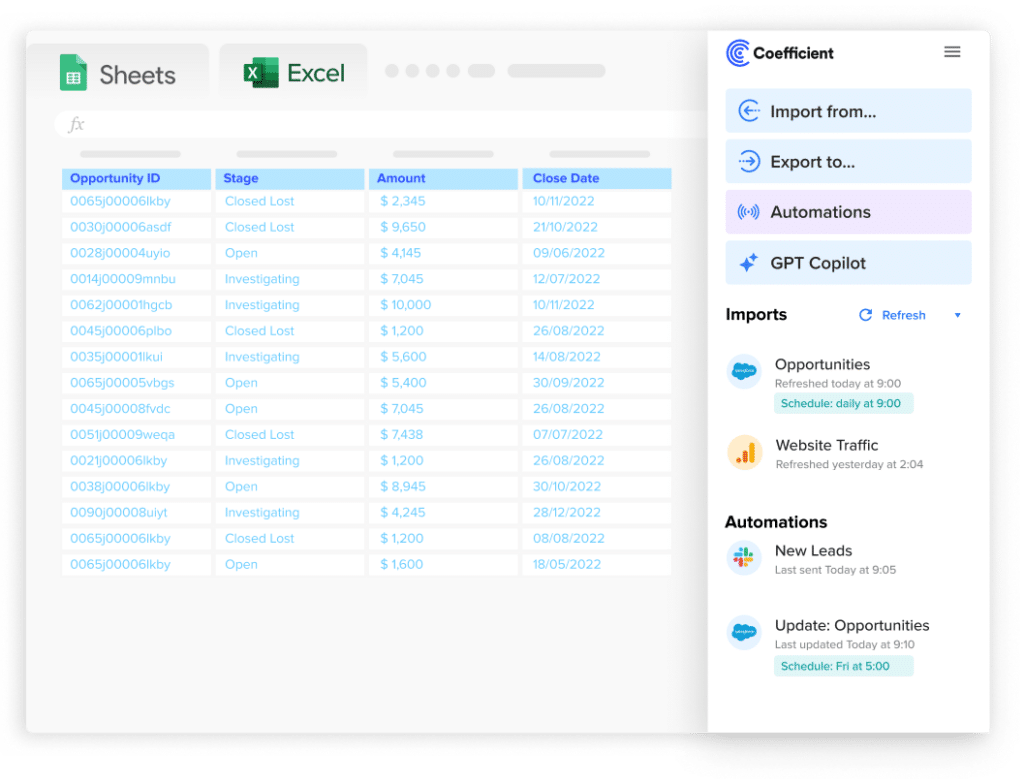
Stop exporting data manually. Sync data from your business systems into Google Sheets or Excel with Coefficient and set it on a refresh schedule.
Get Started
Import and export method comparison
| Method | Direction | Data covered | Format | Best for |
|---|---|---|---|---|
| Contact import (CSV) | Import | Marketing contacts and custom fields | CSV | Bulk contact import, platform migration |
| Suppression import (CSV) | Import | Unsubscribes, bounces, invalid, spam reports | CSV | Compliance: carrying over suppressions from previous platform |
| HTML template (via code editor or API) | Import | Email template HTML | HTML | Importing existing email templates into SendGrid |
| SendGrid API (import) | Import | All contact and template data | JSON | Automated sync, programmatic contact management |
| Contact export (CSV) | Export | Marketing contacts and custom fields | CSV | One-time contact list backup or migration |
| Suppression export (CSV) | Export | All suppression lists | CSV | Compliance export, carrying suppressions to new platform |
| Coefficient | Export from SendGrid | Contacts, suppressions, campaign stats | Live sync to Sheets or Excel | Recurring exports, live deliverability reporting |
| SendGrid API (export) | Export | All data including engagement statistics | JSON | Full backups, data warehouse ingestion, custom reporting |
FAQs
What SendGrid data can be exported?
Contact lists (with custom fields), all four suppression lists (unsubscribes, bounces, invalid emails, spam reports) and campaign statistics can be exported as CSV. Email template HTML is accessible via the API.
How do you export a SendGrid suppression list?
Go to Suppressions in SendGrid, select the suppression type (Unsubscribes, Bounces, Invalid Emails or Spam Reports) and click Export or the download icon. The CSV downloads immediately with email addresses and timestamps.
Can you export SendGrid data to Google Sheets automatically?
Yes, with Coefficient. Connect SendGrid via API key, select the data type and set a refresh schedule. Contact and campaign data updates in Google Sheets or Excel automatically.
How do you import HTML email templates into SendGrid?
Go to Email API > Dynamic Templates and create a new template. In the template editor, switch to the code editor view and paste your HTML. Alternatively, use the SendGrid Templates API to create and update templates programmatically.
How do you import a suppression list into a new SendGrid account for compliance?
Go to Suppressions > Global Unsubscribes (or the relevant suppression type). Click Add Emails and upload a CSV with one Email column containing the addresses to suppress. Do this before sending any campaigns from the new account. Repeat for all four suppression types: Unsubscribes, Bounces, Invalid Emails and Spam Reports.
If you need SendGrid email marketing data refreshed automatically in a spreadsheet for deliverability monitoring or list management, try Coefficient free and connect SendGrid in a few clicks.