Miro is a visual collaboration platform built around boards. “Data” in Miro means board content: sticky notes, shapes, connectors, images, documents and embedded cards. Export formats reflect that visual nature like PDF, PNG and JPG for sharing; CSV for sticky note data; and the Miro API for structured content.
This guide covers board export formats, CSV sticky note import, frame export, the Miro API and Coefficient for recurring exports to Google Sheets or Excel.
| What data can you import and export from Miro? |
| Miro boards can be exported as PDF, PNG or JPG for visual sharing. Individual frames export as separate PDF or PNG files. CSV import populates sticky notes from spreadsheet data. The Miro API provides structured access to board content, items and metadata. Coefficient connects Miro to Google Sheets or Excel for live, auto-refreshing board data exports. |
How to import data into Miro
Method 1: Import CSV data as sticky notes
Miro can create sticky notes from a CSV file, one sticky per row. This is the standard path for populating a board with data from a spreadsheet.
- Open a Miro board and click + Add or look for the Apps/Integrations menu.
- Search for CSV Import or use the Miro CSV importer from the sidebar.
- Upload your CSV. Map columns to sticky note fields: title, description, colour and any custom attributes.
- Click Import. Miro creates sticky notes on the board from each CSV row.
- Column mapping: the first column typically becomes the sticky note title. Additional columns can be mapped to description or tags.
- Colour coding: include a colour column to automatically apply colour coding to stickies by category.
Method 2: Import images and documents
Miro supports drag-and-drop import of images (PNG, JPG, GIF, WebP), PDFs and standard document formats. Dropped files embed directly on the board.
Method 3: Board migration and templates
To move boards between Miro accounts or teams, use the Export > Board Backup option (available on paid plans) which creates a .RTB file. This file can be imported into another Miro account via New Board > Import.
Method 4: Miro API
The Miro API supports creating and reading board items programmatically including sticky notes, cards, shapes, connectors and frames. Use it for automated board population from external data or for extracting board content for analysis.
How to export data from Miro
Method 1: Export a board as PDF, PNG or JPG
- Open the board and click … (menu, top right) or go to Export this board.
- Choose your format: PDF (best for sharing), PNG (best for images) or JPG (compressed).
- For PDF, choose whether to export the entire board or selected frames only.
- Miro exports the visual state of the board. The file downloads directly.
Format comparison:
- PDF: best quality for sharing and printing. Preserves vector elements. Multiple frames can be exported as separate pages.
- PNG: lossless image, best for embedding in documents. Large boards may produce very large files.
- JPG: compressed image, smaller file size but some quality loss. Best for quick sharing.
Method 2: Coefficient for live, scheduled exports

Miro’s native exports are static files. For teams tracking workshop outputs, research boards or sticky note data over time in a spreadsheet, Coefficient provides a live connection.
Coefficient connects Miro to Google Sheets or Excel. Board data refreshes automatically on the schedule you set.
- Import board items (sticky notes, cards, frames) with field-level selection and board filters.
- Set auto-refresh to track board changes over time for research analysis or retrospectives.
- Turn live Miro board data into a shareable web dashboard. Coefficient AI dashboards build it in plain English.
How to connect Miro to a spreadsheet with Coefficient:
- Install Coefficient from the Google Workspace Marketplace or Microsoft AppSource.
- Open Coefficient from the Extensions menu in Google Sheets, or the add-in menu in Excel.
- Click Import From and select Miro. When prompted, enter your Miro API token to complete the connection.
- Select the board and item types to pull, choose fields and apply filters.
- Set a Scheduled Run to refresh data automatically.
Method 3: Miro API for programmatic export
The Miro API provides access to all board items in JSON format. Use it to extract sticky note text, card data, connector relationships and frame structures for analysis or migration. Pagination is supported for large boards.
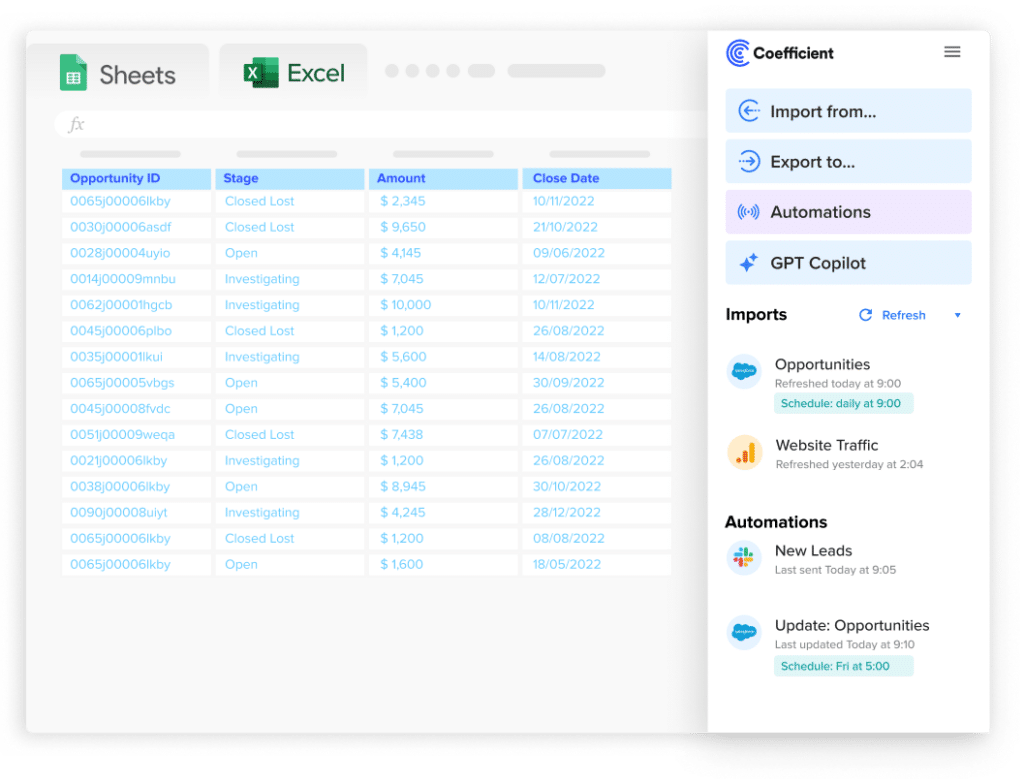
Stop exporting data manually. Sync data from your business systems into Google Sheets or Excel with Coefficient and set it on a refresh schedule.
Get Started
Import and export method comparison
| Method | Direction | Data covered | Format | Best for |
|---|---|---|---|---|
| CSV sticky note import | Import | Sticky note content from CSV rows | CSV | Populating boards from spreadsheet data |
| File/image import | Import | Images, PDFs, documents | PNG, JPG, PDF, various | Embedding external files on a board |
| Board backup import (.RTB) | Import | Full board with all elements | .RTB | Migrating boards between accounts |
| PDF/PNG/JPG export | Export | Visual board content | PDF, PNG, JPG | Sharing board visuals with stakeholders |
| Coefficient | Export | Board items, sticky notes, cards | Live sync to Sheets or Excel | Recurring exports, tracking board data over time |
| Miro API | Export | All board items and metadata | JSON | Structured data extraction, automated pipelines |
FAQ
What file formats does Miro support for export?
Miro boards export as PDF, PNG or JPG. PDF is the best format for multi-frame boards as each frame becomes a separate page. Board backups export as .RTB files which can be re-imported into Miro.
Can you import CSV data into Miro?
Yes. Miro’s CSV importer creates sticky notes from CSV rows. One row equals one sticky. Map columns to sticky note title, description and colour. This is useful for populating retrospective boards, research synthesis boards or kanban-style boards from spreadsheet data.
Can you export Miro board data to Google Sheets automatically?
Yes, with Coefficient. Connect Miro, select the board and item types you need and set a refresh schedule. Board item data updates in Google Sheets or Excel automatically.
Can you save a Miro board for offline use?
Miro does not support native offline mode. To access board content offline, export it as PDF or PNG. These are static files that can be viewed without an internet connection.
How do you move personal Miro boards to a team account?
In Miro, open the board you want to move and click … > Move to. Select the destination team workspace. You must have edit access to the board and access to the destination team.
If you need Miro board data refreshed automatically in a spreadsheet for research analysis or tracking, try Coefficient free and connect Miro in a few clicks.